You’re working through a login, signup, or some automated browser task when a message pops up: Detected an inconsistent browser fingerprint. Sometimes it’s called a browser fingerprint mismatch, or you see warnings about inconsistent browser signals detected. It’s frustrating because you might be using the same proxy, cleared your cookies, and still get flagged, so what’s really setting off these alerts?
Most people assume the fix is to swap IPs or clear the cache, but that rarely solves the core problem. The real issue is that platforms check for subtle mismatches between your reported operating system, user-agent, time zone, language, and hardware details. Even tiny gaps, like your geolocation not matching your IP, or your screen resolution changing between sessions, can trip detection scripts. If you miss a detail, you can get blocked, forced into extra verification, or even have your accounts restricted. The kicker: switching browsers or rotating proxies without syncing these signals often makes your fingerprint look even less stable.
Getting past this isn’t just about hiding your real info, it’s about making your browser profile look consistent and believable at every layer. The details matter more than most guides admit. If you want to avoid repeated fingerprinting errors, you’ll need to control which browser signals you show, and know how small differences give you away. Here’s what actually causes fingerprint mismatches, and what to change first.
Why Inconsistent Browser Fingerprints Get Detected in 2026
Platforms flag mismatched browser fingerprints because they point to unnatural behavior, simple as that. Every time your device signals don’t line up, you stand out from real users. It’s not about catching every single mismatch, but about spotting patterns that normal activity never produces. If you’ve seen a “Detected an inconsistent browser fingerprint” warning, it means the platform found signs you’re not who you appear to be.
How platforms check for fingerprint coherence
Platforms compare your browser’s signals, if they don’t fit together, that’s a red flag. Here’s where mismatches show up fast:
- User agent says “Windows 10,” but fonts or device memory match a Mac.
- Your IP geolocation maps to Brazil, while your time zone is set to Berlin.
- Screen resolution or hardware specs change wildly between sessions from the same account.
Common scenarios that trigger detection
Scripted automation and rapid environment changes are the top triggers for fingerprinting errors in 2026. For example, if you use a headless browser or an off-the-shelf automation tool, sites see right through the missing or default signals. Even if you think you’ve masked your user agent, platforms now cross-check dozens of environment details: fonts, media capabilities, WebGL data, and even battery status. If you switch proxies without updating your time zone or language, you’re basically waving a flag. The risk is clear, platforms log previous sessions and compare your current fingerprint each time you log in. If your browser fingerprint suddenly shifts from “US Windows Chrome” to “Singapore Mac Safari,” but you’re still on the same account, that account gets flagged for review or restriction.
The real challenge isn’t just hiding automation. It’s about making every fingerprint signal line up in a way that looks like a real person using one device in one place. If even one core signal doesn’t fit, automated review systems treat your profile as suspicious, false positives happen, but mismatches are hard to explain away.
Platforms aren’t just looking for one mismatch. They’re tracking patterns over time, so a single slip can get added to a risk score that builds with every login. Next, you’ll see exactly which signals matter most, these are the details that trip up even experienced operators.
What Signals Cause Browser Fingerprint Mismatches
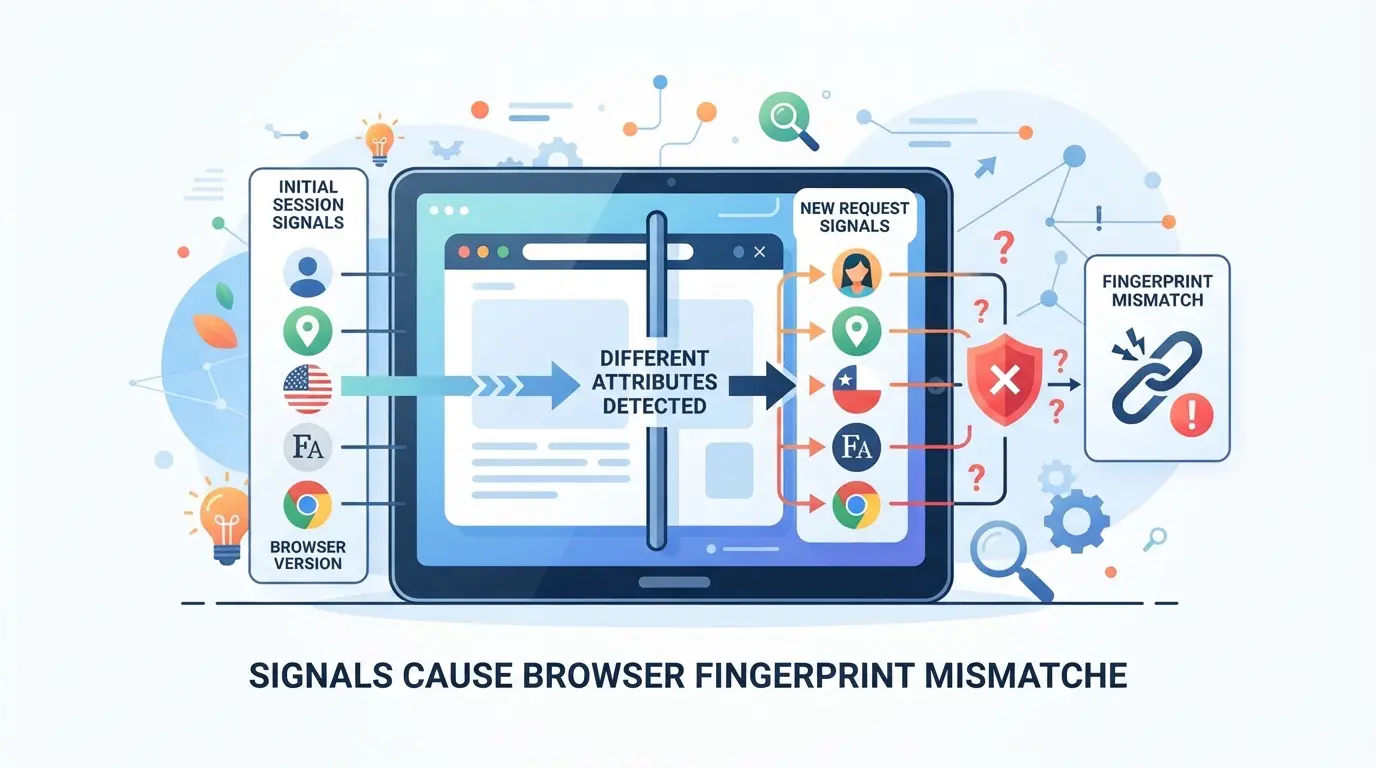
The signals most likely to trigger "Detected an inconsistent browser fingerprint" errors are the ones that don’t line up from the platform’s point of view, network, device, and behavioral details that should all belong to the same user in the same session. Some signals are easier to sync than others, but skipping even one can get your browser flagged.
Network and location signals
Platforms check if your IP address points to one country, but your browser reports a completely different geolocation. Even a mismatch between your time zone setting and your IP-based country can get you reviewed. Language settings add another layer, using a browser set to Russian while connecting from a US-based IP, for example, almost always looks odd.
Device and environment signals
The device signals go deeper than most people think. Platforms compare your reported operating system, screen resolution, and hardware info with your session’s history. If you log in twice: once from a browser showing Windows 10, then again from MacOS, but both times from the same “account,” that’s a red flag. WebGL and canvas fingerprints are even trickier, these are drawn from your graphics hardware and browser build. If your Canvas hash changes between sessions, it usually means your environment isn’t stable. The same goes for hardware concurrency (CPU cores), device memory, and battery reporting. One mismatch might slide, but two or three together almost always get noticed. If your browser fingerprint says “Android” but your WebGL or AudioContext data shows a desktop GPU, that’s a classic signal mismatch, and a common reason for sudden verification challenges.
Behavioral and session signals
- Mouse movement patterns that don’t match typical human use
- Session cookies missing or reset between logins, which make your browser look new each time
- Local storage cleared or inconsistent, breaking the “memory” the platform expects to see
If your activity looks like you’re switching devices every login, or your session resets without warning, platforms almost always flag your profile for extra checks.
Platforms don’t just look for a single mismatch, they check for patterns across these signals. If you see repeated fingerprinting errors, start by looking at which signals changed since your last login. That narrows down what to fix before running another test.
How to Diagnose an Inconsistent Browser Fingerprint
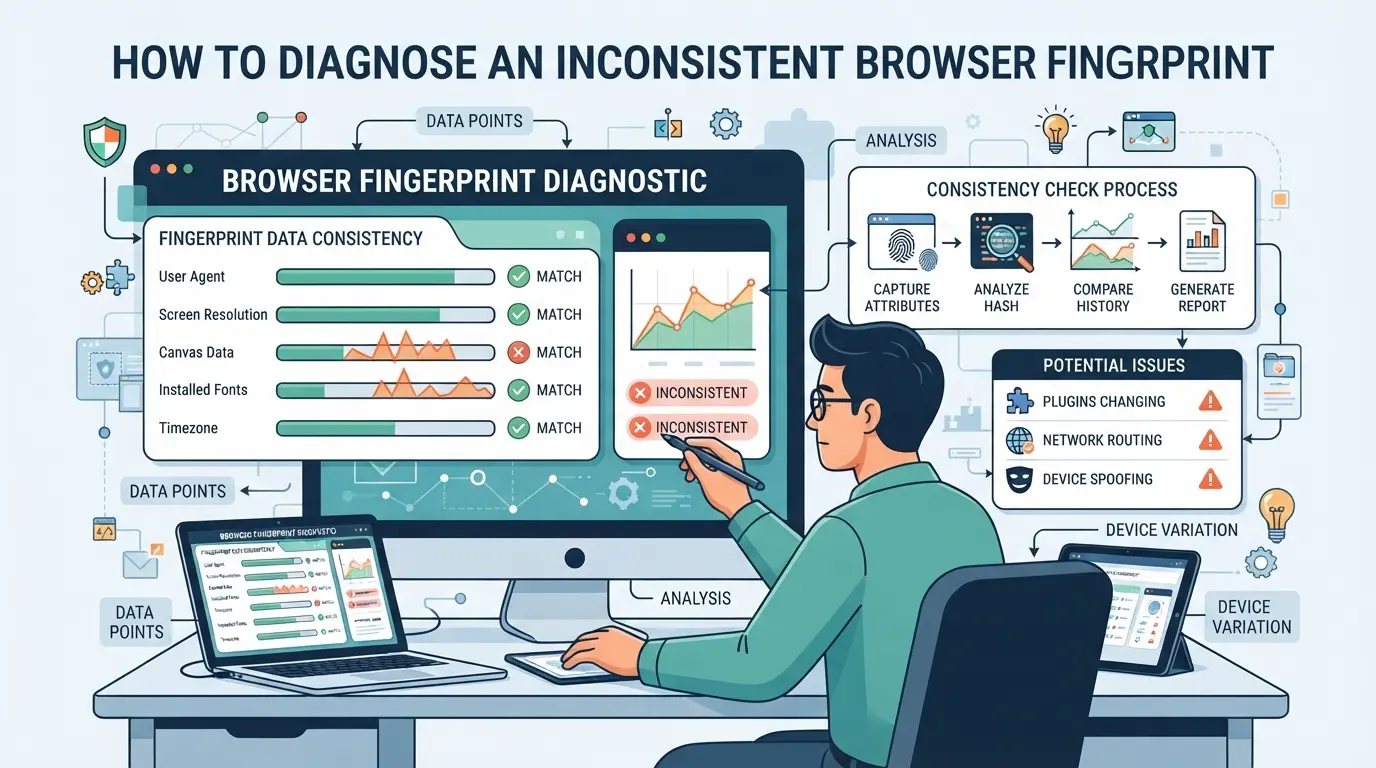
Most people only notice a browser fingerprint mismatch after hitting a block, captcha, or warning. Instead of guessing, you can run a quick checkup to find out which signals aren’t lining up. Here’s how to track down what’s breaking consistency in your browser setup.
Step 1: Test your browser fingerprint with online tools
- Go to a fingerprint testing site like CreepJS or Pixelscan.
- Run the test, look for highlighted warnings or “inconsistent” tags in the results.
- Save or screenshot the report so you can compare it after making adjustments.
Step 2: Compare signals for consistency
- Match your test results against your intended setup: OS, User Agent, timezone, language, IP country, and screen size.
- Log any differences. A timezone set to UTC+0 with an IP in the US, or a Russian interface language with a German IP, almost always triggers suspicion.
- Check for shifts between sessions, browser fingerprints that change between logins are a red flag.
| Signal |
Expected Value |
Observed Value |
Consistent? |
| OS |
Windows 10 |
Windows 10 |
Yes |
| Timezone |
UTC+3 |
UTC+0 |
No |
| IP Country |
Germany |
Germany |
Yes |
| Language |
en-US |
ru-RU |
No |
Step 3: Identify sources of drift or mismatch
- Disable all browser extensions and rerun the fingerprint test. Extensions often leak details or add unique signatures.
- Check your proxy or network setup. If your IP changes between sessions or doesn’t match your other signals, that’s your likely cause.
- Review recent changes, browser updates or new plugins can introduce new fingerprinting errors.
If you keep seeing mismatches after fixing the basics, the next section covers the most common mistakes people miss when trying to fix inconsistent browser fingerprints.
Common Mistakes That Lead to Fingerprint Inconsistency
Most browser fingerprint mismatches come from small setup errors. If you skip these details, you keep seeing “Detected an inconsistent browser fingerprint”, even after making changes.
Mixing device types or browser versions
Switching between mobile and desktop environments, or jumping from an old browser kernel to a new one, almost always leaves obvious traces. Scripts can spot these changes fast. If you load your account from a phone today and a Windows desktop tomorrow, detection tools flag the difference as suspicious. The same problem hits when you upgrade your browser but forget to match the fingerprint configuration, platforms notice the jump and treat it as a warning sign.
Inconsistent proxy or network setups
- Check if your IP matches your browser’s reported location.
- Confirm your time zone and language settings fit your proxy’s country.
- Make sure you don’t rotate proxies between sessions without updating fingerprint signals.
Neglecting fingerprint configuration after updates
Too many people install browser or OS updates, add extensions, or change settings, but never revisit their fingerprint setup. Detection scripts catch these changes quickly.
- Review fingerprint settings after any browser or OS update.
- Check for new extension conflicts.
- Update your configuration if your hardware changes.
How to Fix and Prevent Browser Fingerprint Mismatches
If you see “Detected an inconsistent browser fingerprint,” you’re missing one or more signals that platforms use to connect your sessions. The fastest way to fix and avoid these fingerprint mismatches is to set up your browser profile so that every key signal, device, network, and browser, tells a clear, matching story. Here’s how operators keep their profiles clean and believable.
Align device, browser, and network signals
- Pick a user agent and operating system that match your actual or intended device, for example, don’t claim to be on Windows 10 if you’re opening the browser from macOS.
- Set your screen resolution to a value that matches the device and user agent. Don’t switch between fullscreen and windowed mode unless you consistently use the same window size.
- Use a proxy location that matches your intended time zone and interface language. If your proxy is in Paris but your time zone shows New York, most platforms will flag the mismatch.
Maintain consistent profiles and avoid unnecessary changes
- Stick with one profile per account or workflow. Jumping between profiles or changing settings mid-session can create new mismatches.
- Avoid randomizing fingerprints or hardware settings unless you know why you’re doing it. Each change leaves a trace, platforms often spot sudden jumps in device memory or graphics info.
- Update your profiles only when unavoidable. If you must change a signal (like rotating proxies), also update matching values (time zone, language, user agent) so everything stays in sync.
- Backup your profile settings before making changes. If something breaks, revert to the last known good configuration rather than guessing what went wrong.
Monitor and log fingerprint changes regularly
- Use browser fingerprint checker tools to log your current signals before and after changes. Keep screenshots or logs so you can track what actually changed.
- Set up an alert routine, check your profile’s key signals once a week or after any major update. This helps catch accidental mismatches before they trigger account verifications.
- Make a habit of reviewing account login history for failed attempts or unexpected location warnings. These can signal undetected fingerprint drift.
- The fastest way to spot an error is to compare your active profile’s fingerprint against a known-good baseline before logging in. This simple step often catches small changes that break stealth.
Getting these steps right means fewer lockouts and less time troubleshooting. The next challenge is handling multiple accounts and proxies without creating new mismatches, this calls for careful profile isolation and proxy management, which we’ll address next.
Managing Multiple Platform Accounts with Isolated Browser Profiles and Custom Proxy Configuration in DICloak
For operators and teams who work with multiple platform accounts, fixing a browser fingerprint mismatch isn’t the end of the job. The real challenge is keeping every account’s browser profile separate and consistent, session after session, so small mistakes don’t show up as “Detected an inconsistent browser fingerprint” in platform logs. This is where DICloak’s profile isolation and custom proxy controls fit in. Instead of juggling browser windows or worrying about cross-account leaks, you can set up a controlled environment for each login. The scope here is limited to browser-profile and network signals; it does not change the outcome of any platform-side check.
Creating isolated browser profiles and configuring fingerprint signals
Operators can create a new browser profile in DICloak for each platform account or workflow. Each profile stores its own settings for operating system, user agent, time zone, screen resolution, WebGL, Canvas, and more. By keeping these signals consistent within one profile and distinct between profiles, teams avoid the most common fingerprint mismatches that happen when accounts share the same browser instance. Every profile’s signals can be reviewed and adjusted as needed, but platform-side results depend on more than just the browser layer, operators still need to handle accounts and platform rules separately.

Assigning custom proxies to each profile for network consistency
When different accounts need to appear from separate network locations, operators can assign a custom proxy to any DICloak profile. This means the browser fingerprint and the network IP align for each session. The built-in proxy checker lets you test if the assigned proxy works and whether its IP, country, and time zone match your profile’s configured signals. Operators decide which proxy to use, DICloak does not supply proxies or enforce unique IPs. If a proxy drops or rotates unexpectedly, that can trigger an inconsistent fingerprint warning on the platform side, so it’s worth double-checking settings before each session.

If you’re running a multi-account workflow, these setup steps make it much easier to control browser signals at scale, without relying on guesswork or manual profile resets.
When Tool-Assisted Fingerprint Management Makes Sense (and Its Limits)
Scenarios where tool-assisted fingerprint management is essential
If you run multiple accounts or share workflows across a team, manual browser tweaks won’t cut it, tool-based fingerprint control is the only way to avoid repeat mismatches and keep accounts from linking.
Limits and risks of relying on tools
No tool can promise your setup will be invisible or immune to future detection. Platforms update checks often, what worked last month can trigger a “Detected an inconsistent browser fingerprint” alert tomorrow. Even with perfect matching, platform rules and surprise audits can still get accounts flagged.
Best practices for safer tool use
- Recheck fingerprint and proxy settings before each major workflow change
- Follow updates from detection tool sites and platform policy pages
- Log unexpected verification prompts or lockouts, then review what changed in your environment
Checklist: Keeping Your Browser Fingerprint Consistent Over Time
Solving “Detected an inconsistent browser fingerprint” errors means staying on top of tiny details session after session. Most issues come from mismatches you could have caught with a quick review, like your IP saying “London” while your time zone says “Beijing,” or your screen resolution jumping between logins.
Consistency checklist for device, browser, and network signals
- Review every browser profile’s fingerprint settings before each session, especially after tool updates or OS changes.
- Make sure your proxy or IP location matches the time zone, language, and geolocation signals reported by your browser.
- Keep screen resolution, hardware specs, and browser version steady. Change only if you’re ready to fully update every related setting.
Frequently Asked Questions About Detected an inconsistent browser fingerprint
What does 'detected an inconsistent browser fingerprint' mean?
This message shows up when a website finds that your browser’s data and signals don’t match. For example, your time zone, language, and device info may not line up. These mismatches often happen with automation tools, spoofing, or risky browsing behavior. Platforms use this to spot bots or protect against fraud.
Can I fix a fingerprint mismatch without changing my device?
Yes, you can often fix a browser fingerprint mismatch without buying new hardware. Start by making sure your browser’s time zone, language, and system settings all match your actual location. Also, use a proxy or proxy that fits your real region. Check and update your browser extensions or privacy settings, too.
Will using a proxy solve fingerprint inconsistency?
A proxy can help your network location match your intended region, but it does not solve all fingerprint problems. Websites check many details, like device type, screen size, and browser plugins. To avoid browser fingerprinting errors, make sure all your browser signals are aligned, not just your IP address.
Is it safe to use antidetect browsers for multi-account workflows?
Antidetect browsers can help by creating separate profiles and changing browser signals for each account. However, they do not guarantee you will avoid bans or detection. If signals in your profile are still inconsistent or poorly configured, platforms may still flag or block your accounts.
How often should I review my fingerprint settings?
You should review your browser fingerprint settings any time you change devices, browsers, or proxy locations. It’s also smart to check them every few weeks if you do multi-account work. Regular reviews help catch issues early if inconsistent browser signals are detected. This lowers the risk of being blocked or flagged.
When an anomaly like this is detected, it's essential to assess your browser setup and consider tools that improve privacy and consistency. Taking proactive steps now can help prevent unnecessary disruptions or access issues during everyday browsing. Try DICloak For Free
 Web Proxy Tools
 Free Tools
 Cookie Plugin
 UA Generator
 MAC Address Generator
 IP Generator
 IP Address List
 2FA Code Generator
 World Clock
 Anonymous Check
 WebRTC Leak Test
 UUID Generator
 Free Web Proxy Site
 Proxy Checker
 FB Ad Checker
 AI Web Scraping
 Free SMM Tools
 Twitter Shadowban Checker
 Instagram Name Checker
 UTM Generator
 Username Generator
 AI Hashtag Generator
 LinkedIn Headline Generator
 Social Media Image Resizer











-1.png?x-oss-process=image/interlace,1/format,webp/quality,q_75)