Trying to get through a youtube desktop login can feel routine, until you hit a snag. Maybe Chrome suddenly won’t remember your credentials, or you’re juggling more than one channel for work and personal use and keep getting logged out. Managing YouTube sign in on desktop sounds simple, but the real friction starts when you need reliable access across browsers, multiple accounts, and strict device rules.
It’s easy to think logging in is just a matter of entering your password. But if you skip account hygiene, mix up cookies, or ignore browser warnings, you could end up locked out, flagged for suspicious behavior, or constantly fighting verification loops. Users who handle several YouTube logins on the same PC see this more often, the wrong step can trigger security reviews or wipe out saved sessions.
That’s why a clear, step-by-step workflow matters. You’ll see what actually works for single sign-ins, how to avoid account mix-ups, and what to do if Google triggers extra checks. The guide also covers what happens if you manage multiple YouTube accounts on desktop, including tips for switching without losing access or tripping red flags. No fluff, just tested steps and real risk points.
Start by checking your current login environment, browser, saved data, and Google’s latest device prompts.
What Should You Prepare Before Logging Into YouTube on Desktop?
Before you sign in, check these basics, missing even one can lead to failed logins, security warnings, or stuck verification loops. A quick prep now keeps your YouTube desktop login smooth and avoids common mistakes that lock people out before they even start.
Which browser and device settings matter for YouTube login?
YouTube works best on updated browsers like Chrome, Firefox, or Edge, older versions often break login popups or throw up “unsupported” messages. Make sure cookies are enabled, since Google’s sign-in flow relies on them to track your session. If JavaScript is off or your browser blocks third-party cookies, you’ll hit a wall before you even see the password box. Security plugins can also block key elements; if the login page looks stripped down or buttons won’t load, disable these add-ons and refresh.
What account information should I have ready?
- Double-check your Google account email, typos here are the top cause of failed sign-ins.
- Have your password at hand; don’t rely on autofill if you cleared cookies or switched browsers.
- If you use two-factor authentication (2FA), keep your phone or backup codes nearby, Google won’t let you through without them.
How does your network or proxy affect login?
Google tracks unusual IP changes and shared networks, often flagging anything out of pattern as suspicious. If you switch locations too fast, or use certain proxies, you might get forced into extra verification steps, or blocked outright. This especially hits users managing multiple accounts or logging in from public Wi-Fi.
Checklist:
- Stay on a stable network, avoid switching Wi-Fi or jumping between home and public hotspots during login.
- If you use a proxy, make sure it’s not flagged or blacklisted; random free proxies often trigger Google’s risk checks.
- Don’t log in from the same IP as other unrelated Google accounts, shared addresses can cause account mix-ups or temporary holds.
If you get stuck at login, it’s rarely just a password issue, browser settings, device security, and network changes all play a role. The next section explains why some users get blocked or face login issues on YouTube desktop, so you know what to watch for and avoid.
Why Do Some Users Get Blocked or Face Login Issues on YouTube Desktop?
Most desktop login problems on YouTube happen when Google detects something out of the ordinary, like a new location, rapid account switching, or unusual browser behavior. The system is designed to spot patterns that look risky, even if you’re just running several accounts or switching devices.
Frequent mistakes that trigger YouTube security checks
Moving between accounts too quickly or logging in from a brand new country often sets off Google’s risk alerts. Even just switching browsers without cleaning up can prompt a security check or a forced phone verification.
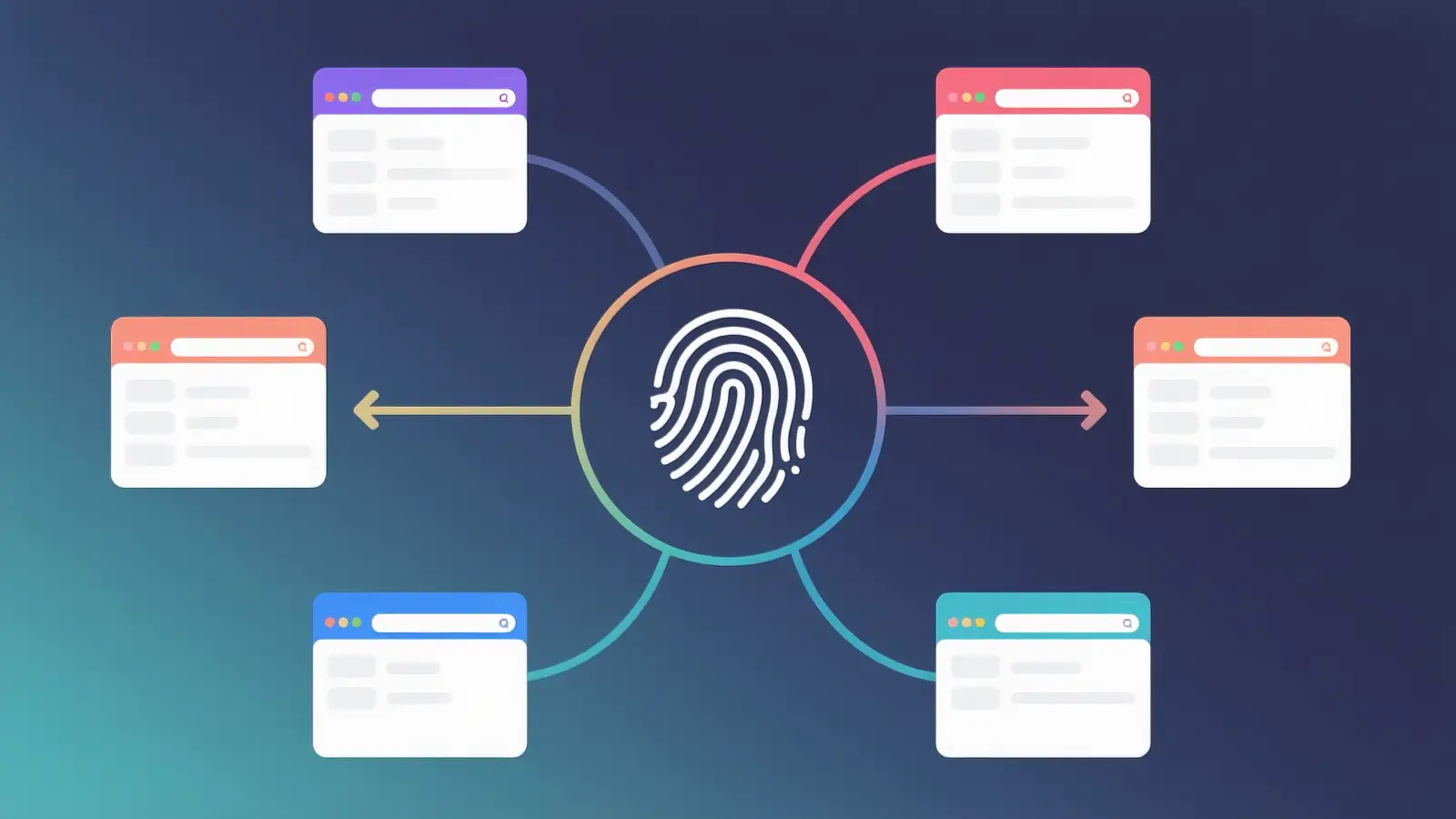
Every time you sign in, Google checks more than your password. Your browser fingerprint, details like screen size, installed fonts, and extensions, gets compared to past logins. If you use the same browser profile for different YouTube accounts, these details can link them together. This is especially risky for people managing multiple accounts on one PC. If Google sees two accounts with matching fingerprints, you may get locked out or asked for extra verification. Clearing cookies isn’t enough if your browser fingerprint still matches. For example, one user found that after buying Instagram followers and switching accounts on the same laptop, both their Instagram and YouTube accounts were flagged for “suspicious activity.” The real problem was that their browser fingerprint never changed, so Google and other platforms tied everything back to the same device. Once accounts are linked like this, even logging in from a new IP later can trigger security problems.
When proxies or network changes cause login problems
- Using proxies with mismatched locations (IP in France, browser language in English) can raise red flags.
- Rapidly changing networks, like switching from home Wi-Fi to a mobile hotspot, often triggers login verification.
- Stick to one proxy per account and keep your network stable when logging in.
If your YouTube sign in suddenly asks for extra verification, backtrack and check your network and browser setup before trying again. Lockouts usually mean Google spotted a pattern that could look like account sharing, bot activity, or even a hacked session. Getting this wrong can force a reset that takes days to recover.
Ready to see the actual login workflow? The next section breaks down each step to help you avoid these traps.
How to Log In to YouTube on Desktop: Step-by-Step for 2026
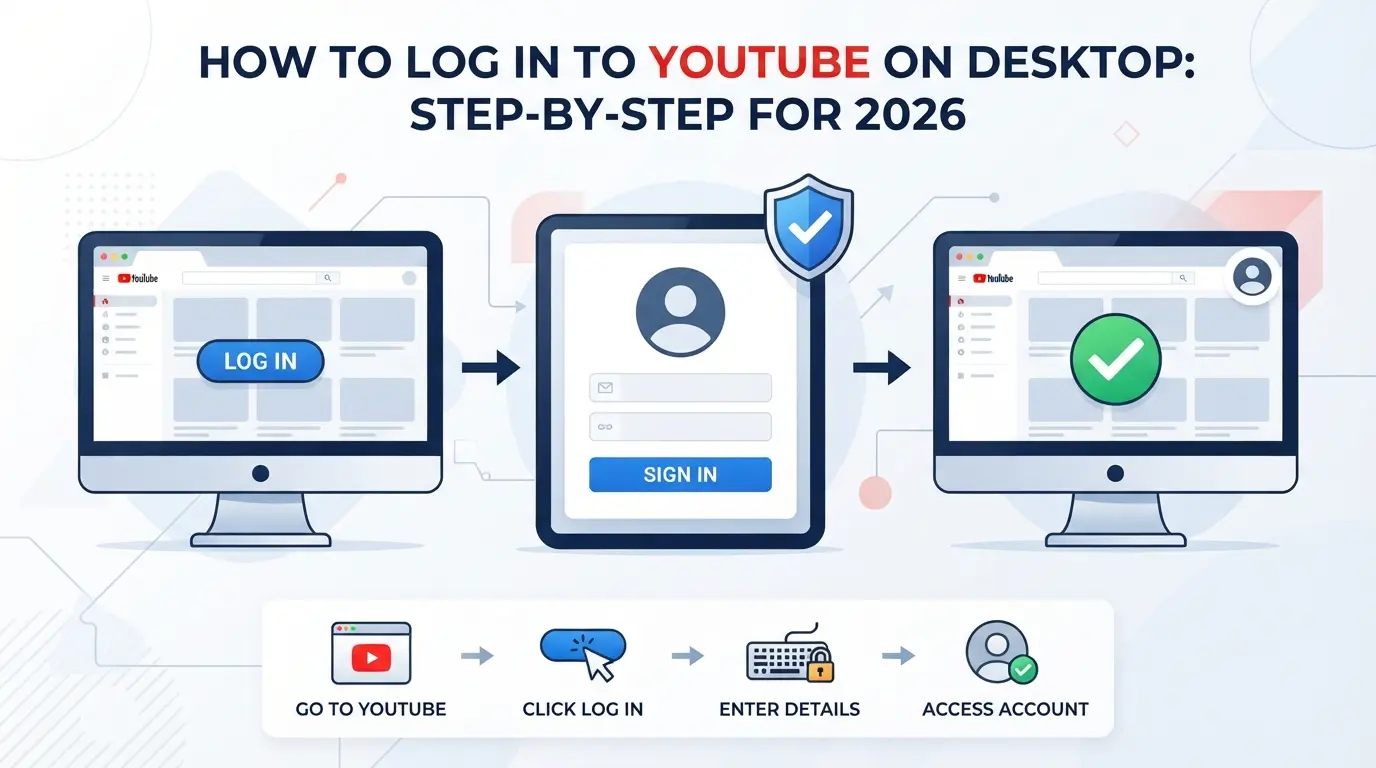
Logging in to YouTube on desktop in 2026 is more secure than before, but the steps are still direct if you know what to expect. The main thing that trips people up is Google’s increased security prompts, if the process stalls, it’s usually because of device recognition or two-step codes. Follow these steps for a smooth sign-in and quick recovery if something goes wrong.
Step 1: Open YouTube and find the desktop login button
- Go to youtube.com in your browser, use a fresh tab, not a saved session if you’ve switched accounts recently.
- Look for the "Sign in" button in the top right corner. If you see your user icon instead, you’re already logged in and can skip ahead.
- Click "Sign in", if the button is missing, clear your cache or try an incognito window. Some browser extensions can block Google’s login scripts.
Step 2: Enter your Google account credentials securely
- Enter your Google email or phone number, then click "Next."
- Type your password. Password managers can help here, but don’t auto-fill on a public computer.
- If prompted for two-step verification, check your phone or use your Google Authenticator app. Ignore any old backup codes, Google updated their system in late 2025.
- If the login page loops or reloads, your browser cookies could be corrupted, close the tab, clear cookies for google.com and youtube.com, and start again.
Step 3: Troubleshoot common login errors or challenges
- If you see “Suspicious activity detected,” don’t keep retrying, Google may lock your account after 3 failed tries. Click “Try another way” to check for backup options.
- For forgotten passwords, click “Forgot password?” and follow the recovery steps. Have your secondary email or phone ready, without them, recovery usually fails.
- If your session times out or you get stuck on a blank screen, disable browser extensions and attempt login in a private window.
- The fastest way to resolve most desktop login problems is to use a browser you haven’t used for Google accounts before, this avoids cookie collisions and autofill mix-ups.
Step 4: Confirm you are logged in to the correct YouTube account
- After login, click your avatar in the top right. Check that the email shown matches the account you intended.
- If you see the wrong account, click "Switch account" and select the correct one, or add a new account.
- For channel owners, click "Your Channel" to confirm you’re managing the right channel before posting, commenting, or editing, mistakes here are hard to undo.
- If you juggle multiple Google accounts, double-check the top-right icon every session. Mis-clicks often cause uploads or comments to go to the wrong channel.
If login still fails, move to the next section for direct fixes to the most common YouTube desktop login problems.
What to Do If You Can't Log In: Fixing Common YouTube Desktop Login Problems
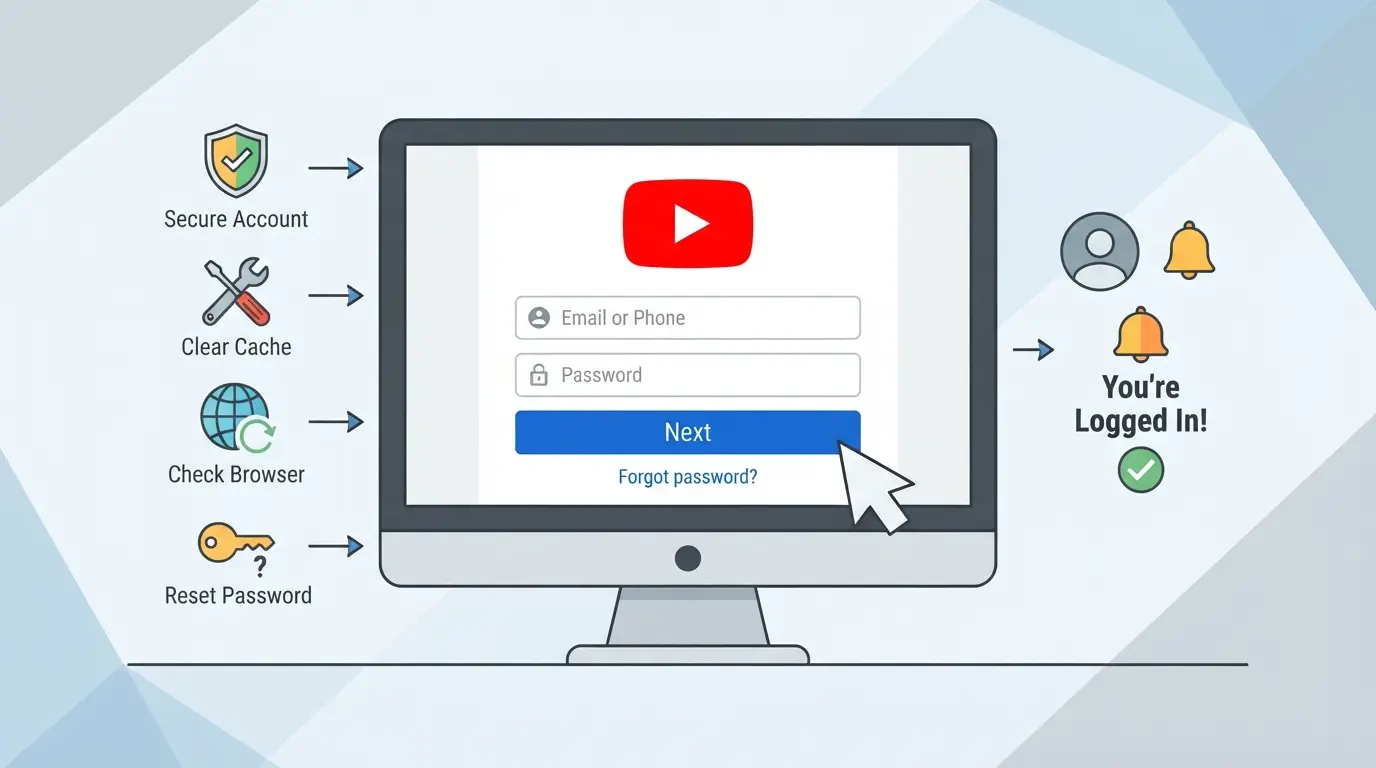
Login errors on YouTube’s desktop site usually come down to password mix-ups, device suspicion, browser settings, or temporary account locks. The fastest fix comes from matching the error message to a direct action, don’t waste time repeating steps that don’t fit your specific problem.
Forgot password or lost access to your Google account
Go straight to the Google Account recovery page and enter your email. Use a device and location you’ve used before, this makes Google’s checks easier to pass. If you hit a dead end, try every phone number or backup email you ever connected. Trying from a new device almost always makes recovery harder.
Device or location flagged as suspicious
- Tap "Verify" in the security prompt sent to your phone, if available.
- If prompted, check your Gmail for a warning and use the “This was me” button.
- Still blocked? Wait 30-60 minutes and attempt login from your previous regular device.
Browser or network issues preventing login
Clear your browser’s cookies and cache, then restart. If you’re using a proxy, make sure IP changes aren’t too frequent, Google tracks location shifts, and sudden jumps can freeze your sign-in.
Account temporarily locked or restricted
Account locks often trigger after too many failed logins or if Google spots risky activity. Sometimes, you get a timer; other times, a form to fill.
- Read the exact error, timed lockouts usually show minutes remaining.
- For a manual review, use the support request linked in the error.
- If you see “Unusual activity detected,” wait out the timer before trying again.
Next up: switching between multiple YouTube accounts on desktop without running into these same traps.
How to Switch Between Multiple YouTube Accounts on Desktop Without Getting Flagged
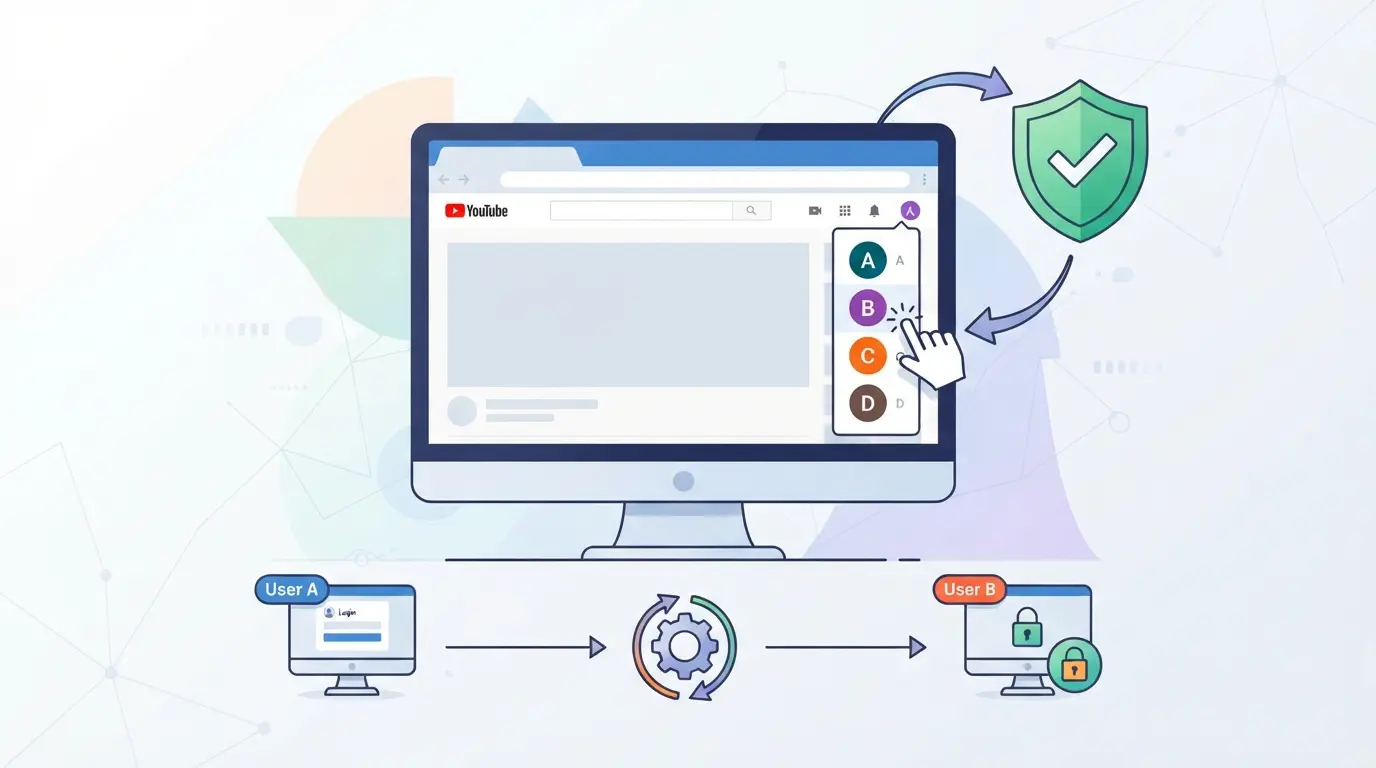
If you use more than one YouTube account on the same desktop, the way you switch matters. Mixing up sessions the wrong way can trigger Google’s security checks, lockouts, or even link accounts you wanted to keep separate. Below, you’ll find the real-world steps that help avoid these problems.
Risks of using multiple YouTube accounts in one browser
- Logging out and back in with different accounts in a single browser shares cookies, Google can spot this pattern and may flag or lock both accounts.
- Using “Add account” inside the same browser profile links sessions; if one account gets flagged, others can get reviewed or restricted.
- Switching too quickly, or on the same device with reused tabs, often leaves traces that tie profiles together, even after logout.
Safer methods for switching accounts
- Create separate browser profiles (Chrome, Edge) for each YouTube account, each profile keeps its own cookies, history, and login state.
- For higher separation, use different browsers (like Chrome for one, Firefox for another), or run them in private/incognito mode, but only for single-use sessions.
- Never mix work and personal accounts in the same browser profile, one misstep can get both flagged.
Best practices for keeping accounts separated
- Use a password manager to avoid typing errors when signing in, wrong passwords can trigger security checks.
- Double-check you’re in the right browser profile before logging in; Chrome’s colored profile icon helps.
- Keep recovery emails and phone numbers unique per account. Using the same recovery options can link your accounts on Google’s backend.
- Log out fully from all Google services before switching if not using profiles.
When you should consider browser profile tools for multi-account safety
- If you run more than 3-5 accounts, or manage business/brand logins, manual switching gets risky, automation helps avoid mistakes.
- Teams sharing desktops should use browser profile management tools to keep workspaces separate and reduce accidental cross-login.
- Anyone handling sensitive or client accounts needs stronger isolation to prevent accidental linking, manual methods break down fast.
How to Set Up Isolated Browser Profiles and Proxies for Safer Multi-Account YouTube Workflows
If you need to manage more than one YouTube sign-in on desktop, strict profile separation and unique proxies cut down on cross-account risk fast.
How to create isolated browser profiles for each YouTube account
- Open your browser’s profile manager.
- Create a new profile for each YouTube account, you want one per login to keep cookies and sessions apart.
- Name each profile for easy tracking.
- Never reuse a profile for a different account, or Google may link them.
Configuring fingerprint settings for natural account behavior
- Set browser language, time zone, and OS to match real user patterns.
- Use a consistent device fingerprint per profile. If you change it mid-session, Google may trigger extra checks.
Assigning a unique proxy to each profile
- Pick a residential proxy for each profile, avoid sharing IPs between accounts.
- Test the IP location. If the region shifts wildly, your login may get flagged.
Maintaining separation and monitoring for account safety
- Check for leaks: logins, cookies, or IP overlap.
- Rotate proxies or update fingerprints if Google starts flagging activity or sending extra verification steps.
How Social Media Teams Use DICloak to Manage Multiple YouTube Accounts with Profile Isolation and Proxy Configuration
For social media teams who handle more than one YouTube account, keeping login sessions separated is a practical need, especially when working on shared desktops or rotating team members. After setting up isolated browser profiles and proxies for safer multi-account work, some teams use DICloak to control browser profiles and network settings for each account. This workflow focuses on browser profile separation and connection setup; it does not change how YouTube accounts themselves are managed.
Setting up isolated browser profiles for each YouTube account in DICloak
Teams can create a separate browser profile in DICloak for every YouTube account, storing its own browser storage, fingerprint settings, and session data. By configuring the reported operating system, interface language, and time zone for each profile, teams keep each login environment distinct. This means work stays organized and reduces the chance that profile data from one session overlaps with another. The scope covers browser-profile setup; it does not affect YouTube account actions or settings.

Configuring user-provided proxies for each DICloak profile
When a workflow requires each account to log in from a separate network location, operators can set up a user-provided proxy for each DICloak profile. Entering proxy details and testing the connection before use helps ensure the right profile connects through the intended route. Teams stay responsible for proxy quality and assignment, DICloak only stores and applies the chosen settings within each profile.

If these browser-profile setups are rushed or skipped, teams often run into session confusion or mixed login histories, the next section breaks down common mistakes to avoid.
What Are the Most Common Mistakes and Risks When Using YouTube Desktop Login for Multiple Accounts?
Handling several YouTube accounts on the same desktop can trigger account restrictions or data leaks if you miss key isolation steps. The biggest issues come from session mix-ups, shared proxies, device fingerprint mismatches, and ignoring warning signs.
Mixing sessions or reusing browser profiles
Switching accounts in the same browser, even after clearing cookies, often links them together. Google tracks browser fingerprints and device IDs, so accounts can get flagged as related.
Using low-quality or shared proxies
Shared or recycled proxies can link your accounts fast.
- Accounts sharing an IP may get suspended in bulk after one is flagged.
- Use unique, high-quality proxies for each session to keep accounts isolated.
Ignoring fingerprint consistency
If your browser’s fingerprint (like language, timezone, or extensions) changes between logins, Google’s system often triggers security checks. Keep device signals steady to avoid extra verifications.
Failing to monitor for account warnings or suspicious activity
Missed alerts about “suspicious sign-in” or device changes can lead to sudden locks. Check the security tab regularly, respond early if you see warning banners or email alerts.
Frequently Asked Questions About youtube desktop login
Can I log in to YouTube desktop with more than one account at the same time?
Yes, you can access multiple YouTube accounts on desktop, but each needs to be in a separate browser profile or container. Using different browser profiles keeps cookies and login sessions apart. This prevents Google from linking your accounts and helps avoid cross-account issues. Chrome and Firefox both allow you to set up these profiles easily.
Why does YouTube keep asking me to verify my identity when I log in on desktop?
YouTube may ask for extra identity checks if it notices changes in your sign-in pattern, such as using a new device, switching IP addresses, or logging in from a different location. This is part of Google’s security system to prevent unauthorized access. If this happens often, try to use a familiar device and network.
Is it safe to use proxies for YouTube desktop login?
Login safety depends on the proxy’s quality and your setup. Always use private, trusted proxies, public or shared proxies can expose your login details or cause account locks. Assign a unique proxy to each browser profile to avoid mixing sessions or leaking your identity across accounts.
What should I do if my YouTube account is locked after desktop login?
If your account gets locked, visit Google’s account recovery page right away. Follow the steps to verify your identity and reset your password if needed. Also, check your recent sign-in history for suspicious activity. Remove unknown devices and update your security settings to protect your account.
How do I keep my YouTube accounts from being linked or banned when using desktop login?
To keep your accounts separate and safe, use isolated browser profiles and assign each one a unique proxy. Don’t log in to multiple accounts within the same browser session. Avoid reusing device fingerprints or mixing up cookies. This reduces the risk of account linking or bans by Google.
Now that you know how to access your YouTube account on desktop, you can decide whether to improve your browsing experience with added privacy or security tools. Consider exploring options that protect your account and data as you enjoy your favorite content or manage your channel. Try DICloak For Free
 Web Proxy Tools
 Free Tools
 Cookie Plugin
 UA Generator
 MAC Address Generator
 IP Generator
 IP Address List
 2FA Code Generator
 World Clock
 Anonymous Check
 WebRTC Leak Test
 UUID Generator
 Free Web Proxy Site
 Proxy Checker
 FB Ad Checker
 AI Web Scraping
 Free SMM Tools
 Twitter Shadowban Checker
 Instagram Name Checker
 UTM Generator
 Username Generator
 AI Hashtag Generator
 LinkedIn Headline Generator
 Social Media Image Resizer