If you’re searching “Ticketmaster locked me out of my account,” start with the exact message on your screen. A password error, an activity pause, and an identity check can look similar when you cannot get in, but each has a different recovery path.
Quick Answer: Follow the instructions for the message you received. Reset your password for a sign-in problem, complete the requested verification if Ticketmaster asks you to confirm your identity, and contact Fan Support if the account still says it is locked. A new account or browser tool will not remove a restriction on the original account.
First, identify the type of Ticketmaster account problem
“Locked out” can mean that your sign-in details are not working, that Ticketmaster has paused activity, or that it needs to verify you. Read the full message before changing your password or trying another device.
| What you see |
What it may mean |
Best next step |
| Incorrect email or password |
Your sign-in details may not match the account |
Confirm the account email, then reset the password if needed |
| Activity paused or suspended |
Ticketmaster has paused activity or needs another step |
Follow the on-screen instructions and avoid repeated attempts |
| Security check requested |
Ticketmaster needs to verify the account holder |
Complete the check on the recommended device |
| Account explicitly locked |
The account may need Support’s help |
Contact Ticketmaster through its official help channel |
You cannot sign in with your email or password
Check the email address before requesting a password reset. People may have several inboxes or may have created a Ticketmaster account years ago with an address they no longer use. Search old order confirmations to identify which email is connected to the tickets.
Ticketmaster’s current U.S. sign-in help page says Apple and Google sign-in are no longer available there, so customers need to use their email address and password. This may vary by market, so check your local Ticketmaster help page if you are outside the U.S. If you can sign in but the email address is wrong, Ticketmaster says to update it in Profile Details on its website, not in the app.
Ticketmaster paused your activity
An activity pause is different from a password problem. Ticketmaster says it may pause activity when it detects unusual behavior, and some users may need to wait a short time before using the account or site again. The message does not, by itself, confirm that your tickets have been canceled. Follow the steps on Ticketmaster’s paused-activity help page.
Avoid treating a pause as proof that your account has been permanently disabled. First, follow the message and allow the stated wait to pass. If the message remains or changes to an account-lock notice, contact Fan Support.
Ticketmaster asked you to complete a security check
A security check asks Ticketmaster to confirm that you are the account holder. Depending on the flow, it may involve a phone or email code, a live selfie, or an official photo ID. Use the instructions in your account or in a message you can verify as coming from Ticketmaster.
For its Persona security check, Ticketmaster recommends using a mobile device and staying on that device throughout the process. It says multiple devices or browser tabs may cause a submission not to be accepted. If an ID is requested, the name on the account should match the legal name on the ID; Ticketmaster explains the process in its Persona security-check guide.
How to recover access to your Ticketmaster account
Once you know which kind of error you have, follow the matching steps. Change one thing at a time and note what you tried. That gives you a clear record if you need to explain the problem to Support.
- Record the exact message. Write down the wording, when it appeared, and whether you saw it in the app or a browser. Keep screenshots private if they show your name, order number, barcode, or other account details.
- Confirm the account email. Check old order confirmations and Ticketmaster emails. If you cannot access that inbox and have an upcoming event, contact Fan Support; Ticketmaster directs customers in this situation to Support.
- Reset your password only if the error points to a sign-in problem. On Ticketmaster’s sign-in page, enter your email, choose Forgot Password, and follow the one-time-code instructions in its password reset guide. The U.S. instructions say the code is sent by text or, for some landlines, provided by phone. If the code does not arrive or the reset fails, contact Support instead of requesting new codes repeatedly.
- For a paused session, follow the on-screen steps and wait. Ticketmaster advises enabling cookies, turning off automated tools or browser extensions, and avoiding repeated clicks or refreshes. Its error-message troubleshooting page notes that activity on a shared network may be a factor and suggests trying a personal network, such as mobile data. Follow the advice for your specific message rather than switching repeatedly among networks and devices.
- Complete a security check on the recommended device. Stay on one device and follow the steps in order. If the check requests an ID, make sure it is current and the name matches your legal name. Ticketmaster says some sign-in checks provide an immediate update, while an emailed security-check submission may take five to seven days to review. The timing depends on the type of check.
- Contact Ticketmaster if the account remains locked. For U.S. accounts, Ticketmaster’s locked-account help page lists 1-800-653-8000. It gives representative hours as Monday through Friday, 9 a.m. to 8:30 p.m.; Saturday, 9 a.m. to 7 p.m.; and Sunday, 9 a.m. to 6 p.m. local market time. These details apply to the U.S. page; fans elsewhere should use the contact information on their local Ticketmaster site.
Before you contact Support, gather the account email, event name and date, and any order number you can access. Explain the exact error and the steps you have already tried. Ticketmaster warns fans about fake support numbers and people posing as its employees, so use the contact details on its official account-security page.
If you cannot receive the verification code
Check that the phone number on the account is current and can receive the type of code Ticketmaster sends. If you changed numbers or lost access to the old one, do not use someone else’s number as a workaround. Contact Fan Support and explain that you cannot receive the code.
Ticketmaster’s U.S. password-reset instructions say it cannot use Google Voice or other VoIP numbers for verification. A landline may receive a call instead of a text. These details apply to the U.S. process, so follow the instructions shown for your local account.
If the security check fails or will not load
Check that you are using the device Ticketmaster recommends and that the browser has camera access if the check needs it. Make sure the name on the account matches your ID if Ticketmaster requests one. For a timeout, Ticketmaster advises trying again after a few moments; if it still fails, contact Fan Support rather than sending identity documents through an unverified channel.
Do not start several verification attempts on different devices while waiting for a result. Ticketmaster says multiple devices or browser tabs may interfere with some Persona submissions. Keep the email or page that contains the instructions so you can refer to the same process if you need Support.
If you cannot access the email connected to your tickets
Tell Fan Support that the inaccessible email is tied to an upcoming event. Include the event name and date so the team understands why you need help. Do not create a new account and assume your original order will appear there; Ticketmaster directs customers with upcoming events on an inaccessible email to Support.
What to do about tickets while your account is locked
A sign-in problem alone does not confirm whether an order is canceled or how you will enter the event. If you have tickets for an upcoming show or game, ask Fan Support to confirm the order and explain the entry method. Contact them early if the event is close instead of waiting until you reach the venue.
When you contact Support, be specific. Say whether you can access the email on the order, whether the event is within the next few days, and whether you can see any order confirmation. Ask what steps you should follow to access the tickets and whether the event uses mobile entry. This gives Support the details needed to address the ticket problem as well as the login issue.
Ticketmaster says customers who cannot access the email linked to an upcoming event should contact Fan Support. A new account may not show the original order, so do not assume that creating one will restore your tickets.
Keep ticket details private while you recover access. Ticketmaster warns that someone who gets a copy of a mobile-ticket barcode may misuse it. Do not post a barcode, order number, or account screenshot in a public forum; use Ticketmaster’s official account and ticket features to check your order.
A few common workarounds can create more confusion:
- Creating a new account: It may not include the original order or account history, and it does not resolve a restriction on the locked account.
- Trying many devices and networks in quick succession: Changing several things at once makes the cause harder to identify. For an identity check, Ticketmaster recommends staying on one device and avoiding multiple tabs.
- Repeatedly refreshing or requesting codes: This can blur the difference between a temporary pause, a delivery problem, and an account restriction. Follow the displayed steps and give each one time to work.
- Paying someone who promises to unlock the account: Do not share your password, verification code, or payment details with an unsolicited helper. Use Ticketmaster’s official contact options.
Hypothetical example: Say your concert is tomorrow and the message says Ticketmaster has paused your activity. First, stop refreshing and follow the instructions on the screen. If the account remains unavailable, contact official Fan Support, explain that the event is tomorrow, and ask them to confirm the order and entry method. Creating another account or posting the ticket screenshot is unlikely to answer the urgent question: whether and how you can access the original tickets.
After you regain access, check that the email address and phone number on the account are current. Ticketmaster recommends a strong, unique password, a secure email account, accurate account details, and a passkey where available.
If you share a computer with family or coworkers, sign out when you finish and avoid leaving your ticket account open for the next person. For separate, authorized work sessions on a shared device, DICloak’s Browser Profile setup guide explains how to create and label distinct Profiles. That can help organize browser work, but it is not a step for recovering a Ticketmaster account.
Where DICloak Fits in a Ticketmaster Account Lockout
Getting locked out of Ticketmaster can interrupt more than a personal ticket purchase. For event agencies and teams handling authorized client projects, it may also disrupt account-related tasks and make it harder to coordinate responsibilities.
DICloak cannot unlock a Ticketmaster account or bypass its security checks. However, for teams that already manage multiple authorized browser workflows, it can help keep Browser Profiles organized, control team access, and review internal activity while the account owner works with Ticketmaster Fan Support.
Organize Different Projects With Browser Profiles
An event agency may handle several client projects at once, with different staff members responsible for each one. When everyone works through the same browser, saved sessions and account information can easily get mixed up.
With DICloak's Browser Profiles, teams can create separate workspaces for authorized projects. Each Profile keeps its own cookies and browser storage, making it easier to maintain distinct sessions. Administrators can also use Batch Operations to open or close selected Profiles, update remarks, and assign Profiles to different groups.
For example, an agency could organize Browser Profiles by client or event project and use clear Profile names to identify each workspace. If one account becomes inaccessible, the team can identify the affected workspace without disrupting unrelated projects.

Control Which Team Members Can Access Each Profile
When several employees work on event-related projects, not everyone needs access to every browser session. Giving all members the same access can lead to confusion, especially when projects have different owners and responsibilities.
Using DICloak's Profile Groups and member permissions, administrators can organize Profiles by project and control which members can access them. Feature Permissions also allow managers to restrict supported operations based on each member's role.
For example, a manager could assign one group of Profiles to the team handling Client A and another to the team handling Client B. If responsibilities change, the manager can review and update access instead of giving every employee unrestricted access to all workspaces.
These controls help organize internal work, but Ticketmaster's own rules still determine who can access an account. Team permissions in DICloak do not replace account ownership or Ticketmaster's identity verification.

Review Team Activity When Account Access Problems Occur
When an account suddenly becomes inaccessible, team members may not remember who last handled the related Browser Profile or whether its settings were changed.
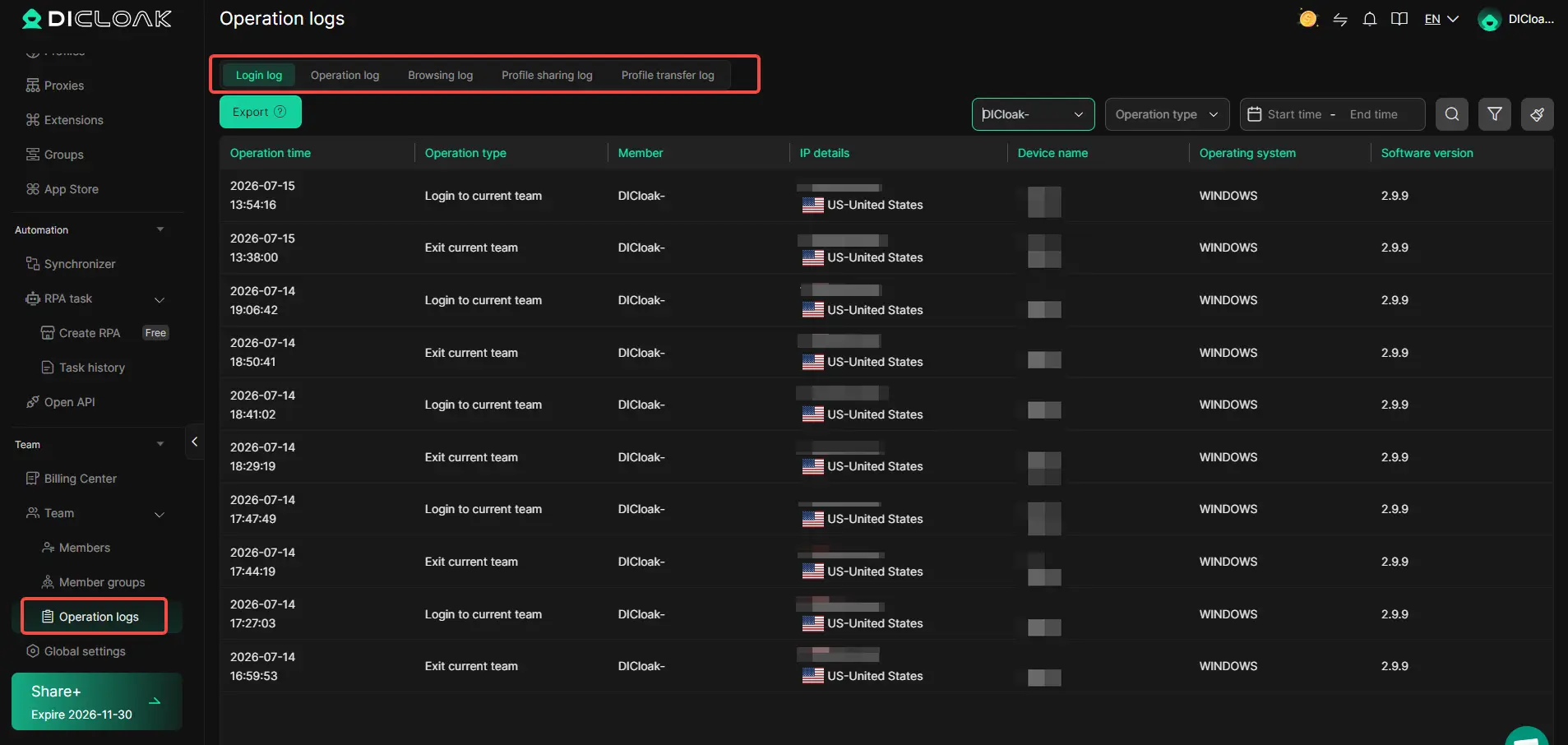
With DICloak's Team Operation Logs, administrators can review supported activity through records such as Login Logs, Operation Logs, Profile Sharing Logs, and Profile Transfer Logs. These records help managers understand how browser workspaces were handled internally.
For example, if a team encounters a Ticketmaster login problem during an authorized project, the manager can review relevant DICloak activity to identify which employees accessed or managed the Profile. This may help the team reconstruct its own workflow and avoid unnecessary repeated login attempts.
Operation Logs cannot reveal why Ticketmaster restricted an account or reverse the decision. If the account is locked, the owner must still complete Ticketmaster's official recovery process.
FAQs About Ticketmaster Account Lockouts and Ticket Access
These answers cover common questions about Ticketmaster sign-in errors, account recovery, and ticket access.
Why did Ticketmaster lock me out of my account?
There is no single cause for every lockout. It may be an incorrect email or password, a temporary activity pause, an identity check, or an account issue that needs Support. The exact message on screen is the best starting point because each problem has a different recovery path.
How long does a Ticketmaster account lockout last?
There is no one timeline for every type of lockout. Ticketmaster says some activity pauses may clear after a short wait, while identity checks can take longer. If the account still says it is locked after you follow the instructions, contact Fan Support rather than repeatedly testing the sign-in page.
What should I do if I cannot access the email linked to my tickets?
Contact Fan Support and explain that the unavailable email is connected to an upcoming event. Include the event name and date so they can understand the issue. Do not assume a new account will include orders from the old one.
What if I do not receive a Ticketmaster password-reset code?
Check that the phone number on the account is correct and can receive the code. Ticketmaster’s U.S. instructions say it cannot use Google Voice or other VoIP numbers; a landline may receive a call instead of a text. If the code still does not arrive, contact Fan Support rather than requesting it repeatedly.
Does a missing barcode mean my Ticketmaster account is locked?
Not necessarily. Ticket delivery and barcode availability can depend on the event. Check the delivery details for your order and contact Fan Support if you cannot access the ticket or need help confirming how to enter.
Will I lose my tickets if Ticketmaster locks me out?
A sign-in problem alone does not confirm whether an order is canceled or how you can enter. Ask Fan Support to check the order and explain the event’s entry rules. Avoid posting screenshots of mobile tickets or barcodes because exposing them can put the ticket at risk.
Final Takeaway: If Ticketmaster locked you out of your account, match the message on screen to the right recovery path. Reset your password for a sign-in problem, follow the instructions for a pause or security check, and contact official Fan Support if the account remains locked. If you have upcoming tickets, ask Support to confirm the order and entry method.
 Web Proxy Tools
 Free Tools
 Cookie Plugin
 UA Generator
 MAC Address Generator
 IP Generator
 IP Address List
 2FA Code Generator
 World Clock
 Anonymous Check
 WebRTC Leak Test
 UUID Generator
 Free Web Proxy Site
 Proxy Checker
 FB Ad Checker
 AI Web Scraping
 Free SMM Tools
 Twitter Shadowban Checker
 Instagram Name Checker
 UTM Generator
 Username Generator
 AI Hashtag Generator
 LinkedIn Headline Generator
 Social Media Image Resizer