Getting locked out of your Amazon account is more common than most people expect. Whether it’s a forgotten password, a blocked login after too many failed attempts, or a sudden email from Amazon about suspicious activity, the pressure to recover Amazon account access fast is real, especially if you rely on Amazon for business or daily shopping.
But rushing through recovery can backfire. Entering the wrong info too many times can trigger longer lockouts. Using outdated contact details means Amazon’s reset links never reach you. In some cases, users find their recovery attempts stuck in endless verification loops, or support responses that take days instead of hours. The difference between a quick fix and a drawn-out mess usually comes down to the steps you take in the first 30 minutes.
Most guides only explain the password reset. The reality is, Amazon’s security checks now involve two-factor codes, device review, and sometimes manual support review. Knowing the right order, when to use self-service, when to escalate to support, and which backup info matters, can decide if you’ll regain access within the hour or lose it for a week.
Start by mapping out which recovery path matches your current lockout situation.
Why Amazon Accounts Get Locked or Suspended in 2026
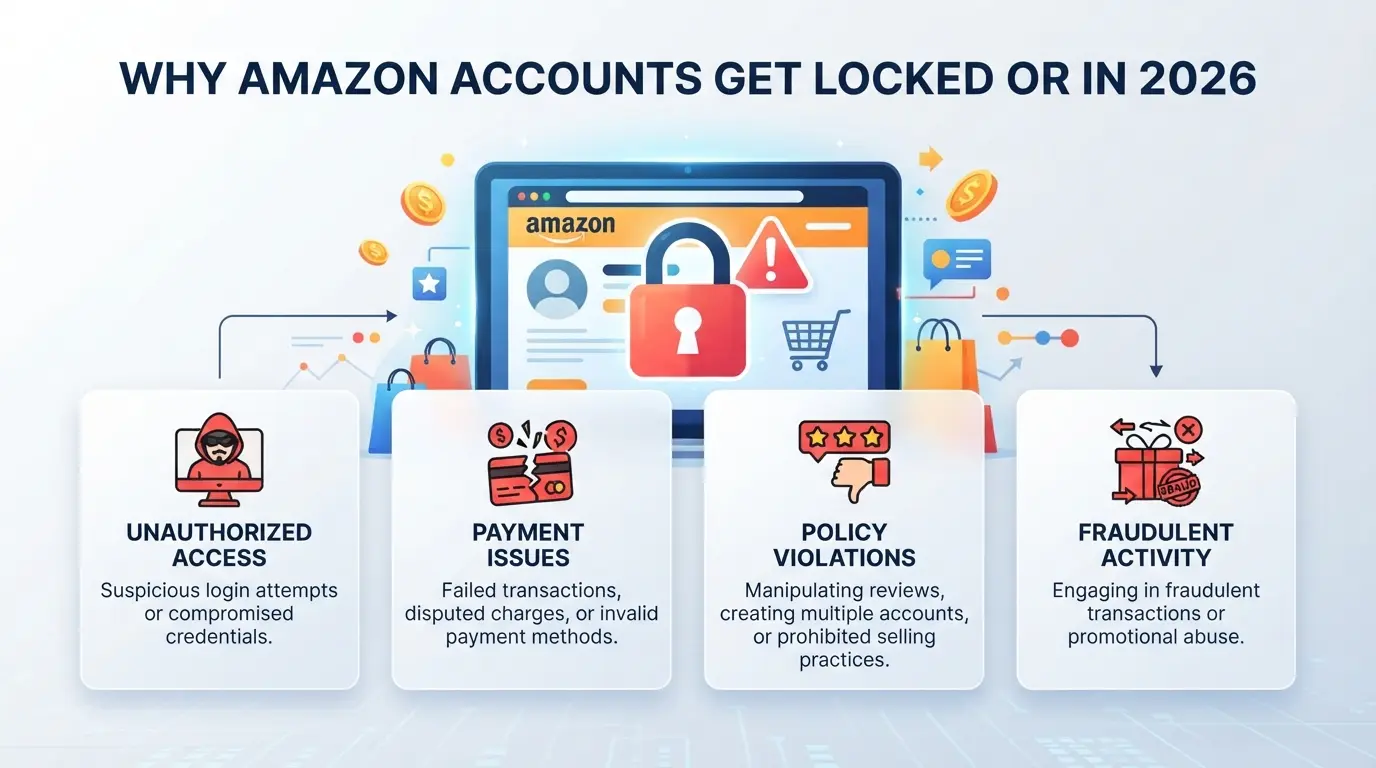
If your Amazon account just got locked or suspended, chances are it wasn’t random. Most users land in recovery mode because Amazon’s systems flagged something in their login patterns, account activity, or business practices. Knowing what caused the lockout is the first step to getting back in, otherwise, you risk repeating the same mistake as soon as you regain access.
Frequent Triggers for Account Lockouts
Traveling and logging in from a new country, using a device Amazon doesn’t recognize, or even switching proxies without warning can all trigger instant lockouts. Billing problems, like a failed card or expired payment method, are another quick way to lose access.
Policy Violations and Seller Risks
Amazon’s policy checks have become stricter, especially for sellers. Product listing violations, such as selling restricted items, using misleading titles, or listing in the wrong category, now trigger automated reviews before a human even checks your case. For example, if your listing shares keywords with a banned product, the system may suspend your store even if your item is legal. On the customer side, too many complaints or chargebacks can flag your account as a risk. This is where most sellers get blindsided: you might be following rules today but get hit by a surge in returns or one bad supply batch, and suddenly your entire store is under review. Trying to appeal without understanding which specific violation tripped the system often leads to a dead end, Amazon’s support will reject generic requests and ask for exact documentation or compliance steps. Missing the real trigger is the fastest way to get stuck in the suspension loop.
Technical and Security Red Flags
- Entering the wrong two-step code more than once will lock you out for hours.
- Adding or changing recovery info (like email or phone) can prompt Amazon to freeze your account until you confirm the changes.
- If the system detects password resets from multiple locations in a short time, it may assume your account is compromised and force manual review.
If you’re not sure which of these triggered your lockout, stop and review your recent actions, guessing wrong can waste days on the wrong recovery steps.
Before you start the Amazon account recovery process, check which of these issues matches your situation. Knowing the real reason for your lockout will save time and help you pick the right recovery path.
What to Check Before Starting Amazon Account Recovery
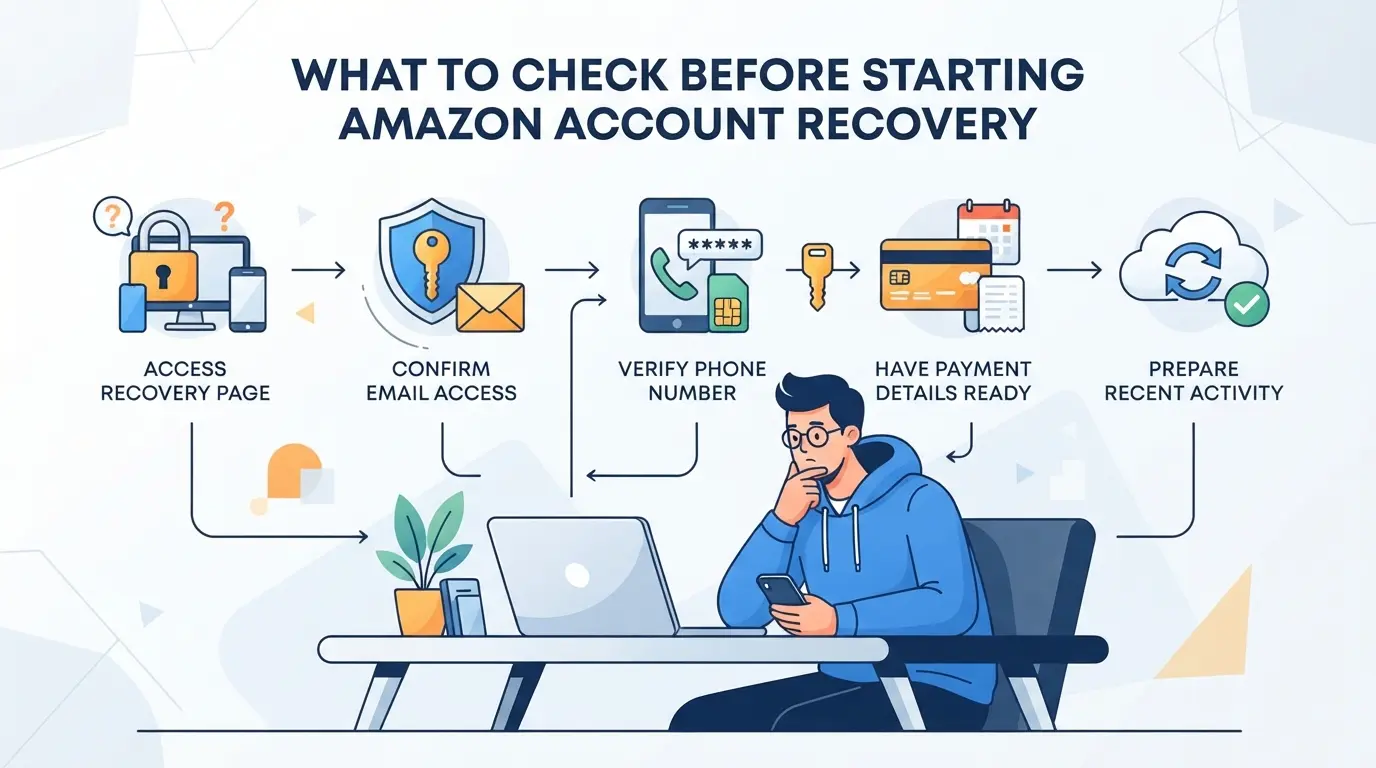
Before you start any Amazon account recovery steps, make sure you have access to your current contact info, the right documents ready, and that you’re not triggering extra security checks by logging in from a new device or network. Missing even one of these can lock you in a verification loop or stall your request for days.
Verifying Your Account Information
Get into your email and phone account before doing anything else. If you can’t receive Amazon’s codes, recovery grinds to a halt. Double-check your personal or business details for typos, Amazon’s support team rejects mismatched names or addresses instantly. If you’re using a business account, be ready with the registered business name and tax information. Most delays happen here because users forget which phone or email is linked, or can’t access old accounts after changing numbers.
Gathering Required Documents
- Take a clear photo of a government-issued ID (passport, driver’s license, or national ID).
- Prepare a utility bill or bank statement dated within the last 90 days, showing your name and address.
- For business accounts, locate your business registration or tax certificate.
Checking Device and Network Consistency
Amazon tracks your login device and IP address closely. Jumping to a different Wi-Fi, using a new laptop, or switching from your phone to a desktop can trigger extra verification steps. If you’re traveling or using public internet, wait until you’re back on your usual setup.
- Use the device and browser you last logged in with successfully.
- Connect from your regular home or office network, avoid public Wi-Fi.
- Disable any anonymizing tools or proxies that change your IP address.
Skipping these checks almost always means more friction, support might flag your case as suspicious, or you’ll get stuck on extra captchas and code requests. Now that you’ve locked down the basics, you’re ready to start the step-by-step recovery process.
Step-by-Step: How to Recover Your Amazon Account in 2026
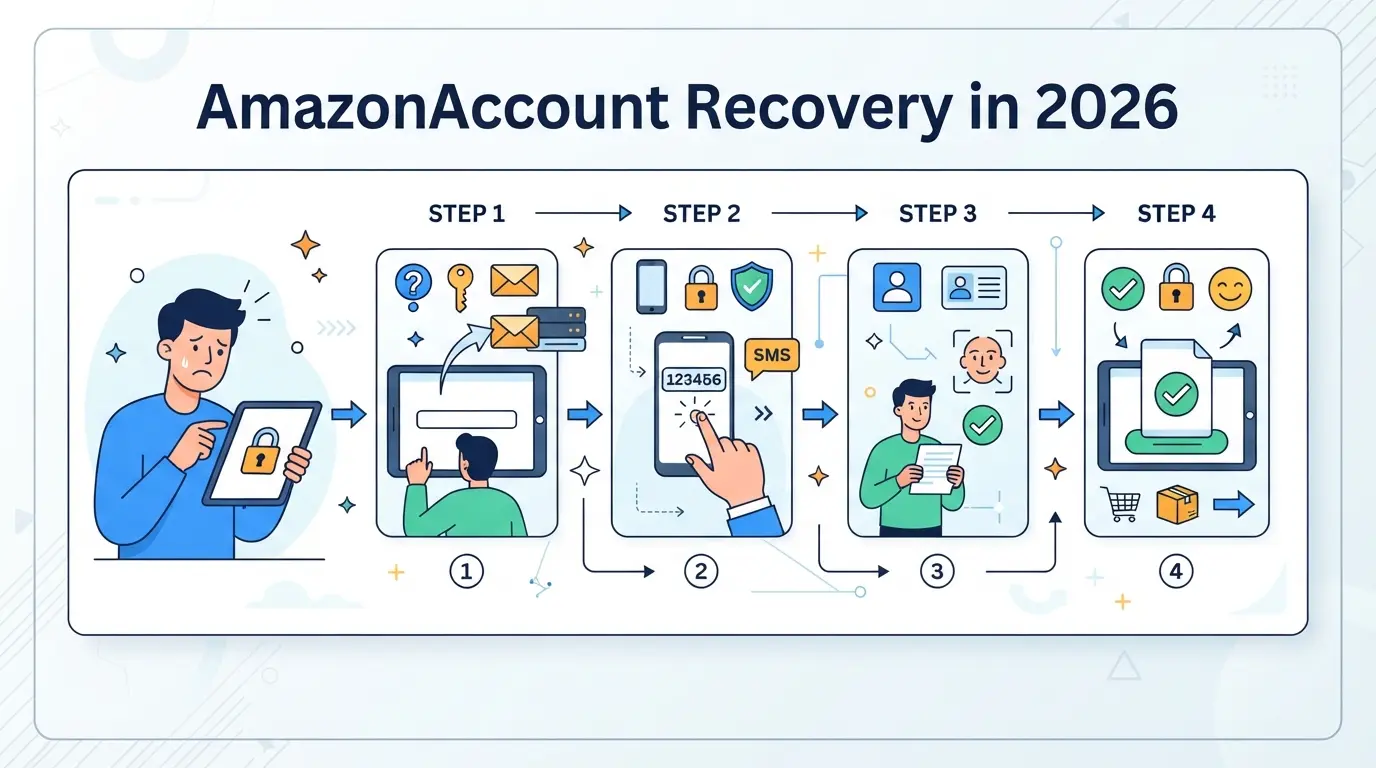
If you’ve checked your details and know what triggers your lockout, you’re ready to follow the right recovery path. Don’t just reset your password, Amazon’s process in 2026 checks devices, identities, and sometimes asks for extra proof. Here’s the process that actually works for most users:
Using the Amazon Account Recovery Page
- Go straight to the official Amazon account recovery page. Never trust links from emails or pop-ups, phishing pages copy Amazon’s layout.
- Enter your primary login email or mobile number. If you use an old phone number, you’ll get stuck at the code step.
- Complete the CAPTCHA. It times out after 90 seconds, refresh if it freezes or you get an “invalid entry” error.
- Choose how to get your verification code. If none of the listed methods work, skip to the next section instead of retrying, too many failed attempts can trigger a 24-hour lock.
Resetting Password and Two-Step Verification
- Enter the code sent to your chosen email or phone. If you don’t see it, check spam and wait two minutes before resending, Amazon can block codes for repeated rapid requests.
- Set a new password. Avoid password managers’ auto-suggestions if you’ve used similar ones before, Amazon sometimes flags reused credentials.
- If prompted for two-step verification, use your registered device or authenticator app. If you lost device access, click “I cannot access these” to start backup verification.
- When backup codes fail or you see “verification required” with no options, stop retrying. Multiple failed codes in one hour often lock out both self-service and support for 12-24 hours.
Responding to Amazon Support Requests
- If self-service fails, Amazon may ask for ID, payment proof, or device verification. Upload high-resolution images, blurry or cropped photos often get rejected without explanation.
- Answer security questions exactly as you set them up. Even a small typo (like “St.” instead of “Street”) can cause a mismatch and delay review.
- Reply promptly to support emails, Amazon closes inactive cases after 48 hours, and reopened tickets usually go to the back of the queue.
- If you get a “request denied” or “unable to verify” notice, don’t resend the same form. Change the submitted document or clarify details in your reply, repeat submissions with identical info rarely succeed.
If you’re still locked out after these steps, don’t keep retrying the same path, move on to escalation tactics, which are covered in the next section.
What to Do If Amazon Account Recovery Fails
If your attempts to recover Amazon account access keep failing, don’t keep retrying the same steps, escalate or you risk a full lockout. Here’s what actually works when standard recovery paths hit a wall.
Escalating to Amazon Customer Support
When self-service resets go nowhere, switch to live support. Use chat or phone, not just email. Have your order numbers, billing address, and a screenshot of the lockout page ready. A clear, complete message often gets moved to a specialist queue, vague requests can stall for days.
When to Try Again or Wait
Keep hammering the recovery flow, and Amazon’s system may block you for 24-72 hours.
- If you hit a “too many attempts” message, stop, waiting is safer than risking a permanent lock.
- Try once after the cooldown. If it fails again, go straight to support with your last attempt’s details.
Recognizing Permanent Account Closure
Repeated denials or emails stating “your account cannot be restored” usually mean the review is final. At that point, new recovery attempts rarely work. If you still need to shop or sell, create a new Amazon account using new contact info, just avoid reusing old device fingerprints or billing details, or the new account may get linked and closed too.
How to Prevent Future Amazon Account Lockouts
If you just managed to recover your Amazon account, don’t wait for the next lockout, change what triggered the problem now, or you’ll end up in the same loop again.
Best Practices for Account Security
Use a password with at least 12 characters and update it every 3-6 months. Turn on two-step verification, then double-check your backup phone and email, if Amazon can’t reach you, recovery stalls. Keeping backup details current is the single step that saves most people from getting locked out twice.
Avoiding Suspicious Activity
- Stick to familiar devices and locations for logins
- Never click links in emails, go to amazon.com directly
- Log out after any password changes
Special Considerations for Sellers and Multi-Account Users
If you run more than one Amazon account, you need stricter controls.
- Use a separate browser profile for each account
- Assign unique proxies to each login
- Keep a simple record of policy compliance steps
Managing Multiple Amazon Accounts Safely: Browser Profiles and Proxy Setup
Running multiple Amazon accounts from the same device is risky, Amazon links accounts using device fingerprints and network details faster than most sellers expect.
Why Amazon Detects Multiple Accounts
Amazon checks for shared device fingerprints, cookie patterns, and overlapping IP addresses. Even logging in from the same laptop or Wi-Fi can connect accounts behind the scenes.
How Browser Profiles and Proxies Reduce Risk
Keeping each Amazon account in a separate browser profile creates isolated sessions. Assigning a unique proxy to each profile means every account appears to log in from a different device and location. This split reduces cross-account tracking and lowers the chance of all your stores getting locked at once.
Common Mistakes That Still Lead to Lockouts
- Reusing the same proxy across more than one account, Amazon flags this quickly.
- Forgetting to clear old session data before profile reuse.
- Mixing up profile settings, like timezone or language, making accounts look linked.
Done right, this setup helps keep recovery and daily use separate, so if one account gets hit, others aren’t pulled in by mistake.
Using DICloak to Manage Multiple Amazon Accounts for E-Commerce
After you’ve mapped out the risks of juggling several Amazon accounts, the next challenge is keeping each session separate so one slip doesn’t cause a chain reaction. E-commerce sellers who operate multiple accounts on the same device face this exact problem, cross-session leaks and reused network details can trigger unwanted attention. With DICloak, you can set up a clear workflow to reduce these overlaps by isolating browser profiles and assigning proxies on a per-account basis. The scope stays at the browser and session level; DICloak does not manage Amazon account status or recovery.
Creating Isolated Browser Profiles with Custom Fingerprints in DICloak
Operators can create a separate browser profile in DICloak for every Amazon account they manage. Each profile stores its own settings, like User Agent, OS, time zone, and screen size, so sessions don’t share storage or fingerprint signals. For example, an e-commerce seller running three storefronts can configure one profile per account, tuning details to match each account’s typical use patterns. This setup keeps browser data and login sessions physically separated, which is the baseline for safe multi-account workflows.

Configuring Proxies for Each Amazon Account Profile
Once profiles are set, operators can add their own proxy to each one. The proxy setup happens per profile, users enter proxy details, test the connection, and confirm the exit IP before logging in. For teams, this means every operator can use the right network for the assigned Amazon account, without crossing signals. DICloak never provides proxies; users control all proxy choices and must check their own compliance.

Done properly, this structure gives you stronger control over account separation, before you ever need to recover an Amazon account again.
When Recovering or Managing Amazon Accounts Is No Longer Worth It
Sometimes, chasing another recovery step or flipping between new Amazon accounts just digs a deeper hole, especially after multiple bans or compliance warnings.
Signs It's Time to Move On
If you face repeated permanent suspensions or start seeing legal threats, further attempts can trigger account-wide bans or even impact your business tax status. Cut losses if Amazon starts mentioning fraud, identity misuse, or regulatory violations.
Alternative Strategies for E-Commerce Sellers
Sticking with bad accounts can lead to asset freezes or a platform-wide blacklist.
- What can go wrong: New accounts may get linked to old banned ones, risking immediate shutdown.
- Safer move: Build fresh accounts using clean devices and updated business info, or shift focus to other sales platforms where your risk is lower.
Frequently Asked Questions About recover Amazon account
How long does Amazon account recovery usually take in 2026?
Most Amazon account recovery requests finish within 24 to 48 hours. If your case needs extra review or you submit unclear documents, it could take a week or more. Using the correct email and following all Amazon account recovery steps can help speed things up. Delays often happen if you miss emails or don’t provide all needed details.
Can I recover my Amazon account without access to my old phone number?
Yes, you can recover Amazon account access even if you lost your registered phone number. Choose “I can’t access this number” during sign-in. Amazon may ask for alternate contact details or send a verification link to your email. Be ready to answer security questions or provide extra proof of identity.
What documents does Amazon accept for account recovery?
Amazon may ask for a government-issued photo ID, like a passport or driver’s license, to restore your Amazon account. Sometimes, a recent utility bill or bank statement will be needed to confirm your address. Make sure your documents are clear, not expired, and match the information in your Amazon account.
Is it safe to use proxies when managing multiple Amazon accounts?
Using proxies to manage multiple Amazon accounts is risky. Amazon can detect suspicious IP addresses and may block or suspend accounts if they see proxy use. If you must use proxies, choose reputable providers and unique IPs for each account. Breaking Amazon’s terms can lead to permanent bans.
What should I do if Amazon says my account is permanently closed?
If your Amazon account is permanently closed and all appeals have failed, you cannot recover access. Review Amazon’s closure notice to understand the reason. You may still contact Amazon support for clarification, but usually, you’ll need to create a new account if allowed. Transfer any remaining balances or data before closure, if possible.
If you face any difficulties during the process, consider reaching out to Amazon support for further assistance or exploring secure tools that can help safeguard your online credentials. Taking proactive steps now will make future account recoveries smoother and help protect your digital presence. Try DICloak For Free
 Web Proxy Tools
 Free Tools
 Cookie Plugin
 UA Generator
 MAC Address Generator
 IP Generator
 IP Address List
 2FA Code Generator
 World Clock
 Anonymous Check
 WebRTC Leak Test
 UUID Generator
 Free Web Proxy Site
 Proxy Checker
 FB Ad Checker
 AI Web Scraping
 Free SMM Tools
 Twitter Shadowban Checker
 Instagram Name Checker
 UTM Generator
 Username Generator
 AI Hashtag Generator
 LinkedIn Headline Generator
 Social Media Image Resizer