You click a link, expect the page to load, but instead you’re stuck for minutes on a swirling Cloudflare check, or worse, you hit a dead end with a message that says “Access Denied.” For many, can't get past cloudflare isn’t just an occasional glitch. It’s a constant barrier, especially if you run into the same cloudflare challenge loop or the captcha simply never appears or works.
Trying to reload or swap browsers often leads nowhere. Even switching devices or networks doesn't always help. Most guides talk about cookies or browser settings, but when you’re stuck on cloudflare verification with no error details, it’s easy to waste hours on the wrong fixes.
The real issue? Cloudflare challenges aren’t random. They flag certain IP ranges, device fingerprints, or unusual browsing patterns, sometimes for reasons that aren’t obvious from your side. You can clear your cache, reset your router, or even reinstall your browser, but if Cloudflare still marks your traffic as risky, you’ll keep looping or get blocked. The real solution starts with understanding what Cloudflare is checking, and how your browser, proxy, or automation setup triggers those checks.
Next, see why the most common fixes fail and what actually works in 2026.
Why Can't I Get Past Cloudflare? The Most Common Triggers in 2026

If you’re stuck on a Cloudflare challenge or endless verification, the reason is rarely random. Cloudflare blocks or challenges you when your browser, IP, or behavior matches patterns linked to abuse or risk, sometimes even when you haven’t done anything wrong. Here’s where most people trip up in 2026.
Browser Issues: Outdated Software, Extensions, and Settings
Cloudflare now spots browsers that haven’t been updated in months or that fake their version. Even a single outdated extension can break the check, adblockers, privacy scripts, or anything that tampers with cookies or headers will often trigger a block.
Most users hit a wall because their IP address is on a “bad neighborhood” list. If you’re using a shared proxy, a mobile data hotspot, or public Wi-Fi, Cloudflare may already have thousands of abuse reports tied to that IP or subnet. For example, if someone used your proxy for scraping or flooding login pages last week, Cloudflare’s risk models remember, so you inherit the penalty even if your own activity is clean. There’s no easy way to see this from your end; you’ll get CAPTCHAs, “Verify you are human” loops, or outright blocks with no technical detail. Changing to a “fresh” IP sometimes works, but in 2026, Cloudflare’s risk scoring includes subnet reputation and even looks at how suddenly your IP changed. If you switch too fast or land on an IP that’s flagged, you can get stuck in a challenge loop that clearing cookies or using incognito mode won’t fix. Some networks rotate IPs aggressively, making it easy to get flagged just by reconnecting.
Fingerprint and Consistency Signals Cloudflare Checks
- Mismatched browser fingerprint: Device info, language, and time zone must line up, odd combos get flagged.
- Inconsistent headers: Changing user-agent, screen size, or platform fingerprint mid-session raises suspicion.
- Automation patterns: Rapid page loads, missing mouse movement, or skipped resource loads look like bots.
If Cloudflare sees any of these signals, the system assumes risk, even if you’re a real user. The challenge is that standard fixes like “clear cache” or “restart browser” don’t address these root issues.
The next step is to figure out which signal tripped the check for you. Once you know whether it’s browser, IP, or fingerprint issues, you can stop guessing and start fixing the real cause.
How to Diagnose Why You're Stuck on a Cloudflare Challenge
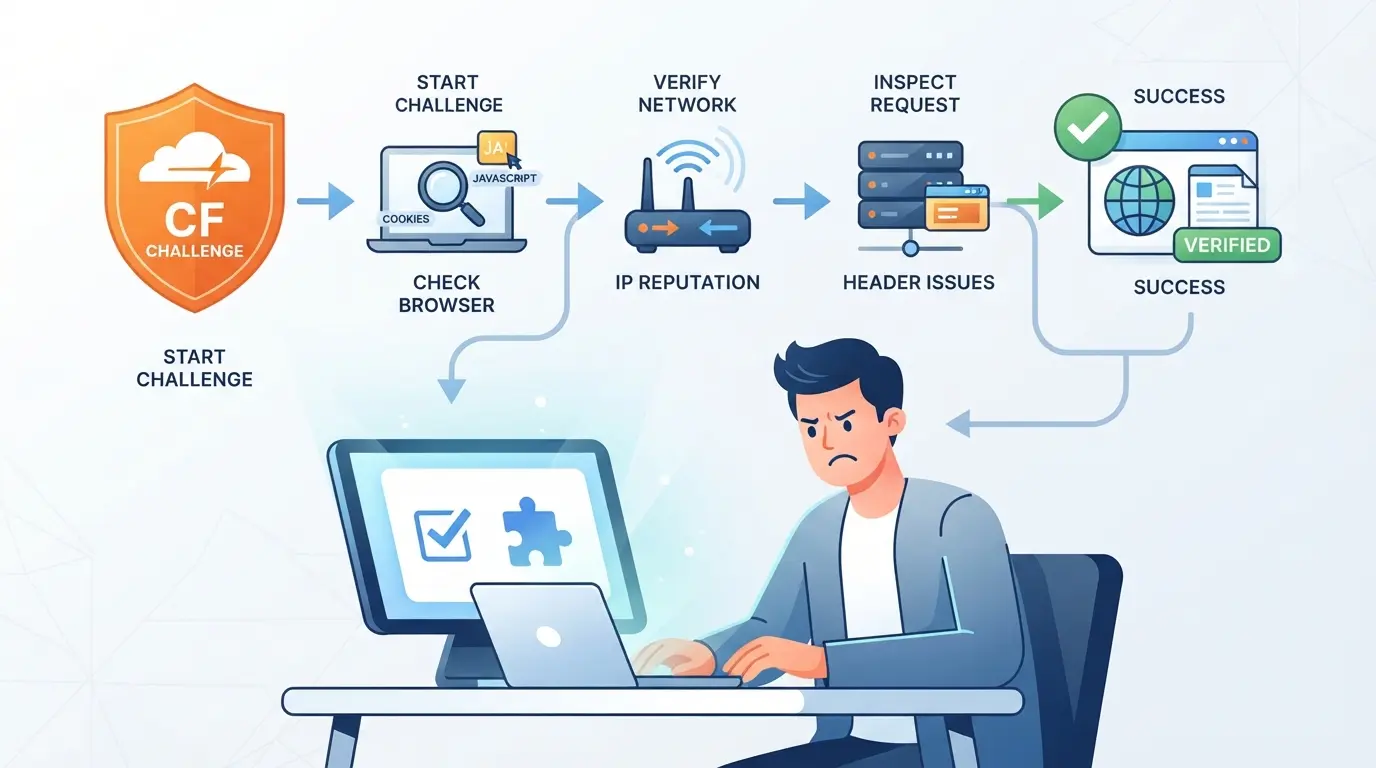
If you keep hitting a Cloudflare challenge loop, random fixes rarely help until you pinpoint what’s triggering the block. Skip the guesswork, use this step-by-step process to figure out exactly where you’re getting flagged.
Step 1: Check for Browser Errors and Update Everything
- Update your browser to the latest stable version, browser vendors like Chrome and Firefox push regular updates, and some Cloudflare checks rely on new browser features.
- Disable all extensions, then try again. If it works, turn them back on one by one. Ad blockers, privacy plugins, or automation tools are frequent culprits.
- Restart your device after any update. This clears out stuck processes that can cause fingerprint mismatches.
Step 2: Test Your Network and IP Reputation
- Search “what is my IP” and check your address on a site like abuseipdb.com. If the reputation is poor, Cloudflare might block you before you even see a captcha.
- Try switching between mobile data and Wi-Fi. If one works and the other doesn’t, your network is the issue, not your browser.
- If you’re using a proxy, switch to a different one. Some proxies are flagged across all Cloudflare-protected sites, not just one.
Step 3: Review Fingerprint Consistency and Device Settings
- Make sure your device time zone, language, and OS match what a real user from your region would use. If your browser says you’re in France but your IP is US-based, that’s a giveaway.
- Don’t swap devices or browsers during a challenge. Cloudflare often ties the initial check to your browser fingerprint; a mismatch triggers another block.
- Check your user agent string using a tool like whatismybrowser.com, if it’s blank or spoofed, many sites will block you outright.
- If you’re on a virtual machine or emulated device, try a real device. Emulation artifacts can flag you as suspicious even if you pass the captcha.
Step 4: Look for Site-Specific or Regional Restrictions
- Visit the site from a different country using a known clean proxy. If it loads, the original region is likely geo-blocked or rate-limited.
- Check the site’s status page or social media for outage or block notices. Some sites block entire countries or ISPs after abuse spikes.
- Try accessing the same site from another account or device on your network. If all fail, the restriction is probably on the server side, not yours.
- Look for error codes like “1020 Access Denied.” These usually mean the site owner set up a manual rule blocking your traffic, not a Cloudflare system flag.
If you work through these steps and still can’t break past the challenge, the next move is to address looping or verification failures directly, covered in the following section.
What to Do When Cloudflare Keeps Looping or Fails to Verify
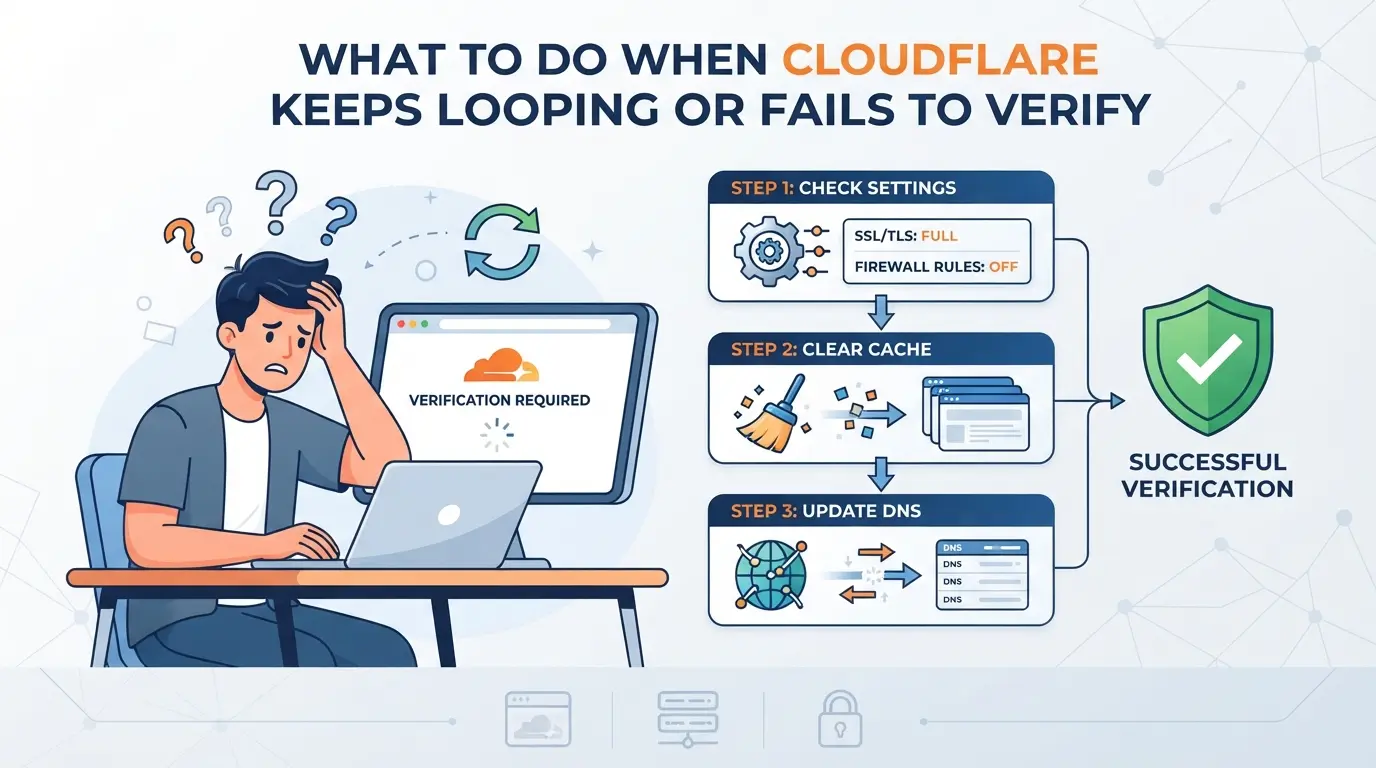
If you’re stuck in a Cloudflare loop or get endless “verifying” screens, it’s usually not a glitch, your browser, device, or network is failing a check Cloudflare cares about. Here’s exactly what to try next, step by step, so you don’t lose hours on dead ends.
Clear Cookies and Cache, Then Restart the Browser
- Open your browser’s settings and clear all cookies and cached files for the site you’re trying to access. Old or corrupt cookies often trigger repeated Cloudflare challenges.
- Close every browser tab, don’t just hit refresh. Fully exit and restart the browser so the next session starts clean.
- Try the site again. If you still see a loop, repeat the cookie and cache clear, but also look for any persistent site data that didn’t clear the first time.
Disable or Remove Problematic Extensions
- Open your browser’s extension manager. Focus on privacy plugins, user-agent switchers, ad blockers, or automation helpers. These often change the signals Cloudflare checks.
- Disable all extensions, then reload the site. If you pass the verification now, re-enable extensions one at a time to spot the culprit.
- Uninstall any extension that seems to trigger the loop, not just disable it, some keep changing browser settings in the background.
Switch to a Different Network or Use a Trusted Proxy
- Disconnect from your current Wi-Fi and try mobile data, or connect to a different network. Shared or flagged IPs are a common reason for Cloudflare blocks.
- If you use a proxy, switch to one with a clean reputation. Avoid public or suspicious proxies, Cloudflare tracks known abuse sources.
- After switching, open a new browser window and check the site. If you’re still in a loop, your previous network may have left a flag on your session.
Check Device and Browser Fingerprint Consistency
- Make sure your browser version, device type, and OS match what Cloudflare expects for your location and network. Small mismatches, like a Windows user-agent on a Mac, can cause verification to fail.
- Avoid switching devices or browsers mid-session. If you started on mobile, finish the challenge there before trying on desktop.
- If you use automation tools, double-check they aren’t spoofing device info inconsistently. Even tiny changes in screen size, language, or timezone can break Cloudflare’s trust signals.
If you still can’t get past the Cloudflare challenge, the next section explains the signals Cloudflare checks in 2026, and why hiding or mismatching them almost always leads to repeat failures.
How Cloudflare Detects Bots and Unusual Behavior in 2026
Cloudflare doesn’t just look for bots, it checks if your browser, IP, or usage pattern matches what real users do. If you keep running into a cloudflare challenge loop, something about your setup is triggering these signals.
- Checks fonts, screen size, hardware details, and browser plugins
- Flags mismatches between your user agent and actual system data
- Looks for rare or rapidly changing fingerprints within short sessions
IP Reputation and Network Patterns
Cloudflare scores your IP based on past abuse reports and whether it’s shared by many users. If you rotate proxies too quickly or use an IP flagged for automation, you’re more likely to get stuck on cloudflare verification, even if your browser looks normal. The real bottleneck is usually a mix of both: a suspicious IP paired with a browser fingerprint that doesn’t match past behavior.
If you want fewer blocks, focus on keeping your device and network consistent.
How to Keep Your Browser and Network Consistent for Fewer Cloudflare Blocks
If you keep getting stuck on cloudflare verification, the fastest way to cut down challenges is to stop changing your browser, device, or proxy mid-session, Cloudflare looks for sudden changes above all else.
Best Practices for Browser Settings and Updates
Cloudflare checks for outdated browsers and odd extension behavior. Update your browser before logging in anywhere. Remove extensions that spoof fingerprints or auto-clear cookies. Browser updates and a clean extension list are the easiest ways to avoid getting flagged for suspicious setups.
How to Choose and Configure a Reliable Proxy
- Choose proxies with consistent IPs, avoid free or rotating sources.
- Test proxy speed and location: slow or mismatched IPs trigger extra checks.
- Use one proxy per browser profile; don’t share proxies across accounts.
Maintaining Fingerprint Consistency Across Devices
Switching devices halfway through a login almost always causes a cloudflare challenge loop. Stick to one device per account.
- Keep the same OS and browser version per session.
- Avoid remote desktops, Cloudflare spots them fast.
- Don’t sync browser data across multiple machines.
Using DICloak to Separate Browser Profiles and Proxies When Managing Multiple Platform Accounts
If you manage several platform accounts and keep running into Cloudflare challenges, the real friction often comes from shared browser profiles and inconsistent network setups. Even if you fix cookies or reset your device, Cloudflare still looks for patterns, like multiple accounts running from the same browser or IP history. For teams or operators who need to keep each session and connection cleanly apart, DICloak supports a workflow that separates browser profiles and lets you assign a specific proxy to each one. This doesn’t override Cloudflare’s checks, but it does give you better isolation and consistent configuration for each account.
How to Create Isolated Browser Profiles and Configure Fingerprints in DICloak
Teams handling multiple accounts face a common risk: using the same browser session or storage across accounts can lead to shared fingerprints, making it easier for Cloudflare to flag your activity as unusual. Operators can create a dedicated browser profile in DICloak for each account they handle. Each profile stores its own cookies, cache, and browser-identifying details, like User Agent, time zone, screen size, and WebRTC handling. Operators can adjust fingerprint signals per profile to better align with expected device traits, but the scope is limited to browser-level signals and does not extend to guaranteeing how Cloudflare or any platform will treat the session. The benefit is clear: separate profiles help keep account sessions from leaking data between each other, which is the step that most often causes detection headaches for multi-account operators.

Assigning a Separate Proxy to Each Profile for Network Consistency
Cloudflare keeps a close eye on network consistency, if two profiles share the same IP, location, or proxy rotation history, you’re more likely to face repeated verification screens. In DICloak, operators configure a proxy for each profile by entering details for their own HTTP, HTTPS, or SOCKS5 proxy. Before starting a session, you can use the built-in proxy check to confirm connectivity, see the exit IP, and verify time zone or region. This step is about ensuring that each account runs on a consistent, clean network path, reducing accidental cross-linking from reused IPs or mismatched location signals. DICloak does not sell proxies or restrict how often you reuse them, it’s up to you to supply a suitable connection and test it for each session. The workflow only covers browser-profile proxy setup and does not influence Cloudflare’s decision logic or platform access outcomes.

When isolation at the browser and network level isn’t enough, or if Cloudflare blocks persist even after solid separation, the next step is reaching out to the website owner or Cloudflare support directly.
When to Contact the Website Owner or Cloudflare Support
If you still can't get past Cloudflare after trying browser and proxy fixes, the block is likely outside your control. At this point, continuing to tweak your setup wastes time and may even trigger stricter bans.
Signs the Block Is Not on Your End
Warning: Pushing through repeated Cloudflare challenges when the issue is server-side can lock your IP or get your region flagged for hours.
- If the problem shows up on multiple devices or networks, it's probably not your browser or cookies.
- Save time by collecting a screenshot of the error, your public IP, and the exact page URL before contacting support, these details speed up triage.
Frequently Asked Questions About can't get past cloudflare
Why does Cloudflare keep asking me to verify even after I pass the challenge?
This is called a Cloudflare challenge loop. It often happens if your browser uses a rare fingerprint, your IP is flagged, or cookies aren't saved. If the root cause isn't fixed, like switching networks or fixing browser settings, you'll get stuck in a cycle, even after solving the captcha.
Can using a proxy help me get past Cloudflare, or can it make things worse?
A high-quality, unique proxy may help if your original IP is blocked. But cheap or overused proxies often trigger even more Cloudflare challenges and may get you stuck on cloudflare verification. Always use trustworthy proxies with a good reputation to avoid extra blocks.
What browser settings are most likely to trigger Cloudflare challenges?
Disabling JavaScript, blocking cookies, running privacy extensions, or using mismatched time zones can all cause Cloudflare to flag your browser. These settings make your browser look suspicious or different from normal users, so Cloudflare may show extra challenges or block your access.
Is it safe to manage multiple accounts on one device without getting blocked by Cloudflare?
Managing several accounts on one device can look suspicious to Cloudflare, especially if you use the same browser or IP. Using separate browser profiles and different proxies for each account can help. This isolation reduces the risk of all accounts being flagged or blocked together.
How do I know if Cloudflare is blocking me because of my region or country?
If you see messages like “Access denied” or “This website is unavailable in your region,” it’s likely regional blocking. You can check by using a proxy to change your location. If you get access from another country, Cloudflare is probably blocking your region.
If traditional workarounds aren’t resolving your access issues, considering a specialized privacy tool may be the most efficient next step. Look for solutions that are specifically designed to bypass restrictive filters while keeping your connection secure and reliable. Try DICloak For Free
 Web Proxy Tools
 Free Tools
 Cookie Plugin
 UA Generator
 MAC Address Generator
 IP Generator
 IP Address List
 2FA Code Generator
 World Clock
 Anonymous Check
 WebRTC Leak Test
 UUID Generator
 Free Web Proxy Site
 Proxy Checker
 FB Ad Checker
 AI Web Scraping
 Free SMM Tools
 Twitter Shadowban Checker
 Instagram Name Checker
 UTM Generator
 Username Generator
 AI Hashtag Generator
 LinkedIn Headline Generator
 Social Media Image Resizer