You've finished editing a video, but you're about to upload it to the wrong client's YouTube channel. You switch Google accounts, run into another login check, and realize a teammate is still waiting for access to a different channel. When you're managing several YouTube accounts, small interruptions like these can quickly eat into your day.
So, do you really need an antidetect browser to manage multiple YouTube accounts in 2026, or are YouTube's built-in tools and Chrome Profiles enough? The answer depends on how you manage your accounts and how much work you're handling. In this guide, we'll look at YouTube's multi-account rules, compare practical ways to manage accounts, and explore how an antidetect browser like DICloak can help simplify your daily workflow.
Why Do People Manage Multiple YouTube Accounts?
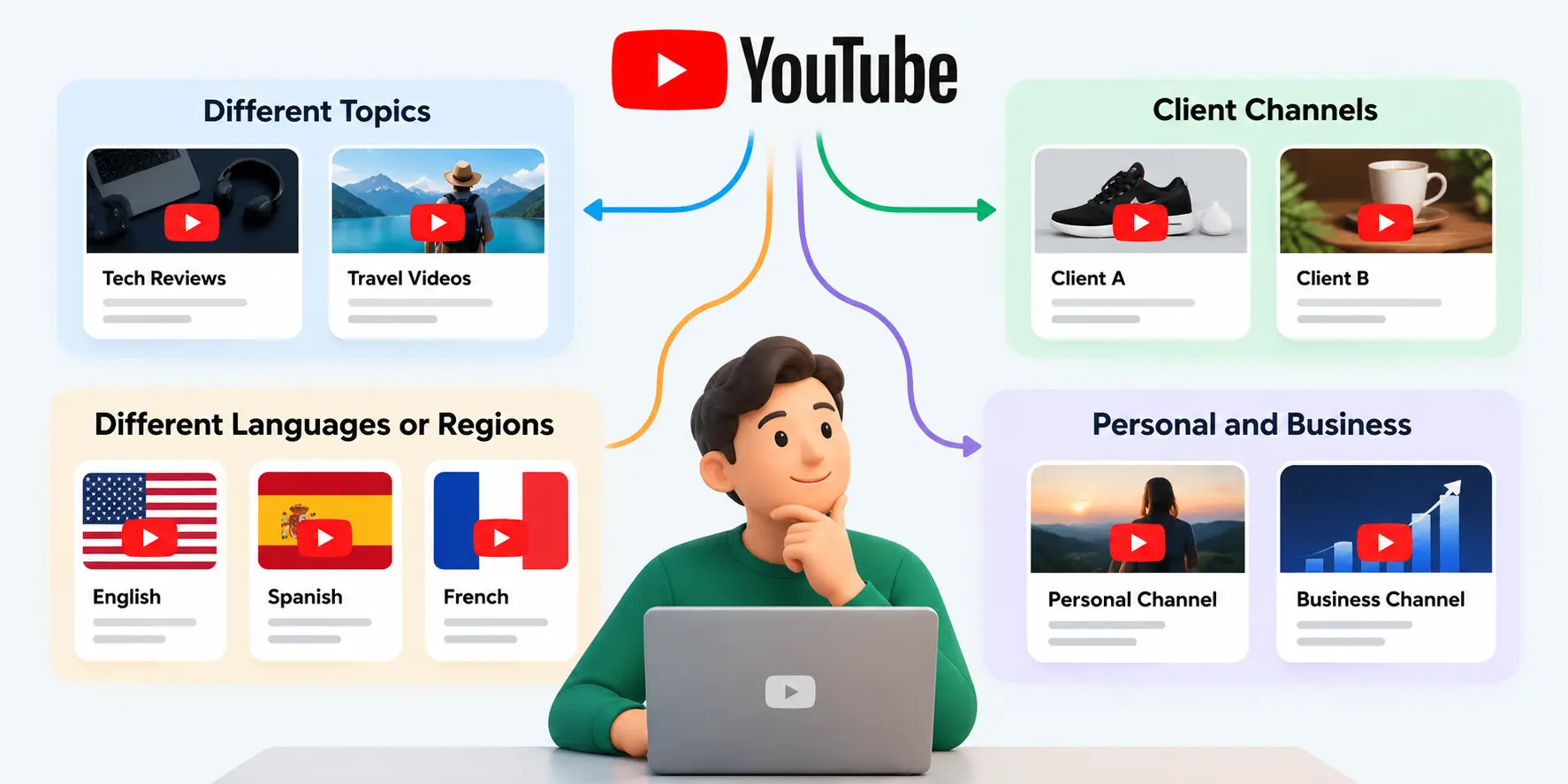
People manage multiple YouTube accounts to run different channels, reach different audiences, or handle YouTube work for clients. For creators and businesses, having more than one channel is often a practical choice. The challenge usually starts when they need to keep different accounts, content, and daily tasks organized.
- Running channels for different topics: A creator might have one channel for tech reviews and another for travel videos. Keeping them separate makes it easier to focus on each audience without mixing unrelated content.
- Managing channels for clients: Agencies and freelancers often handle YouTube accounts for several businesses. They may need to upload videos, check analytics, and manage publishing schedules across different client accounts. Keeping each client's work separate helps prevent mistakes.
- Reaching audiences in different languages or regions: A global brand might run separate English, Spanish, and French YouTube channels. This allows each team to publish content that fits its audience and language.
- Separating personal and business activities: Some creators also manage personal channels alongside company channels. Keeping these projects organized makes it easier to handle daily work and account access.
However, managing multiple YouTube channels doesn't always mean using multiple Google accounts. One Google account can manage several YouTube channels, while agencies may work with separate Google accounts owned by different clients. Understanding this difference matters when choosing how to manage your accounts and follow YouTube's rules.
Does YouTube Allow Multiple Accounts? What Do Google's Rules Say?
Yes, YouTube allows you to manage multiple channels, and Google lets you sign in to more than one Google Account on the same device. Having several accounts is not against YouTube's rules by itself. What matters is how you use those accounts and whether your activities follow YouTube's policies.
Can You Have Multiple YouTube Channels or Google Accounts?
You can manage up to 100 YouTube channels from one Google Account and switch between them without signing out. YouTube also supports Brand Accounts, which let channels have their own names and be managed by different people. For example, a creator running separate tech and gaming channels doesn't necessarily need two Google logins to manage them.
For agencies and freelancers, YouTube Studio's Channel Permissions let clients invite team members as managers or editors without sharing their Google Account passwords. This is often a better option for everyday tasks like uploading videos, editing content, and checking channel performance. It also lets clients control who can access their channels.
What Can Get Multiple YouTube Accounts Restricted or Terminated?
YouTube doesn't ban accounts simply because they share the same device or IP address. The real concerns are policy violations, such as spam, misleading promotions, fake engagement, or using multiple channels to manipulate views and subscribers. For example, running several channels to post repetitive spam comments or artificially boost engagement can lead to penalties.
Repeated violations of YouTube's Community Guidelines, or a single case of severe abuse, can lead to channel termination. If your channel is terminated, YouTube also prohibits you from using, owning, or creating other channels. Using separate Google accounts or browser profiles doesn't change these rules.
Even when you're following YouTube's policies, managing several accounts can still get messy. Switching between logins, keeping track of the right channel, and controlling team access can become harder as your workload grows. These everyday problems are often the real reason creators and agencies look for better ways to manage multiple YouTube accounts.
What Are the Risks of Managing Multiple YouTube Accounts?
Managing multiple YouTube accounts can get complicated when you frequently switch between channels, devices, or team members. The biggest challenges are usually account mix-ups, repeated login checks, and unclear team access. These problems become more noticeable as you manage more accounts, especially when working with different clients.
Mixing Up Accounts and Uploading to the Wrong Channel
One common mistake is uploading a video to the wrong YouTube channel. For example, an agency managing five client channels might accidentally publish a client's video under another brand's account. This can easily happen when several Google accounts or YouTube Studio tabs are open at the same time. Even a small mistake like this can disrupt publishing schedules and create extra work for the team.
Repeated Login Checks and Lost Sessions
Switching between different Google accounts, clearing cookies, or signing in from a new device can sometimes lead to repeated login requests. Google may also ask for additional verification when it notices unusual sign-in activity. For agencies, this can become frustrating when an editor needs to upload a video but has to wait for the account owner to approve the login. Keeping browser sessions separate can reduce the risk of unnecessary sign-ins.
Password Sharing and Team Access Problems
Managing YouTube channels for clients often involves several people, but not everyone needs full access to the Google account. A client might want an editor to upload videos without giving them access to personal emails or account settings. When teams share the same login credentials, controlling access becomes harder, especially when employees leave or responsibilities change.
YouTube Studio's Channel Permissions can handle many everyday tasks without sharing passwords. However, teams working across multiple independent Google accounts may still need a better way to organize their login sessions and browser access. Choosing the right management method depends on which of these problems your team actually faces.
How Can You Manage Multiple YouTube Accounts?
There are three practical ways to manage multiple YouTube accounts: YouTube's built-in features, Chrome Profiles, and an antidetect browser. The best choice depends on how many Google accounts you manage, whether you work alone or with a team, and how much control you need over separate login sessions.
1. Use YouTube's Built-In Account Switching and Channel Permissions
If you manage several channels under one Google account, YouTube's built-in switching feature is usually enough. You can click your profile picture, select Switch account, and choose the channel you want to manage. This works well for creators who run different channels for their own brands or topics without needing separate Google logins.
For agencies, YouTube Studio's Channel Permissions allow clients to invite managers or editors without sharing their Google account passwords. Team members can upload videos, edit content, and view channel data based on their assigned roles. However, these permissions don't cover every YouTube feature, and they don't help organize separate browser sessions for different Google accounts.
2. Keep Google Accounts Separate With Chrome Profiles
If you manage a few independent Google accounts, Chrome Profiles offer a simple way to keep them organized. Each Chrome Profile stores its own cookies, browsing history, passwords, and login sessions. For example, you can create separate profiles for your personal channel and two business accounts, then open each without constantly signing in and out.
This works well for individual creators and freelancers who don't need advanced team management. However, Chrome Profiles don't provide built-in browser fingerprint customization or centralized Profile sharing and permissions. As your team grows, managing many separate profiles across different devices can become less convenient.
3. Use an Antidetect Browser for Separate Account Workspaces
An antidetect browser is worth considering when you regularly manage many independent Google accounts or need to share browser workspaces with a team. It lets you create separate browser profiles with their own cookies, login sessions, and fingerprint settings. Some tools also support per-Profile proxy configuration and team access controls.
For example, an agency managing YouTube accounts for several clients can assign each independent Google login to a separate Profile. This makes it easier to keep client sessions organized and give team members access to the workspaces they need.
Here's how the three methods compare:
| Method |
Best For |
Main Limitation |
| YouTube built-in features |
Creators and teams managing channels through official permissions |
Limited control over separate browser sessions |
| Chrome Profiles |
Individuals managing a few independent Google accounts |
No centralized team Profile management |
| Antidetect browser |
Agencies and teams managing multiple independent account workspaces |
Requires additional setup and software costs |
For most creators, YouTube's built-in features or Chrome Profiles are enough. An antidetect browser becomes more useful when separate login sessions and team access are difficult to manage with regular browsers. If that's where your workflow is heading, the next step is to organize those accounts into dedicated browser Profiles.
How to Manage Multiple YouTube Accounts With DICloak
Managing multiple YouTube accounts becomes easier when you can keep Google logins separate and handle daily tasks in one place. With DICloak Antidetect Browser, you can create independent browser Profiles, customize fingerprints and proxies, automate YouTube tasks, and manage team access.
1. Create Separate Browser Profiles and Customize Fingerprints
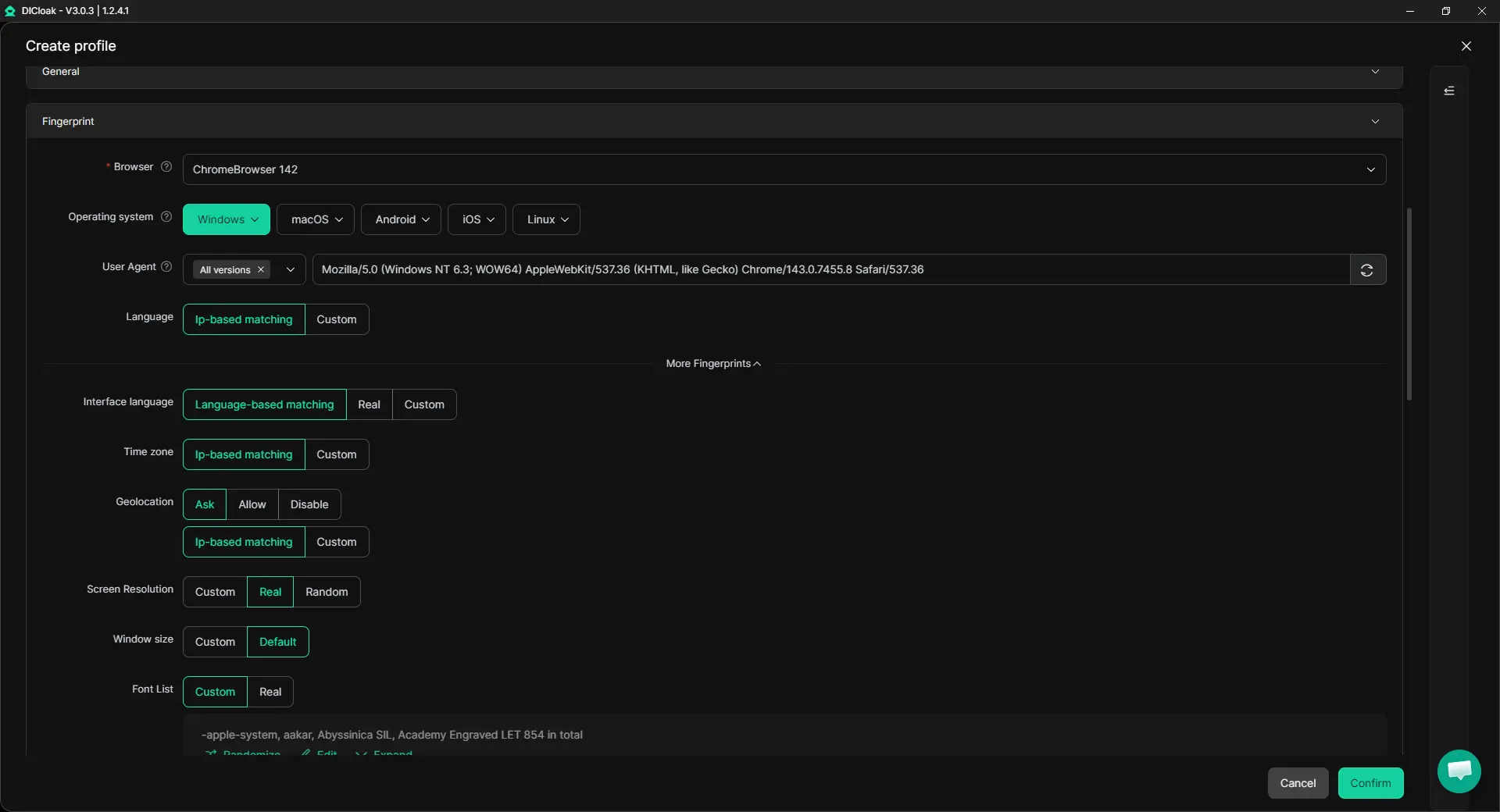
Start by going to Profiles → Create Profile in DICloak and creating a separate Profile for each independent Google account. Give each Profile a clear name and customize its fingerprint settings, including the operating system, user agent, language, time zone, and WebGL. Each Profile stores its own cookies, browsing data, and fingerprint settings. Once you sign in to YouTube, you can return to the same workspace to upload videos, check analytics, or manage channel content without switching Google logins.
2. Configure Custom Proxies for Different YouTube Accounts
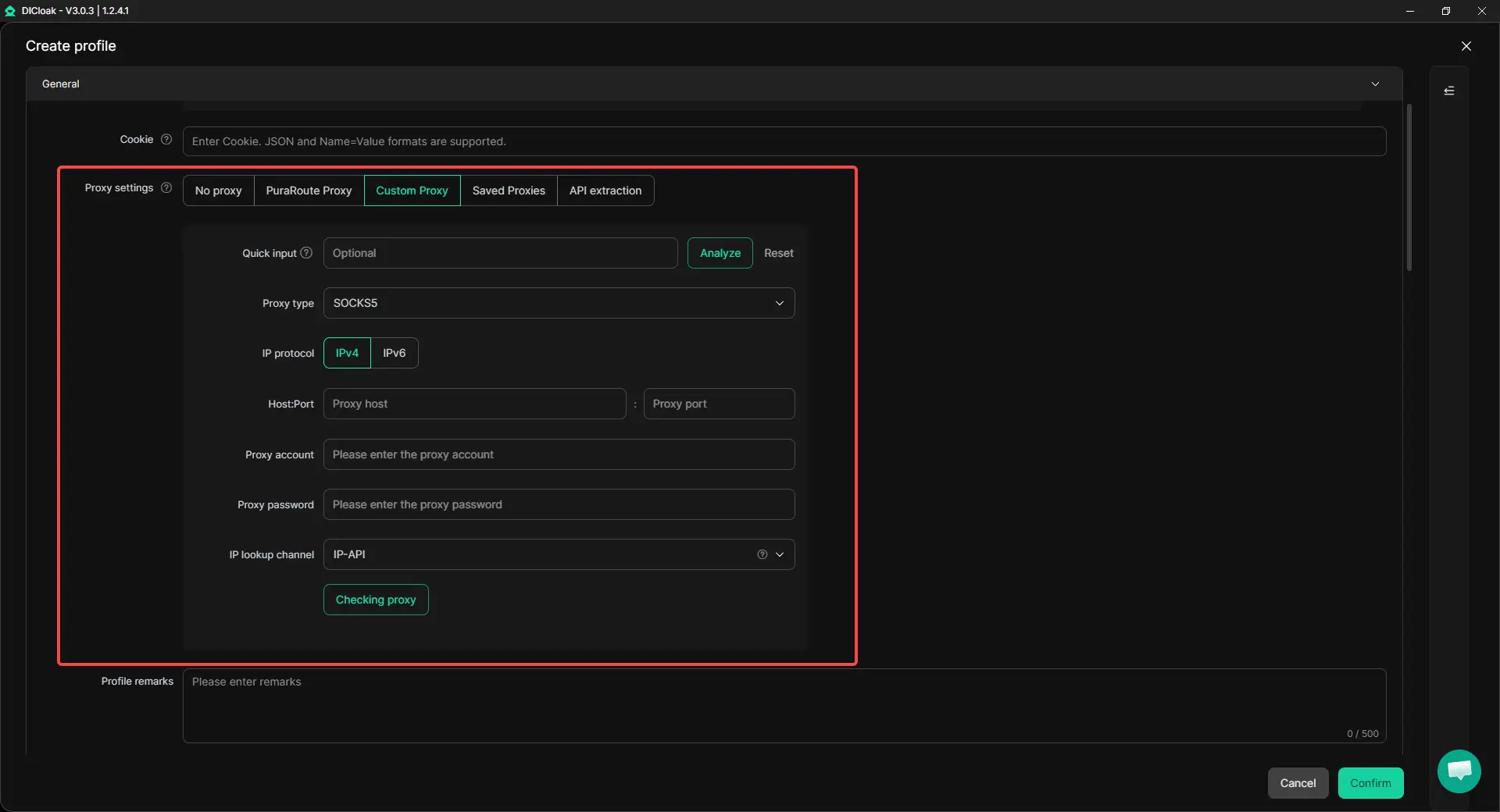
With DICloak, you can assign a custom proxy to each browser Profile when your accounts need separate network connections. Open the proxy settings, enter the host, port, and login credentials, then test the connection before saving. For example, an agency managing YouTube channels for clients in different regions can keep each client's proxy configuration in its assigned Profile without changing the computer's network settings.
3. Automate YouTube Tasks With RPA
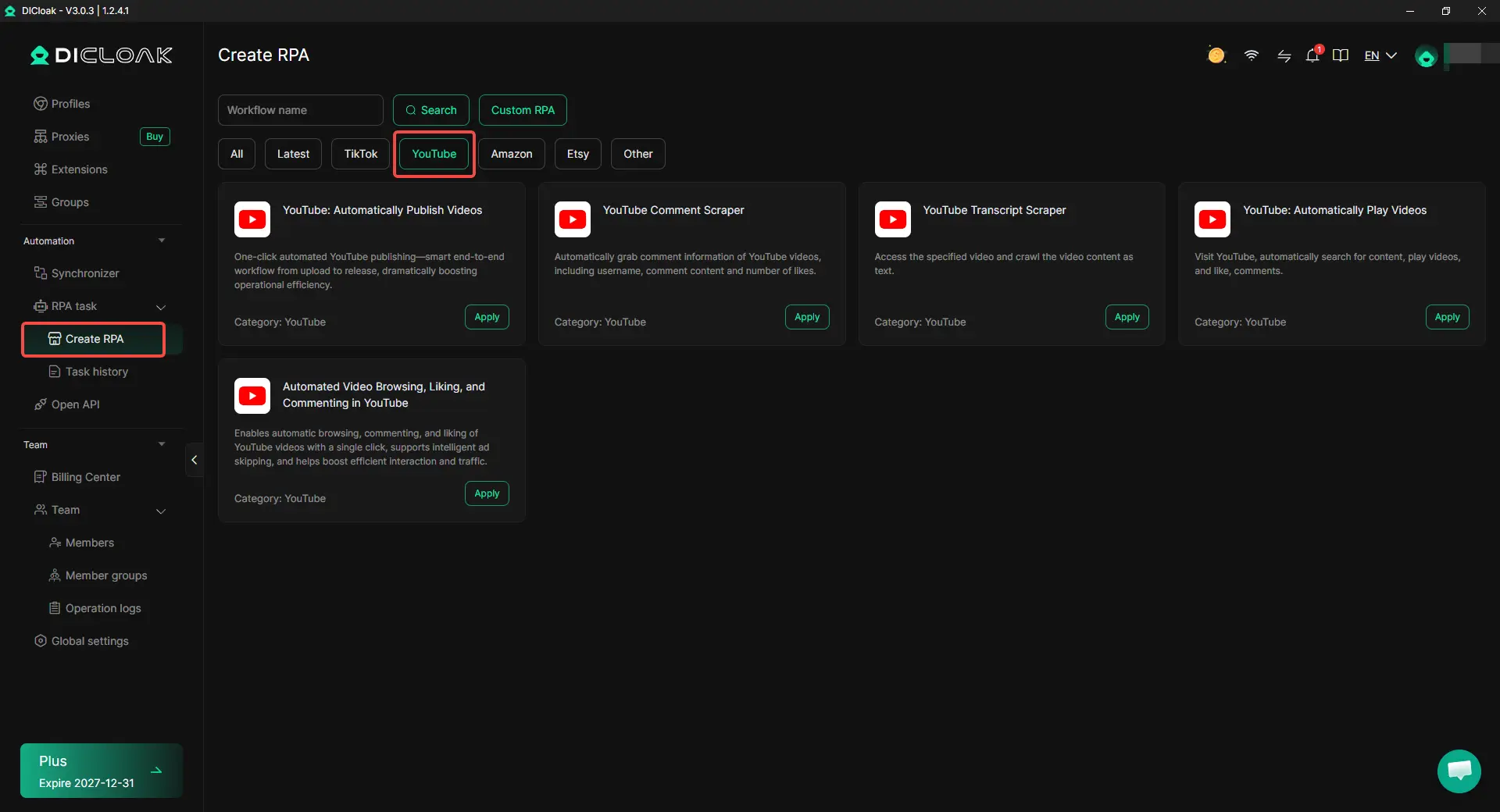
Managing several YouTube channels often involves repeated publishing and research tasks. Using the built-in RPA tools in DICloak, you can automate selected tasks instead of handling everything manually. Go to Automation → RPA task → Create RPA → YouTube to find ready-made templates, including:
- YouTube: Automatically Publish Videos – Automate video publishing tasks.
- YouTube Comment Scraper – Collect video comments for audience research.
- YouTube Transcript Scraper – Extract transcripts for content research.
These workflows help content teams spend less time on repetitive work across multiple channels.
4. Use the Synchronizer Across Multiple Browser Profiles
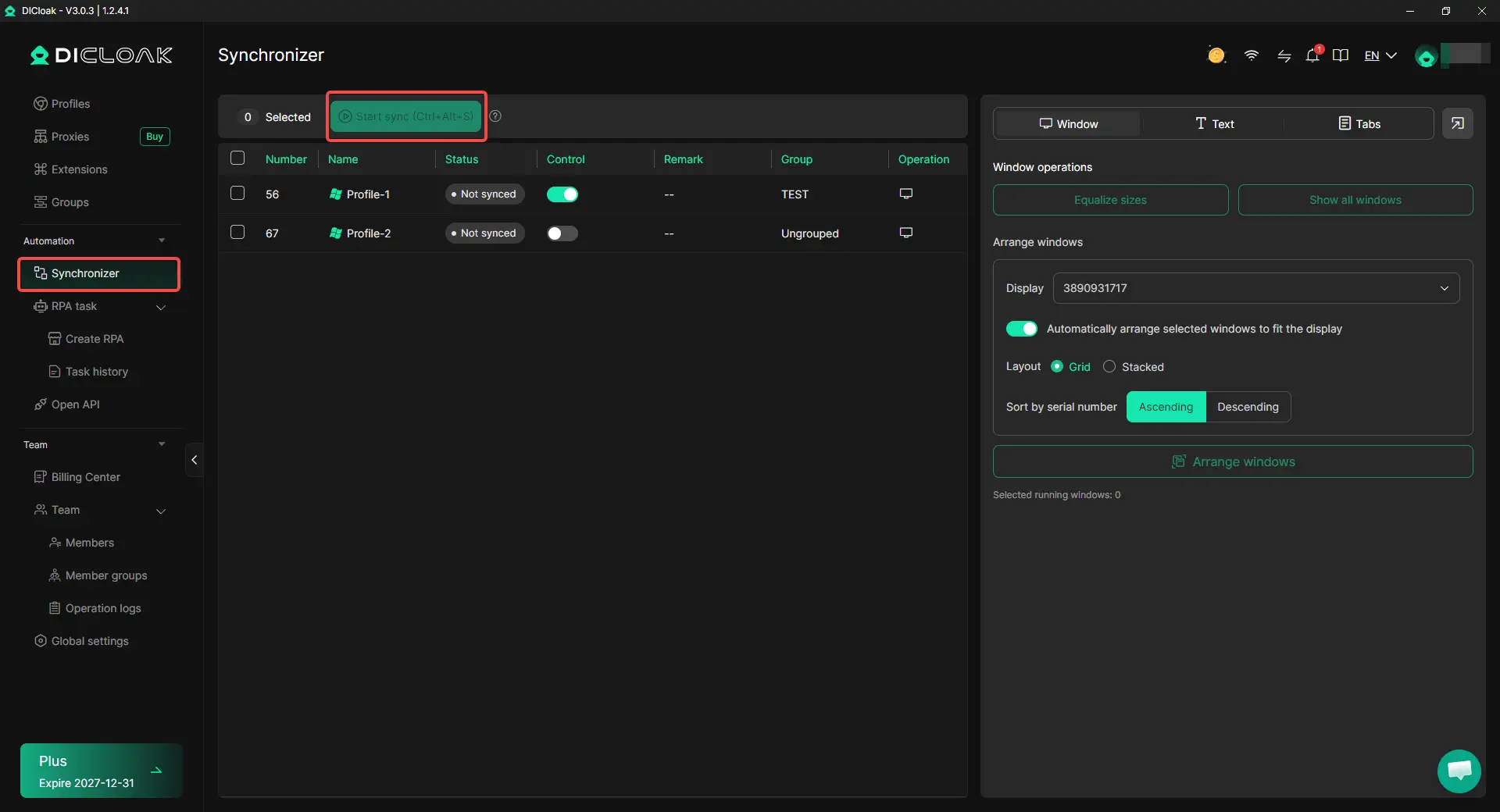
When several YouTube accounts require similar actions, switching between windows can take time. With the Synchronizer in DICloak, you can repeat supported actions such as clicking, typing, and scrolling across multiple open Profiles. Open the Profiles you need, go to Automation → Synchronizer, and select the windows to control. This is useful for repeated navigation and setup tasks across different YouTube accounts.
5. Share Browser Profiles and Manage Team Access
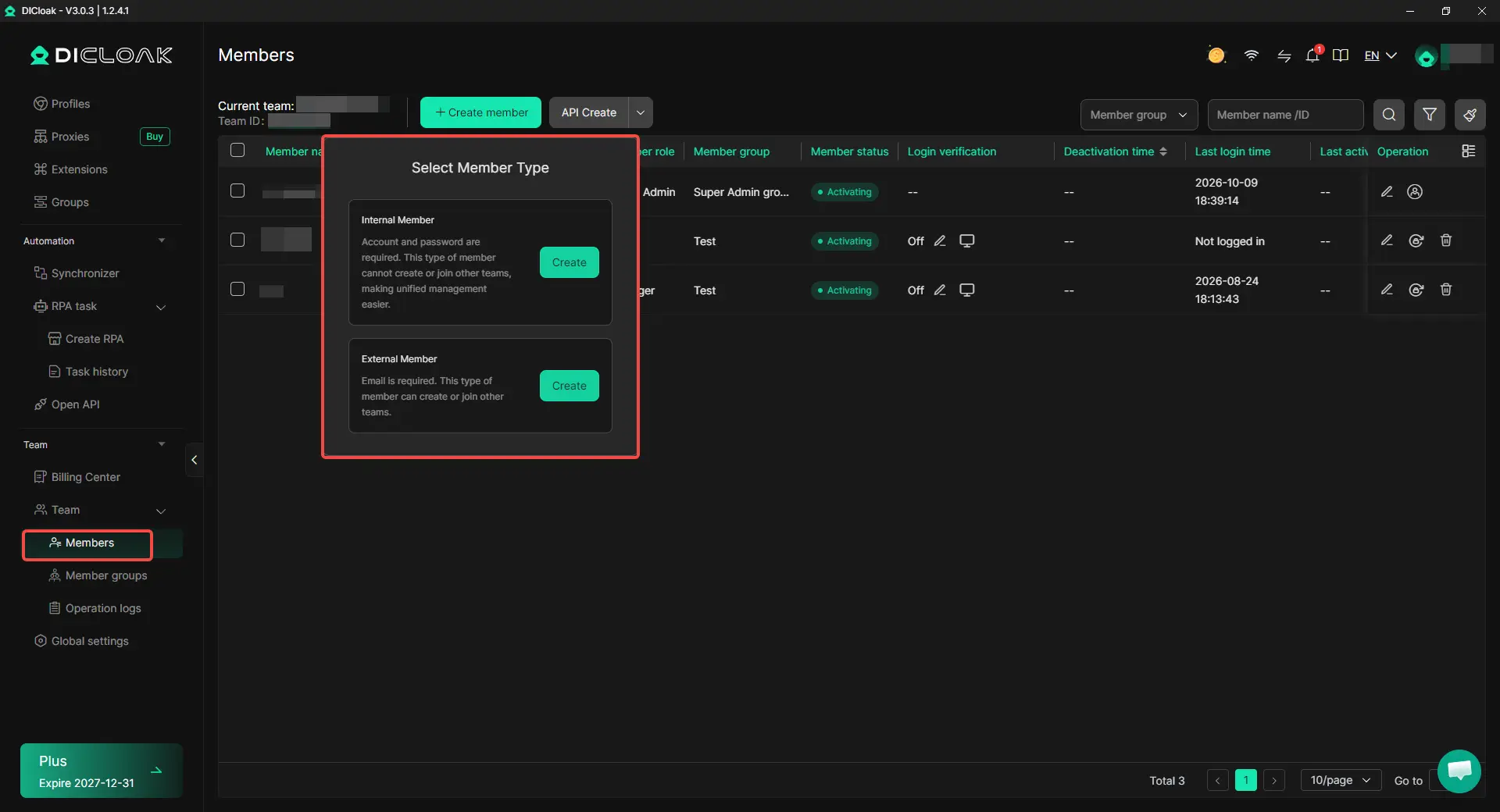
For agencies managing client channels, different team members often need access to different accounts. Using Profile Sharing and Team Permissions in DICloak, you can assign browser Profiles to editors, content managers, or other members based on their responsibilities. For example, an editor can access the Profiles for assigned clients, while a manager oversees multiple projects. When responsibilities change, you can adjust member access without setting up the Profiles again.
How Can You Manage Multiple YouTube Accounts More Efficiently?
Managing multiple YouTube accounts isn't just about keeping logins separate. You also need a clear way to plan content, handle uploads, and track how each channel performs. A few changes to your daily workflow can save time as you take on more channels.
Plan Your Content Schedule for Each YouTube Channel
When managing several channels, keeping track of different upload dates and content plans can get confusing. Use a shared content calendar to record each video's channel, topic, assigned editor, production status, and publishing date. This helps agencies see what's ready to publish and what still needs work without checking every account individually.
Prepare and Organize Video Assets Before Uploading
Instead of switching between accounts to find missing files, keep each channel's videos, thumbnails, subtitles, and descriptions in separate folders. Use clear file names that include the client or channel name. Preparing these assets together makes uploading faster, especially when several videos need to go live during the same week.
Schedule Videos Instead of Publishing Everything Manually
If you manage several YouTube channels, you don't need to log in every time a video should go live. YouTube Studio lets you upload videos in advance and schedule their publication. For example, you can prepare a week's videos for one channel in a single work session, then move on to the next account without returning every day to publish manually.
Track Each Channel's Performance Separately
Different YouTube channels may attract different audiences, even when they belong to the same business. Review metrics such as click-through rate, audience retention, and traffic sources in YouTube Analytics to see which topics and formats work for each channel. A video style that performs well on a tech channel may not get the same response on a travel or gaming channel, so it's better to adjust your content plans based on each channel's results.
Frequently Asked Questions About Managing Multiple YouTube Accounts
1. How Many YouTube Accounts Can I Manage With an Antidetect Browser?
There is no fixed number of YouTube accounts that every antidetect browser can manage. The actual limit depends on your browser plan, computer performance, and how many Profiles you need to run at once. With an antidetect browser like DICloak, you can create separate browser Profiles for different Google accounts and manage them from one dashboard. For larger operations, check the available Profile limits and team features before choosing a plan.
2. Can I Use My Existing YouTube Accounts in an Antidetect Browser?
Yes, you can sign in to your existing Google accounts through an antidetect browser without creating new YouTube channels. Your videos, subscribers, and channel settings remain linked to your Google account, not your browser. Simply create a browser Profile, open YouTube, and sign in with your existing account. You can then use that Profile for future channel management.
3. Do I Need a Different IP Address for Every YouTube Account?
No, managing multiple YouTube accounts does not automatically require a different IP address for each one. Many creators manage several channels using the same internet connection. If your workflow requires separate network settings, you can configure individual proxies for different browser Profiles. The important thing is to choose a setup that fits your account management needs rather than adding proxies simply because you have multiple channels.
4. Can Multiple YouTube Channels Use the Same AdSense Account?
Yes, multiple YouTube channels can use the same approved AdSense for YouTube account, even when the channels are linked to different Google accounts. Google generally allows only one AdSense or AdSense for YouTube account under the same payee name. Each channel must still meet YouTube's monetization requirements. If you manage channels for different clients, their payment accounts should remain under the appropriate owners.
5. Does Using an Antidetect Browser Help YouTube Channels Get More Views or Monetized Faster?
No, an antidetect browser does not directly increase YouTube views, improve recommendations, or speed up monetization approval. These outcomes depend on factors such as content performance, audience engagement, and YouTube Partner Program requirements. However, using DICloak Antidetect Browser can make it easier to organize multiple accounts, automate repeated tasks, and coordinate team workflows, giving creators more time to focus on their content.
Conclusion
Running multiple YouTube channels sounds simple until you're juggling different Google logins, client projects, and upload schedules. As your workload grows, keeping everything organized can become harder than managing the content itself. If you only run a few channels, YouTube's built-in tools or Chrome Profiles may be enough. But when you manage multiple independent accounts or work with a team, an antidetect browser like DICloak can make daily operations easier through separate browser Profiles, automation, and team collaboration. Ultimately, the right tool depends on how you manage your YouTube accounts, not just how many channels you have.
 Web Proxy Tools
 Free Tools
 Cookie Plugin
 UA Generator
 MAC Address Generator
 IP Generator
 IP Address List
 2FA Code Generator
 World Clock
 Anonymous Check
 WebRTC Leak Test
 UUID Generator
 Free Web Proxy Site
 Proxy Checker
 FB Ad Checker
 AI Web Scraping
 Free SMM Tools
 Twitter Shadowban Checker
 Instagram Name Checker
 UTM Generator
 Username Generator
 AI Hashtag Generator
 LinkedIn Headline Generator
 Social Media Image Resizer