You’re watching a video or editing a playlist when, without warning, YouTube signs you out on your PC. Sometimes it happens after a browser update, sometimes just while switching tabs. If you’ve searched “youtube keeps signing me out on pc,” you’re not alone. This problem hits both Chrome and Edge users, and it doesn’t care whether you’re using a work or personal account.
It’s tempting to blame cookies or a random glitch, but most quick fixes don’t stick. Even after clearing browser data or checking your password, you might find YouTube logs you out automatically again the next day. Many guides repeat the same steps, yet the issue keeps coming back, especially if you use add-ons or switch networks often.
What gets missed is how browser storage, account sync, and third-party extensions interact. A stale cookie or an outdated login token can break the session, but so can a background extension trying to “clean” your browser. If you use multiple Chrome profiles, or you’ve ever logged in from different locations, the sign out loop gets even trickier, sometimes the fix is as simple as tweaking sync settings, and sometimes you need to dig into browser permissions or check for conflicting extensions.
Before you waste another hour re-logging into YouTube, here’s how to pinpoint what’s actually causing the sign out, and what to change so it stays fixed.
Why Does YouTube Keep Signing Me Out on PC?
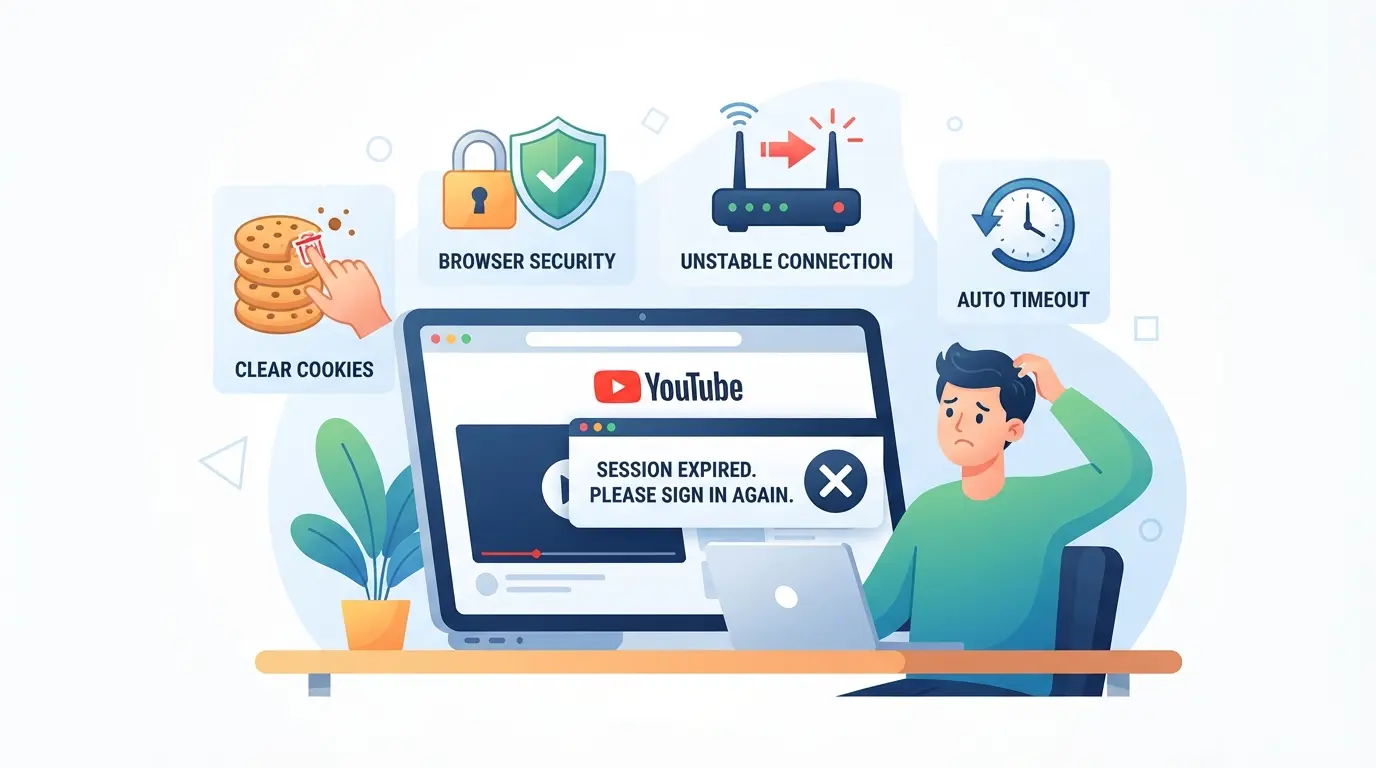
Random logouts on YouTube rarely come from just one cause. In most cases, something on your PC, like expired cookies, aggressive privacy tools, or network shifts, interrupts the login session, forcing YouTube to sign you out. Here’s where the problem usually starts.
Expired or Corrupted Cookies
YouTube, like most sites, stores login status in browser cookies. If those cookies expire (often after 30 days or less) or get corrupted by a system crash or browser bug, your session ends and you’ll need to sign in again.
Browser Settings and Privacy Tools
Modern browsers often include privacy features that clear cookies or block trackers for you. If you have set Chrome or Edge to auto-clear cookies on exit, or if you’re running extensions like uBlock Origin, Privacy Badger, or ad blockers with strict settings, YouTube’s login cookies may not stick. The same goes for “Incognito” or “Private” browsing, which wipes cookies every time you close the window. Some antivirus tools now also flag and clean what they see as “tracking” cookies, sometimes these are the same ones needed to keep you logged in. If you use more than one extension that touches cookies, be aware that one can silently undo the other's changes, leaving you stuck in a logout loop. The hardest part to spot is when a security tool quietly changes its rules after an update, suddenly wiping your session even if you didn’t touch your browser settings.
Account Security Alerts or Forced Logouts
Google watches for strange account activity, like logins from a new city or repeated failed password attempts. If their system thinks your account might be at risk, it forces a logout on every device, desktop included. For example, if you change your Google password on your phone after a phishing warning, you’ll see all your PC sessions signed out within minutes, even if you’re in the middle of watching a video.
Network or IP Changes
- Swapping between Wi-Fi networks or using a mobile hotspot can change your public IP address, which sometimes triggers a forced logout.
- Using proxies or being on a shared network (like school or work) can cause YouTube to see your session as risky.
- If your router reboots or your ISP assigns you a new IP, you might get logged out mid-session.
If you keep getting signed out, start by checking cookie settings and privacy tools before diving into account or network issues. The next section covers exactly what to check first so you don’t waste time on the wrong fix.
What Should You Check First When YouTube Signs You Out Repeatedly?
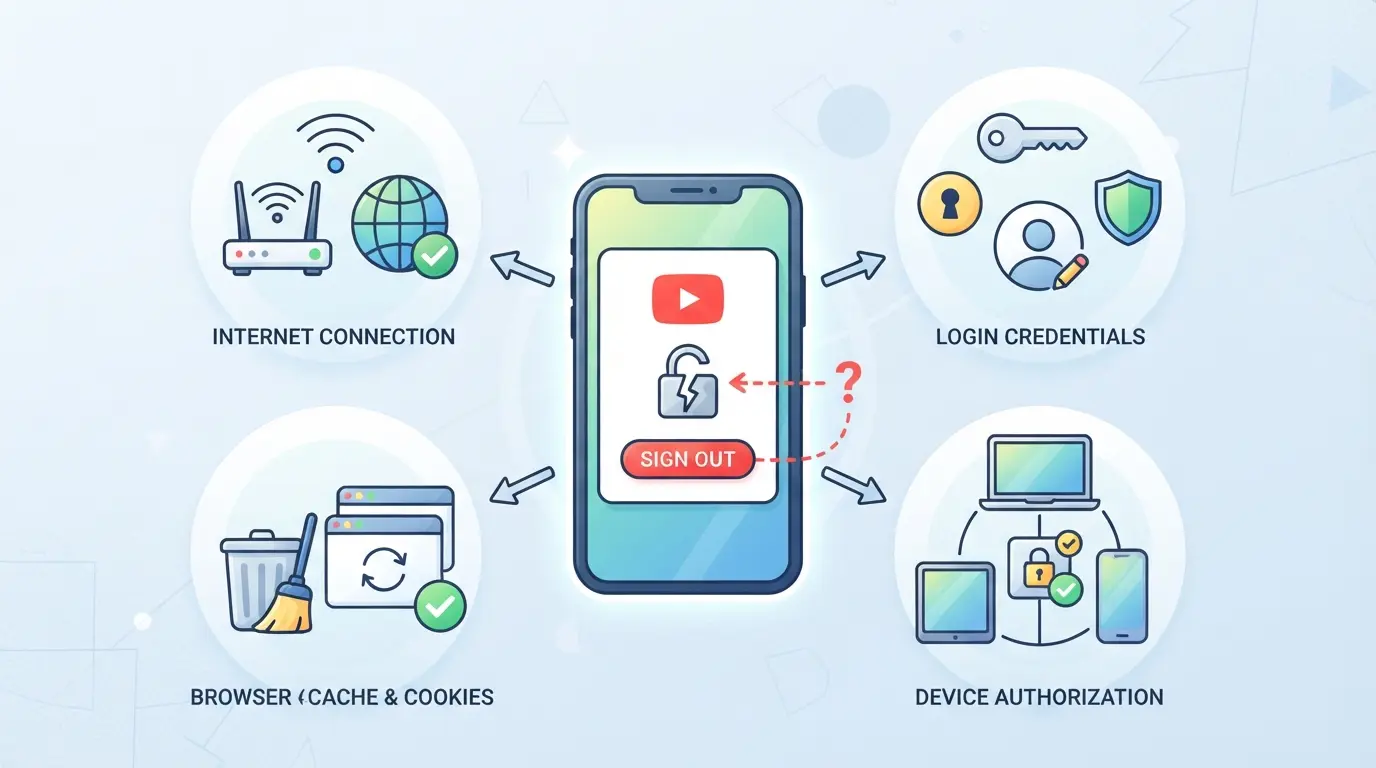
If YouTube keeps logging you out on your PC, the fastest way to break the loop is to check the basics, browser settings, extensions, and account security, before you start changing passwords or reinstalling your browser. Jumping straight to resets wastes time if you miss a blocked cookie or a silent extension.
Are Cookies and Site Data Enabled?
YouTube needs cookies to keep you logged in. In Chrome: go to Settings > Privacy and Security > Cookies and other site data. Make sure “Allow all cookies” is on, and that youtube.com is not on the “Sites that can never use cookies” list. In Edge and Firefox, check for similar settings, if cookies are disabled, you’ll be signed out every time you close or reload the page. A quick sign you have a cookie problem: you log in, refresh, and YouTube asks you to sign in again.
Is Your Browser Up to Date?
An old browser can break website logins. Run these checks:
- Open your browser’s menu and look for “About” or “Help.”
- Click “Check for updates”, install any pending update.
- Restart the browser after updating to apply changes.
Are You Using Extensions That Affect Logins?
Extensions that block cookies, clear sessions, or manage privacy (like ad blockers or “cleaner” tools) often break YouTube logins. Try disabling all extensions, then log in to YouTube again. If the problem disappears, turn extensions back on one at a time to find the culprit.
Has Your Google Account Security Changed?
Recent account security changes can force logouts across devices. Check these points:
- Did you change your Google password or add 2-step verification this week?
- Any “Security alert” emails or device removal notices from Google?
- Look for new sign-in attempts or forced logouts in your Google Account > Security > Recent activity.
If you find a match here, YouTube is just following Google’s security. Fix the source, don’t waste time clearing browser data. Next, move to step-by-step fixes if these checks don’t solve it.
How to Fix YouTube Logging You Out: Step-by-Step Troubleshooting for 2026
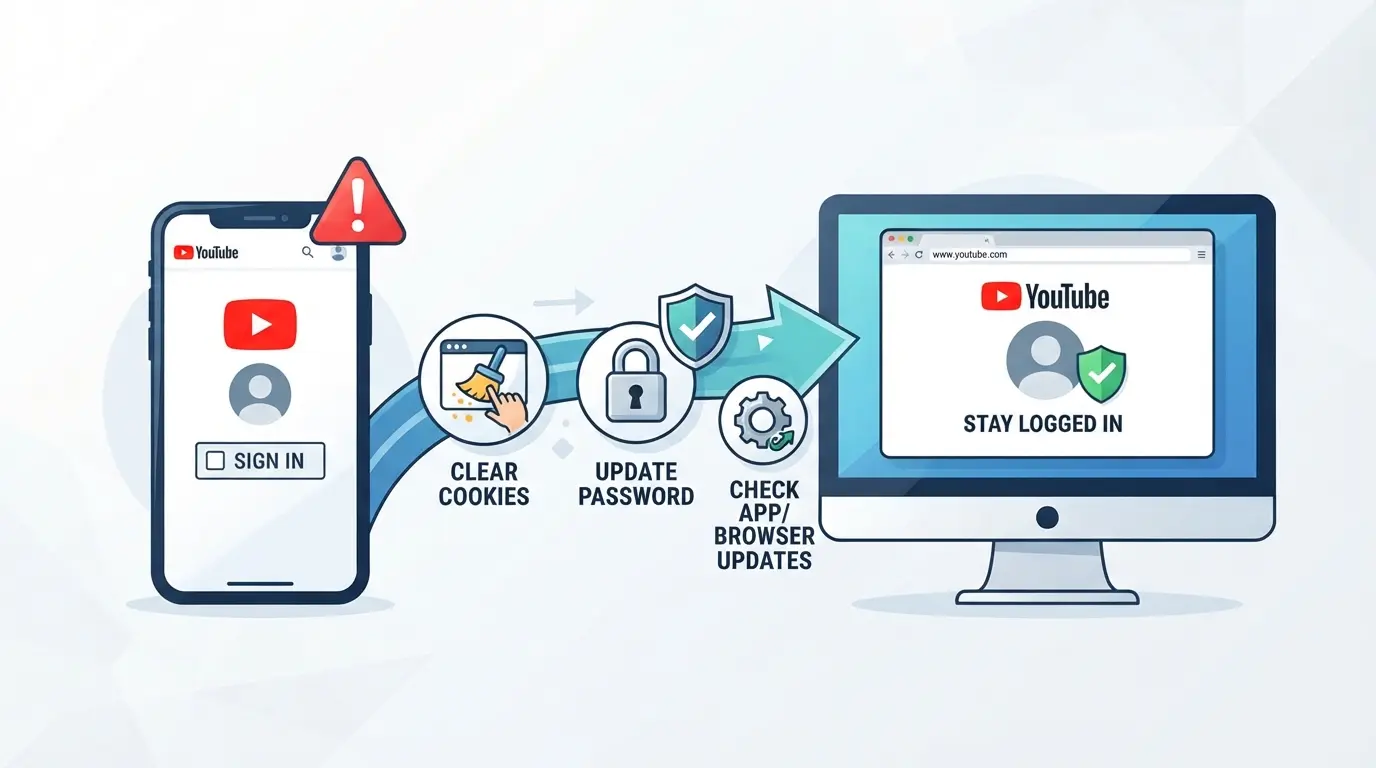
If you’ve double-checked your sync and browser settings but YouTube still signs you out on your PC, it’s time to run through these fixes, each targets the most common causes left after basic checks. Move through them in order: the real problem is usually a sticky site cookie, a pushy extension, or a device that Google doesn’t trust.
Clear Cookies and Cache for YouTube and Google
- Open your browser’s settings and find “Cookies and site data.”
- Search for “youtube.com” and “google.com” and remove cookies and cached files for both. This deletes old login tokens that can keep logging you out.
- Refresh YouTube and sign in again. If you still get signed out within minutes, move on, your issue isn’t just old cookies.
Disable or Reconfigure Extensions
- Turn off all browser extensions, then reload YouTube. Some ad blockers or privacy tools auto-wipe cookies, which kills your login.
- Test YouTube in an incognito or private window (with all extensions disabled by default). If the sign out problem goes away, reactivate extensions one by one to find the culprit.
- Once you spot the problem extension, either remove it or adjust its settings to stop it from clearing cookies on “youtube.com” and “accounts.google.com”.
Update Browser and Restart Device
- Check for browser updates, outdated versions sometimes mishandle secure cookies, especially after Google security changes.
- Install updates, close all browser windows, and restart your PC. This clears out old processes that might be interfering with login sessions.
- After rebooting, open YouTube and log in again. If the issue returns, it’s likely not a browser bug but something else on your device.
Check Google Account Security and Devices
- Visit your Google Account security page. Look for unfamiliar devices in “Your devices.”
- Remove any device or session you don’t recognize. Google can force logouts on all connected devices if it thinks your account is at risk.
- Review “Recent security activity.” If you see warnings about suspicious sign-ins, follow Google’s prompts to secure your account, until you do, you may get signed out repeatedly.
This process covers every step that actually fixes the “YouTube keeps logging me out on PC” scenario for most users. If you still get kicked out after all of this, your problem may be linked to how your network or device is identified by Google, something that’s easy to miss if you change proxies or move between Wi-Fi and mobile hotspots. That’s where the next section picks up: why these changes can trigger forced logouts and what to check next.
Why Network and Device Changes Can Trigger YouTube Logouts
Switching networks or devices is one of the most overlooked reasons for getting kicked out of YouTube sessions on your PC. Even after fixing browser issues, a sudden logout can still happen if your IP or device changes behind the scenes.
Frequent IP Address Changes
If your internet provider uses dynamic IPs or you share WiFi with others, YouTube can see each new IP as a different login. This triggers the platform’s auto-checks and can cause session loss, especially on accounts with two-step verification.
Switching Between Devices or Browsers
Google tracks which device and browser you use for each login. If you sign in on your phone, then use YouTube on your PC without clearing cookies or browser storage, Google sometimes flags the session as “unusual activity.” That often means you’ll get signed out automatically, even if your password is strong.
Using Proxies or Changing Locations
- Stick to one proxy or IP for the same session.
- Avoid jumping between work, school, or home networks in the same browser profile.
- If you must switch, clear cookies and re-login; skipping this step almost always triggers youtube keeps signing me out on pc.
How Shared Devices and Multiple Accounts Affect YouTube Login Stability
If youtube keeps signing you out on pc, shared computers and multiple Google accounts are a common culprit, each extra login or user raises the chance of a session clash or forced logout.
Session Conflicts with Multiple Google Accounts
Google only keeps one main session active per browser. If you switch accounts or add new logins often, YouTube can log all users out to reset the session. This gets worse if you sync Chrome with more than one Google account.
Risks of Shared or Public Computers
On devices used by several people, session leaks are common. For example, if one user signs out, everyone gets logged out, sometimes without warning. Logging in through a regular browser window instead of a separate profile means cookies and tokens get mixed, so YouTube can’t tell which session is yours.
How to Keep Sessions Separate
- Always use a unique browser profile for each Google account
- Switch to guest mode on public computers, never log in to your main account directly
- Sign out fully when done; close the browser to end all sessions
Keeping logins isolated stops most session mix-ups and prevents surprise logouts for everyone sharing that computer.
Managing Multiple YouTube Accounts and Sessions More Safely with DICloak
If you’re running several YouTube accounts on one PC, especially with a team, browser session conflicts can turn into a constant headache. Logging in and out, or watching YouTube keep signing you out on PC, often comes down to overlapping cookies, browser storage, or just one person using the “wrong” window at the wrong time. For teams that need a more stable setup, DICloak gives operators full control over browser profile separation, proxy configuration, and access permissions. The scope is limited to browser-profile and session management; it does not alter YouTube account settings or platform rules.
Isolate Each YouTube Account with Separate Browser Profiles and Fingerprint Settings
Operators can keep each YouTube account in its own DICloak browser profile, separating cookies, storage, and browser-identification signals. This means session data for one account never mixes with another, even if several people log in from the same machine. Supported fingerprint settings, like User Agent, time zone, and screen resolution, are all configured per profile, so each environment matches the assigned account’s workflow. This approach avoids the classic “who just logged me out?” problem when managing multiple logins side by side.

User-Provided Proxy Configuration for Assigned Profiles
Operators set their own proxy connection for each browser profile in DICloak. Before launching a session, you can test if the proxy is working and confirm the detected exit IP, country, and time zone. This step matters for teams working with accounts tied to different locations, since an IP mismatch is a common cause of unexpected logouts or verification loops. DICloak only stores and applies the proxy you provide, it does not supply proxies or dictate which to use.

Control Team Access and Permissions for Shared Account Management
Admins decide which team members can access, edit, or even see each profile group inside DICloak. For example, if only two staff should handle your main YouTube channels, you can lock those profiles to their accounts and prevent anyone else from opening or changing them. These controls apply to DICloak access only; they do not affect permissions inside YouTube itself.

If session conflicts continue even after these steps, it may be time to review your workflow or check with Google support.
When to Contact Google Support or Consider a Different Workflow
Persistent Account or Security Issues
If you’ve tried every fix and YouTube still logs you out, it can signal a deeper account or security problem, especially if Google prompts for verification or blocks you from logging in at all. At this point, contact Google support with details like error messages, recent device changes, and a record of troubleshooting steps.
Considering Safer Multi-Account Workflows
Ignoring repeated sign-outs risks losing access or getting accounts flagged for suspicious activity.
- Sync errors or forced logouts after device changes often mean Google’s system sees conflicting sessions.
- The safer move: separate each account into its own browser profile or managed environment, this cuts down on session overlap and lowers the chance of system-triggered logouts.
If standard fixes don’t work, forcing logins over and over can actually make the problem worse. For persistent issues, a change in how you manage sessions is often the only way to keep accounts stable long-term. Move on to practical tips for staying logged in.
Pro Tips for Keeping Your YouTube Account Logged In on PC
Small changes in your habits can prevent the “youtube keeps signing me out on pc” problem from coming back, here’s what actually works long-term.
Avoid Frequent Switching Between Accounts
Each time you switch Google accounts, your session token can get replaced or invalidated, especially if you use incognito or have two-factor authentication. Stick to one account per browser session when possible. If you must switch, fully sign out before changing users.
Keep Browser and Extensions Updated
- Check for browser updates weekly, security patches fix session bugs.
- Update all extensions to their latest versions.
- Remove any extension you no longer use, especially those that touch cookies or privacy.
Use Dedicated Profiles for Each Account
Using separate browser profiles for each YouTube account keeps cookies and sessions separate, reducing cross-account conflicts.
- Create a new browser profile before logging in with another account.
- Set each profile with its own sync and extension setup.
- Never share profiles between work and personal accounts.
Frequently Asked Questions About youtube keeps signing me out on pc
Why does YouTube keep signing me out on my PC even after clearing cookies?
YouTube keeps signing me out on PC not just because of cookies. Other causes include browser extensions that block scripts, issues with account security, and network changes. Sometimes, antivirus software or firewall settings can also interfere with your login session and force a logout.
Can using proxies or changing IP addresses make YouTube log me out?
Yes, using proxies or frequently changing your IP address can make YouTube log you out. YouTube treats sudden location changes as a possible security risk. If your IP changes often, YouTube may require you to sign in again to protect your account.
How do I keep multiple YouTube accounts logged in without conflicts?
You can keep different YouTube accounts logged in by using separate browser profiles. This stops logouts caused by account mix-ups. Tools like DICloak can also help isolate sessions, making it easier to manage multiple accounts without interference.
Is it safe to stay logged in to YouTube on a shared computer?
Staying logged in to YouTube on a shared computer is risky. Others could access your account or change your settings. Use guest mode or set up separate browser profiles to keep your account private and safe from unwanted changes.
What should I do if none of the fixes stop YouTube from logging me out?
If youtube keeps signing me out on pc after trying common fixes, contact Google support. Also, check your account security settings for suspicious activity or unauthorized changes. Make sure your recovery info is up to date and review connected devices for anything unusual.
If you continue experiencing unwanted sign-outs despite troubleshooting browser settings and clearing cookies, it may be worth considering a more secure and private browsing solution. Switching to a privacy-focused tool could help maintain your login sessions and protect your data on popular websites. Try DICloak For Free
 Web Proxy Tools
 Free Tools
 Cookie Plugin
 UA Generator
 MAC Address Generator
 IP Generator
 IP Address List
 2FA Code Generator
 World Clock
 Anonymous Check
 WebRTC Leak Test
 UUID Generator
 Free Web Proxy Site
 Proxy Checker
 FB Ad Checker
 AI Web Scraping
 Free SMM Tools
 Twitter Shadowban Checker
 Instagram Name Checker
 UTM Generator
 Username Generator
 AI Hashtag Generator
 LinkedIn Headline Generator
 Social Media Image Resizer