Imagine you’re sitting in a quiet café, fully focused on your work, when you suddenly need to send an important message on LINE. You reach for your phone but pause and think, “Can I use LINE on a web browser instead?” The good news is yes—LINE Web Login makes this possible. This guide covers everything you need to know about LINE Web Login in 2026, from account registration to all available login methods on both PC and mobile devices.
What Makes LINE a Go-To Messaging App?
LINE is a popular messaging application run by LY Corporation. Its core function goes beyond simple texting, allowing users to make free voice and video calls and express themselves with a vast library of custom emojis and stickers. Similar in function to apps like WeChat and KakaoTalk, LINE also integrates a variety of additional services for entertainment, lifestyle, and finance.

Key Benefits of Using LINE
- Free Communication: LINE allows users to send messages and make voice and video calls for free, anytime and anywhere.
- Expressive Messaging: With a large collection of unique stickers and emoticons, LINE makes conversations more fun and personal.
- Cross-Platform Availability: LINE is available on both mobile devices and desktops, allowing users to access their accounts seamlessly across different platforms.
- Additional Services: The app offers a suite of extra services, including LINE NEWS, LINE Doctor, LINE Pay, and LINE MUSIC, making it a multi-purpose tool for daily life.
Getting Started: How to Register Your LINE Account
Before you can use LINE on a PC or web browser, you must first register for an account using a mobile device like a smartphone or iPad.
Important Prerequisites Before You Begin
- As of July 24, 2024, LINE no longer supports 32-bit versions of Windows. While you can use the existing version, you must upgrade to a 64-bit Windows OS to receive new features and updates.
- It is not possible to create a new LINE account on a PC. Account creation must be done on a smartphone or iPad. This is because the PC and web versions of LINE are designed as companion clients that sync with a primary mobile account.
A 7-Step Guide to LINE Registration
Step 1: Download the LINE App
Find and install the official LINE app. It is available on Google Play for Android devices and the App Store for iOS devices.
Step 2: Open the App and Sign Up
Launch the app and tap the "Sign up" button on the welcome screen to begin creating your account.
Step 3: Enter Your Phone Number
You will be prompted to enter your phone number. Make sure the correct country dialing code is selected before proceeding.
Step 4: Enter the Verification Code
LINE will send a verification code to your phone number via SMS. Enter this code into the app to continue. If you don't receive it, you can use the "Resend Code" option. After entering the code, you may be asked to complete a CAPTCHA to verify you are not a robot.
Step 5: Create a New Account
The app will check if your phone number is linked to an existing account. Since it's a new registration, select "Create new account" and then set up your profile picture and display name.
Step 6: Set Your Password
Create a secure password for your account. It must be a minimum of six characters and include at least one letter and one number.
Step 7: Configure Friend Addition Settings
Choose your preferences for how others can add you as a friend, such as allowing automatic additions from your phone's contacts. Once configured, the app will sync your information, and your registration will be complete.
Exploring Your LINE Web Login Options on a PC
Once your mobile account is set up, you can easily access LINE on your PC through a web browser, giving you the flexibility to chat from your desktop or laptop.
Using the Official LINE Web Portal for Login
You can sign in to LINE's official web authentication portal using two methods. Please note that logging in with a phone number is not available for the web version.
1. First, register your email address within the LINE app on your smartphone.
2. Open the LINE web login page on your PC.
3. Enter your registered email and password, then click Log in.
1. Open the LINE web login page on your PC, which will display a QR code.
2. On your smartphone, open the LINE app and use its built-in QR code reader to scan the code on your PC screen.
3. Tap Log in on your phone to confirm.
Using the LINE for Chrome Extension for Login
For a more integrated browser experience, you can use the LINE for Chrome extension.
1. Open the Google Chrome browser on your PC.
2. Find and add the official LINE extension from the Chrome Web Store.
3. Log in to the extension using either your email address and password or by scanning a QR code with your mobile device.
Both the web portal and the Chrome extension offer the same login methods: email/password and QR code.
How Does LINE Web Login Compare to the PC App?
In addition to browser access, you can install a dedicated LINE application on your Windows or Mac computer. This desktop app provides access to most of LINE's features without needing to keep a web browser open. You can download the correct version for your operating system from the official LINE website.
Logging into the LINE Desktop Application
The desktop application offers the same login methods as the web version (email and QR code) and adds a third option for convenience: biometric information.
Here is how to log in using biometric information:
1. On your PC, open the LINE application and select the "Log in with smartphone" option.
2. Choose the "Biometric" login method.
3. You will be prompted on your smartphone to authenticate the login. Use your phone's registered face or fingerprint scanner to approve the sign-in.
Accessing Your LINE Account on Mobile Devices
Logging into your LINE account on smartphones and iPads is straightforward, with several methods available. If you are moving to a new phone, you can even transfer your account seamlessly by scanning a QR code from your old device.
Login Methods for Smartphones and iPads
- QR Code: Scan a QR code to log in or transfer your account between devices.
- Phone Number: Use the phone number you registered with.
- Apple ID: Log in using your linked Apple ID.
- Google Account: Log in using your linked Google Account.
To use your Apple ID or Google account for login, you must first link them within the LINE app settings:
1. In the LINE app, go to the Home tab > Settings > Account.
2. Tap Link next to the Apple or Google option and follow the instructions.
Can I Use Multiple LINE Accounts on the Same Device?
Some users need to manage more than one LINE account on a single computer without the hassle of constantly logging in and out. This is entirely possible with the help of a specialized tool.
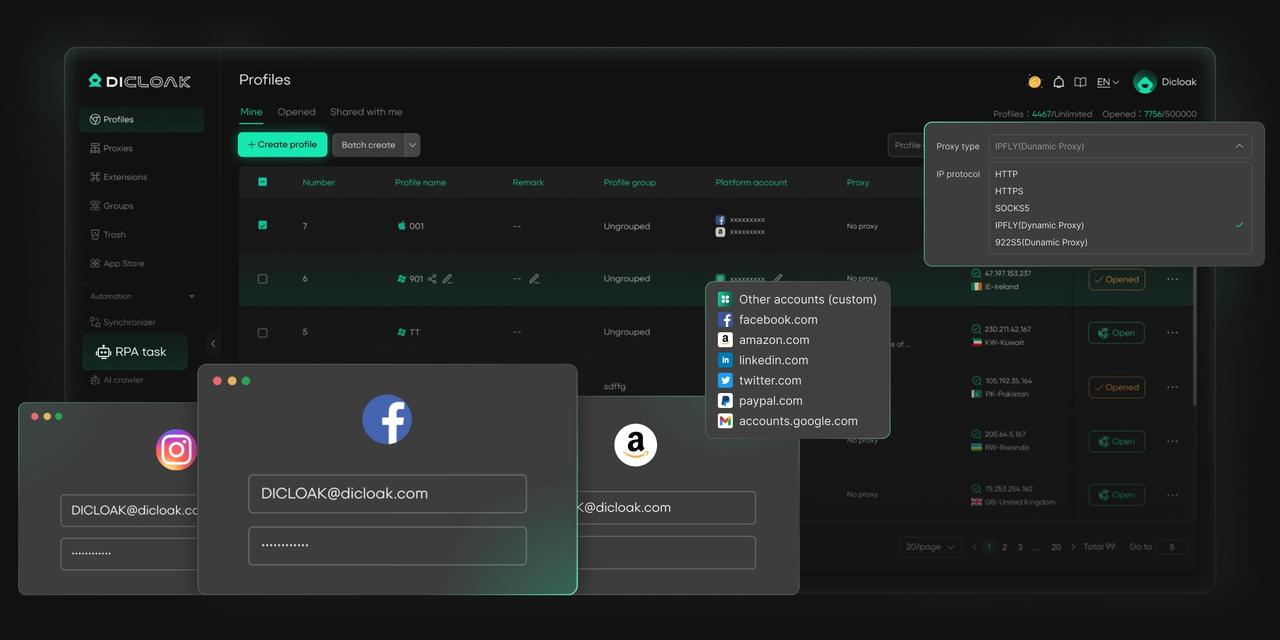
DICloak is a powerful multi-accounting tool designed to solve this exact problem. It allows you to create multiple browser profiles that are completely isolated from one another. By using a different profile for each LINE account, you can easily switch between them on the same device with just a click. For anyone who needs to manage multiple social media or messaging accounts securely and efficiently, the DICloak Antidetect Browser is an excellent solution.
Common Problems with Your LINE Web Login and How to Fix Them
If you run into trouble while trying to log in to LINE on your PC, here are some common issues and their solutions.
Incorrect Email or Password Errors
If you receive an error message about an incorrect email or password, follow these steps:
1. First, ensure you have already registered an email address within your smartphone's LINE app settings.
2. Type your email address and password into a notepad app first to ensure there are no typos, extra spaces, or case-sensitivity errors.
3. Copy and paste the credentials from the notepad into the LINE login fields.
4. Click the eye icon next to the password field to visually confirm that the password was entered correctly.
5. If the problem continues, use the options to verify your registered email address or reset your password.
"Allow Login" Setting Issues
If you see an error related to your login permissions, you need to enable a setting in your mobile app.
- On your smartphone, navigate to the Home tab > Settings > Account.
- Find the Allow login option and turn it on.
Network and QR Code Login Failures
- If you see an error saying "Unable to log in due to network issues," check that your computer has a stable internet connection.
- If you have trouble logging in with a QR code, try updating your smartphone's LINE app to the latest version.
A Quick Summary of Your LINE Web Login Methods
LINE is a flexible communication tool that works smoothly on both mobile devices and computers. If you are wondering, “Can I use LINE on a web browser?”—the answer is yes. With LINE Web Login, users can access their accounts beyond mobile devices. On smartphones, you can sign in using your phone number, Apple ID, Google account, or a QR code. For LINE Web Login on a PC browser or the desktop app, available methods include your registered email address, QR code login, or even biometric authentication.
Frequently Asked Questions about LINE Web Login
Can I log in to LINE on another phone?
Yes, but you must complete an official account transfer to continue using your LINE account on a new device. LINE provides step-by-step guides to ensure a safe transfer before using LINE Web Login again.
Can I log in to LINE with my email address?
Yes, but this option is only available for LINE Web Login on a PC or web browser. You must first add and verify your email address in the LINE mobile app settings.
Why can't I log in to LINE for PC?
Common issues affecting LINE Web Login include incorrect email or password entries, the “Allow login” option being disabled in the mobile app, unstable internet connections, or an outdated LINE app when attempting QR code login.
Is LINE web login secure?
LINE Web Login is generally secure when used correctly. Always use a strong and unique password, stay alert to phishing attempts, and log out after accessing LINE on shared or public computers.
Can I use LINE web login without my phone nearby?
It depends on the login method. Email-and-password-based LINE Web Login does not require your phone. However, QR code and biometric login methods need your smartphone for verification.
 Web Proxy Tools
 Free Tools
 Cookie Plugin
 UA Generator
 MAC Address Generator
 IP Generator
 IP Address List
 2FA Code Generator
 World Clock
 Anonymous Check
 WebRTC Leak Test
 UUID Generator
 Free Web Proxy Site
 Proxy Checker
 FB Ad Checker
 AI Web Scraping
 Free SMM Tools
 Twitter Shadowban Checker
 Instagram Name Checker
 UTM Generator
 Username Generator
 AI Hashtag Generator
 LinkedIn Headline Generator
 Social Media Image Resizer