Running into a Codex usage cap can bring your whole project to a stop, especially if you hit the limit in the middle of a critical task. Some users try to fix it by cycling accounts, clearing browser data, or waiting for a cooldown, none of which guarantee your access will reset when you need it. The real problem is that hitting a Codex rate limit often locks you out for hours, and quick workarounds rarely hold up if you’re sharing accounts or using multiple clients from the same device.
Many developers look for guides on how to reset codex usage limit, hoping for a step that instantly restores access. The reality is trickier. Codex usage reset steps can involve more than just logging out and back in, and some common tricks, like creating new accounts, can lead to bans or even permanent loss of service if you’re not careful. If you try to rush the process or skip key precautions, you risk making the lockout worse.
So what actually works? The safest way to restore Codex access after hitting limit involves a mix of waiting for server-side resets, handling browser fingerprints, changing proxies, and understanding how Codex links usage data across accounts and sessions. If you’re sharing access with others, you’ll also need to update your workflow to avoid tripping shared limits in the future.
Below is a step-by-step breakdown that skips the hype and addresses what really gets your Codex access back.
What Happens When You Hit the Codex Usage Limit?
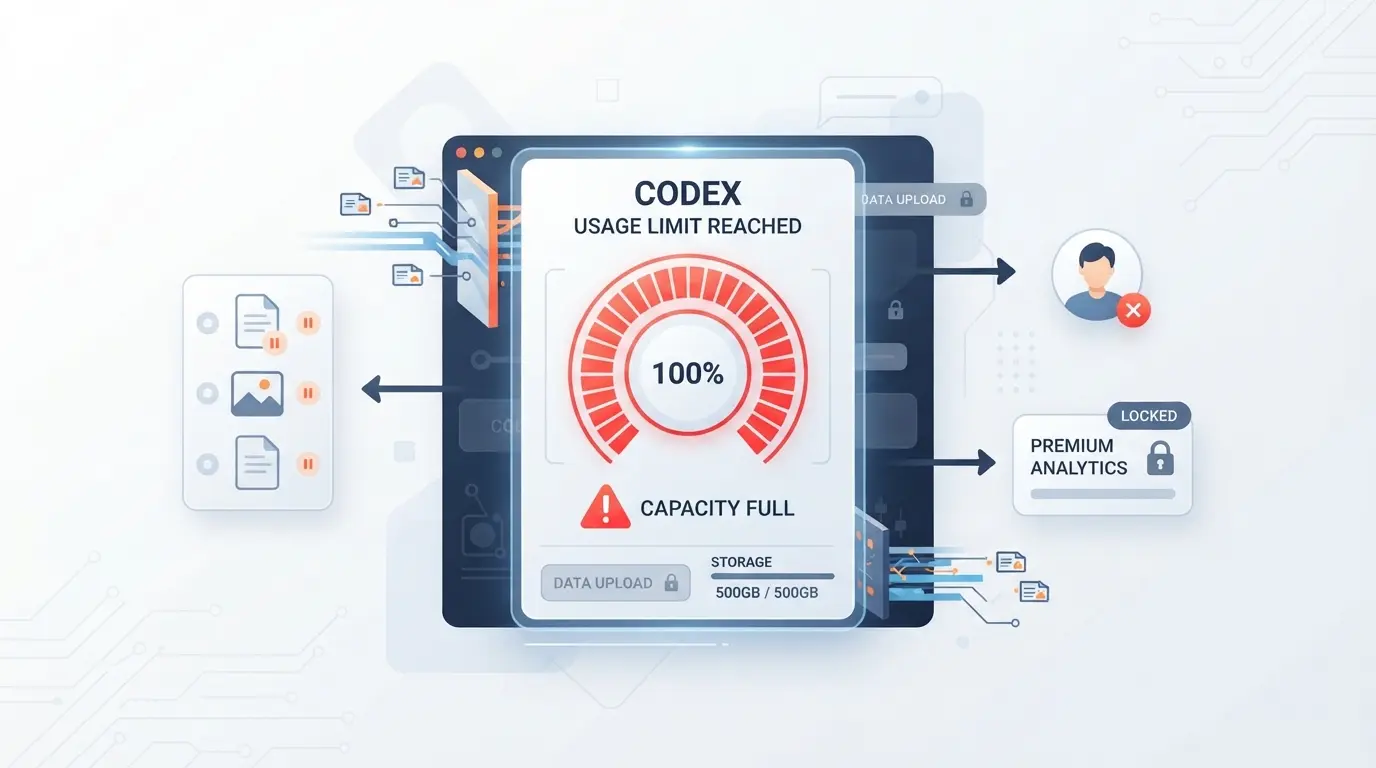
Running into the Codex usage limit means your account is temporarily locked from generating new output, this block kicks in the moment you cross the daily or weekly quota. You can still view old content, but any action that increases usage won’t work until the limit resets.
How Codex Usage Limits Work in 2026
Codex enforces several types of usage limits: daily caps, weekly caps, and sometimes per-account or per-IP ceilings. Most users hit the wall because they’ve triggered too many requests in a 24-hour window. If you use the same browser or proxy for multiple Codex accounts, those limits can stack up and lock all connected accounts at once.
What You Can and Cannot Do After Hitting the Limit
The main impact is you’re blocked from creating, editing, or running new queries through Codex. Hitting the limit doesn’t just freeze your main actions, it can also trip up background automations and API requests tied to your session. For example, if you’re in the middle of a batch job and the cap triggers, you’ll see the process cut off mid-task. Trying to switch to an alt account on the same device usually won’t fix things, since Codex links usage across browser fingerprints and proxies. You might still be able to export or download past outputs, but anything that would increase your usage count is now locked. If you keep refreshing or testing workarounds, some users end up flagged for suspicious activity, which can lead to a longer cooldown or even a manual review.
How Codex Notifies You About Usage Limits
- Usage warning banners show up at the top of the Codex dashboard, these are hard to miss and usually include a reset countdown.
- Attempting a blocked action triggers a pop-up or error message, often with text like “Usage limit reached. Try again in 24 hours.”
- You can check your current quota status in the account settings menu under “Usage & Limits”, the reset timer is displayed here.
If you’re stuck with these restrictions, jumping straight to “how to reset codex usage limit” won’t help unless you understand why the cap triggered and what actually counts as a usage event. The next section explains why Codex sets these limits and how they shape your daily workflow.
Why Codex Has Usage Limits and How They Affect Your Workflow
Codex puts usage limits in place to control server load and reduce abuse, not just to frustrate users. If you’re blocked, it’s because the system tracked more requests than allowed for your account or session, resetting the limit isn’t just about waiting, but also understanding why it’s there.
The Purpose of Codex Usage Limits
Codex usage limits exist to keep service stable for everyone. By capping high-traffic accounts, Codex can stop automated abuse and keep servers from slowing down for regular users. These caps also protect against mass scraping and help the platform spot risky behavior.
How Limits Affect Individual vs. Team Accounts
Usage caps hit individuals and teams differently. On solo accounts, you’ll know right away if you’ve used up your daily or hourly quota, no one else can trigger your limit, so any lockout points back to your own activity. Teams face a trickier problem: Codex often lumps usage together if several people share login details, a device, or even a browser fingerprint. That means one heavy user on a team can trip the rate limit for everyone, freezing out the whole group. It’s common for teams to think, “I barely used Codex today, why am I blocked?” when the real cause is someone else burning through the pool. If your team reuses the same browser or proxy, Codex is more likely to spot overlapping usage and flag it as suspicious, tightening limits even further. Some teams try to dodge this by rotating proxies or clearing cookies, but if the underlying fingerprint or usage pattern stays the same, Codex may still link the activity and apply the cap across all accounts in that cluster. Teams that ignore these triggers often end up in a loop, resetting, sharing, and hitting the wall again.
Common Scenarios Where Limits Disrupt Work
- Project is due soon, but Codex blocks access mid-task, forcing you to change plans
- Multiple users log into the same account during a busy period, hitting the cap faster than expected
- You try to reset the limit, but overlapping sessions or shared fingerprints cause a lockout even after the reset
Most disruptions happen when the team doesn’t realize how shared access or device reuse triggers the system. If you skip reviewing who’s active across your logins, you’re likely to run into the same roadblock again.
Once you understand the cause, you’re in a better position to use any Codex usage reset steps effectively, next up is breaking down exactly how to reset your usage limit for each account type.
How to Reset Your Codex Usage Limit: Step-by-Step for Every User Type
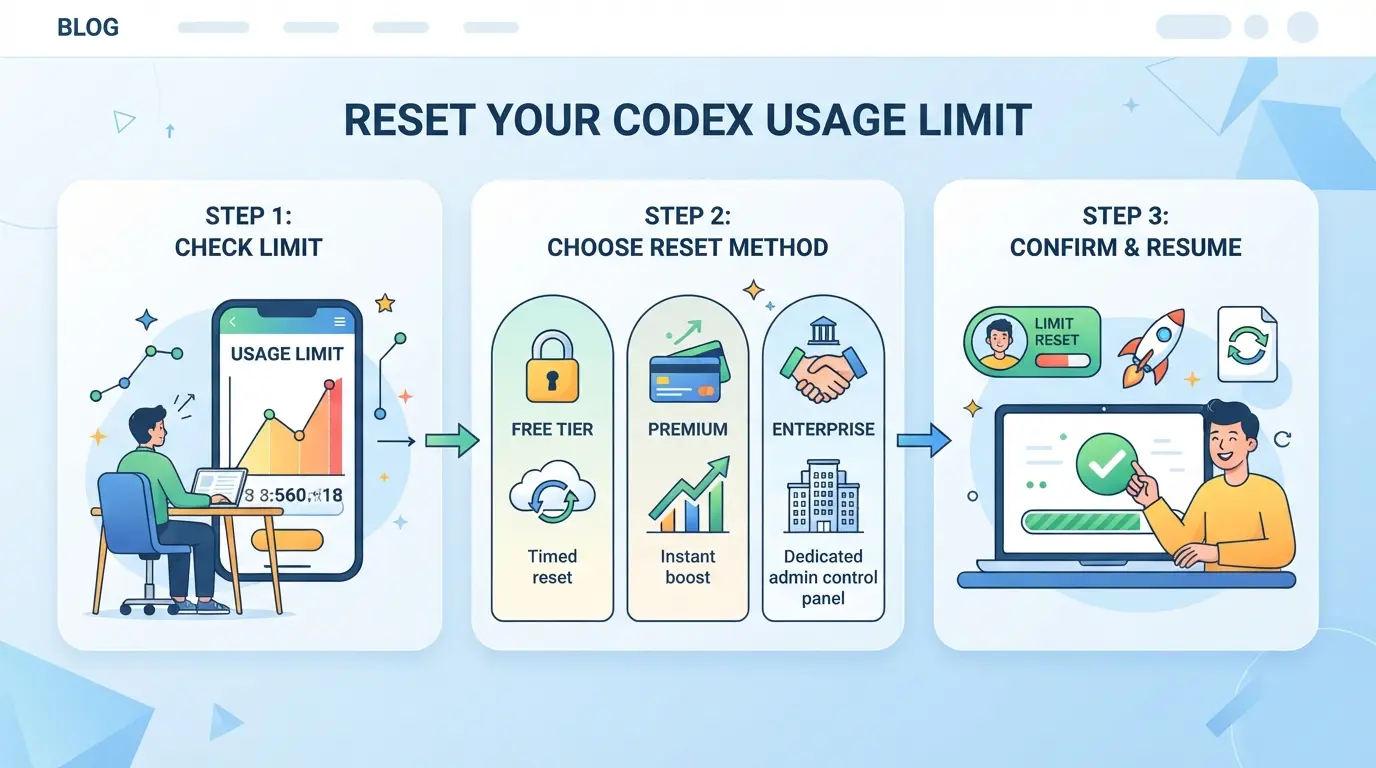
If you’ve hit your Codex usage limit, you have three main options: check if you’re eligible for a reset, trigger a manual or automatic reset, or use a paid/banked reset if available. Each route has its own checks and pitfalls, missing a step can mean your limit stays locked longer or you risk more severe restrictions next time. Here’s exactly what to do.
Check If You’re Eligible for a Reset
- Log in and go to your Codex usage dashboard. If you see a reset countdown, you’re not yet eligible, wait until it reaches zero.
- Review your account status for any flags or warnings. Accounts with unresolved issues often can’t reset usage limits, even after the timer ends.
- If you’re on a team plan, check if your workspace has a shared usage pool. In some cases, only admins can request a reset for everyone.
Manual Reset: How to Request or Trigger a Reset
- Look for the reset or “Request Reset” button on your Codex dashboard. It’s usually near your usage stats.
- Click the button, a confirmation prompt should appear. If it’s grayed out or missing, your account isn’t eligible yet.
- After confirming, monitor for a success message or email. If nothing changes in 5-10 minutes, refresh your dashboard and check again.
Automatic and Scheduled Resets: What to Know
- Know your plan’s reset cycle, most free and standard plans auto-reset every 24 hours, paid tiers may use different periods.
- Check your reset time in account settings. Some platforms show the exact hour/minute of your next automatic reset.
- If you share an account, warn others not to hit the limit right before the reset, overflow usage can delay the unlock by another full cycle.
Paid or Banked Resets: When and How to Use Them
- Visit the Codex billing or upgrade page. If banked resets are offered, you’ll see options to purchase a reset or bundle.
- Buy a reset and confirm it applies to the correct account or workspace, mistakes here can’t be undone.
- Use banked resets sparingly. Some plans only let you bank a set number per month; using them too quickly can leave you stuck until the next billing cycle.
| Reset Type |
How to Get It |
When to Use |
Limits/Risks |
| Manual (Free) |
Request via dashboard |
After cooldown ends |
Only when eligible |
| Automatic/Scheduled |
Wait for cycle to complete |
If not urgent |
May not fit your workflow |
| Paid/Banked |
Buy on billing/upgrade page |
When urgent or for teams |
Limited by plan, costs extra |
Table: Codex reset options, sources: Codex dashboard, billing page
What to Do If Your Reset Fails or Doesn’t Appear
- Double-check your eligibility and refresh your dashboard, browser cache issues can hide a successful reset.
- Try a different browser or device. Sometimes session or profile data sticks and blocks the update from showing.
- If the reset still doesn’t appear after 30 minutes, use official support chat, not email, for fastest help. Provide your account ID and a screenshot of your dashboard.
Rushing the process or skipping these checks is the fastest way to end up in a worse lockout. Next, see which mistakes trip up users most when trying to reset Codex usage limits.
Common Mistakes and Risks When Resetting Codex Usage Limits
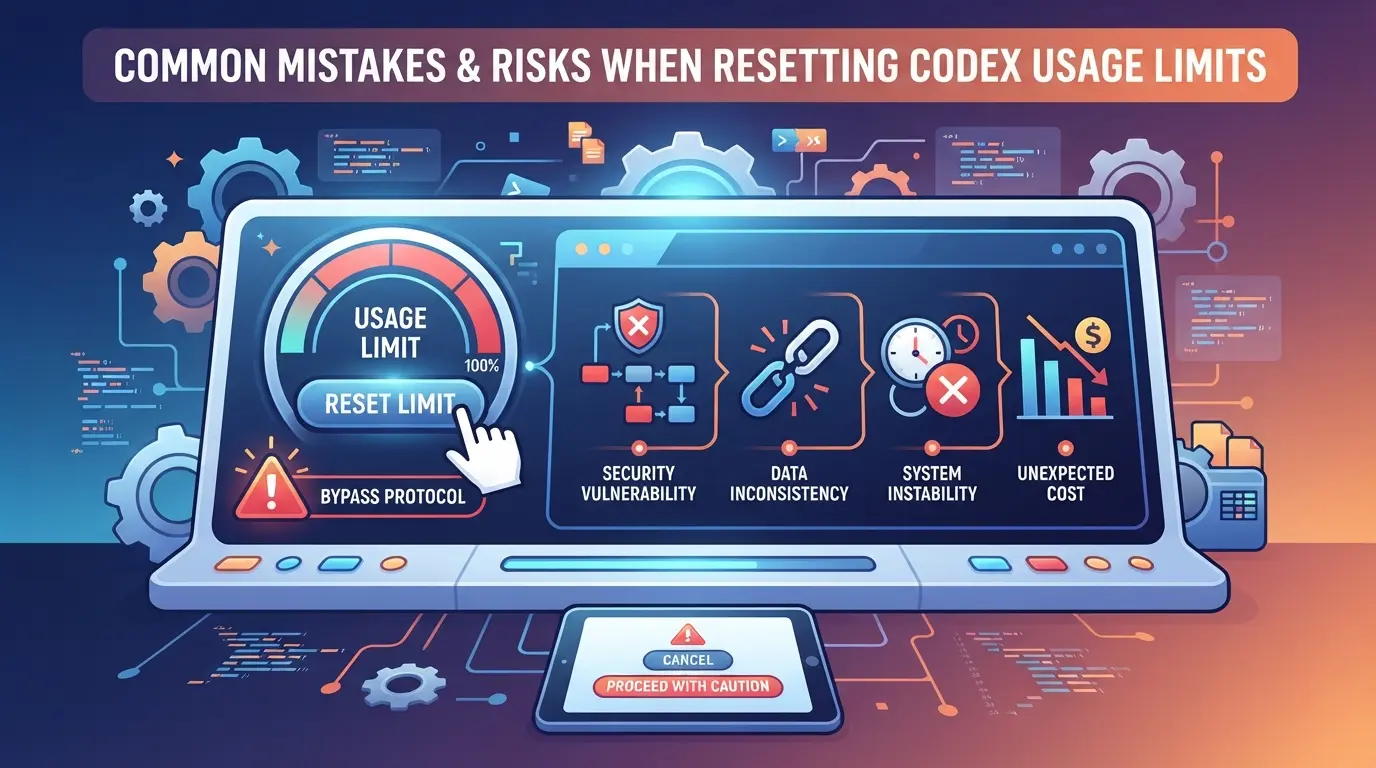
Resetting Codex usage limits can backfire if you skip details or push resets at the wrong time. Here’s what trips up both solo users and teams, plus how to avoid wasting your reset or locking others out.
Wasting Resets on Unfinished or Unclear Tasks
Rushing a reset while Codex is still processing large actions, or before saving your work, can leave you with missing data and a burned reset. Pause and checkpoint any unsaved changes before you click reset, if you miss this, Codex may drop your work and the reset is gone for that period. On team accounts, always clear up who’s active so no one loses their session mid-task.
Confusing Resets with Usage Credits
- Check if you’re out of credits before resetting; resets won’t add more credits.
- Use resets only when you’ve hit the rate limit, not just low on tasks.
- Review your plan: credits and resets are tracked separately.
Team Members Accidentally Triggering New Limits
When multiple people share an account, resets count for everyone. If one person resets while others are mid-task, you risk a partial lockout or double-counted usage. Quick check-ins on team chat before a reset can save hours of confusion.
Letting Codex Re-read Large Repositories Unnecessarily
Unplanned resets can make Codex scan all files again, eating into limits.
- Archive or exclude unused repos before resetting.
- Confirm the project size is accurate, remove deadweight first.
- Use incremental syncs to avoid full scans after each reset.
Ready to coordinate resets? Next, see how to share accounts safely and avoid these headaches.
How to Share Platform Accounts Safely When Resetting Codex Usage Limits
Teams sharing a platform account to reset Codex limits often hit trouble fast, shared use triggers limits sooner, and bad coordination leads to wasted resets or even lockouts.
Why Shared Accounts Hit Usage Limits Faster
When several people use the same account, every query counts against the same quota. Patterns like overlapping sessions or rapid logins from different locations often flag the account for faster resets or review. One person burning through requests can block others for hours.
Coordinating Resets and Usage Among Team Members
- Agree on daily usage caps for each person
- Set a shared calendar for reset timing
- Confirm a reset is complete before anyone logs back in
Protecting Account Credentials and Session Data
Passing passwords or exported cookies around is risky, these can leak control or trigger security reviews. Safer options include using single sign-in devices or managed session handoffs.
- Avoid sharing raw passwords by chat or email
- Use browser profile exports only if sessions are isolated
- Rotate access devices if suspicious logins are detected
Skipping these steps often means one careless action locks the whole team out mid-project.
How Teams Can Share Platform Accounts More Safely Using DICloak
If your team shares platform accounts, especially when handling usage resets or rotating access, browser profile mismatches and loose permissions can lead to lockouts or credential leaks. DICloak does not control how to reset codex usage limit, but it provides a way to keep account access more consistent and secure for teams that coordinate shared workflows.
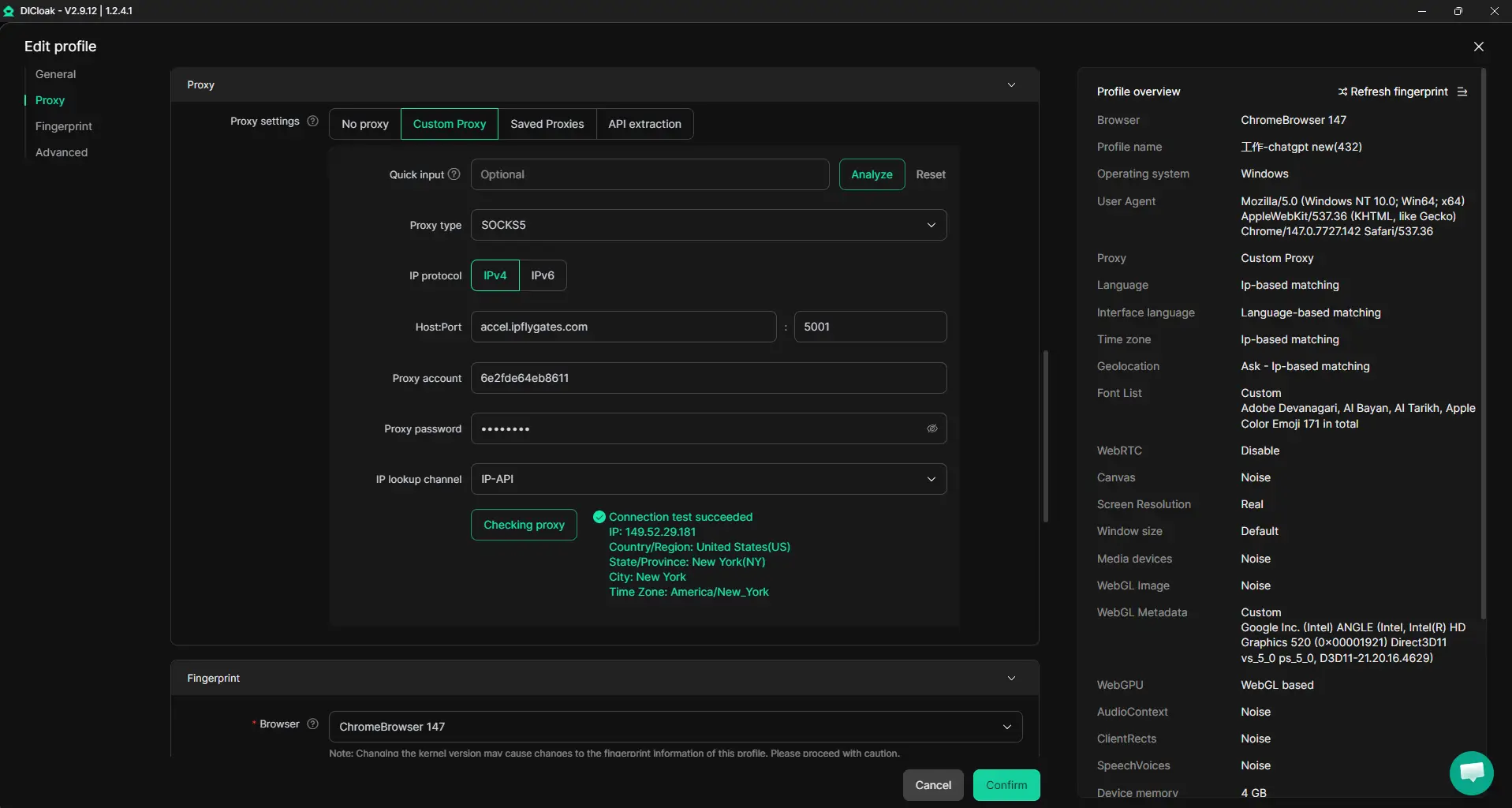
Keep Shared Account Activity Consistent with Unified IP and Fingerprint
Teams that need to share access to a platform account can use one DICloak browser profile set up by an admin. When authorized members open that profile, they all use the same configured browser fingerprint and the same user-provided proxy route. This means session signals and IP stay stable across all devices, so platform activity looks like it’s coming from one environment. The catch: every team member must open the exact shared profile and use its assigned proxy, using different profiles breaks this consistency and can cause unexpected resets or verifications.
Browser-Profile Access Controls for Shared Account Workflows
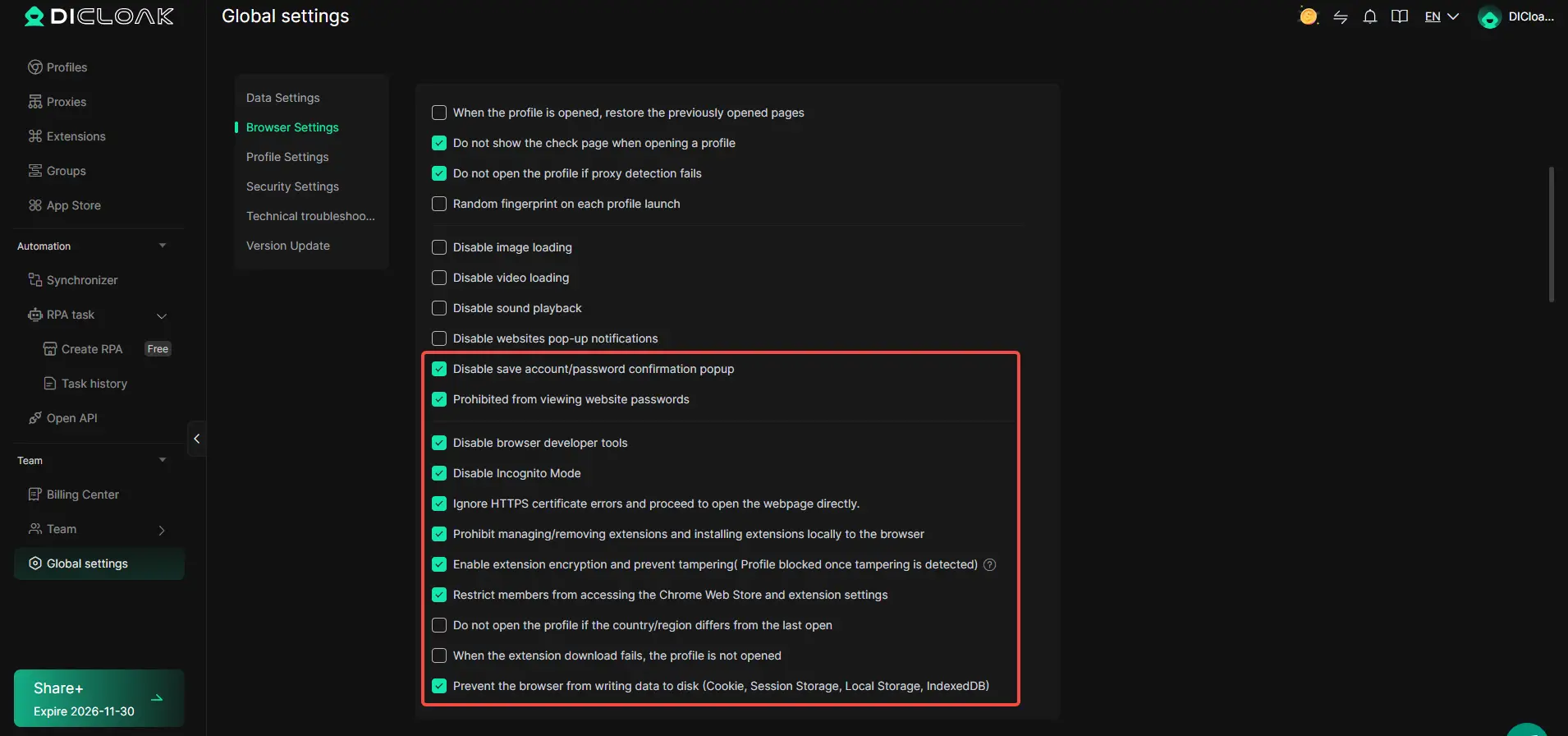
Admins can turn on browser-profile security controls before team members get access. These options block website password pop-ups, restrict cookie viewing, and even disable developer tools, so sensitive information like saved passwords or cookies can’t be copied out easily. For teams using higher DICloak plans, cookie encryption adds a layer that scrambles cookie data for everyone except admins. The scope is limited to browser-profile access; it does not change the connected SaaS tool or its internal permissions.
Assign Team Permissions to Limit Access and Actions
Giving every member full access often leads to mistakes or unwanted changes. With DICloak, admins set up member groups, decide which browser profiles or features each group can touch, and restrict profile-list views to just what’s needed. For example, a billing-only user could be limited to opening one shared profile, with no access to developer tools or other team settings, reducing the chance of accidental resets or leaks.

Advanced Tips for Heavy Codex Users: Maximizing Resets and Avoiding Lockouts
If you keep hitting Codex usage limits, you need more than a basic reset, small mistakes can cost hours of lost work or even trigger account lockouts.
Create Clear Checkpoints Before Resetting
Save your current progress before any reset. Export active code, log out of all sessions, and double-check you have copies of anything not synced. Checkpoints mean you won’t waste time redoing lost work if the reset fails. Missing this step is the top reason users end up with corrupted or missing work after a reset.
Split Large Tasks Into Smaller Sessions
- Break projects into smaller parts to avoid mid-task lockouts
- Assign each session to a different team member if possible
- Plan breaks after each chunk, don’t risk losing unsaved progress
Monitor Usage and Plan Resets Strategically
Watch your usage count and treat resets as workflow milestones. Don’t wait until you’re locked out to start planning.
- Track Codex usage per user or task
- Schedule resets before hitting hard limits
- Alert the team when a reset is about to happen
Frequently Asked Questions About how to reset codex usage limit
Can I reset my Codex usage limit multiple times in one week?
Most users can reset their Codex usage limit once every seven days. Some plans may allow more frequent resets, but this depends on your subscription level. Free users usually have stricter rules, while premium plans may offer extra resets. Check your account dashboard for your reset eligibility and current cooldown period.
What should I do if my Codex usage reset doesn’t work?
First, log out and back in to refresh your account status. Clear your browser cache or try a different browser. Double-check that your reset window has passed. If you still can’t reset, contact Codex support with your account details and a description of the issue. They can help resolve persistent problems.
Is it safe to share my Codex account with others?
Sharing your Codex account is risky. It can expose your private data and may violate Codex’s terms of service. Instead, use team or group features if available. For secure collaboration, choose supported workflows that don’t require account sharing, which helps keep your data and access safe.
How do paid or banked Codex resets work?
Paid or banked resets are extra usage resets you can buy or earn. Purchase them through your account billing section. When you hit your limit, use a banked reset to restore access instantly. Track your remaining banked resets in your dashboard to avoid running out unexpectedly.
Will resetting my usage limit restore unfinished work?
Resetting your usage limit only gives you more access time. It does not restore or recover any unfinished or lost work. To protect your progress, save or export your Codex outputs often. Use built-in checkpoint features, if available, to keep copies of important work before you reset.
If you've hit your usage threshold, evaluating your current workflow or considering alternative tools can help maintain productivity without interruptions. Take a moment to explore new solutions that offer generous limits or improved features for your coding needs. Try DICloak For Free
 Web Proxy Tools
 Free Tools
 Cookie Plugin
 UA Generator
 MAC Address Generator
 IP Generator
 IP Address List
 2FA Code Generator
 World Clock
 Anonymous Check
 WebRTC Leak Test
 UUID Generator
 Free Web Proxy Site
 Proxy Checker
 FB Ad Checker
 AI Web Scraping
 Free SMM Tools
 Twitter Shadowban Checker
 Instagram Name Checker
 UTM Generator
 Username Generator
 AI Hashtag Generator
 LinkedIn Headline Generator
 Social Media Image Resizer