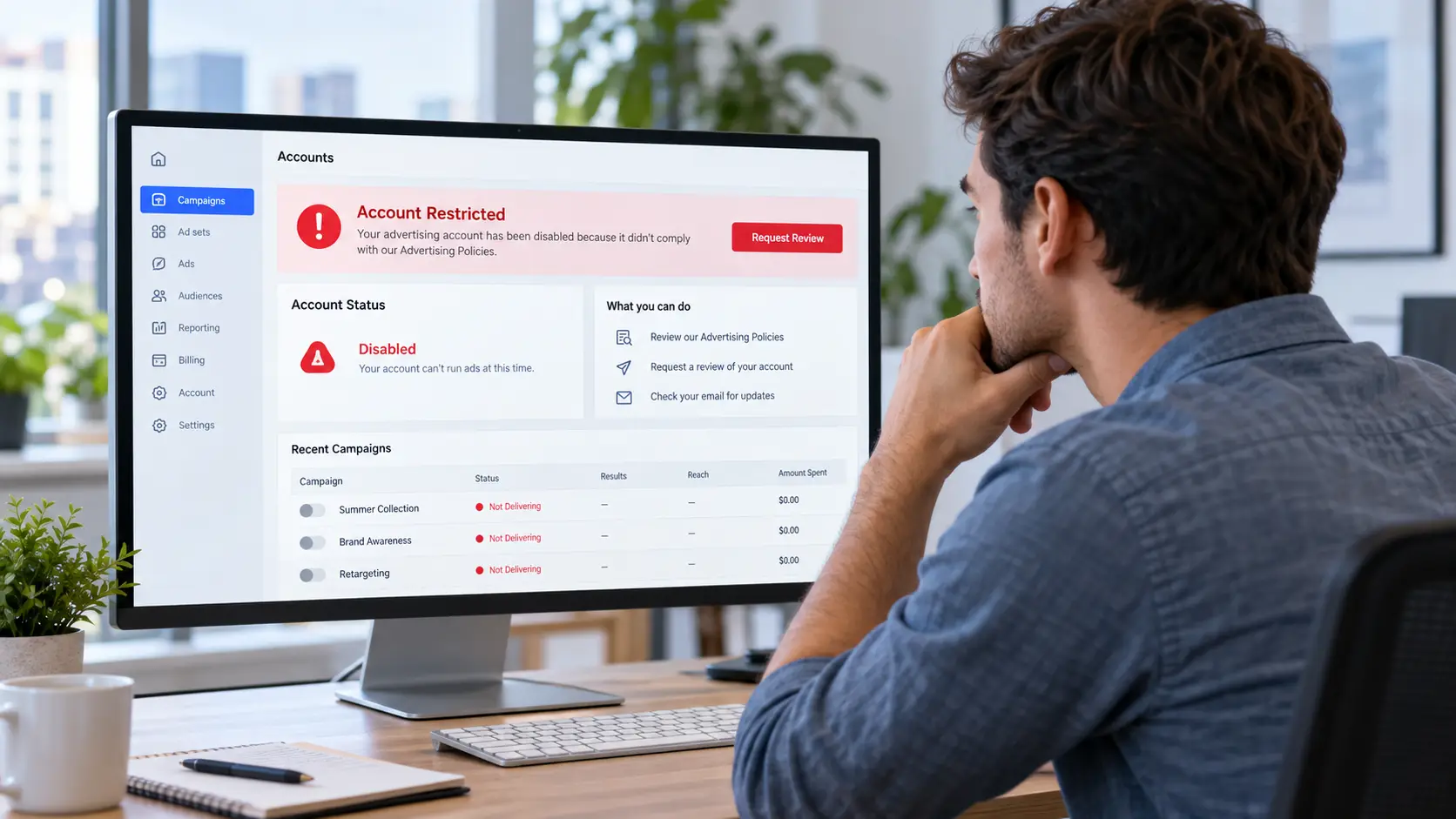
Your Meta Ads account has been disabled, your campaigns have stopped running, and you need to get back to advertising. The frustrating part is that Meta may not clearly explain what went wrong or how to fix it.
If you're trying to recover a disabled Meta Ads account, the first step isn't creating a replacement account or sending multiple appeals. You need to find out exactly what Meta restricted, check the reason, and follow the recovery process available for that account.
This guide explains how to request a review in 2026, what to do when the appeal option is missing, and how to handle a rejected appeal. It also covers practical ways to keep your advertising work organized while dealing with account restrictions.
Quick Answer: To recover a disabled Meta Ads account, open Meta Business Support Home, select the restricted account, and look for Request review under What you can do. Complete any required identity or security checks, provide an accurate explanation, and submit your request. If the problem involves billing, business verification, or another restricted asset, you may need to resolve that issue first. Recovery is not guaranteed, especially when Meta has issued a final decision.
Why Was Your Meta Ads Account Disabled?
Meta can restrict advertising access when it identifies problems with an ad, advertiser, business asset, or payment activity. A disabled ad account does not always mean that one particular advertisement caused the restriction.
Meta's Advertising Standards explain how the platform reviews ads and applies advertising restrictions. Understanding the possible causes helps you decide what evidence to gather before requesting a review.
Advertising policy violations
Advertising policy violations are one reason a Meta ad account may be disabled. Meta reviews more than the text and images in your ads. It may also evaluate the landing pages, products, services, and business practices connected to your campaigns.
Common issues include:
- Misleading advertising claims: Ads that promise unrealistic results or give users a false impression of an offer.
- Restricted or prohibited content: Ads promoting products or services that do not meet Meta's advertising requirements.
- Personal attribute references: Ads that assert or imply sensitive personal details about the audience.
- Landing page problems: Websites that contain misleading information or do not match the advertised offer.
- Repeated policy violations: A history of rejected ads or other compliance problems that may lead to broader advertising restrictions.
For example, an advertiser might remove a rejected ad but leave the same misleading claim on the landing page. Changing the ad alone would not address the entire problem.
Before submitting an appeal, review your recent ads, rejected creatives, and destination pages. You need to understand which part of the advertising process may have caused the restriction.
Payment and billing problems
A payment problem can interrupt your advertising activity, but it doesn't always mean that Meta has disabled your account for a policy violation.
Check for unpaid balances, declined payments, failed transactions, or requests to confirm your payment information. These issues may require a billing-related resolution rather than a standard policy appeal.
Start by opening the Billing & Payments area in Ads Manager. If the account displays a payment warning, follow the instructions shown there and check whether you also have a separate advertising restriction.
Account security and unusual activity
Meta also considers account integrity and security when deciding whether advertising access should be restricted. Unauthorized access, suspicious activity, or concerns about an advertiser's identity may lead to additional checks.
If several employees or agencies manage your advertising assets, investigate any unexpected account changes. Check for unknown administrators, unfamiliar activity, or recent security notifications rather than assuming that ordinary team access caused the restriction.
For advertisers working with several client accounts, a structured Facebook Business Manager setup can make account ownership and access responsibilities easier to understand.
The important distinction is that unusual activity is only one possible explanation. Meta's actual restriction notice should guide your next steps.
Check What Meta Restricted Before You Appeal
One of the biggest mistakes advertisers make is treating every Meta advertising restriction as a disabled ad account.
Meta can restrict different business assets, and the recovery process depends on which one has been affected. You might be able to open Ads Manager but have no permission to advertise, or you might have access to one client's account while another remains disabled.
Check the affected asset before making changes.
| Restriction type |
What it means |
What to check |
| Rejected ad |
A particular ad was not approved |
Ad-level review options and the relevant policy |
| Disabled ad account |
The specific ad account cannot advertise |
Ad account status in Business Support Home |
| Personal advertising restriction |
Your Facebook identity cannot use certain advertising features |
Personal advertising access and any identity checks |
| Restricted business portfolio |
Advertising access is restricted at the business level |
Business portfolio status and affected assets |
| Payment-related restriction |
Billing or payment activity is preventing advertising |
Billing warnings, outstanding balances, payment verification |
A practical way to identify the problem is to open Business Support Home and check the account overview. Meta's official guide to troubleshooting disabled or restricted accounts directs advertisers to select the affected account and review the actions available.
Consider a hypothetical example: An agency manages advertising for three clients, but one media buyer receives a personal advertising restriction. The first question is whether the restriction affects only that person's advertising access or also the client's ad account or business portfolio.
That difference matters. If the client's account is still active, an authorized administrator may be able to continue managing the campaigns while the restricted person completes the required review. If the business portfolio itself is restricted, changing the person managing the account won't resolve that restriction.
How to Recover a Disabled Meta Ads Account: Step by Step
Once you know which account or asset is restricted, you can begin the recovery process.
Meta's current process centers on Business Support Home, where eligible advertisers can review account restrictions and request reconsideration. The available actions can differ depending on the account, the reason for the restriction, and whether a review has already been completed.
Step 1: Open Meta Business Support Home
Go to Meta Business Support Home while signed in to the Facebook account associated with your business.
Open the account overview and locate the affected ad account or business asset. Select it to view more information about the restriction.
Check the following details:
- Which ad account, business portfolio, or user is restricted?
- What reason does Meta provide?
- When did the restriction begin?
- Does the account offer a review or verification option?
- Has a previous review already been completed?
You may still find older articles directing you to Account Quality. For current advertising restriction troubleshooting, Business Support Home is the more useful starting point.
If the restricted account is missing, confirm that you are using the correct Facebook identity and have the required permissions for that business asset.
Step 2: Check the reason and gather supporting information
Before writing your appeal, compare Meta's restriction notice with your recent advertising activity.
Look at rejected ads, changes to landing pages, payment alerts, security notifications, and business information. If you work with an agency or marketing team, ask the people responsible for recent changes to explain what happened.
Useful information may include:
- The affected ad account ID and business portfolio ID.
- Screenshots of the restriction notice.
- Relevant campaign names or ad IDs.
- Recent payment records if the case concerns billing.
- Details of any corrections you have already made.
- Business verification documents, if Meta specifically requests them.
The goal is not to upload as many documents as possible. It's to provide information that directly addresses the restriction.
For example, if Meta flagged misleading advertising claims, screenshots of the corrected ad and landing page may be more useful than unrelated company documents.
Step 3: Complete any required verification
Meta may require you to confirm your identity, secure your account, or complete another verification process before requesting a review.
Follow the instructions displayed for your account. The documents and verification methods available to you may depend on the type of restriction and your business circumstances.
If identity verification is required, provide accurate information that matches the account being reviewed. If the issue concerns business verification, check the business details and documents requested by Meta.
You can also review this guide to Facebook Business Manager verification to understand how business information and account administration fit into the broader advertising setup.
Business verification and appeal review are separate processes. Completing verification does not automatically remove an advertising restriction, but it may be a required step in the recovery process.
Step 4: Submit your Meta Ads account appeal
Once the required checks are complete, return to the restricted account in Business Support Home.
If Request review appears under What you can do, select it and follow the instructions. Meta states that requesting a review of an advertising restriction requires administrator access to the affected account.
Your appeal should explain what happened, why you believe the restriction should be reconsidered, and what steps you have taken to address any identified issues.
Here is an example you can adapt:
Meta Ads Account Appeal Example
Hello Meta Support Team,
I’m requesting a review of the advertising restriction on our Meta ad account (ID: [Ad Account ID]).
After receiving the restriction notice, we reviewed our recent campaigns, ad content, landing pages, and account settings. We identified [briefly describe the relevant issue or state that no clear violation was found].
We have since [describe the specific corrective actions taken, if applicable]. Based on this review, we believe the account is ready for reconsideration.
Could you please review the restriction and let us know if any additional information is needed?
Thank you for your help.
Only describe actions you actually completed. If you have not found the reason for the restriction, say so rather than claiming that you fixed a problem you cannot identify.
A short, specific appeal is generally more useful than a long message that repeats that your business depends on advertising.
Step 5: Track the review and respond to Meta
After submitting your appeal, return to Business Support Home to check its progress. You should also monitor notifications, your Support Inbox, and the email address associated with your business.
Meta may ask for more information or additional verification. If that happens, respond through the official channel indicated in the case.
There isn't a reliable review time that applies to every disabled Meta Ads account. Some cases may be resolved quickly, while others take longer because of additional checks or case complexity.
Avoid assuming that an appeal has been rejected simply because you haven't received a response after a day or two.
If Meta restores your account, inspect the account status and campaigns before restarting advertising. Previously interrupted campaigns may require you to turn them back on manually, so review their budgets, schedules, and active status first.
What If You Can't Request a Review of Your Disabled Meta Ads Account?
Not every advertiser will see an active Request review button. If you cannot submit an appeal, identifying why the option is unavailable is more useful than repeatedly searching for another form.
Here are the situations worth checking.
The Request Review button is missing or unavailable
First, confirm that you have administrator access to the restricted account. If you only have partial access to a client's business assets, you may not be eligible to request the review yourself.
Next, check whether Meta has already completed a review or is waiting for another action, such as identity verification.
If the page still offers no review option, open the relevant restriction details and look for an available support path. Meta's advertising restriction review guidance explains the normal review process, but not every restricted account will qualify for another request.
If no further review is available, contacting Meta through a support option shown in your business account may help clarify the case. Support availability is not the same for every advertiser.
The account belongs to a client or another business
Agencies sometimes discover that they can manage campaigns but cannot submit an appeal because the client controls the affected business account.
Check who owns the ad account and who has full administrative access. Ask an authorized administrator to inspect the restriction through their own business access.
For agencies managing several clients, it is worth documenting which person is responsible for billing, business verification, account security, and appeals. Having this information ready avoids unnecessary delays when a restriction occurs.
Meta says the decision is final
A final decision is different from a pending appeal or an account waiting for verification.
If Meta states that the restriction is final and offers no further review, you should not assume another administrator, another browser, or a different payment method will reopen the appeal.
You can check whether an official support channel is still available for your case, but do not treat access to support as a guarantee of another review.
At that point, the priority is understanding what business assets remain accessible and what advertising activity Meta still permits.
What to Do If Your Meta Ads Account Appeal Is Rejected
A rejected appeal can mean that Meta reviewed the restriction and decided to keep it in place. It does not necessarily tell you exactly which action caused the original problem.
Your next steps should depend on the decision displayed in Business Support Home.
Check whether another review is available
Open the case and read the decision carefully. Look for a new action requesting information, additional verification, or another review.
If Meta provides a new review option, use it to address something specific that was missing from the previous request. That might be a corrected landing page, an updated business document, or evidence that an account security problem has been resolved.
If the same decision is final and no new review option exists, repeatedly sending the original appeal through unrelated forms is unlikely to address the underlying issue.
Review what you may have missed
A common problem is focusing entirely on the rejected advertisement while overlooking the website or business activity connected to it.
For example, an advertiser might rewrite a headline but leave the original claim on the product page. Another advertiser might fix an outstanding payment without realizing that the account also has a separate advertising policy restriction.
Recheck the exact restriction category, your recent business activity, and any outstanding requests from Meta.
If you are dealing with several account or business-level restrictions, this guide to recovering and managing restricted Facebook business accounts provides additional context for understanding connected business assets.
Can you create another ad account after a rejected appeal?
The answer depends on what Meta has restricted and what advertising access remains available to your business.
If only one ad account is affected, other authorized business assets may have different statuses. However, creating a replacement account specifically to get around an active advertising restriction can create further compliance problems.
A new account is not a substitute for resolving an existing restriction. If Meta has restricted your personal advertising access or entire business portfolio, the restriction may affect your ability to use other ad accounts.
Review the restrictions and Meta's applicable terms before making any changes to your advertising setup.
How to Manage Meta Ads Accounts More Effectively With DICloak
Recovering a disabled account is Meta's decision, but the work around account recovery often reveals another problem: poor organization across advertising teams.
Agencies may manage several client accounts from the same computers. Media buyers switch between campaigns, team leaders review advertising performance, and clients need updates about their accounts. When nobody has a clear view of who manages which workspace, investigating account changes becomes harder.
For teams already working across multiple authorized advertising accounts, DICloak Antidetect Browser can help organize browser workspaces, separate account sessions, and manage team responsibilities.
Its role is operational management, not account reinstatement. Meta's own business permissions and review procedures still determine who can manage or recover advertising assets.
Keep different client accounts in separate Browser Profiles
Consider an agency managing campaigns for five businesses. Each client has different ad accounts, landing pages, payment arrangements, and campaign goals.
When employees constantly switch between accounts in one browser, it becomes easier to open the wrong workspace or confuse one client's active session with another.
With DICloak, you can create separate Browser Profiles for authorized client workflows. Each Profile maintains its own browser storage, including cookies and other session data, so daily work can stay organized around the correct account.
For example, an agency could maintain:
- Client A — E-commerce advertising
- Client B — Lead generation campaigns
- Client C — Brand awareness campaigns
Each workspace has its own Browser Profile, making it easier to keep active sessions and client work separate.
This does not change the permissions Meta grants to the employee or prevent Meta from applying advertising restrictions. It simply provides a more organized browser setup for managing different client workflows.

Assign Profiles to the right team members
Browser separation becomes more useful when several employees share responsibility for advertising operations.
A media buyer may need access to campaign workspaces, while a billing specialist only needs the relevant client account. A temporary contractor may work on one project without needing access to every Browser Profile in the agency.
Using DICloak's Profile Groups, Member Groups, and permission settings, administrators can organize which Profiles employees can access and what DICloak operations they can perform.
For instance, a manager could assign Client A's Profiles to one team and Client B's Profiles to another. Employees can then focus on their assigned work without navigating unrelated client sessions.
For more details, see the DICloak member permission management guide.
Meta Business Suite should still be used to grant each employee their own authorized access to Pages and ad accounts. DICloak permissions do not replace those platform-level controls.

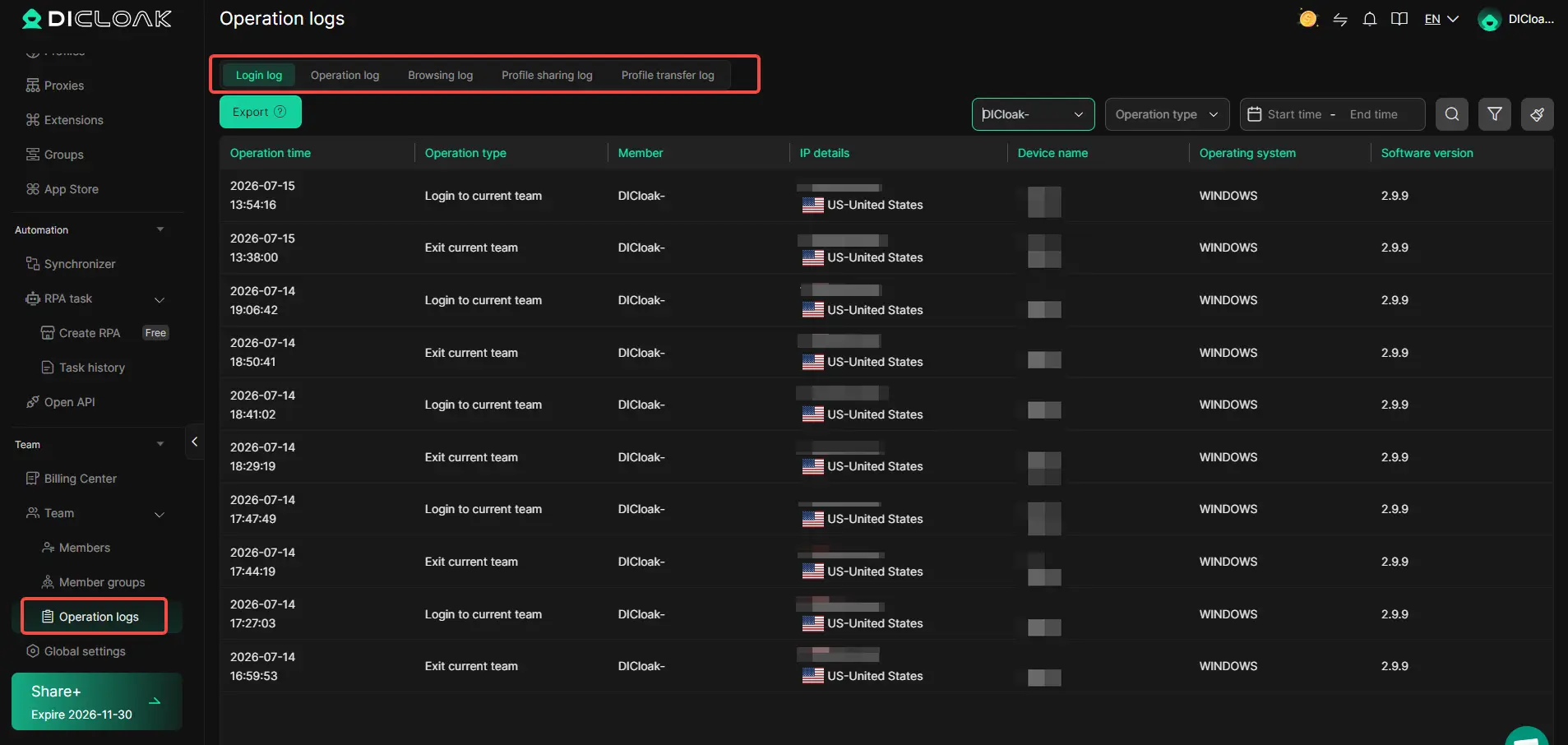
Use Operation Logs to investigate internal account handling
Suppose an advertising account becomes restricted shortly after several employees worked on the same client project.
The team may need to establish who accessed the Browser Profile, whether its settings were changed, and which employees were responsible for the workspace.
DICloak's Operation Logs help administrators review supported activity within the DICloak workspace. Combined with clear Profile assignments, they can provide useful internal context when investigating a problem.
These logs are not a record of Meta's internal enforcement decisions. They also do not replace Ads Manager change history or official account activity records.
For an agency, the main benefit is clearer accountability. Instead of relying entirely on messages between employees, managers have an additional way to review how Browser Profiles were handled.
FAQs About Recovering a Disabled Meta Ads Account
The questions below cover common problems advertisers face after submitting an appeal or discovering that normal recovery options are unavailable.
How long does it take to recover a disabled Meta Ads account?
There is no fixed recovery time for every Meta Ads account. The result depends on the type of restriction, whether verification is required, and the outcome of Meta's review.
Check Business Support Home and your official support messages for updates. If additional information is requested, provide it through the designated channel.
Can a permanently disabled Meta Ads account be recovered?
A permanently disabled account may not be recoverable if Meta has completed its review, confirmed the restriction, and provided no further appeal option.
Check the exact wording of the final decision. If an additional review or support action is available, follow that official process rather than assuming that a new account will restore your advertising access.
Why was my Meta Ads account disabled when I didn't violate any policies?
A disabled account does not always result from a clearly rejected advertisement. Meta also considers business practices, account integrity, security, and other policy-related factors.
Start by reviewing the restriction notice and relevant account activity. If you believe Meta made a mistake, submit a review with the facts supporting your position rather than simply stating that you did nothing wrong.
Can I recover a disabled Meta Ads account without the Request Review button?
You may have another action available, such as identity verification or contacting support through Business Support Home.
However, the absence of a review button can also mean you lack the required permissions or no further review is available. Check your administrator access, outstanding verification steps, and previous review decisions before contacting Meta.
Will paying an outstanding Meta Ads balance restore my disabled account?
Paying an outstanding balance may resolve a billing problem, but it will not necessarily remove a separate advertising policy restriction.
Check Billing & Payments first, then return to Business Support Home to see whether any additional restrictions remain. If Meta requires a review or another verification step, you must complete that process separately.
Final Takeaway
If you're trying to recover a disabled Meta Ads account in 2026, start by identifying the exact restriction. A rejected ad, a billing problem, a personal advertising restriction, and a disabled business portfolio can require different actions.
Use Meta Business Support Home to check the account status, complete any required verification, and submit a clear appeal when the review option is available. If your request is rejected, review the decision and determine whether Meta allows any further action.
For businesses and agencies managing several advertising accounts, recovery is also a good time to improve everyday operations. Keeping client workspaces separate, assigning clear team permissions, and tracking internal account handling with DICloak can make account management easier to organize.
The goal is to resolve the actual restriction through Meta while building a clearer, more reliable workflow for the advertising work that follows.
 Web Proxy Tools
 Free Tools
 Cookie Plugin
 UA Generator
 MAC Address Generator
 IP Generator
 IP Address List
 2FA Code Generator
 World Clock
 Anonymous Check
 WebRTC Leak Test
 UUID Generator
 Free Web Proxy Site
 Proxy Checker
 FB Ad Checker
 AI Web Scraping
 Free SMM Tools
 Twitter Shadowban Checker
 Instagram Name Checker
 UTM Generator
 Username Generator
 AI Hashtag Generator
 LinkedIn Headline Generator
 Social Media Image Resizer













-01-v15.png?x-oss-process=image/interlace,1/format,webp/quality,q_75)