Getting locked out of your PayPal account usually happens when you forget your password, lose access to your email, or trigger a security flag during login. You might try to reset your password, only to find the recovery email goes nowhere, or customer support sends you in circles. The real problem isn’t just remembering old details, it’s figuring out which recovery route actually works for your situation.
Not every lost access case is the same. If you still have your phone or a backup code, the path is quick. But if your contact info changed, or someone else has altered account settings, the process can stall for days. Sometimes you end up stuck in a loop, resetting your password leads to another lockout, or you can’t pass the verification questions.
The fix isn’t just about trying recovery links over and over. You need to check which recovery options are still valid, what triggers a manual review, and what to do if your account is flagged for unusual activity. If support asks for documents, knowing which ones speed up the process makes a difference. Recover paypal account steps look simple, but missing one detail can put you back at square one. Regaining PayPal access is easier once you know which step fits your exact problem.
Start by figuring out which recovery methods you can still use right now.
What Usually Causes PayPal Account Loss or Lockout?
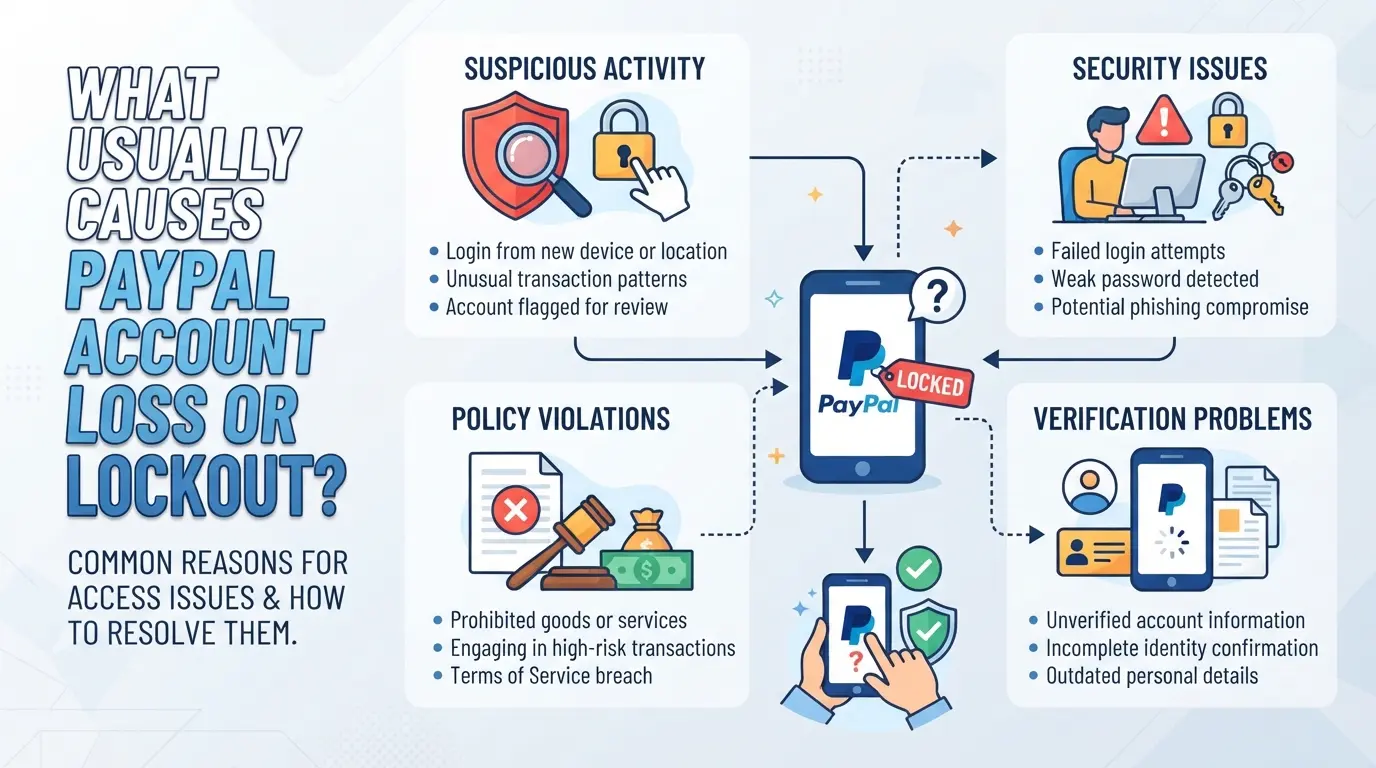
Most PayPal lockouts or lost accounts come down to three root causes: someone else takes control, you lose access to your login or email, or PayPal’s own system flags your account for risk. Figuring out which one fits your situation is the fastest way to start fixing it.
Account Hacking and Unauthorized Changes
The most common sign of a hacked PayPal account is seeing transactions or settings you don’t recognize. Hackers usually change your password and recovery email first, locking you out before you notice. If you suddenly get password reset emails or see login alerts for new devices, act fast.
Forgotten Passwords and Email Access Issues
Losing your password is usually fixable, unless your recovery email is also gone. The real trouble starts when both your PayPal login and your email account are out of reach. For example, you try to reset your PayPal password, but the reset link goes to an email you can’t open. Or maybe you still have the email, but the phone number linked to PayPal is dead, and the system keeps pushing verification codes there. These dead ends create a loop: each recovery step points to another locked-down channel. If you ever changed emails but didn’t confirm the new one, PayPal treats the old email as the only way in, which blocks you even more. The hardest recoveries happen when you lose both channels, so keep at least one current and working, or you’ll be stuck waiting for manual support.
Platform Security Triggers and Suspensions
- PayPal’s system flags accounts if it spots logins from new devices or IPs, especially after you use a proxy or travel abroad.
- Large or unusual payments, like a sudden $2,000 incoming, can trigger instant holds or “limited account” status.
- Failing security questions (like not matching your birth date or address on file) often leads straight to a locked account review.
If you hit a lockout right after one of these events, it’s rarely random. PayPal’s fraud controls act fast, sometimes even before you get an email warning. Skipping the ID check or ignoring a “limited access” notice usually makes recovery slower.
The next step is to pin down which of these issues matches your situation. Before you try to recover PayPal account access, check what information and recovery methods you still control. That way, you won’t waste time on dead-end reset options.
What to Check Before Starting PayPal Account Recovery
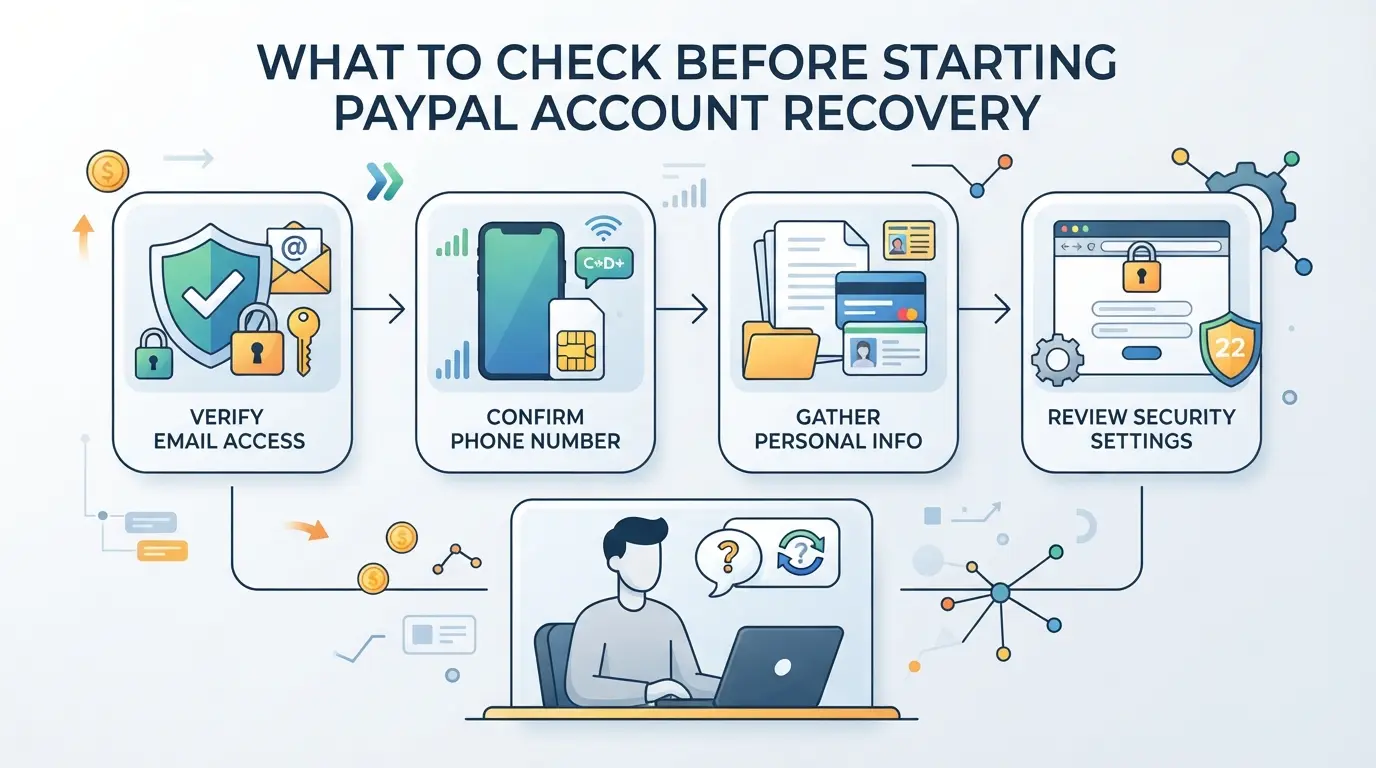
Jumping into recovery without prep slows things down or locks you out again. Before you try to restore PayPal access, run through these checks, missing any can stall the whole process.
Confirm Email and Device Access
Make sure you can log into the email tied to your PayPal. If you can’t, start with email recovery first. Also, only use a device you’ve logged in from before. If you try recovery from a new device, PayPal’s system may flag it as suspicious and trigger extra checks.
Gather Account Details and Transaction History
Having key info ready speeds up support requests. Keep these on hand:
- Your full name and address as shown on PayPal
- Recent transaction amounts, dates, and recipient names
- The last four digits of any linked card or bank account
Check for Linked Phone Numbers and Backup Codes
If your PayPal is linked to a phone number, check if you still have access to it. You’ll sometimes need to enter a verification code sent by SMS. Backup codes are rare with PayPal, but if you saved any two-factor recovery codes, locate them now.
Review Recent Security Alerts or Emails
New login alerts or password change emails tell you if someone else tried to access your account. Check for anything from “service@paypal.com”, but watch for fakes.
- Find the latest PayPal security alerts in your inbox or spam
- Look for messages about password resets you didn’t start
- Double-check sender addresses for phishing (real PayPal emails won’t ask for your password)
If you can’t pass any of these checks, stop and fix that issue first. Rushing into account recovery while locked out of your email, missing your phone, or using the wrong transaction info almost always leads to failed attempts. Once you’ve confirmed your access and gathered details, you’re ready for the step-by-step process to regain your PayPal account.
Step-by-Step: How to Recover Your PayPal Account in 2026
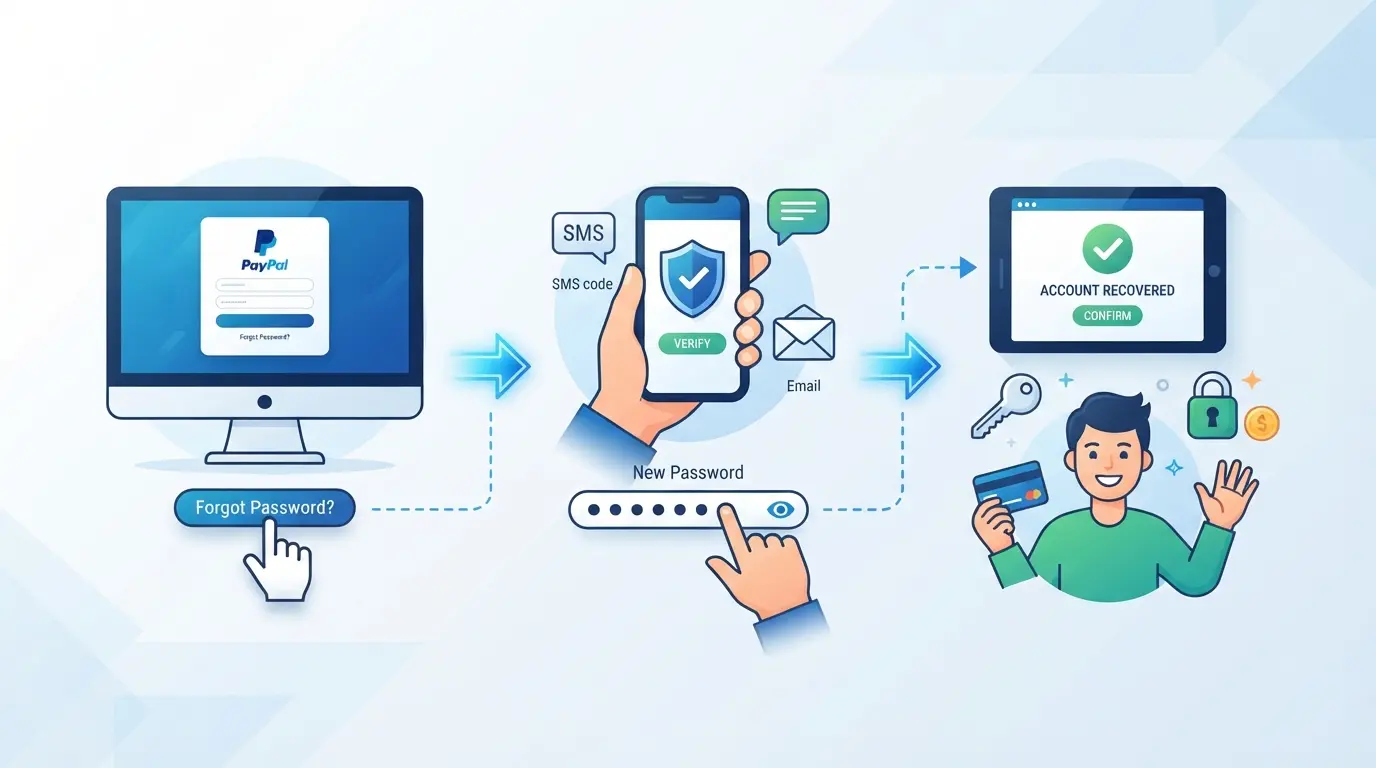
If you’ve already checked which recovery options are open, the path to regaining access depends on how far you can get with self-service tools. Missing one form of verification or hitting a support wall can keep you locked out for days. Here’s how to move through the recovery steps, each one has its own pitfalls.
Resetting Your Password or Email
- Go to the PayPal login page and click “Having trouble logging in?”, this link takes you straight to the recovery portal.
- Enter the email or mobile number linked to your account. If your email was changed recently, try your old address first.
- Follow the reset instructions. If you don’t receive the reset email within 5 minutes, check your spam folder and verify that your inbox isn’t full.
- If the reset fails or you’re sent back to the login screen with no error, your account may be flagged for unusual activity. This usually triggers extra verification or a temporary lock.
Verifying Your Identity with PayPal
- If asked, upload clear photos of your government ID and proof of address. PayPal’s system accepts JPEG and PDF files, blurry photos usually get rejected.
- Double-check that your name and address on the documents match the details in your account. Any mismatch slows down review.
- Respond to PayPal’s email requests within 24 hours. Delayed replies can push your case to the back of the queue.
- If you’re stuck in a loop where uploads aren’t accepted, switch devices or browsers, sometimes the upload portal breaks on mobile.
The fastest way through manual review is to send documents in the exact format PayPal requests, and reply within their stated window.
Contacting PayPal Support for Advanced Recovery
- If you’re locked out after multiple failed resets, call PayPal’s support line directly. Phone wait times are shortest between 8-10am local time.
- Before calling, prepare your case ID, account email, and any reference numbers from automated emails.
- Ask the agent for a manual unlock, not just another reset link. This signals your issue is account-level, not just password-related.
- If the agent requests extra documents, confirm where to upload them, sometimes email and portal links differ, and using the wrong channel can delay your case by days.
If none of these steps work, especially after multiple resets and uploads, the next move is to check if your account was compromised or if ownership has changed. That’s where the recovery process shifts from self-service to security investigation.
What to Do If Your PayPal Account Was Hacked or Compromised
Spotting a hacked PayPal account means you have to act fast, every minute delays recovery and raises the chance of more money lost or info stolen. Don’t just reset your password and hope for the best; real damage can spread if you miss key steps.
Securing Linked Email, Devices, and Bank Accounts
- Change passwords for your PayPal email and every bank account linked to PayPal. Attackers often pivot from PayPal to grab control elsewhere.
- Log out all active sessions on your devices, not just the browser. If you skip this, the attacker can keep kicking you out.
- Review your device and login history for unknown access. New logins from strange locations mean your other accounts could be exposed too.
Reporting Fraud and Unauthorized Transactions
- File a fraud report directly from your PayPal Resolution Center. Skip email, using the in-app report starts the clock for PayPal’s response.
- Flag all unauthorized transactions. If you don’t do this within 60 days, chargeback rights shrink.
- Watch for follow-up requests from PayPal support. They may freeze your account during review, don’t panic, this is normal while they investigate.
Monitoring for Repeat Attacks or Phishing
- Set up email and SMS alerts for unusual activity in your account dashboard.
- Mark any suspicious emails or texts as phishing, never click recovery links unless you started the process yourself.
- If you keep getting fake support messages, change your email and security questions again. Attackers often reuse leaked info.
Once you’ve locked down your accounts and reported fraud, you can start focusing on safer multi-account setups.
How E-Commerce Teams Can Safely Manage Multiple PayPal Accounts with DICloak
Restoring access to a locked or compromised PayPal account is only one part of the real problem for e-commerce teams. Once you start running more than one account, whether for different stores, risk separation, or team handoff, the real risk isn’t just losing one login but accidentally mixing sessions or leaving a clue that links accounts together. Teams need a way to keep every account’s browser profile and network connection reliably separated, especially when multiple operators are involved. This is where DICloak comes in, not by managing PayPal accounts, but by giving teams the controls to set up clean, isolated browser profiles and test their own proxy connections for each workflow. That separation is what keeps day-to-day work from turning into a support nightmare or a second account lockout.
Separating Browser Profiles and Fingerprint Settings for Each Account
In a typical team setup, each operator is assigned one or more PayPal accounts. The real challenge shows up when someone needs to switch between accounts or hand off work, using the same browser, even in different tabs, leaves traces that can mix cookies, local storage, or fingerprint signals across sessions. Operators can create a new DICloak browser profile for each PayPal account. Each profile stores its own login sessions, cookies, and fingerprint settings, including the reported operating system, browser version, language, timezone, and screen size. For example, if your US-based team manages both North American and EU accounts, you can set fingerprint signals in each profile to match the region and device type of that account’s usual access. Keeping browser profiles fully separated is what lets teams avoid accidental cross-account contamination, which is one of the most common triggers for unwanted verification or manual review. The scope here is limited: DICloak only manages browser profiles and their settings, not the PayPal accounts themselves. 
Configuring User-Owned Proxies for Each Profile
Even with profiles separated, network signals can still overlap if every account runs through the same IP address. To handle this, operators can configure their own proxy in each DICloak profile. DICloak supports manual entry of proxy host, port, username, and password, plus a built-in connectivity test that shows the detected exit IP and country before you log in. If a team uses a set of residential or data center proxies, each account’s profile can be bound to a different connection, an operator just tests the proxy in the profile’s settings before starting work. This workflow gives teams full control over which proxy is used for each session, but the product does not sell or supply proxies itself. The result is that account teams can keep network routes as cleanly separated as their browser profiles, reducing the chance that routine work will tangle accounts together or trigger extra verification. 
Getting these setup details right is what puts teams in a better position to avoid the mistakes that so often slow down PayPal recovery. The next section covers the most common errors that drag out the process.
Common Mistakes That Delay PayPal Account Recovery
Missing one small detail often means days of waiting or even another lockout. The main mistakes that slow down recovery are easy to avoid if you know where people usually trip up.
Using Outdated or Incorrect Recovery Information
Trying to use an old email or phone number that you no longer control is the fastest way to get stuck. PayPal sends recovery codes only to the contact methods on file. If you haven’t updated your info before losing access, recovery links won’t reach you. Even if you remember an old password, failing the SMS or email challenge means you’ll loop back to the same error screen.
Ignoring Security Alerts or Suspicious Activity
- Check your inbox and spam for PayPal security emails right after any failed login.
- Respond to alerts about new device logins within 10 minutes, delay can trigger extra verification.
- Watch for PayPal app push notifications about account changes and act fast if something looks off.
Attempting Recovery from Untrusted Devices or Networks
Starting the process on a device PayPal doesn’t recognize, or from public Wi-Fi, can flag your attempt as suspicious. This often leads to temporary holds or extra ID checks.
- Use a device you’ve logged in with before.
- Connect from your usual internet connection, not public Wi-Fi.
- Avoid switching browsers or clearing cookies during recovery, PayPal checks for session consistency.
How to Prevent Future PayPal Account Loss or Lockout
The fastest way to avoid another lockout is to lock down your security settings now, fixing weak spots before someone else finds them saves you the headache of having to recover paypal account all over again.
Enabling Two-Factor Authentication and Strong Passwords
Turn on two-factor authentication (2FA) in your PayPal settings, this single step blocks most unauthorized logins, even if someone guesses your password. Choose a password that’s long, not reused, and mixes numbers with symbols. Change it every 6-12 months or right after any recovery.
Regularly Reviewing Account Activity and Security Settings
- Scan your recent activity for unknown charges or logins.
- Update backup contact info and remove old email addresses.
- Check security questions, use answers nobody can guess.
Safe Device and Network Practices
Protecting your PayPal starts with the devices you use.
- Sign in only from private, secure Wi-Fi, not public hotspots.
- Keep your browser and device software updated.
- Log out fully if you access PayPal on shared computers.
Frequently Asked Questions About recover paypal account
Can I recover my PayPal account if I lost access to my email?
Yes, you can still recover your PayPal account if you can’t get into your email. Use the “Forgot Password?” link and select “No longer have access to this email?” PayPal may ask for proof of identity, like an ID or linked phone number. You might also need to contact PayPal support for manual verification.
How long does PayPal account recovery usually take?
Recovering your PayPal account can take from a few minutes up to several days. If you have access to your recovery email or phone, it’s usually quick. If extra identity checks are needed, or if you contact support, it may take up to 48-72 hours for full restoration.
What should I do if PayPal keeps rejecting my identity verification?
Double-check that your name and details match your PayPal profile. Use clear, unedited photos of your ID. Make sure your documents aren't expired. If PayPal still rejects your info, contact their customer support directly and ask for a manual review. Sometimes, support can escalate your case for faster help.
Is it safe to use proxies when managing multiple PayPal accounts?
Using proxies can be risky. PayPal may flag accounts that appear to be accessed from unusual locations or multiple IPs. If you must use proxies, choose residential IPs, keep your usage consistent, and never log in to several accounts from the same proxy. Misuse can lead to permanent account limits.
Can PayPal accounts be recovered after a permanent ban?
If your PayPal account is permanently banned, you cannot restore PayPal access to that account. Permanent bans differ from temporary holds and usually result from serious violations. You may appeal once, but most decisions cannot be reversed. For temporary locks, follow recovery steps to regain access.
If you're still having trouble regaining access, consider reaching out directly to customer support for additional guidance. Prioritizing your online security and using tools that protect your digital identity can help prevent future issues. Try DICloak For Free
 Web Proxy Tools
 Free Tools
 Cookie Plugin
 UA Generator
 MAC Address Generator
 IP Generator
 IP Address List
 2FA Code Generator
 World Clock
 Anonymous Check
 WebRTC Leak Test
 UUID Generator
 Free Web Proxy Site
 Proxy Checker
 FB Ad Checker
 AI Web Scraping
 Free SMM Tools
 Twitter Shadowban Checker
 Instagram Name Checker
 UTM Generator
 Username Generator
 AI Hashtag Generator
 LinkedIn Headline Generator
 Social Media Image Resizer