You try to finish a task in ChatGPT, but a chatgpt error keeps blocking your prompt or breaking your workflow. Whether it’s a vague “something went wrong” pop-up, a session time-out, or a rate limit message, the interruption feels random. It’s not just annoying, sometimes you lose your work, or the same error shows up even after refreshing or switching browsers.
Refreshing the page or clearing cookies only works some of the time. If you’re running more than one account, or using automation, the same chatgpt error message can start popping up across profiles. That’s usually a sign of deeper issues: IP reputation, browser fingerprints, or leftover session data. Ignoring the root cause can lock you out for hours, or trigger even stricter platform checks on your accounts.
The real fix isn’t just about clicking “try again.” You need to know what triggers each type of error, how to tell if your setup is causing it, and which workarounds actually get you back in. For anyone handling multi-account tasks, the risks stack up: one wrong move can ban all your sessions or force you to rebuild your workflow from scratch. The safest operators build routines that spot patterns early, isolate profiles, and avoid the mistakes that keep errors coming back.
Start by learning what each error actually means, and what it signals about your session, device, or account.
What Causes the Most Common ChatGPT Errors in 2026?
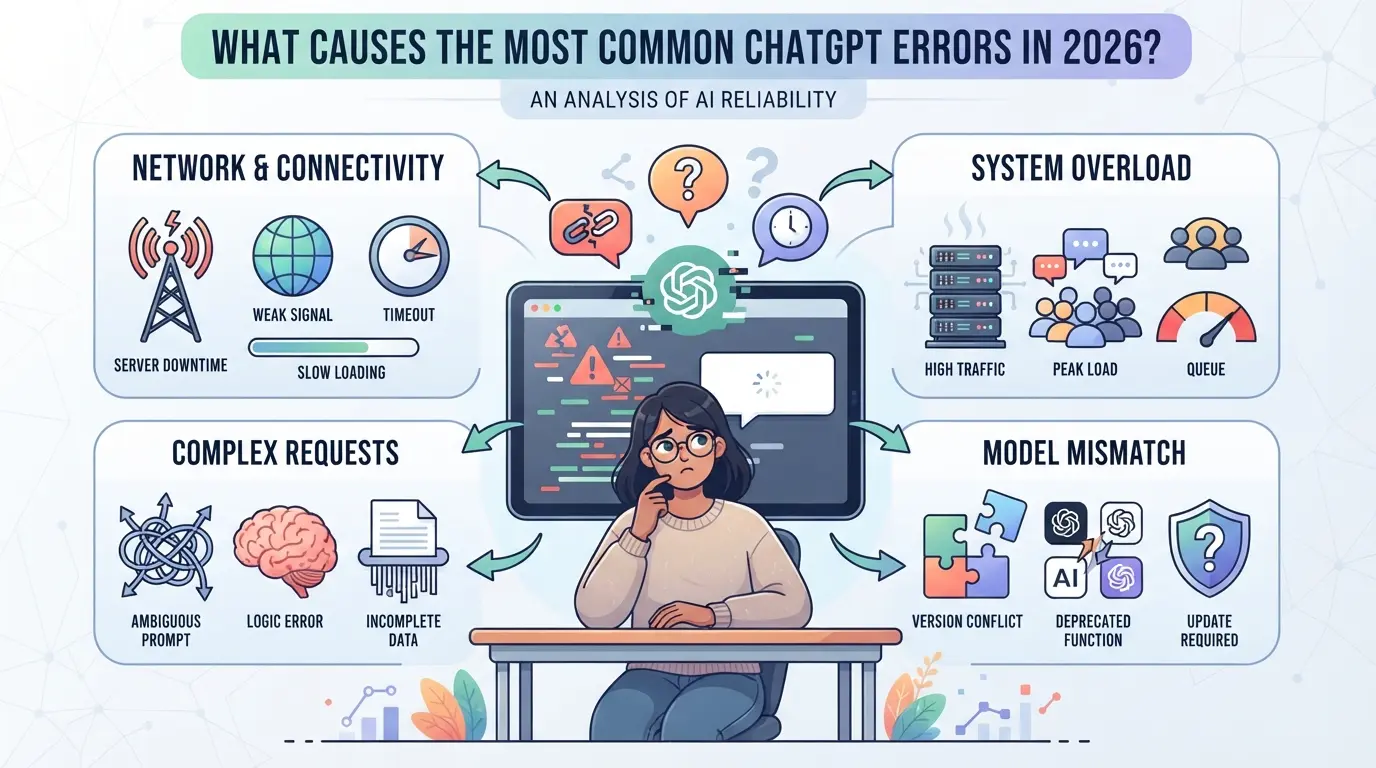
Most errors now trace back to session signals, browser mismatches, or account risk checks, not just simple server overload. If you keep seeing an error, it usually means your device, network, or login history triggered a flag. Fixing the problem means figuring out which layer tripped the system.
Network and Connectivity Failures
When your connection drops, ChatGPT either times out or returns a “network error.” Even a two-second Wi-Fi glitch can break a session. But not every failure is on your side, OpenAI server issues or region-based throttling sometimes block requests even if your internet is stable.
Account and Access Restrictions
A lot of persistent errors come from risk controls, not technical bugs. If you sign in from three countries in 24 hours, or flip between devices with different fingerprints, ChatGPT can show “access denied” or “unusual activity” warnings. Sometimes the lockout is temporary: wait 15-30 minutes and you’re back in. But hit a real risk trigger, and the system can hard-block your account or demand extra verification. This hits teams hardest. If you share one login across several browsers, all running from different IP addresses and device setups, you’re almost guaranteed to raise flags. Even browser extensions that inject scripts or alter headers can make your session look suspicious. The real risk is that one bad login attempt can force a review across all your sessions, so you lose access everywhere, not just on one device.
Browser Environment and Fingerprint Triggers
Check these three things when errors keep happening:
- Browser fingerprint doesn’t match last login (OS, fonts, hardware all count)
- Cookies or local storage are stale or missing, clearing them mid-session can break authentication
- Proxies rotate too fast or use flagged IPs, which often triggers instant blocks
If any of these signals are off, ChatGPT sees your session as a possible bot or account takeover. That’s when you start seeing error messages that won’t go away with a simple refresh.
Knowing which layer causes the problem is the real shortcut, otherwise, you’ll waste hours retrying fixes that never stick. Next, break down which steps actually solve each error, and how to avoid getting caught in a lockout loop.
How to Diagnose and Fix ChatGPT Errors Step by Step

Fixing a ChatGPT error means more than just refreshing your browser. You need a clear order: start with quick resets, then work up to checking your device, network, and account history. Here’s how to work through problems and avoid making things worse.
Refresh, Rephrase, and Retry Your Request
- Refresh the page, Many session errors clear if you reload. If you get the same message twice, move on.
- Rephrase your prompt, Sometimes a blocked or confusing request triggers a generic error. Shorten or change your wording.
- Wait 1-2 minutes, then retry, Flooding the API with repeated requests can force a temporary block. If you see a “Too many requests” message, waiting is your fastest fix.
Clear Browser Data and Try a Different Browser
- Clear cookies and cache, Old session or token data often causes repeated failures. This step resets your login context.
- Try incognito mode, If clearing data doesn’t work, open a private window. If errors disappear here, your main profile has stale data.
- Switch browsers if possible, A different browser rules out extensions or settings as the cause.
Review Account Activity and Device Usage
- Check active sessions, Log out from other devices if you’ve switched phones or browsers recently. Too many concurrent logins can trigger security flags.
- Review your login history, Look for locations you don’t recognize. Unusual activity often leads to forced logouts or access errors.
- Stick to one device, Constant device hopping can make the system see you as a risk.
- Disable your proxy, If you’re using a proxy, turn it off and reconnect. Many errors come from flagged or unstable IP addresses.
- Test your connection directly, Visit OpenAI with your real IP. If issues clear, your previous network was likely blocked.
- Switch proxies only if needed, Rapid switching can cause more problems, wait and test stability before retrying.
Check Your Internet Connection and OpenAI Status
- Test your connection, A slow or unstable line can drop requests. Try loading another site or running a speed test.
- Check OpenAI’s status page, Platform issues can trigger error messages for everyone. If the status page is red, wait until service returns.
- Restart your router if unsure, Network hiccups sometimes look like account problems but clear with a full reconnect.
Spotting which step actually fixes your issue helps you avoid repeating the same problem, and makes it easier to tell when an error points to deeper account risk.
Why Some ChatGPT Errors Signal Account Risk or Restriction
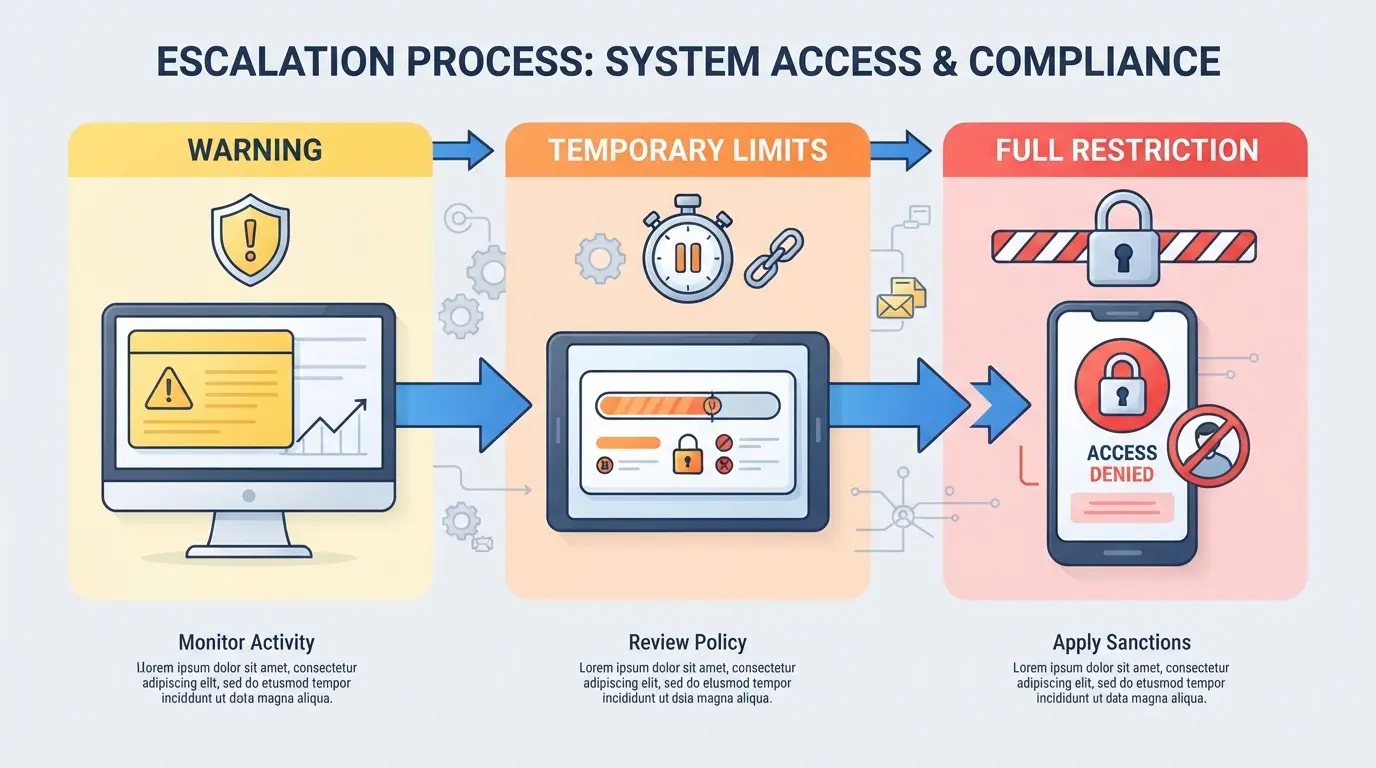
Not every error means you lost access, but certain warnings, especially those about suspicious activity, point to deeper account trouble. If you keep seeing blocks or “unusual activity” alerts, you’re not just fighting a technical glitch. You could be one misstep from a real restriction.
‘Unusual Activity’ and ‘Suspicious Behavior’ Warnings
These warnings show up when the platform detects patterns that look automated or risky, like switching devices too fast, using inconsistent proxies, or logging in from locations far apart within minutes. If you see this, stop what you’re doing right away. Keep forcing logins, and you’ll likely trigger a full restriction.
Access Denied, Error 1020, and Blocked Messages
When you get “Access Denied” or Error 1020, your session or IP has likely been flagged. This isn’t just a random chatgpt error message, it often means the system has already decided your behavior matches known abuse or bot patterns. For example, working from the same IP as other flagged users can trip these errors, even if your activity looks normal. Trying to bypass with repeated refreshes usually makes things worse; it can escalate a temporary block into a hard account lock.
When to Contact Support or Pause Activity
Know when to stop and reset your approach:
- Get repeated “unusual activity” or “access denied” errors, not just one-off glitches.
- See login or creation blocked across different devices or browsers.
- Notice that waiting 30+ minutes doesn’t restore access, this usually means a true restriction, not just lag.
If you see these signs, resist the urge to keep retrying or swapping devices. Step back, document what triggered the problem, and wait before trying again.
How Browser Fingerprinting and Environment Issues Trigger ChatGPT Errors
Platforms like ChatGPT now watch how your browser and device look from the server side. If your setup changes mid-session, or your fingerprint doesn’t match other signals, you’re much more likely to hit errors or sudden access blocks.
What Is Browser Fingerprinting in 2026?
A browser fingerprint is a collection of details, like your device model, screen size, language, timezone, and installed fonts, that, together, can identify you even if your IP or login changes. ChatGPT uses these signals to spot bots, multi-accounting, or risky activity. The more unique or unstable your fingerprint, the more likely you’ll trigger checks.
How Inconsistent Signals Lead to Errors or Blocks
If you log into ChatGPT on one device and then switch to another with different screen settings, fonts, or time zones, you’re sending mixed fingerprint signals. Even something as small as changing your browser language or toggling privacy extensions mid-session can cause a mismatch. This often triggers errors like “session expired,” repeated login prompts, or temporary blocks. The risk is higher if you juggle multiple accounts from one device, since platforms start to treat rapid environment changes as suspicious.
Best Practices for a Stable Browser Environment
- Stick to one device, browser, and system profile per account.
- Avoid changing screen resolution, language, or timezone after logging in.
- Use privacy tools only if you know how to keep fingerprints consistent, random changes cause more harm than help.
Sudden environment shifts almost always make troubleshooting harder, the fastest way to fix environment-triggered errors is to keep every session as stable and predictable as possible.
How to Reduce ChatGPT Error Risk When Managing Multiple Accounts or Teams
Handling several ChatGPT accounts in the same environment almost always raises error risk, especially for teams that share browsers or rotate sessions. The fastest way to cut down on problems is to stop overlapping sessions and start treating each account as a separate workspace.
Risks of Shared Browsers and Mixed Sessions
One browser window with multiple logins or teams using the same session will trigger cross-account cookies, mixed device signals, and sudden logouts. That’s why group operators see more lockouts and “unusual activity” flags than solo users.
Why Separate Profiles and Consistent Fingerprints Matter
Running all your accounts in the same browser profile is a mistake that leads to account linkage and more frequent flags. When two accounts share cookies, local storage, or device fingerprints, even once, platform checks can connect them. The real move is to set up a clean browser profile for each account, including different local storage and no overlapping plugins. Use browser fingerprinting tools to make each session look like a separate device. If you skip this step, one flagged account can pull the rest down with it. Teams that build isolation into their workflow cut down on lockouts, random error messages, and manual verification requests. The tradeoff: setup is slower at first, but you avoid wasting hours recovering locked accounts or explaining to your team why everyone lost access.
How Proxy Configuration Impacts Account Stability
- Assign a unique proxy (IP address) to each account profile, never share proxies between accounts.
- Stick with static, high-reputation proxies. Rotating or low-quality IPs lead to more challenge pages and failed logins.
- If you see frequent chatgpt error messages after changing proxies, your last IP might be flagged. Switch to a new static proxy and clear all session data before retrying.
Keeping profiles isolated and proxies consistent is what keeps multi-account workflows running instead of breaking down every week. The next section will lay out how to build this setup step by step, with fewer chances for errors that waste your time or put accounts at risk.
Using DICloak for Isolated Browser Profiles and Proxy Configuration in Multi-Account ChatGPT Workflows
For those running multiple ChatGPT or other platform accounts, mixing sessions inside a standard browser often triggers new errors or restrictions, even if each account looks clean on its own. If you also handle browser-profile setups for team members or split account operations, a separate environment for each workflow becomes non-negotiable. DICloak is one of the few tools that puts both environment separation and network signal control directly in your hands. The key is to set up each account workflow with its own profile and proxy, so account actions don’t cross-contaminate or link behind the scenes.
Creating Separate Browser Profiles and Configuring Fingerprints in DICloak
Operators can reduce environment leak risks by creating a new browser profile in DICloak for each platform account. In the profile’s fingerprint settings, you can configure signals such as OS, browser version, screen size, and time zone, matching what the account “expects” to see for location and device. This keeps session signals consistent without mixing cookies, cache, or device traits between accounts. The scope is limited to browser-profile access; it does not change any setting on the ChatGPT side.

Assigning and Testing Proxies for Each Profile
Each DICloak profile can use its own proxy connection, set by the operator. Add your proxy details, host, port, credentials, then test the connection in the profile setup. The tool shows detected IP, location, and time zone, letting you verify that the exit signal fits your workflow before opening a session. DICloak does not supply proxies; operators must select and manage their own.

Misconfigurations here often lead straight to new ChatGPT error messages, so the next section breaks down the mistakes that tend to make things worse.
Common Mistakes That Make ChatGPT Errors Worse (and How to Avoid Them)
Most ChatGPT errors get worse when you repeat high-risk actions that link accounts, reuse bad proxies, or ignore browser fingerprint mismatches. Fixing the problem often means changing your workflow, not just refreshing the page.
Mixing Accounts in One Browser or Session
Running multiple accounts in one browser or tab leaves easy footprints. All it takes is one shared cookie or local storage entry to link everything, sudden errors or access denials usually follow. Using isolated browser profiles for each account gets rid of this risk entirely.
Using Low-Quality or Overused Proxies
- Check proxy IPs for blacklist status before use
- Avoid “free” or widely shared proxies, these trigger rate limits fastest
- Watch for sudden location changes; mismatched proxy regions raise suspicion
Ignoring Fingerprint Consistency
Switching devices, user agents, or screen sizes mid-session makes you look like a bot. Stick to one setup per account, even a minor mismatch can spike error rates and lockouts.
Overusing Automation or RPA Without Care
Bots and scripts that act too fast or skip human steps trip ChatGPT’s security. If you automate, pace actions and mimic real user delays.
- Randomize timing between actions
- Avoid running scripts across multiple accounts at once
- Review logs for failed steps or unusual error patterns
If your fixes keep failing, it’s time to escalate and look for support or alternatives.
When to Seek Help: Contacting Support, Waiting, or Trying Alternatives
When to Contact OpenAI Support
If self-fixes fail and you see repeated errors across devices, gather screenshots and note the exact error steps, describe both your setup and what you’ve already tried.
How Long to Wait Before Retrying
Temporary ChatGPT errors or blocks often clear within 10–60 minutes. If you keep getting the same error after an hour (especially outside known outage periods), wait until the next day, repeated retries can trigger longer lockouts.
Considering Alternative AI Tools Temporarily
- Try other platforms only if work is urgent and you can’t wait
- Check if the problem is account-wide or device-specific first
- Switching tools may help, but don’t import sensitive data without review
Frequently Asked Questions About chatgpt error
Why do I keep getting ChatGPT error messages even after basic fixes?
If you see repeated ChatGPT error messages, your account might have restrictions from OpenAI. Other possible causes include browser fingerprint mismatches or using the service in risky ways, such as rapid switching between accounts. Repeated suspicious actions can trigger automated blocks, so review your usage and try logging in from a clean browser profile.
Can using a proxy help me avoid ChatGPT errors?
A good proxy, set up correctly, can sometimes help you avoid network-related errors. However, using low-quality or public proxies often causes more problems, like frequent login challenges or bans. Always use a trusted, private proxy and keep your browser profile consistent to reduce error risks.
Does managing multiple ChatGPT accounts increase error risk?
Yes, running multiple accounts raises your risk of service errors or blocks, especially if you do not use separate browser profiles or device fingerprints. OpenAI can detect overlapping usage patterns, which may lead to a chatgpt error message or temporary bans. Always use isolated environments for each account.
What should I do if my ChatGPT account is blocked for suspicious activity?
Stop using the blocked account right away. Check your recent activity for anything unusual, like multiple logins or rapid task automation. Contact OpenAI support and explain what happened. Providing clear details can help resolve the block faster and prevent future issues.
Is it safe to automate ChatGPT tasks with RPA or scripts?
Automation can make ChatGPT more efficient, but it adds risk. Using RPA tools or scripts without isolated profiles may trigger chatgpt error warnings or get your account flagged. If you automate, always use separate browser sessions and monitor closely for any errors or changes in behavior.
If persistent technical issues are getting in the way of your workflow, considering alternative solutions can help you stay productive and secure. Exploring new tools designed for privacy and reliability could provide the smooth experience you need. Try DICloak For Free
 Web Proxy Tools
 Free Tools
 Cookie Plugin
 UA Generator
 MAC Address Generator
 IP Generator
 IP Address List
 2FA Code Generator
 World Clock
 Anonymous Check
 WebRTC Leak Test
 UUID Generator
 Free Web Proxy Site
 Proxy Checker
 FB Ad Checker
 AI Web Scraping
 Free SMM Tools
 Twitter Shadowban Checker
 Instagram Name Checker
 UTM Generator
 Username Generator
 AI Hashtag Generator
 LinkedIn Headline Generator
 Social Media Image Resizer