Trying to control WebRTC leaks with a webrtc extension is where most people start, but the process rarely works out as clean as the browser store descriptions promise. You want to block your real IP from leaking across browser sessions, yet every extension claims a slightly different fix, disable webrtc extension, spoof local addresses, or filter traffic. The problem is, even after you install a webrtc browser extension, platforms and script tests can still read WebRTC signals or spot inconsistencies with your other fingerprint data.
Most guides gloss over what happens when you stack extensions, change settings, or switch browsers. Sometimes disabling WebRTC completely breaks video calls, screen sharing, or makes some web apps fail. Other times, you think you’ve solved the leak, but a site like BrowserLeaks or CreepJS still shows partial local addresses. The risk isn’t just privacy, using the wrong extension can flag your session for "suspicious environment," or leave obvious gaps in your device fingerprint.
If you’re running multiple accounts, handling sensitive logins, or trying to build a safer workflow, the real question isn’t just “which extension blocks WebRTC?” Instead, it’s how to set up a browser profile that keeps WebRTC consistent with the rest of your fingerprint, avoids obvious mismatches, and lets you troubleshoot when things break. You’ll need to look past simple on/off toggles and understand what signals your browser exposes.
Before you touch your settings or add another plugin, here’s what actually changes when you use a WebRTC extension, and what to check before trusting your new setup.
What Does a WebRTC Extension Actually Do?
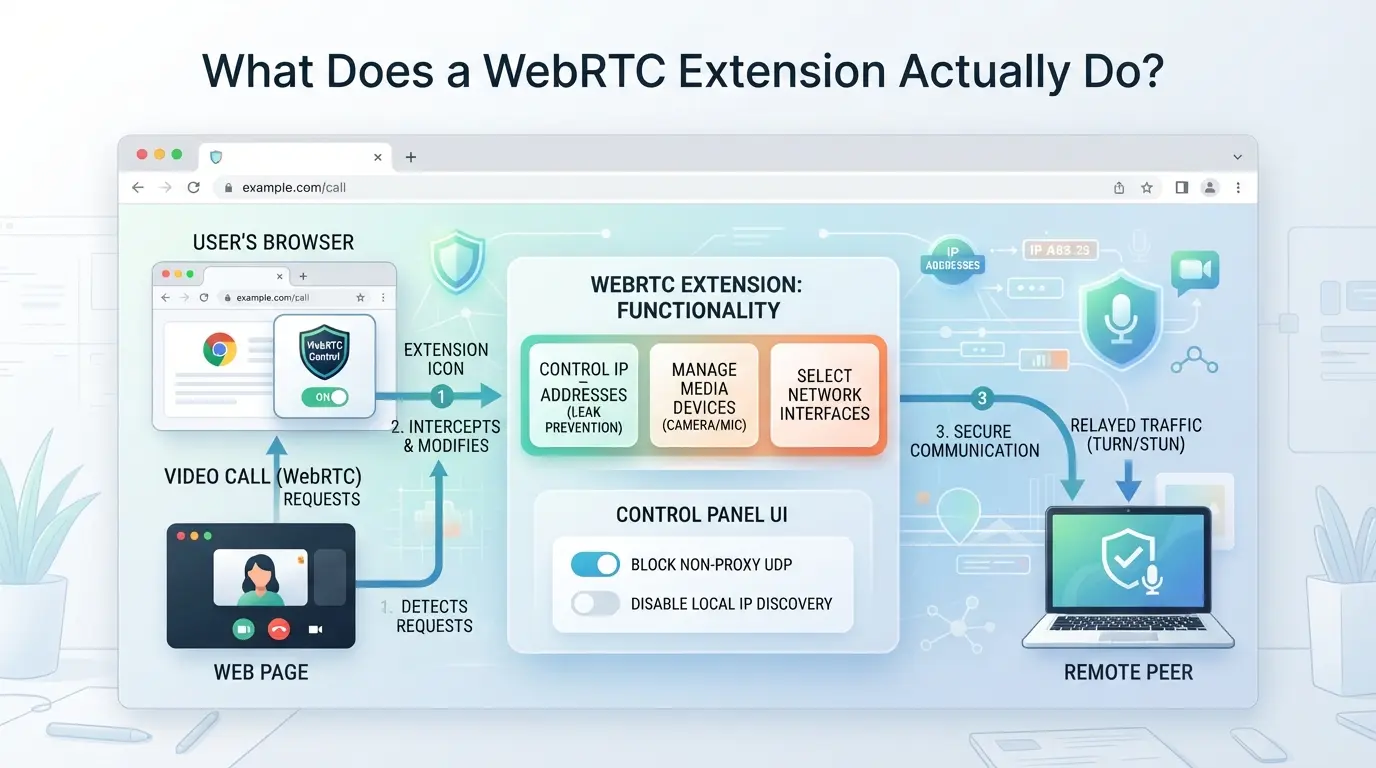
A WebRTC extension changes how your browser handles real-time communication signals, mainly by controlling which IP addresses and device info get exposed. The point isn’t just “block leaks”, it’s to limit which details websites and peers can see, so you avoid easy fingerprint mismatches or privacy gaps. If you don’t check what the extension actually modifies, you might solve one problem but create another that’s just as obvious.
How WebRTC Works in Modern Browsers
WebRTC lets sites and apps connect for voice, video, and file sharing without extra plugins. To make these connections work, browsers share more than just your public IP, they can also reveal private local addresses and device details. Here’s what happens behind the scenes:
- Browsers use WebRTC for fast peer-to-peer connections, not just video calls.
- IP and device info is exposed so peers can connect directly, which boosts speed but leaks details.
- Some sites test these signals to spot “suspicious” setups or multi-account users.
What a WebRTC Extension Changes or Blocks
Extensions change how your browser reports WebRTC signals. Some block all local addresses, others substitute or spoof them, and a few let you pick which IP appears. For privacy, blocking local addresses can hide your network details from sites, but if your extension blocks too much or mismatches your proxy setup, platforms can flag your environment as “unusual.”
Suppose you’re running multiple accounts and set up a proxy for each browser profile. If your extension disables WebRTC completely, your browser stops leaking private IPs, but now, certain sites may detect that WebRTC is off and treat your session as suspicious. On the other hand, if the extension only blocks local addresses but leaves public IPs exposed, your proxy might not mask everything, and you end up with fingerprints that don’t match. The hardest part isn’t turning WebRTC signals off, it’s keeping them consistent with your other environment settings. Failure here looks like login restrictions, flagged sessions, or even account bans, especially on platforms that cross-check WebRTC signals against proxies and User Agents.
For multi-account workflows, skipping WebRTC setup can leave obvious gaps. Privacy-focused users often want extensions that let them substitute or forward IPs to match their proxy, but not all tools support this. If you only use a basic “disable WebRTC extension,” you risk breaking video or audio features in some apps, and missing the real cause of fingerprint mismatches.
If you get flagged by a site, check whether your WebRTC signals match your proxy and browser settings. The next section explains why these signals matter so much for privacy and account safety.
Why WebRTC Extensions Matter for Privacy and Account Safety
If you skip WebRTC controls, your browser can leak your real IP, even with a proxy or masked network, letting platforms link your accounts or flag your device. For anyone managing multiple logins, a single leak can ruin the separation you built and trigger account restrictions. The problem isn’t just technical; the consequences show up as bans, locked sessions, or lost revenue.
How WebRTC Leaks Reveal Your Real IP
WebRTC exposes your internal IP address directly to web pages, bypassing typical browser masking. Here’s where leaks happen:
- Proxy mismatch: WebRTC reveals your real IP even if your browser shows a masked address.
- Multi-account detection: Platforms compare WebRTC and browser IPs; mismatches can trigger risk flags.
- Location exposure: WebRTC leaks can show your physical network location, even when your proxy says you’re somewhere else.
When WebRTC Extensions Are Not Enough
Browser extensions sound simple, toggle them on, block leaks, move on. But that’s not how platforms test for risk. Extensions often block only part of the signal, leaving gaps or creating new fingerprint mismatches. For affiliate marketers, e-commerce operators, or social media managers running multiple accounts, the stakes are higher: platforms use both WebRTC and browser fingerprints to check if sessions match expected patterns. If your extension disables WebRTC in a way that’s obvious to detection scripts, you look artificial. If it only blocks outbound traffic but leaves some local addresses exposed, you still risk linking accounts.
Here’s a common failure mode, an affiliate sets up a proxy, installs a WebRTC blocking extension, and logs into several accounts. The extension only blocks STUN requests (the main leak vector), but doesn’t handle local address enumeration. The platform sees a masked browser IP, but WebRTC still reveals a local address from the same physical network. That mismatch is enough for the platform to flag the session or link multiple logins. The strongest practical insight: if your WebRTC control isn’t consistent with your proxy and the rest of your browser fingerprint, you’re more likely to get flagged and lose account separation.
Extensions also vary in how they handle browser updates, some break after a Chrome or Firefox patch, leaving you exposed without warning. The risk isn’t just in the setup; it’s in ongoing maintenance and the way detection scripts evolve. For anyone who depends on clean account separation, relying only on a browser extension means you’re trusting a tool that may miss new leak vectors or fail after updates.
Next, you’ll want to know what to check before installing or trusting a WebRTC extension, because not all plugins handle these risks the same way.
What to Check Before Installing or Trusting a WebRTC Extension
The real test isn’t whether a plugin says “WebRTC blocked”, it’s whether it handles browser signals in a way that matches your setup, doesn’t overreach, and won’t create new risks. Most people rush to install and only notice the problem after a privacy leak or weird account lock. Here’s what you need to check before you click “Add to Chrome.”
Key Features to Look For
Extensions that just toggle WebRTC on or off rarely solve the full fingerprint problem. You want something that lets you customize blocking or spoofing, so you can match your browser profile, especially if you’re managing multiple accounts. Open-source options usually let you check the code for hidden functions, while closed-source plugins can hide risky behaviors. Update frequency matters, too: an extension that hasn’t been patched in 18 months won’t handle new browser versions or fingerprint checks. If it’s not compatible with your browser, you’ll see errors or failed blocks, and your environment will stick out.
Red Flags and Security Concerns
Permissions creep is common, some extensions ask for full browsing history or access to all tabs, which isn’t needed to block WebRTC. Fake or abandoned plugins still rank high, but their code may expose data or leave gaps. Privacy policies can be misleading or missing entirely, making it hard to know what’s really being collected.
- Check extension permissions, avoid anything that asks for more than “read and change data on websites you visit.”
- Look for recent updates and active support, skip plugins abandoned for over a year.
- Confirm a real privacy policy, if it’s vague or missing, don’t install.
If you ignore these, you risk letting a plugin leak your data or make your session easier to fingerprint. Next, you’ll want to set up and test the extension to see how it interacts with your browser.
How to Set Up and Test a WebRTC Extension for Your Browser

If you want to block WebRTC leaks or mask local IPs, you need more than just installing a plugin, you have to match your settings to your workflow and actually check if they work. Here’s how to get a WebRTC extension running and tested, step by step.
Step 1: Install the Extension from a Trusted Source
- Go to the official Chrome Web Store, Firefox Add-ons, or Edge Add-ons site. Never download browser extensions from third-party aggregators or random links.
- Check the developer’s website and reviews. If the extension has no reviews or a vague changelog, skip it, untrusted plugins can log your real IP or break your fingerprint.
- Install the extension. On Chrome and Edge, you’ll see a permissions prompt; on Firefox, you might get a warning about privacy controls. Make sure you understand what the extension wants to access.
Step 2: Configure WebRTC Blocking or Spoofing Options
- Open the extension’s settings panel. Some plugins default to “block all WebRTC,” but others let you choose substitute or forward modes.
- Pick the mode that fits your workflow. If you run only one account, “block all” is usually fine. For multi-account setups, use “substitute” or “forward” to avoid obvious mismatches in device signals.
- Save your settings. If the plugin doesn’t let you change modes, you’ll need to look for another extension.
Step 3: Test for WebRTC Leaks and Profile Consistency
- Visit a WebRTC leak test site like browserleaks.com/webrtc. The page will show if your real IP is still exposed.
- Check if the IP matches your proxy or masked settings. If you see your local address, the plugin isn’t working, try toggling modes or restarting the browser.
- Verify that fingerprint signals stay consistent. A blocked WebRTC shouldn’t cause other device signals to look fake.
The biggest mistake is skipping this test, many plugins break after browser updates, leaving your real IP exposed without warning. Next up: how these mistakes and risks play out in daily use.
Common Mistakes and Risks When Using WebRTC Extensions
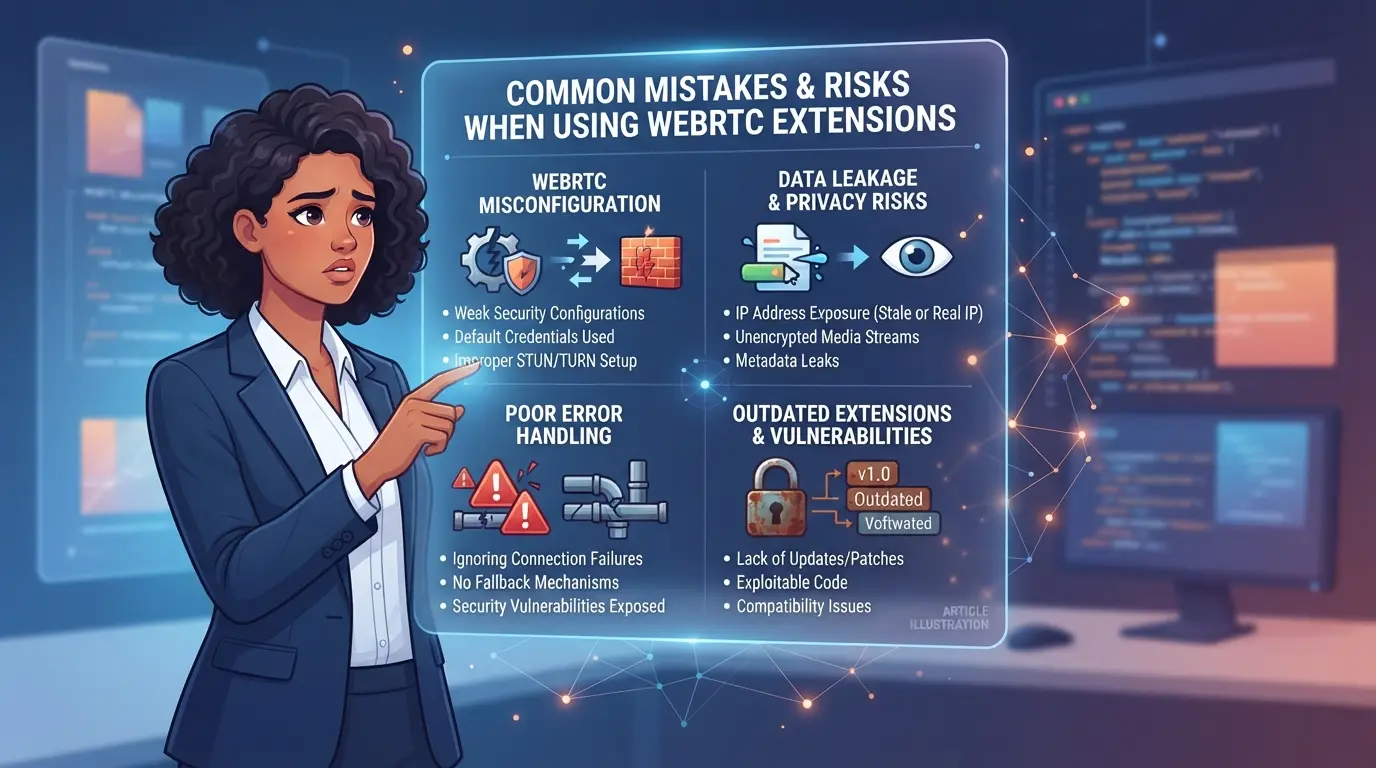
Browser plugins promise easy privacy, but relying on a single WebRTC extension can leave gaps that compromise your account or workflow. The biggest mistakes usually come from trusting the plugin alone, without checking how the rest of your browser’s signals line up.
Relying on Extensions Alone for Privacy
Platforms track dozens of device signals, not just WebRTC. Even with WebRTC blocked, mismatches between your browser fingerprint and proxy location can trigger review or restriction. Blocking WebRTC by itself rarely prevents leaks if you ignore other fingerprint signals.
Misconfiguring Extension Settings
One overlooked setting can expose your real IP or create inconsistency across accounts.
- If you forget to disable WebRTC on every browser profile, some sessions may leak local addresses and trigger platform risk checks.
- Safer move: Check that your settings match across all browsers and devices before logging into sensitive accounts.
Ignoring Updates or Compatibility Warnings
Extensions break after browser updates more often than most people expect. If your extension stops working, WebRTC traffic can resume without warning. Running outdated or unsupported add-ons also opens you to security bugs, these rarely show up until a platform flags your session or an account gets restricted.
Getting past these common pitfalls takes more than toggling a plugin; next, you’ll see how profile-level controls and fingerprint configuration can help keep your workflow safer.
How to Manage WebRTC and Fingerprint Signals More Safely with DICloak Profiles
If you’re running multiple platform accounts or want stronger privacy controls than a webrtc extension alone, browser-based isolation matters more than any single toggle. The actual risk comes from leaks or mismatches between your WebRTC setting and the rest of your browser fingerprint, especially when switching between accounts or sharing a machine. For these readers, building out isolated browser profiles for each workflow is the real move.
Creating Isolated Profiles with Custom Fingerprint and WebRTC Settings
Operators can create separate browser profiles in DICloak, then configure how each profile reports WebRTC behavior, User Agent, time zone, and other fingerprint signals. This means the browser profile for each account is stored and adjusted independently, rather than relying on a single global setting or extension. The scope is limited to browser-profile access; it does not control what happens inside a connected platform account.

Assigning User-Owned Proxies to Each Profile for Network Separation
Setting up a webrtc extension only blocks part of the network trail, if two profiles share the same network exit, location or identity leaks can still happen. Operators can assign their own proxy to each DICloak profile, test the connection, and confirm the IP and region before opening a session. Responsibility for proxy selection and testing stays with the user, not the platform.

This kind of isolation makes it easier to spot issues across profiles and keep each workflow consistent, especially before scaling up to team use.
When a WebRTC Extension Is Not Enough: Safer Workflows for Teams and Power Users
Browser extensions for WebRTC leaks work well for basic privacy, but the gap shows when you’re juggling multiple accounts, working in a team, or need reliable session separation. At that point, relying on a simple toggle can lead to mismatched fingerprints, account linking, or unexpected restrictions.
Single-User vs. Multi-Account or Team Workflows
Running a single account in your home browser with a WebRTC extension is straightforward. The risks multiply when you start switching between work, client, or region-specific sessions, or need real separation for team workflows. Tools built for browser profile management offer more control by letting you set up isolated environments and match fingerprint signals across each profile.
| Scenario |
WebRTC Extension Only |
Browser Profile Management |
| Solo, single account |
Often enough |
Not required |
| Multiple accounts |
Risk of linking |
Safer separation |
| Team workflows |
Hard to audit |
Manage, clone, and share |
If your setup involves more than one account or user, browser profile tools reduce fingerprint mismatches and let you troubleshoot problems before they spread.
Signs You Need More Than a WebRTC Extension
If you keep getting flagged with restrictions, need to separate sessions by region or client, or want to track who changed what, you’re past the point where a browser extension can protect you. Moving to profile-based management is the safer option, especially when your workflow depends on consistent, audit-friendly environments.
How to Keep Your WebRTC Extension and Browser Profiles Secure Over Time
Staying secure isn’t a one-time fix, browsers and extensions change fast, and old setups can leak data without warning.
Regularly Update Extensions and Test for Leaks
Browser and extension updates often patch leak risks or change how WebRTC signals are handled. Run a leak test every month (using a trusted tool) right after updating your browser or any privacy extension. If you spot unexpected IP or device info, reset your settings and re-test. Skipping updates and leak tests is the fastest way to lose privacy without noticing.
Review Permissions and Remove Unused Extensions
Too many extensions can create new risks or conflict with your privacy setup.
- Check each extension’s permissions and remove those you don’t trust.
- Disable or delete any webrtc extension you no longer use.
- Review your browser’s extension list every two months for anything you missed.
Frequently Asked Questions About webrtc extension
Is it safe to use a WebRTC extension in 2026?
It can be safe to use a webrtc extension if you choose one with a good reputation and regular security updates. Check reviews and make sure the developers keep the extension current. Even then, browser updates or new vulnerabilities may create risks, so keep both your browser and the extension updated for the best protection.
Can a WebRTC extension completely prevent IP leaks?
No, a webrtc browser extension cannot guarantee zero IP leaks. Sometimes, browser updates or conflicts with other plugins can weaken its protection. Also, leaks may happen if you switch networks or if the browser’s security settings change. Always test your setup after updates to ensure your IP stays hidden.
Do I need a WebRTC extension if I already use a proxy?
Yes, using a proxy does not block WebRTC leaks by itself. WebRTC can reveal your real IP address even with a proxy. A disable webrtc extension or proper browser settings are needed to block these leaks and keep your real IP hidden during video calls or browsing.
How do I test if my WebRTC extension is working?
Visit sites like browserleaks.com or ipleak.net to check for WebRTC leaks. With your webrtc leak extension enabled, start a test and look for any real IP addresses listed under WebRTC detection. If your real IP is not visible, your extension is working as intended.
What are the alternatives to WebRTC extensions for privacy?
You can use hardened browser profiles, strict privacy settings, or privacy-focused browsers that block WebRTC by default. Advanced users may set up secure proxys or use virtual machines for extra privacy. Regularly updating your browser and avoiding risky plugins also helps protect against WebRTC leaks.Now is the time to evaluate your communication needs and determine which solution aligns best with your workflow and security requirements. Testing a reliable tool firsthand can help you make an informed choice for your team's collaboration and privacy. Try DICloak For Free
 Web Proxy Tools
 Free Tools
 Cookie Plugin
 UA Generator
 MAC Address Generator
 IP Generator
 IP Address List
 2FA Code Generator
 World Clock
 Anonymous Check
 WebRTC Leak Test
 UUID Generator
 Free Web Proxy Site
 Proxy Checker
 FB Ad Checker
 AI Web Scraping
 Free SMM Tools
 Twitter Shadowban Checker
 Instagram Name Checker
 UTM Generator
 Username Generator
 AI Hashtag Generator
 LinkedIn Headline Generator
 Social Media Image Resizer