You try to upgrade Claude or pay for API access, and claude payment failed shows up right after checkout. Sometimes the card is fine, but you still get a Claude payment declined message, a Claude card declined notice, or a vague billing error with no clear next step.
The annoying part is that the problem is often not your balance. A failed payment can come from 3D Secure, a bank fraud check, a billing address mismatch, a prepaid card rule, or a stale browser session. If you guess wrong, you can lock yourself into repeated declines.
What actually helps is checking the failure in the right order. Start with the error type you saw, then confirm whether the issue came from the card issuer, the payment form, or the browser session that handled the checkout. That saves time and cuts out random retries that trigger more fraud checks. If 3D Secure did not open, opened and froze, or sent you back to the same payment page, that points to a different fix than a hard card decline from the bank.
Start by matching the error you saw to the failure point. That makes the next fix much easier.
What should you check first when Claude payment fails?
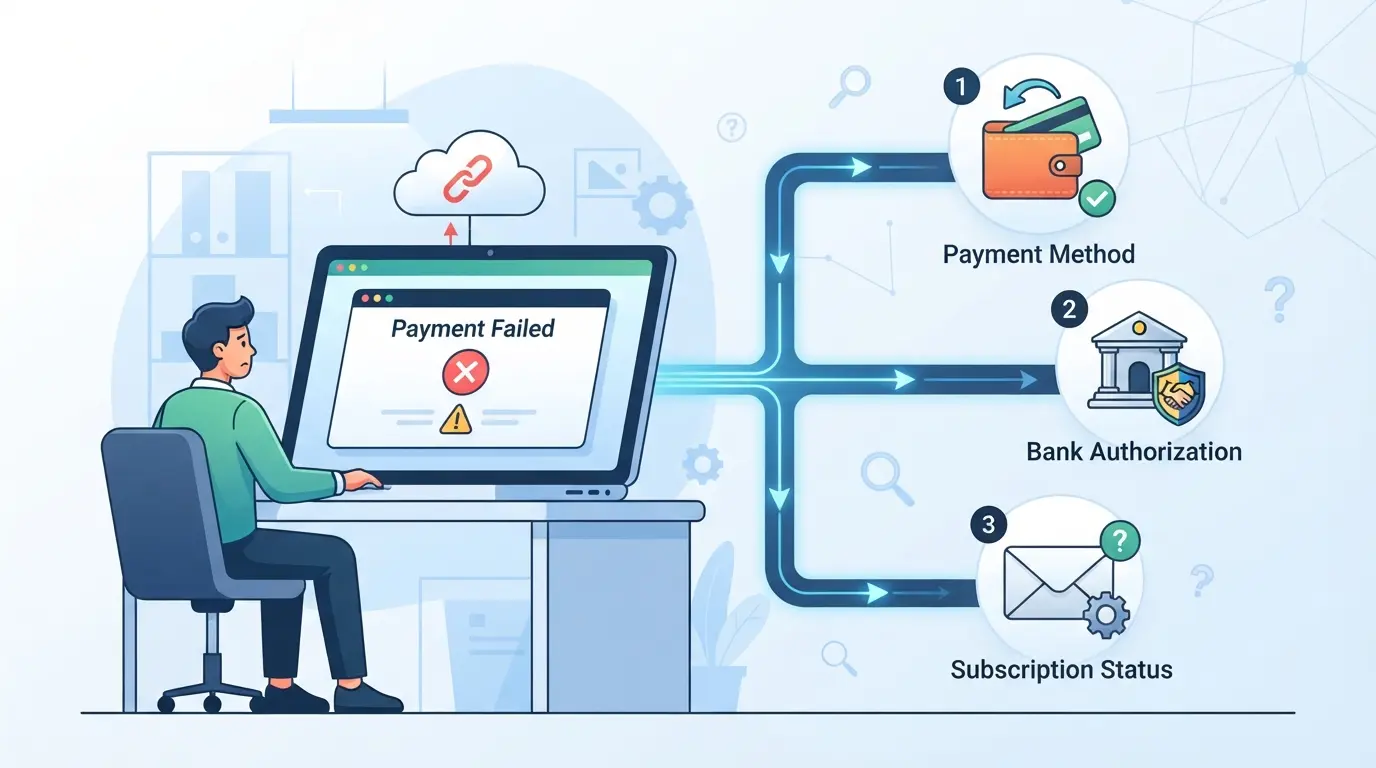
Start with the exact point of failure, not a random retry. If you sort the error into decline, verification, or billing details in the first minute, you can usually narrow the cause fast.
Start with the exact error message before changing anything
Read the message word for word and match it to the failure point. “Card declined” usually points to the issuer or card type. “Verification failed” or a stuck bank pop-up points to 3D Secure. “Billing address” or “postal code” errors usually mean the payment profile does not match what your bank has on file. Do not edit three things at once. If you change the card, address, and browser session together, you lose the clue that tells you what actually broke.
Confirm the five basics that cause most failed attempts
- Re-enter the card number, expiry date, and CVC by hand. Autofill often keeps an old expiry or wrong CVC.
- Check the billing name and billing address against your bank statement, including apartment number, ZIP code, and spacing if your bank is strict.
- Confirm the card is active, has enough available balance for the full charge, and supports online international payments if Claude billing runs through a foreign merchant setup.
Avoid repeated retries before you know the cause
Two or three fast retries can make a simple checkout issue look like fraud to your bank.
- Stop after 1 failed attempt if you saw the same decline twice in under 10 minutes.
- Wait 15 to 30 minutes before trying again if the bank app shows a blocked or pending authorization.
- If the bank app shows no attempt at all, move away from issuer troubleshooting and check browser session or verification flow next.
That split matters, because a valid card can still fail for issuer rules, even when all the form details are correct.
Why does Claude keep declining a valid card?
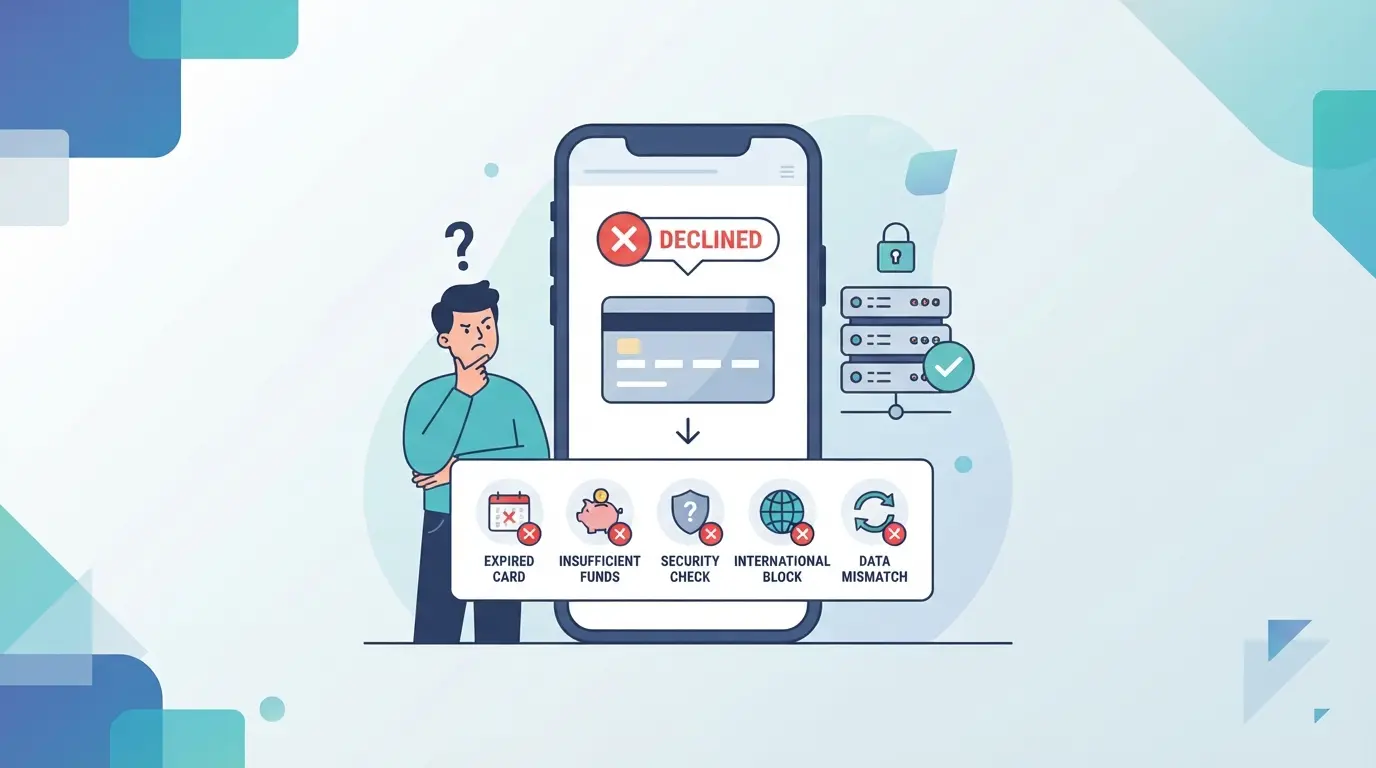
If the quick checks looked fine, the card itself may not be the real problem. A valid card can still fail if the checkout details do not match what the issuer expects, if the card region does not fit the merchant setup, or if bank verification breaks before the charge finishes.
Billing address mismatch is more common than most people think
A card can work in one store and fail here if the billing address does not match the address on file with your bank. Even small mismatches, like an old apartment number, ZIP code, or cardholder name format, can stop the authorization before money actually moves.
Your billing country or card region may not meet processing rules
This is where users often get stuck. The card is active, has funds, and passes in other checkouts, so they assume Claude payment declined means a random error. More often, the processor is checking whether the card country, billing country, and account region line up well enough for the transaction. If your account says one country, but your card was issued in another, the payment can fail before you ever see a completed charge. A common example is a traveler using a home-country card while entering a temporary local address. That can look normal to you but inconsistent to the issuer or payment processor.
3D Secure or issuer approval may be failing in the background
Sometimes the bank says no even though the card is valid. Example: you submit the payment, your bank opens a verification step, you approve it, and then the page loops back to checkout with no subscription. That usually points to issuer approval or 3D Secure failing mid-flow, not a broken card.
Some payment methods are accepted less reliably than standard credit cards
If you are using anything other than a standard credit card, check this before retrying:
- Prepaid cards often fail merchant or issuer checks.
- Some debit cards pass small purchases but fail subscription billing.
- Certain virtual cards get blocked if recurring charges are restricted.
The next thing to check is the address and region data you entered, because that is where these declines often start.
How do you fix Claude billing address and region mismatches?
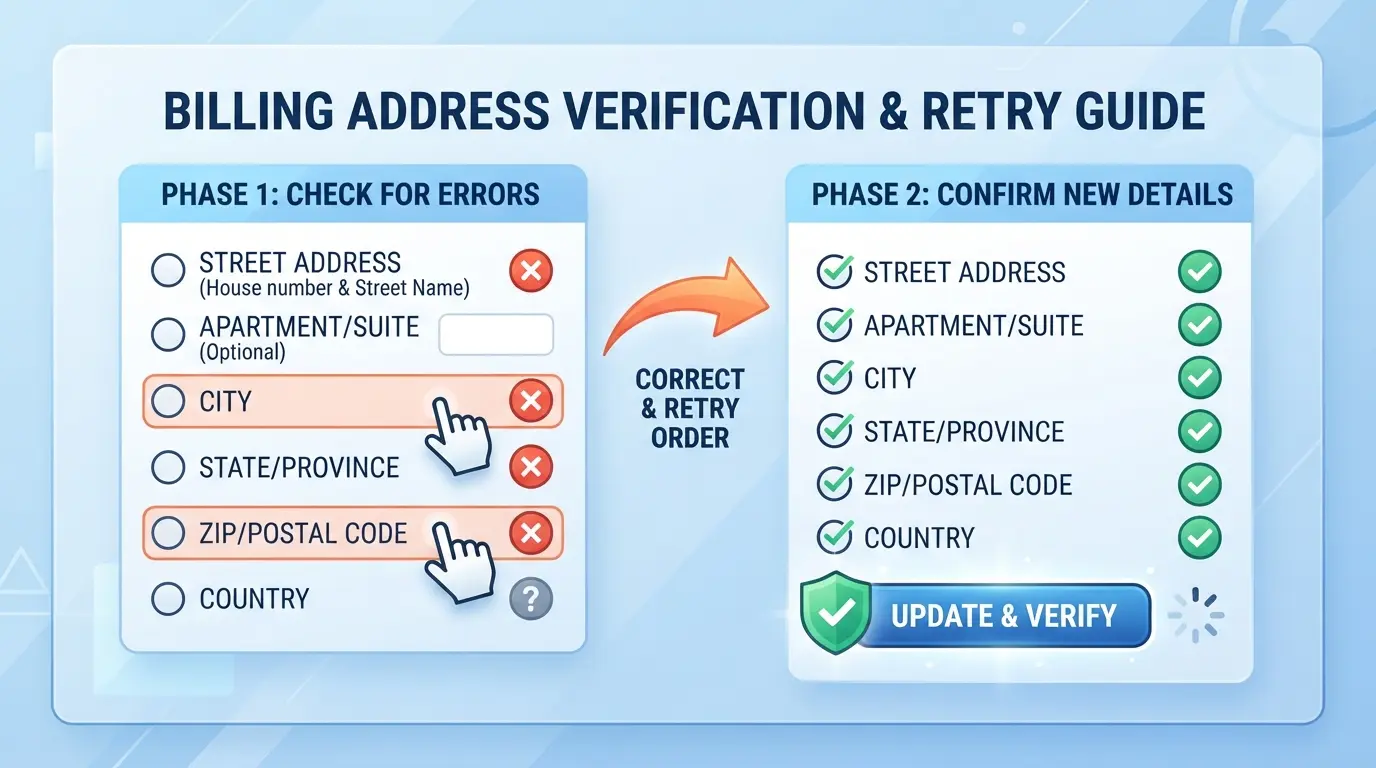
If the card itself is fine, billing data is the next thing to fix. Address and region errors often come from small mismatches, not big mistakes. Do not guess at the address format. Use the exact billing record your bank has for that card.
Match the billing address to your bank statement exactly
- Open your bank app or card portal and copy the billing address tied to that card. Use that record, not your current location or shipping address.
- Enter the postal code exactly as stored. A missing space, wrong ZIP+4 format, or old postcode can trigger a Claude billing error.
- Recheck street details line by line. If your bank has "Apt 5B," do not switch it to "#5B" unless that is how the bank shows it.
- If the form still fails, call the issuer and ask what address the card verification system returns. That is the version the payment check usually sees.
Make sure the card country and billing country align
- Check the card's issuing country in your banking app or by calling the number on the card. The country that matters is where the card was issued, not where you are today.
- Compare that country with the billing country you selected at checkout. If those differ, retry with the issuer's country and matching billing address.
- If your Claude account is set up while you are in one region but your card is issued in another, stop and confirm which country the payment form expects. Mixed-region setups often cause a Claude payment declined result even when the card works elsewhere.
- If your bank confirms the card is domestic but the checkout keeps reading it as foreign, do not keep retrying. Move to the next failure point.
Re-enter the payment details from scratch after correcting the mismatch
- Clear the saved payment form and type everything again. Browser autofill often puts the old postcode or country back in without showing it clearly.
- Use one clean retry only. Multiple fast retries can look like fraud testing and stack another decline on top of the original mismatch.
- Wait 15 to 30 minutes if you already failed several times, then try again in the same browser session.
- If the corrected details still bounce you into an authentication prompt or loop, the issue may be 3D Secure rather than the address itself.
What should you do if Claude 3D Secure verification fails?
If the payment page loops, the bank approval pop-up stays blank, or you return to checkout after approving the charge, the problem is often 3D Secure, not the card details. Fix the bank check before you retry, or the same failure can repeat.
Recognize the signs that the problem is 3D Secure, not the card itself
- Watch the exact failure point. If the card form submits, then a pop-up closes, freezes, or never loads, the bank check likely failed.
- Check your banking app or SMS history. If you got an approval prompt but the subscription did not finish, the authentication likely timed out or did not return to the same checkout session.
- Look for a pending charge. A temporary authorization can appear even when the plan does not activate. That points to an incomplete verification flow, not a clean approval.
Complete the bank approval flow without blocking the verification window
- Turn off pop-up blocking for the checkout page, then retry once. If no bank window appears, the browser blocked it before the challenge started.
- Keep the payment tab open while you approve in your banking app or code screen. If you refresh, open a new tab, or go back, the session can expire.
- Finish the challenge quickly. If approval succeeds but you land on the same payment form, start a fresh checkout instead of resubmitting the old one.
If 3D Secure still fails, ask your bank about online international subscription approval
- Ask your bank support whether the card can approve 3D Secure for online international subscriptions and recurring charges.
- Tell them what you saw: blank challenge page, app approval completed, or return to checkout without activation. That gives them something real to check.
- If the bank confirms restrictions, switch cards instead of forcing more retries. Next, put these checks into the right troubleshooting order.
What is the best order to troubleshoot Claude payment failed errors?
After a 3D Secure issue, the next move is simple: check the easy failure points once, retry once, then escalate with the exact error context. Do not keep resubmitting the same card. Repeated attempts can trigger more issuer fraud checks.
Step 1: Check payment details, balance, and card status
- Re-enter the card number, expiry, CVC, and cardholder name exactly as shown on the card. One wrong digit usually returns an instant decline.
- Check available funds and card status in your banking app. Also confirm online and international payments are turned on.
- If the bank app shows a declined attempt, the problem is likely issuer-side, not the checkout form.
Step 2: Verify billing address and region alignment
- Remove autofill and type the billing address manually. Saved ZIP or postcode data often stays wrong.
- Make sure the country and billing region match the card statement. If they do not, fix that before another attempt.
- If you changed the address and still get the same error, move on.
Step 3: Retry once and complete any 3D Secure prompt
- Use one clean retry in the same session.
- Watch for a bank approval screen, app push, or SMS code.
- If nothing appears and the page loops back, stop retrying.
Step 4: Contact your bank or card issuer with the exact decline context
- Give the timestamp, amount, and merchant name.
- Ask if the transaction was blocked as a recurring or online payment.
Step 5: Contact Claude support if the charge went through but access did not update
- Send the receipt, charge timestamp, and account email.
- This also matters for teams that need stable paid access across shared workflows.
If your Claude billing issue is fixed, where does DICloak fit for shared paid tool access?
If your team solved the payment block and now shares one paid AI login, the practical fix is to keep one browser profile consistent and limit who can see passwords or account pages. For teams that use DICloak, that means sharing one prepared browser profile instead of passing credentials around. The scope is limited to browser-profile access; it does not change Claude billing, subscription approval, or platform rules.
Use one shared browser profile with the same configured fingerprint and user-provided proxy route
A good example is a small ops team with one paid AI workspace: an admin prepares one browser profile for that account, sets its fingerprint options, adds a user-provided proxy route, and shares that same profile with approved members. Everyone needs to open the same shared profile and proxy route if the team wants a stable setup; separate profiles can behave differently, and no browser tool can decide how a third-party service reads each session.
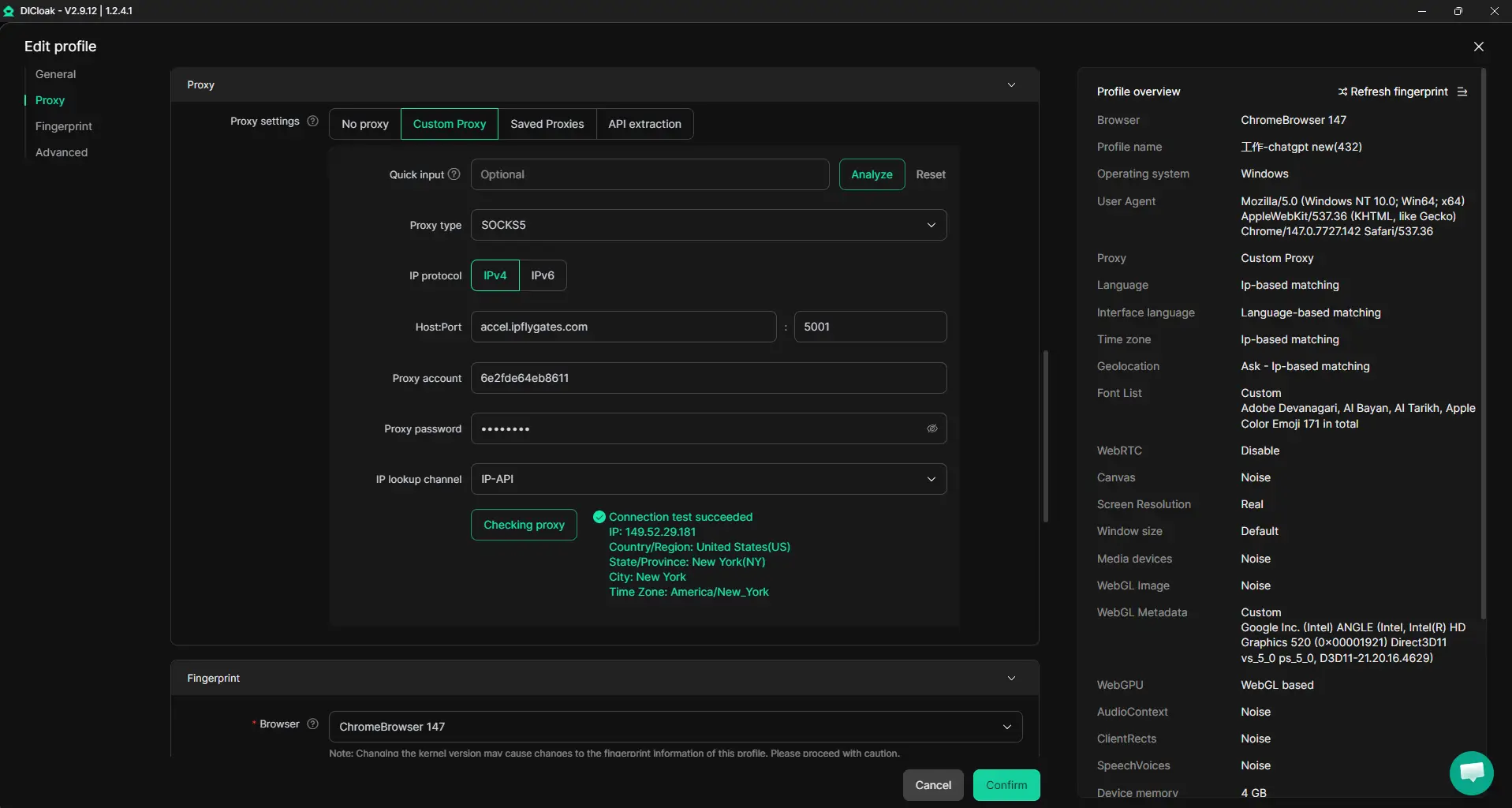
Browser-Profile Access Controls for Shared Account Workflows
The hard part is not opening the account. It is stopping routine access from turning into password or cookie exposure. An admin can use DICloak security settings to restrict saved password viewing where supported, limit developer tools or extension changes, and block sensitive account-management pages before sharing the profile. That keeps the workflow tighter around the browser profile, though it does not secure the SaaS platform itself.
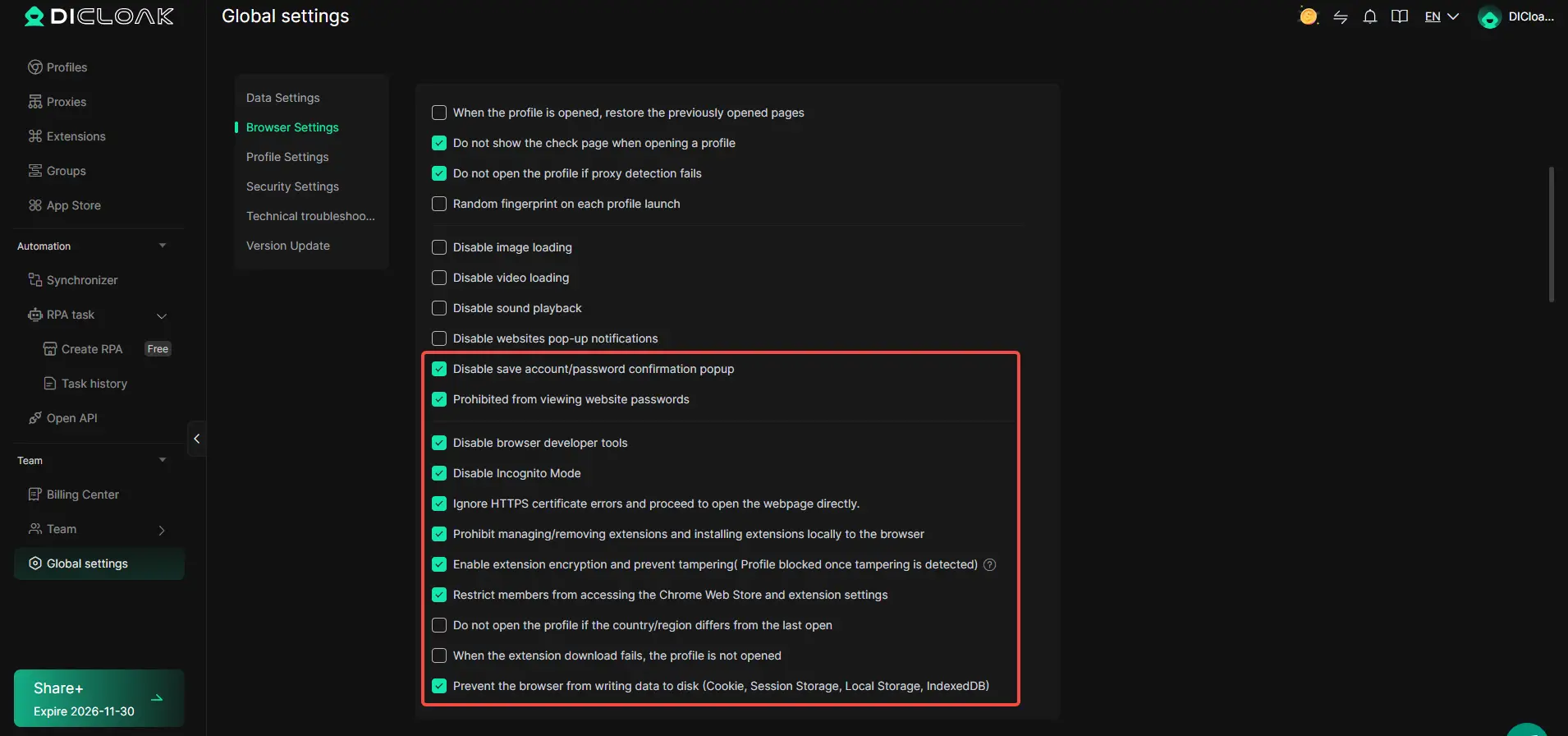
Give each teammate only the profile access and actions they actually need
If one teammate only needs to open the paid tool and run prompts, they should not also see every profile group or admin control. An admin can create member groups, assign only the needed profile groups, and hide profile-list fields for regular members. That keeps access narrower inside DICloak, not inside Claude itself.

If access is shared and a charge still posted without activation, the next thing to check is whether billing succeeded but the subscription state did not update.
Why did Claude charge your card but not activate the subscription?
If your card shows a charge but the plan did not switch on, do not retry yet. In many claude payment failed cases, the card only has a temporary hold, or the payment settled while the account update lagged.
Know the difference between a pending authorization and a completed charge
A pending authorization can look like a real charge in your banking app, but it may drop off in a few hours or days if the payment did not fully settle. Check whether the line says pending, authorized, or posted before you assume money was taken.
Check your Claude billing page and account email before retrying
Retrying too fast can create duplicate holds.
- What can go wrong: you submit the payment again, the bank sees repeated attempts, and you end up with two pending charges but still no plan change.
- The safer move: check the billing page, refresh after a few minutes, and look for a receipt or confirmation email tied to the same account.
Contact support with proof if the payment settled but access never changed
If the transaction shows as posted or settled and your access still looks free, contact support with the charge date, last 4 card digits, amount, receipt screenshot, and account email. If support cannot match the payment quickly, stop retrying and move to a different payment method in the next step.
When should you stop retrying and use a different card or contact support?
If the same checkout path fails 2-3 times, stop. After the pending-charge case above, more retries usually add noise, not answers.
Use a different card when the issuer keeps declining the transaction
| What you see |
Better next move |
Why |
| Instant decline, same card, same result |
Try a different card |
The issuer is likely blocking this merchant or card type |
| One card fails, another works |
Keep the working card |
That points to a card-level issue, not your Claude account |
| Prepaid or virtual card fails |
Switch to a standard debit or credit card |
Some cards do not pass recurring billing checks |
Stop testing the same card after repeated issuer declines.
Contact your bank when the card should work but authentication keeps failing
Call the bank if the card works elsewhere but Claude payment declined during verification. Ask about online subscriptions, cross-border approval, 3D Secure, and any decline reason code.
Contact Claude support when payment status and account status do not match
Contact Claude support if the charge settled but access did not change, or renewal status looks wrong. Send the charge date, amount, last 4 digits, and account email to cut back-and-forth.
Frequently Asked Questions About claude payment failed
Does Claude payment failed always mean my card is unsupported?
No. A claude payment failed message does not always mean the card type is unsupported. Common causes include a billing address mismatch, an issuer fraud block, a failed 3D Secure check, or country and region rules. Even valid Visa or Mastercard cards can be declined if one of these checks fails.
How long should I wait before retrying after a Claude payment failed error?
Retry only after you fix the likely cause, such as updating your billing ZIP code or approving the bank’s security prompt. Then wait a few minutes before trying again. Avoid rapid repeat attempts. Multiple quick retries can look risky to your bank and may trigger more declines or a temporary block.
Can a Claude renewal fail even if the first payment worked?
Yes. A renewal can fail even when the first charge went through. The card may have expired, available funds may be lower, or your bank may now require a new verification step. Issuer rules also change over time, so a card that worked last month can still hit a Claude billing error today.
Does Claude accept PayPal for subscription payments?
Payment methods can change, so do not assume PayPal is always available for subscriptions. Check the live billing or checkout page to see the current options in your account and region. If PayPal is not shown there, use one of the listed methods instead of relying on older screenshots or forum posts.
Can browser or device issues cause a Claude payment failed message?
Yes, sometimes the problem is local to your browser or device. Blocked pop-ups can stop the 3D Secure window from opening. Stale autofill may submit an old address or expired card date. A broken session can also interrupt checkout. Try a fresh tab, another browser, or a mobile device.
If the payment still won’t go through after checking your card details, billing address, and bank restrictions, the next step is to contact your payment provider and then reach out to Claude support with any error messages or screenshots. Acting in that order helps you quickly confirm whether the issue is on the bank side or the platform side, so you can resolve it without wasting more time. Try DICloak For Free
 Web Proxy Tools
 Free Tools
 Cookie Plugin
 UA Generator
 MAC Address Generator
 IP Generator
 IP Address List
 2FA Code Generator
 World Clock
 Anonymous Check
 WebRTC Leak Test
 UUID Generator
 Free Web Proxy Site
 Proxy Checker
 FB Ad Checker
 AI Web Scraping
 Free SMM Tools
 Twitter Shadowban Checker
 Instagram Name Checker
 UTM Generator
 Username Generator
 AI Hashtag Generator
 LinkedIn Headline Generator
 Social Media Image Resizer