A writer finishes a client brief in Claude, but the SEO lead needs to pick up the same work later that day. The team does not really want to hand over the account password or keep sending verification details back and forth. What they need is a practical way to keep Claude's work accessible without making the handoff messy.
For small teams, cost is often part of that decision. Claude Pro currently costs $20 per month in the U.S., while Claude Team requires at least two members and costs $25 per member per month on monthly billing. That means a two-person Team workspace starts at $50 per month, which helps explain why some teams look for other ways to share access. This guide compares the main ways to share Claude with a team in 2026, explains the trade-offs of each option, and shows how an antidetect browser like DICloak can help when several people need to reuse the same signed-in Claude session without passing the password around.
Why Do Teams Want to Share a Claude Account?
Teams usually want to share Claude to reduce software costs, keep useful work in one place, and give coworkers access without passing login details around. This is especially common for small teams that use Claude regularly but do not need separate paid access for every person. In practice, these needs usually show up in a few common situations:
- Lower software costs. Small agencies, startups, and content teams often already pay for several AI, SEO, design, and research tools. If only a few people use Claude occasionally, paying for separate access for every team member can feel inefficient.
- Shared projects and work context. One Claude account may already contain useful projects, prompts, files, client notes, or past conversations. Teams often want coworkers to continue from that existing context instead of rebuilding it from scratch.
- Easier collaboration. Writers may use Claude for drafts, marketers for campaign ideas, and developers for code review. Keeping related work accessible can make handoffs easier when several people contribute to the same project.
- Remote team access. Distributed teams may need coworkers in different locations or on different devices to access the same work without repeatedly asking one person to log in or send information.
- Less credential sharing. Team owners may want employees or contractors to use Claude without giving them direct access to personal login details, verification codes, or the main account credentials.
These situations may all lead teams to consider account sharing, but they do not always require the same setup. Before deciding how to share Claude, it is worth looking at what each plan costs and what Anthropic allows for account access.
How Much Does Claude Cost?
Claude has individual plans starting at $0, while paid team access is priced per member. For teams thinking about sharing one subscription to save money, the important point is that a cheaper individual plan and a Team plan are designed for different types of access.
As of September 2026, Claude offers Free, Pro, Max, Team, and Enterprise plans. For account sharing, the most useful comparison is not every feature in each plan, but how much access costs and whether the plan is built for one person or a group.
| Plan |
Monthly price |
Designed for |
What teams should know |
| Free |
$0 |
Individual, occasional use |
Useful for light personal use, but not a team access plan |
| Pro |
$20/month |
Individual regular use |
Adds more usage and paid features, but no team administration |
| Max |
From $100/month |
Individual heavy use |
Gives one user much higher usage; it does not turn the account into a team plan |
| Team Standard |
$25/seat/month |
Teams of 2–150 |
Gives each member a seat and adds centralized team management |
| Team Premium |
$125/seat/month |
Higher-usage team members |
Adds five times the usage of a Standard seat |
| Enterprise |
Custom / usage-based |
Larger organizations |
Pricing depends on the enterprise agreement and usage model |
For example, a two-person team using Standard Team seats would cost $50 per month on monthly billing, or the equivalent of $40 per month when billed annually. That makes Team much more accessible to small groups than older five-seat pricing models that still appear in some guides. Prices can vary by region and do not include applicable taxes.
The key difference is not only price. Pro and Max are individual plans, while Team gives separate seats to members and adds centralized administration. Paying more for Max gives one person more capacity; it does not create separate access for several coworkers.
What Are the Ways to Share Claude With Your Team Without Sharing the Password?
There is no single sharing method that fits every team. The right option depends on whether coworkers need their own Claude access, only shared projects or results, or access to an existing work environment without receiving the account credentials.
1. Use Claude Team for Separate Member Access
For teams that use Claude every day, the official Team plan is the clearest option. Each member gets their own access instead of several people relying on one personal login, while owners can manage members and billing from the organization. Team and Enterprise users can also share projects with selected coworkers and give them view or edit permissions.
Pros:
- Each team member gets separate access.
- Admins can manage members from one organization.
- Better suited to long-term team use and shared projects.
Cons:
- Every active member needs a paid seat.
- It may cost more than one individual subscription for a very small or occasional-use team.
This setup makes sense for companies, development teams, or agencies where several people use Claude as part of their regular work.
2. Share a Project or Conversation Instead of the Whole Account
Not every collaboration problem requires account access. If a writer needs the same brand files as an editor, or a manager only needs to review Claude's output, sharing the relevant Project or conversation can be simpler than giving someone access to the whole account.
On supported team plans, shared Projects can give selected members access to common files, instructions, and project context, while individual chats can remain separate unless they are intentionally shared.
Pros:
- Keep collaboration focused on the work people actually need.
- Reduces the need to expose the whole account.
- Works well for review, content handoffs, and shared project context.
Cons:
- It does not give coworkers full access to the account.
- It may not fit teams where everyone needs to work in Claude independently every day.
This is often the better choice when the real goal is sharing work, not sharing the account itself.
3. Use a Password Manager for Credential Control
A password manager can keep login details out of email, chat apps, and shared documents. It can also make stored credentials easier to update or revoke when a contractor or employee no longer needs them.
Pros:
- Keeps credentials out of plain-text messages.
- Makes credential updates and revocation easier.
- Simple to add to an existing team workflow.
Cons:
- It only manages credentials, not the Claude workspace itself.
- It does not turn one personal account into a multi-user plan.
For teams that need regular individual access, a password manager is best seen as a credential-management tool rather than a full account-sharing solution.
4. Use an Antidetect Browser for Work Account Access
Some teams already manage several authorized work accounts and need a cleaner way to keep browser sessions separate and control which employee can open each work environment. This is common for agencies working across several client accounts or remote teams that regularly add and remove contractors.
With an antidetect browser like DICloak, each Claude work account can stay in a separate browser Profile. Profile Sharing and team permissions can then be used to give selected members access to that work environment without sending login details through team chats.
Pros:
- Keeps different Claude work accounts and sessions separated.
- Reduces the need to pass login details directly between team members.
- Gives admins more control over who can access each browser Profile.
Cons:
- Team members still need to follow the account rules of the service they are using.
How to Share Claude Access With Your Team Using DICloak
If your team needs to reuse the same Claude session, you can keep the signed-in account inside one browser Profile with DICloak and share that Profile with selected teammates. This keeps the login session, browser settings, and team access in one place without passing the password around.
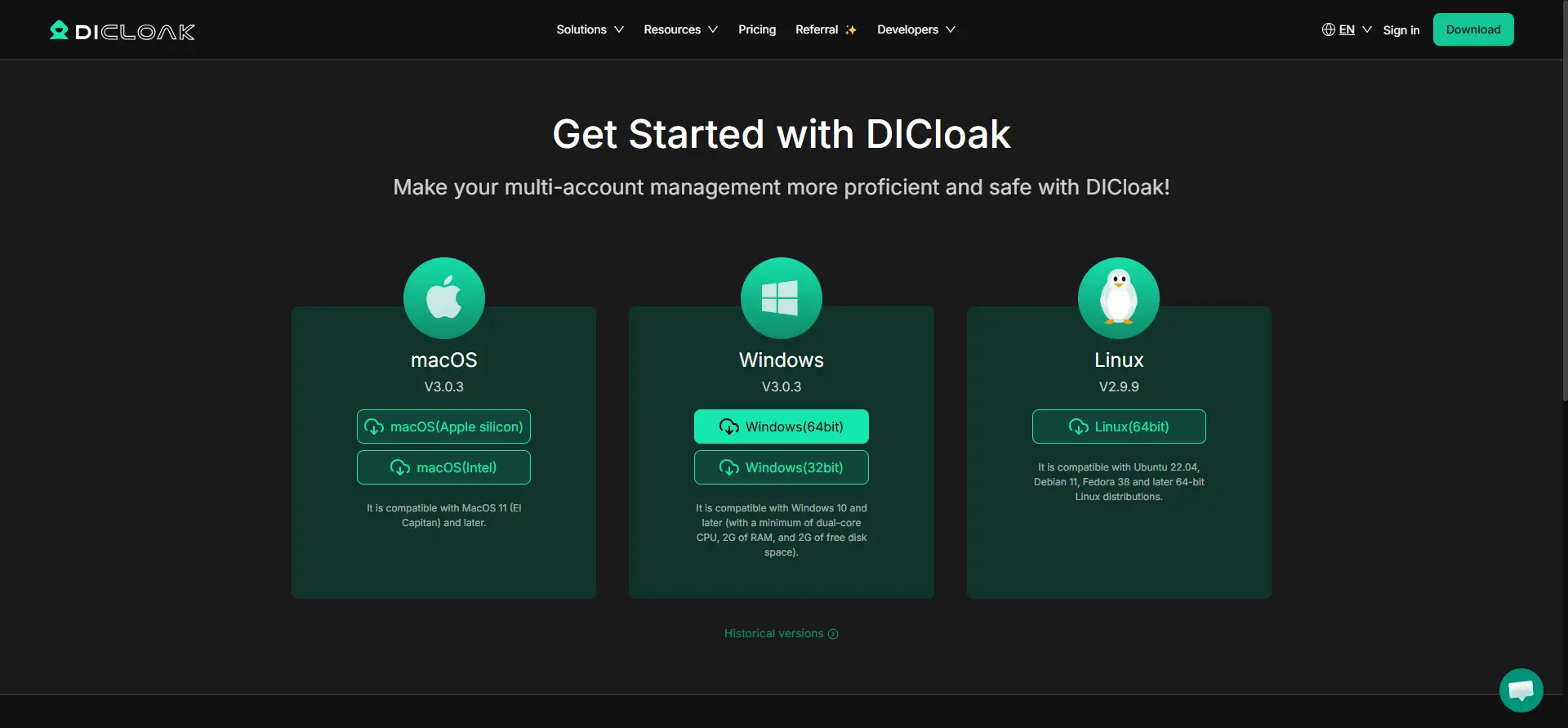
Step 1: Install DICloak and Choose a Team Plan
Download DICloak, create an account, and choose a plan based on your team size and the number of browser Profiles you need.
Step 2: Create a Dedicated Claude Profile
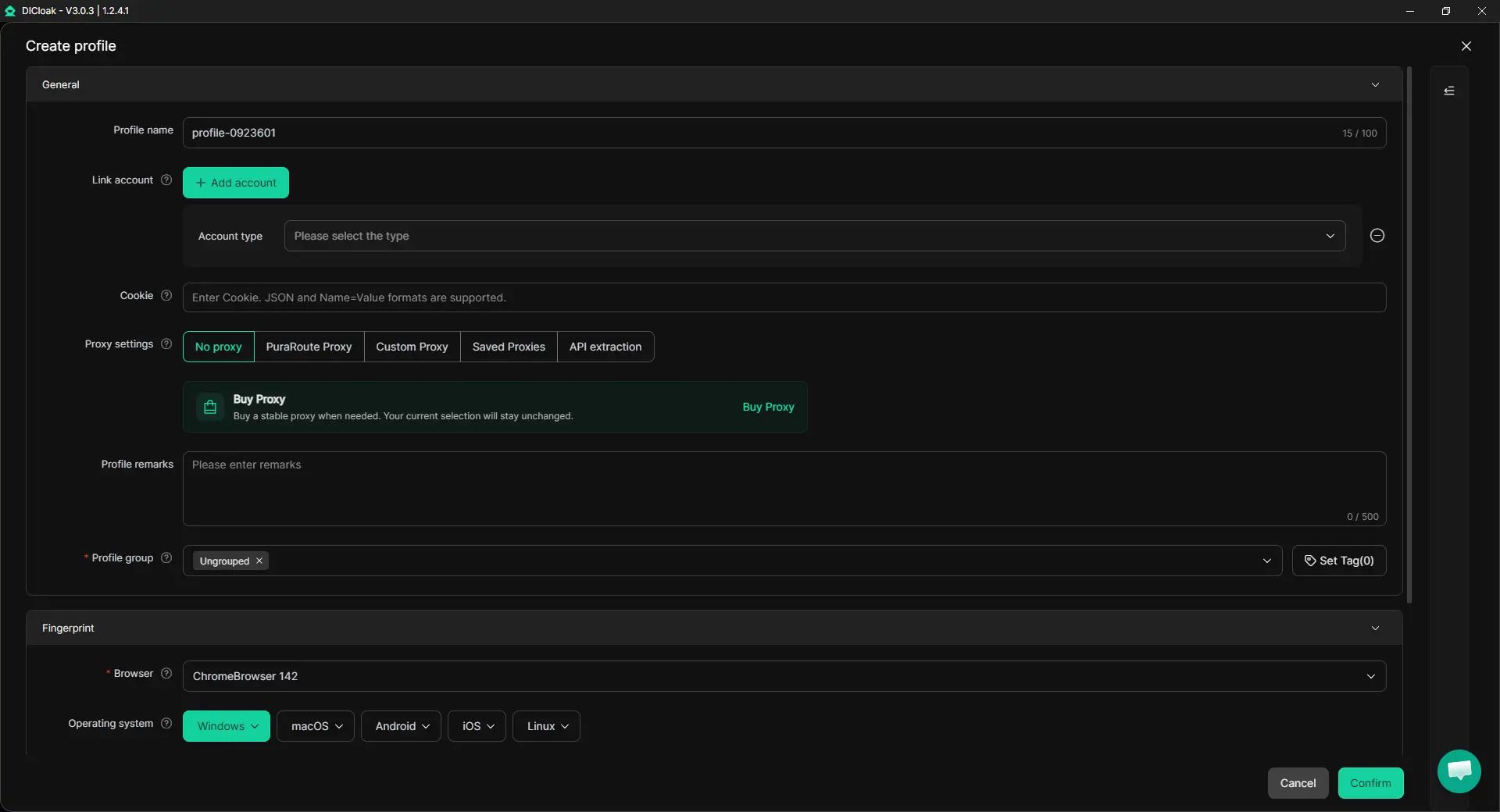
Create one browser Profile for the Claude account so its cookies, login session, and browser settings stay together. If several teammates need to use the Profile, enable Multiple Sessions. You can also turn on Hide Password, so saved credentials are not visible to other members. If the Claude account normally uses a specific proxy, configure that proxy for the Profile as well.
Step 3: Sign In to Claude as the Account Owner
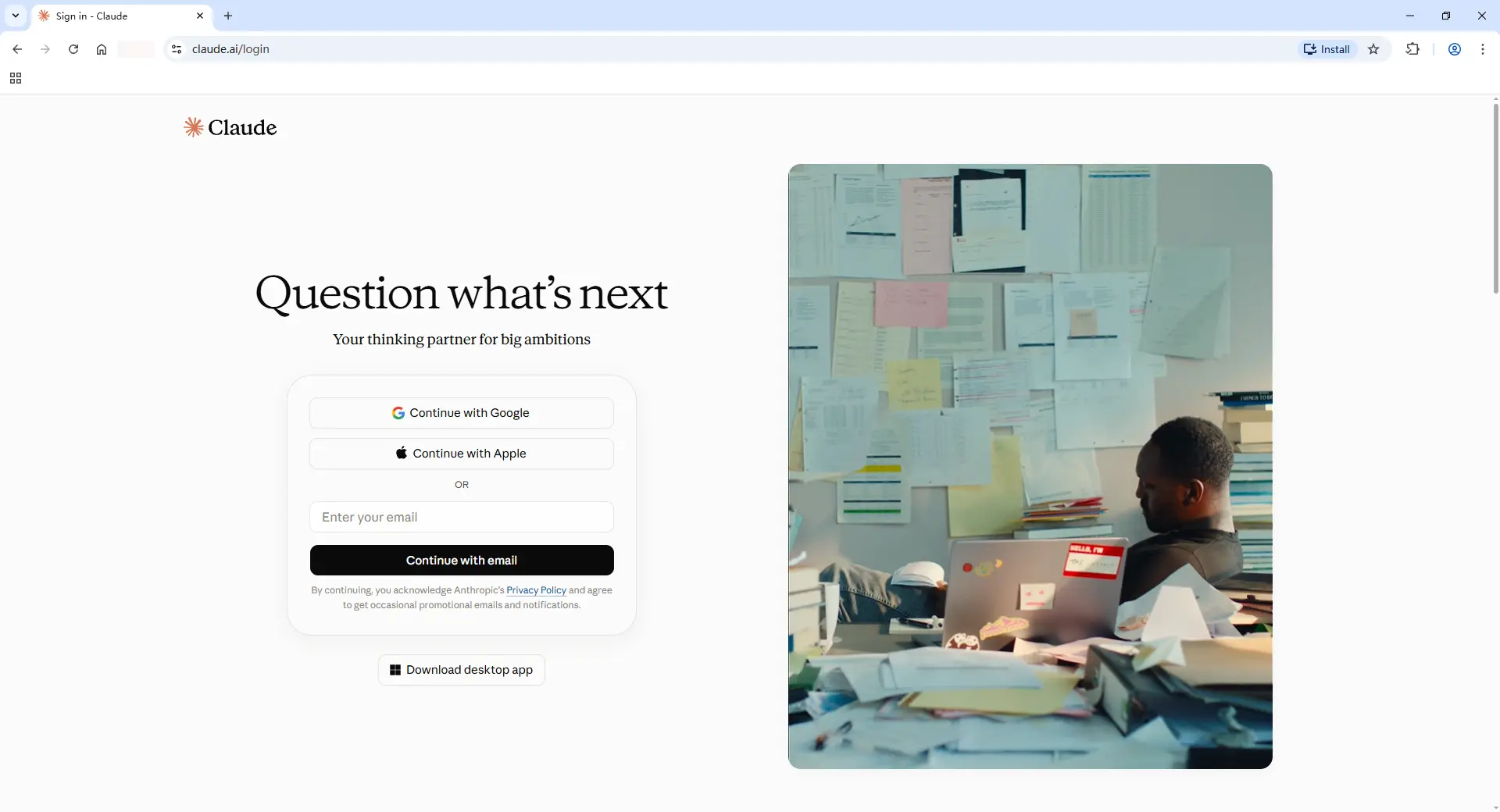
Open the Profile and sign in to Claude yourself. Complete the password, verification, or 2FA steps, then confirm that the account works normally. Once the session is saved, teammates can reopen the same Profile without needing the Claude password each time.
Step 4: Share the Claude Profile With Your Team
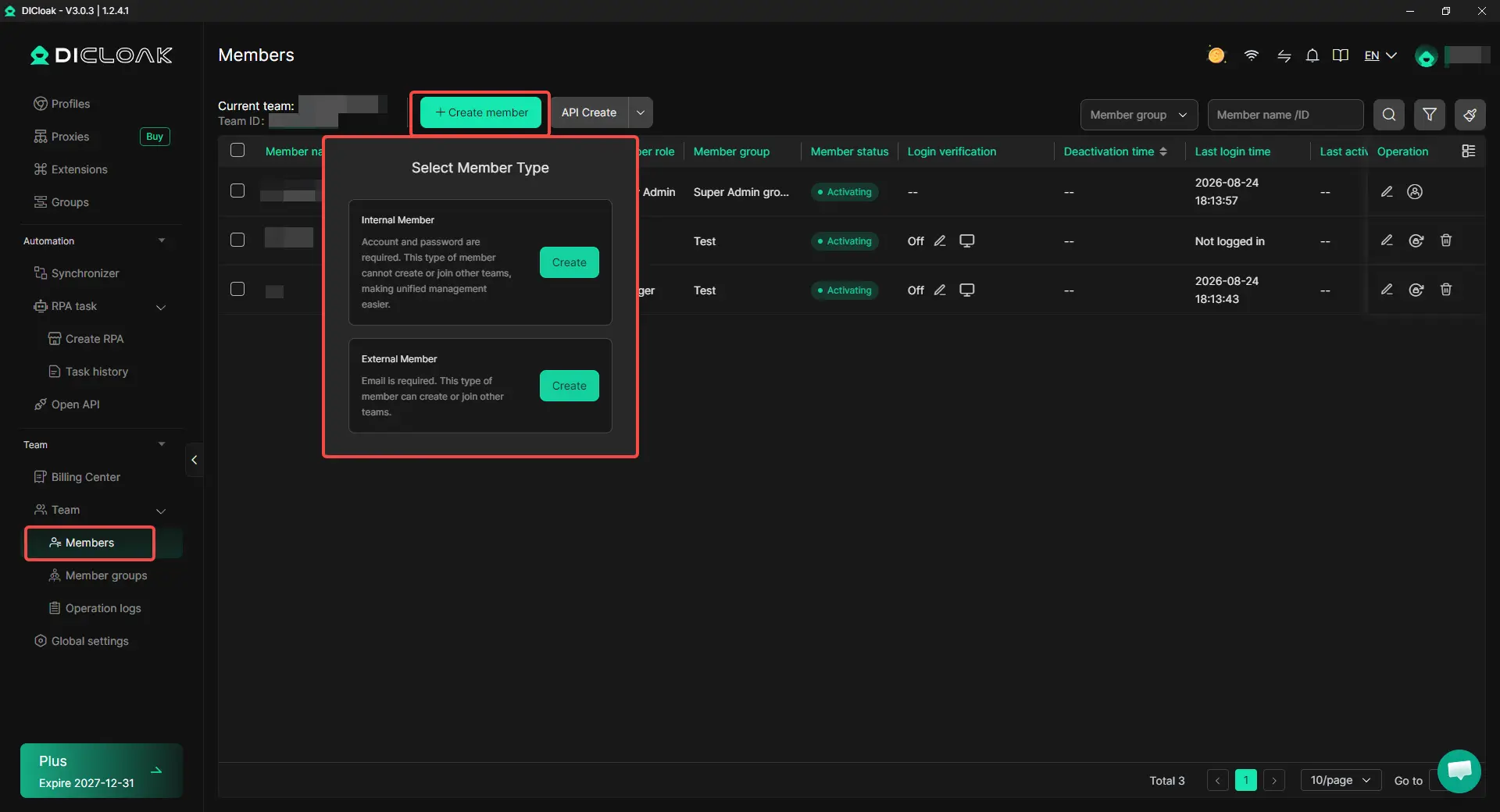
Invite the teammates who need access, then use Profile Sharing and team permissions to assign the Claude Profile. For example, a content lead and writer may both need the Profile, while other team members do not. Access can also be changed or removed when project roles change.
Step 5: Open the Shared Profile and Continue Working
Authorized teammates can open the shared Claude Profile from their own DICloak account and continue from the existing session. For example, a researcher can finish the first part of a task, then a writer can reopen the same Profile and continue the work without setting up the Claude account again. This makes the handoff simpler while keeping access managed through the shared Profile.

Advanced DICloak Controls to Protect Your Shared Claude Account
After sharing the Claude Profile, you can add a few extra controls with DICloak to limit what team members can see or change inside that browser profile.
- Hide saved passwords. With Hide Password, teammates can use saved login information without seeing the actual password.
- Limit access to cookies and session data. Developer tools can be blocked, and members can be prevented from installing their own browser extensions, reducing direct access to sensitive session information.
- Restrict network inspection tools. Packet-capture tools such as Wireshark or Fiddler can be blocked from inspecting traffic related to the shared browser profile.
- Limit website access. URL allowlists or blocklists can keep the Profile focused on approved sites such as
claude.ai, instead of letting members browse freely inside the same work environment.
- Hide sensitive page elements. With Web Element Hider, account owners can hide selected parts of the Claude interface, such as billing, subscription, or account-setting areas, when those details do not need to be visible to other members.
These controls are most useful when a shared Claude Profile is used by employees, contractors, or client-facing teams. They let the account owner share the work environment without giving every member the same level of visibility or control.
Frequently Asked Questions About Sharing a Claude Account With Your Team
Can I share a Claude account with my team without sharing the password?
Yes. If your team needs to reuse the same Claude session, you can keep the signed-in account inside a shared browser Profile and let selected teammates open that Profile instead of sending them the password. An antidetect browser like DICloak can keep the session, cookies, and browser settings together while giving team members access through Profile Sharing.
Can two people use the same Claude account at the same time?
If several teammates need to work from the same Claude Profile, DICloak's Multiple Sessions feature can support simultaneous Profile access. This can be useful for small content, marketing, or research teams where more than one person needs to continue work from the same account environment.
How can I share Claude with a teammate without showing the password?
The account owner can log in to Claude first, save the session inside a dedicated browser Profile, and then share that Profile with the teammate. With Hide Password enabled in DICloak, team members can use saved login information without seeing the actual password, which is useful when working with employees, VAs, or contractors.
Can I control who has access to a shared Claude account?
Yes. With DICloak, access can be assigned through Profile Sharing and team permissions, so only selected members can open the Claude Profile. If a team member changes roles or leaves a project, their access can be changed or removed without having to pass the account credentials around again.
How can I keep multiple Claude accounts organized for different clients or projects?
Use a separate browser Profile for each Claude account or client. For example, an agency can keep Client A, Client B, and an internal Claude account in different Profiles so their cookies, sessions, and browser data stay separate. This makes it easier for team members to open the correct work environment and reduces confusion when several accounts are managed at the same time.
Conclusion
Sharing a Claude account with your team without sharing the password can make collaboration easier, especially when a small team wants to reuse the same work context, control software costs, or avoid passing login details around. The best setup depends on what the team actually needs: Claude Team is better for separate member access, shared Projects or conversations work well when only context or output needs to be shared, and a managed browser Profile can help when teammates need to reopen the same signed-in work environment. For teams using a shared Claude session, an antidetect browser like DICloak can keep the account inside a dedicated browser Profile and provide features such as Profile Sharing, Multiple Sessions, Hide Password, team permissions, proxy configuration, and access controls.
 Web Proxy Tools
 Free Tools
 Cookie Plugin
 UA Generator
 MAC Address Generator
 IP Generator
 IP Address List
 2FA Code Generator
 World Clock
 Anonymous Check
 WebRTC Leak Test
 UUID Generator
 Free Web Proxy Site
 Proxy Checker
 FB Ad Checker
 AI Web Scraping
 Free SMM Tools
 Twitter Shadowban Checker
 Instagram Name Checker
 UTM Generator
 Username Generator
 AI Hashtag Generator
 LinkedIn Headline Generator
 Social Media Image Resizer