Trying to figure out whether a smart dns proxy is the right tool for your workflow usually starts with one question: does it actually solve your access or privacy problem, or just make it look easier on the surface? Smart DNS promises quick region switching and less speed loss than a regular proxy service, but the setup often hides weak points, especially when you’re dealing with sites that track more than just your DNS requests.
A surprising risk comes up once you look past the sales pitch: smart dns reroutes only domain lookups, not your full traffic. That means your real IP, location, and sometimes your identity can still leak through direct connections or poorly handled DNS fallback. If you’re counting on smart dns for account management, content unlocking, or basic privacy, missing this step can leave a bigger hole than you think.
The practical reality: most people only realize the gaps after running into a failed login, unexpected restriction, or a warning from the platform. That’s why knowing how smart dns works, what it does, and just as important, what it doesn’t do, is the difference between a quick fix and a new security headache. The real tradeoff is speed versus coverage: you get fast region switching, but you give up full masking and, sometimes, control.
To make the right call, you need to see how smart dns proxy handles traffic, where leaks happen, and what a safer setup looks like in 2026. Here’s what to check first.
What Makes a Smart DNS Proxy Different from Other Proxies?
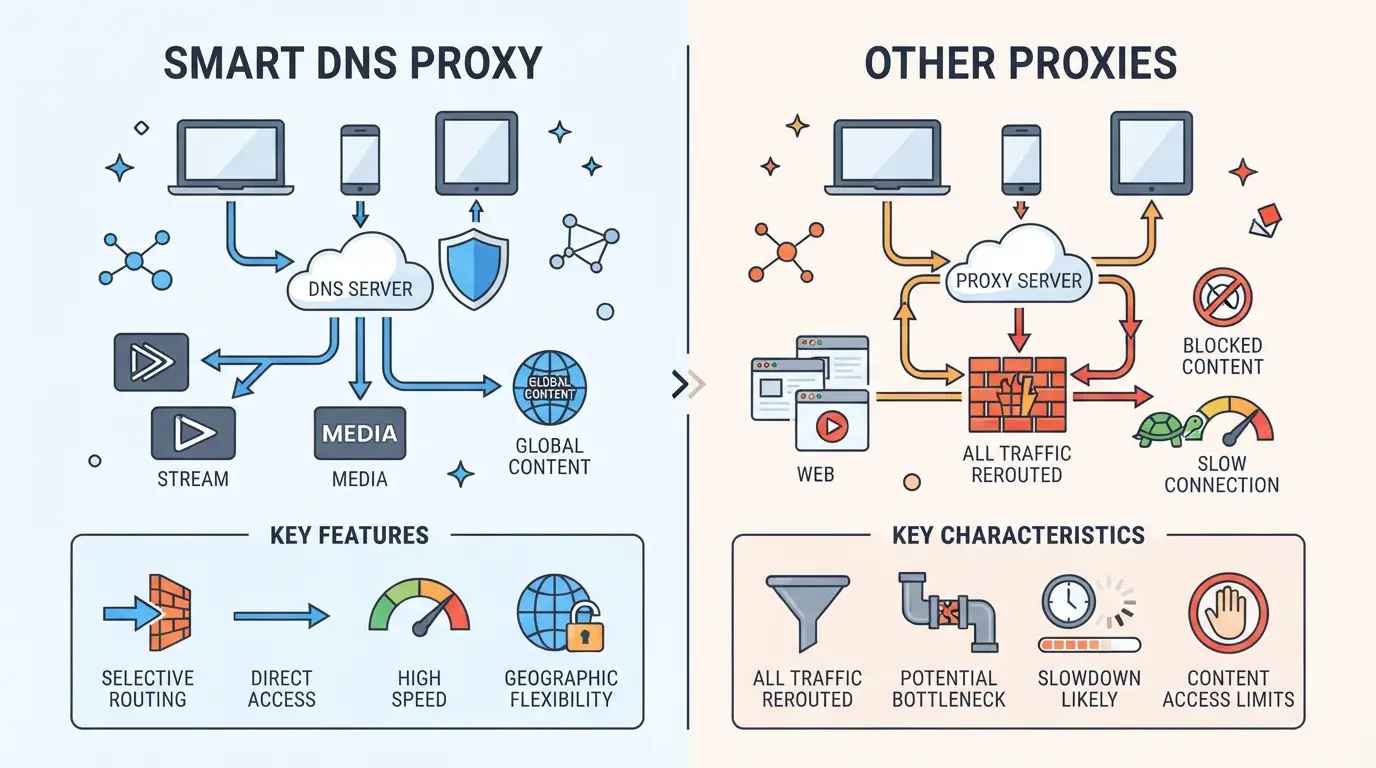
A smart dns proxy reroutes only your DNS requests, not your entire internet traffic. This setup changes your apparent location for some websites, but doesn’t fully hide your IP or encrypt your connection. That’s the core difference compared to traditional proxies.
How Smart DNS Proxies Work
You point your device’s DNS to the provider’s server. When you try to visit a region-blocked site, the server gives you a DNS answer that makes the site think you’re in the right country. This unlocks content fast, without slowing down your whole connection.
Smart DNS vs Traditional Proxy: Key Differences
Smart DNS proxies don’t route all your traffic, just the DNS lookups. A traditional proxy server handles every data packet between your device and the destination, so your IP address changes and your traffic can be encrypted (if the proxy supports it). With smart DNS, your real IP remains visible to most sites, and there’s no encryption layer to protect your data. For example, streaming Netflix US from Europe with smart DNS is fast because only minimal traffic is redirected, but banking sites or most apps will still see your real location and IP. If a site uses IP-based checks beyond DNS, smart DNS won’t help. On a bad day, DNS fallback can even leak your true region, especially if your device ignores the custom DNS or the service doesn’t cover all domains.
| Feature |
Smart DNS Proxy |
Traditional Proxy |
| Traffic Routed |
Only DNS |
All data |
| Speed |
High |
Often slower |
| IP Masking |
Partial/None |
Full |
| Encryption |
None |
Possible |
Table: Smart DNS vs traditional proxy, 2026. See Wikipedia: Proxy server for fundamentals.
Common Use Cases for Smart DNS Proxies in 2026
- Quickly accessing region-locked streaming libraries (Netflix, Hulu, BBC iPlayer)
- Visiting websites with simple geo-restrictions, like ticketing or news sites
- Speed-focused tasks where privacy isn’t the main goal
If you need more than region swapping, like privacy, account protection, or full IP masking, smart DNS is the wrong tool. Before using one, look closely at what it covers and what leaks through.
What Should You Check Before Using a Smart DNS Proxy?
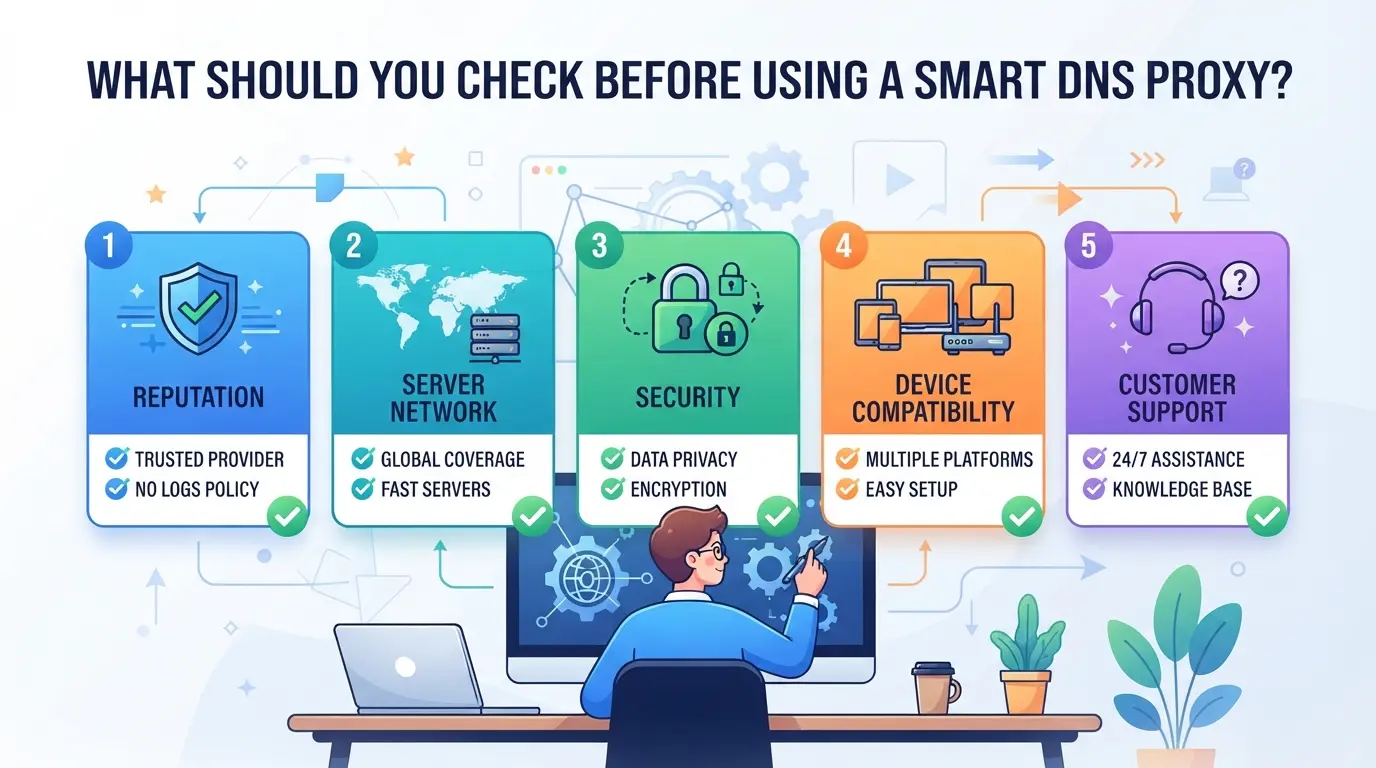
Before setting up a smart dns proxy, check for device compatibility, privacy gaps, and network obstacles, missing just one of these can break the setup or expose your data in ways you didn’t expect. Here’s what to confirm before you waste time with account logins or streaming tests that fail for reasons you could have avoided.
Compatibility with Your Devices and Services
Most providers support TVs, consoles, and routers, but not every device or app will work with smart dns. Some streaming services block known dns proxy IPs, so region switching might not work even with correct settings. Always check the provider’s updated device list and service status before you start, if your device or target app is missing, you’ll end up troubleshooting a problem that can’t be fixed from your end.
Provider Trustworthiness and Privacy Policy
- Check if the provider publishes a clear privacy policy about dns request logs.
- Review what personal or session data is stored and if it’s shared with third parties.
- Search for recent user reports or independent reviews on data leaks or policy changes.
Network and ISP Restrictions
Some networks block manual DNS changes or intercept all DNS traffic, which will prevent the proxy from working. You might see region-locked content, but actual traffic stays local, this is a silent failure that’s easy to miss.
- Try switching to the provider’s DNS and loading a region-blocked site, does it unlock?
- Run a DNS leak test after setup; if your ISP’s DNS still appears, the change failed.
- If you’re on public Wi-Fi or campus networks, expect extra filtering, these often block third-party DNS by default.
These checks prevent hours lost to “it should work” problems that come down to basic compatibility, privacy blind spots, or silent network blocks. Next, it’s time to look at why these proxies don’t actually guarantee privacy or end-to-end security, no matter what the marketing says.
Why Smart DNS Proxies Don’t Guarantee Privacy or Security
Most people think using a smart dns proxy keeps their browsing private, but it doesn’t. Anyone watching your connection, like your ISP or a public Wi-Fi owner, can still see what sites you visit and what data you send if it’s not encrypted.
What Data Is Exposed When Using Smart DNS
A smart dns proxy only changes how your device looks up website addresses. It does not encrypt your traffic. That means your real IP and browsing activity can be visible to network providers, and sites you visit still see your device details unless you use HTTPS everywhere.
When a Smart DNS Proxy Is Not Enough
Relying on a dns proxy service for sensitive work can backfire fast, think financial logins, account management, or anything you wouldn’t want leaked.
- Your passwords or session tokens may travel unprotected if the site doesn’t use HTTPS, exposing you to theft.
- For private activity or secure workflows, use a full proxy or browser profile isolation instead. Only those tools can actually mask your traffic and device info from both local networks and the sites you connect to.
Set up matters, get the basics right before moving on to smart dns setup steps.
How to Set Up a Smart DNS Proxy: Step-by-Step for 2026
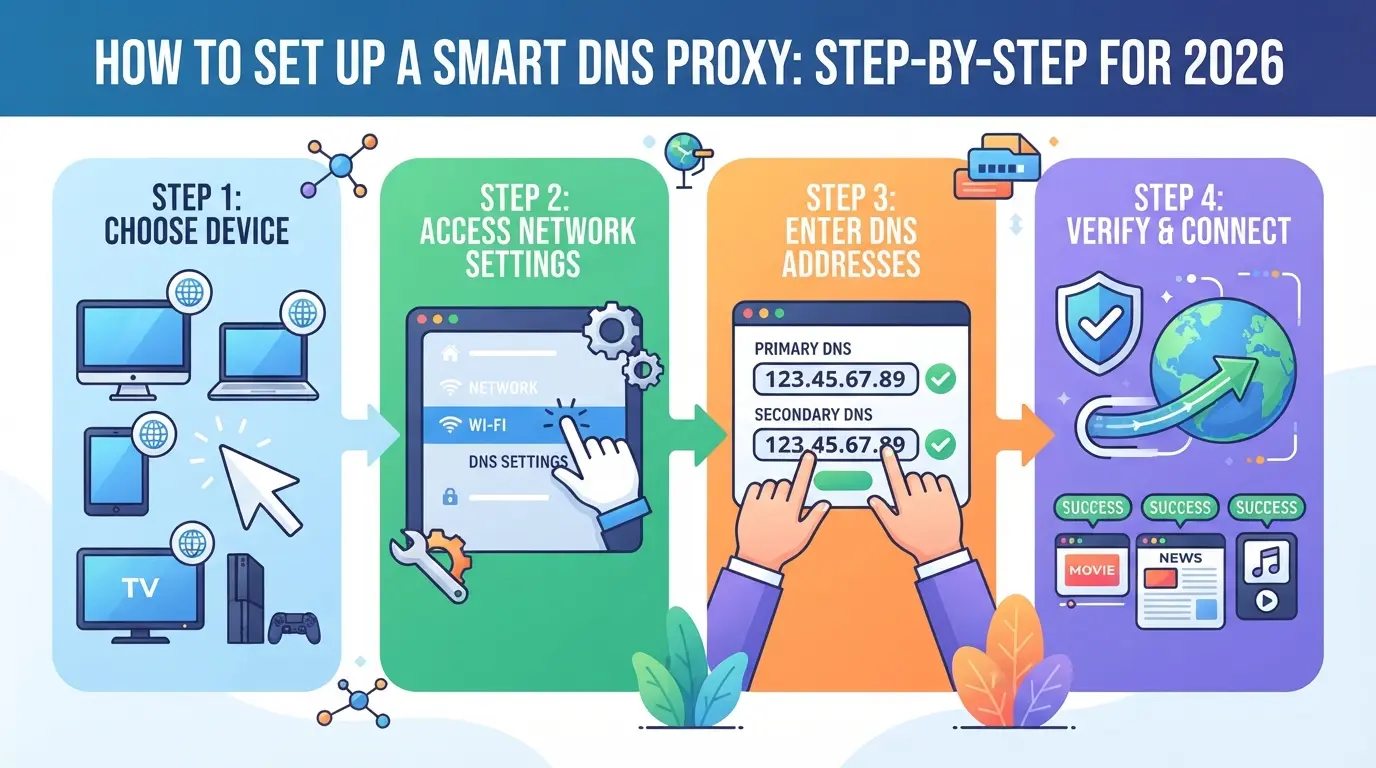
If you need region switching for streaming, account testing, or geo-restricted content, setting up smart dns is a quick way to get there, just know the tradeoff is speed, not privacy. Here’s exactly how to set it up on modern devices for 2026.
Getting Your Smart DNS Proxy Credentials
- Pick a smart dns provider and sign up. Most require an email and payment before you get access.
- Log in to your provider’s dashboard. Find your DNS server addresses and, if needed, your activation IP.
- Some providers require you to “register” your current public IP, skip this step and most services won’t work, especially if your IP changes often.
- Write down both the DNS addresses and any activation codes. You’ll need both for setup and troubleshooting.
Configuring Smart DNS on Your Device
- Go into your device’s network settings. On Windows, open Network & Internet, then choose your connection and hit Properties. On macOS, click Network, then Advanced.
- Replace the existing DNS addresses with those from your provider. Double-check for typos, wrong digits usually cause silent failures.
- If your provider offers a setup app or router config file, use it for devices that don’t support custom DNS (some smart TVs, game consoles).
- Save changes and restart your device or disconnect/reconnect to refresh DNS cache.
Testing and Troubleshooting Your Smart DNS Connection
- Visit your provider’s test page or a geo-restricted site. If you see the unlocked content or a location change, you’re set.
- If not, flush your DNS cache: on Windows, run
ipconfig /flushdns in Command Prompt; on macOS, use sudo dscacheutil -flushcache.
- Still no luck? Check if your IP changed and needs to be re-registered. Some ISPs use carrier-grade NAT, which causes smart dns to break randomly, switching to a static IP or using a router-level setup can help.
- Watch for sudden reversion to your real region, this usually means a DNS leak or fallback. If you see mixed results, revert the DNS to default and start over.
Next, see how to cut risk when using smart dns for multiple accounts or anything sensitive.
How to Reduce Risk When Using Smart DNS Proxies for Multiple Accounts or Sensitive Workflows
If you’re juggling multiple accounts or handling sensitive tasks, treating every account as separate is the safest move. Mixing sessions, cookies, or even browser windows can easily leak signals, platforms pick up on this faster than most people expect.
Why Separate Browser Environments Matter
Sharing the same browser or profile for two accounts is a shortcut to being flagged. Sites link sessions using cookies, storage, and even subtle fingerprint details. Even just logging into two accounts back-to-back without a clean environment can crosswire data. The real risk comes from session and cookie mixing, once they’re linked, most platforms treat both accounts as suspicious.
Assigning Different Proxies or DNS for Each Account
- Use a unique DNS or proxy for every account session
- Never reuse IPs or DNS profiles across accounts, even on different days
- Double-check isolation: close all tabs and clear cookies before switching
Best Practices for Team or Shared Device Use
Teams are more likely to trip over each other, one missed logout or a copied setting can connect accounts in the backend. Automation helps, but only if it’s set up right.
- Assign each team member a dedicated, locked-down profile
- Use shared logs to track who accessed what and when
- Set up scripts or tools to auto-clear all browser and DNS state on logout
Careful separation and strict account hygiene cut the chance of linked bans or unexpected restrictions. Next, see how isolated browser profiles and proxy setups can take this one step further.
How to Set Up Isolated Browser Profiles and Proxies for Safer Multi-Account Workflows in DICloak
For teams or operators running more than one platform account, relying on a smart dns proxy covers only part of the risk. DNS-level rerouting works for some geo-blocking and content access, but it does not keep browser storage, cookies, or session data separate. That gap can cause trouble if accounts share a browser profile, leading to cross-account leaks or history overlap. To keep each account’s activity clean, operators often need to set up a dedicated browser profile and assign a different network connection, side-by-side with smart DNS use. Here’s how that works in DICloak.
Creating Separate Browser Profiles and Configuring Fingerprints in DICloak
Operators can create a new browser profile for every platform account or workflow that needs to stay isolated. Each profile stores its own browser profile: cache, cookies, storage, and history are never mixed. In DICloak, you can also configure fingerprint details for each profile, including reported operating system, User Agent, language, time zone, geolocation, and hardware signals like canvas or WebGL. This means you can align the browser profile with the intended location or usage pattern, without sharing signals between accounts. The real protection comes from not letting two workflows accidentally overlap at the browser or fingerprint level, something a DNS-only setup cannot address. The scope is limited to browser-profile access; DICloak does not control the platform or DNS server.

Assigning a User-Provided Proxy to Each Profile in DICloak
Beyond browser isolation, operators may need to route traffic for each account through a separate proxy. In DICloak, you can assign your own proxy settings to each browser profile, HTTP, HTTPS, or SOCKS5. After entering proxy details, use the built-in test to confirm the exit IP, region, and time zone match what the workflow requires. This step matters if you want to avoid cross-account network signals, or if you’re pairing smart DNS with a separate proxy for each session. DICloak does not sell proxies; you control which proxy to assign, and you decide which ones to reuse or rotate.

If your workflow demands both DNS-layer rerouting and browser-level separation, this two-layer setup gives you more control than relying on a single dns proxy service. Next, see how smart DNS compares to other proxy types for specific use cases.
Smart DNS Proxy vs Other Proxy Types: Which Is Best for Your Needs in 2026?
If you want the fastest way to access geo-blocked sites or streaming, smart DNS is usually the simplest route. For privacy or sensitive logins, though, other proxies cover more ground.
Speed, Privacy, and Compatibility Comparison
| Proxy Type |
Speed & Streaming |
Privacy & Security |
Compatibility |
| Smart DNS |
Fastest; almost no slowdown |
Low, IP rarely changes, DNS leaks possible |
Best for streaming, some site access |
| HTTP/HTTPS |
Moderate; may slow video |
Moderate, IP masked, but browser fingerprint leaks |
Good for web, not all apps |
| SOCKS5 |
Slowest; adds latency |
Higher, IP masked, covers more apps |
Works with apps, games, browsers |
Table: Feature differences between smart DNS, HTTP/HTTPS proxy, and SOCKS5 proxy (2026 spec comparison)
The big catch: streaming speed jumps with smart DNS, but you trade away privacy, your real IP can still show up in logins or sensitive workflows.
When to Choose Smart DNS, HTTP/HTTPS, or SOCKS5 Proxies
Go with smart DNS for video or bypassing region locks, just don’t count on it for hiding your identity. Pick HTTP/HTTPS if you mainly browse the web, or SOCKS5 when you need full app support or tighter privacy. Skipping this match-up means you risk using the wrong tool and exposing your real details.
Troubleshooting Smart DNS Proxy Problems: Common Issues and Fixes
Smart DNS proxy issues usually show up as content locking, region errors, or unexpected IP leaks. The checklist below covers the fastest ways to get things working again.
Smart DNS Not Unlocking Content
If content stays blocked, check if the region you picked is actually supported. Many streaming sites block smart dns by updating detection methods, try a different provider or switch regions if your usual one stops working.
DNS Leaks and IP Detection Problems
- Test for leaks at dnsleaktest.com after setup
- Reboot your router and device if your real IP shows up
- Disable any browser or OS DNS-over-HTTPS setting
Device or Network Setup Errors
Wrong device settings or old router cache can break proxy routing.
- Double-check the DNS addresses on your device
- Clear saved networks or flush DNS cache
- Reset router if changes don’t stick
Frequently Asked Questions About smart dns proxy
Is using a smart DNS proxy legal in 2026?
The rules for using a smart DNS proxy in 2026 depend on where you live and which sites you access. Many countries allow smart DNS for legal activities, but some services ban it in their terms. Always check your country’s laws and the streaming platform’s rules before using a smart DNS proxy.
Can a smart DNS proxy help with all geo-restricted content?
A smart DNS proxy can unblock many streaming sites, but not all. Some platforms like Netflix and BBC iPlayer have advanced blocks that may detect and stop DNS proxies. Others might need extra steps to work. Results can change as these services update their blocking methods.
Does a smart DNS proxy hide my real IP address?
A smart DNS service does not fully hide your IP address. It mainly reroutes your DNS requests to make websites think you are in another country. Your main internet traffic goes through your regular connection, so your real IP can still be visible to some sites or services.
Will my internet speed drop when using a smart DNS proxy?
Most people notice little to no speed drop using a DNS proxy service. Only your DNS requests get rerouted, not your full internet traffic. Sometimes, you might see a slight delay if the DNS servers are far away or overloaded, but streaming and browsing usually stay fast.
Can I use a smart DNS proxy on my phone or smart TV?
Yes, you can set up a smart DNS on many devices, including phones and smart TVs. You need to enter the DNS addresses manually in your device settings, or use an app if your provider offers one. Check your device’s instructions or your DNS service’s setup guides for step-by-step help.
If you're considering ways to access more content securely and effortlessly, now is the perfect time to test out a reliable solution firsthand. Take control of your browsing experience by trying a service that combines both speed and privacy. Try DICloak For Free
 Web Proxy Tools
 Free Tools
 Cookie Plugin
 UA Generator
 MAC Address Generator
 IP Generator
 IP Address List
 2FA Code Generator
 World Clock
 Anonymous Check
 WebRTC Leak Test
 UUID Generator
 Free Web Proxy Site
 Proxy Checker
 FB Ad Checker
 AI Web Scraping
 Free SMM Tools
 Twitter Shadowban Checker
 Instagram Name Checker
 UTM Generator
 Username Generator
 AI Hashtag Generator
 LinkedIn Headline Generator
 Social Media Image Resizer