You open Google Search to look something up, but instead of your search results, a message appears: "Our systems have detected unusual traffic from your computer network." You complete the CAPTCHA and try again, only to see the same warning a few minutes later. It can be frustrating, especially when you're not running any bots or automated searches.
If Google detected unusual traffic from your network, it doesn't necessarily mean your computer is infected, your IP address is banned, or your Google account has been restricted. The warning can appear because of repeated search requests, background applications, or other devices sharing your internet connection. The key is to identify where those requests are coming from rather than repeatedly trying to clear the warning.
Quick Answer: When Google detects unusual traffic, its systems have identified search requests that may be automated. To fix the problem, complete the reCAPTCHA if one appears, stop any automated search tools, and check whether other devices on your network are generating requests. If the warning continues, inspect browser extensions, scan for malware, and contact your network administrator or internet provider when necessary. Google recommends identifying and stopping the source of automated traffic to restore normal search access.
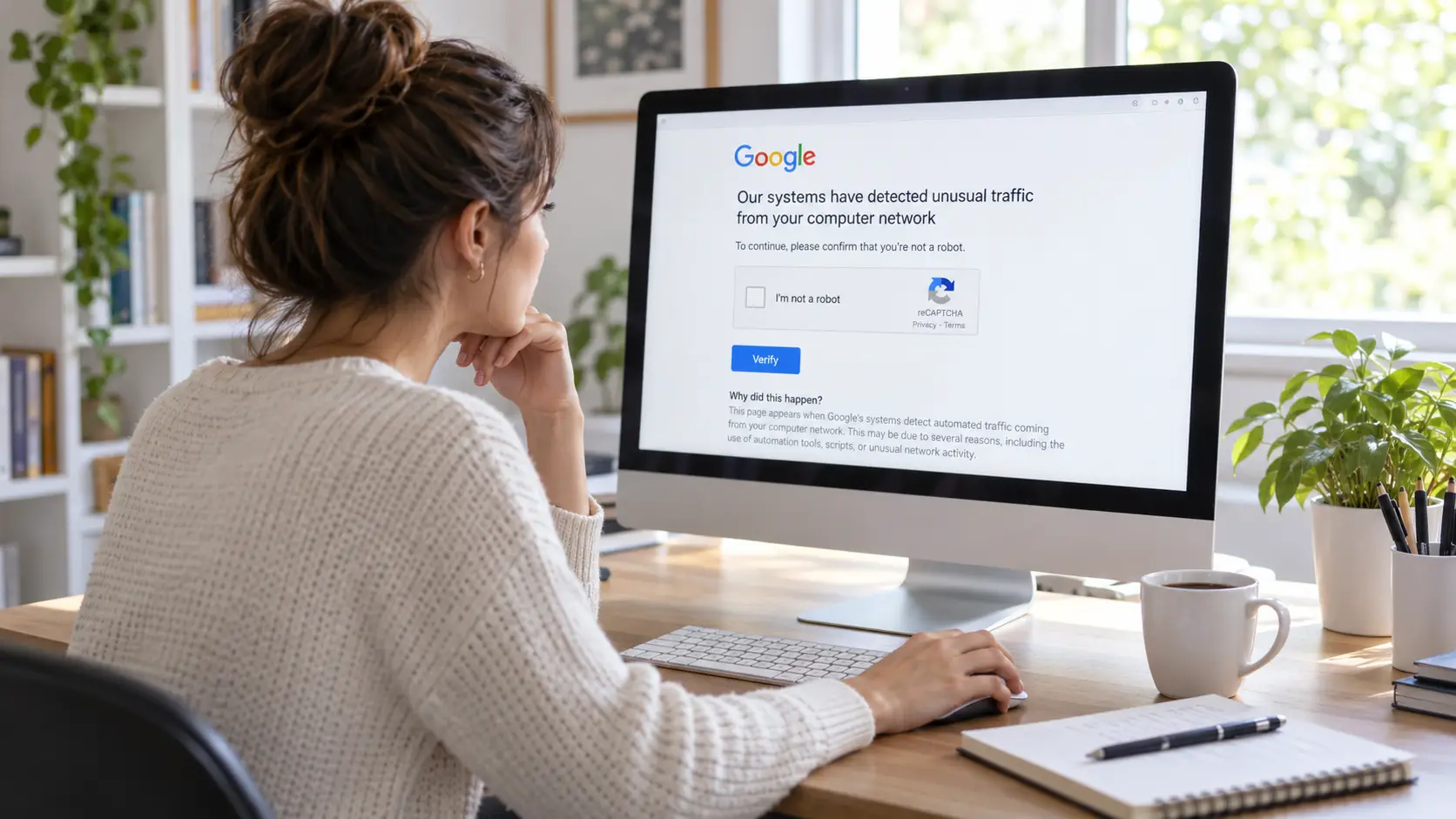
What Does "Google Detected Unusual Traffic" Mean?
The full message usually reads:
Our systems have detected unusual traffic from your computer network.
Google displays this warning when traffic from your network appears to contain automated search requests. It may ask you to complete a reCAPTCHA to confirm that a person is using Google Search. This is a traffic verification measure, not automatic proof that you've violated Google's rules.
The important part of the message is "from your computer network." Google may be responding to requests associated with the same public network connection rather than activity from your browser alone. If another device or application is sending automated searches through that connection, you might encounter the warning while making an ordinary manual search.
Google's official unusual traffic help page identifies robots, computer programs, automated services, search scrapers, and software that checks Google rankings as examples of automated traffic.
Does the warning mean your Google account is banned?
No. An unusual traffic warning on Google Search is not the same as a suspended Google account. You may still be able to access Gmail, Google Drive, and other Google services while Search requires additional verification.
If your Google account has a separate security or access problem, you would need to follow the instructions for that specific account issue. But when only Google Search shows the unusual traffic message, checking your network and search activity is generally the more useful starting point.
Why Does Google Keep Detecting Unusual Traffic?
Several different problems can trigger Google's unusual traffic message. Some involve the searches you perform, while others come from applications or devices you may not be actively using.
Identifying the cause matters because changing browsers won't fix a background program, and clearing cookies won't stop automated requests coming from another computer.
1. Too many searches or repeated requests
Google may display the warning when search requests arrive in patterns that resemble automated activity. This is particularly relevant when a program performs many searches, refreshes results repeatedly, or checks rankings without normal human interaction.
Consider an SEO specialist researching hundreds of keywords. If the specialist uses a tool that repeatedly sends searches to Google, the requests may be treated differently from ordinary manual browsing. Google's documentation specifically includes automated ranking checks among the activities that can trigger the warning.
There is no publicly documented number of searches that always causes the message. If the problem appears during intensive research, investigate how the searches are being performed rather than assuming there is a fixed daily limit.
You can also read this guide to temporarily blocked IP addresses to understand how websites respond to unusual request patterns.
2. Other devices are sharing your network
Several computers, phones, and other devices can use the same public IP address when connected to a home or office network. Google may see requests from that shared connection even though they originate from different devices.
For example, imagine an office where ten employees use the same internet connection. One employee runs an automated search-related task while everyone else uses Google normally. Other employees might encounter CAPTCHA challenges because Google is evaluating traffic associated with their shared network.
This explains why the warning can appear even when you've barely searched anything yourself. Google advises users to contact their network administrator if another person or device may be generating automated searches.
3. Browser extensions or background applications
Some browser extensions and desktop applications make requests without requiring you to open a Google Search page manually. Search-monitoring tools, automated scripts, and certain research applications may continue operating after you finish using them.
A marketing employee might close all Google tabs but leave a keyword-monitoring application running in the background. The employee then sees the unusual traffic warning during a normal search and assumes the current browser session caused it.
To investigate, review your installed extensions, active applications, and scheduled tasks. Focus on software that actually sends search requests rather than disabling unrelated tools without a reason.
4. Shared connections and network reputation
A public IP address may be shared by many users, particularly on business, school, or some internet provider networks. If Google receives automated requests through the same connection, other users may be asked to verify their activity.
The warning can therefore appear immediately after you connect to a network, even before you've performed many searches. That doesn't prove your device is responsible or that the address has been permanently blocked.
If you want to understand the distinction between temporary access challenges and IP-based restrictions, this DICloak guide to IP blocking explains related website access problems.
For Google's specific warning, however, the best response is to investigate the traffic source instead of assuming that a different IP address is the solution.
5. Malware or unwanted software
Malware can generate automated requests without the device owner's knowledge. Google's official documentation names malicious software as one possible cause of unusual traffic warnings, particularly when they keep returning without an obvious explanation.
A CAPTCHA alone does not prove that your device is infected. But if you're also noticing unfamiliar applications, unexpected background activity, or other suspicious behavior, a security scan is a sensible next step.
Use trusted security software and review any threats it identifies. Removing unwanted software can stop the underlying requests rather than merely changing the browser session in which the warning appears.
How to Fix Google's Unusual Traffic Error Step by Step
The most effective troubleshooting process starts with the warning itself and then checks the browser, device, and network. Work through these steps in order so you can identify what changes the result.
Step 1: Complete the CAPTCHA and check whether it returns
If Google displays a reCAPTCHA, follow the instructions and complete it normally. Google states that successful verification should allow you to continue searching, although another challenge may appear if the network continues generating automated requests.
If the CAPTCHA doesn't load, check whether your browser supports reCAPTCHA and has JavaScript enabled. These are the two checks Google specifically recommends when the verification challenge is missing.
Once you can search again, pay attention to when the warning returns. If it appears only after a particular application starts running, that connection may help you identify the cause.
Step 2: Stop unnecessary automated searches
If you use SEO software, browser scripts, or other applications that query Google Search automatically, pause them before testing again. Closing the visible browser window may not stop applications running separately in the background.
Check whether any scheduled tasks are still active and whether a browser extension is sending repeated requests. If the warning disappears after one process is stopped, investigate that process before enabling it again.
For SEO teams, this is especially important because Google explicitly identifies automated rank-checking software as a possible trigger. A compliant research workflow should use suitable supported data sources rather than relying on uncontrolled automated requests to public search pages.
Step 3: Test whether the issue affects one browser or the entire network
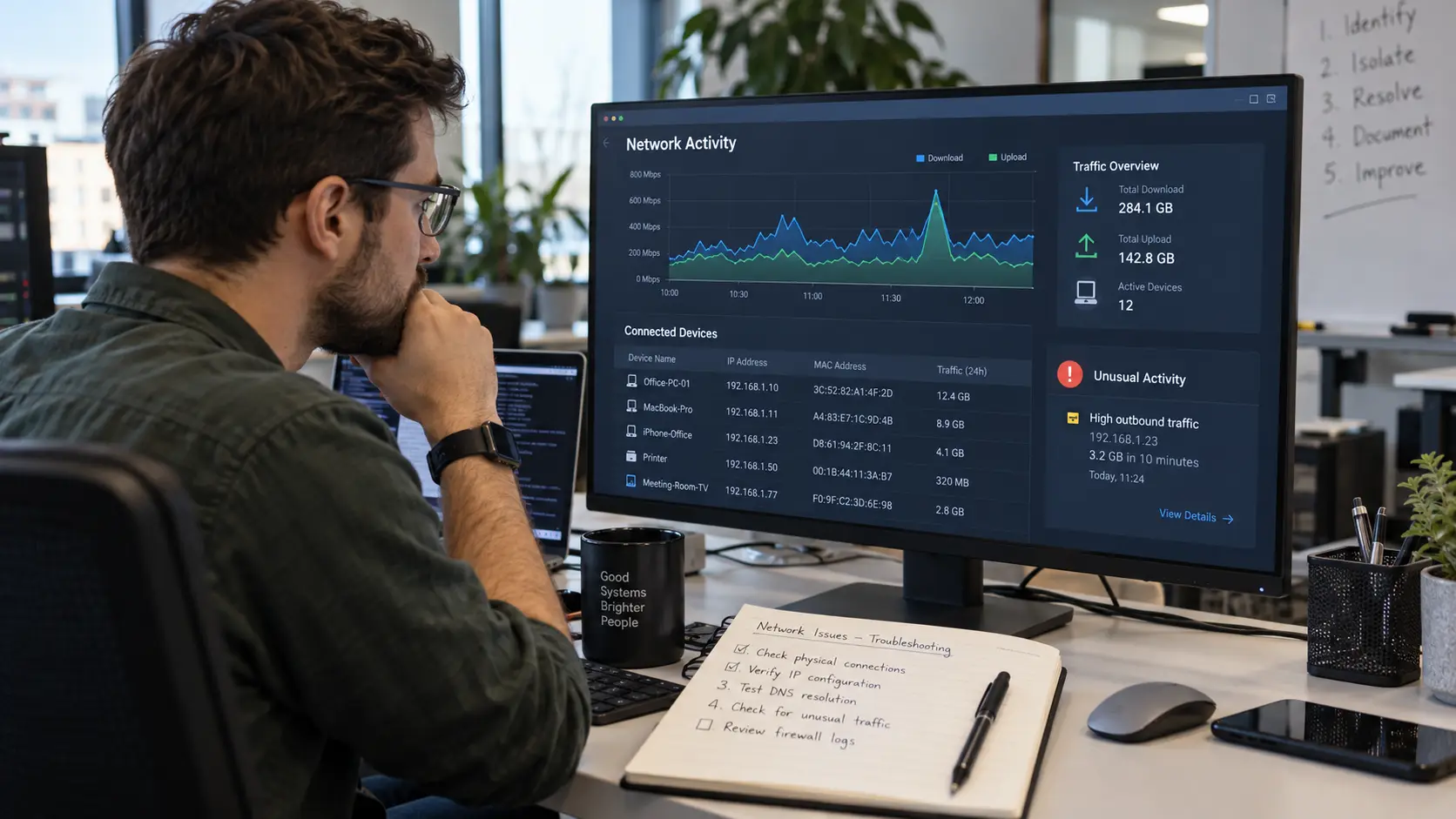
If the warning continues, compare what happens across your devices and connections. This helps you determine whether to investigate browser settings, local software, or the shared network.
| What happens |
Possible explanation |
What to try next |
| Only one browser shows the warning |
Extension or browser-specific issue |
Test a clean browser session |
| All browsers on one computer are affected |
Background software or the connection |
Inspect running applications |
| Several devices on the same Wi-Fi are affected |
Shared network traffic |
Check other devices and network activity |
| Your device works on mobile data but not Wi-Fi |
The original network may be involved |
Ask the network administrator to investigate |
| The problem follows your device across connections |
A device-level issue becomes more likely |
Review installed software and scan for malware |
For example, if two computers show the warning on the same office network but work normally on their separate mobile connections, the office network becomes a reasonable place to investigate. That observation doesn't prove which application is responsible, but it helps narrow down the next step.
A connection comparison is a diagnostic test. It should not become a routine of switching networks whenever Google challenges automated activity.
Step 4: Check browser extensions and stored website data
If the problem affects only one browser, inspect its extensions and configuration. An extension that repeatedly collects search results may continue generating requests even when you're not actively using it.
Temporarily disable extensions that may be responsible, restart the browser, and test a normal search. You can re-enable them one at a time to determine whether a particular extension is contributing to the issue.
Testing a fresh browser session may also help identify a browser-specific problem. Clearing cookies can resolve certain session issues, but it doesn't remove automated traffic from another application or device.
Avoid changing every browser setting at once. A controlled test makes it easier to understand what caused the problem and whether your changes actually addressed it.
Step 5: Run a malware scan if the source remains unclear
If you aren't using automated search tools and the warning still appears, check the device for unwanted software. Run a full scan using trusted security software and review applications you don't recognize.
Also inspect background processes and recently installed browser extensions. An unfamiliar program making repeated requests may explain why Google continues reporting unusual traffic while you're doing ordinary work.
If malware is found, follow the security tool's removal instructions and restart the device if required. Afterward, test Google Search again to see whether the warning continues.
Step 6: Contact your network administrator or internet provider
If multiple devices are affected, or none of the local checks explains the warning, the next step is to investigate the shared connection. An IT administrator may be able to identify devices generating unusually large numbers of requests.
Google also recommends contacting your internet provider if other users sharing its network may be responsible. This is particularly useful when your own devices appear normal but the warning continues.
When reporting the problem, provide the time it occurred, the devices affected, the exact warning, and the troubleshooting you've completed. That information gives the administrator a more useful starting point than simply saying Google keeps asking for CAPTCHA.
Google Detected Unusual Traffic but I'm Not Using a Bot — What Now?
It's possible to receive the unusual traffic warning during normal browsing, especially when other applications or users share your connection. The following situations help explain why the warning may appear even if you haven't deliberately automated Google searches.
The warning only appears during SEO research
If you can browse normally but encounter CAPTCHA while checking keywords or search rankings, investigate the research process itself. Automated ranking checks and repeated search requests are directly relevant to Google's unusual traffic rules.
Start by pausing tools that query public search results and checking whether their request behavior is responsible. If your work requires structured search information, evaluate supported APIs, licensed data services, or tools that provide that information through permitted methods.
For professional teams, the issue isn't simply how many keywords they need to research. It's whether their method of collecting that information generates requests Google identifies as automated.
Everyone in the office sees the same CAPTCHA
When several employees encounter the warning, troubleshooting each computer in isolation may waste time. Their devices may share a connection through which another employee's application or an internal service is sending automated searches.
Ask the IT administrator to review network activity and identify whether a specific device or process is generating those requests. Keep a record of when the warning appears and whether it corresponds with scheduled research jobs.
Once the relevant automated requests stop, test whether normal Google Search access returns. This addresses the shared source rather than repeatedly clearing cookies on individual computers.
The warning appears during ordinary home browsing
If you rarely use Google Search but still see the message, begin by checking other devices connected to your home network. A computer running a background task may be responsible even when you're searching from your phone.
If you cannot identify a legitimate source, inspect installed software and run a security scan. You can also contact your internet provider if the warning continues across multiple devices.
Don't assume that your Google account has been hacked simply because Search displays a CAPTCHA. The warning concerns network traffic and does not, by itself, establish account compromise.
How DICloak Helps Teams Manage Browser Workflows and Investigate Traffic Issues
For someone who occasionally searches Google at home, the troubleshooting steps above are usually sufficient. Businesses and agencies face a different challenge because employees may work across multiple browser sessions, client projects, and automated tasks. When an unusual traffic warning appears, the team needs to understand which workflows were active and where the requests may have originated.
For these operations, DICloak's Browser Profile management provides tools for organizing workspaces, checking configured network connections, managing automation, and reviewing internal activity. These features can support troubleshooting, but they do not remove Google's traffic restrictions or guarantee that automated requests will be accepted.
Organize research projects with separate Browser Profiles
Consider a digital marketing agency managing SEO research, advertising operations, and e-commerce projects for different clients. When employees perform all their tasks in the same browser, active sessions and project information can become difficult to distinguish. If Google starts showing unusual traffic warnings, the team may struggle to identify which research workflow was running at the time.
With DICloak, administrators can create separate Browser Profiles for authorized projects. Each Profile maintains independent browser storage, including cookies, Local Storage, and other session data. Teams can also use Profile Groups to organize client projects and Batch Operations to manage multiple Profiles more efficiently.
For example, an agency could organize its Profiles into three groups: SEO Research, Advertising Operations, and E-commerce Management. Employees can open the appropriate Profiles for their assigned tasks, while managers maintain a clearer overview of the team's workspaces. If a problem occurs, that structure can make it easier to identify which project needs investigation.
Browser Profile isolation does not separate network traffic when multiple Profiles use the same public IP address. If automated requests are causing Google's warning, the team still needs to identify and stop those requests.

Check proxy configurations and network information
Teams that use different network connections for authorized business activities need a clear way to understand which connection belongs to each Browser Profile. Confusing proxy configurations can make troubleshooting more difficult, especially when many Profiles have been created over time.
With DICloak's proxy management features, administrators can configure connections for individual Profiles and check relevant connection details. When selecting saved proxies, the interface can display exit IP information, helping users identify which configured connection a Profile will use.
For example, if a team experiences repeated unusual traffic warnings, the administrator can review the relevant Profiles and their network settings. This helps determine whether the affected workspaces share the same configured connection or whether another source needs investigation.
The DICloak proxy management update explains how exit IP information is displayed during Profile configuration. The goal is to make network settings easier to understand, not to repeatedly change IP addresses to escape Google's traffic checks.

Review RPA tasks when automated requests cause problems
Automation can save time on repetitive browser tasks, but it also makes troubleshooting more complicated when several processes run at once. An employee may not realize that a scheduled workflow is still active or that a browser task is repeatedly sending requests.
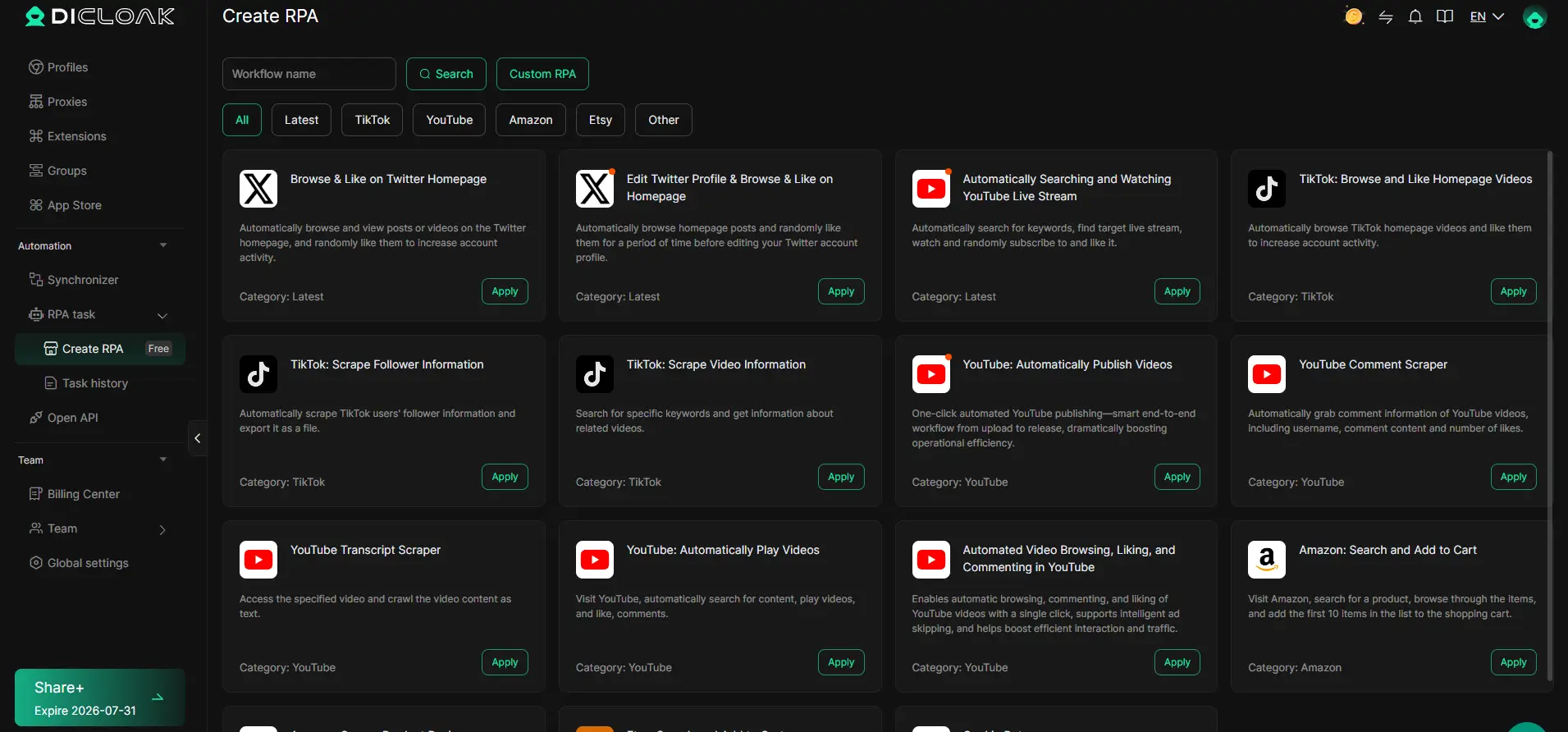
DICloak supports RPA workflows with execution settings, task history, and run logs. Administrators can review configured tasks, inspect execution results, and identify which workflows need attention when unexpected behavior occurs.
For example, imagine a hypothetical agency using RPA for authorized website testing and internal data entry. If Google starts displaying unusual traffic warnings during a scheduled run, the manager can review the active tasks and determine whether any workflow is sending Google Search requests. A relevant task should be stopped while the team investigates its configuration and intended behavior.
The DICloak RPA management update explains how Profile Execution Settings help administrators manage automated task execution. These controls make internal automation easier to organize, but they are not CAPTCHA-solving features or a replacement for Google's rules on automated searches.
How to Prevent Google's Unusual Traffic Warning From Returning
Preventing repeated unusual traffic warnings starts with understanding which applications and devices are sending requests. Once you've identified the source, you can make changes that reduce unnecessary or unintended search traffic instead of responding to every new CAPTCHA separately.
For individual users, keep browser extensions under control, update your security software, and investigate unfamiliar background processes. If you share a connection with other people, remember that their activity may affect your access to Google Search.
For businesses, establish clearer ownership of automated tasks and research workflows. Employees should know which applications are allowed to run, which processes make Google Search requests, and who is responsible for investigating unexpected traffic. If a tool requires automated search data, evaluate an appropriate supported data source rather than repeatedly querying public search pages.
Teams using multiple Browser Profiles can also benefit from consistent naming, documented connection settings, and accessible task records. These practices help administrators investigate problems more efficiently, although they do not change how Google evaluates network traffic.
The most reliable long-term approach is to identify and correct the source of automated requests. Once those requests have stopped, Google indicates that users should be able to return to normal searching.
FAQs About Google Detecting Unusual Traffic
Google's unusual traffic warning can appear in several different situations, from ordinary home browsing to professional research workflows. These answers address common questions about CAPTCHA challenges, IP addresses, account restrictions, and recurring errors.
Why does Google say unusual traffic when I'm not doing anything?
Google may be detecting automated requests from another device or application sharing your network. The warning is associated with network traffic, so it doesn't necessarily mean the search you're performing caused the problem.
Check whether background software, browser extensions, or other devices are generating requests. If several devices experience the same warning, investigate the shared connection before changing individual browser settings.
How long does Google's unusual traffic warning last?
Google does not publish a fixed waiting period that applies to every unusual traffic warning. Completing reCAPTCHA can restore access, but the message may return if the network continues sending requests that appear automated.
If the warning keeps appearing, identify and stop the relevant requests rather than relying on an assumed expiration time. A recurring CAPTCHA is often a sign that the underlying traffic issue remains unresolved.
Does "Google detected unusual traffic" mean my IP address is banned?
No. Google's unusual traffic message does not automatically mean your IP address is permanently banned or your Google account has been disabled. It indicates that Google has identified requests from your network that may be automated.
The appropriate response is to check the traffic associated with that connection. If other devices share the same public IP address, their activity may also be relevant to the warning.
Why does Google keep asking me to verify that I'm human?
Google may continue requesting verification if its systems keep observing traffic that resembles automated search activity. Solving one CAPTCHA doesn't necessarily stop the background requests that triggered the challenge.
Inspect applications that search Google automatically and check whether several devices are affected. If the problem persists across your network, ask an administrator or internet provider to help investigate the source.
Can malware cause Google's unusual traffic error?
Yes. Google's official troubleshooting documentation identifies malware as one possible cause of automated requests. Some unwanted programs can generate traffic without the device owner's knowledge.
However, an unusual traffic warning alone is not proof of malware. If you cannot identify a legitimate application responsible for the requests, run a trusted security scan and review unfamiliar software.
Will clearing cookies fix Google's unusual traffic warning?
Clearing cookies may help resolve some browser session issues, but it doesn't stop automated traffic coming from background programs or other devices. If the warning affects several devices on one network, clearing cookies on a single computer is unlikely to address the shared cause.
If the problem occurs only in one browser, testing its extensions and settings is reasonable. When the warning affects the whole network, focus on identifying which devices or applications are generating requests.
Final Takeaway
If Google detected unusual traffic from your computer network, start by checking what actually triggered the warning. It could be an automated search tool, another device sharing your connection, an unwanted browser extension, or malware. The message doesn't automatically mean your Google account has been banned or your computer has been compromised.
Complete the CAPTCHA if one appears, then investigate the source if the problem continues. Testing different browsers and devices can help you determine whether the issue is local or network-wide, while reviewing active software can reveal requests you didn't realize were being sent.
For businesses managing multiple authorized browser workflows, DICloak can help organize Browser Profiles, review configured connections, manage RPA tasks, and inspect internal activity. These tools support clearer operations and troubleshooting, while Google's own systems still determine whether search requests require verification.
The goal isn't simply to make the warning disappear once. It's to understand why Google detected unusual traffic and address the cause so the same problem is less likely to interrupt your work again.
 Web Proxy Tools
 Free Tools
 Cookie Plugin
 UA Generator
 MAC Address Generator
 IP Generator
 IP Address List
 2FA Code Generator
 World Clock
 Anonymous Check
 WebRTC Leak Test
 UUID Generator
 Free Web Proxy Site
 Proxy Checker
 FB Ad Checker
 AI Web Scraping
 Free SMM Tools
 Twitter Shadowban Checker
 Instagram Name Checker
 UTM Generator
 Username Generator
 AI Hashtag Generator
 LinkedIn Headline Generator
 Social Media Image Resizer