When you see a message like “your IP has been temporarily blocked,” it can feel confusing and frustrating. One minute, a site loads normally. The next minute, you see warnings like “too many requests from your IP address,” “access denied,” or “unusual traffic from your computer network.” These messages usually mean the website has noticed activity from your connection that looks unusual, too fast, or potentially automated.
In many cases, this kind of block is temporary, not permanent. It may happen after too many page refreshes, repeated login attempts, shared network traffic, browser issues, or other signals that make a site slow down or limit access from one IP address. That is why this guide will not only explain what “your IP has been temporarily blocked” means, but also show why it happens, how to fix it, and what you can do to avoid seeing the same message again.
What Does "Your IP Has Been Temporarily Blocked" Mean?
Seeing the message “your IP has been temporarily blocked” can feel stressful at first. Many people think it means they did something seriously wrong. In reality, it often means a website or platform has noticed traffic from your connection that looks risky, too fast, or unusual for a short period of time.
Understanding IP Blocks
When a site says your IP has been temporarily blocked, it usually means the site has placed a short-term limit on requests coming from your public IP address. Google’s help page says these warnings often appear when the system thinks requests may be automated rather than normal human traffic. A public IP is the address your internet provider gives your network. Because websites often see the IP first, they may block that IP instead of blocking just one browser tab or one device.A simple example makes this easier to understand. Imagine you are on office Wi-Fi and several coworkers are using the same website at once. If the site sees too many fast requests from that shared connection, it may temporarily block the whole IP. That does not always mean one person broke a rule. It can also mean the system is trying to protect itself from spam, bots, scraping, or brute-force activity.
This is why one warning can affect several people on the same home, office, school, or public Wi-Fi network.
Common Reasons for IP Blocking
There are several common reasons why your IP has been temporarily blocked.:
- The most common ones are too many login attempts,
- traffic that looks suspicious or automated,
- access restrictions based on location.
These checks are often automatic. In many cases, the website is not judging who you are as a person. It is reacting to patterns in the traffic coming from your IP.
Excessive Login Attempts
One common cause is too many login attempts in a short time. This can happen if someone keeps entering the wrong password, tries many usernames quickly, or runs automated login tests. Cloudflare’s account takeover guidance says rate limiting can be used to limit the number of logins from a particular IP, fingerprint, or country. In plain words, if a site sees too many login tries too fast, it may temporarily block that IP to stop credential stuffing or brute-force attacks.
Here is a normal real-life case. A user forgets a password and tries six or seven combinations in a few minutes. On some sites, that is enough to trigger a temporary block. A person may think, “Why is this happening? I’m just trying to sign in.” But to the website, fast repeated login failures can look similar to automated attack behavior. That is why your IP has been temporarily blocked can sometimes appear even during ordinary account recovery mistakes.
Suspicious or Malicious Activity
Another common reason is traffic that looks suspicious or malicious. This does not always mean true hacking. It can also mean repeated page refreshes, automated tools, scraping behavior, strange browser signals.For example, if a tool reloads a page again and again, or sends many requests in a short burst, the website may read that as non-human behavior. The same thing can happen on a shared network where someone else is using automation. So when your IP has been temporarily blocked appears, the real problem may be request behavior, not just your account itself.
Geo-Blocking and Location Restrictions
Sometimes the issue is not request speed at all. Some websites block or limit traffic based on country or region. This is called geo-blocking. Cloudflare’s documentation shows that websites can create rules to allow or block traffic by country, region, continent, or IP location. It also notes that geolocation is usually determined from the public IP address assigned by the user’s internet provider.
A good example is a service that only wants visitors from the United States and Mexico. Cloudflare provides a rule example that allows traffic only from those countries and blocks the rest. So if you are outside the allowed area, a site may deny access even if your browsing behavior is completely normal. In that situation, your IP has been temporarily blocked may be caused by location rules or regional compliance settings, not by spam or abuse.
Temporary vs. Permanent IP Blocks
After learning what IP blocks are and why they happen, the next question is easy to understand: is this block only for now, or is it a bigger problem? This matters because your IP has been temporarily blocked does not always mean the same thing as a full or lasting ban.
- A temporarily blocked IP is usually part of an automatic defense. The site sees traffic that looks risky and applies a short-term restriction. Sometimes that means a CAPTCHA, a browser challenge, or a limit that lasts until request volume drops. Google’s help page on unusual traffic says users may see a reCAPTCHA and can continue after proving they are human. Cloudflare also explains that challenge systems can decide whether to allow or block a visitor after a short check, instead of applying a hard stop forever.
- A permanent IP block is different. It usually means the site owner or security system has decided that the IP should stay blocked until someone changes the rule. Cloudflare’s IP Access rules show that websites can block, allow, or challenge traffic based on an IP address, ASN, or country. That kind of rule is more fixed than a short rate-limit response. In simple terms, a temporary block often says, “slow down and try again later,” while a permanent block is closer to, “this IP is not allowed here unless something changes.”
This difference also matters emotionally. A temporary block feels annoying, but it is often fixable with time, fewer requests, or a cleaner session. A permanent block feels more serious because it usually needs a rule change, a different allowed network, or support from the website owner. Knowing that difference helps you stay calm. If your IP has been temporarily blocked, the message often points to a short-term defense step, not the end of access forever.
How to Fix “Your IP Has Been Temporarily Blocked”
After learning the difference between a temporary block and a permanent one, the next step is to check what kind of problem you actually have. This matters because your IP has been temporarily blocked does not always mean the same thing on every site:
- short rate limit
- reputation problem.
- only happening on one website, not on your whole connection.
Google, for example, says unusual traffic warnings often appear when its systems detect automated-looking requests from a network, and users may be able to continue after passing a reCAPTCHA.
Using Online Tools to Verify IP Block Status
A good first step is to check whether your IP has a bad reputation somewhere else on the internet. This does not prove why one website blocked you, but it can give you useful clues. Spamhaus provides an IP and Domain Reputation Checker that lets users see whether an IP or domain appears on one of its blocklists. Cisco Talos also offers a Reputation Center where users can look up IP and domain reputation data. If your IP appears on one of these services with a poor reputation, that may help explain why some websites treat your traffic with extra caution.
Manual Checks with Different Devices or Networks
Another helpful step is to test the problem in a simple, careful way. Try the same site on another device first. Then try another network, such as switching from home Wi-Fi to mobile data. If the block only appears on one device, the issue may be tied to browser cookies, extensions, or local session data. If the block follows you across devices but disappears on a different network, that is a strong sign the problem is tied to your IP address or network reputation rather than to the device itself. Google’s guidance for unusual traffic also points users toward basic checks like supported browsers and JavaScript when the challenge does not appear normally.
A real-world case can make this clearer. Say your laptop shows your IP has been temporarily blocked, but your phone loads the site normally on mobile data. That usually means the website is reacting to the home or office network, not to your account alone. On the other hand, if both devices fail on the same Wi-Fi but work once you switch networks, that again points to the IP or the shared connection. This kind of manual testing is simple, but it often saves time because it tells you where the problem actually lives: in the browser, on the device, or on the network. The same logic also fits Google’s explanation that unusual traffic can come from a network, not just one person using one page.
Checking Against Known Blocklists
If manual checks suggest the problem is tied to your connection, the next step is to compare your IP against known blocklists or reputation systems. This is especially useful if your IP has been temporarily blocked on more than one website. Spamhaus says its lookup tool can tell you whether an IP is on one of its blocklists, and its SBL documentation explains that these lists track known spam sources and related abusive infrastructure. Cisco Talos also lets users review reputation data and even request a correction through its web reputation support process if needed.
It is important to keep expectations realistic here. A blocklist result does not always explain every website block, because each platform uses its own rules. A site may block an IP because of rate limiting, a country rule, bot signals, or internal abuse detection even when the IP does not appear on a public blocklist. But if your IP shows up with a poor reputation in well-known systems, that is still a strong clue that your connection may need time, cleanup, or a different network path before access becomes normal again. So when your IP has been temporarily blocked, these checks can help you move from guessing to testing.
Steps to Unblock Your IP
In the last section, we looked at how to check whether your IP has been temporarily blocked because of a short rate limit, a network reputation issue, or something more serious. Once you have that basic picture, the next step is to try simple fixes in a smart order. The best place to start is with changes that are easy, low-risk, and often effective:
- Clearing Browser Cache and Cookies
- restart your network equipment
- Contacting the Website or Service Provider
- Google’s guidance for unusual traffic also shows that some access problems are temporary and may clear after a challenge or a basic browser check.
So, if your IP has been temporarily blocked, the most practical order is simple: clear browser data, test the network, restart the router if the issue looks IP-based, and contact the site owner when the block appears to come from their firewall or access rules. This step-by-step path is easier than guessing, and it gives you a better chance of fixing the real cause instead of only treating the symptom.
How to Prevent Your IP from Being Temporarily Blocked Again
After you fix the problem once, the next goal is simple: do not let it happen again. In many cases, your IP has been temporarily blocked because a site saw too many failed logins, unusual traffic, or activity that looked less like a real person and more like automation. Google says unusual traffic warnings can appear when its systems detect automated-looking requests from a network, and Cloudflare explains that websites often use rate limits to slow down repeated logins or suspicious request patterns.
Avoiding Repeated Failed Logins
One of the easiest ways to avoid another block is to slow down when signing in. If you enter the wrong password many times in a short period, the website may treat that pattern as risky. Cloudflare’s account takeover guidance says rate limiting can be used to limit logins from an IP, fingerprint, or country. That means a simple mistake, like trying too many password guesses too fast, can be enough to trigger another temporarily blocked message.
Using Trusted Networks and Devices
Another smart step is to use trusted networks and devices whenever possible. Google’s account help explains that users can mark a computer or device as trusted, and it also notes that cookies matter because a browser may stop being treated as trusted if cookies are disabled or deleted. In plain words, stable devices and normal session behavior can make access look more consistent over time.
This matters because shared networks can create messy signals. For example, if many people on the same office Wi-Fi are sending large numbers of requests, the website may react to the whole connection, not just one person. Google’s unusual traffic guidance even says another user on your network or malware on the network can trigger the warning. So if your IP has been temporarily blocked before, it is usually safer to avoid unstable public networks, avoid heavy shared connections when possible, and use devices that already have a normal history with the site.
Use DICloak Anti-Detection Browser
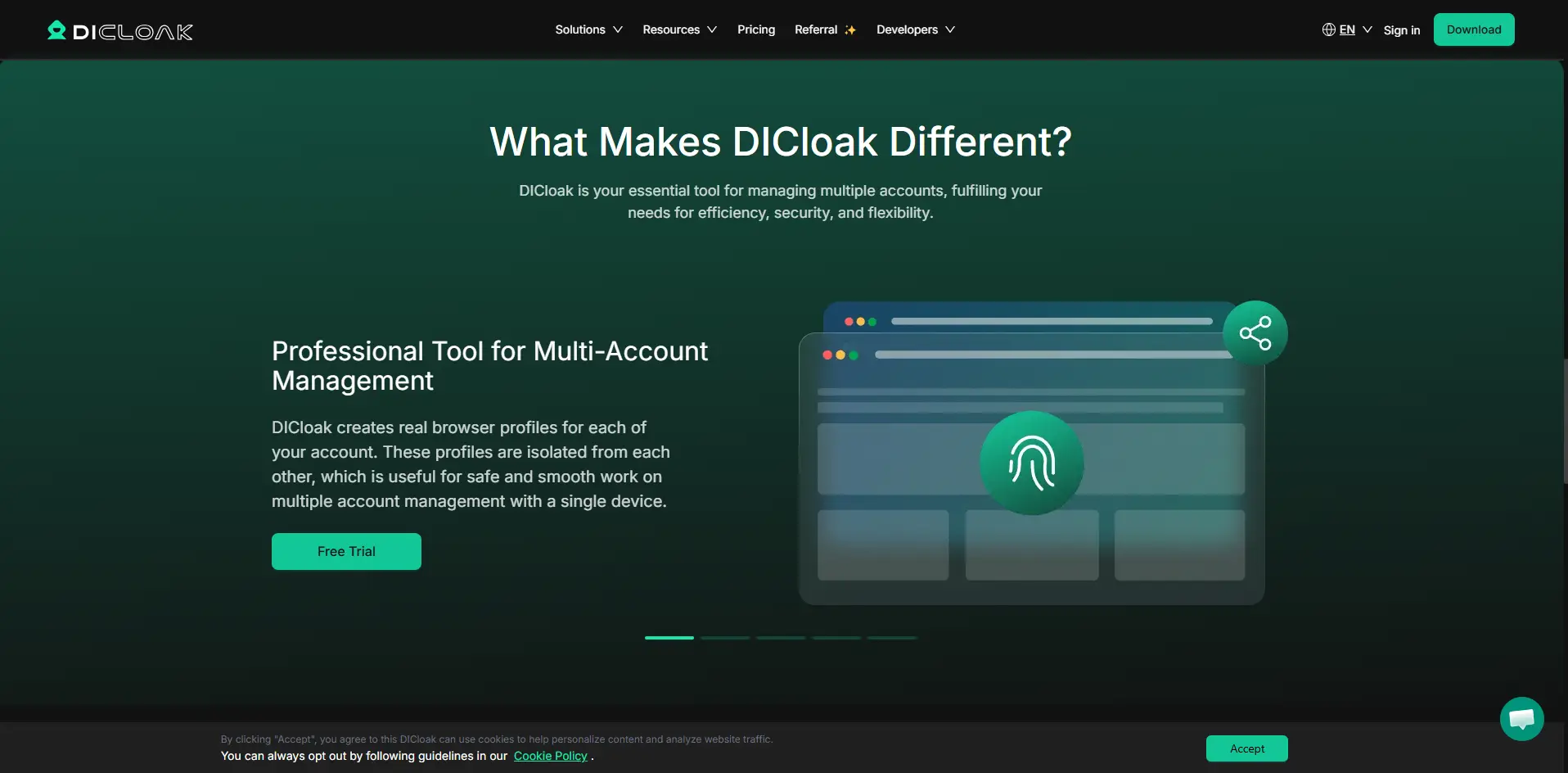
For users who manage more than one account or need to keep different workflows separate, browser setup also matters. DICloak is an antidetect browser that gives each account an independent browser isolation environment. Its official materials say each profile can keep its own cookies, fingerprint, and proxy configuration, and the platform also highlights flexible proxy setup, team collaboration, and batch operations.
DICloak: Enhancing Your Online Privacy
DICloak can help by making account environments easier to separate and manage.
What is DICloak?
- DICloak is an antidetect browser built for multi-account management.
- It lets users create separate browser profiles instead of putting every task into one regular browser.
- Each profile can keep its own cookies, fingerprint settings, proxy setup, and session data.
- This makes it easier to manage different accounts and workflows in a more structured way.
How DICloak Protects Your IP
- DICloak does not simply “remove” an IP block, but it helps users build cleaner browser profiles.
- Each browser profile can use its own proxy and fingerprint settings, which helps reduce overlap between accounts.
- Isolated profiles can make browsing activity more separate, stable, and easier to control.
- This can help users avoid messy session mixing that may lead to repeated access issues.
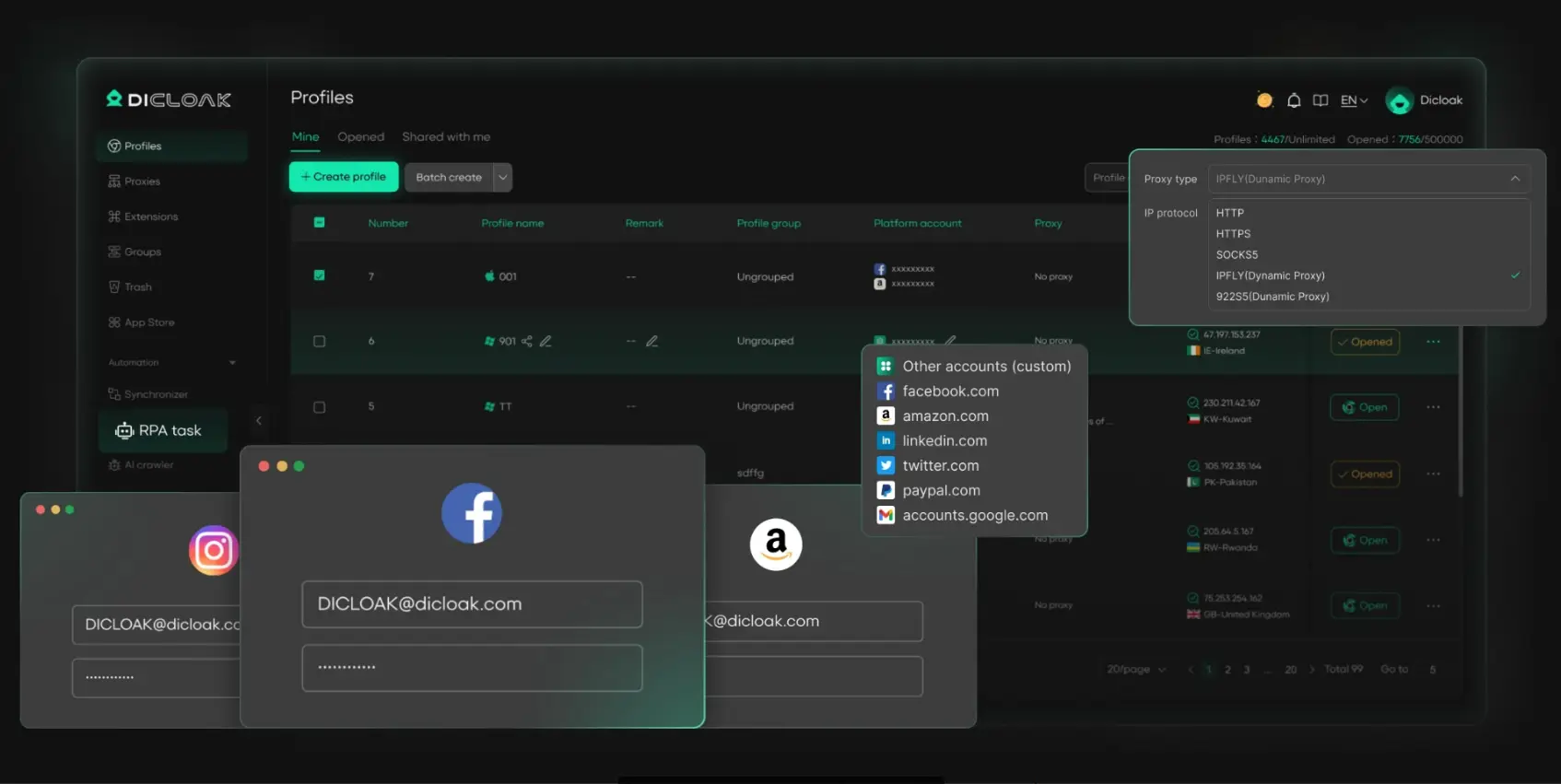
- Users can create different browser profiles for different tasks or accounts.
- Each profile can be assigned its own proxy and browser fingerprint settings.
- Features like Multi-Window Synchronizer, automation tools, and bulk profile management can make repeated work easier.
- For teams, profile sharing, permission controls, and operation logs help keep account work more organized and secure.
FAQs About “Your IP Has Been Temporarily Blocked”
Q1: How long does a temporary IP block last?
A temporary IP block can last from a few minutes to several hours, depending on the website’s security rules. Some blocks end after you wait, while others clear after a CAPTCHA or traffic slowdown.
Q2: Can I unblock my IP without contacting the service provider?
Yes, sometimes you can. If your IP has been temporarily blocked because of too many requests or login attempts, the block may clear after you stop the activity, wait, and try again later.
Q3: What should I do if my IP gets blocked repeatedly?
If your IP has been temporarily blocked more than once, slow down your requests, avoid repeated failed logins, test another network, and check whether your IP has a poor reputation or is on a blocklist.
Q4: Does changing my IP address help in unblocking?
Yes, it can help in some cases. If the block is tied to your current public IP, switching networks or getting a new IP may restore access. But it may not help if the site is also checking browser behavior or other risk signals.
Q5: How can I tell if my IP is on a blacklist?
You can check your IP with public reputation and blacklist tools, such as Spamhaus or Cisco Talos. These tools can show whether your IP has been flagged or listed for suspicious activity.
Conclusion
Seeing the message your IP has been temporarily blocked can feel stressful, but in many cases, it is a short-term security response, not a permanent ban. It often happens because of repeated login attempts, unusual traffic, shared networks, or browser sessions that look risky to a website. The good news is that many of these problems can be checked and fixed with simple steps, such as testing another network, clearing browser data, checking IP reputation, and slowing down repeated actions.
The most important thing is not to guess. Instead, look at the real cause, fix it step by step, and make your browsing setup cleaner over time. If your IP has been temporarily blocked more than once, using trusted devices, stable networks, and better account separation can help reduce the chance of it happening again. For users who manage multiple accounts or need a more organized browser profile, tools like DICloak can help by keeping profiles, sessions, proxies, and browser fingerprints separated. In the end, the best solution is not just getting access back today, but building a safer, more stable way to browse in the future.
 Web Proxy Tools
 Free Tools
 Cookie Plugin
 UA Generator
 MAC Address Generator
 IP Generator
 IP Address List
 2FA Code Generator
 World Clock
 Anonymous Check
 WebRTC Leak Test
 UUID Generator
 Free Web Proxy Site
 Proxy Checker
 FB Ad Checker
 AI Web Scraping
 Free SMM Tools
 Twitter Shadowban Checker
 Instagram Name Checker
 UTM Generator
 Username Generator
 AI Hashtag Generator
 LinkedIn Headline Generator
 Social Media Image Resizer