You want to share a ChatGPT subscription without sharing password, but every built-in option seems to push you toward risky choices. Maybe you want a teammate to use ChatGPT Plus, or you need to let a freelancer handle some prompts. The first instinct is often to hand over your login, but that’s where most account thefts and lockouts happen.
A lot of guides gloss over the risk: once someone has your password, you lose control. OpenAI’s system may flag multiple logins, trigger temporary holds, or even lock the subscription. Even if you change your password later, recovery can be slow and support tickets sometimes stall for days. That’s not just a headache, it can break project deadlines.
The real challenge is finding a safe ChatGPT account sharing method that doesn’t involve blind trust or constant resets. Most people want to let others use ChatGPT subscription securely, but without handing over full access or exposing billing info. Browser profile sharing, controlled session delegation, and managed environments all sound good on paper, but the details matter, get one step wrong, and you risk account loss or unexpected charges.
If you’re trying to avoid the usual traps, you need to know which real-world options actually keep your account under your control. Here’s what to check before you let anyone else near your ChatGPT Plus subscription.
Why Sharing a ChatGPT Subscription Gets Risky Fast (and What Most People Get Wrong)
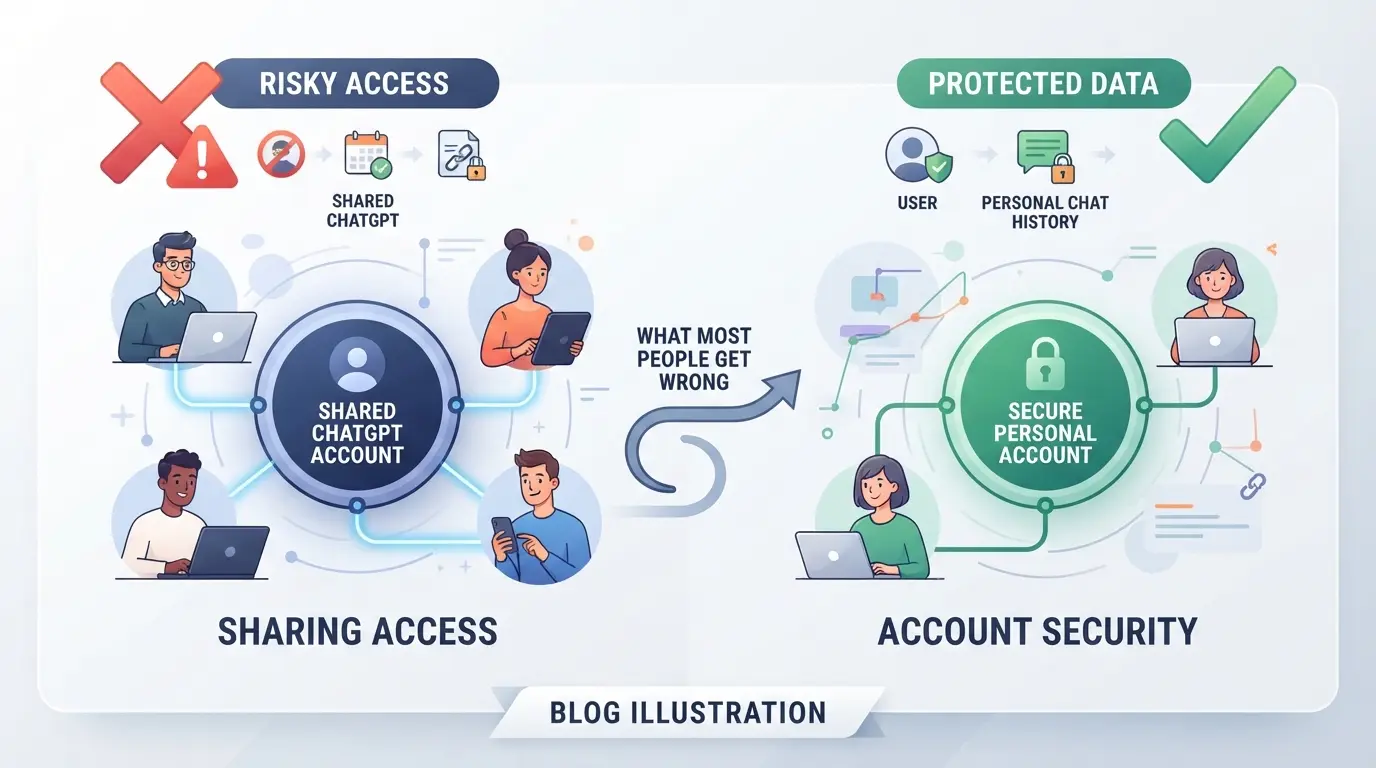
Handing out your ChatGPT login, even to someone you trust, can risk more than you expect. The main trap isn’t just password leaks. It’s how easily routine sharing trips platform alarms, exposes billing, or locks you out, sometimes in minutes.
What Actually Happens When You Share Your ChatGPT Password
Platforms don’t just watch for password leaks, they track where and how accounts get used. When your ChatGPT subscription suddenly logs in from new countries, browsers, or devices, automated security checks kick in. Password sharing almost always triggers these alerts, and accounts can get flagged or frozen before you notice.
Top Mistakes That Lead to Account Lockouts or Bans
The most common failure is mixing up devices and locations. Say you log in from New York, then your friend logs in from Paris right after. OpenAI’s backend spots the jump, now your account looks suspicious, even if both users are on Chrome. Ignore the single-user policy and you risk more than a warning. Sometimes, OpenAI just locks the account on the next login and sends a “security incident” email. In other cases, you might find your ChatGPT Plus features downgraded or see requests for identity verification. Even if you both try to be careful, browser cookies and session data can leak across profiles, making it easy for the system to connect the dots. Once this happens, getting access back can require manual support, and if you can’t prove you’re the original buyer, you might be stuck waiting days or even lose the subscription for good.
Why Even Trusted Friends or Team Members Can Put Your Account at Risk
- Someone screenshots or pastes part of your billing page, now your payment info is exposed.
- A team member logs in on a malware-infected device, risking session hijack without knowing it.
- You forget to log out remote users, and they can keep using your subscription (or change settings) long after you wanted.
The easiest way to lose control is assuming everyone will handle your account as carefully as you would, platforms don’t care about your trust, only the login history.
Next, it’s time to see what OpenAI’s latest rules actually say about account sharing, and why “just don’t get caught” is riskier than ever.
What OpenAI’s 2026 Rules Really Say About Sharing Your ChatGPT Subscription
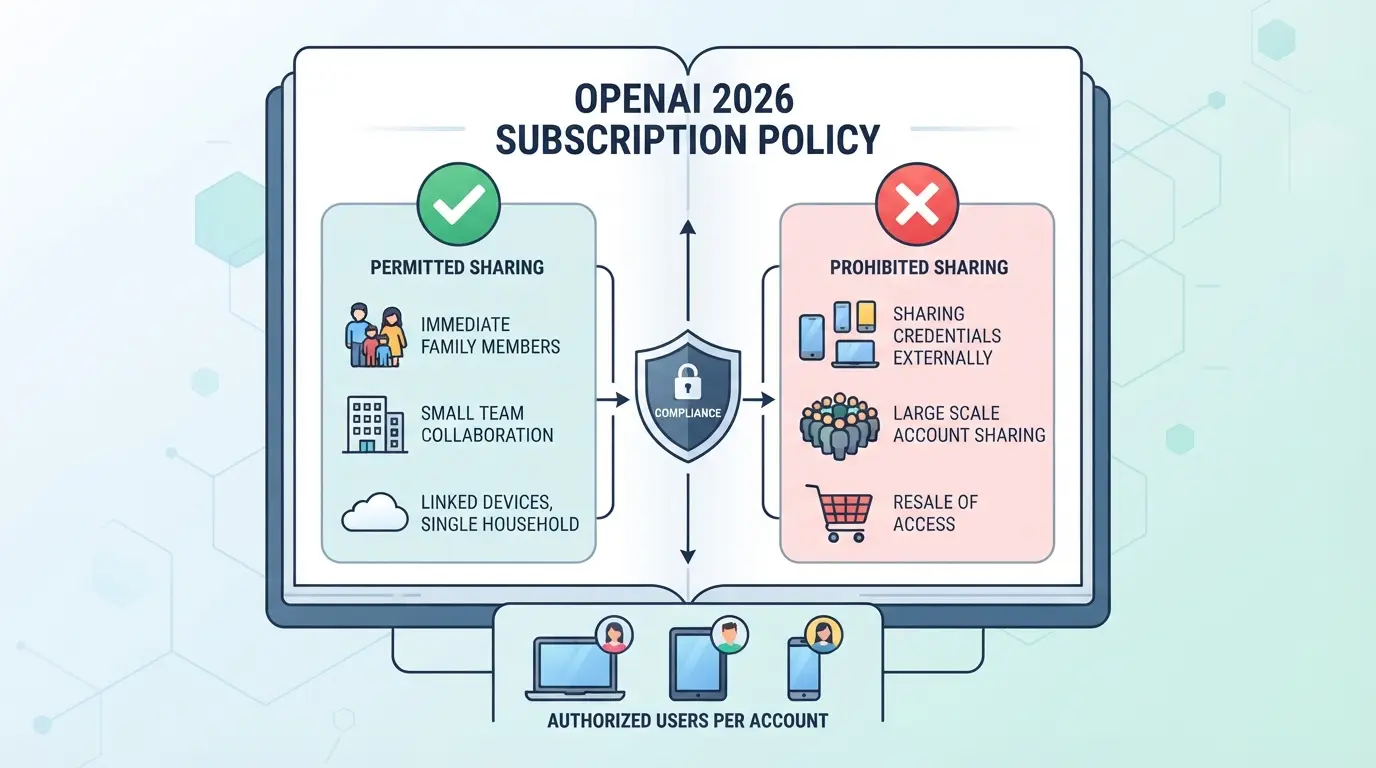
OpenAI’s 2026 policy is clear: each ChatGPT subscription is for one named user only. Account sharing, even with people you trust, breaks the terms unless you use approved team or business features.
Single-User Policy: What It Means for Personal and Team Use
Only the account owner is allowed to use a personal ChatGPT Plus or Team seat. OpenAI’s backend checks for logins from new locations, device fingerprints, or browser sessions that look suspiciously shared. Shared passwords, family logins, or letting a friend “just try it” all count as violations.
Consequences of Breaking the Rules: Warnings, Suspensions, and Loss of Access
OpenAI’s enforcement in 2026 is more aggressive than before. If their systems detect that multiple people are using the same subscription, you may first get a warning email. If it keeps happening, the account can be locked without warning. For example, if you let two remote employees sign in with your credentials, the system might flag the account, end all sessions, and hold your subscription until you prove you’re the owner. Getting back in usually means waiting for manual review, sometimes up to a week, while your work is on hold.
Are There Any Official Ways to Share Access?
- Business and Team accounts: Only these plans let you invite others directly with individual seats. Each user still gets their own login.
- API sharing: You can give access to the OpenAI API, but this doesn’t cover the ChatGPT Plus web interface or personal usage.
- Conversation sharing: You can use the built-in “Share” link to send individual chat results, but this doesn’t let someone else use your paid features.
If you need to share access safely, bypassing passwords is not just a technical trick, it’s required to stay compliant. The next section covers how to let others use your subscription securely.
Safe Ways to Let Others Use Your ChatGPT Subscription Without Sharing Your Password
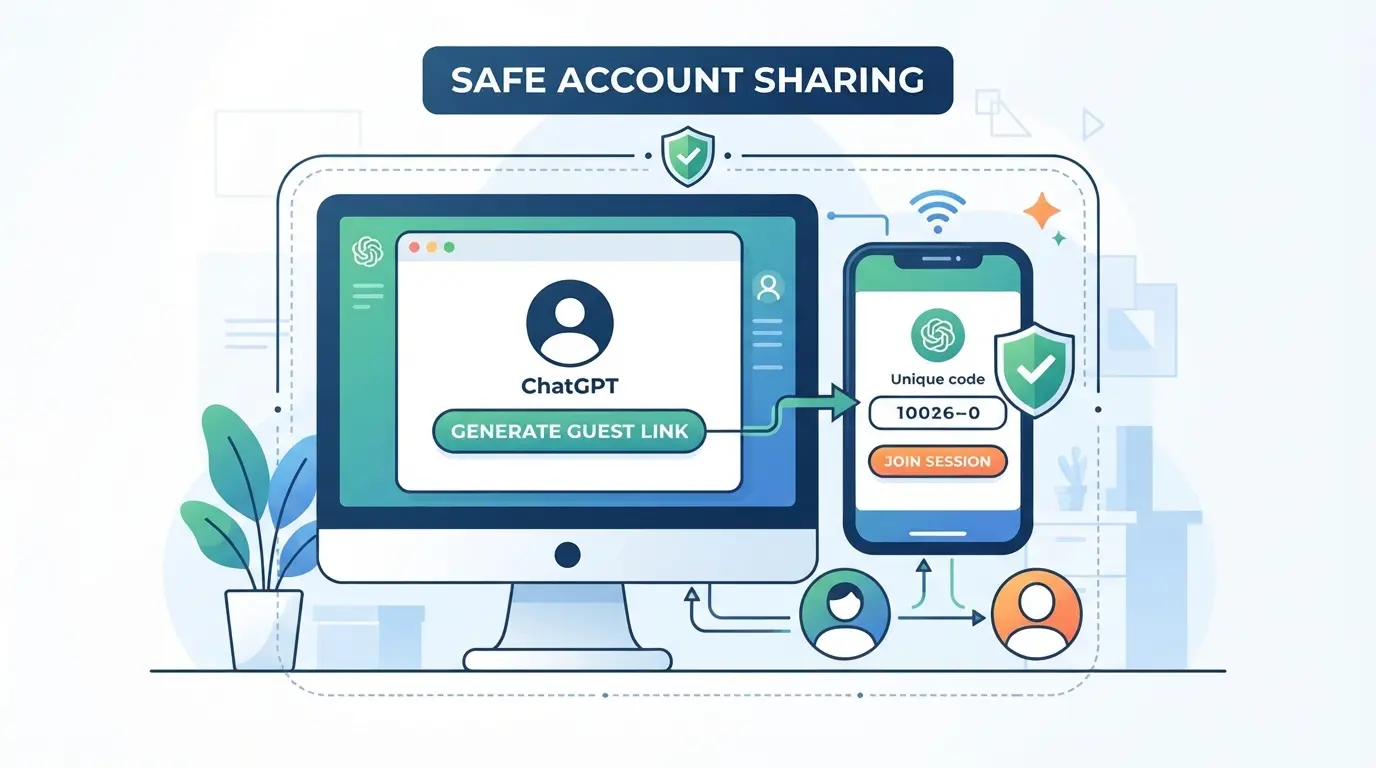
If you want to let others use your ChatGPT subscription but don’t want to hand over your password, you have several options, each with its own tradeoffs. Here’s how to share access safely while keeping control and staying within OpenAI’s rules.
Option 1: Use ChatGPT Team or Enterprise Plans for Official Multi-User Access
- Upgrade to a Team or Enterprise plan. These plans let you invite others to a shared workspace with separate logins.
- Assign roles or permissions inside the team dashboard. Limit who can view billing or manage settings.
- Remove users instantly if needed, this is much safer than sharing your own login.
- Watch for usage spikes. If someone abuses the account, you’ll see it in the admin panel, not weeks later on a credit card bill.
Team plans work well for businesses and groups, but the cost can be too high for casual sharing between friends or family.
Option 2: Share Specific Conversations or Results, Not Your Login
- Open the conversation you want to share.
- Click the “Share” button or copy the conversation link.
- Send the link to your recipient, they can read and copy results, but cannot use your subscription features directly.
- Remind them: they can’t run new queries or use your Plus credits with a shared link.
This method is quick and removes password risk, but only covers sharing outputs, not letting others chat as you.
Option 3: Use Secure Session-Sharing Tools (Without Revealing Credentials)
- Set up a browser profile manager or session-sharing tool. These tools let you give someone access to a running ChatGPT session without sharing your password.
- Start a new session, log in, and share access through the tool’s secure sharing feature.
- Monitor for strange activity, if a session is hijacked, end it and reset your login.
- Never store passwords inside the tool. If a device is lost, revoke that session immediately.
The main benefit: you stay in control, but you must trust the tool’s security and your own device hygiene.
Option 4: API Keys for Developers (With Strict Controls)
- Generate a new API key from your OpenAI dashboard.
- Give the key only to trusted users with clear instructions.
- Set usage limits or quotas if the dashboard allows, this helps prevent surprise bills.
- If you suspect abuse, revoke the key right away. Unlike passwords, API keys are easy to rotate.
API access is meant for developers, not for regular chat. Still, it’s one of the safest ways to let others use paid features without risking your entire account.
Ready-made tools and official multi-user plans give you the most control. Next, see how you can fine-tune who uses your ChatGPT subscription, and exactly what they can do with it.
How to Control Who Can Use Your ChatGPT Subscription (and What They Can Do)
Letting someone else use your ChatGPT subscription can go bad fast if you skip the access controls. Before you share anything, lock down who gets in and what they can actually do. If you want to share a ChatGPT subscription without sharing password details, there are a few practical moves that keep you in control.
Set Up Member Accounts or Roles Where Possible
If your plan supports team or multi-user features, create separate accounts for each user. Assign roles with the lowest permissions they need, never give billing or admin rights to someone who just needs prompt access. Set clear boundaries: editors shouldn’t see payment info, and viewers shouldn’t be able to add integrations.
Limit Session Access and Monitor Activity
- Require device approval for new logins.
- Check active sessions regularly; sign out devices you don’t recognize.
- Review recent activity logs after any shared session.
Revoke Access Quickly When Needed
If you spot something off, odd hours, unknown devices, or extra charges, don’t wait. Remove the user or device immediately. Fast removal cuts off lingering access and stops problems before they spread.
- Disable or delete the extra member account in your dashboard.
- Force sign-out of all sessions tied to that user or device.
- Change your password and update 2FA if you shared a temporary login.
The less time an unwanted party has, the lower your risk of data loss or surprise charges. If you’re serious about keeping your subscription under control, treat offboarding as urgent, not optional. This sets you up for better security before you ever need a full account-sharing tool.
How to Share Platform Accounts More Securely With DICloak’s Account-Sharing Workflow
If you want to share a platform account like ChatGPT with teammates or family but don’t want to hand over your password, DICloak’s account-sharing workflow can close the usual gaps. This approach works best when several people need live access to the same account, but you still want to control who gets in, what they can see, and how much risk you take on each session.
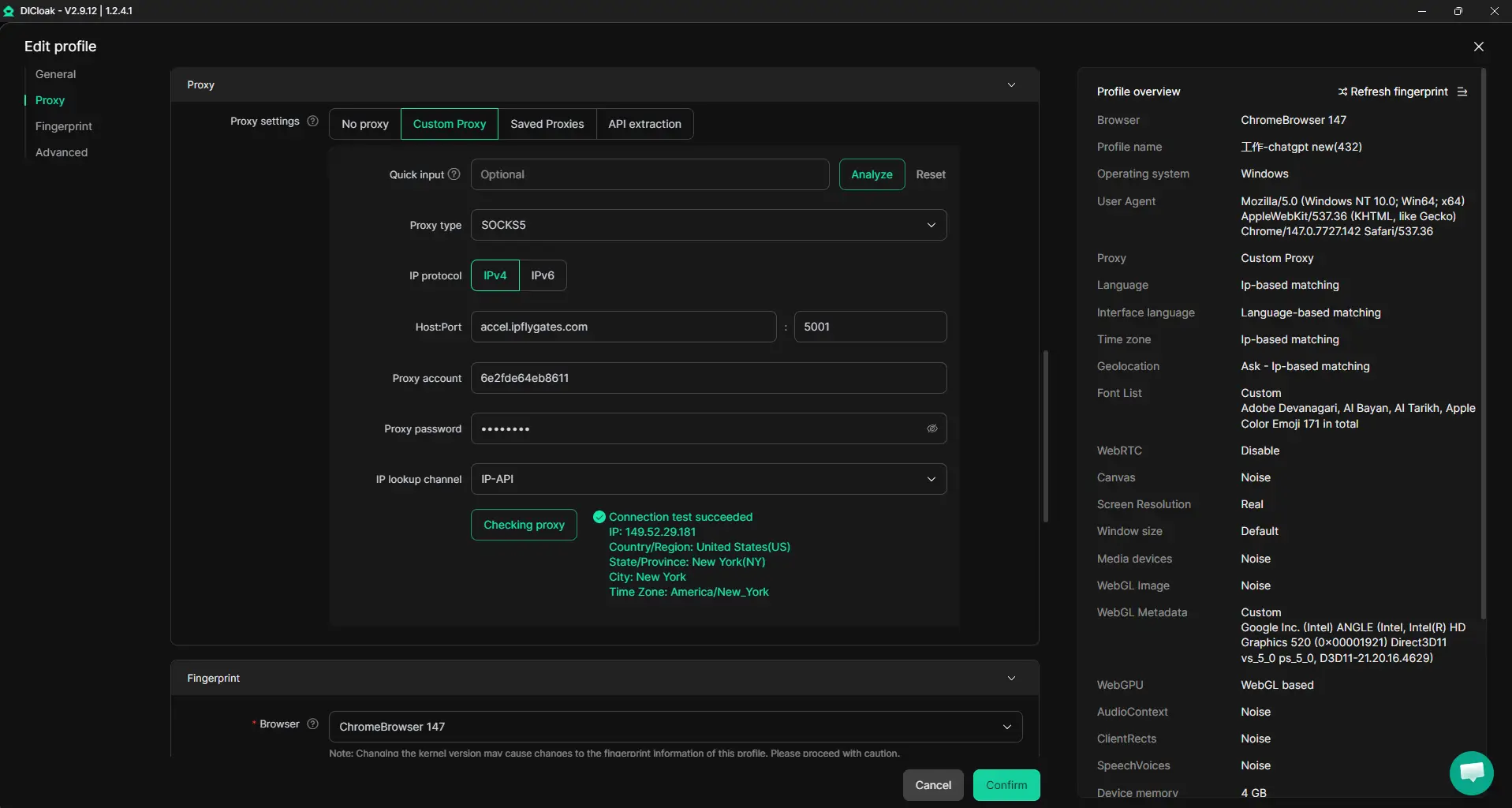
Keep a Unified IP and Fingerprint for All Shared Users
Teams that use a shared DICloak browser profile can keep the browser fingerprint and IP address consistent for everyone accessing an account. The admin sets up one profile, configures the fingerprint and a user-owned proxy, and shares that profile with the group. As long as everyone uses this same profile and proxy, their sessions run through the same browser profile. This reduces mismatched signals, but it only works if members avoid using separate profiles or skipping the shared proxy, otherwise, sessions may look unrelated and trigger extra checks. The scope here is browser-level only; platform rules and detection still apply.
Browser-Profile Access Controls for Shared Account Workflows
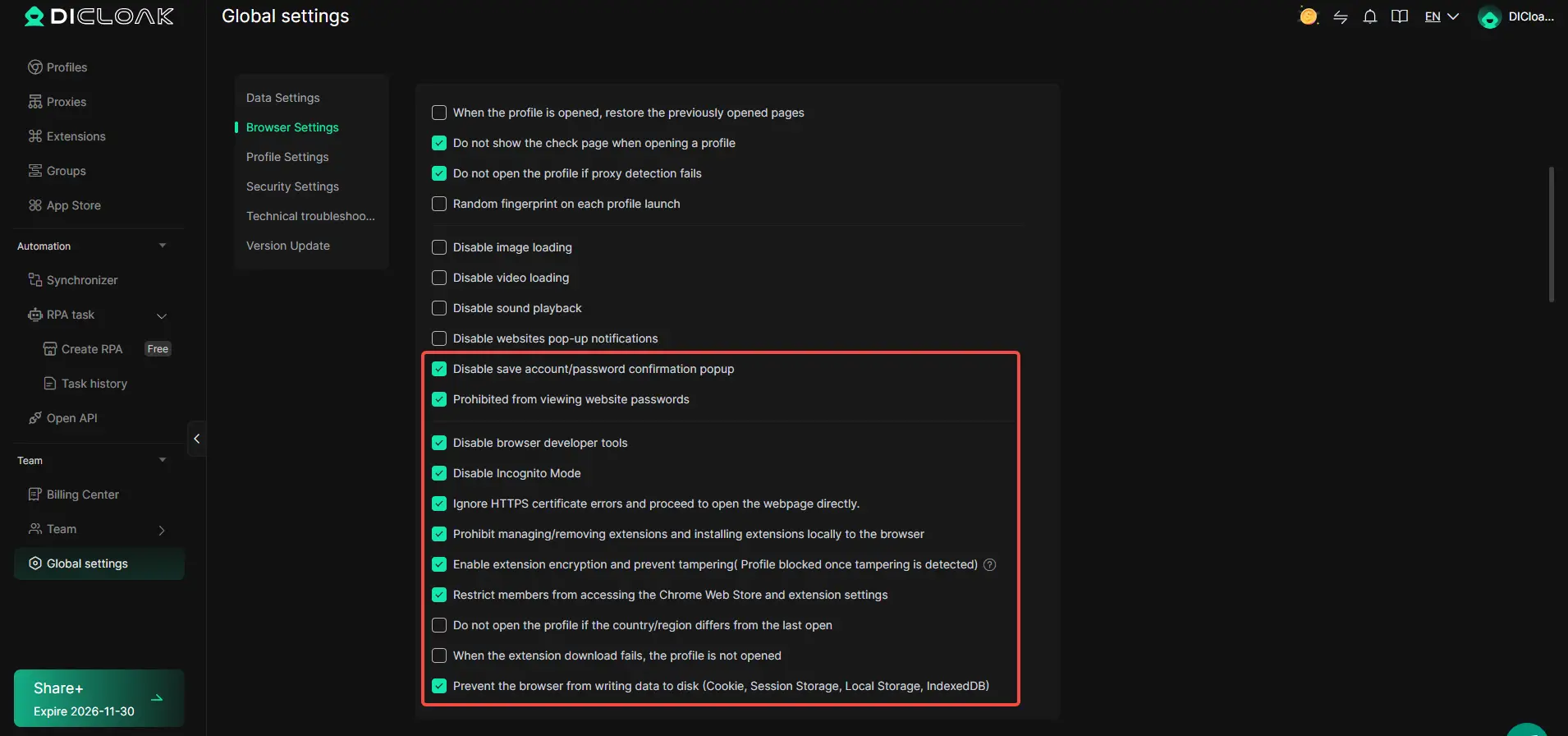
Sharing a profile means other members could otherwise see saved passwords, cookies, or sensitive pages. Admins can use DICloak’s security settings to block password viewing, copying cookies, and even accessing certain account pages inside the shared profile. For example, you can disable password-save prompts and restrict cookie export to cut the risk of leaks. On supported plans, Cookie Encryption and extension restrictions go further. These controls only affect what members can do in the browser profile, they do not protect the actual ChatGPT account or its platform-side data.
Set Team Permissions to Control Member Actions
Not everyone in your group should be able to edit, export, or re-share the profile. Admins can assign each member to a group with only the permissions they need. That might mean some users can only open the profile, while others can edit settings or add new members. These permissions work inside DICloak and keep the workflow organized, but they don’t control what happens inside ChatGPT itself.

When comparing official and unofficial sharing methods, keep these boundaries in mind, browser-profile controls won’t override platform-side limits, but they do give you stronger control over who can access and copy sensitive browser data.
Official vs. Unofficial Sharing Methods: What’s Safest for Your Needs?
If you want to share a ChatGPT subscription without sharing password, the safest route is still OpenAI’s official team or enterprise plan. But most people end up comparing that with browser tools or session-sharing hacks because of cost or convenience. Here’s how the real-world options stack up, skip the wrong fit, and you dodge most account lockouts.
Official Team/Enterprise Plans: Pros, Cons, and Costs
| Method |
Who Can Use |
Risk Level |
Limits |
Cost (per user) |
| Official Team/Enterprise |
Businesses, orgs |
Lowest |
No family/casual use |
High |
| Unofficial Sharing |
Anyone |
High |
Breaks rules |
Low/free |
Official plans are built for companies, not family or casual sharing. If you only need to let a spouse or friend use your ChatGPT Plus, the official option is overkill and too expensive.
Session-Sharing Tools vs. Password Sharing: Security and Practicality
Session-sharing tools are less risky than giving out your password, others get temporary access, not your login or billing details. But these tools can break or get flagged after a browser update, and you’re still on thin ice with OpenAI’s terms.
Advanced Browser Profile Solutions (Like DICloak): When Are They Worth It?
Browser profile tools work best for teams who need to control exactly who uses the account and when, but don’t want to hand out passwords or get accounts disabled. This isn’t for one-off sharing, think managed, not casual.
The biggest mistakes with sharing show up in the details. Next, you’ll see which red flags to watch for before you put your account at risk.
Common Mistakes and Red Flags When Sharing ChatGPT Access
Most ChatGPT account problems happen because users share access too casually or ignore obvious risks. The biggest issues show up when people try to share a ChatGPT subscription without sharing password controls or skip session management altogether.
Sharing Credentials Over Email or Messaging Apps
Sending your ChatGPT login by email or chat seems quick, but it’s one of the fastest ways to lose control of your account. Anyone with your password can see billing info, change settings, or lock you out. Instead, use official seat management or a controlled browser profile handoff, never send raw credentials.
Letting Multiple People Log In From Different Locations
- Watch for login alerts: sudden location changes can trigger forced verification.
- Use shared devices or managed browser profiles to keep access consistent.
- Avoid giving access to people outside your usual country or region.
Ignoring Access Logs and Session Management
If you never check who’s been logged in or where sessions are active, you’ll miss early warning signs of compromise.
- Review active sessions after each sharing event.
- Log out sessions you don’t recognize right away.
- Set calendar reminders to audit account access every month.
These checks help you spot trouble before you lose your ChatGPT Plus access for good.
Step-by-Step Checklist: Sharing Your ChatGPT Subscription Safely in 2026
Before you hand over access, make sure you’re not putting your account or payment info at risk. The safest way to share a ChatGPT subscription without sharing your password is to use a managed environment or session delegation, not just sending your login.
Before You Share: Prep Your Account and Choose a Method
- Review OpenAI’s sharing rules, recent policy updates may block shared logins or flag suspicious activity.
- Pick a workflow that keeps your password private, such as controlled session delegation or a browser profile with restricted cookies.
- Test the sharing method with a secondary device first. If unexpected logouts or warnings appear, don’t proceed.
While Sharing: Control Access and Monitor Activity
- Set the minimum permissions needed, never leave billing, settings, or recovery email exposed.
- Check active sessions during use; if you see new logins from unfamiliar locations, stop sharing immediately.
After Sharing: Revoke Access and Review Security
- Log out shared sessions and remove delegated devices as soon as access is no longer needed.
- Scan recent activity for changes, if anything looks off, reset your password and recovery info.
Frequently Asked Questions About share a ChatGPT subscription without sharing password
Can I share my ChatGPT Plus subscription with family or friends without sharing my password?
OpenAI does not offer official family sharing for ChatGPT Plus. Sharing your password is risky and against OpenAI’s rules. Instead, you can look for secure session-sharing tools or browser extensions. These let others use your subscription without giving them your login. Always review privacy settings before using such tools.
What happens if OpenAI detects multiple people using my ChatGPT account?
If OpenAI sees signs of account sharing, like logins from different locations or devices, they may send you a security warning. Repeated sharing or suspicious activity can lead to temporary suspensions or even closing your ChatGPT account. Protect your login and stick to one user per account for safety.
Are session-sharing tools safe for letting others use my ChatGPT subscription?
Session-sharing tools can be safer than giving out your password, but they still have risks. Some tools let others use your active session without seeing your login. Only use tools from trusted sources. Avoid using them on public or shared computers to keep your data private.
How do I revoke access if I no longer want someone using my ChatGPT subscription?
Go to your ChatGPT account settings and review active devices or sessions. Log out of all sessions to disconnect others. Change your password right after. Check for any suspicious activity, and update your security settings to keep your account safe in the future.
Is it legal or compliant to share a ChatGPT subscription in 2026?
OpenAI’s terms of service do not allow account or subscription sharing outside your own use. Sharing access, even without a password, can break these rules. To stay compliant, only use your subscription yourself. For group or team needs, consider official business or team plans from OpenAI.
Consider whether secure sharing options align with your needs, especially if you want to protect your credentials and maintain privacy. It's worth trying a solution designed specifically for safe account access, so you can collaborate or split costs without unnecessary risks. Try DICloak For Free
 Web Proxy Tools
 Free Tools
 Cookie Plugin
 UA Generator
 MAC Address Generator
 IP Generator
 IP Address List
 2FA Code Generator
 World Clock
 Anonymous Check
 WebRTC Leak Test
 UUID Generator
 Free Web Proxy Site
 Proxy Checker
 FB Ad Checker
 AI Web Scraping
 Free SMM Tools
 Twitter Shadowban Checker
 Instagram Name Checker
 UTM Generator
 Username Generator
 AI Hashtag Generator
 LinkedIn Headline Generator
 Social Media Image Resizer