Scrolling through your Facebook feed, you might notice that every fourth post is an ad, sometimes even more. According to Statista, Facebook serves ads to over 2 billion users each month, making it nearly impossible to avoid sponsored content. For many, the constant wave of promotions isn’t just annoying, it slows down the experience and eats into privacy. People try browser extensions, but Facebook’s ad system adapts fast, breaking most ad blockers within weeks. Some users even report that “blocking ads on facebook” ends up hiding actual posts or breaking site features, not just the ads.
What most guides skip is the risk: block too aggressively, and you could lose access to real content, get flagged for suspicious behavior, or miss important updates. The real challenge isn’t just removing ads, it’s doing it without causing bigger problems. This guide breaks down what actually works now, what gets risky fast, and where smarter tools, like advanced browser profiles or automation, make a difference. The goal: control your feed without wrecking your account or workflow. Here’s what actually matters before you try to block another ad.
Why Do So Many Users Want to Block Ads on Facebook?
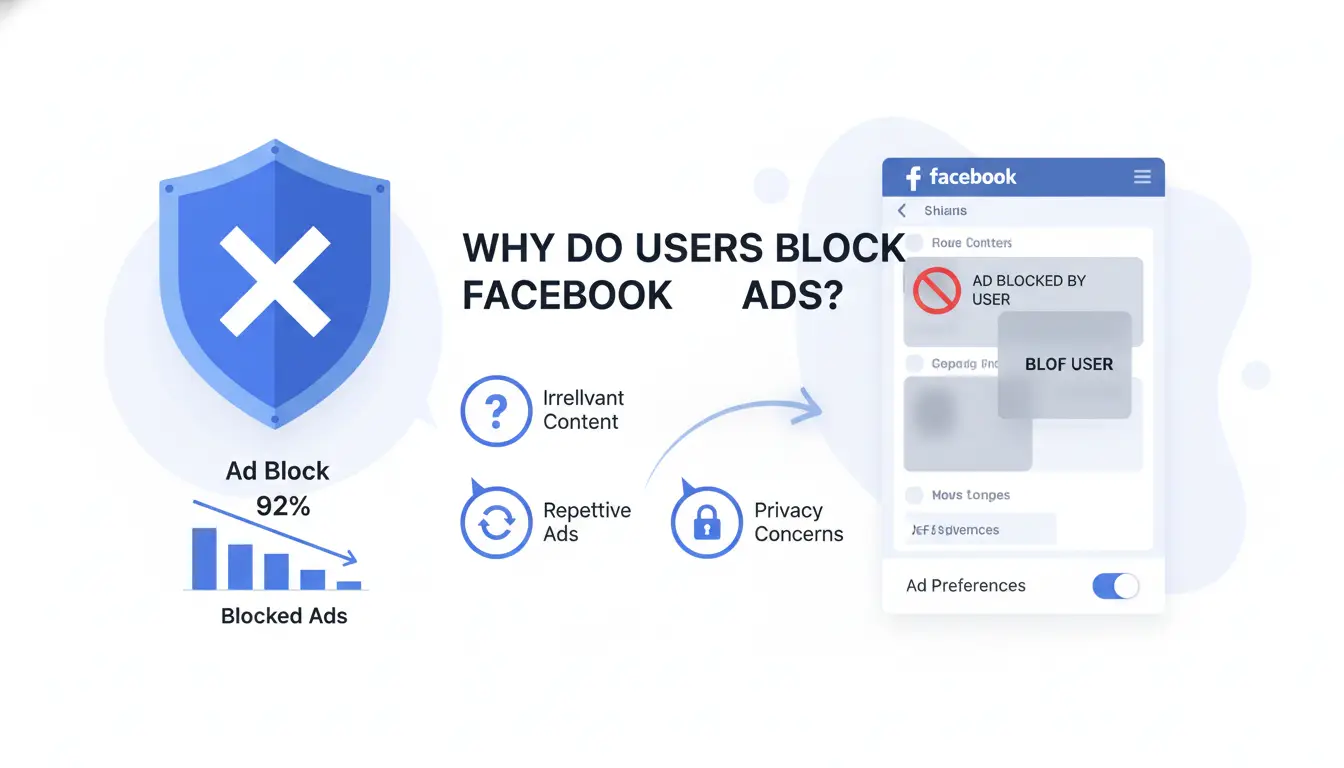
Scrolling through Facebook used to mean catching up with friends and news. Now, ads often fill half the screen before you find a real post. For many, blocking ads on Facebook is about taking back control, cutting out distractions, and protecting privacy. The push to limit ads isn’t just about annoyance, users want a cleaner feed and fewer tracking risks. But blocking tools don’t always work as promised, so understanding the main reasons behind this demand helps explain why so many keep searching for new solutions.
How Facebook Ads Impact User Experience
Most users notice the endless stream of sponsored content and banners crowding their feeds. These ads aren’t just minor annoyances, they break up conversations, slow down page loads, and sometimes push important posts out of sight. The bigger worry for a lot of people is targeted tracking. Facebook collects browsing data to serve highly personalized ads, making users feel watched every time they scroll. According to Wired, this level of tracking fuels discomfort and drives the search for ad-blocking methods.
Common Frustrations: Types of Ads Users Want Gone
Not all ads bother users the same way. Sponsored posts blend into the feed, making it hard to spot real updates. Sidebar ads often promote clickbait or products you’ve never shown interest in. Video ads, especially those that autoplay with sound, are a top complaint, these can interrupt browsing and eat up data on mobile. Auto-play videos also risk embarrassing moments if you’re in public. The main frustration is losing control over what appears on your own screen, sparking the ongoing demand for reliable ways to start blocking ads on Facebook.
What Should You Know Before Trying to Block Facebook Ads?
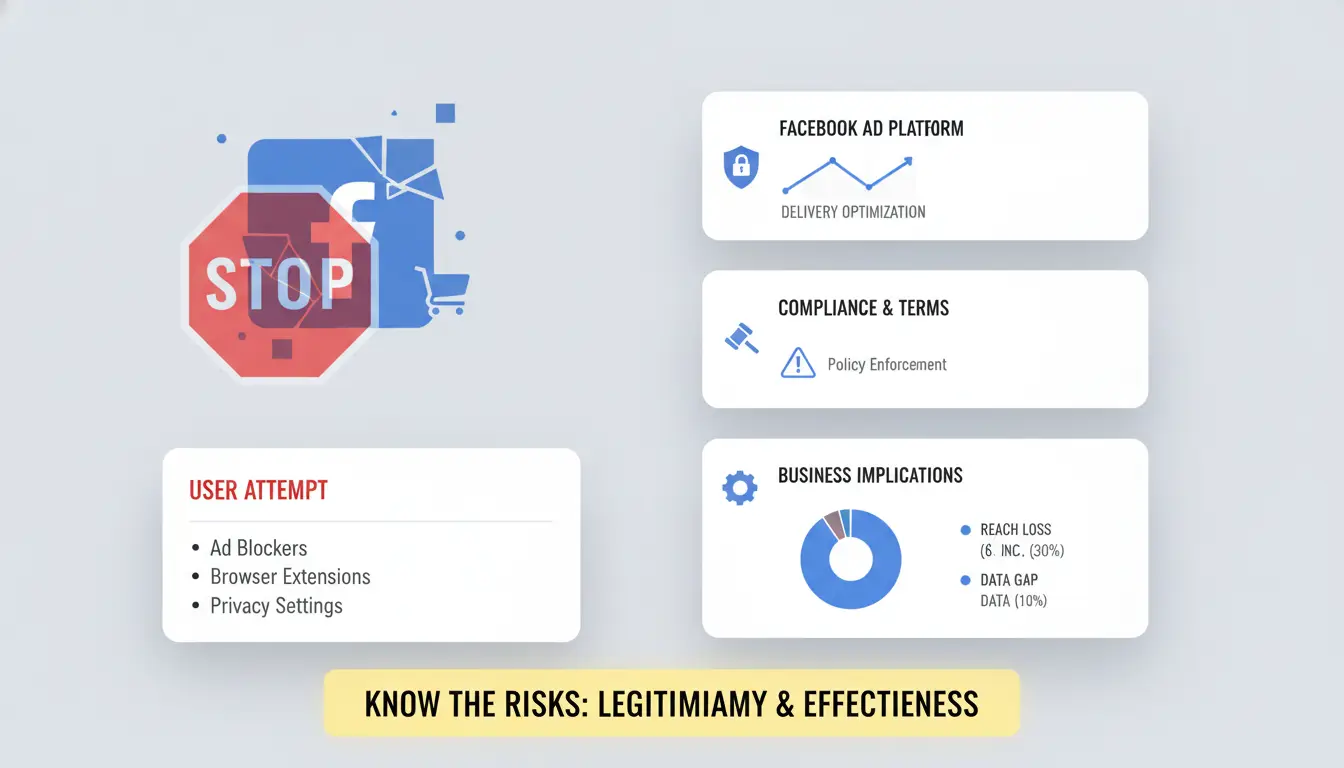
Blocking ads on Facebook is not as simple as installing an extension and browsing ad-free. Facebook’s platform changes often, and their ad system is built to resist outside control. Before you try to block another ad, it’s smart to understand why standard tools struggle, what risks you might face, and the limits you can’t avoid.
Why Facebook Makes Blocking Ads Difficult
Facebook uses many ways to deliver ads. Some ads are mixed with real posts, while others are loaded with scripts that change every few weeks. This makes it hard for most ad blockers to keep up. When Facebook detects blocking tools, it may change the way ads appear or even break parts of the site for users with blockers. Sometimes, ads are labeled as “sponsored” but coded to look like regular content, so even advanced extensions can’t catch every ad. Meta’s official documentation details how ads are delivered and updated.
Risks and Limitations: What Can Go Wrong
Blocking ads on Facebook too aggressively can break features you need. One risk is losing access to parts of your feed, comments, or notifications, sometimes real posts disappear along with the ads. Account restrictions are possible if Facebook flags your activity as “unusual” or thinks you’re automating actions. This can lead to warnings, forced logouts, or temporary blocks. In rare cases, people report missing security alerts or important messages because of filter rules gone wrong.
The hardest part is finding a balance. Remove too much, and you lose useful content. Remove too little, and ads keep slipping through. The biggest risk is trading ads for bigger problems with your account or device. You can use advanced tools that separate browser profiles and manage scripts safely, but nothing guarantees a perfect, ad-free feed without any side effects.
How to Block Ads on Facebook: Step-by-Step Methods That Actually Work
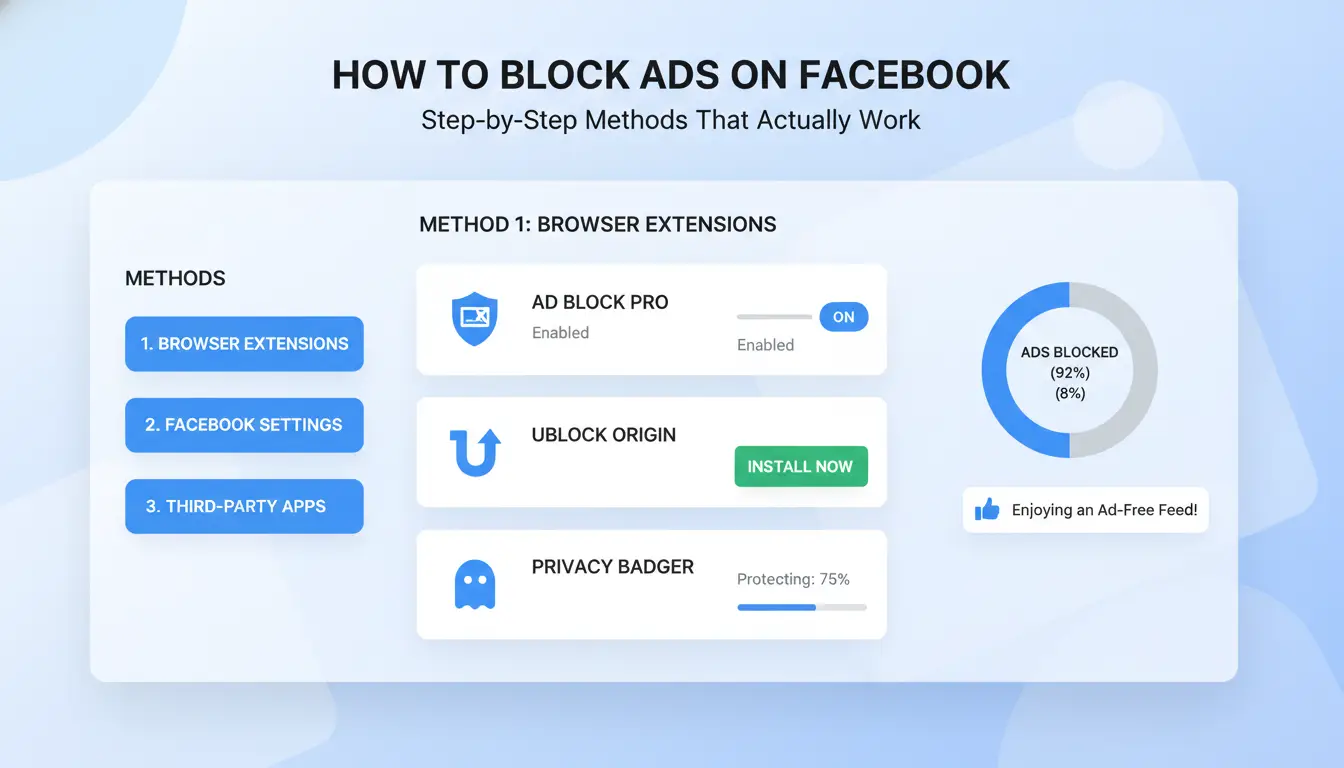
Blocking ads on Facebook can feel like a moving target. Facebook changes its site often, so what works one month may break the next. The methods below focus on steps that work now, and help avoid common mistakes, like hiding real posts or getting your account flagged. If you want less noise in your feed, here’s how to get real results.
Using Browser Extensions to Block Facebook Ads
Start by picking a browser extension with a track record of blocking ads, such as uBlock Origin or AdGuard. Go to your browser’s extension store, add the tool, then check that it’s active on facebook.com. Most extensions block the main ad placements by default, but you may need to update filter lists or turn on "cosmetic filtering" for better results.
Sometimes, blocking ads on facebook too aggressively will hide regular posts or break Messenger. If you see missing features, open the extension settings and whitelist Facebook or adjust individual rules. Some users run a separate browser profile just for Facebook to keep ad blocking and normal browsing apart. For teams or anyone managing multiple accounts, setting up each profile with its own extension and proxy (instead of one global blocker) keeps things stable and lowers the chance of Facebook flagging your activity.
Adjusting Facebook Settings for Fewer Ads
Go to Facebook’s Ad Preferences page. Here, you can hide advertisers you don’t want to see, and turn off topics you dislike. Next, find the “Ad settings” menu and switch off "Ads based on data from partners" and "Ads based on your activity." This won’t block all ads, but it cuts down tracking and reduces the number of targeted ads you get.
The real win comes from combining browser tools with smart privacy settings, overdoing either can cause problems, but together they give you more control.
What Mistakes Cause Ad Blocking to Fail or Trigger Account Issues?
Using Untrusted Tools or Overblocking
Most problems with blocking ads on facebook come from using random browser extensions or aggressive ad-block tools. When you pick a plugin that’s not well-known or updated, it can break site features like Messenger, video loading, or even basic navigation. Some blockers try to remove all ad elements, but that can hide real posts or buttons you need to use. Worse, certain tools inject scripts or mess with cookies, this can trigger Facebook’s security checks and even get your account flagged for “unusual activity.” The biggest risk is not just that ads return, it’s that your account may get locked or you lose access to key features. If you want to block ads, always stick to trusted extensions with a clear update history, and avoid anything that claims to “block everything” with one click.
| Tool Type |
Breaks Features? |
Account Risk |
Example Problems |
| Trusted Extensions |
Rarely |
Low |
Messenger loads slow sometimes |
| Aggressive Blockers |
Often |
High |
Posts hidden, can’t comment |
| Obscure Plugins |
Often |
High |
Login errors, “unusual activity” |
Source: chrome.google.com, reddit.com/r/facebook
Ignoring Facebook’s Policy Changes
Facebook tweaks its site code and ad rules every few weeks. If you ignore these changes, your old ad-block setup may stop working, or worse, start blocking things it shouldn’t. After a big update, users often report that “blocking ads on facebook” now hides friend posts or breaks Stories. Some updates even add checks that spot “browser tampering,” which can lead to warnings or a blocked account. Smart users test their setup after every major update. If you notice missing features, check trusted forums or the Chrome Web Store for recent fixes. If you need to handle multiple accounts safely, you can use a browser profile manager like DICloak, this keeps each account separate and lowers the risk of triggers.
How to Block Ads Safely When Managing Multiple Facebook Accounts
Blocking ads on Facebook is never as simple as adding a browser extension and forgetting about it, especially if you manage several accounts for work or marketing. Every extra account brings new risks, from Facebook tracking logins across profiles to ad blockers causing strange errors that only show up on some accounts. If you ignore these risks, you could lose access or trigger blocks that are hard to reverse.
Why Multi-Account Users Face Extra Risks
Running multiple Facebook accounts on the same browser or device makes you stand out. Facebook links accounts using browser fingerprints, cookies, and IP addresses. If you use the same ad blocker across all your accounts, patterns start to match up. That’s a red flag, Facebook can spot unusual activity and tie your accounts together, putting all of them at risk.
Sometimes, ad blockers block more than just ads. They can break news feeds, hide important posts, or stop business tools from loading. If you’re switching between accounts, these glitches often look like Facebook bugs, but they’re really side effects of aggressive ad blocking. Sharing devices or proxies without isolation only makes it worse.
How DICloak Makes Multi-Account Ad Blocking Safer
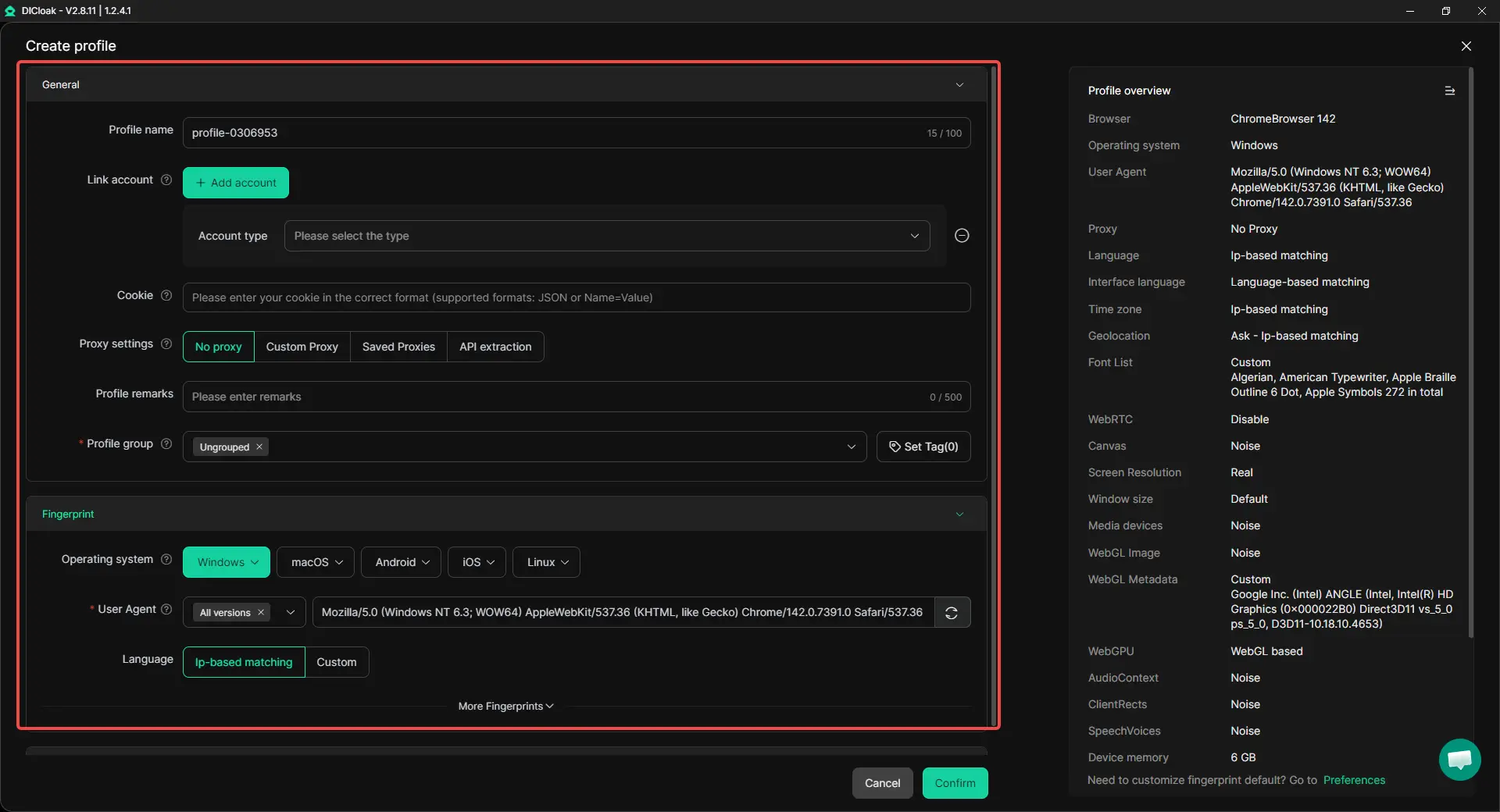
You can use DICloak browser profiles to keep each Facebook account separate. Each profile has a unique fingerprint and its own cookie jar, stopping Facebook from linking your accounts. Pairing profiles with different proxies also hides your accounts’ real locations from each other. This means you can block ads on Facebook for one account without affecting the others, or triggering detection on all of them.
The real win is this: isolated profiles and separate proxies let you control ads and keep your workflow smooth, while lowering the risk of bans or accidental leaks.
When Facebook Ad Blocking Isn’t Enough: Alternative Ways to Improve Your Feed
Using Feed Customization and Content Filters
Instead of just blocking ads on facebook, try hiding posts or snoozing pages that keep showing up in your feed. For a cleaner experience, unfollow noisy friends or pages you don’t care about, this keeps your feed focused without unfriending anyone. Using the “See First” and “Snooze” features helps surface what you want and push down junk. Most users overlook these built-in tools, but real changes show up in days.
Privacy Tools and Browser Settings for Better Control
You can cut out a lot of tracking and unwanted content by clearing Facebook cookies and turning off third-party trackers in your browser. It also helps to review your notification settings, muting groups or apps stops a flood of alerts that crowd your feed.
Tools like DICloak let you build separate browser profiles for each account, so marketers and team users don’t risk account bans when testing ad blockers or proxies. With DICloak’s proxy support and bulk profile management, you can automate ad blocking setups and keep every account’s activity clean and isolated. This approach avoids fingerprint conflicts that often trigger Facebook’s security checks.
How Facebook Responds to Ad Blockers: What You Need to Know
Blocking ads on Facebook is not as simple as installing a browser extension and forgetting about it. The platform changes its code often, making it hard for basic ad blockers to keep up. If you want to avoid ads without breaking Facebook, you need to know how the site actually fights back, and what extra risks are involved.
Facebook’s Technical Countermeasures
Facebook uses several tricks to bypass ad blockers. The most common move is changing how ads are delivered or labeled in the site’s code. For example, Facebook mixes ads with regular posts or hides the word “Sponsored” in a way that confuses simple filters. This means you might block real posts by mistake if your blocker is too aggressive.
Facebook also scans for signs that users are blocking ads. If the site detects missing scripts or altered page layouts, you may get pop-up warnings or find some features disabled. Some users report that feeds load slowly or buttons stop working after trying popular ad blockers. If you rely on Facebook for work or community management, these disruptions can be a real headache.
What Happens When Facebook Detects Ad Blocking
When Facebook spots ad blocking, the response is not always the same. Sometimes you see a warning asking you to turn off the blocker. Other times, you might lose access to parts of your feed or see account restrictions. In rare cases, repeat detection could lead to temporary locks, especially for business accounts.
To lower your risk, avoid one-click ad blockers that promise to remove everything. Instead, use tools that let you create custom browser profiles or set up dedicated proxies.com/learning/network-layer/proxy/) to keep your activity looking normal. You can use DICloak to separate ad-blocked sessions from regular browsing, reducing the chance of Facebook linking strange behavior to your main account. Trying to block every ad at once usually causes more problems than it solves.
How to Decide If Blocking Facebook Ads Is Right for You
Blocking ads on Facebook sounds simple, but the real decision is more about what you need, and what you risk losing. Before you try another ad blocker or script, take a close look at how ads affect your feed, your privacy, and your workflow. The goal isn’t just a cleaner screen; it’s keeping your account stable and your content visible.
When Blocking Ads Makes Sense
Some users want ads gone to focus and avoid tracking. If you spend hours daily on Facebook, blocking ads can cut distractions and limit data collection. For people working from home, privacy gets serious, especially if you’re worried about Facebook tracking browsing habits across sites. Marketers and business users sometimes block ads to test what their own page looks like, or to speed up task switching.
But here’s the catch: block too aggressively, and you may hide real posts or cause errors. For example, some browser extensions break Messenger or group features. If you rely on Facebook for work, losing access to content can cost you time. The real tradeoff is between privacy and keeping your feed usable.
| Reason to Block Ads |
Risks |
| Focus and productivity |
Hidden posts or errors |
| Privacy protection |
Account flagging |
| Marketer feed preview |
Lost site features |
(Source: Facebook Help Center)
When Alternative Strategies Are Better
Not everyone needs to block ads. Sometimes tweaking your feed, like hiding specific advertisers or using Facebook’s own ad settings, works better. Customizing your feed means fewer surprises and less risk of breaking site features. If you run multiple accounts, you can use advanced browser profiles and proxies to isolate activity and reduce tracking without breaking the feed. Tools like DICloak for Social Media Marketing help keep accounts separate and safer.
Balancing convenience and account safety often means picking feed controls over full ad blocking. If you only see a few annoying ads, quick tweaks may solve the problem without risking account stability.
Frequently Asked Questions
Can blocking ads on Facebook cause my account to be restricted?
Blocking ads on Facebook with third-party tools or browser extensions can sometimes trigger Facebook’s security systems. This may lead to account warnings or restrictions. To avoid this, use ad blockers that do not interact with your account directly, and avoid modifying Facebook’s code or using suspicious scripts.
Are browser ad blockers effective for Facebook ads?
Browser ad blockers can hide many Facebook ads in your feed. However, Facebook changes its ad code often, so some ads may still appear. Most ad blockers can’t stop sponsored posts or video ads completely. Regularly update your ad blocker for the best results when blocking ads on Facebook.
How can I block video ads on Facebook?
To block video ads on Facebook, use browser extensions like uBlock Origin or AdGuard. Install the extension, enable the filter lists, and refresh Facebook. These tools can block many video ads, but some may still get through, especially in Facebook’s mobile app or Stories.
Is it possible to block ads on Facebook mobile app?
Blocking ads on Facebook’s mobile app is very limited. Ad blockers for browsers do not work inside the app. You can use a proxy with ad-blocking features or access Facebook through a mobile browser with an ad blocker, but in-app ads may still show.
What are safer alternatives to blocking ads on Facebook?
Instead of blocking ads on Facebook, try hiding specific ads, adjusting your ad preferences, or unfollowing pages that show too many ads. You can also use Facebook’s content filters and privacy settings to control what you see in your feed, making your experience better without risking restrictions.
Effectively blocking ads on Facebook not only minimizes distractions but also improves your browsing experience and privacy. By using reliable tools or browser extensions, you can take greater control over the content you see. Try DICloak For Free
 Web Proxy Tools
 Free Tools
 Cookie Plugin
 UA Generator
 MAC Address Generator
 IP Generator
 IP Address List
 2FA Code Generator
 World Clock
 Anonymous Check
 WebRTC Leak Test
 UUID Generator
 Free Web Proxy Site
 Proxy Checker
 FB Ad Checker
 AI Web Scraping
 Free SMM Tools
 Twitter Shadowban Checker
 Instagram Name Checker
 UTM Generator
 Username Generator
 AI Hashtag Generator
 LinkedIn Headline Generator
 Social Media Image Resizer