Creating videos with Descript is simple when one person handles everything. The challenge begins when editors, freelancers, and clients need to work together. With 91% of businesses using video as a marketing tool, more teams now need a better way to manage access without sharing one login through email or chat. The better approach is to share the right level of access for each person. In this guide, we will explain how to share a Descript account with your team without sharing passwords, including Descript’s built-in collaboration options, common sharing methods, and when a managed browser Profile with tools like DICloak can fit a shared workflow.
Descript Pricing and Account Sharing Policy in 2026
Descript supports team access without requiring everyone to use the same login. The main cost difference is simple: Drive Editors use paid seats, while Viewers and project-only collaborators can get more limited access without adding another paid Editor seat.
How Descript Team Pricing Works
Descript currently charges per person. Hobbyist costs $24 per person/month and includes one person, Creator costs $35 per person/month and can scale to a team of three, while Business costs $65 per person/month and can scale to five. Additional team members are billed separately.
| Access type |
Cost |
Best for |
| Drive Editor |
Paid seat |
Regular editors who create, upload, edit, and use AI tools |
| Viewer |
Free |
Clients or teammates who only review and comment |
| Project collaborator |
No paid Drive seat |
Freelancers working on specific projects |
The important difference is where you add the person. Inviting a freelancer to one project is not the same as adding them as an Editor to the whole Drive. A regular editor may need a paid seat, while someone editing only one existing project may not. Also, if a teammate already pays for their own Descript plan, that subscription does not automatically merge with your Drive subscription when you add them as an Editor.
Does Descript Allow Account Sharing?
Descript does not allow account credentials to be freely passed around. Its Terms do allow employees or contractors to use the account as Authorized Users when they are working for the account holder and meet the applicable terms. For teams, the real challenge is not simply whether someone can access the account, but how that access is managed as more editors, contractors, or reviewers join the workflow. Giving everyone the same level of access can quickly create problems with cost, permissions, and account control.
What Can Go Wrong If Everyone Gets the Same Descript Access?
Giving everyone the same Descript access can create three different problems: unnecessary seat costs, missing editing tools, and broader project access than some people need. The right access level should match what each person actually needs to do, not simply whether they are part of the team.
You May Pay for Editor Seats That Some People Do Not Need
A Drive Editor uses a paid seat, while a Viewer is free and can still view and comment on projects. If a client or manager only needs to review a draft and leave feedback, paying for full Editor access adds cost without helping them do their job. Someone who only reviews content does not need the same Descript access as the person creating it.
Project Access May Be Too Limited for a Full Editing Workflow
The opposite problem happens when a freelancer receives project-level access but needs tools that role does not include. A Project Editor can edit, comment, and export the shared project, but cannot record or use features that consume AI Credits or Media Minutes. If the job involves a fuller production workflow, project access may stop being enough even though it avoids another Drive Editor seat.
Full Drive Access May Expose More Projects Than a Freelancer Needs
A Drive Editor has much broader access than someone invited to one project, including the ability to create, edit, move, and delete projects in the General drive workspace. For an agency, giving a freelancer working only on Client A the same Drive access as a regular in-house editor may expose work that has nothing to do with their task. Project-level collaboration is often a better fit when someone only needs one specific project.
The real choice is therefore not between “more access” and “less access.” It is choosing a sharing method that gives each teammate enough access to finish the work without adding permissions or costs they do not need.
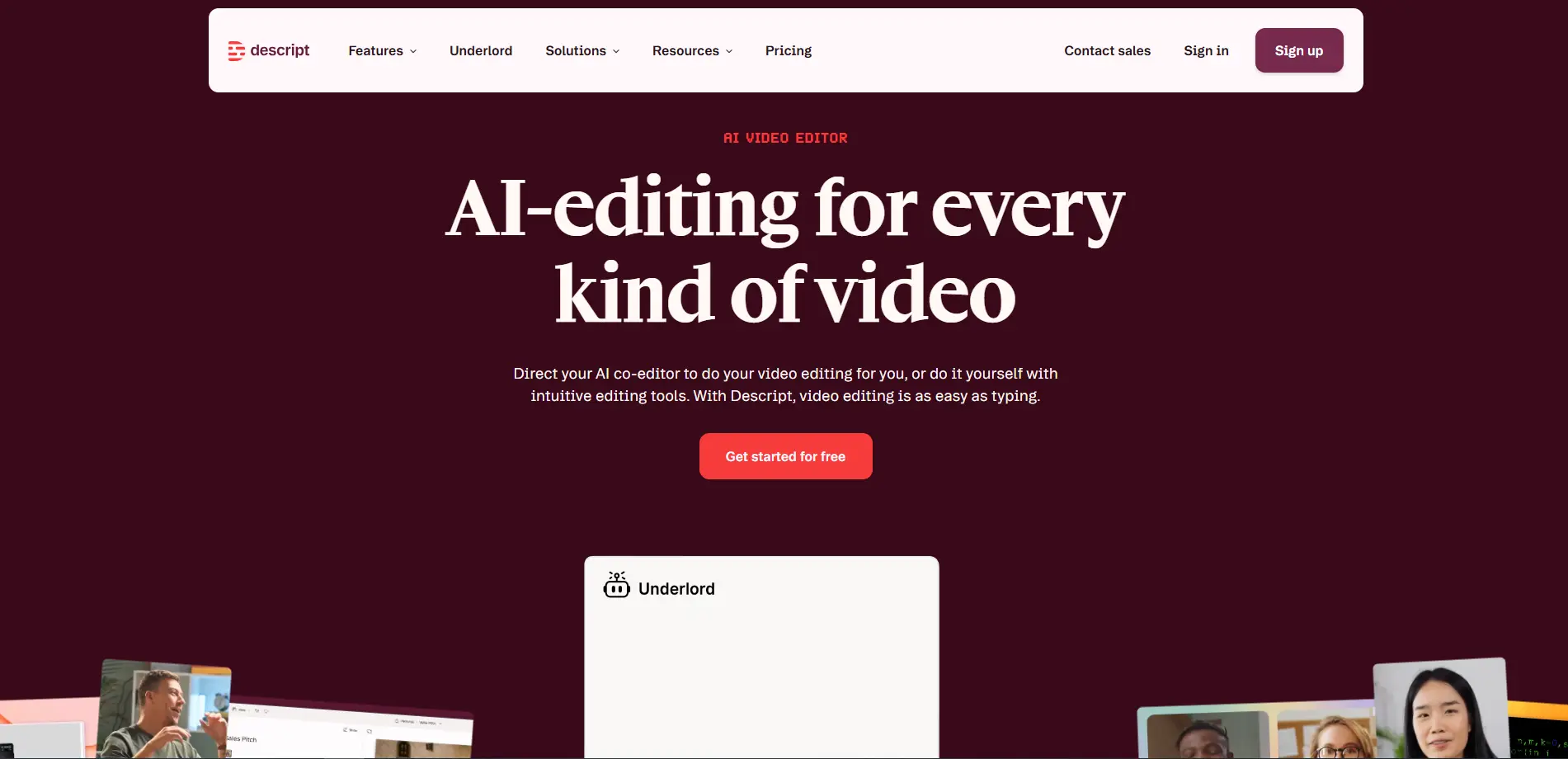
What Are the Best Ways to Share a Descript Account Without Sharing Passwords?
There is no single best way to share Descript with a team. The right option depends on whether you need to share project permissions, login credentials, an existing desktop session, or a logged-in browser Profile.
| Method |
What is shared |
Best for |
Main limitation |
| Descript built-in access |
Drive, project, or review permissions |
Regular collaboration |
Full Editor access requires a paid seat |
| Password manager |
Login credentials |
Small authorized teams |
Does not share the existing browser session |
| Remote desktop |
One logged-in computer |
Occasional access |
Depends on one device and can become a bottleneck |
| Antidetect browser |
Logged-in browser Profile |
Controlled shared-session workflows |
Should be used within Descript's account terms |
Use Descript's Built-In Team and Project Sharing
Descript's own sharing tools are the simplest option when each teammate can use their own account. Regular editors can be added to the Drive, freelancers can be invited to specific projects, and clients can review work through Viewer access or a shared web link.
This works best when the person's job matches one of Descript's existing permission levels. It also keeps project access separate from the main account credentials, although full Drive Editor access requires a paid seat.
Use a Password Manager for Authorized Team Members
A password manager can give an authorized employee or contractor access to stored Descript credentials without sending the password through email, Slack, or a shared document. This can work for a small team that mainly needs a cleaner way to manage shared login details.
The limitation is that the teammate still signs in through their own browser. The password manager does not carry over the existing Descript session, cookies, or other browser data, so extra login checks may still appear and each person manages a separate browser session.
Use Remote Desktop for an Existing Descript Session
Remote desktop is another option when Descript is already logged in on a company computer. A teammate can work through that machine without receiving the password directly, which can be practical for temporary or occasional access.
The tradeoff is that the workflow depends on one computer being available. Once several editors need access, the same machine can become a bottleneck and handoffs are harder to manage.
Use an Antidetect Browser for Team Collaboration
An antidetect browser is more relevant when an authorized teammate needs access to an existing logged-in Descript session without working through the same physical computer. With an antidetect browser like DICloak, the logged-in browser Profile can be shared with selected team members, while team permissions control who can access it.
This approach focuses on sharing the working browser Profile rather than repeatedly distributing the account password. It is most useful for teams that need a managed shared-session workflow and should still be used in line with Descript's account terms.
Why Use DICloak to Share Descript With Your Team?
Descript’s built-in roles work well when each person can use their own account. A different need appears when an authorized employee or contractor must work from an existing logged-in Descript session without receiving the main password directly. For that workflow, using DICloak Antidetect Browser can make shared access easier to control:
- Share the logged-in Profile, not the password. With Profile sharing, selected team members can open the assigned browser Profile and use the existing Descript session. The password does not need to be sent through email, Slack, or a shared document.
- Control who can use the Profile. Team permissions let admins decide which employees or contractors can access a specific Profile. When a project ends or a freelancer leaves, that access can be removed without changing how the rest of the team works.
- Keep team activity easier to review. Operation logs help admins check actions related to shared Profiles. This is useful when several people work with the same business account and the team needs clearer accountability.
- Reduce the overhead of temporary access. For an authorized contractor who only needs the existing session for a limited project, sharing a managed Profile can be simpler than setting up a dedicated remote computer or repeatedly handing off login details.
DICloak is most relevant when the real problem is controlled access to an existing Descript session, rather than normal project collaboration. The next step is setting up that shared Profile so the right team members can use it without receiving the account password.
How to Share a Descript Account With Your Team Using DICloak
When your team needs to work from the same existing Descript session, keeping that session inside a dedicated browser Profile can make access easier to manage. With DICloak, you can share the working Profile with selected teammates instead of repeatedly sending login details.
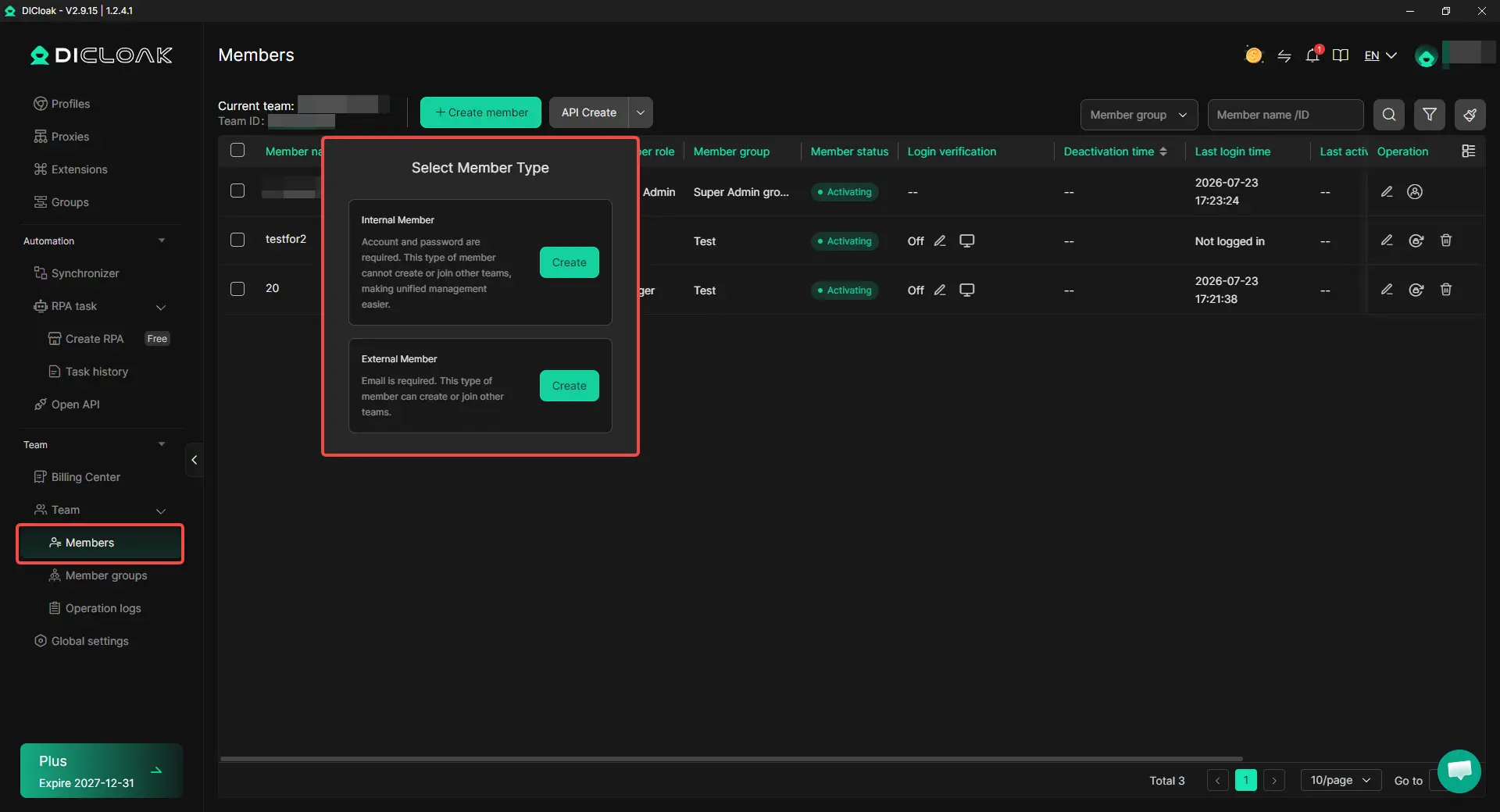
1. Set Up Your DICloak Team
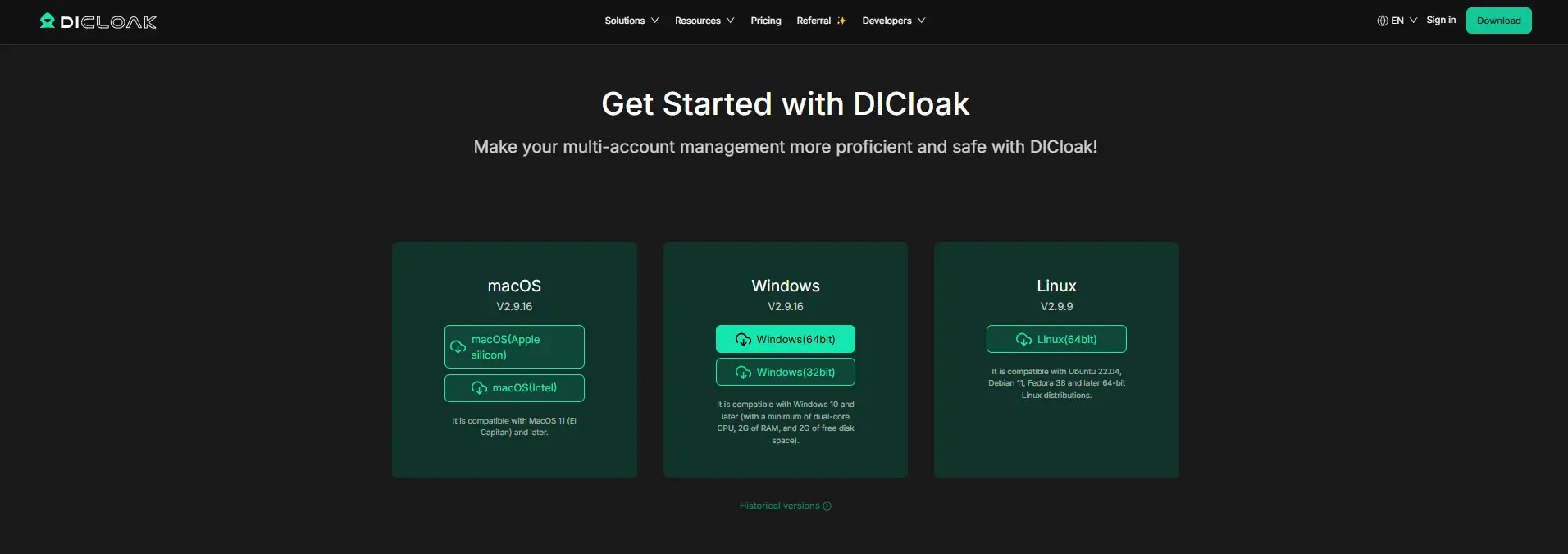
Install DICloak, create your team, and give each teammate their own member account. Choose a plan based on the number of members and Profiles your workflow needs.
2. Create a Dedicated Descript Profile
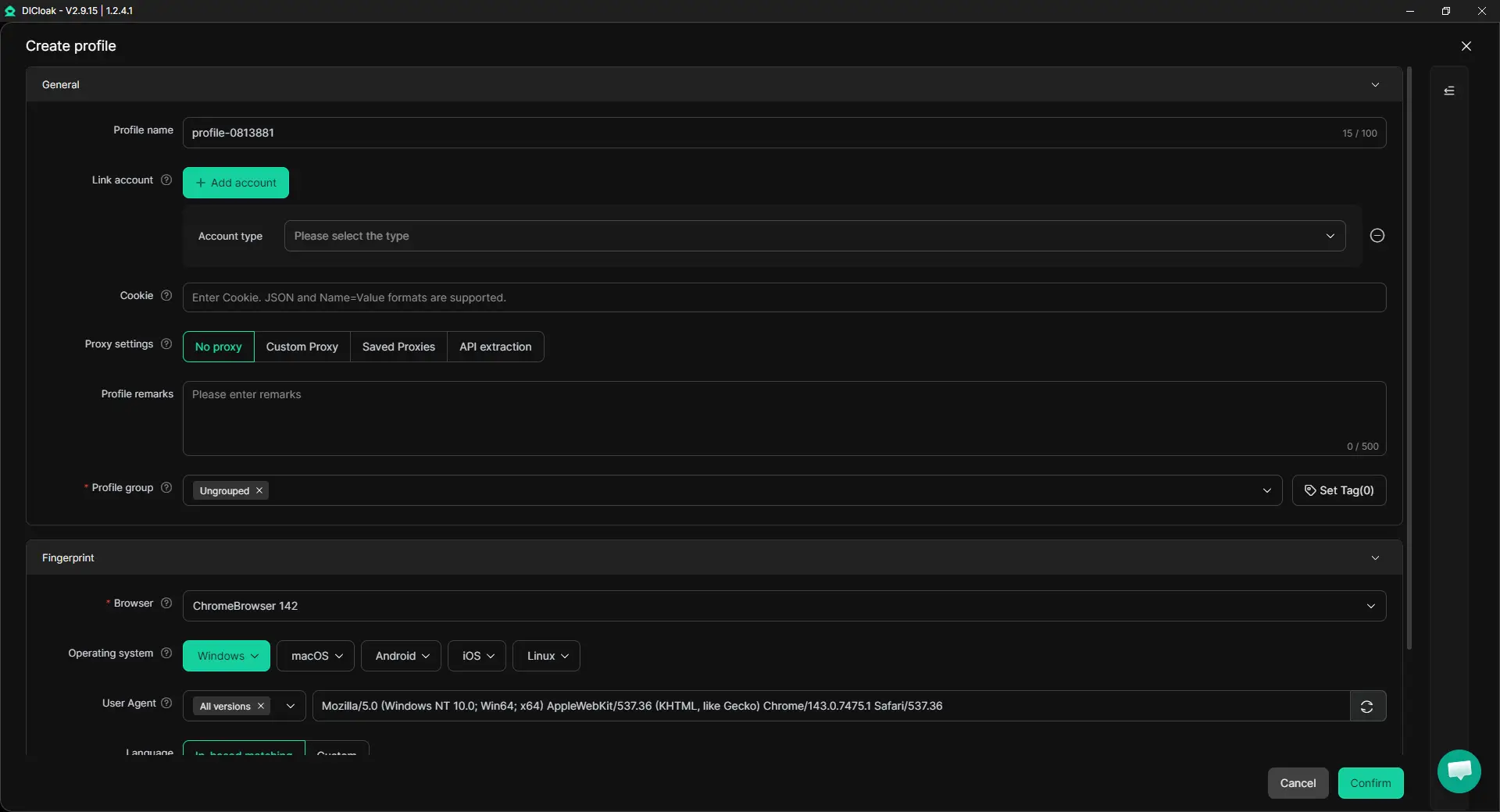
Create a separate Profile only for Descript and give it a clear name, such as Descript – Video Team. You can configure the Profile settings, including fingerprint settings and a user-configured proxy if your workflow requires a specific network setup.
3. Enable Multiple Sessions for Concurrent Team Access
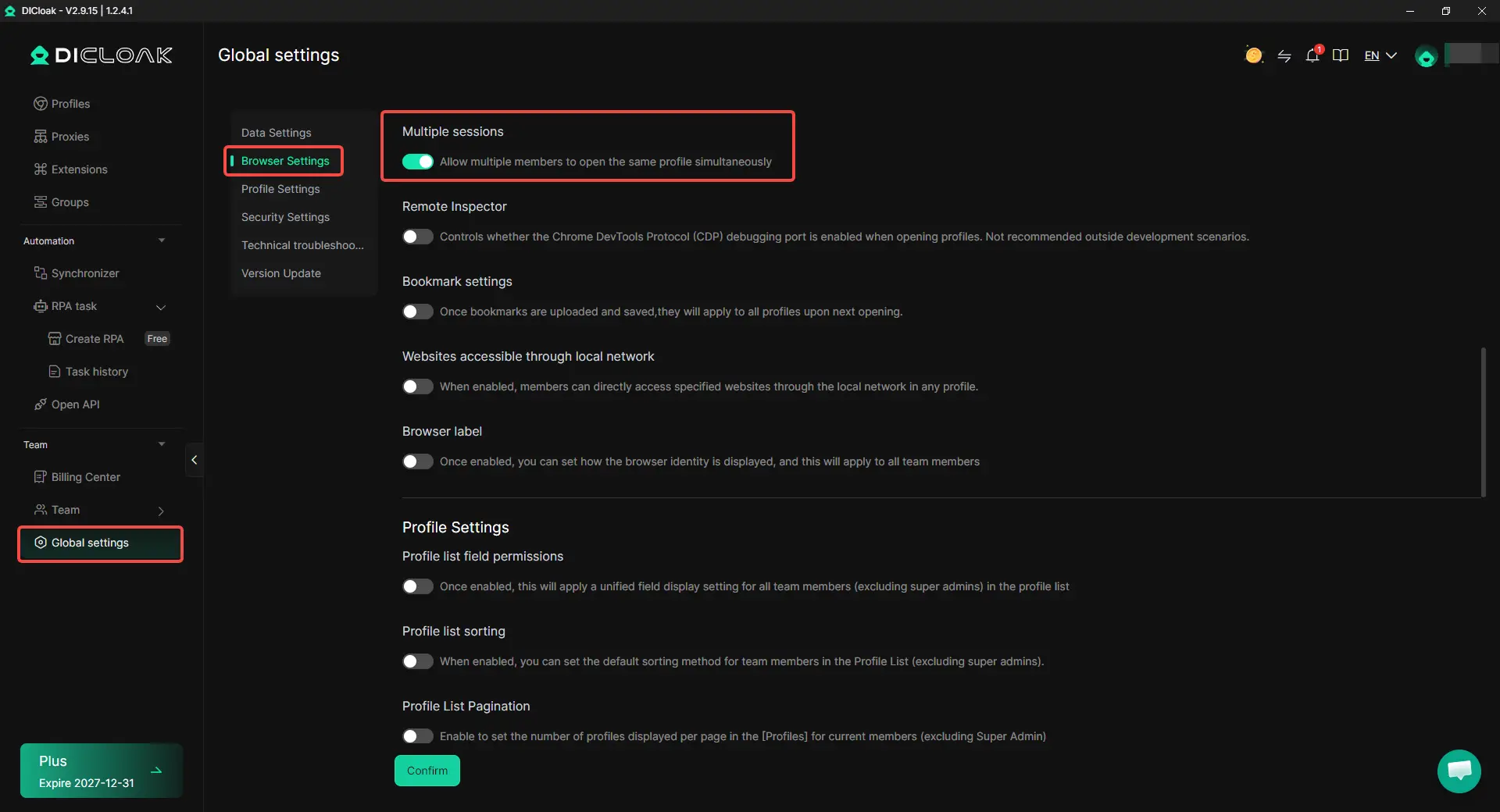
Turn on Multiple sessions when your team needs multiple members to access the same Descript Profile at the same time. If the Profile is only used by one person at a time, this setting does not need to be enabled.
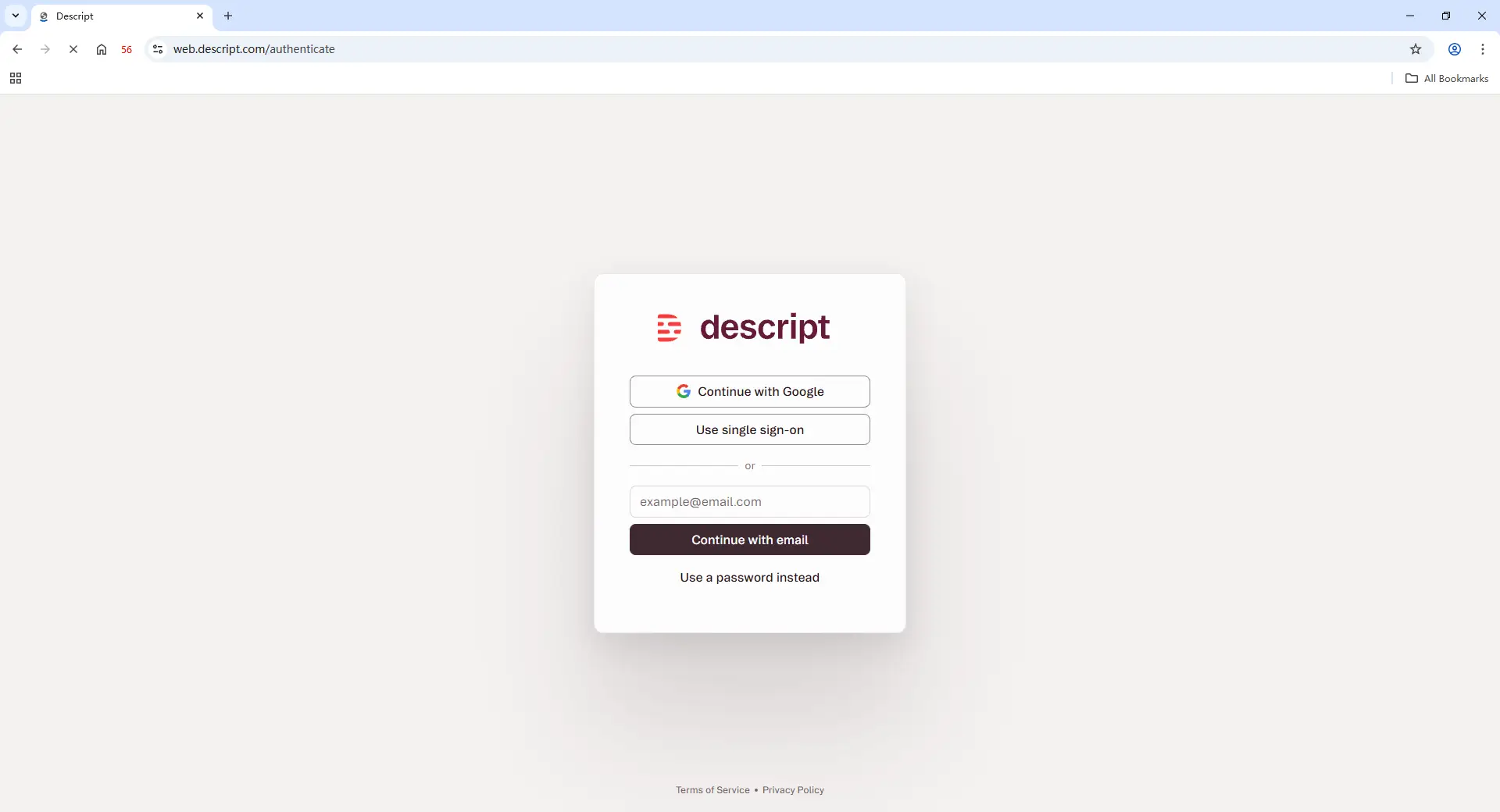
4. Log In to Descript
Open the Descript Profile, sign in to your account, and complete the required login steps. Once the session is saved in the Profile, assigned teammates can open the same Profile and continue working without receiving the account password.
5. Share the Profile With Team Members
Use Profile sharing and team permissions to decide which members can access the Descript Profile. For example, a video editor may need access during a project, while a manager may only need to manage the shared workflow. You can also hide saved passwords or limit access to sensitive pages when needed.
6. Manage Access and Review Activity
When the project ends, remove the Profile access for members who no longer need it. Operation Logs can help track Profile activity and make it easier to manage shared workflows across a team.
Using DICloak works best when your team needs access to the same existing Descript workflow. It provides a more controlled way to manage a shared browser Profile while keeping team access organized.
Frequently Asked Questions About Sharing a Descript Account Without Sharing Passwords
Can I share a Descript account with my team without giving everyone the password?
Yes, there are several ways to give teammates access without sending the main Descript password. The best option depends on what each person needs to do. Regular editors usually work better with Descript Drive access, freelancers may only need project-level access, and clients often only need review access. For teams that need to work from the same existing logged-in session, an Antidetect Browser like DICloak can help manage access through a shared browser Profile instead of manually distributing login details.
Does every teammate need a paid Descript seat?
No. Not every collaborator needs a paid Editor seat. A Drive Editor is designed for people who regularly create, edit, upload media, and use Descript features that require shared resources, while Viewers and project collaborators are better suited for people who only review or work on specific projects. The right choice depends on the person's workflow, not just whether they are part of the team.
What is the best way to share Descript with a freelancer?
For freelancers working on a specific video or short-term project, project-level access is often enough because it limits access to the required content instead of the entire Drive. However, if the freelancer needs a full production workflow with uploads, AI features, or ongoing access to multiple projects, a broader access method may be more suitable. Teams that need a freelancer to work from an existing logged-in session can also consider using a managed browser Profile with tools like DICloak.
Can multiple people use the same Descript login at the same time?
Multiple people can work with shared Descript access depending on the sharing method and workflow, but using the same login session for everyone can make collaboration harder to manage. Teams should first decide whether they need separate Descript permissions, a shared project workflow, or access to an existing browser session. If multiple members need to access the same session, features like Profile sharing and team permissions in an Antidetect Browser like DICloak can help organize who can access that Profile.
Should I use Descript team access or an Antidetect Browser like DICloak?
It depends on the workflow. Descript's built-in team features are usually the right choice when each person can use their own account and only needs specific project permissions. An Antidetect Browser like DICloak is more relevant when a team needs controlled access to an existing logged-in workflow, such as a shared browser Profile used by authorized team members. The key difference is whether the team needs to share Descript permissions or manage access to an existing browser session.
Conclusion
Sharing a Descript account with a team does not always mean sharing the same password. The best approach is to match access with each person’s actual role: use Drive access for regular editors, project access for freelancers working on specific tasks, and review access for clients or stakeholders who only need feedback. This helps teams control costs, avoid unnecessary permissions, and keep collaboration organized. For teams that need to work from the same existing Descript session, a managed browser Profile can be another option. An Antidetect Browser like DICloak allows teams to share a controlled browser Profile with selected members instead of manually distributing login credentials. The right solution depends on whether the team needs to share Descript permissions or manage access to an existing workflow.
 Web Proxy Tools
 Free Tools
 Cookie Plugin
 UA Generator
 MAC Address Generator
 IP Generator
 IP Address List
 2FA Code Generator
 World Clock
 Anonymous Check
 WebRTC Leak Test
 UUID Generator
 Free Web Proxy Site
 Proxy Checker
 FB Ad Checker
 AI Web Scraping
 Free SMM Tools
 Twitter Shadowban Checker
 Instagram Name Checker
 UTM Generator
 Username Generator
 AI Hashtag Generator
 LinkedIn Headline Generator
 Social Media Image Resizer