Losing access to your Google account often means more than just missing emails. Most people first try password resets, but those fail if recovery email, phone, or two-factor options are outdated. At that point, google recovery turns into a real obstacle, especially when you rely on Google for work, banking, or device logins.
Even a small mistake, forgetting the last password, skipping the recovery form, or failing to answer a security question, can lock you out for days. Sometimes, you get stuck in a loop: the recovery page says “Google can’t verify this account belongs to you,” or you see endless prompts to enter old information you no longer have. Trying again with slightly different answers rarely helps, and repeated failed attempts can extend the waiting period.
What most people miss is that Google’s recovery process is stricter than before. If your backup methods aren’t current, Google’s automated checks leave almost no room for manual override. That’s why it pays to understand exactly what Google looks for, things like device fingerprints, login locations, and recent activity. Relying on old advice or random recovery tricks wastes time and can even trigger temporary lockout.
If you’re locked out or just want to avoid mistakes, start by seeing which recovery options still work for your account.
What to Check Before Starting Google Account Recovery
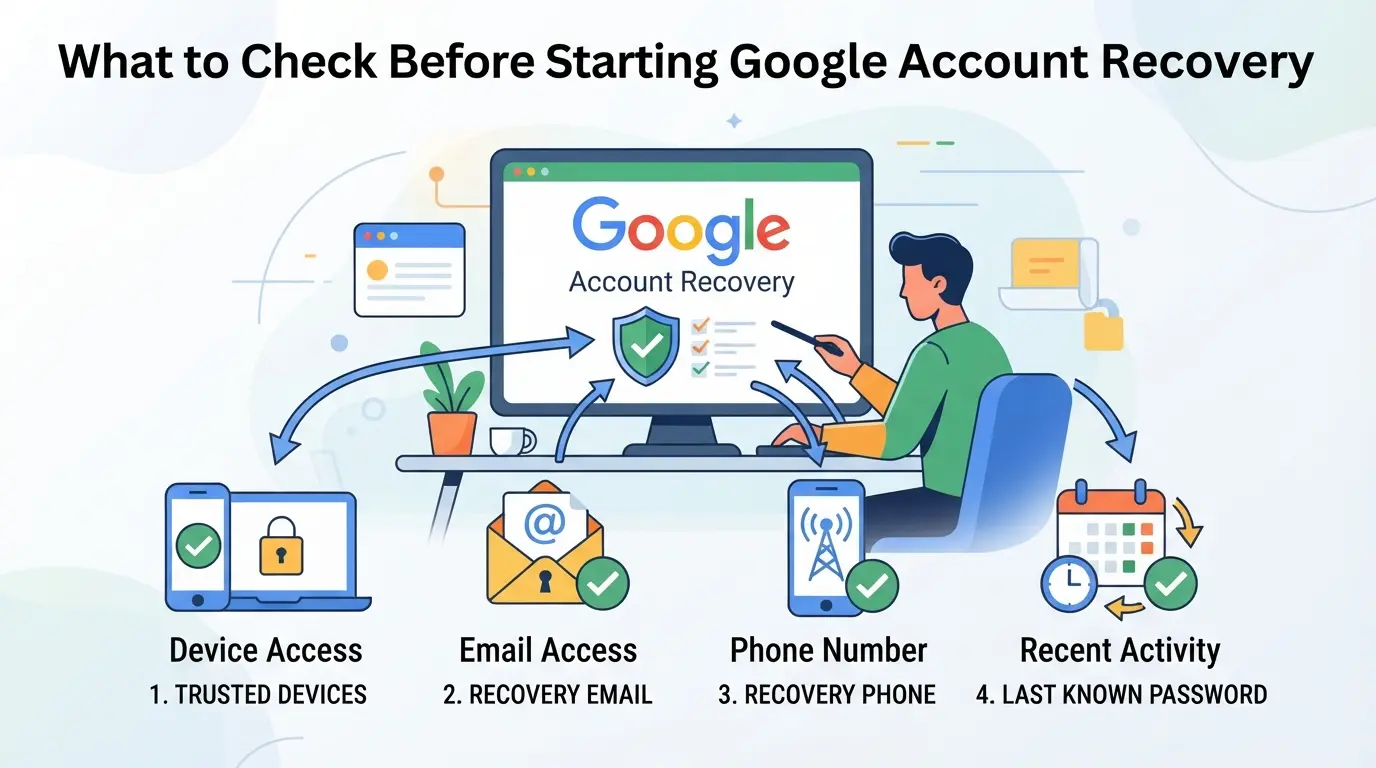
Most failed recovery attempts come down to missing details or trying from the wrong device. Before you even load the help page, run through this checklist, missing just one part here can lock you out for days.
Confirm the Account Details You Remember
Have your full email or linked phone number ready, plus the last password you can recall, even if it’s from months ago. If you’re not sure of the exact address (for example, if multiple Gmail accounts are tied to your name), look for old emails or synced devices to confirm. Google is strict: a small typo or a forgotten number can dead-end your recovery attempt.
Prepare Devices and Locations Used Previously
- Use a phone or computer where you’ve logged in before (avoid new browsers or incognito mode)
- Connect from a location (Wi-Fi or city) you’ve used with this account in the past
- Restart the device to make sure it’s not running any security tools that could block Google’s check
Trying from a device you’ve rarely used can trigger extra verification questions or flat-out rejection. Even switching networks, like moving from home Wi-Fi to a coffee shop, often delays or blocks success.
Gather Recovery Email or Phone Information
Make sure you know which backup email or phone numbers are still linked and accessible. If you no longer control those contacts, recovery is much harder, sometimes impossible without them. Double-check you can receive messages or calls on those backups before you start.
Check for Recent Security Alerts from Google
If Google flagged your account for suspicious activity, recovery may get blocked or slowed down. Catching these alerts early means you can respond before your account is locked for good.
- Check your recovery email (and spam) for warning messages from Google in the last 7 days
- Look for texts or push notifications about “new sign-in” or “unusual activity”
- If you see a “someone tried to sign in” alert, note the time and location, it may help you answer Google’s security questions
If any steps above fail or seem off, pause and gather more info. Trying recovery with missing or wrong details can trigger a lockout that’s much harder to reverse than waiting to get it right.
Next, see why even well-prepared users often run into roadblocks, and how to avoid the most common mistakes.
Why Google Recovery Fails for Many Users (and How to Avoid Common Pitfalls)
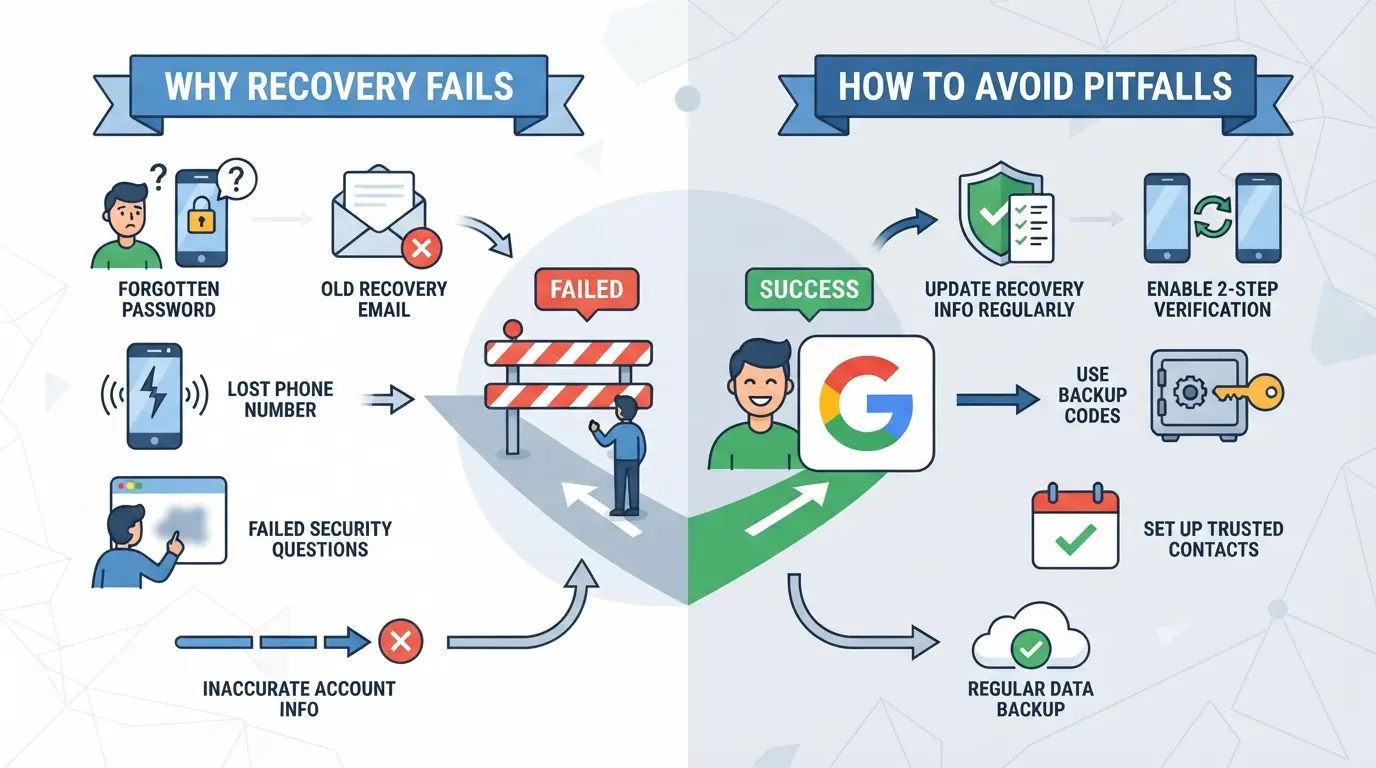
Most people hit a wall with Google account recovery because their actions trigger security checks or don’t match Google’s stored data. The biggest failures usually come from trying unfamiliar devices, entering details that don’t match exactly, or making too many failed attempts in a row. If you want a real shot at getting your account back, avoid these common missteps from the start.
Using Unfamiliar Devices or Locations
Logging in from a device or place Google hasn’t seen before almost always raises a red flag. Even if you enter the right password, Google’s system may block recovery or demand extra proof. Stick to devices and locations where you’ve logged in successfully before, that’s your best chance to get through without extra hurdles.
Entering Incorrect or Inconsistent Information
Google’s recovery flow checks every answer you give against what’s on file, dates, old passwords, contact emails, and even recovery phone numbers. If your answers don’t line up, recovery usually fails fast. For example, entering your birthday off by a single day or giving an old backup email that’s not linked anymore can shut you out. Many users guess or try to “get close” with their answers, but Google’s system expects exact matches, not close attempts. If you’re not sure about an answer, it’s better to skip questions you can’t answer confidently rather than submit something that’s likely wrong. Rushing here is what gets most people locked out longer.
Too Many Failed Recovery Attempts
- Each failed try can extend Google’s cooldown timer, making you wait hours or days before trying again.
- Three or more wrong attempts in a short window often triggers a temporary lockout.
- Wait at least 24 hours after repeated failures, trying again too soon can restart the waiting period and make things worse.
If you’ve run into these blocks, pause before your next attempt. Jumping straight back in usually just makes the lockout last longer.
If you understand where people slip up, you can avoid the most common mistakes and give your recovery request the highest possible chance of success. Up next: the step-by-step process to actually recover your Google account or Gmail under the 2026 rules.
Step-by-Step: How to Recover Your Google Account or Gmail in 2026
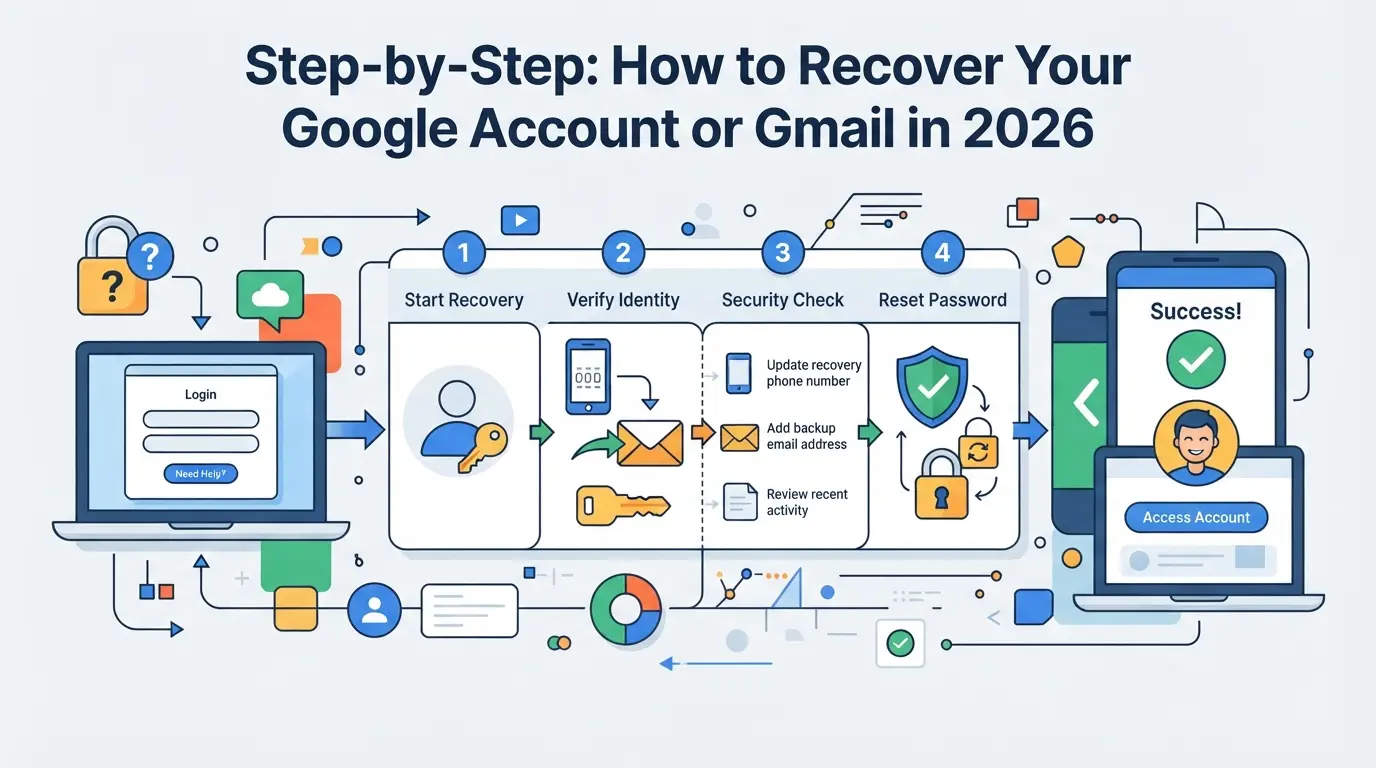
Even with stricter checks, a direct and careful approach gives you the best shot at restoring access. Here’s how to handle Google account or Gmail recovery using what still works in 2026, skip shortcuts and follow the official route for the highest success rate.
Start at the Official Google Account Recovery Page
- Go to Google’s Account Recovery page directly. Ignore third-party “recovery” tools, these often phish for your info or lock you out longer.
- Enter your email or phone. If you’re unsure, use “Forgot email?” and follow the prompt.
- Complete the CAPTCHA to prove you’re not a bot. Failing this step repeatedly can trigger a cooldown before you can try again.
- Click “Next” and move to password or identity checks, don’t refresh if the page hangs, since multiple failed loads can count as suspicious.
Follow the Prompts for Forgotten Password, Email, or Username
- For a forgotten password, Google will prompt for your last remembered password. Give your most recent guess, even if it’s not exact, old passwords can help verify identity.
- If you forgot your email, click “Forgot email?” and enter a recovery phone or email. You’ll also need to enter your full name as it appears on the account.
- Watch for error messages. If you see “Google can’t verify this account belongs to you,” review details for typos or old info before retrying. Too many attempts in a row can lock you out for hours.
Verify Your Identity with Recovery Options
- Select a recovery email or phone number if prompted. Google will send a verification code, use a device you’ve logged in from before for a higher success rate.
- No access to those? Choose “Try another way.” Google may ask security questions or send a code to another device.
- If Google shows recent device login prompts, confirm them. Approving on a previously used device or location increases your recovery chances.
What to Do If You No Longer Have Access to Recovery Methods
- Click “Verify your identity” or “Don’t have access?” to submit extra details. Be honest, guessing or making up info usually fails.
- Fill in as much as you remember: creation date, old passwords, and devices used. Every extra detail helps.
- After submitting, you’ll see a message, sometimes “Google can’t verify” or a pending review. You may need to wait up to 3-5 days for a final response.
- If denied, retry after 24 hours with more accurate info. Persistence matters most here, small details like device history can tip the balance when Google reviews your request.
If your account is deleted, the next section covers what recovery is still possible and which steps are worth trying.
How to Recover a Deleted Google Account (and What’s Possible in 2026)
If your Google account was deleted, acting fast is the only shot at getting it back. Google keeps deleted accounts for a short time, miss that window, and recovery is out of reach.
How Long You Have to Recover a Deleted Account
- Go to the Google account recovery page as soon as you realize the account is gone.
- You have about 20 days from deletion, after that, Google erases the account permanently.
- If you see “This account doesn’t exist,” the retention window probably closed, and no automated option remains.
Missing the window means no appeal or support request will work, Google’s process is final.
Steps to Restore a Recently Deleted Account
- Enter the deleted email on the recovery page.
- Follow prompts to verify ownership, this usually means entering your last password, a code sent to your backup email, or confirming a phone number.
- If you pass all checks and it’s within 20 days, the account restoration option appears. Click “Continue” to restore access.
- If you fail any step, try again with the most accurate info you remember, guessing wildly can lock you out longer.
What Data May Be Lost After Recovery
- Some data, like Gmail, Drive, and Photos, may be missing even if you get the account back, especially if Google started data deletion during the downtime.
- Certain services (YouTube channels, purchased content) often cannot be recovered once deleted, even if the login returns.
- Partial recovery is common: expect missing emails or files.
- Check every service linked to the account; don’t assume restored access means your content is safe.
If your account was deleted due to hacking or suspicious activity, the next step is different, standard recovery may not work, and extra action is needed.
What to Do If Your Google Account Was Hacked or Compromised
If someone else accessed your Google account, you need to act fast, delays can make recovery much harder or even impossible. Lock down access and start the recovery process as soon as you spot trouble.
Recognize Signs of Unauthorized Access
- Look for security alerts from Google about new logins or device activity, these usually show up as emails or phone notifications.
- Check for unexpected changes to your password, recovery email, or phone number. Any change you didn’t make is a red flag.
- Review recent account activity in your Google account dashboard. Unknown logins or sent emails you didn’t write often mean someone else got in.
Secure Your Account Immediately
- Change your password using a device you trust. If you wait, attackers might lock you out.
- Update your recovery options, enter a new phone number or email if the old ones were changed.
- Sign out of all devices to kick out any unauthorized users. You’ll find this in your account’s “Security” section.
Report the Compromise to Google
- Go to the Google Account recovery page and select “Someone else is using my account.”
- Complete all verification steps, even if you’re frustrated, skipping info usually means failure.
- Submit a support request if you can’t regain access. Be ready to confirm old recovery info, last successful login, and details only you would know.
Quick action matters, every hour counts if a hacker is changing settings or deleting data.
How to Manage and Recover Multiple Google Accounts More Safely
Mixing personal and business Google accounts in the same browser or device often triggers extra security checks. If Google links login activity across accounts, recovery attempts can get blocked or flagged as risky.
Risks of Mixing Personal and Business Accounts
Cross-contamination, like using the same browser or device for both types, raises suspicion. If Google detects mixed use, even valid recovery attempts may be denied for security.
Best Practices for Account Isolation
Keep each account in its own browser profile or use separate browsers entirely. Store recovery emails, phone numbers, and backup codes for each account in a secure, offline place. This keeps account resets fast and lowers the chance of lockouts across multiple accounts.
How Proxies Can Help When Managing Accounts Remotely
- Assign a unique proxy IP to each account.
- Avoid logging into several accounts from a single IP at once.
- Use consistent IP locations to prevent sudden geo-triggered security challenges.
How to Use DICloak for Safer Multi-Account Google Workflows
If you’re handling several Google accounts, especially for business or social media, just rotating devices isn’t enough to keep workstreams separated. Manual browser switching creates overlap that can complicate recovery or trigger session mix-ups. For teams that also manage browser profiles, DICloak supports a cleaner way to separate each account’s session and network setup. This doesn’t manage google recovery itself, but it does reduce the mess that leads to account confusion or cross-linking.
Separating Google Accounts with Profile Isolation and Fingerprint Configuration
Operators can create a dedicated browser profile in DICloak for every Google account they manage. Within each profile, it’s possible to set the operating system, time zone, language, and other fingerprint details to match the account’s usual login environment. This approach keeps cookies, storage, and browser signals separate, so workflows for different accounts don’t overlap in the same browser session. The scope is limited to browser-profile access, this does not change Google’s own account controls. 
Assigning User-Owned Proxies to Each Google Account Profile
Teams can assign a user-owned proxy to each DICloak browser profile, letting every Google account appear to connect from a consistent network location. After adding proxy details, operators should test connectivity and confirm the detected IP and location match expectations before logging in. DICloak does not supply proxies; users are responsible for proxy choice, quality, and compliance in each workflow. 
If account confusion persists, the next step is knowing when to escalate the problem to Google support or start fresh with a new account.
When to Seek Google Support or Consider Creating a New Account
If Google recovery fails, meaning you’ve tried every standard step and still can’t get in, it’s time to look at support or start fresh. At this stage, repeating the same recovery form rarely unlocks your account.
Contacting Google Support for Unresolved Recovery Issues
- Use the Google Account Help Center for official channels.
- Prepare your recovery email, last sign-in date, and device details.
- Expect delays, manual reviews can take days, and some cases get only automated replies.
When Creating a New Google Account Is the Only Option
Sometimes, starting over is the only path. You’ll lose previous emails and settings, but you can reduce risk going forward by setting up strong recovery info and logging device details right away.
Frequently Asked Questions About google recovery
How long does Google recovery take in 2026?
Most Google recovery cases are completed instantly if you can use your recovery email or phone. If you’re locked out of your account or need to file an appeal, it can take several days. Hacked accounts and complex situations may require extra verification and review, which can delay recovery up to a week.
Can I recover my Google account without a recovery email or phone?
Yes, you can sometimes recover your Google account even without a recovery email or phone number. Google may ask for other information, like previous passwords or answers to security questions. However, your chances of success are much lower without access to your recovery contacts, especially if you can’t remember key details.
What should I do if I keep failing Google recovery?
If you keep failing Google recovery, wait at least 24 hours before trying again. Double-check your answers for accuracy, especially dates and passwords. Make sure you’re using the same device and location as before. If you’re still locked out after several attempts, you should contact Google support for help.
Is it safe to use third-party services for Google account recovery?
No, you should never use third-party services for Google account recovery. Many of these services are scams and can steal your personal information or make your account even harder to recover. Always use Google’s official account recovery tools at accounts.google.com and avoid sharing sensitive details with outside websites.
Can DICloak guarantee my Google accounts won't be banned or linked?
No, DICloak cannot guarantee that your Google accounts won’t be banned or linked. DICloak is designed to help keep browser profiles separate, but it cannot control Google’s internal systems or policies. Google may still link or restrict accounts if it detects suspicious activity or policy violations.
Taking a proactive approach to safeguarding your accounts can save time and prevent future headaches. Consider strengthening your digital security with tools that offer improved privacy and recovery options. Try DICloak For Free
 Web Proxy Tools
 Free Tools
 Cookie Plugin
 UA Generator
 MAC Address Generator
 IP Generator
 IP Address List
 2FA Code Generator
 World Clock
 Anonymous Check
 WebRTC Leak Test
 UUID Generator
 Free Web Proxy Site
 Proxy Checker
 FB Ad Checker
 AI Web Scraping
 Free SMM Tools
 Twitter Shadowban Checker
 Instagram Name Checker
 UTM Generator
 Username Generator
 AI Hashtag Generator
 LinkedIn Headline Generator
 Social Media Image Resizer