Anyone who runs multiple accounts, manages affiliate campaigns, or handles sensitive workflows knows the headache of getting flagged by CreepJS. You set up a fresh browser, clear cookies, swap proxies, then still fail the fingerprint check. Sometimes, the CreepJS trust score drops on profiles that look clean, and you can't figure out which parameter triggers the detection. That’s not just annoying, it blocks account creation, limits login, and wastes hours on troubleshooting.
What trips up most users is thinking that basic changes like clearing cache or switching IPs are enough to bypass CreepJS fingerprint checks. The reality is, CreepJS pulls dozens of signals, screen resolution, WebGL, canvas, user agent, timezone, even subtle quirks in browser rendering. One mismatch is all it takes to get flagged, even if everything else looks legit. If you skip the hard details, your setup will fail quietly, with no obvious error, just a low trust score and a login loop.
To actually Pass the CreepJS Browser Fingerprint Check, you need a practical workflow that goes beyond surface tweaks. That means simulating real device fingerprints, matching parameters like OS and language, and isolating each account with dedicated profiles and proxy setups. Tools like DICloak let you customize browser fingerprints and manage bulk accounts on one device, reducing detection risk and making it easier to avoid CreepJS detection. But even with an antidetect browser, you’ll want to test each profile, check for hidden signals, and fix common mismatches before scaling up.
If you want to stop getting flagged and run accounts reliably, start by checking the signals that matter most.
What Does It Mean to Pass the CreepJS Browser Fingerprint Check in 2026?
Passing the CreepJS fingerprint check means your browser setup matches the expected patterns so closely that the test gives you a high trust score and reports “no lies.” For anyone running multiple accounts, automating logins, or aiming for privacy, this is the main hurdle, because the platforms you target use similar fingerprinting signals to flag or restrict unusual setups. If you get a “pass,” you’re much less likely to trigger login loops, instant bans, or forced phone verifications. But a pass isn’t a free ticket; it means your browser isn’t leaking obvious clues, not that you’re invisible.
How CreepJS Grades Your Browser: Trust Score, Lies, and Uniqueness
CreepJS runs dozens of checks on your browser’s fingerprint, everything from your screen resolution and OS to WebGL, language settings, and how your device handles subtle API calls. The Trust Score is a numeric summary of how “normal” your setup looks. If your browser lies about key parameters (like claiming to be Windows but acting like Mac), CreepJS flags it with “lies” and drops your score. You want “no lies” and a trust score above 90, anything lower means your environment is mismatched or leaking signals. Uniqueness is separate; it shows how many other users share your fingerprint. The fewer matches, the more suspicious your profile looks.
Why Passing CreepJS Matters for Multi-Account Users and Automation
Platforms like Telegram, Facebook, and e-commerce sites use browser fingerprinting to catch suspicious activity. If your setup fails the CreepJS test, meaning it’s flagged for “lies” or scores below 90, these platforms can link your accounts and block them. Even if you use proxies, a mismatched fingerprint will still trigger risk reviews, forced logins, or bans. The main benefit of passing is reliability: you can run accounts without constant interruptions, and your automation won’t break halfway. But here’s the catch, passing CreepJS only covers the technical side, not behavioral signals or account history. If you automate suspicious actions or reuse device fingerprints too often, platforms may still flag you. Sometimes, you pass CreepJS but still get blocked because your session patterns look abnormal, or your proxy pool is too narrow. That’s why you need to test each profile before scaling operations. If you see “lies” in your report, stop and rebuild your browser profile; otherwise, you’ll waste accounts and resources.
Passing CreepJS is just the start. The real challenge is avoiding the subtle fingerprint mismatches that most browsers fail, next, you’ll want to understand which signals matter most and how they trip up ordinary setups.
Why Most Browsers Fail the CreepJS Test: Key Fingerprinting Signals in 2026
Most browsers miss the mark on CreepJS because they leak tiny clues that add up. Even small mismatches between reported and real values, like a fake language setting or a patched canvas, get flagged. CreepJS checks dozens of signals at once, so a single weak spot can break your “stealth” and leave your account locked out.
Top Fingerprint Vectors: Canvas, WebGL, Audio, Fonts, and More
CreepJS doesn’t just look at your IP or user agent. It probes deep: canvas fingerprint, WebGL renderer, audio stack, installed fonts, device memory, and even timezone. Each test checks if your browser’s answers line up with what a real device would say. For example, a canvas hash that changes on every reload or a WebGL vendor that doesn’t match the OS is a dead giveaway. Audio context and font lists are tough to spoof, most tools can’t mimic real entropy, so CreepJS spots the fake.
Automation and Bot Detection: Headless, Navigator, and API Probes
The real challenge comes from automation flags. CreepJS is designed to catch browsers running under automation frameworks like Selenium, Puppeteer, Playwright, or even custom scripts. It looks for telltale signs: hidden properties in the navigator object, missing or broken APIs, and traces of headless mode. Patching the driver or injecting scripts can hide some indicators, but CreepJS keeps up by updating its detection methods. For example, simply flipping the navigator.webdriver flag to false no longer works, CreepJS checks for more subtle mismatches, like missing error handling, wrong permission prompts, or fake plugin arrays.
A patched browser might pass one check but fail another. You might get a “no lies” score on one run and then fail if your extensions, graphics stack, or audio context don’t match the OS profile. The hardest part is that you can’t fix everything with a single tweak. The second you automate too many actions, or skip simulating one fingerprint vector, CreepJS puts your setup on a watchlist. This is why simple spoofers and most headless setups still get flagged, even if they look fine on basic tests. If you’re trying to avoid CreepJS detection at scale, you’ll need to review every environment variable and API fingerprint, not just the obvious ones.
What Usually Triggers a 'Lie' or Low Trust Score on CreepJS?

The biggest reason you get flagged on CreepJS is signal mismatches, tiny contradictions between browser settings and device info. CreepJS checks dozens of fingerprint parameters, so one mismatch can sink your trust score fast.
Typical Contradictions: User Agent vs. Platform, WebGL vs. GPU, and More
If your user agent claims Windows, but your platform string says Mac, CreepJS marks it as a lie. WebGL renderer and GPU info should match OS and browser type. Many spoofers miss subtle ties, like screen resolution not fitting device specs, or language settings clashing with timezone. Even a small mismatch, like a Chrome version not lining up with the OS, almost always triggers low trust. CreepJS cross-checks these pairs automatically, so manual tweaks rarely hold up.
Automation Artifacts: Headless Flags, Missing APIs, and Timing Issues
Bots often leave traces, missing APIs, headless mode flags, or weird timing gaps in event handling. CreepJS spots these within milliseconds. Stealth plugins hide some clues, but not all. If your browser skips standard features, you’ll get flagged.
Proxy and IP Mismatches: Location, Timezone, and Language Clues
Rotating proxies with unmatched browser fingerprints are a red flag. If your IP shows Germany but your browser language is Chinese and timezone is UTC+8, CreepJS sees the inconsistency and lowers your score.
Quick Checklist to Avoid CreepJS Mismatches:
- User agent, platform, and OS must match
- WebGL renderer fits device and GPU info
- Language, timezone, and IP location are consistent
- Screen resolution matches real hardware
- No missing standard browser APIs
- No headless flags present
- Timing of events fits human patterns
You’ll need these checks before prepping your environment for reliable testing.
How to Prepare Your Browser Environment Before Testing on CreepJS
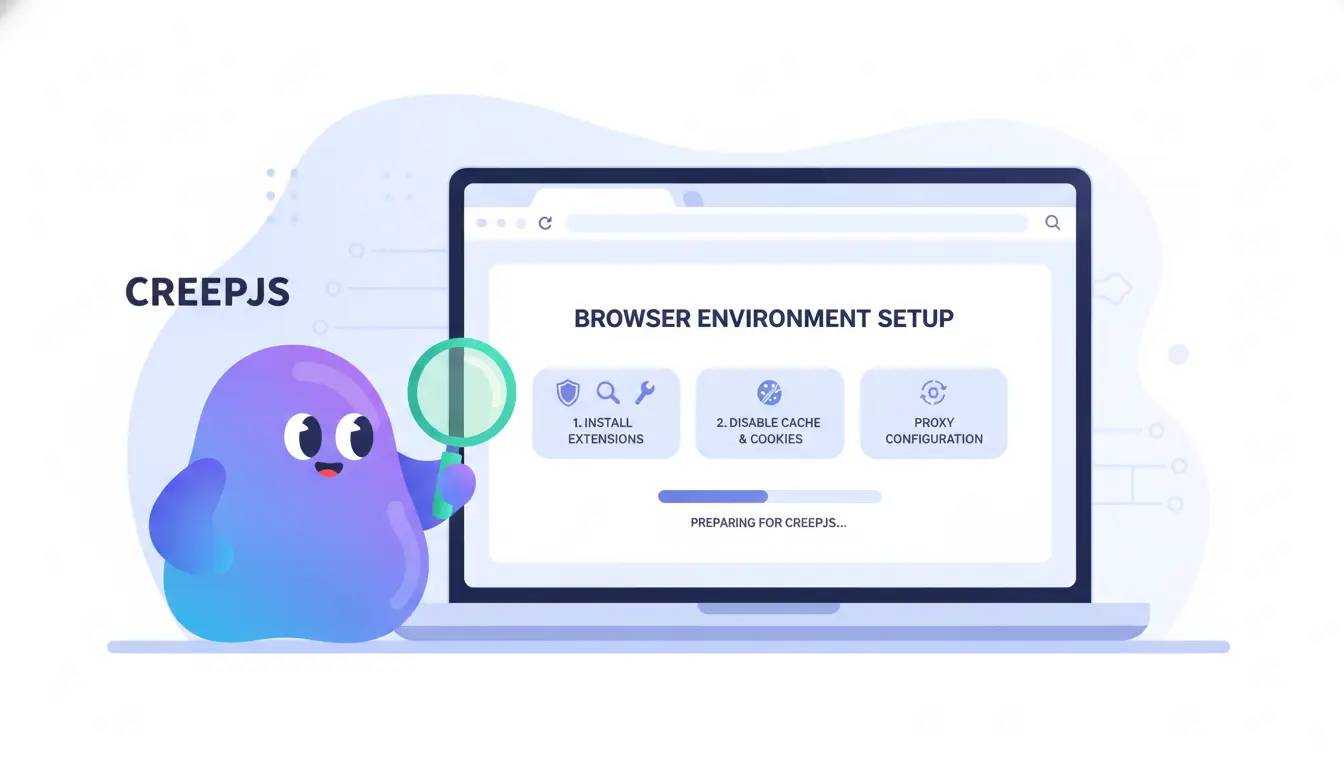
Passing the CreepJS fingerprint check isn’t about luck or last-minute toggles. Before running any test, you need to align your environment so every signal matches, one mismatch and your trust score drops. Here’s the exact checklist to avoid easy mistakes and start with a strong fingerprint.
Align Proxy, Timezone, and Language Settings
Mismatch between your proxy and browser signals is the fastest way to get flagged. Always pick a proxy from the same country as your target profile, then set your browser’s timezone and language to match. If your IP shows Germany but your browser says “en-US” and UTC-8, you’ll fail. In DICloak or similar tools, set the browser language and timezone to auto-match the proxy location. If you use a free proxy, check for leaks, some pass IP but not timezone. Even one mismatch here can trigger a “lie” flag or a low CreepJS trust score.
Clear or Isolate Cookies, Local Storage, and Cache
Old site data is a silent fingerprint killer. Always use a fresh or isolated browser profile, never reuse one that’s run other sites, apps, or tests. If your solution offers profile isolation (like DICloak), create new profiles for each run. This wipes stray cookies and storage, blocking accidental leaks.
Choose the Right Browser Profile: Fresh, Aged, or Custom
A fresh profile is safest for a first test, but for more realistic results, use a profile with controlled history and trusted device parameters. Avoid reusing old profiles unless you’re sure they’re clean, leftover data or mismatched settings can tank your CreepJS trust score fast.
Checklist: Pre-Test Browser Setup
- Select proxy matching target country and city
- Set browser timezone and language to match proxy
- Start with a fresh or isolated profile
- Clear all cookies and local storage
- Check proxy for leaks (IP, timezone, DNS)
- Run only one identity per profile
Ready? Now you’re set to run a step-by-step test and see how your setup actually scores.
Step-by-Step: How to Pass the CreepJS Browser Fingerprint Check in 2026
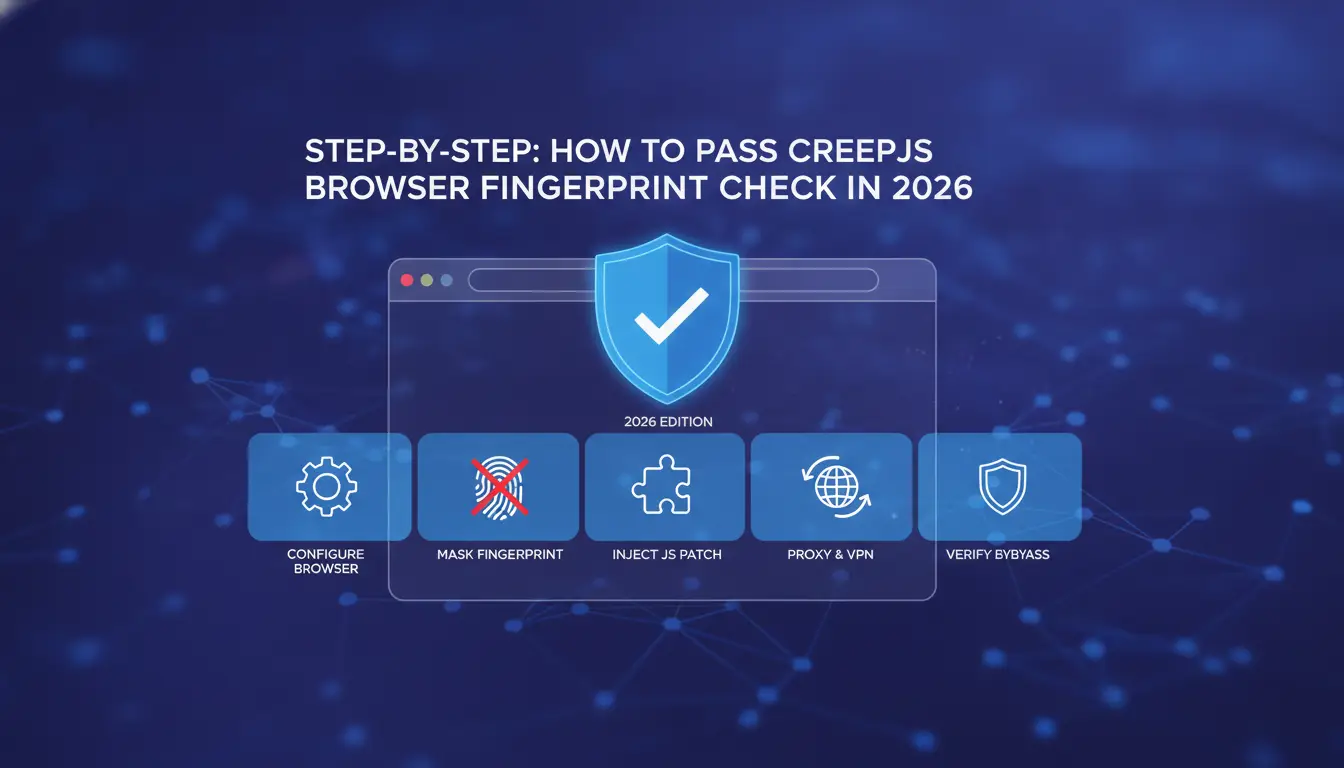
Passing CreepJS isn’t about luck or running a random fingerprint extension, it’s about building a profile that matches real user data, then checking every detail that can trip you up. Here’s what works in 2026.
Set Up a Realistic Browser Profile with Consistent Fingerprints
You need a profile where every fingerprint signal fits together, user agent, WebGL, Canvas, timezone, and language can’t contradict each other. Use an antidetect browser like DICloak to generate unique profiles: set the user agent to match your real OS, adjust Canvas and WebGL to avoid default or “noisy” fingerprints, and pick a language consistent with your IP region. Never copy-paste configs between accounts, CreepJS checks for subtle patterns.
Integrate a Stable Proxy and Match All Location Signals
Pick a residential proxy that matches your target country, not a datacenter IP. Set your browser timezone, geolocation, and language to align with the proxy’s location. If your proxy is in Paris, don’t set your language to Russian or your timezone to UTC+7; that’s an instant red flag. Double-check that WebRTC and geolocation APIs leak the same region as your proxy. If just one leaks a mismatch, CreepJS will flag it. For team use, isolate each account with its own proxy and fingerprint; never share proxies or profiles between users.
Test on CreepJS and Analyze the Report
Run your setup through CreepJS and focus on the trust score and “lies” count. Open the detailed report, don’t just look for a green checkmark. A single “lie” means a signal doesn’t match what a real user would produce. Common failures: Canvas hash matches a known headless browser, or your AudioContext fingerprint is too default. Change one setting at a time and retest, if your trust score jumps after a tweak, that’s your problem signal. If your score is stuck low, rebuild the profile from scratch instead of chasing invisible bugs. Fixing every flagged signal before scaling up is the only way to avoid bans and login loops.
If you want to avoid repeating these steps for every account, the next section covers how DICloak handles bulk profile creation and team management while keeping your fingerprints consistent and safe.
How DICloak Antidetect Browser Helps You Pass CreepJS and Manage Multiple Accounts Safely
Unique Fingerprints for Each Profile: Avoiding Contradictions and Lies
Most browsers trip up on CreepJS because they reuse fingerprints or leave clues that don’t match real devices. With DICloak, you can build a separate browser profile for each account, every profile gets its own fingerprint and isolated environment. That means WebGL, Canvas, fonts, and device details all line up, so CreepJS has far less to catch.
Proxy Integration and Bulk Profile Management for Teams
Passing the CreepJS test is not just about the browser. If your IP, timezone, and system language don’t match, the site will catch on fast. DICloak lets you assign a different proxy to every profile, so each account looks like it’s coming from a real, unique user. For teams, profile sharing, permission controls, and operation logs help you see who accessed what, no more mystery changes or accidental leaks.
Automate, Test, and Scale: RPA and Batch Tools for Ongoing Success
Manually checking fingerprints gets old fast. DICloak’s RPA and batch tools let you automate test runs, update profiles in bulk, and repeat the process as you scale. This keeps your CreepJS trust score steady, even as you add accounts or switch operators.
When Passing CreepJS Is Not Enough: Real-World Risks and Limitations
Passing the CreepJS test is not a free pass, sites run extra checks that CreepJS never touches. Even if your browser fingerprint looks clean, you can still get flagged or blocked because of how your network, behavior, and account setup interact in practice.
Server-Side Checks: IP Reputation, TLS Fingerprinting, and More
CreepJS focuses on browser fingerprints, but sites also check your IP reputation, TLS handshake patterns, and geo-location. If your proxy IP has a bad history or your TLS signature is inconsistent, you’ll get flagged, no matter how well you hide your browser details. Sites combine these server-side signals with fingerprinting for deeper analysis.
Behavioral Analysis and Human-like Interaction
Bots often fail where humans act without thinking, random mouse moves, natural pauses, and messy navigation. Automated tools that click too perfectly or move too fast stand out. Sites now track mouse paths, scroll speed, and even hesitation before clicking. Faking these details is harder than it sounds, and one robotic session can get all linked accounts reviewed.
Common Mistakes After Passing CreepJS
The risk isn’t just in setup, it’s in what you do next. Reusing a browser profile for multiple accounts links them fast. Skipping ongoing checks means you’ll miss new CreepJS updates or detection rules. Passing once doesn’t mean you’re safe, keep testing, keep updating, or you’ll get caught.
CreepJS vs. Other Browser Fingerprinting Tests: What to Use and When
Passing CreepJS shows your browser setup can handle one of the toughest public fingerprinting tests, but it doesn’t mean you’re invisible everywhere. If your goal is to run multiple accounts without bans, you need to know what different tools catch, and what they miss.
CreepJS vs. FingerprintJS, Broprint.js, and BrowserLeaks
Each test focuses on different signals. Here’s a quick breakdown:
| Tool |
Best for |
Weak Spots |
Multi-Account Relevance |
| CreepJS |
Advanced detection of fake device details; catches subtle OS/UI mismatches |
Sometimes overflags minor quirks |
High: simulates real threats |
| FingerprintJS |
Standard browser fingerprint checks (canvas, webGL, audio, fonts) |
Misses some advanced spoofing |
Medium: checks basic leaks |
| Broprint.js |
Fast, covers basic signals for bulk testing |
Not deep, skips advanced analysis |
Low: quick pre-check only |
| BrowserLeaks |
Manual, all-in-one info dump |
No scoring, needs expert review |
Medium: details for manual checks |
If you’re managing multiple accounts, CreepJS will catch problems others miss, but don’t rely on it alone. Use FingerprintJS for a quick double-check, and BrowserLeaks to spot gaps in proxy or timezone setups.
When to Use Multiple Tests for Maximum Safety
Passing one test means you covered its signals, not every risk. Always cross-check with at least two tools before scaling up, one “pass” can hide an account-killing mismatch the next test will spot.
Frequently Asked Questions About Pass the CreepJS Browser Fingerprint Check
Does passing CreepJS guarantee my accounts won't get banned?
No, passing the CreepJS Browser Fingerprint Check only means your browser fingerprint matches common profiles. It doesn’t cover server-side checks like behavioral analysis, login patterns, or IP reputation. Platforms can still detect suspicious activity using methods CreepJS doesn’t test, so passing CreepJS isn’t a guarantee against bans.
Can I pass CreepJS using only browser extensions?
Most browser extensions only change a few fingerprint details, like user agent or screen size. They rarely cover advanced vectors, such as WebGL, canvas, or font lists. To bypass CreepJS fingerprint checks consistently, deeper tools like multi-profile browsers or containerized environments are often needed.
How often should I retest my setup on CreepJS?
You should retest your setup on CreepJS after every browser update or tool change. New detection methods often appear, and updates can change your fingerprint. Regular testing helps you maintain a high CreepJS trust score and spot issues before platforms detect them.
Is it safe to use free proxies with CreepJS?
Free proxies usually have poor reputations and mismatched locations. These factors make it easier for platforms to spot proxy use, even if you avoid CreepJS detection. Paid proxies with real residential IPs are safer and help your browser fingerprint look more trustworthy.
Can DICloak profiles be used on different devices without failing CreepJS?
Yes, DICloak lets you use cloud-synced browser profiles across devices. This keeps your fingerprint consistent, so you can Pass the CreepJS Browser Fingerprint Check even when switching computers. It’s useful for teams or users who need stable browser identities everywhere.
Making sure your browser fingerprint blends in is crucial for maintaining privacy and avoiding detection during sensitive online activities. The next step is to use tools designed to help you navigate fingerprint checks with confidence and ease. Try DICloak For Free
 Web Proxy Tools
 Free Tools
 Cookie Plugin
 UA Generator
 MAC Address Generator
 IP Generator
 IP Address List
 2FA Code Generator
 World Clock
 Anonymous Check
 WebRTC Leak Test
 UUID Generator
 Free Web Proxy Site
 Proxy Checker
 FB Ad Checker
 AI Web Scraping
 Free SMM Tools
 Twitter Shadowban Checker
 Instagram Name Checker
 UTM Generator
 Username Generator
 AI Hashtag Generator
 LinkedIn Headline Generator
 Social Media Image Resizer