Seeing “This network is blocking encrypted DNS traffic” under your iPhone’s Wi-Fi settings can feel worrying. It does not always mean your phone was hacked or that the connection has failed. Apple explains that you can still use the network, but the names of websites and servers your device looks up may not be encrypted. Other devices or network operators may be able to monitor or record those requests.
For example, the warning may appear on your home Wi-Fi after a router update, while the same iPhone connects to another network without any warning. That pattern points to the router or its DNS settings, not the phone itself. Start with simple checks: update your software, restart the device and router, then forget and rejoin the Wi-Fi network. This guide explains what the warning means, why it appears, and how to fix it without changing settings that are not causing the problem.
What Does “This Network Is Blocking Encrypted DNS Traffic” Mean?
Before changing any settings, it helps to understand what the message means. “This network is blocking encrypted DNS traffic” means some DNS requests from your device may be sent without encryption. The internet can still work, but those requests may be easier to view or record.
What Encrypted DNS Normally Protects
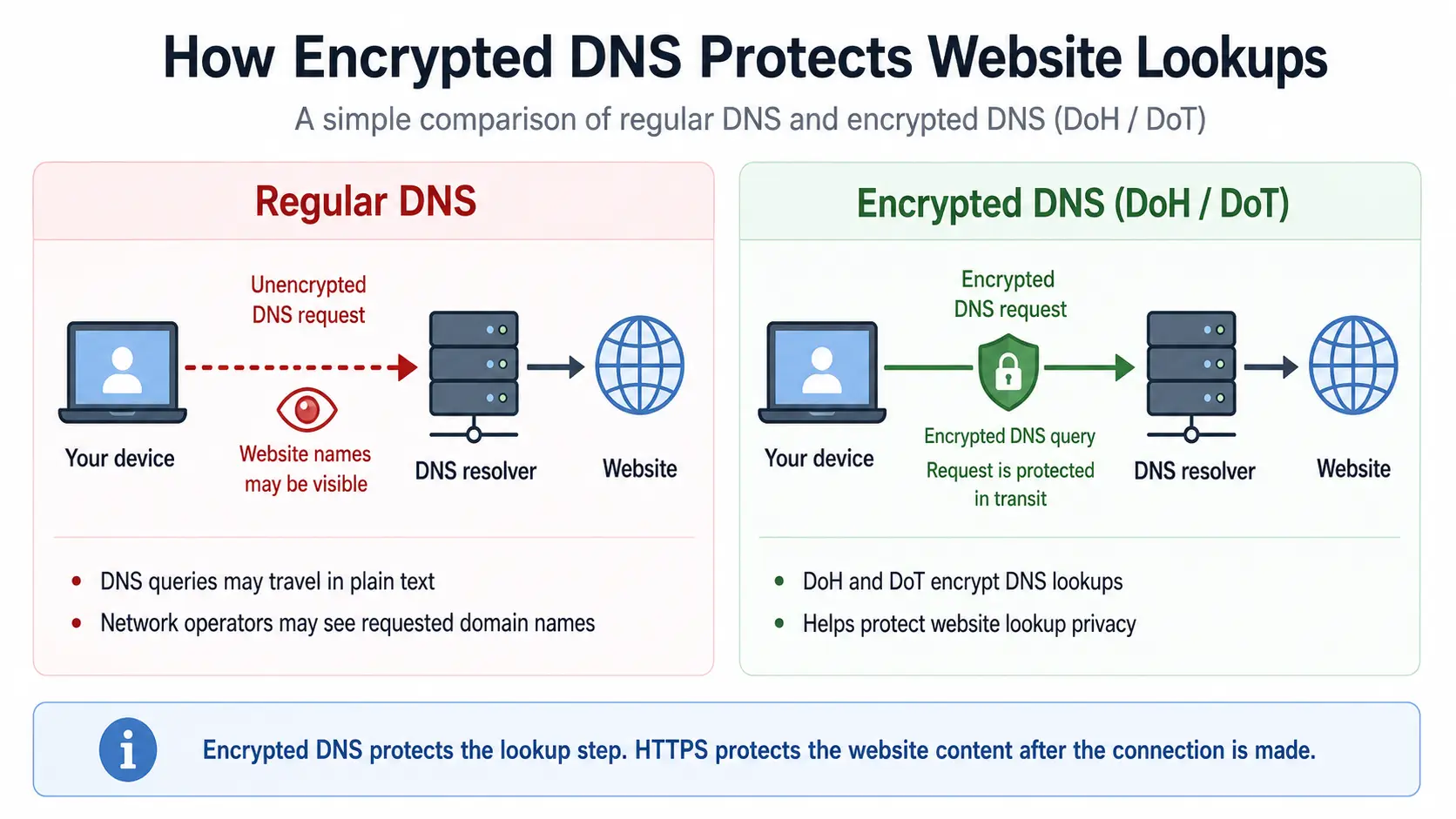
DNS works like an address book for the internet. When you enter a site name, your device asks a DNS resolver for the IP address of that site. It then uses that address to connect to the correct server.
Traditional DNS queries may travel as plain text. DNS-over-HTTPS (DoH) and DNS-over-TLS (DoT) protect those requests with encryption. Apple supports both methods.
Imagine opening your bank’s website. Your iPhone first asks where the bank’s server is located. Encrypted DNS protects that lookup. HTTPS then protects the page content, passwords, and form data as they are sent between your browser and the bank. The two tools protect different parts of the connection.
Is the Encrypted DNS Warning Dangerous?
The Wi-Fi Privacy Warning does not automatically mean your iPhone was hacked. It also does not mean every password or message is exposed. Websites using HTTPS can still protect the data you send and receive.
The main concern is DNS privacy. If encrypted DNS is blocked, the names of websites and servers your device contacts may be visible to the network operator or other devices on the same network.
The warning should be treated as a sign to check the network, not proof of an attack. It matters more when it appears suddenly on your own Wi-Fi or affects every Apple device in your home.
Why Is My Network Blocking Encrypted DNS Traffic?
Once you understand the warning, the next step is to find the cause. In most cases, the network is either having a setup problem or trying to control which DNS service your device uses.
Router Firmware and Temporary Wi-Fi Errors
An outdated router setting, a failed update, or a temporary connection error can trigger the encrypted DNS warning. The issue may appear after a power loss, router restart, internet outage, DNS change, or new access point.
If several Apple devices show the same warning on one Wi-Fi network, check the router before changing each phone. For example, if every iPhone in the house shows the message after a router update, the router is the more likely cause.
Firewalls, Parental Controls, and DNS Filtering
Some networks need to inspect DNS requests. Firewalls, parental controls, and DNS filtering tools may require devices to use an approved DNS resolver.
This is common when a router blocks malware, phishing pages, adult content, or other restricted sites. An outside DoH or DoT connection may prevent the filter from reading the request, so the network may block it.
Before turning off a security feature, check what it does. The warning may come from a rule that is working as intended.
Public, School, Hotel, and Workplace Network Policies
You may also see the Wi-Fi Privacy Warning on a network you do not manage. Schools, offices, hotels, and public Wi-Fi providers may control DNS traffic for security, filtering, or internal rules.
If the warning appears only at work or school, your phone may not be the problem. The network may require all devices to use its approved resolver. Contact the administrator instead of changing a router or policy you do not own.
How to Fix “This Network Is Blocking Encrypted DNS Traffic” on iPhone or iPad
Do not reset every setting at once. Test one thing at a time. This makes it easier to find whether the issue comes from your iPhone, your router, or one Wi-Fi network.
Check Whether the Problem Follows the Device or the Network
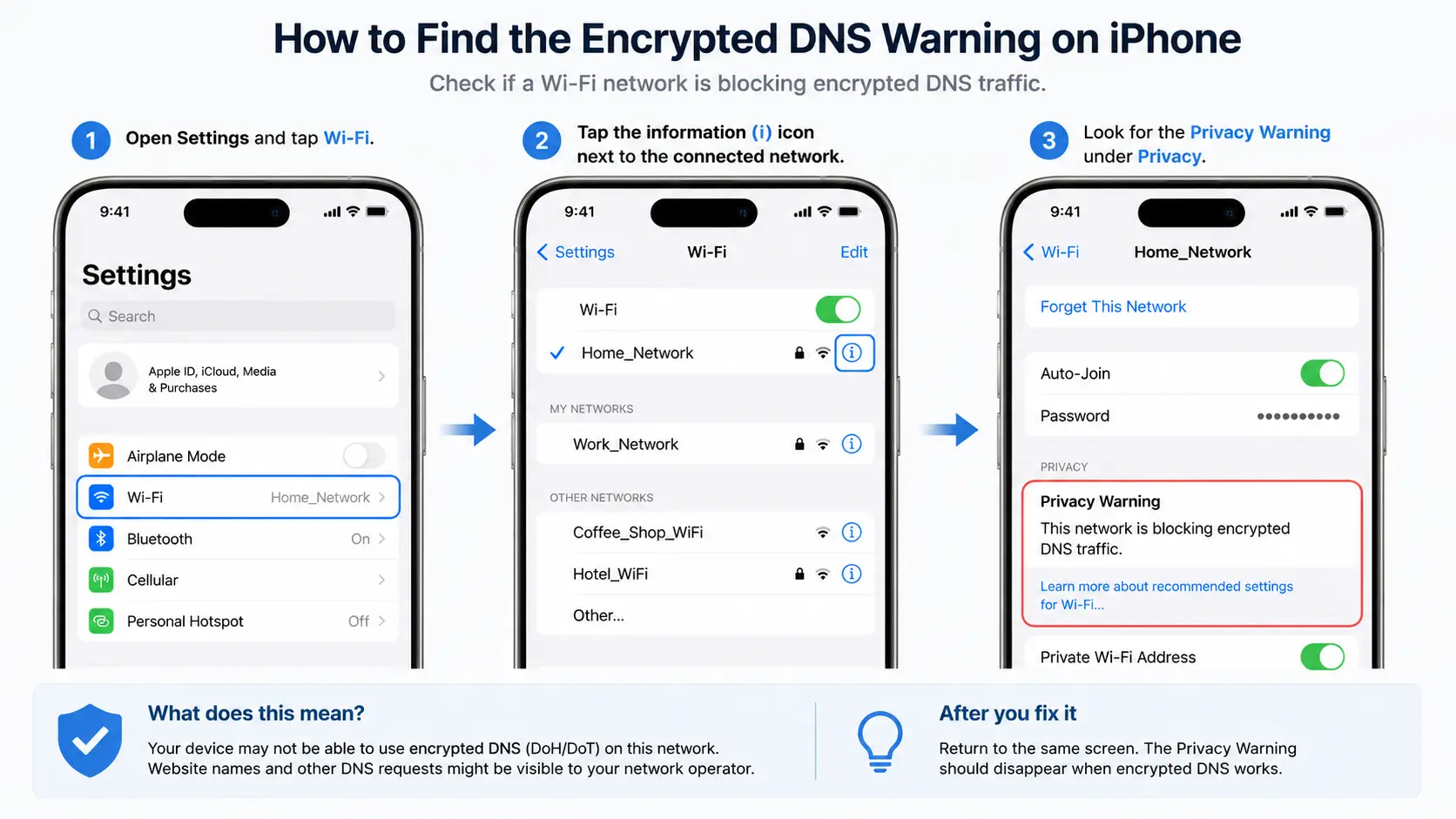
Connect the iPhone or iPad to another trusted Wi-Fi network. Then go to:
Settings > Wi-Fi > tap the information icon next to the network.
Use the result to narrow down the cause:
- Warning on one Wi-Fi network: Check that network or router.
- Warning on every device at home: Check the home router.
- Warning on one device only: Check that device’s settings.
- Warning on every Wi-Fi network: Review custom DNS settings and configuration profiles.
- Warning only at work or school: Ask the network administrator.
Update iOS and restart the Device and Router.
Go to:
Settings > General > Software Update
Install any available update. Then restart the iPhone or iPad.
Restart the router as well. If you use a separate modem, restart it too. Wait until the network is fully online before reconnecting.
Use a normal restart, not a factory reset. A factory reset can remove the Wi-Fi name, password, parental controls, and other settings.
Forget the Wi-Fi Network and Reconnect
Your iPhone may still hold old connection data after a router or DNS change. Forgetting the network creates a fresh connection.
Before you begin, make sure you know the Wi-Fi password. Then:
- Open Settings.
- Tap Wi-Fi.
- Tap the information icon beside the network.
- Tap Forget This Network.
- Join the network again and enter the password.
After reconnecting, open the Wi-Fi details and check whether the Privacy Warning is gone.
Review Custom DNS Settings and Configuration Profiles
Open Settings > Wi-Fi, tap the information icon, and review the DNS settings for the network. If you added DNS server addresses yourself and no longer need them, switch back to Automatic and test again.
Entering a DNS address such as 1.1.1.1 or 8.8.8.8 does not always enable encrypted DNS. DoH or DoT must be supported and configured as an encrypted service.
Also review DNS filtering apps and install configuration profiles. Test one setting at a time. Do not remove a school or work profile without permission, because it may also control apps, accounts, or device rules.
Reset Network Settings as a Final Step
Use Reset Network Settings only if the earlier steps fail. It does not erase your photos, apps, or messages. However, it removes saved Wi-Fi networks, passwords, and other network settings.
Save any details you need, then go to:
Settings > General > Transfer or Reset iPhone > Reset > Reset Network Settings.
After the iPhone restarts, reconnect to Wi-Fi and check the warning again. If the message still appears only on your home network, stop changing the phone. The next step is to inspect the router’s firmware, filtering rules, and encrypted DNS support.
How to Fix Encrypted DNS Blocking on Your Router
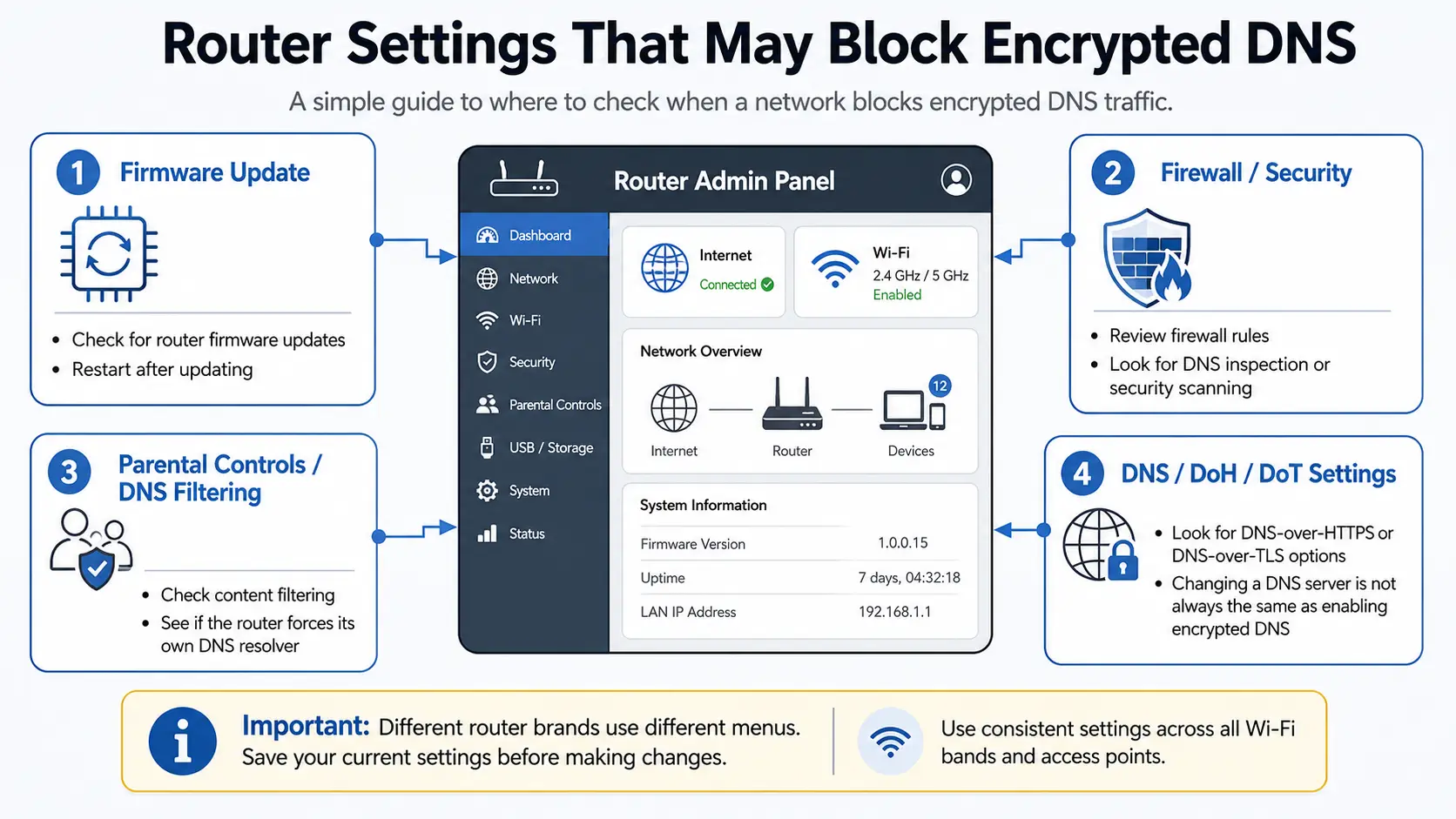
If the warning appears on several devices connected to the same Wi-Fi, the router is the most likely place to check. Only change a router you own or manage. Router menus vary by brand, so save the current settings before making changes.
Restart the Router and Update Its Firmware
Start with a normal restart. Unplug the router, wait about 30 seconds, and reconnect it. If you use a separate modem, restart that device too. Wait until the internet connection is fully restored before checking your iPhone again.
Next, open the router’s admin page or official app and look for a firmware update. Apple recommends keeping router firmware current and enabling automatic updates when the option is available. Updates may improve security, stability, and support for newer network features.
After an update, forget the Wi-Fi network on your iPhone and join it again. This helps the device connect with the router’s latest settings.
Do not use the factory-reset button unless you have a backup and understand how to rebuild the network. A factory reset may remove your Wi-Fi name, password, parental controls, and custom settings.
Review Firewall, Parental Control, and DNS Filtering Rules
If restarting and updating do not help, check features that inspect or redirect DNS traffic. These may include:
- Parental controls
- Content filters
- Threat protection
- Security scanning
- Custom DNS rules
- Local DNS filtering
These tools may require all devices to use the router’s approved DNS resolver. When an iPhone tries to reach a different encrypted resolver, the router may block that request and show the encrypted DNS warning.
Do not turn off every security feature at once. Disable or adjust one rule, reconnect the iPhone, and check the warning again. This makes it easier to identify the exact conflict.
For example, a family-safe filter may send all DNS queries through a resolver that blocks adult or harmful sites. Turning off the whole filter may remove the warning, but it also removes the protection. A better fix is to check whether the filter supports encrypted DNS or allows the resolver your device uses.
Apply the same settings across each router, access point, and Wi-Fi band. Apple recommends using consistent settings across multiband networks because different settings can cause connection and privacy problems as a device moves between bands.
Configure DoH or DoT Only If the Router Supports It
Some routers have a setting for DNS-over-HTTPS (DoH) or DNS-over-TLS (DoT). Others only let you enter a primary and secondary DNS server.
These are not always the same thing.
Changing the DNS address to a service such as 1.1.1.1 or 8.8.8.8 tells the router which resolver to use. It does not prove that the request travels through an encrypted DoH or DoT connection. Apple treats DoH and DoT as specific encrypted DNS protocols that must be supported and configured.
If your router supports encrypted DNS:
- Choose DoH or DoT in the DNS settings.
- Enter the server details required by the DNS provider.
- Save the settings and restart the router.
- Reconnect the iPhone to Wi-Fi.
- Check whether the Privacy Warning has disappeared.
DoH sends DNS queries inside an HTTPS connection, while DoT uses a dedicated encrypted TLS connection. Both protect DNS requests, but the router and resolver must support the selected method.
If the router has no DoH or DoT option, do not copy settings from a different model. Check the router maker’s support page or contact your internet provider. Apple also recommends contacting the ISP or DNS provider when the network continues to block encrypted DNS after basic fixes.
How to Check If Your DNS Traffic Is Encrypted
After changing your router or device settings, do not assume the problem is fixed just because websites load normally. Regular DNS can still resolve websites without encryption. You need to check the Wi-Fi warning and, when possible, test the DNS connection itself.
Check the Wi-Fi Privacy Warning Again
On your iPhone or iPad, open:
Settings > Wi-Fi > tap the information icon next to the connected network.
Look for the “This network is blocking encrypted DNS traffic” message.
If the warning is gone, the network is no longer triggering Apple's privacy alert. This is a useful first sign that your changes worked. Apple shows this warning when the network may leave the website and server names unencrypted.
Before checking, disconnect and reconnect to Wi-Fi. You can also restart the device once more. This helps make sure the iPhone is testing the latest router and DNS settings instead of an older connection.
However, the missing warning is not complete proof that every app uses DoH or DoT. Browser settings, configuration profiles, and DNS providers may handle requests in different ways. Use a provider test when one is available.
Test the DNS Resolver
Start with the official test page from the DNS provider you configured. The test should clearly report whether the connection is using DNS-over-HTTPS, DNS-over-TLS, or only standard DNS.
For example, users who configured Cloudflare’s 1.1.1.1 resolver can open its connection-check page. The result shows whether the device is connected to Cloudflare and whether Using DNS over HTTPS (DoH) is marked Yes.
Do not treat a successful DNS lookup as proof of encryption. A normal lookup only shows that the resolver returns an IP address. It does not show how the request traveled.
For a useful comparison, test:
- Your iPhone and another device on the same Wi-Fi
- Your home Wi-Fi and another trusted network
- The connection before and after changing router settings
If every device fails the encrypted DNS test on one network, return to the router settings. If only one device fails, review that device’s DNS settings or configuration profiles. If the warning and test results still do not improve, the network provider may be blocking encrypted DNS upstream.
What If the Encrypted DNS Warning Keeps Coming Back?
If “This network is blocking encrypted DNS traffic” returns after you update the device, restart the router, reconnect to Wi-Fi, and test the DNS connection, the cause may be outside your iPhone. Repeating the same device-level fixes is unlikely to help.
Know When to Contact Your ISP or Network Administrator
If every device on your home Wi-Fi shows the warning, contact your ISP, router provider, or DNS provider. The router may use settings that you cannot change, especially when it is supplied or managed by the ISP.
If the warning appears only on a school, office, hotel, or other managed network, ask the network administrator whether encrypted DNS is supported. Do not change a router or security rule that you do not own.
At this stage, the goal is not to reset the iPhone again. It is to confirm who controls the DNS settings and whether the network is designed to block outside encrypted DNS services.
Separate DNS Problems from Browser and Proxy Settings
DNS, proxies, and browser profiles are related to your online setup, but they do not solve the same problem.
Encrypted DNS protects the questions your device sends when it looks up a website or server. A browser profile stores data such as cookies, login sessions, local browser data, and fingerprint settings. A proxy is a separate network setting that can be assigned to browser traffic.
This difference matters when you work with several online accounts. For example, a social media manager may use one account for each client. An e-commerce team may operate several stores from one computer. Each account may need its own cookies, login state, browser settings, and user-configured proxy.
Fixing the DNS warning does not organize those browser profiles. At the same time, changing a browser profile or proxy does not repair encrypted DNS blocking caused by an iPhone, router, ISP, or network administrator.
Treat them as two separate checks:
- Fix or confirm the network-level DNS issue.
- Keep each browser account and its proxy configuration in the correct environment.
Keep Browser Profiles and Proxy Settings Separate with DICloak
Suppose you manage several client accounts from the same computer. You may use one social media account for Client A, another for Client B, and several store or advertising accounts for different projects. Even after you fix the encrypted DNS warning, these accounts can still share cookies, login data, or the wrong proxy if you open them in one normal browser.
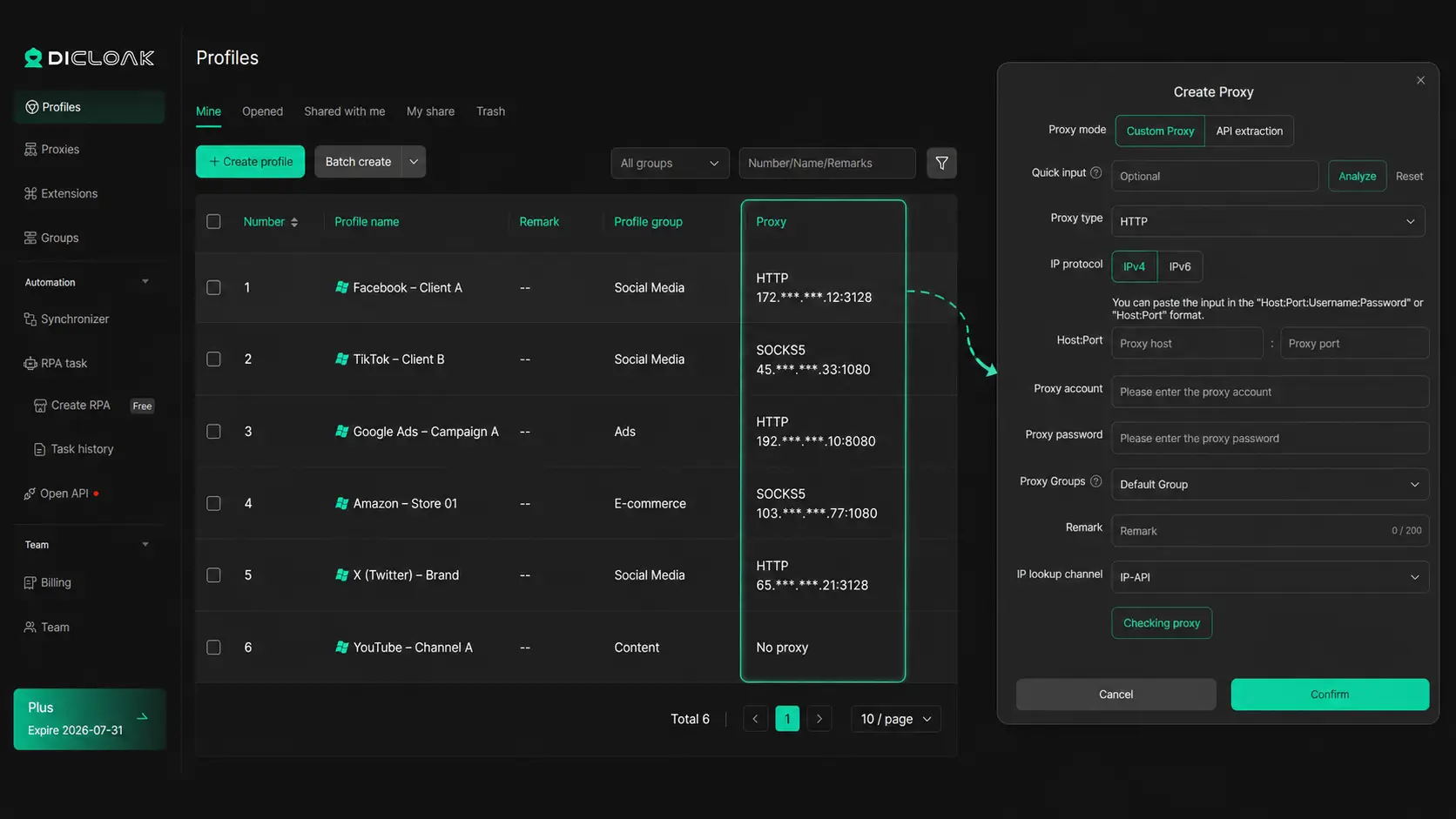
You can use DICloak to create a separate browser Profile for each account. Each Profile keeps its own cookies, login session, local browser data, and fingerprint settings. For example, you can create one Profile for a client’s Facebook account and another for an e-commerce store. This helps you avoid mixing their saved sessions or repeatedly signing in and out.
You can also configure an HTTP, HTTPS, or SOCKS5 proxy inside each Profile. This is useful when different accounts need different user-provided network settings. Instead of changing the proxy by hand whenever you switch accounts, you can keep the correct proxy matched with its assigned Profile. DICloak supports custom proxy configuration but does not sell proxies.
If several authorized team members work on the same account, they can continue using the assigned Profile with its saved browser profile. This reduces the need to rebuild cookies, login sessions, and settings on each device.
Frequently Asked Questions About “This Network Is Blocking Encrypted DNS Traffic”
What does “This Network Is Blocking Encrypted DNS Traffic” mean?
It means the current Wi-Fi network may prevent your device from encrypting some DNS requests. The internet can still work, but website names may be easier for the network operator to view or record.
Is “This Network Is Blocking Encrypted DNS Traffic” dangerous?
The warning does not mean your iPhone was hacked. HTTPS can still protect page content and passwords, but your DNS requests may have less privacy.
Why does the warning appear on only one Wi-Fi network?
The issue is usually linked to that network’s router, DNS filtering, firewall, or security policy. If other networks do not show the warning, your iPhone is less likely to be the cause.
How do I fix “This Network Is Blocking Encrypted DNS Traffic” on iPhone?
Update and restart your iPhone, then restart the router, and finally forget and rejoin the Wi-Fi network. If the warning remains, review custom DNS settings or reset network settings as a final step.
Does changing to 1.1.1.1 or 8.8.8.8 enable encrypted DNS?
Not always. Changing the DNS server does not prove that DNS-over-HTTPS or DNS-over-TLS is active, so you should confirm it with the DNS provider’s test tool.
Fixing “This Network Is Blocking Encrypted DNS Traffic” starts with finding where the warning comes from. Check your device, router, DNS settings, and network rules one step at a time. Then test the connection again to confirm that encrypted DNS is working.
Managing multiple accounts with different browser profiles or proxy settings? Use DICloak to keep each account’s cookies, sessions, fingerprints, and user-configured proxies separate. Try DICloak for Free.
 Web Proxy Tools
 Free Tools
 Cookie Plugin
 UA Generator
 MAC Address Generator
 IP Generator
 IP Address List
 2FA Code Generator
 World Clock
 Anonymous Check
 WebRTC Leak Test
 UUID Generator
 Free Web Proxy Site
 Proxy Checker
 FB Ad Checker
 AI Web Scraping
 Free SMM Tools
 Twitter Shadowban Checker
 Instagram Name Checker
 UTM Generator
 Username Generator
 AI Hashtag Generator
 LinkedIn Headline Generator
 Social Media Image Resizer