Giving your team access to a LinkedIn account can feel like a trap. You need others to post updates, reply to candidates, or run outreach, but handing over the actual password opens the door to accidental lockouts, security warnings, or even account recovery headaches if someone logs in from a flagged location.
Sharing logins through email or chat seems quick, but it means you lose control fast. One person forgets to log out, another reuses the password somewhere else, and now you can't track who did what or cut off access if someone leaves. Even tools that promise to manage credentials often force you to trust everyone with the main login, which doesn't solve the core risk.
What most teams actually want is a way to share LinkedIn account without sharing passwords, to delegate LinkedIn access without password mess, keep the account stable, and log actions without exposing credentials or breaking LinkedIn's terms. The right approach cuts down on security alerts, helps you control who can access what, and lets you revoke access instantly when team members change.
If you’re tired of juggling workarounds or worried about compliance, start here, here’s what works in practice for safer LinkedIn account sharing.
Why Sharing Your LinkedIn Password Is a Major Risk in 2026
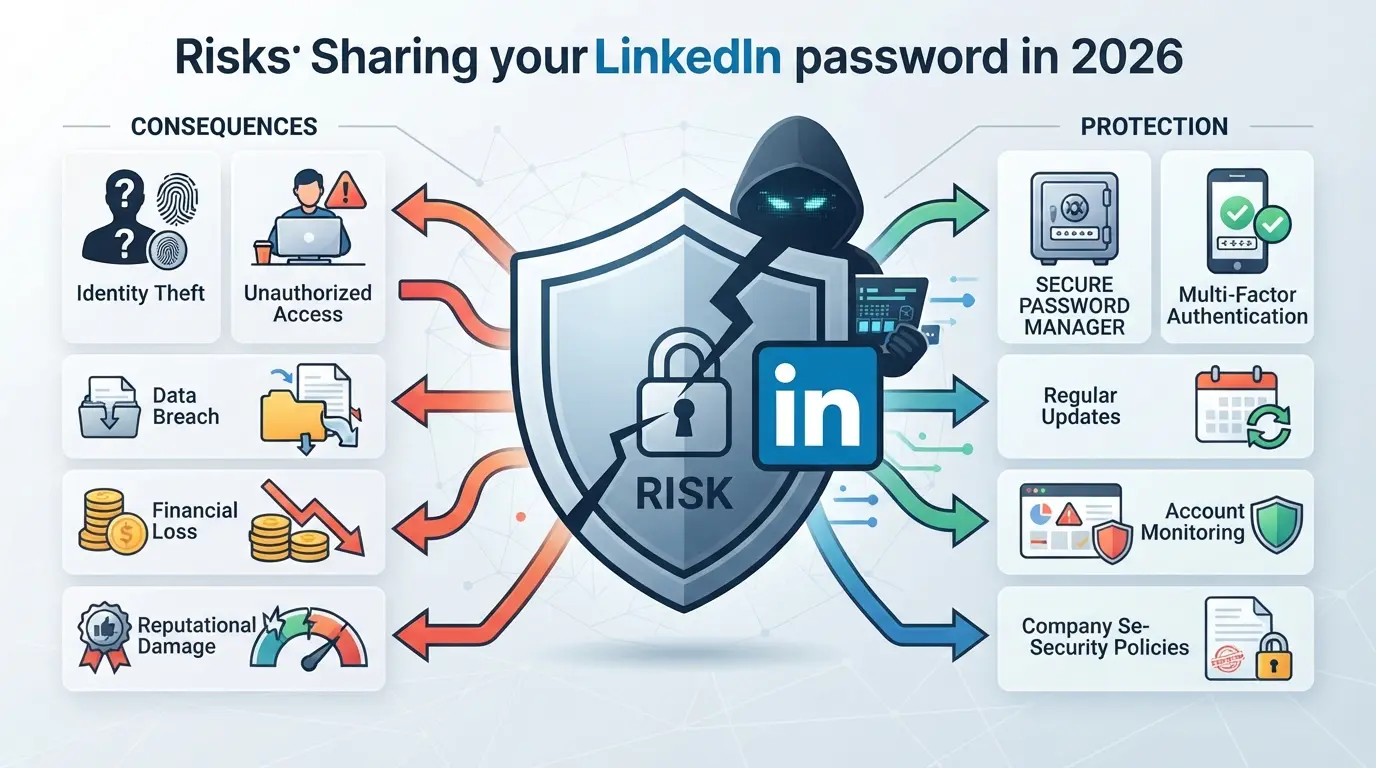
Sharing your LinkedIn password with anyone, even someone you trust at work, opens the door to account loss, legal headaches, and sudden restrictions you often can’t reverse. The real risk isn’t just “what if they mess up”, it’s how quickly things spiral once you break LinkedIn’s rules or lose track of who’s inside your account.
LinkedIn’s Terms of Service and Account Restrictions
LinkedIn’s rules in 2026 make it clear: you are not allowed to share your password or give direct access to others. If LinkedIn detects that more than one person is logging in, especially from different places or devices, they can lock or permanently ban the account without warning. Even a single flagged session can block business messaging, wipe endorsements, or force a full re-verification.
Security Threats: Data Leaks, Account Theft, and Privacy Risks
Handing over your LinkedIn password means you lose control of everything tied to your account, messages, connection lists, and even private posts. Anyone with the password can read your DMs, download contact lists, or change recovery settings, making it hard to tell if you’ve been compromised until it’s too late. One common scenario: a contractor is given the main password to help with outreach, decides to download your entire LinkedIn database, and later leaves. Months go by before you realize client contacts are being cold-pitched by someone else. Even worse, if that person reuses the password on other sites, a leak elsewhere can result in your LinkedIn being hijacked by a stranger. Recovering access can take weeks, and by then, damage to your professional reputation or relationships is already done. Once a password is out, you can’t control where it travels or what gets shared, there’s no way to “unsend” a credential.
Detection: How LinkedIn Identifies Suspicious Access
- LinkedIn monitors logins by checking IP address, device type, and geolocation.
- If two people log in from different cities or countries, LinkedIn may prompt a security challenge or force a password reset.
- Too many mismatched sessions often result in a temporary lock, and repeated issues can mean permanent account loss.
The bottom line: giving out your password doesn’t just risk a quick lockout, it can set off a chain of problems that disrupt your business and personal brand. Before you even consider letting someone else access your LinkedIn, you need a plan for both safety and accountability.
What to Decide Before Letting Anyone Access Your LinkedIn Account
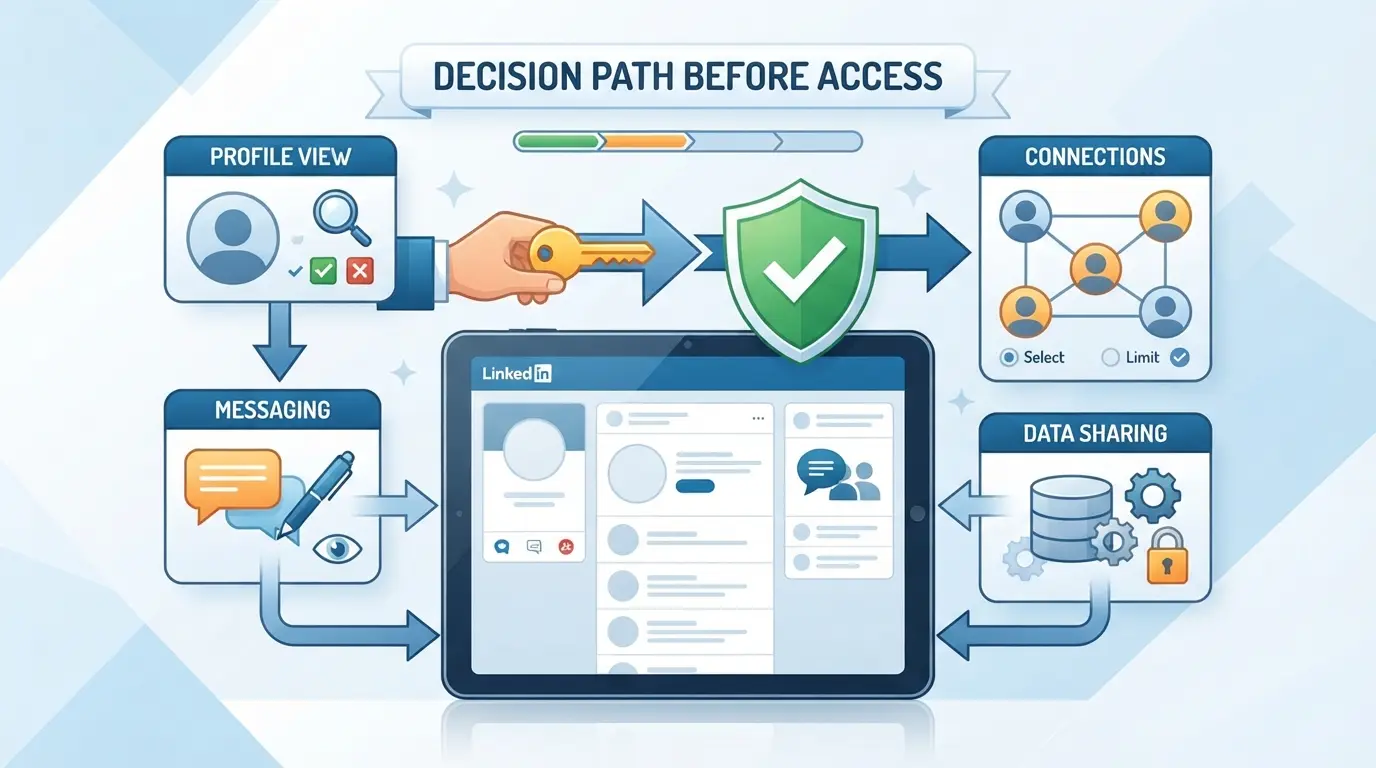
Before you hand over any kind of LinkedIn access, stop and map out exactly what you need done and what you’re willing to risk. The safest setups start with a clear plan, who gets access, for what, and for how long.
Personal Profile vs. Company Page: What Can Be Delegated?
LinkedIn splits access between personal profiles (your own account) and company pages (business presence). You can delegate posting, comment moderation, and analytics on a company page by adding someone as a Page Admin. Personal profiles can’t be formally delegated, anyone logging in will look like you and could change anything, including your contact info.
What Tasks Do You Need Help With?
- List out which actions you want help on (posting, messaging, reporting, etc.).
- Match each task to the lowest required access (don’t give admin if editor is enough).
- Confirm if the task needs one-time or repeated access.
Who Needs Access and for How Long?
Decide if access is for a quick project or daily work. Temporary helpers should get limited access with a set end date. If you skip this, old contractors can stay in your account unnoticed.
What Are the Security and Compliance Requirements?
Check your company rules or client contracts, many ban password sharing outright or require detailed logs. You’ll need a way to track who did what and when.
- Review company or client agreements for access restrictions.
- Set up a record-keeping method (access logs or change history).
- Plan how to remove access instantly if someone leaves or changes roles.
Rushing this step creates gaps, one missed access permission can lead to an ex-employee posting as you, or an unsecured session left open for months. Next, see how to delegate company page tasks without handing out your main login.
How to Share LinkedIn Company Page Access Without Sharing Passwords
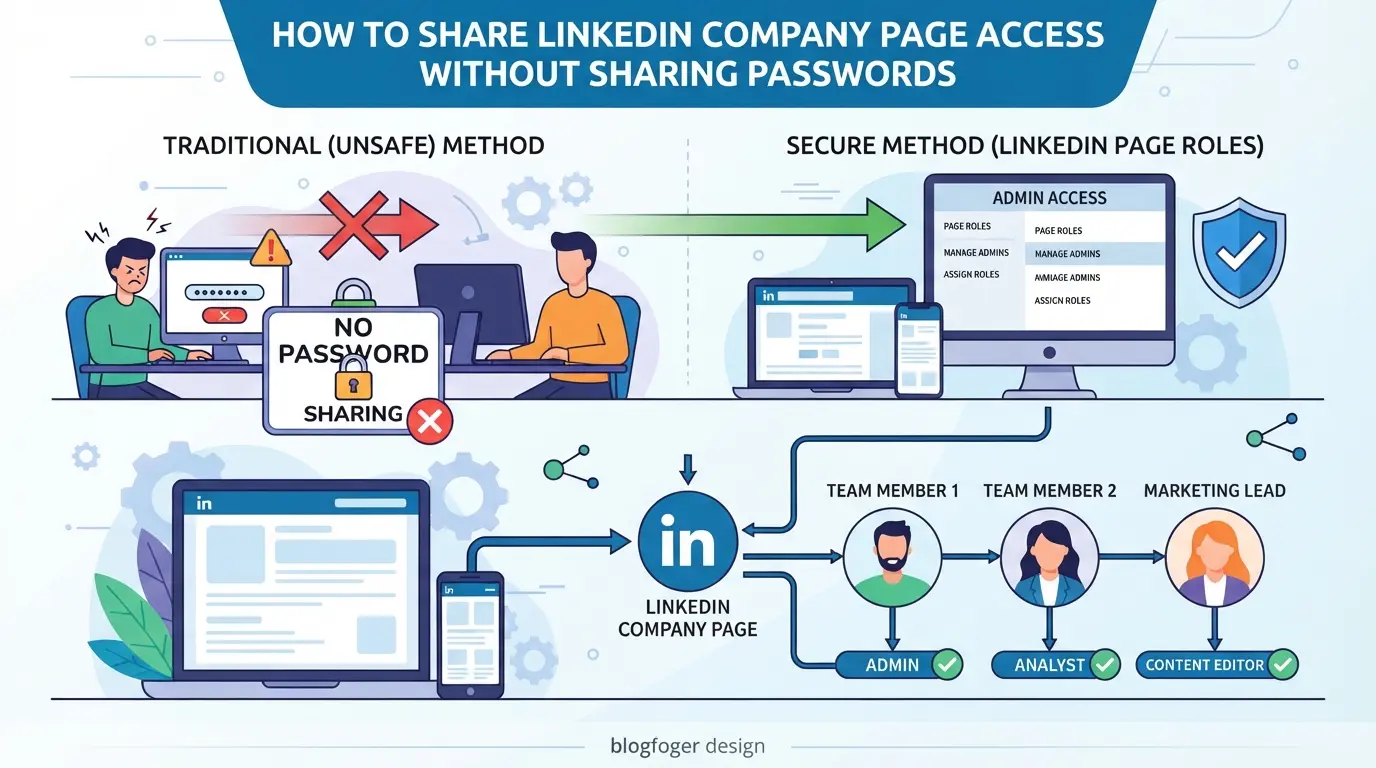
You don’t need to give out your login or risk your company page, LinkedIn has built-in ways to delegate access safely. If you want someone to help manage your LinkedIn Company Page, use LinkedIn’s admin roles instead of sharing your password. This method keeps your credentials private, your audit trail clean, and access under your control.
Step 1: Add a New Admin or Role on Your Company Page
- Open your LinkedIn Company Page and click "Admin tools" > "Manage admins."
- Click "Add admin" and enter your teammate’s LinkedIn profile name.
- Pick the right admin role:
- Super admin: Full control, including managing all admins.
- Content admin: Can create and manage posts.
- Analyst: Can only view analytics.
- Click "Save." The invited user will get a LinkedIn notification to accept the role.
If you don’t see the invite option, check if you have super admin rights, only super admins can add other admins.
Step 2: Confirm and Test Access
- Ask your teammate to log in to their own LinkedIn account and check their notifications, they should see an invite to join as admin.
- After they accept, have them refresh your Company Page. They should see the "Admin view" toggle.
- Assign a simple task, like editing a draft post or viewing analytics, to confirm they have the right access.
- If they get a permission error, double-check their assigned role and that the invite went to the correct LinkedIn profile.
A quick test now prevents confusion or missed posts later.
Step 3: Remove or Change Access When Needed
- Go back to "Manage admins" on your Company Page.
- Find the user in the admin list and click "Remove admin" or change their role.
- Save your changes. The user’s access updates immediately, so they lose admin rights right away.
- If someone leaves your team, act fast to pull their access, waiting even a day risks unwanted posts or changes.
Always update your admin list before offboarding staff or partners. Don’t assume people will stop using access on their own.
If you only want someone to help with your personal LinkedIn profile, the workflow changes. The next section covers how to delegate personal profile actions without handing over your password.
How to Let Someone Help With Your LinkedIn Personal Profile (Without Sharing Your Password)
LinkedIn doesn’t offer official delegation for personal profiles, so you can’t add an admin or assistant like you can for Company Pages. If you need someone to help post, message, or monitor activity, you have to work around this, ideally without ever handing over your credentials.
Using Content Scheduling Tools With Limited Permissions
Some third-party scheduling tools let you pre-approve posts, then publish to your LinkedIn profile on your behalf. This can work for planned content, but these tools do not cover inbox, connection requests, or reporting. You still have to connect your account once, and LinkedIn may show a warning if it detects automation or unrecognized logins.
Secure Browser Profile Sharing for Temporary Access
The most practical way to delegate LinkedIn work, without sharing your password, is to set up a separate browser profile on a team laptop or dedicated machine, log in yourself, and let your helper use only that profile. This keeps your real password hidden and limits their access to what you’re comfortable with. If something goes wrong, you can wipe that profile or log out remotely. This method avoids direct credential sharing, but you still need to watch for accidental exposure of sensitive messages or saved passwords.
What to Avoid: Email Forwarding, Password Sharing, and Unapproved Tools
- Never forward your LinkedIn password or verification codes, this is the fastest way to lose control.
- Avoid browser extensions or automation tools that break LinkedIn’s terms; you risk losing your account.
- Don’t use auto-forwarded emails or shared inboxes for LinkedIn alerts; attackers can reset your password if they get in.
Done right, you keep tighter control, but these workarounds still have limits. Next, you’ll see how teams handle this at scale without falling into these traps.
How Teams and Agencies Can Share LinkedIn Accounts More Safely With DICloak
Many teams run into the same roadblock: you want to share LinkedIn access for client projects, but passing around passwords is a security risk, and revoking access later is a mess. Native LinkedIn tools only cover basic company page delegation and don't solve for personal account workflows or audit trails. Teams that need stronger control, cleaner offboarding, and a way to see who did what should look at workflow-level tools. Here’s how teams can set up a controlled, auditable LinkedIn account sharing process using DICloak, without exposing the main password or over-trusting every member.
Keep Access Consistent With Unified IP and Fingerprint Settings
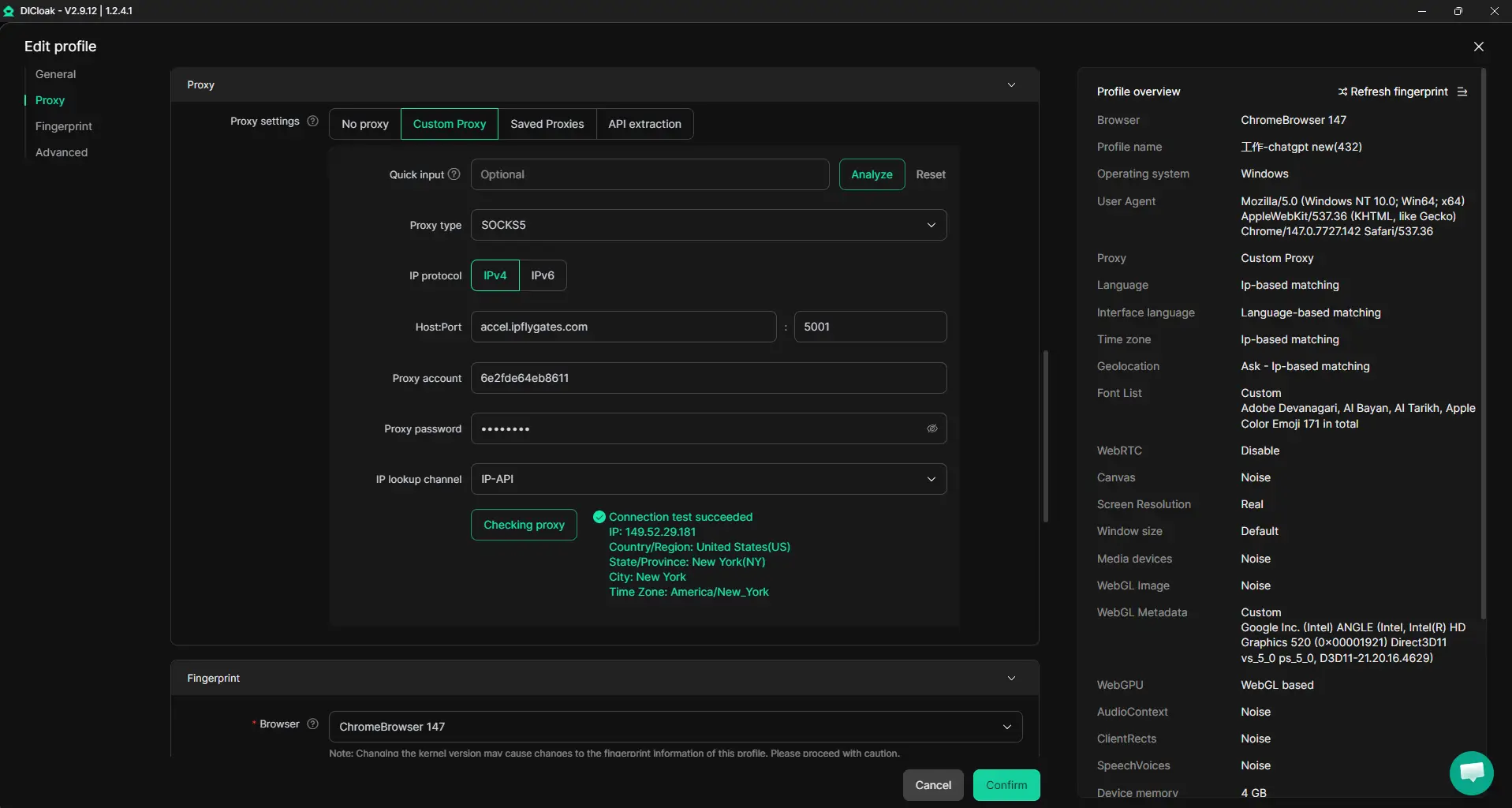
When multiple team members need to access the same LinkedIn account, admins can create a shared DICloak browser profile and configure its fingerprint and a user-provided proxy. Every authorized member uses this shared profile, so their sessions appear with the same browser fingerprint and network route, reducing the chance of access spikes or environment mismatches that trigger security reviews. This only works if everyone uses the same shared profile and proxy; separate profiles will have different fingerprints and may behave differently. The scope here is limited to how the browser session looks to LinkedIn, not a guarantee that LinkedIn will treat all logins as identical or ignore location changes.
Browser-Profile Access Controls for Shared Account Workflows
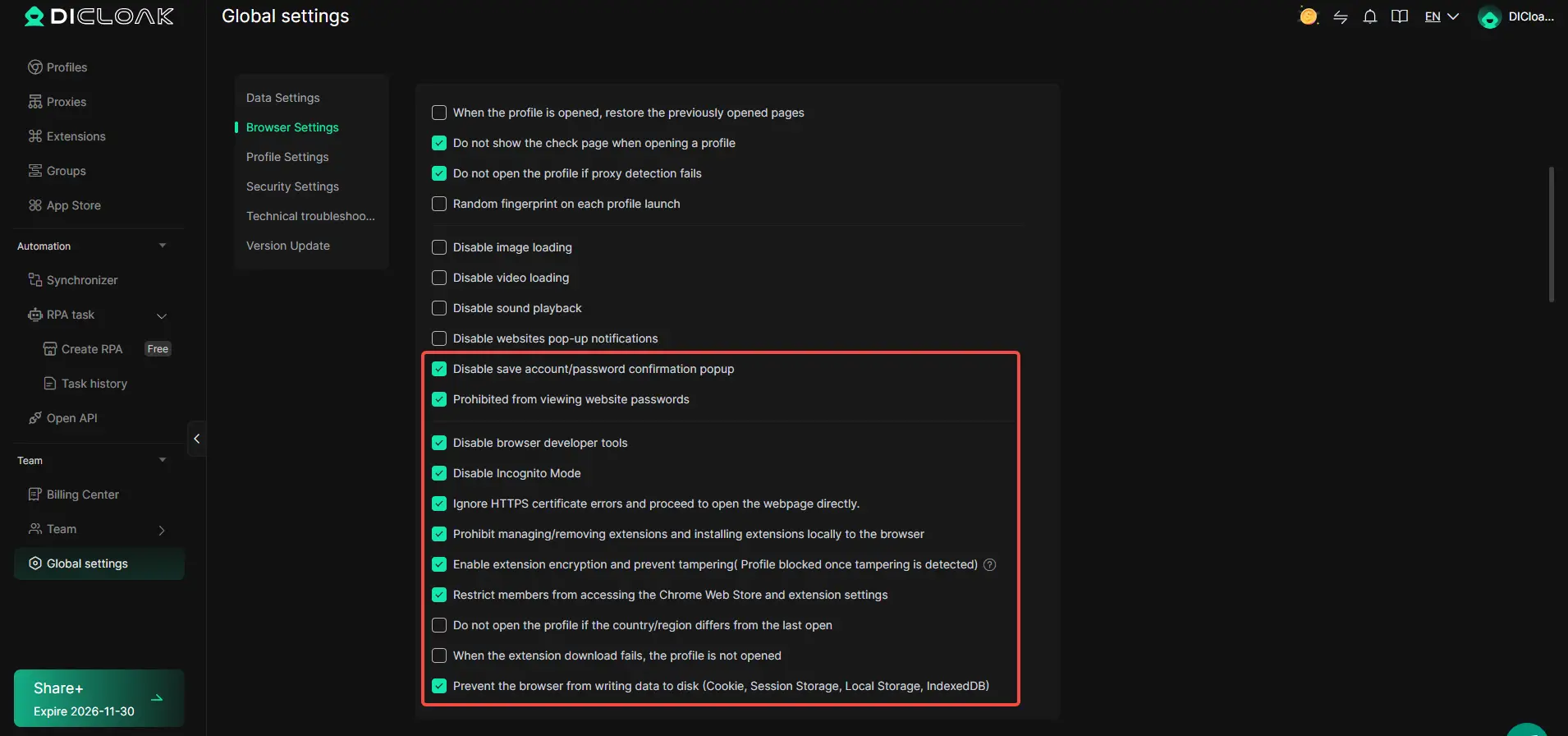
Even with a shared profile, raw passwords, cookies, and sensitive LinkedIn data can leak if members have too much visibility. Admins can use DICloak security settings to block access to saved passwords, disable cookie viewing, and prevent members from opening sensitive account-management pages while inside the shared browser profile. Where available, cookie encryption and extension restrictions can further limit what team members can export or tamper with. The real gain is that teams can cut password exposure and make it much harder for someone to walk off with account credentials during a project. Account Security controls only protect data within the browser profile, not the LinkedIn site itself.
Manage Team Collaboration and Permissions
The next layer is granular control over who can launch the shared LinkedIn profile and what they can do inside DICloak. Admins assign members to permission groups, restricting access so only the right people can open assigned profiles or see specific profile fields. For example, a project assistant might get permission to launch the LinkedIn profile but not to change proxy settings or export cookies. These permissions only apply to DICloak’s browser-profile environment; LinkedIn’s own roles and settings stay separate.

This setup solves the main headaches around team account sharing, now, tracking access and limiting risk is a process, not a scramble. Next, it’s worth seeing where teams still slip up and which shortcuts create new problems.
Common Mistakes and Red Flags When Sharing LinkedIn Access
Most account issues come from simple but avoidable errors, missing these warning signs can get the profile restricted or even locked out. Here’s what to watch for if you want to share LinkedIn access safely.
Granting Excessive Permissions or Forgetting to Remove Access
Giving someone more access than they need, like making a short-term contractor a Super Admin, sets you up for trouble later. If you forget to clean up after a team change, old users can still act as you or your company. Auditing permissions every quarter and removing anyone who doesn’t need access right now closes most avoidable gaps.
Mixing Personal and Business Accounts
- Never let anyone use your personal LinkedIn login for business tasks.
- Assign company page roles instead of sharing your main credentials.
- Keep agency logins and personal accounts fully separate.
Ignoring Location and Device Consistency
LinkedIn looks for strange login patterns. If two people bounce between cities or devices, the account may get flagged, locked, or even restricted.
- Use one approved device or browser profile per team member.
- Pick a stable proxy or office IP for all shared work.
- Avoid logging in from distant countries or random networks.
Best Practices for Ongoing LinkedIn Account Security and Collaboration
Handing out LinkedIn access is only the start, keeping the account secure and your team effective takes regular checks and clear habits.
Regularly Review and Update Access Permissions
Set a recurring monthly reminder to review who can access your LinkedIn account or company page. For each user or role, check if their access matches their current job and if anyone needs to be removed. Pay attention after any staffing changes, removing ex-team members quickly is the single best way to avoid silent risk buildup.
Monitor Account Activity and Set Up Alerts
- Check sign-in logs for unknown devices or locations
- Set up email alerts for new connections or profile changes
- Act fast if you see login attempts outside work hours
Train Your Team on Security Hygiene
Even with careful setup, a single slip can expose the whole team.
- Require everyone to use unique, strong passwords
- Teach staff to report odd activity at once
- Review access steps after any incident or team change
When Sharing a LinkedIn Account Is the Wrong Choice
Some situations make sharing LinkedIn access, even with tools or delegated logins, a real risk. If you’re handling sensitive roles, regulated industries, or anything involving client data, sharing can do more harm than good.
High-Risk Scenarios: Sensitive Roles, Regulated Industries, or Client Accounts
| Scenario |
Main Risk |
Safer Alternative |
| HR, legal, or finance use |
Compliance violation |
Content draft/approval cycles |
| Client social accounts |
Client trust, liability |
Separate access/reporting |
| Regulated industries |
Audit/legal exposure |
Read-only or API access |
In these cases, direct account sharing can break rules, put you at legal risk, or make incident tracking impossible.
When Building Separate Accounts or Using Official APIs Is Better
If your workflow needs full separation, set up dedicated company profiles or move to LinkedIn’s official API for reporting and automation. Transitioning keeps you in control and avoids compliance headaches, don’t try to share LinkedIn account access when clear boundaries matter.
Frequently Asked Questions About share LinkedIn account without sharing passwords
Can I share LinkedIn access with my assistant without violating LinkedIn’s rules?
You can delegate access to a LinkedIn Company Page using LinkedIn’s admin roles, letting your assistant help manage posts and messages. However, LinkedIn does not allow sharing personal profile logins. Giving someone your personal password can violate LinkedIn’s terms and may put your account at risk of suspension.
Is it safe to use third-party tools to manage LinkedIn accounts for clients?
Only use approved LinkedIn partner tools for managing pages or campaigns. Many third-party automation or management tools risk violating LinkedIn’s policies. LinkedIn actively detects and restricts accounts using unauthorized automation. Always check a tool’s reputation and compliance before connecting your account or client accounts.
How do I revoke LinkedIn access from someone who no longer needs it?
For Company Pages, remove the user’s admin role under the “Admin tools” section. For personal profiles, change your password and review all active sessions in your account settings, logging out of any unfamiliar locations. Also, check connected apps and revoke access to anything you don’t recognize.
What should I do if LinkedIn flags my account for unusual activity after sharing access?
If LinkedIn flags your account, stop all access sharing right away. Follow LinkedIn’s instructions to secure your account, such as resetting your password. Use the account recovery or appeal process if locked out. To prevent future problems, only delegate access through official LinkedIn features and avoid password sharing.
How many people can safely access a LinkedIn account using DICloak?
DICloak supports different team sizes based on your subscription plan. Each user can be assigned specific permissions, so you control who has access to what. Always review your plan’s user limits and ensure each team member only has the access they need.
Now is the time to consider secure alternatives that let you collaborate on professional profiles without compromising sensitive information. Evaluate solutions designed for safe access delegation and simplify your workflow with confidence. Try DICloak For Free
 Web Proxy Tools
 Free Tools
 Cookie Plugin
 UA Generator
 MAC Address Generator
 IP Generator
 IP Address List
 2FA Code Generator
 World Clock
 Anonymous Check
 WebRTC Leak Test
 UUID Generator
 Free Web Proxy Site
 Proxy Checker
 FB Ad Checker
 AI Web Scraping
 Free SMM Tools
 Twitter Shadowban Checker
 Instagram Name Checker
 UTM Generator
 Username Generator
 AI Hashtag Generator
 LinkedIn Headline Generator
 Social Media Image Resizer