A single misplaced click on a Facebook ad can trigger a flood of similar promotions for weeks. According to Wired, Facebook’s ad system tracks every interaction, building detailed profiles to push even more targeted ads your way. Many users try a Facebook Ads blocker or browser extension to remove Facebook ads, but these quick fixes often stop working after the next platform update. Even paid Facebook ad blocker tools struggle to keep up as Facebook changes its code and tracking scripts.
Some people try to block Facebook ads with custom browser filters or by tweaking privacy settings. But these methods rarely get all the ads, and some break site features or slow down your feed. For team environments or business users, sharing one device or browser profile can create new risks, ad preferences and tracking mix together, making everyone’s accounts less private.
For anyone tired of endless sponsored posts or worried about what Facebook is really tracking, there are safer ways to block Facebook ads. This guide breaks down the real reasons ads keep slipping through, shows which methods actually work, and explains how to build a workflow that stays one step ahead of Facebook’s detection. Here’s what to check before you install another ad blocker.
Why Blocking Facebook Ads Is More Complicated Than It Seems
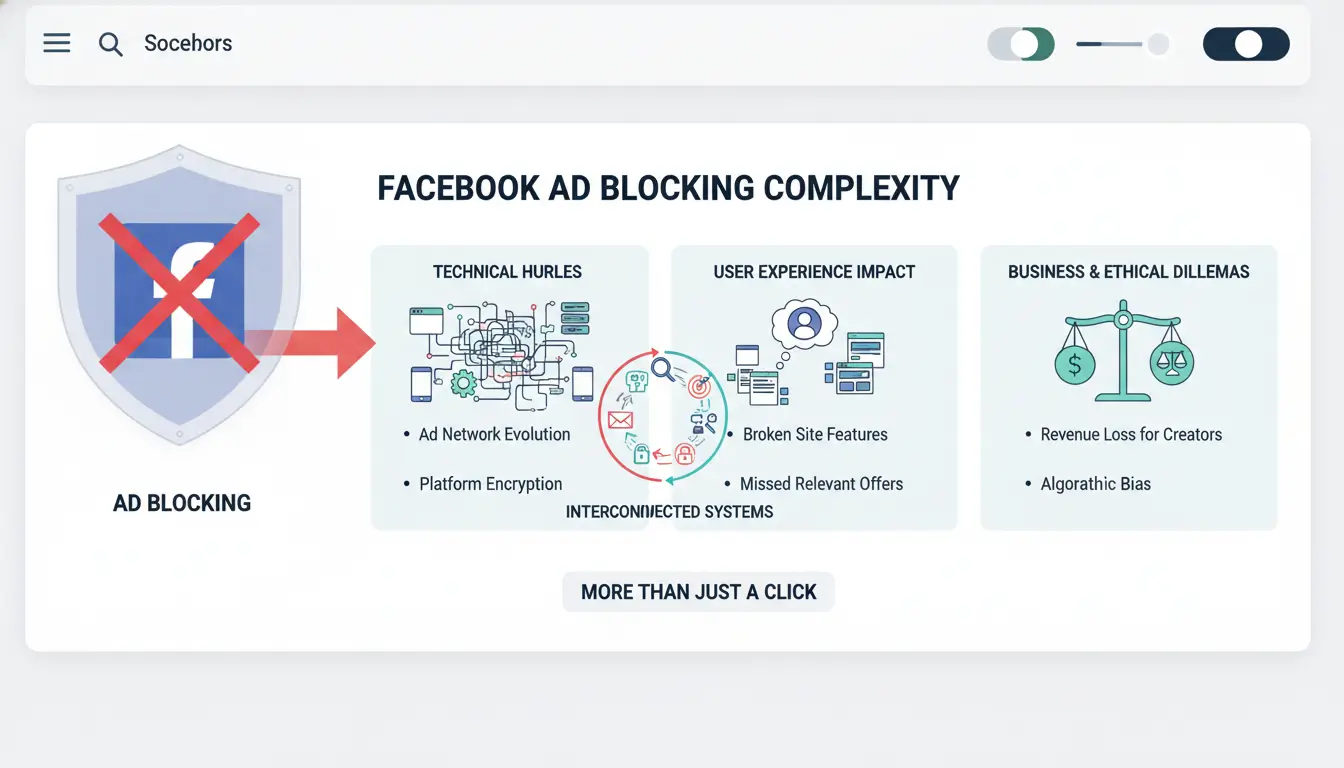
Trying to block Facebook ads looks simple at first, install a facebook ads blocker or use a browser extension. But Facebook uses more advanced tactics than most sites, making ads much harder to filter out. If you wonder why sponsored posts keep reappearing or your blocker only hides some ads, there’s a technical reason.
How Facebook Delivers Ads Differently from Other Sites
Most websites place ads in clear spots on the page, often using outside networks like Google Ads. Traditional ad blockers spot these patterns and remove them. Facebook, though, mixes ads directly into your news feed and stories. These ads are built as normal posts and use the same code as real content, so they blend in with everything else. Facebook also changes its code often to confuse filters and blocklists.
This tight integration means even the best Facebook ad blocker can miss new ad formats or, worse, break useful features. For example, blocking the wrong element can hide friend posts or cause endless loading. Updates from Facebook’s Help Center show how often users run into this problem. That’s why “block Facebook ads” guides online rarely work for long.
What Risks Come with Blocking Facebook Ads
Blocking ads isn’t just about a cleaner feed. Facebook tracks how accounts interact with ads. If it detects repeated blocking or strange browser behavior, it may flag your account or require extra verification. Some users have found accounts restricted for using aggressive blockers, as discussed in the Reddit Tech community.
Another risk, site features can break. Messing with scripts or using a harsh Facebook ads blocker can cause issues with chat, notifications, or login. Especially for teams sharing a browser, one mistake can affect everyone’s access and privacy. The real problem isn’t just hiding ads, but avoiding new risks each time Facebook changes its approach.
What to Check Before Using a Facebook Ads Blocker
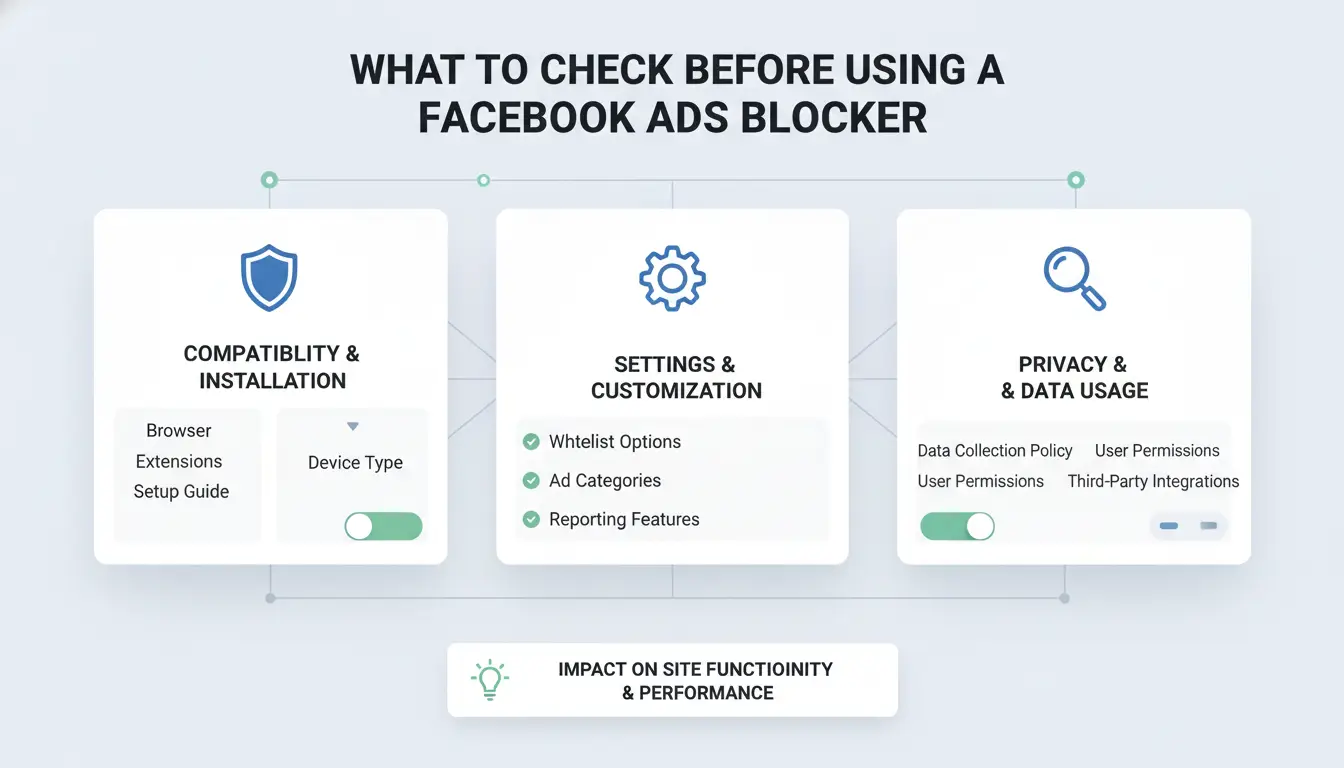
Blocking Facebook ads sounds simple, but skipping a few checks can lead to broken features, privacy risks, or tools that barely work. Before you install any facebook ads blocker, whether it’s a browser extension or a custom filter, look at these points. They help you avoid wasted time and spot issues that most guides miss.
Compatibility with Your Browser and Device
Not every Facebook ad blocker works everywhere. Some extensions only support Chrome or Firefox, while others have limited function on Safari or Edge. On mobile, the options shrink fast. Most ad blockers struggle with Facebook’s native app, so you may need to use the browser version.
Here’s a quick table comparing browser compatibility:
| Ad Blocker Type |
Chrome |
Firefox |
Safari |
Edge |
Mobile Browser |
Facebook App |
| Standard Extension |
✓ |
✓ |
✕ |
✓ |
✕ |
✕ |
| Custom Filters |
✓ |
✓ |
✓ |
✓ |
✕ |
✕ |
| System-level Block |
✓ |
✓ |
✓ |
✓ |
✓ |
✕ |
Table: Basic feature support for Facebook ad blockers (check Chrome Web Store and Mozilla Add-ons for up-to-date options).
If you’re trying to remove Facebook ads for your whole team, make sure the blocker runs on all devices you plan to use, otherwise, some accounts will still see sponsored posts.
Privacy and Data Handling Concerns
Ad blockers often need access to your browsing data to filter ads. Some collect information about which sites you visit, or even sell anonymized details to third parties. Before you activate any tool, check its privacy policy and user reviews on sites like PrivacyTools.
The most critical insight, never install a Facebook ad blocker without reading how it handles your data. The risk isn’t just leaks; some tools inject their own tracking, which defeats the purpose of using a Facebook ad blocker to block Facebook ads.
Team users should pay extra attention. Shared devices or browser profiles mean one misconfigured blocker can expose everyone’s preferences. If possible, use profiles that isolate data or tools that don’t require deep access.
How to Block Facebook Ads: Step-by-Step Methods for Different Scenarios
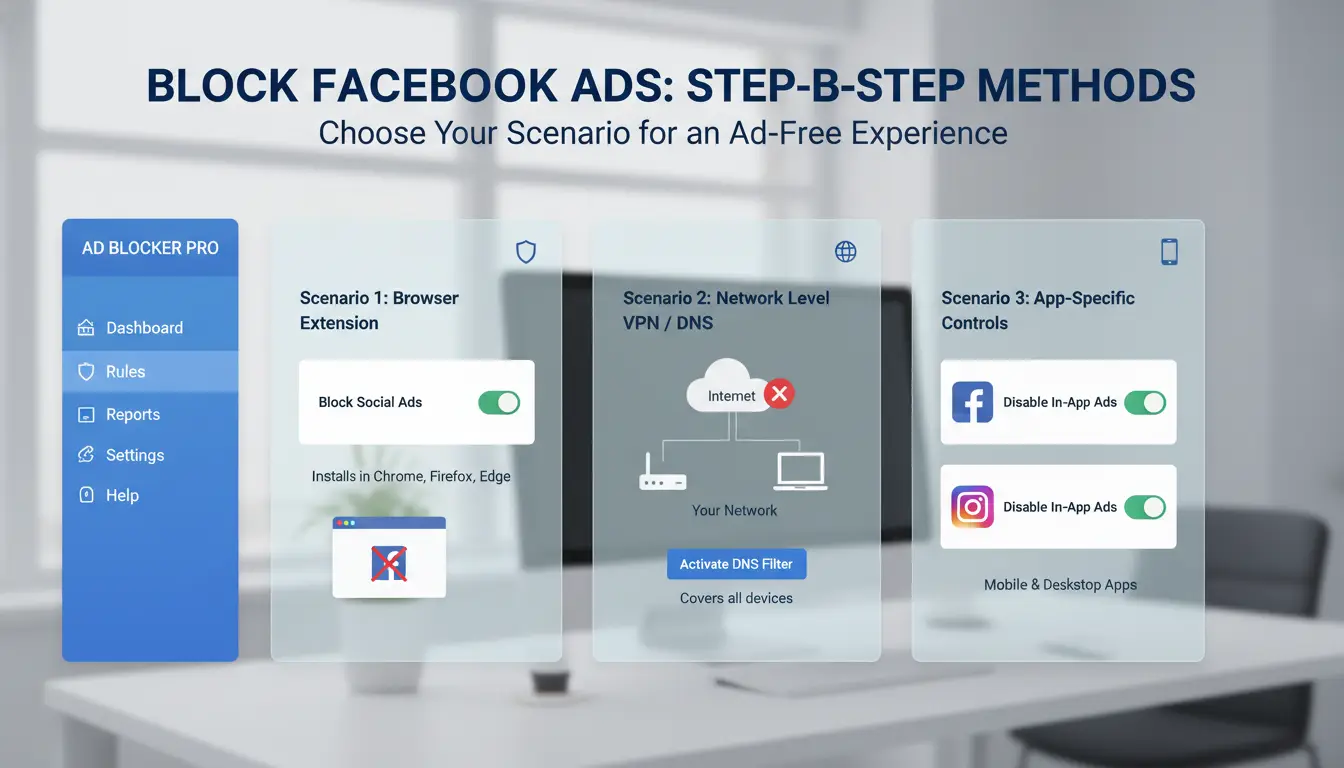
Blocking Facebook ads works differently depending on your device and how you access Facebook. The right method depends on whether you use a desktop browser, the mobile app, or Facebook in a mobile browser. Each approach has strengths and limits, here’s how to set up a facebook ads blocker that actually fits your workflow.
Using Browser Extensions for Facebook Ad Blocking
Browser extensions are the easiest way to block Facebook ads on desktop. Well-known options like uBlock Origin and AdGuard let you install a Facebook ad blocker with a few clicks. After installing, open the extension’s settings and enable all social media filter lists, these target most sponsored posts and sidebar ads.
Some sponsored content may still get through as Facebook updates its code. For best results, update your extension and filters regularly. If you use Facebook in multiple profiles or need to keep ad settings separate, consider an antidetect browser to isolate each setup. This keeps tracking and ad preferences from leaking across accounts.
Advanced Blocking with Custom Filters and Scripts
If standard filters miss some ads, you can build your own custom filter lists. In uBlock Origin or AdGuard, open the “My Filters” or “Custom Filters” tab and paste rules from trusted forums that target “Sponsored” labels or dynamic ad elements. This removes more stubborn ads, but expect to update these filters as Facebook changes its layout.
For tech-savvy users, browser scripts like Tampermonkey support user scripts that auto-hide or remove Facebook ads in real time. These scripts can break if Facebook changes its code, so always test after updates. Custom filters and scripts give you deeper control, but they need more upkeep than basic ad blockers.
Common Mistakes That Make Facebook Ads Blockers Ineffective
Trying to remove Facebook ads is not as simple as installing a single extension. Many users hit the same roadblocks because of a few repeat mistakes. These slip-ups don’t just leave ads in your feed, they can even flag your account for Facebook’s review or slow down your whole browser. Learn what causes most facebook ads blocker tools to fail and what to avoid in your setup.
Overusing Multiple Ad Blockers
Stacking two or more ad blockers sounds safer, but it usually does the opposite. When you run more than one Facebook ad blocker, each tool injects its own filters and scripts. This can make your browser fingerprint look unusual, which Facebook’s systems notice quickly. If sites see that your browser runs code from several blockers at once, you risk more pop-ups, broken pages, or account restrictions. Some blockers also fight over the same parts of the page, which makes loading slower or leaves ad spaces blank but not removed.
Instead of combining lots of tools, stick to one trusted ad blocker and update it often. If you want to block Facebook ads on all accounts safely, use a clean browser profile for each user. This keeps ad preferences and tracking data from mixing and makes your setup harder to detect.
Ignoring Facebook’s Evolving Detection Techniques
Facebook’s ad system changes every few weeks. They test new ways to spot when people try to block ads or hide sponsored posts. If your facebook ads blocker does not update with these changes, it quickly becomes useless. Outdated blockers miss new ad formats or let tracking scripts through, so you start seeing ads again, even if the blocker “looks active.”
The most important step is to choose a facebook ads blocker that gets regular updates. Always check for new versions, some reputable tools post updates weekly. For more info on how Facebook tracks users, see Facebook’s official help center.
How to Reduce Detection Risk When Blocking Facebook Ads for Multiple Accounts
Blocking Facebook ads across several accounts is not as simple as installing a basic facebook ads blocker and calling it a day. Facebook tracks logins, IP addresses, and browser fingerprints. If you manage multiple accounts, reusing devices, browser profiles, or even the same ad blocker can quickly connect your profiles and trigger restrictions. The real risk is not just whether ads get blocked, but whether Facebook’s systems spot unnatural patterns that link your accounts.
Using Proxies and Isolated Browser Profiles
Most people try to block Facebook ads by adding a Facebook ad blocker or browser extension. But when you run several accounts, especially for clients or business, every profile needs its own environment. Proxies help by giving each account a unique IP address, so Facebook cannot see them all coming from one place. But IP alone is not enough.
Isolated browser profiles keep cookies, cache, and login history separate. This means ad preferences, tracking cookies, and login fingerprints do not mix. If you use the same browser profile for two accounts, Facebook can match details and block both. Combining proxies with true profile isolation cuts the chance of detection and helps each account look like a real user.
DICloak: Advanced Antidetect Browser for Safer Facebook Ad Blocking
You can use DICloak to run multiple Facebook accounts without leaking signals. DICloak creates a unique browser fingerprint for each account, so Facebook sees every login as coming from a different person and device. This is a step above standard Facebook ad blocker tools. Even if you block Facebook ads, fingerprint leaks can still connect accounts unless profiles are fully isolated.
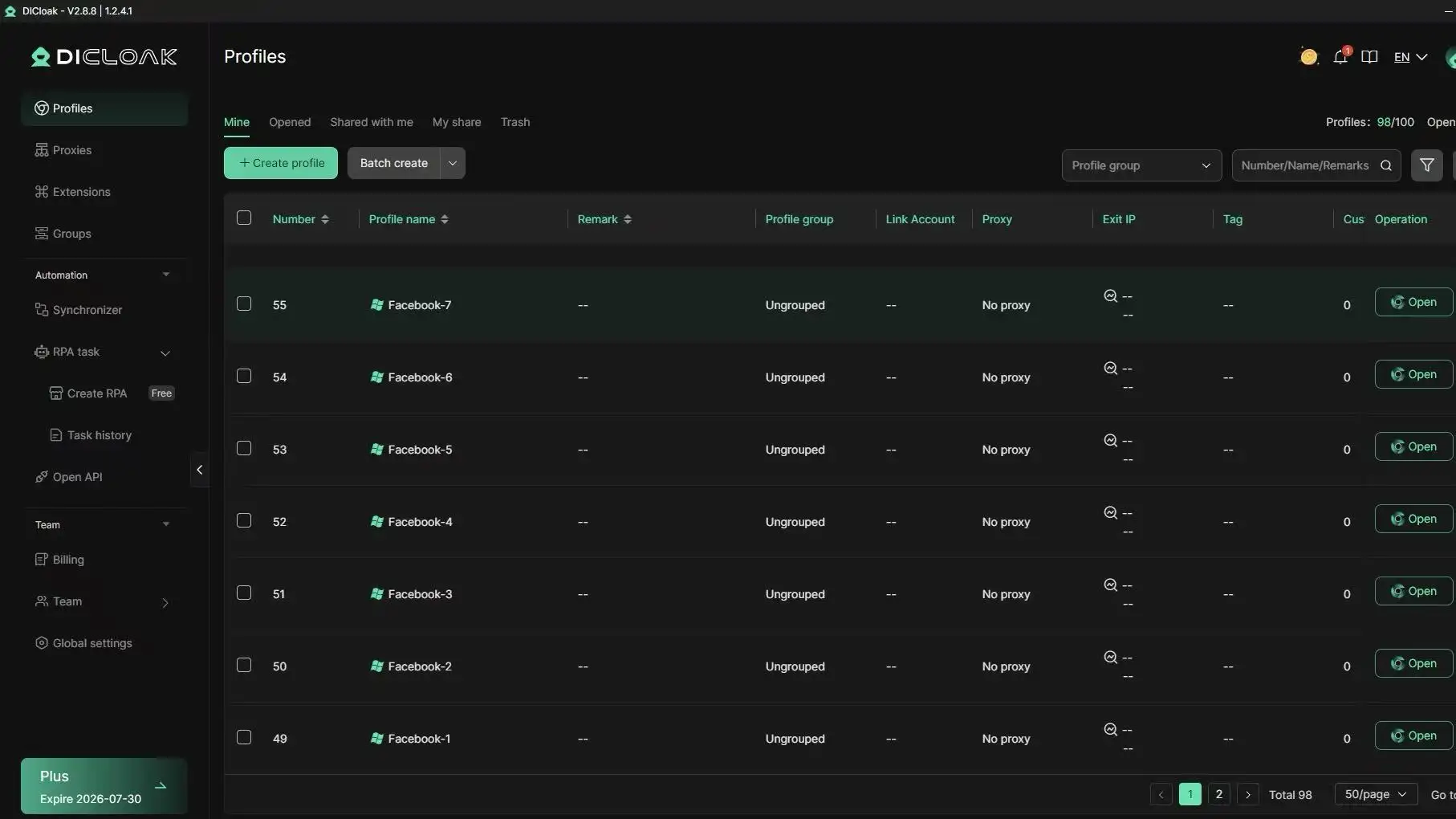
DICloak also lets you automate workflows, like switching proxies, clearing cookies, or syncing profiles for team members. This reduces manual mistakes that often trigger Facebook’s security checks. The main advantage is stopping Facebook from linking your accounts through hidden signals, not just blocking ads.
When Blocking Facebook Ads Is Not the Best Solution: Alternatives and Workarounds
Some users find that a facebook ads blocker breaks parts of Facebook or causes feeds to load slowly. Blocking ads can also hide real posts or disable chat features. For teams, using one blocker across multiple accounts links everyone’s ad preferences, making privacy worse, not better.
Adjusting Facebook Settings for Minimal Ads
Facebook’s own ad settings let you turn off some ad topics and limit tracking. Open “Ad Preferences” and remove interests you don’t want used. Turn off “Data from Partners” to stop some ad personalization. This won’t remove Facebook ads, but it cuts down on targeted tracking. Every few weeks, check these controls again, Facebook sometimes resets them.
Using Facebook Lite or Third-Party Browsers
Facebook Lite and some third-party browsers show fewer ads. You lose features like Stories or Marketplace, but feeds run faster. Some users say these lighter apps make it easier to block Facebook ads with fewer side effects. See table:
| Option |
Ads |
Features |
Speed |
| Standard App |
High |
Full |
Slower |
| FB Lite |
Low |
Limited |
Fast |
Source: Facebook Help, Wikipedia Facebook Lite
Tools like DICloak let you set up an isolated browser profile for each Facebook account. This means ad blocking actions don’t link your accounts or trigger mass bans. You can use DICloak’s built-in proxy support to change your network location per profile, making it much harder for Facebook to track your blocking methods.
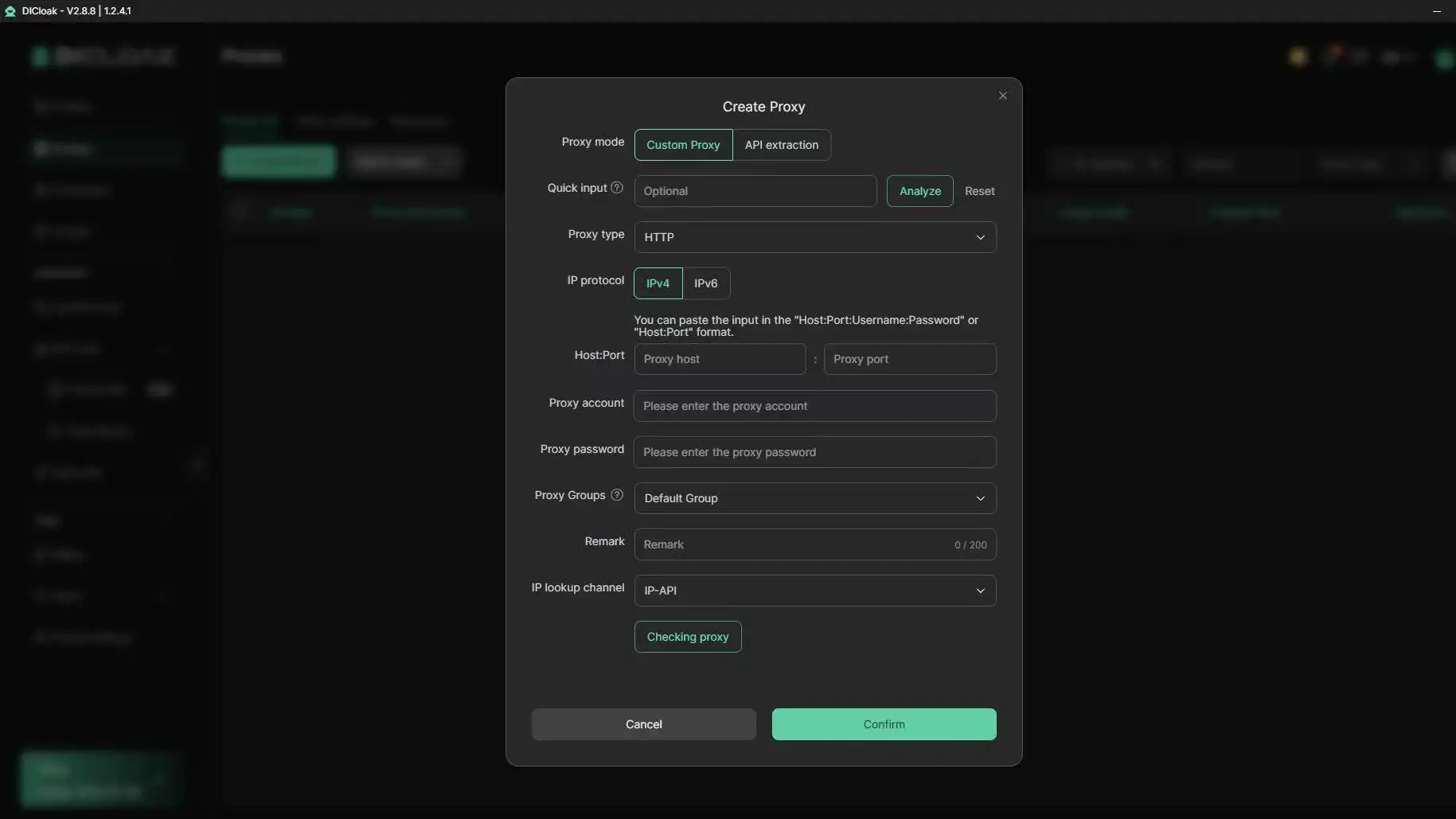
For teams, DICloak’s shared profile and permission controls keep each member’s setup separate, so one person’s facebook ads blocker settings don’t affect everyone else. Automation tools in DICloak make it simple to test different ad blocking flows without risking your main Facebook account. For anyone running multiple accounts, this setup is far safer than trying to block Facebook ads in a shared browser.
Managing multiple Facebook accounts for campaigns means dealing with ad tracking, profile bans, and tool fatigue. A standard facebook ads blocker won’t solve account bans or stop Facebook from linking related logins. Teams need a safer workflow to block Facebook ads, keep accounts separate, and cut the risk of losing access mid-campaign.
Workflow Tips for Teams and Agencies
Teams often trip up by running all accounts from one browser or device. This mixes tracking data, so Facebook’s system can spot patterns and tie accounts together. Rotating browsers and swapping proxies helps, but it’s easy to slip, one missed cookie or shared login can trigger blocks. A better move is to give each account its own browser profile and proxy setup, so ad preferences and tracking stay isolated.
Coordination matters too. Set clear rules for who logs in, when, and where. Document all major actions, like payment changes or ad launch times, to avoid confusion if Facebook flags something. Use a shared dashboard to track account activity, but never let team members reuse passwords or tokens across profiles. This reduces the chance of mass bans and keeps each account’s ad performance clean.
Leveraging DICloak for Secure Multi-Account Management
You can use DICloak for Social Media Marketing to handle these tasks. DICloak sets up separate browser profiles for each Facebook account, each with its own fingerprint and proxy. Only assigned team members get access, cutting the risk of accidental cross-linking. Permission control means every login is tracked, and you can remove Facebook ads or automate engagement flows without mixing cookies or sessions.
For agencies, DICloak’s batch tools let you automate basic actions, like opening accounts, posting, or blocking Facebook ads, across many profiles at once. That keeps work fast and safe, even as the team grows. This setup helps keep accounts running without ad disruption, and avoids the usual headaches that come when Facebook spots connected behavior.
How to Keep Your Browsing Private While Blocking Facebook Ads
Blocking Facebook ads is only half the battle, real privacy means stopping trackers and keeping your account safe from leaks. Many “facebook ads blocker” plugins claim to clean up your feed, but they often miss hidden tracking scripts or even share your data with third parties. If you want to block Facebook ads and keep your browsing private, you need to go beyond basic browser settings.
Best Practices for Data Privacy
Most ad blockers only hide sponsored posts; they rarely stop Facebook’s tracking pixels and fingerprinting scripts. These scripts can follow you across the web, building a profile of your behavior even after you remove Facebook ads from your timeline. To avoid this, use browser extensions that focus on privacy, like uBlock Origin, which blocks both ads and trackers.
Never save Facebook passwords in your browser if you share your device. Instead, use a password manager that keeps credentials locked down and out of reach. For extra safety, log out of Facebook after each session, and clear cookies regularly so ad preferences and tracking IDs can’t follow you.
Combining Ad Blocking with Proxy Use
A proxy hides your real IP address from Facebook and its ad partners. When you run a facebook ads blocker together with a proxy, it gets harder for Facebook to connect your browsing to your real identity or location. This is especially important if you manage multiple accounts or need to block Facebook ads on several profiles.
Choose proxy providers that have a clear privacy policy and do not log your activity. Smartproxy and Oxylabs are well-known options. For team use, you can use DICloak’s browser isolation and independent proxy features to keep each account’s browsing private, even if many people share the same device. This setup reduces fingerprint sharing and lowers the risk of cross-account tracking.
Frequently Asked Questions
Can Facebook detect if I use a Facebook ads blocker?
Facebook uses scripts to check if ads load on your feed. If the system notices missing ad elements, it may try to bypass your Facebook ads blocker or show warning messages. To lower detection risk, use blockers with "stealth" or "cosmetic filtering" modes, and update your tools often to stay ahead of Facebook’s detection methods.
Will blocking Facebook ads affect my account or site functionality?
Using a Facebook ad blocker usually doesn’t get your account restricted, but some site features can break. For example, games, videos, or Marketplace sections may not load properly if the blocker hides too many elements. If you see errors, adjust your blocker’s settings or allow Facebook temporarily to restore full site functionality.
Are there ad blockers that work on the Facebook mobile app?
Most ad blockers can’t remove Facebook ads inside the official mobile app due to how apps display content. However, some users install system-wide ad blockers or use browsers with built-in blockers to block Facebook ads on mobile. These methods work best for viewing Facebook through a web browser, not the standalone app.
Is it legal to use a Facebook ads blocker?
Using a Facebook ads blocker is legal in most countries, but it may violate Facebook’s terms of service. While you’re unlikely to face legal action, Facebook could restrict features or display warnings. Always review the platform’s terms and local laws before using any Facebook ad blocker.
How can I block Facebook ads without compromising privacy?
To block Facebook ads and protect privacy, use privacy-focused browsers like Brave or Firefox with ad-blocking extensions. You can also try DNS-based blockers or private proxies to filter ads before they reach your device. These tools help block ads and keep your browsing data safe from trackers.
Conclusion
Effectively blocking Facebook ads can improve your browsing experience and protect your privacy online. By using the right ad blocker, you can regain control over what you see and avoid unwanted interruptions.
Try DICloak For Free
 Web Proxy Tools
 Free Tools
 Cookie Plugin
 UA Generator
 MAC Address Generator
 IP Generator
 IP Address List
 2FA Code Generator
 World Clock
 Anonymous Check
 WebRTC Leak Test
 UUID Generator
 Free Web Proxy Site
 Proxy Checker
 FB Ad Checker
 AI Web Scraping
 Free SMM Tools
 Twitter Shadowban Checker
 Instagram Name Checker
 UTM Generator
 Username Generator
 AI Hashtag Generator
 LinkedIn Headline Generator
 Social Media Image Resizer