Juggling more than five online accounts, across work, side projects, and personal life, gets messy fast. Password resets pile up, login sessions clash, and one mistake can lock you out for days or tip off a platform’s risk system. A single browser or device rarely handles it cleanly for long.
Most guides claim that strong passwords and a password manager are enough. But the real issues come when browser cookies, device fingerprints, and even IP addresses start linking your logins together. Managing several online profiles safely isn’t just about remembering credentials, it’s about keeping each identity truly separate, especially if you run accounts for clients, ad campaigns, or social media automation.
How to manage multiple online accounts without getting flagged, mixed up, or constantly resetting access means rethinking your process from the ground up. You need clear boundaries for each profile, a way to automate routine logins, and a method to catch problems before they cost you time or money. Multi-account management tips that work for one platform often backfire on another, so a copy-paste approach usually creates more problems than it solves.
If you’re tired of patching problems after they happen, start by mapping out where account separation actually breaks down.
Why Managing Multiple Online Accounts Gets Risky So Fast
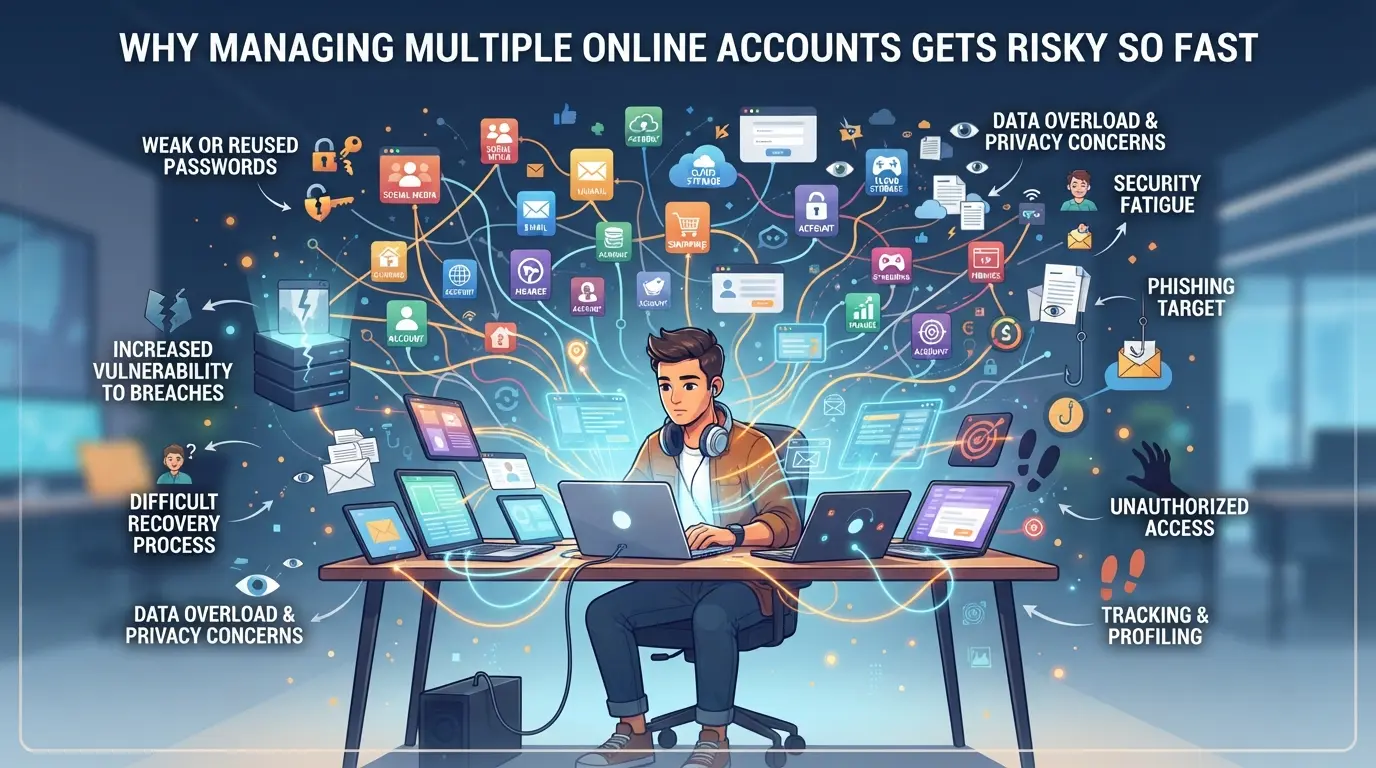 People get restricted, or lose accounts, fast not because they make huge mistakes, but because small overlaps pile up. The main risks come from invisible connections that platforms notice even when users think they’re careful. If you wonder why bans hit when you scale up, it’s usually because your setup leaks signals you didn’t know were linked.
How platforms detect multi-account activity
Platforms spot multi-account use by tracking more than just logins. They match IP addresses, spot devices that look too similar, and use browser fingerprints, unique combinations of plugins, fonts, and settings. It only takes one slip, like logging two profiles from the same Wi-Fi or browser, for the pattern to flag your accounts.
Common mistakes that trigger restrictions
Most restrictions don’t come from obvious abuse, they start with daily habits that seem harmless. Reusing the same laptop or browser for multiple profiles leaves matching fingerprints, even if you switch incognito tabs or clear cookies. Copy-pasting content between accounts, like using the same ad creatives or messages, can create text-based links that platforms flag as automation or spam. For example, an ad agency might test campaigns for three brands, but if all three accounts upload similar images from the same desktop, Facebook can tie those uploads together by device and timestamp. The trap is thinking that “just one time” won’t matter, but even a single shared network session can link brand-new profiles to an old flagged account. The more accounts you run, the harder it gets to keep separation, especially when you manage logins in a hurry or reuse files to save time.
Why risk increases as you scale up
- More accounts means more chances for patterns to show, like daily login times or shared recovery emails.
- Platforms run automated sweeps: if three or more accounts trip the same signals, they get mass-restricted together.
- Manual reviews kick in on “suspicious clusters”, if a platform sees 10 accounts posting from one device, staff may check them all.
Even small patterns can trigger bulk bans, so each new account added to your setup raises the stakes.
If you’re planning to handle several profiles, map out your risks before you start. The next step: get clear on what you need to prepare so small mistakes don’t snowball into bigger problems.
What to Prepare Before You Start Managing Multiple Accounts
Before you run multiple accounts, you need more than just new logins or emails. The biggest problems come from small leaks: overlapping browser data, reused devices, or a missed session that ties two profiles together. If you want to avoid bans and tangled access, do these setup checks before launching any workflow.
Checklist: Devices, browsers, and network hygiene
Isolating accounts starts with physical or virtual separation, never let two profiles share the same browser session, cache, or device if you can help it. Sometimes, a dedicated device is overkill, but using the same browser without strict profile isolation nearly always ends in cross-linking. The most common slip-up is forgetting to clear cookies or stored data before switching accounts, one missed step, and tracking pixels can connect what you thought was separate.
- Use separate browser profiles or containers for every account.
- Clear all cookies, local storage, and cache between sessions.
- Avoid device sharing, or use virtual machines when hardware is limited.
Choosing and managing proxies for account separation
Proxies are the backbone of network isolation, but not all proxies are created equal. Mixing up static and rotating proxies, or picking a provider with a history of flagged IPs, can burn an account before you even log in.
- Check if you need static proxies (for persistent sessions) or rotating (for bulk/automation).
- Use proxies with clean reputations, not recycled or datacenter blocks.
- Pick locations that match your account geo; don't mix country origins.
| Proxy Type |
Session Stability |
Risk Level |
Best Use Case |
| Static |
High |
Medium |
Long-term, daily use |
| Rotating |
Low |
Higher |
Bulk tasks, scraping |
| Residential |
Medium |
Lower |
Sensitive platforms |
Table: Comparing proxy types for multi-account workflows.
Documenting account details and activity logs
Losing track of which account did what is the fastest way to lock yourself out or trigger platform security checks. A simple spreadsheet with the right fields beats memory every time, especially if you’re handling logins for a team or clients.
- Record username, registration email, and unique device or proxy used.
- Track login times, IP addresses, and any major actions taken.
- Note recovery info and any known risk events (e.g., failed logins, lockouts).
Setting up these safeguards means you won’t scramble when a platform asks, “Which device did you last use?” Now you’re ready to design a workflow that keeps accounts cleaner, and less likely to trigger restrictions.
How to Structure Your Multi-Account Workflow for Fewer Restrictions
You can cut the risk of bans and tangled access by structuring your daily workflow around strict separation, staggered actions, and fast response to early warning signs. The way you manage session boundaries and schedule activity will matter more than any single tool or tip. Here’s how to build a repeatable process that keeps your accounts alive longer.
Assigning unique environments to each account
- Set up a dedicated browser profile or container for every account, not just every platform. This stops cookies, device fingerprints, and autofill data from leaking between accounts.
- Always use separate proxies per account. Reusing the same proxy for two profiles, even once, is enough to link them.
- Store credentials and 2FA tokens for each profile apart, either in isolated password managers or encrypted files. Mixing these details is the fastest way to trigger platform risk checks.
- Test your setup by logging into two accounts from the same machine. If you see a cross-login alert or get prompted for unexpected verification, your isolation isn’t working.
Scheduling and staggering account actions
- Never run bulk logins or actions for several accounts at the exact same time. Platforms track simultaneous requests from one device or IP and will often flag this as automation.
- Randomize login and activity windows. For example, instead of logging in all accounts at 9:00 AM, stagger sessions by 15-30 minutes and vary the order every day.
- Space out riskier actions, like posting or adding payment methods, so that no two accounts perform them in the same hour. This makes pattern detection much harder.
- Watch for “session expired” or “unusual activity” warnings after group actions, these often mean your timing is too predictable and needs more variation.
Monitoring for early warning signs of restriction
- Check dashboards or account status pages daily for new login challenges, forced re-authentication, or security alerts. Platforms almost never restrict accounts without some visible warning.
- Set up notifications for failed logins, password reset prompts, or device verification emails. These are often the first sign of an account under review, missing them can cost you access.
- If one account in a group is flagged, pause all accounts that share the same environment, proxy, or device until you confirm there’s no wider link.
- The fastest way to avoid a chain-ban is to freeze all related activity the moment you spot a flag, waiting even an hour can let risk spread across your network.
Next, it’s worth seeing which mistakes trip up even careful operators and how to sidestep those traps before they turn into bans.
Common Mistakes That Cause Multi-Account Bans (and How to Avoid Them)
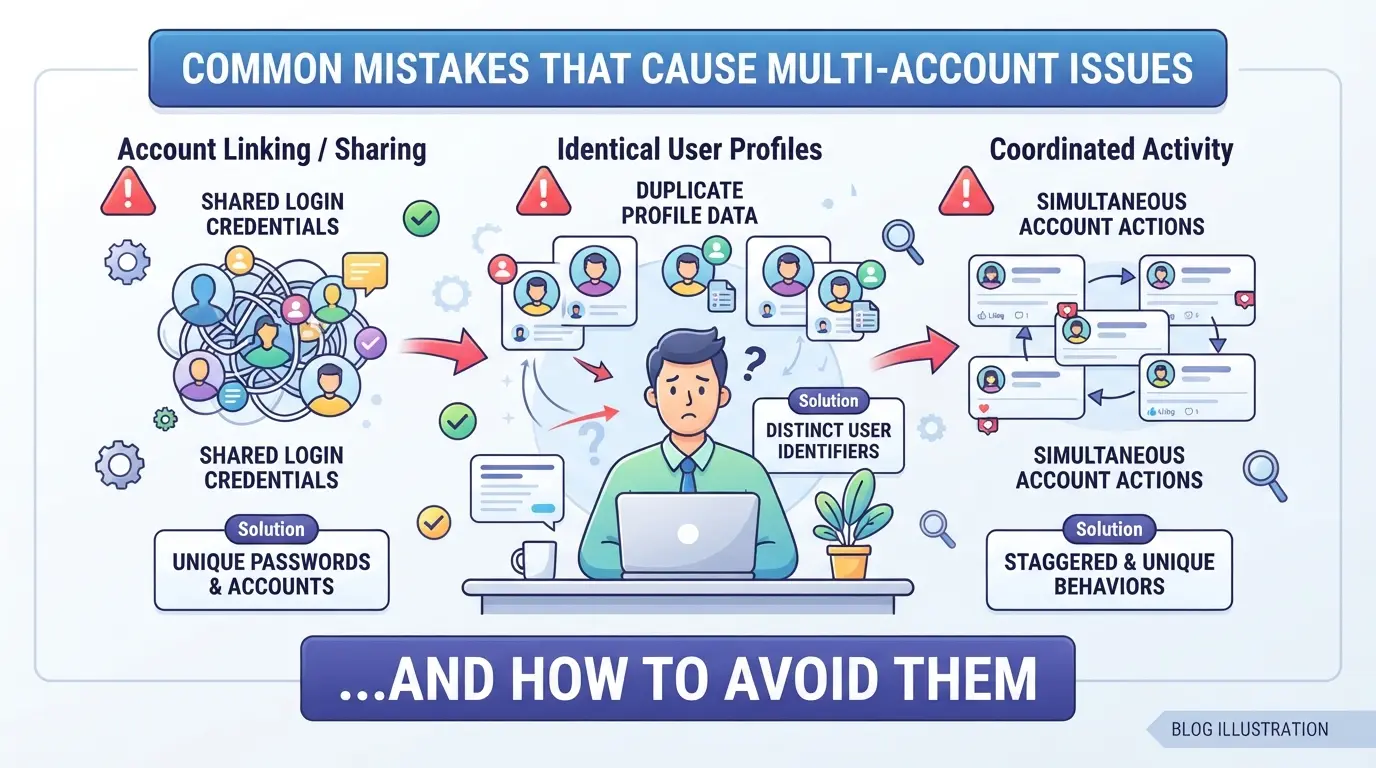
Even with a solid workflow, small errors can wipe out entire batches of accounts. The biggest risks come from technical shortcuts or habits that leak connections between profiles, often without warning.
Mixing up proxies or reusing the same IP
Most platforms track IP overlap. If two accounts show up from the same IP, bans often follow, especially if the logins happen within minutes. For safer multi-account management, keep a dedicated proxy for each profile and double-check your rotation before logging in.
Copying browser fingerprints or device settings
Identical browser fingerprints look suspicious to detection systems.
- If you clone one setup across several accounts, a single flag can burn them all.
- Use tools that randomize fingerprints and change device details for each profile, don’t rely on manual tweaks in browser settings.
Letting multiple team members use the same session
Sharing a login session between team members can trigger “impossible travel” or device mismatch alerts. Instead, assign each team member their own isolated environment with unique access, never pass around the same cookies or session link.
Ignoring platform-specific rules and limits
What counts as “normal” activity on one platform might trigger a review on another. Always check for hidden limits on account actions, like daily post caps or unusual login times, and keep a running list of platform changes to avoid accidental lockouts.
How Teams Can Share Access to Multiple Accounts Without Losing Control
If your team juggles multiple profiles, tight control beats open sharing, otherwise, one mistake can lock everyone out or leak sensitive data.
Setting up least-privilege access for team members
- Assign every team member a unique login, never share passwords across accounts.
- Give out permissions based on actual job needs; skip blanket admin rights unless someone handles account recovery.
- Review access monthly. Remove unused roles, stale privileges are a weak spot.
- Document who can change profile settings. If you skip this, you risk accidental lockouts from careless edits.
Tracking who did what (and when)
- Turn on operation logs for all shared accounts.
- Check the audit trail weekly, catch mistakes before they spiral.
- If someone changes a profile without notice, flag it and review. Most leaks start from undetected edits.
Onboarding and offboarding team members safely
- Set up a checklist for onboarding, include role assignment and training.
- Revoke access instantly when someone leaves. Delayed cleanup leaves ghost users who can still log in.
- Transfer account responsibility in writing. Skipping this step is how blame gets lost when something breaks.
How to Use DICloak for Safer, Scalable Multi-Account Management
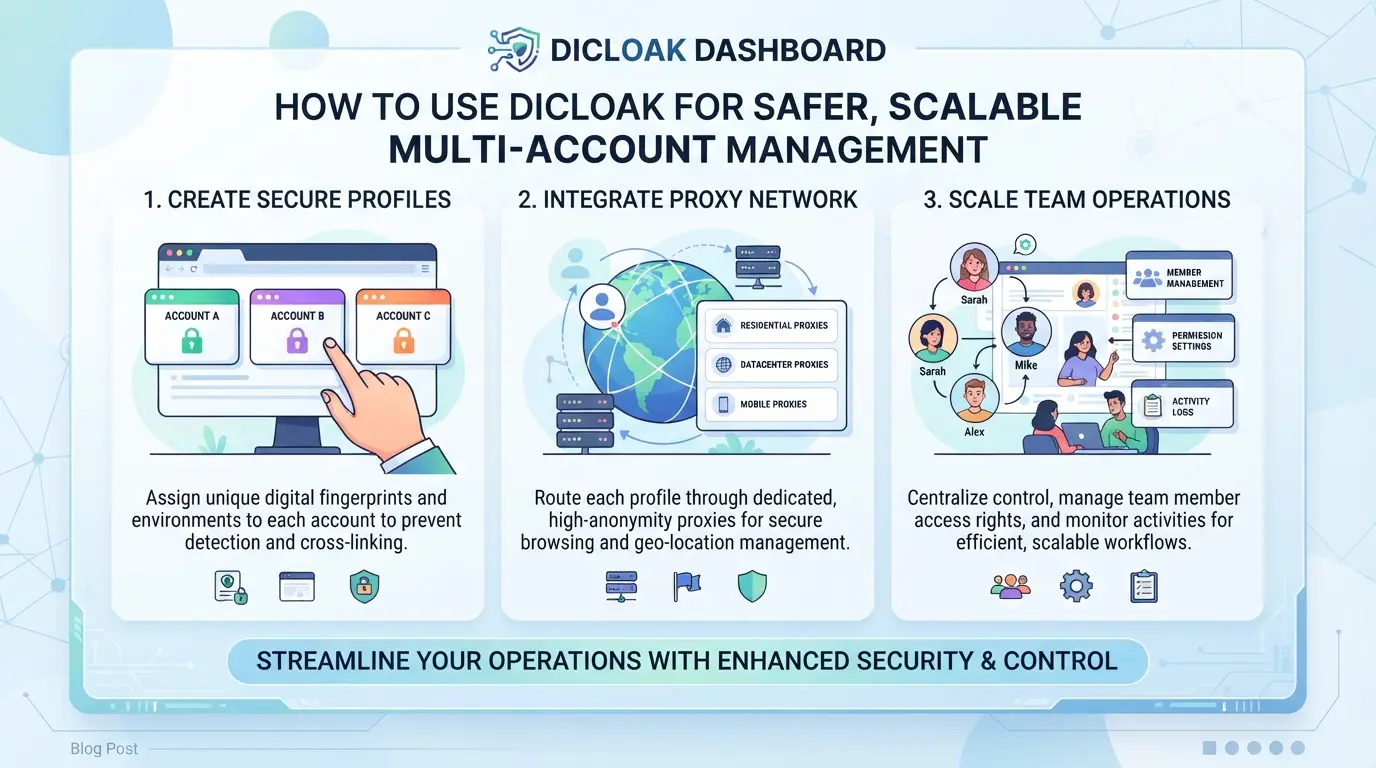
After you’ve sorted out team access and role control, the next challenge is keeping every account’s session, network, and workflow from bleeding into the others. Manual workarounds like browser containers or spreadsheets often break down fast, one missed setting or reused network can cause a cascade of account issues. Instead, using purpose-built tools like DICloak gives operators the controls to separate, automate, and review every key step in managing several online profiles safely. Here’s how a real multi-account workflow fits together:
Creating isolated browser profiles and configuring fingerprints
Operators start by creating a separate browser profile for each platform account. Each profile stores its own browser profile, which means its cookies, cache, and session data don’t mix with others. Operators can then set fingerprint signals such as system, language, time zone, or WebRTC handling, making each profile act like a different browser setup. This step is concrete: one login, one isolated environment, nothing leaking across profiles. The scope here is limited to browser and session settings; what happens inside the target platform remains under the user’s control.

Assigning user-provided proxies to each profile
For workflows where network separation is needed, operators assign a user-provided proxy to each browser profile. This means each profile can connect through its own SOCKS5, HTTP, or HTTPS proxy, and operators can test the exit IP and region before starting work. DICloak only stores and applies the proxy configuration; users are responsible for the proxy source and checking its behavior. This approach keeps network traffic for each session clearly separated without extra hardware.

Setting up team collaboration and permissions
Admins can set granular permissions so that only authorized team members see or use specific profiles and functions in DICloak. For example, a member group might have access to only one profile group and be blocked from editing sensitive fields. This limits the risk of accidental leaks or unauthorized changes, especially when dealing with many accounts and operators. These controls affect what team members can do in DICloak, not what they can change inside the connected platforms.

Automating repetitive workflows with RPA
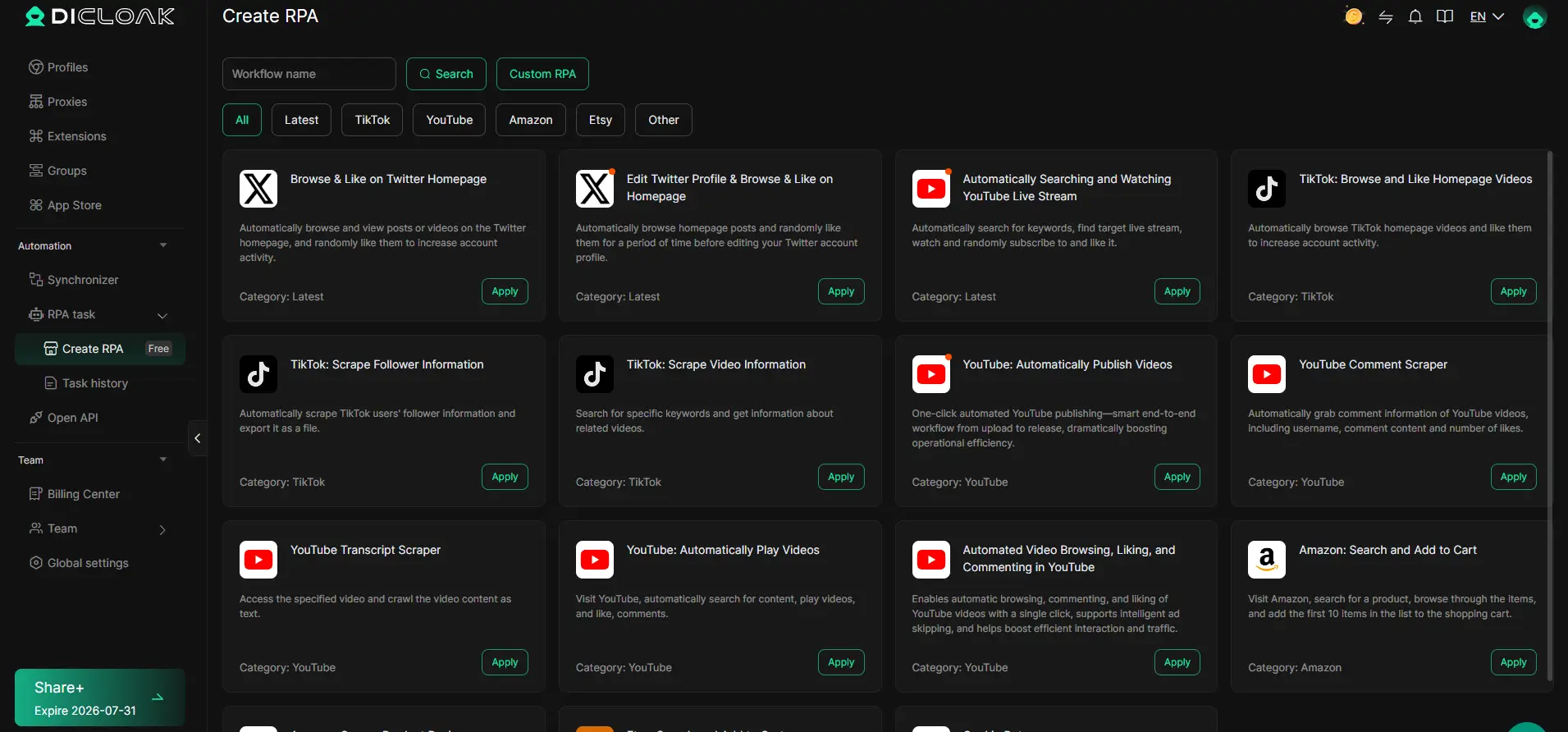
Operators can automate routine browser tasks for selected profiles, such as running daily checks or opening dashboards, using DICloak’s RPA feature. Each RPA task is configured with its own rules, runs across the chosen profiles, and produces logs for review. If a run fails or hits an unexpected page, operators see it in the run logs and can troubleshoot before small errors become account-wide problems.
Using bulk operations to manage profiles at scale
Managing dozens or hundreds of profiles by hand is slow and prone to mistakes. Operators can use bulk actions to assign proxies, update fingerprint settings, edit remarks, or move groups for many profiles at once. One wrong batch edit can affect every profile selected, so careful review is non-negotiable. Bulk operations save time for routine changes but require more discipline up front.
A methodical setup like this keeps account workflows clear and scalable. Before adding more accounts, weigh if this complexity fits your real needs or if a simpler process would work better.
When a Simpler Workflow Is Better: Deciding If You Really Need Multiple Accounts
Not every case needs multi-account management, sometimes a single account is safer, faster, and easier to maintain. If your use is personal or you’re running a solo operation, adding more accounts often creates extra work with less payoff.
Scenarios where one account is enough
| Scenario |
Risk of Multi-accounting |
Benefit of Single Account |
| Personal use |
High (mix-ups, bans) |
Low risk, easy recovery |
| Solo small business |
Medium (resource drain) |
Simple oversight, clear logs |
If your activity doesn’t require strict separation, like scheduling posts for yourself or tracking one sales channel, sticking with one account cuts down on mistakes and keeps your workflow clean.
Warning signs that multi-accounting is too risky
If you start seeing compliance warnings, legal headaches, or you’re spending more time on troubleshooting than the work itself, it’s a sign multi-accounting is backfiring. The point where account management eats up more resources than it saves is when you need to rethink your setup.
Frequently Asked Questions About how to manage multiple online accounts
How many online accounts can I safely manage at once?
The number of accounts you can handle safely depends on your workflow, how well you keep accounts separate, and each platform’s rules. Managing more accounts increases risk if you don’t use strong security and unique environments. Many users manage 3–10 accounts with careful isolation, but going beyond that raises the chance of mistakes or bans.
What’s the safest way to separate accounts if I don’t want to buy extra devices?
Use browser profiles or containers to keep each account isolated. Assign each profile a unique IP address using proxies. This makes each account look like a different user to websites. Also, use separate email addresses and avoid sharing cookies or autofill data between profiles to reduce the risk of cross-account detection.
Can I share account access with my team without exposing all credentials?
Yes, you can share access safely by using permission management tools like password managers or browser profile sharing services. These tools let you control who gets access and what they can do, without sharing the actual passwords. Avoid emailing or messaging passwords directly, as that can lead to leaks or security breaches.
What should I do if one of my accounts gets restricted or banned?
First, stop all related activity to prevent further issues. Review your account logs for suspicious actions or connections. Check if there are links between your accounts, such as shared IPs or device fingerprints. Do not create a new account in the same environment, as this can lead to instant bans or linkages.
Is it legal to manage multiple accounts on every platform?
No, not all platforms allow multiple accounts. Always read the terms of service for each website or app you use. Some, like social networks or marketplaces, strictly limit one account per person or business. Breaking these rules can result in permanent bans or even legal action, depending on your location.
Start by selecting a trusted password manager and setting up strong, unique credentials for each of your profiles. Make it a habit to review your account security settings regularly and enable two-factor authentication where possible to further safeguard your information. Try DICloak For Free
 Web Proxy Tools
 Free Tools
 Cookie Plugin
 UA Generator
 MAC Address Generator
 IP Generator
 IP Address List
 2FA Code Generator
 World Clock
 Anonymous Check
 WebRTC Leak Test
 UUID Generator
 Free Web Proxy Site
 Proxy Checker
 FB Ad Checker
 AI Web Scraping
 Free SMM Tools
 Twitter Shadowban Checker
 Instagram Name Checker
 UTM Generator
 Username Generator
 AI Hashtag Generator
 LinkedIn Headline Generator
 Social Media Image Resizer