You wake up to find your main workspace gone, Codex account got banned overnight, and the only notice is a generic suspension email. Codex rarely spells out exactly what triggered the ban. Was it automation, suspicious login patterns, or something buried in your account history? The worst part isn’t just losing access. It’s not knowing which action crossed the line, or if you can recover the banned Codex account at all.
Most people rush to appeal or switch devices, but that move often backfires. Codex can link device fingerprints, reused proxies, or even browser cookies from old sessions. Trying to log in from a new IP without understanding what flagged you can lock down your entire network or get future accounts banned faster. A single mistake in recovery attempts sometimes closes off any chance of appeal.
The real fix is to break down what happened step by step, instead of guessing. You need to check if your ban is account-based, device-linked, or tied to your browser fingerprint. Each pattern points to a different cause and changes what you can do next. Jumping into quick fixes almost always makes things worse, especially if you don’t clear traces or separate your environments.
Not sure what triggered your Codex account suspension? Start by spotting which of these ban patterns matches your case.
Why Did My Codex Account Get Banned? The Most Common Triggers in 2026
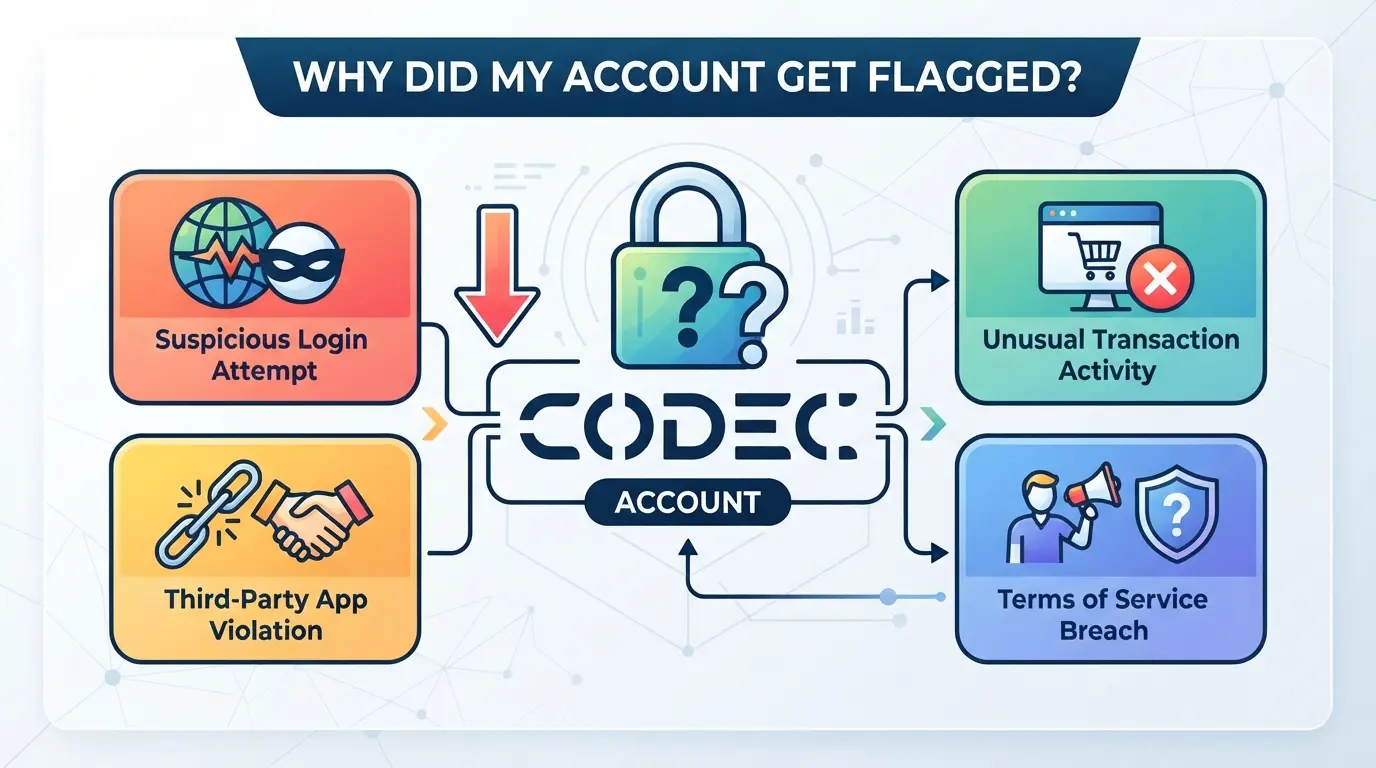
Most Codex bans in 2026 trace back to clear patterns: login changes, payment problems, automation abuse, or content issues. If your Codex account got banned, the reason is usually in one of these categories, not some random bug or hidden error. Spotting which fits your case is the fastest way to know what to check next.
Unusual Login Patterns and Device Changes
Switching devices or IPs too often almost always trips Codex’s risk systems. If you log in from five cities within two hours, or keep changing browsers, it’s viewed as takeover or shared access.
Payment or Billing Issues
Payment failures or anything odd in your billing activity can get you banned without warning. Codex’s system automatically puts blocks on accounts with mismatched payment sources, chargebacks, or repeated failed payments. For example, using a prepaid card for a one-time purchase might work, but if your next payment bounces or your billing country doesn’t match your login location, the account can get flagged. Some users try to fix payment issues by quickly swapping cards or updating billing info, but this can look like fraud and make the block permanent. If you’re using a company card and the billing address is in a different region than your main access IP, this almost always results in a ban or a hold until support reviews your account. Even one temporary payment glitch can put you under review for weeks, so it’s not just about “did my card clear”, it’s how stable and consistent your billing signals look.
Automated Actions and API Abuse
Unusual API bursts or clear bot activity are flagged right away. For example, running scripts that hit the Codex API with hundreds of requests per minute, or mass-creating resources, almost always triggers an instant ban. The system tracks both the volume and the timing, if your usage suddenly spikes at 3am UTC, that’s a giant red flag.
Terms of Service Violations and Content Flags
- Using Codex for prohibited activities (like resale, scraping, or mass messaging)
- Uploading or generating banned content (such as illegal material or spam)
- Repeated community or moderator reports on your workspace
A single violation often starts with a warning, but repeated triggers or flagged content can lead to a permanent ban, even if you weren’t the one who posted it.
If your ban fits one of these patterns, the next step is to check which evidence Codex logged on your account. The fastest recovery comes from matching the ban reason to what you see in your dashboard or ban notice.
What to Check First When Your Codex Account Is Banned
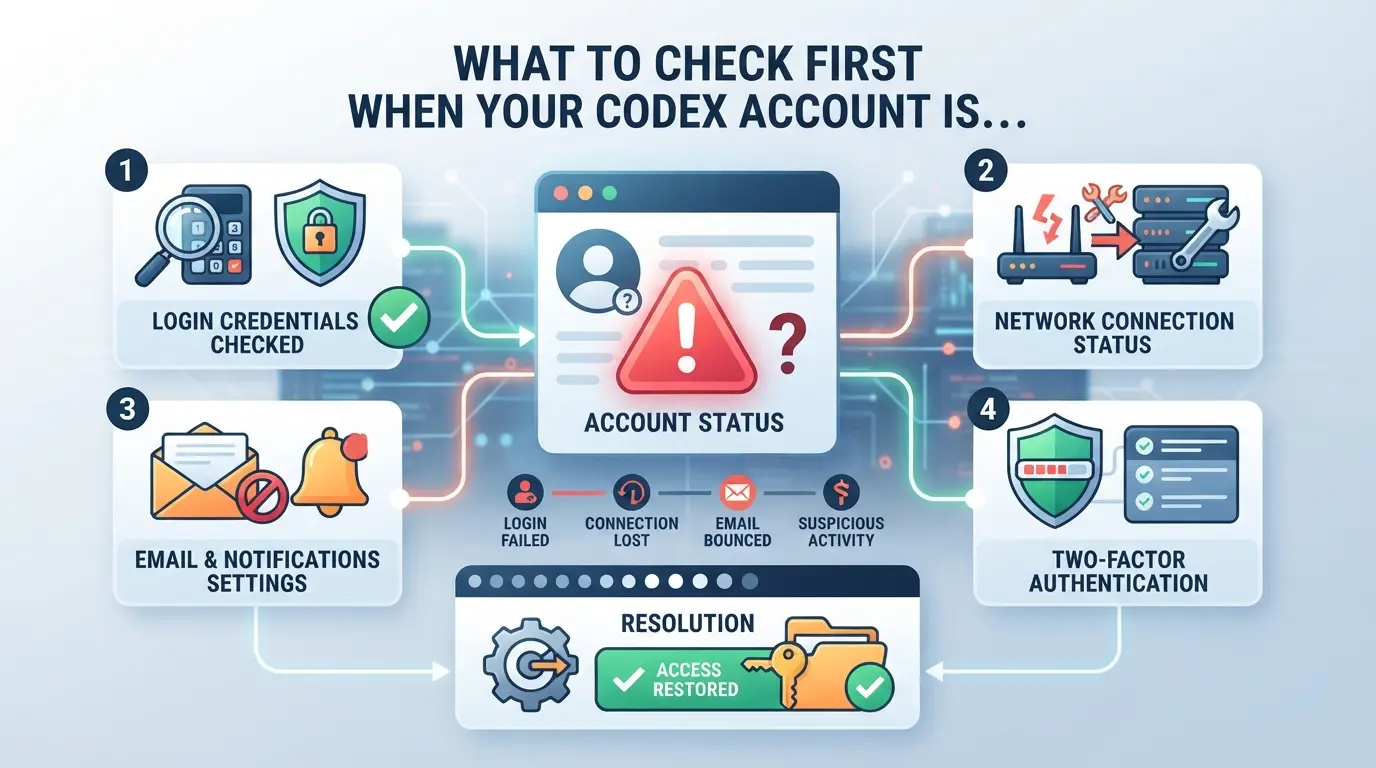
Getting banned catches most people off guard, but the fastest way to avoid making things worse is to slow down and check the facts before taking any action. Rushing into appeals or new logins without understanding your ban pattern can lock you out for good.
Review the Ban Notification and Account Email
Look for exact wording in the ban notice or the email from Codex, phrases like “suspicious activity,” “policy violation,” or “payment issue” usually point to different triggers. If the message is vague or generic, copy key phrases and search Codex help forums for recent matches. One overlooked detail, like a timestamp or reference code, can save hours of guessing.
Check for Recent Account Changes or Security Alerts
- Scan your inbox for password reset or email change notifications from Codex.
- Open your account security page to check for logins from new devices or locations.
- Look for alerts about unauthorized access or failed login attempts.
Verify Payment and Billing Status
A missed invoice, expired card, or failed payment can trigger an instant lockout. Check your billing dashboard for open invoices or recent declines, unpaid balances often block all appeals until resolved. Some bans lift automatically once the payment clears.
Identify Any Recent Automation or API Usage
Think back over the last week, did you use new scripts, connect third-party tools, or share an API key? Automation spikes or leaked credentials are one of the fastest ways to trigger bans, especially if usage patterns changed sharply. If you see a ban right after testing a new tool, that’s usually not a coincidence.
Assess Team or Shared Access Risks
If your account is shared, or you sometimes pass credentials around, don’t just blame bad luck. Multiple users on one profile almost always leave a trace.
- Ask teammates if anyone logged in from a new device or country.
- Check if shared passwords were used on multiple browsers or machines.
- Review access logs for signs of overlapping sessions or bulk actions.
The key is to map the ban to something concrete, guessing or trying random fixes almost always closes off recovery options. Sorting out what happened now will shape whether your appeal has a real shot in the next step.
How to Appeal a Codex Account Ban (and When It Works)
If your Codex account got banned, there’s a clear appeal process, but most users only get one real shot. The odds depend on what triggered the suspension and how you present your case.
Gather Evidence and Account Details
- Identify the ban reason shown on your login screen or in Codex email, this tells you if the ban is temporary, permanent, or under review.
- Collect all related info: registration email, username, device/browser details, and the exact time of the ban. Screenshots help if the message changes later.
- Document any actions right before the ban (new logins, IP changes, automation runs). This gives you use if you need to show a pattern or prove a mistake.
Submit an Official Appeal Through the Right Channel
- Use Codex’s official appeal form or support email listed on their website, unofficial channels or random forum posts get ignored.
- Write a short, factual message. State your username, the ban notice, and why you believe the action was a mistake or should be reconsidered.
- Avoid blaming Codex or repeating appeals, duplicate requests can get your case closed without review.
What to Expect After Submitting an Appeal
- Standard review times run 3–7 business days, weekend submissions usually wait longer.
- You’ll get an email update: restored account, denied appeal, or request for more info.
- If you hear nothing after 10 days, try one follow-up, but more than two messages in a week often flags your case as “spam” and resets the queue.
When Appeals Are Unlikely to Succeed
- Permanent bans for severe ToS violations (fraud, phishing, repeated abuse) are rarely overturned.
- If Codex presents clear evidence of scripted activity or mass account abuse, appeals almost never work.
- If the ban reason is “final decision” or no further review is offered, repeated appeals do not reopen your case, time is better spent on prevention for the next account.
Next, it’s smarter to address what caused the ban so you don’t repeat the same mistake on new profiles.
How to Avoid Getting Your Codex Account Banned Again
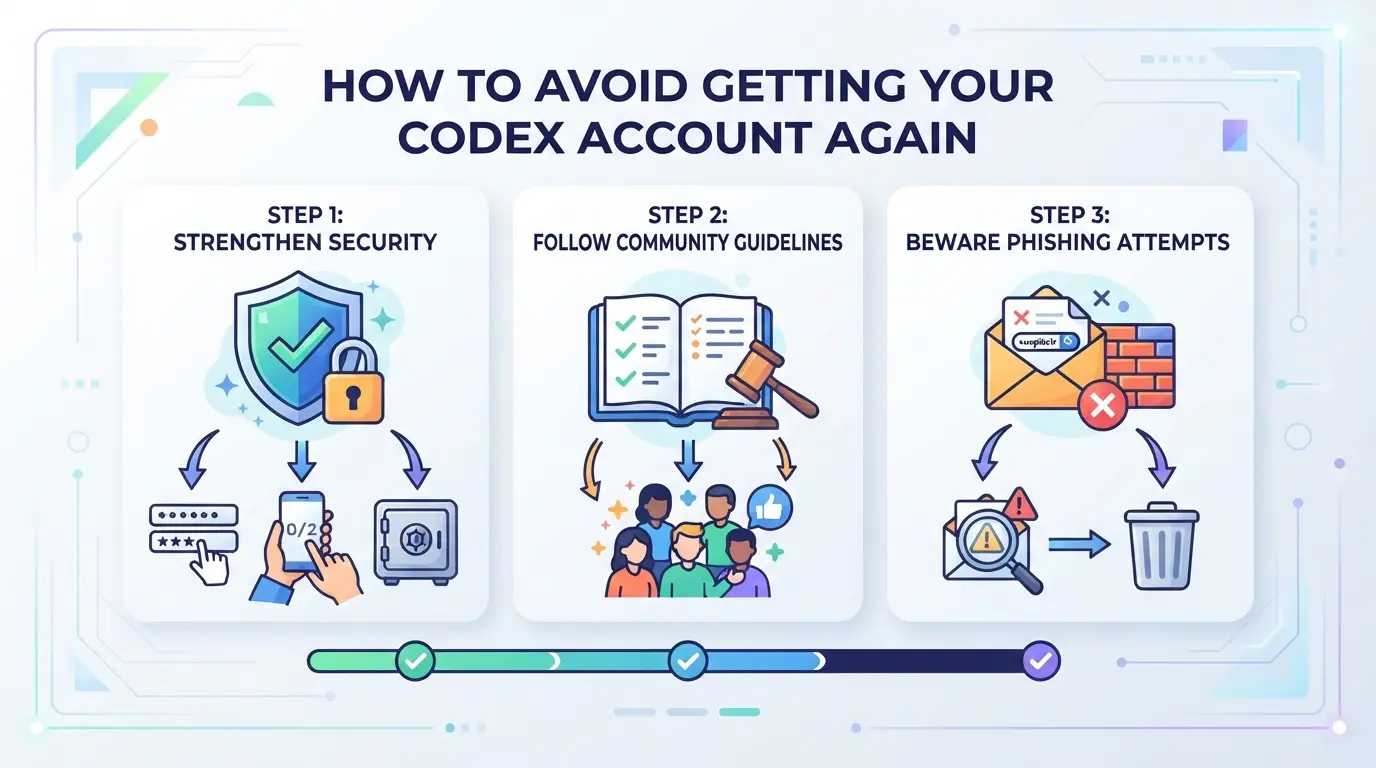
If you just appealed and got nowhere, you need to change what you’re doing before trying again. Most repeat bans happen because users fall back into the same login, sharing, or automation patterns that got flagged the first time. The fastest way to lower your risk is to break those habits and set up clear, project-by-project boundaries.
Keep Login Patterns Consistent
Frequent changes in device, browser fingerprint, or IP location are a red flag for Codex. Stick to logging in from the same place and at the same times you did before the ban. Even one odd login, like switching from a home network to a public hotspot, can put your account under review. If you run multiple accounts, avoid cross-logging from a single device or browser session.
Use Separate Accounts for Different Projects or Teams
- Create one Codex account per project or business unit
- Never share login credentials between users, even on the same team
- Label accounts clearly in your password manager to avoid accidental cross-use
Account sharing almost always leads to device fingerprint collisions or access from unexpected locations, both common ban triggers.
Monitor API and Automation Usage Closely
Set clear daily and weekly limits for API calls or automated actions. If you rely on scripts or third-party tools, audit your API keys monthly to spot any unauthorized use. Even a single spike in traffic can trigger an automated suspension, Codex systems often treat sudden scale-ups as bot behavior.
Review Payment and Billing Regularly
Keep your payment methods updated and monitor for any failed transactions. Unexpected billing activity or expired cards are among the fastest ways to trigger a review or suspension. If a payment fails, resolve it before logging in again to avoid a chain reaction of flags.
Educate Team Members on Safe Practices
Don’t assume everyone on your team knows the rules or risks.
- Schedule a quick training on Codex’s terms and automated ban triggers
- Require approval for new device logins or IPs
- Set up alerts for login attempts from unknown locations
The step most users skip is training team members, one careless login from a new laptop or network is all it takes to lose access again.
If you’re planning to run more than one account or split work across a team, the next step is to rethink your workflow from the ground up.
How to Set Up Safer Multi-Account Workflows for Codex in 2026
Most bans in multi-account setups come down to sloppy separation, if one account gets flagged, linked profiles often go down with it. Here’s how to build a workflow that actually lasts, instead of repeating the “Codex account got banned” cycle.
Assign Each Account to a Separate Browser Profile
- Create a unique browser profile for every Codex account.
- Never reuse a profile, even for a single login, between accounts.
- Clean out all cookies, cache, and extensions before setting up a new profile.
- If two accounts ever share a profile, treat both as compromised for future bans.
Configure Unique Fingerprints and Environments
- Before each login, adjust browser fingerprinting settings (like timezone, language, and screen size) to avoid obvious overlaps.
- Don’t just copy-paste settings, platforms check for subtle tells, such as matching fonts or WebGL hashes.
- If a login gets blocked right after setup, it often means your fingerprint looks too similar to a banned or flagged account.
Use User-Owned Proxies for Each Profile
- Assign a different proxy (ideally static and clean) to each browser profile.
- Never share the same IP across accounts, even on different days.
- Rotate or replace proxies that get blacklisted, reusing a burned proxy almost always leads to a ban.
- If you see logins failing or captcha challenges rising, check proxy status first.
Document and Audit Account Activity
- Keep a simple log (spreadsheet or notepad) of every login, IP, and action per account.
- Review those logs weekly, spikes or patterns, like multiple failed logins, often point to a new risk.
- If you spot anything odd, freeze activity on that account until you check all browser, proxy, and device details.
With these steps, you cut down on the biggest triggers that get multiple Codex accounts banned in a single sweep. This groundwork makes it possible to manage more accounts safely, if you want to push automation or team workflows further, you’ll need tools built for true isolation.
Managing Multiple Platform Accounts with Isolated Browser Profiles and Proxies in DICloak
After breaking down what led to a Codex account ban, the next move is keeping future platform sessions from overlapping in ways that trigger detection. Relying on one browser or network for every login is exactly how accounts get linked or flagged. DICloak’s profile and proxy setup gives operators a way to separate browser data and network signals across accounts, without turning it into guesswork.
Creating Isolated Browser Profiles and Configuring Fingerprints
Operators can create a new DICloak browser profile for each platform account, storing each session’s cookies, storage, and fingerprint signals separately. In the Fingerprint Settings panel, teams can adjust the reported OS, browser version, time zone, WebRTC, and display details to better match each account’s real or assigned environment. The scope here is limited to isolating browser profiles and controlling which signals each account session exposes, DICloak does not manage Codex accounts or platform bans.

Setting Up User-Owned Proxies for Each Profile
Each browser profile can be assigned a custom proxy connection, entered in the Proxy Settings panel. Operators paste in their own proxy details and run a connectivity check to confirm the proxy works before launching a session. This setup lets teams keep network signals distinct per profile, but proxy quality, type, and rotation rules remain the user’s responsibility. DICloak handles the configuration and testing layer only.

If you mix up steps here, the next section covers the mistakes that get accounts flagged fast.
What Not to Do: Common Mistakes That Lead to Fast Bans
Fast bans often come down to sloppy habits anyone can slip into. If you want to avoid another Codex account got banned incident, watch for these high-risk mistakes before you even log in.
Reusing Browser Sessions or Cookies Across Accounts
Platforms spot when old cookies or session data link multiple accounts, even if you switch browsers. Always start with a fresh browser profile for each account, copying, exporting, or restoring sessions between them leaves traces that get flagged fast.
Using Low-Quality or Overused Proxies
Low-grade public proxies are easy for platforms to block or blacklist.
- Accounts sharing proxy IPs with dozens of other users look suspicious and trigger mass bans.
- Use clean, private proxies only, prefer residential or dedicated IPs that haven’t been abused on Codex.
Letting Multiple Team Members Use the Same Account
When several people log in from different locations or devices, Codex quickly detects inconsistent access patterns. This almost always leads to restrictions or permanent bans. The only safe way is one account per operator, each with its own isolated environment.
Frequently Asked Questions About Codex account got banned
Can I recover my Codex account after a permanent ban?
Usually, a permanent ban means your Codex account is gone for good. However, if the violation was minor or a mistake, you can try submitting an appeal through the Codex support page. Most appeals for serious offenses get denied, but some users have had success for less severe issues.
Is it safe to use the same proxy for multiple Codex accounts?
No, it’s not safe. Using the same proxy for several Codex accounts can link them together and raise red flags. To lower your chances of a Codex account suspended warning, always use a unique proxy for each account. This helps keep your accounts separated and reduces the risk of bans.
Does using an antidetect browser guarantee my Codex account won't get banned?
No tool can guarantee your Codex account won’t get banned. Antidetect browsers help by hiding your digital fingerprint, but they can’t protect against all risks. If you use suspicious patterns, spam, or break Codex rules, your account could still be banned, even with extra tools.
How many Codex accounts can I safely manage at once?
There’s no exact limit. The risk of a Codex account banned warning depends on how well you separate accounts, use different proxies, and avoid patterns that look like automation. Some people manage 2-5 accounts safely; others manage more by carefully separating each one’s activity and access.
What should I do if my appeal is rejected?
If your appeal to recover a banned Codex account is denied, it’s best to start over. Create new accounts using fresh emails, unique proxies, and better separation between workflows. Learn from what caused the ban and change your setup to avoid making the same mistakes.
If you've lost access to your account, it's important to consider alternative platforms that prioritize security and reliability. Exploring new options can help you regain control over your digital experience without unnecessary hassle. Try DICloak For Free
 Web Proxy Tools
 Free Tools
 Cookie Plugin
 UA Generator
 MAC Address Generator
 IP Generator
 IP Address List
 2FA Code Generator
 World Clock
 Anonymous Check
 WebRTC Leak Test
 UUID Generator
 Free Web Proxy Site
 Proxy Checker
 FB Ad Checker
 AI Web Scraping
 Free SMM Tools
 Twitter Shadowban Checker
 Instagram Name Checker
 UTM Generator
 Username Generator
 AI Hashtag Generator
 LinkedIn Headline Generator
 Social Media Image Resizer