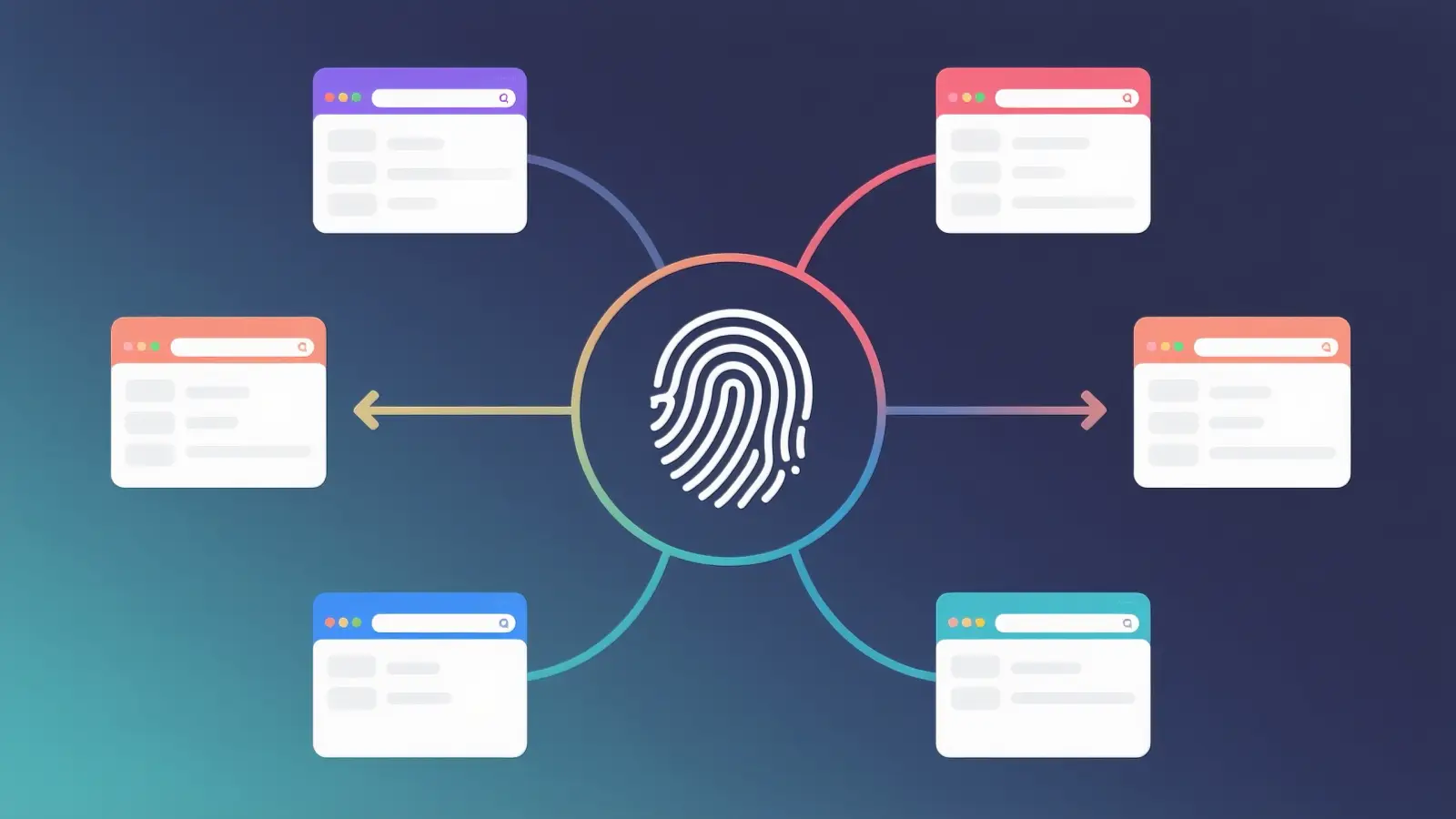
Managing one X account is simple enough. But what happens when your business needs several accounts for different brands, markets, or projects? Creating them one by one is only part of the work. You also need to manage email addresses, complete verification, organize login sessions, and keep each account running smoothly. Without a clear system, even a small group of accounts can become difficult to handle.
If you're wondering how to create X accounts in bulk safely in 2026, the first thing to understand is that X allows multiple accounts for different purposes, but it has rules against mass registration of inauthentic accounts and coordinated activity. You cannot simply create hundreds of accounts and expect them all to work. The better approach is to plan each account's purpose, use proper verification details, and organize your browser sessions before you begin.
This guide explains how bulk X account creation works, what X allows, and how to build a practical multi-account setup. You'll also learn how browser profiles, proxy management, and team tools can make everyday account operations easier.

Why Bulk Creation of X Accounts Requires Extra Precautions
Creating several X accounts is different from opening a single personal account. You need to think about why each account exists, who will use it, and how its activity will be managed. X also has rules that affect how many accounts you can operate and what those accounts can do together.
How X's policies impact multi-account creation
X does not ban users simply for having more than one account. Its official Authenticity Policy allows users to create or operate up to 10 accounts for different, non-duplicative purposes, subject to technical limits. For example, a company may run separate accounts for its English-speaking customers, Spanish-speaking customers, and different products. These accounts serve different audiences and have clear reasons to exist.
However, X prohibits mass-registering accounts that are not genuine or transparent about their purpose. It also restricts coordinated activity designed to increase likes, reposts, or other engagement numbers. Running several accounts that repeatedly publish the same content can violate these rules. Understanding this difference helps you plan a multi-account strategy that can last.
Common risks of bulk account creation without proper setup
Imagine a marketing agency that manages X accounts for several clients. The agency creates the accounts using different email addresses, but it keeps no record of which login belongs to which client. After a few days, employees start switching between accounts, losing verification emails, and posting from the wrong profile. What began as a simple task becomes an account management problem.
Poor preparation can cause several issues. Accounts may have missing recovery information, mixed browser sessions, or unclear ownership. Teams might also publish the wrong content or give employees access to accounts they do not manage. These problems can interrupt daily work and make it harder to find the cause when something goes wrong.
Why account isolation is critical for avoiding suspensions
Account isolation means keeping each X account's login session and browser data separate. A normal browser stores information such as cookies, browsing history, and local storage. When several accounts are managed without a clear separation system, employees may open the wrong account or accidentally mix sessions. Using separate browser profiles gives each account its own workspace.
For example, an agency managing three client accounts could assign one browser profile to each client. The employees would open the correct profile whenever they need to work on a particular account. This reduces login confusion and helps keep client information organized. However, browser isolation does not override X's policies or prevent suspensions caused by prohibited account activity.
What You Need to Prepare Before Creating X Accounts in Bulk
A good setup begins before you open the X registration page. Preparing your account details, browser profiles, and verification methods can save time later. It also makes the registration process easier to repeat when you add another legitimate account.
How to set up separate environments for each account
Start by deciding which account needs its own browser profile. You can use standard browser profiles for basic account separation or an antidetect browser when your workflow needs more control over browser settings, session storage, and proxies. The important point is to give each X account a clear and consistent workspace. This makes it easier to manage multiple projects without repeatedly logging in and out.
Here is a simple preparation checklist:
| What you need |
Why it matters |
| Account name and purpose |
Makes every account easy to identify |
| Separate email address |
Supports registration and account recovery |
| Browser profile |
Keeps cookies and login sessions organized |
| Strong password |
Protects account access |
| Verification method |
Helps complete security checks |
| Account owner |
Makes team responsibilities clear |
| Content plan |
Gives each account a distinct role |
For example, a business could name its browser profiles "Brand-US," "Brand-ES," and "Brand-Support." Each profile would have its own X login and assigned team member. The same naming system could also be used in an account tracking sheet. This small step becomes especially useful when several employees manage the accounts.
Understanding X's verification requirements
X allows account registration using an email address or phone number. When you register with an email address, X sends a confirmation message to verify that you can access it. If you register using a phone number, X normally sends a verification code by SMS. Depending on the situation, X may also request additional checks during account access or recovery.
Before registering, make sure you can access the email inbox and any phone number you plan to use. Avoid relying on temporary contact details that could become unavailable later. A verified account still needs working recovery information if you forget a password or lose access to a device. Keeping these details updated is part of managing accounts responsibly.
Step-by-Step Guide to Creating X Accounts in Bulk
There is no general public registration feature that lets ordinary users create large batches of X accounts with one click. The practical approach is to prepare your account details, register each permitted account, and organize the accounts with a repeatable process. You can reduce the manual work around registration without automating X's verification checks or bypassing account limits.
Setting up unique email addresses for each account
The first step is to prepare the email addresses you will use. X requires each account's email address to be unique, so you cannot register several active X accounts with one identical email address. If your company manages several brands, business email addresses can help you keep account ownership clear. Each address should lead to an inbox that your organization can access and maintain.
For example, a company operating three separate projects might use:
social-brand-a@example.comsocial-brand-b@example.comsocial-brand-c@example.com
Once the email addresses are ready, create a secure record of which address belongs to each X account. Keep passwords in a password manager rather than storing them in an unprotected spreadsheet. You should also decide who is responsible for opening verification emails and maintaining recovery access. This makes future account changes much easier to handle.
Using browser profiles or cloud phones for account isolation
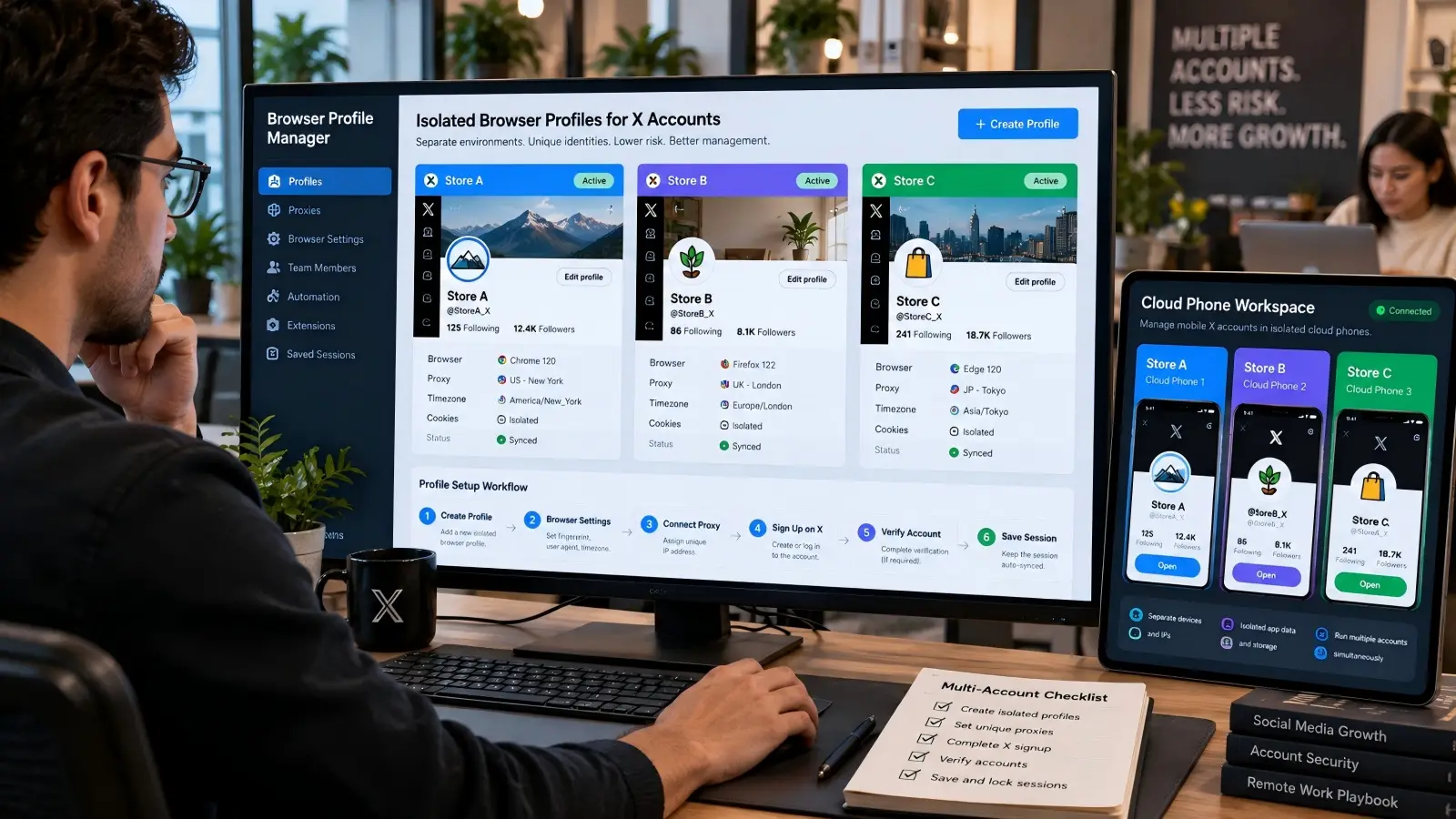
Next, prepare the browser profiles or mobile workspaces you will use. A browser profile keeps its own cookies and saved session information, while a cloud phone provides access to a remote mobile environment. Both approaches can help separate workflows, but they serve different needs. For most teams managing X through a desktop browser, separate browser profiles are a practical starting point.
You can follow this workflow:
- Open your browser profile manager and create a new profile.
- Give the profile a name that matches the X account's purpose.
- Configure its browser settings and any required network connection.
- Open
https://x.com/signup inside the profile.
- Register the account using its assigned email or phone number.
- Complete verification and save the account record.
- Repeat the process for other accounts permitted under X's rules.
Suppose you manage X accounts for three different stores. You can prepare one browser profile for each store and keep its session saved for future work. When an employee needs to answer customer questions, they simply open the store's assigned profile. This saves time and reduces mistakes caused by switching between several logged-in accounts.
Completing X's account verification process
Once the registration form is complete, X may send a verification code or confirmation link to the email address or phone number you provided. Open the message and follow the instructions shown on the screen. After verification, finish setting up the username, profile photo, and bio. You can find the current steps in X's official account registration guide.
Make sure each profile clearly represents its real purpose. A customer support account, for example, should use a name and description that help customers identify the business. A regional account can explain which market or language it serves. Once setup is finished, test the login and confirm that the recovery details are correct before assigning the account to a team member.
How to Scale Your X Accounts Without Getting Flagged
After creating your accounts, the next challenge is managing them consistently. Scaling is not just about registering more accounts. You also need clear responsibilities, useful content, and a way to check account health as your workload grows.
Gradual scaling strategies to avoid detection
Adding accounts gradually can make the work easier to manage, but there is no proven daily registration number that guarantees safety. X does not publish a universal safe schedule for opening new accounts. The important limit is whether each account has a genuine, distinct purpose and follows X's rules. A slower registration process should not be treated as a way to hide prohibited bulk activity.
For example, suppose a company wants X accounts for three product lines. Instead of opening every possible account immediately, it could first launch the main company account and one product account. The team can then check whether the content plan, staffing, and customer support process are working well. Once those accounts have clear roles, the company can decide whether another account provides enough value to justify the extra work.
Monitoring and managing account activity effectively
Once multiple accounts are active, keeping track of daily work becomes important. One employee may handle customer replies, while another schedules product updates or reviews audience questions. Without a shared system, both employees might answer the same message or forget an important request. An activity tracker helps the team see what has already been completed.
You can record account ownership, planned posts, customer requests, login problems, and verification notices in one place. For example, a social media manager could review the previous day's support questions every morning before preparing new content. A scheduling tool can handle approved posts, while a team dashboard can show who is responsible for each account. The goal is to keep daily activity organized rather than simply increase the number of actions.
Identifying red flags that could lead to account suspension
X may respond to suspicious or prohibited activity with account restrictions, verification requests, reduced content visibility, or suspension. For example, repeatedly posting nearly identical promotional messages from several accounts can raise problems under its authenticity and automation rules. Large volumes of unsolicited replies and aggressive following are also restricted.
Pay attention to unusual login notifications, repeated verification requests, unexpected posting limits, and warnings from X. If an account receives a restriction, check the notification and review its recent activity before continuing. You should also check which third-party tools have access to that account. Solving the actual problem is more useful than repeatedly changing account settings without understanding the cause.
Advanced Tools for Managing Multiple X Accounts
Managing several X accounts manually becomes harder when a business grows. You may need to switch between client projects, assign access to employees, and prepare content for different audiences. The right tools can reduce repetitive work and make daily account management easier.
Multi-account browsers and their benefits
A multi-account browser helps users manage separate browsing sessions from one application. Rather than opening and closing the same browser window whenever you change accounts, you can create individual browser profiles and save their settings. Some tools also provide profile groups, proxy configuration, and team permissions. These features can help agencies and businesses maintain a more organized workflow.
For example, an agency could create separate browser profiles for five client projects, each with its own saved login and assigned employee. When a client asks for an update, the employee opens that project's browser profile and continues working. There is no need to search through several browser windows to find the correct account. The browser acts as a workspace manager, not as a substitute for X's own account rules.
Automation platforms for scheduling and engagement
Content scheduling can save time when several X accounts need regular updates. Tools such as Buffer, Hootsuite, and approved X API integrations may help teams prepare posts, set publishing times, and review performance. Available features depend on the service, its current X integration, and the user's plan. Choose a tool that supports the actions your team actually needs.
Automation also has clear limits. Under X's Automation Rules, automated likes are prohibited, while bulk or aggressive automated following is not allowed. X also prohibits automating several accounts for duplicative or substantially similar purposes. A useful approach is to automate permitted publishing tasks and leave genuine conversations, customer questions, and sensitive account decisions to people.
Common Mistakes to Avoid When Creating X Accounts in Bulk
Many multi-account problems come from small mistakes rather than complex technical issues. Reusing account details, mixing login sessions, or publishing without a clear plan can create unnecessary work. Knowing these mistakes early helps you build a cleaner process.
Reusing email addresses or phone numbers across accounts
One common mistake is assuming that an email address can be used for several active X accounts. X only allows one account to be associated with a particular email address at a time. If you try to register another account using that same address, you may receive an error. You will need to use another address that you own and can verify.
Phone numbers work differently. X states that one phone number may be associated with up to 10 accounts, although technical limits and verification conditions still apply. This does not mean a phone number gives you permission to exceed X's multi-account policy. Before adding a number to another account, check whether it is already associated with existing accounts and whether you can receive verification messages.
Ignoring device fingerprinting and its consequences
Websites can receive information about the browser and device used during a visit. This may include the browser version, operating system, screen settings, and other technical signals. These details are often discussed under the term browser fingerprinting. They are different from cookies, which are stored in the browser and commonly used to maintain login sessions.
For teams, the practical issue is keeping browser settings and account sessions organized. Constantly changing browser configurations or using an unfamiliar device can also lead to unexpected login checks. A stable browser profile helps employees return to the same workspace with the same saved session details. Remember that changing fingerprint settings does not make an account immune to X's security or policy checks.
Overloading accounts with activity too quickly
Newly created accounts do not need to publish dozens of posts or follow large numbers of users to become useful. In fact, aggressive following, repeated promotional messages, and coordinated engagement can violate X's rules. A business account should focus on providing relevant information and responding to genuine audience interest. Posting more often is not always the same as building a better account.
Consider a new X account for an online store. Its first posts could introduce the store, explain shipping information, and answer common customer questions. Later posts could share product updates or useful buying tips. This gives the account a clear purpose and provides visitors with real information. It is a better content strategy than publishing the same advertisement repeatedly across several accounts.
Best Practices for Long-Term Management of Bulk X Accounts
Creating accounts is only the beginning. Over time, team members change, passwords need updates, and different accounts develop their own audiences. A clear management process helps keep everything organized as your business grows.
Organizing accounts by role or purpose
Each X account should have a clear role within your business. One might share product news, another might answer customer questions, and a third might publish content for a different language market. When accounts have different purposes, it becomes easier to plan useful content for each audience. It also helps employees understand which account they should use.
For example, an international software company could organize its accounts this way:
| Account |
Main purpose |
Responsible team |
| Main brand account |
Product announcements |
Marketing |
| Customer support account |
Help and service updates |
Support |
| Spanish-language account |
Regional content |
Regional marketing |
| Product-specific account |
Tutorials and feature news |
Product marketing |
A structure like this also makes performance reviews more meaningful. Instead of comparing every account by follower count, you can measure each one against its actual purpose. Customer support accounts may focus on response quality, while product accounts may track useful conversations and visits to documentation. This gives each team a clearer idea of what success looks like.
Regularly updating account credentials and recovery options
Account security becomes more important when several employees need access. Every X account should use a strong, unique password, and recovery information should stay current. Where available, enable suitable two-factor authentication and protect any backup codes. A password manager can help the business store credentials without sharing them through chat messages or spreadsheets.
Suppose an employee who managed three client accounts leaves the company. The administrator should review that employee's access, remove unneeded permissions, and check whether any shared credentials need to be replaced. The team should also confirm that each recovery email and phone number remains under the right person's control. Regular access reviews are easier than trying to recover accounts after ownership information has been lost.
Maintaining consistent activity to avoid suspicion
Consistency should come from a practical content plan, not from attempts to imitate artificial human behavior. Decide how often each account needs to publish based on its audience and purpose. A customer support account may need daily attention, while a product announcement account may only post when there is useful news. Both can serve their audiences well.
For example, an agency might plan educational posts for one client and event updates for another. Each account can have its own publishing calendar and approval process. This helps prevent repeated content and gives employees enough time to prepare useful material. Consistent quality matters more than forcing every account to follow the same posting schedule.
When you manage several X accounts, switching between different sessions can take more time than creating the accounts themselves. You need to keep browser data organized, configure the right network settings, and make sure team members access the correct accounts. With DICloak Antidetect Browser, you can organize these tasks through separate Browser Profiles and shared management tools.
DICloak does not automatically remove X's registration limits or verification requirements. Instead, it provides a structured workspace for creating and managing legitimate accounts. This is especially useful for agencies, marketing teams, and businesses that work with several brands or regional accounts.
Creating Unique Digital Fingerprints for Each Account
Every time you open a website, your browser provides technical information about your device and software. This may include the browser version, operating system, language, timezone, Canvas, and WebGL details. In DICloak, you can configure these settings for individual Browser Profiles while keeping their cookies and local storage separate. This gives each account its own browser workspace and helps prevent session confusion.
For example, suppose a marketing team manages X accounts for three different clients. The team can create three Profiles and give each one a name that matches the client. Each Profile keeps its own login session and browser configuration, so employees can return to the correct account without repeated manual sign-ins. This makes day-to-day work easier when several projects are running at the same time.
To set up a Browser Profile in DICloak:
- Open DICloak and go to Profiles → Create Profile.
- Enter a Profile name that identifies the account or project.
- Configure the browser fingerprint settings as needed.
- Set
https://x.com as the startup page if desired.
- Save the Profile and open it to complete the normal X registration process.
Once the account is verified, you can continue using its assigned Profile for future work. You can also organize Profiles into groups when managing several projects. This provides a clearer structure than keeping unrelated accounts together in one browser window.

Managing Proxies and Regional Settings with Ease
A proxy routes browser traffic through another network connection, while browser fingerprint settings control information such as language and timezone. These are two different parts of a browser setup. In DICloak, you can assign a proxy to an individual Profile and manage its browser settings from the same interface. The software supports custom proxy configuration and saved proxies, allowing teams to manage different network requirements without changing the whole computer's connection.
For example, a company might have marketing teams working from different countries. Each team may need an approved network connection for its own work, and the company may want to keep those settings attached to the correct Browser Profile. DICloak's proxy management tools make it easier to review these configurations and test connections. Its WebRTC controls can also help keep WebRTC traffic aligned with an assigned proxy, rather than unexpectedly using the local network.
To configure a proxy, open the assigned Profile and find Proxy Settings. Select a supported proxy mode, enter the necessary connection details, and test the connection before saving. You can then review the Profile's timezone and language settings to make sure they are correct for the intended workflow. This keeps network management in one place instead of requiring employees to configure connections from scratch every time.

Streamlining Team Collaboration for Bulk Operations
Managing several X accounts often involves more than one person. A marketing specialist may prepare content, a support employee may answer questions, and a manager may need to review the work. Giving everyone full access to every account can make responsibilities unclear. With DICloak's team management features, administrators can organize Browser Profiles into groups and assign access to the employees who need them.
Imagine an agency managing X accounts for five different clients. The administrator can create a Profile Group for each client and assign the relevant team members to that group. Employees can then find their assigned Browser Profiles without searching through accounts belonging to other clients. When someone changes roles or leaves a project, the administrator can review and update their access.
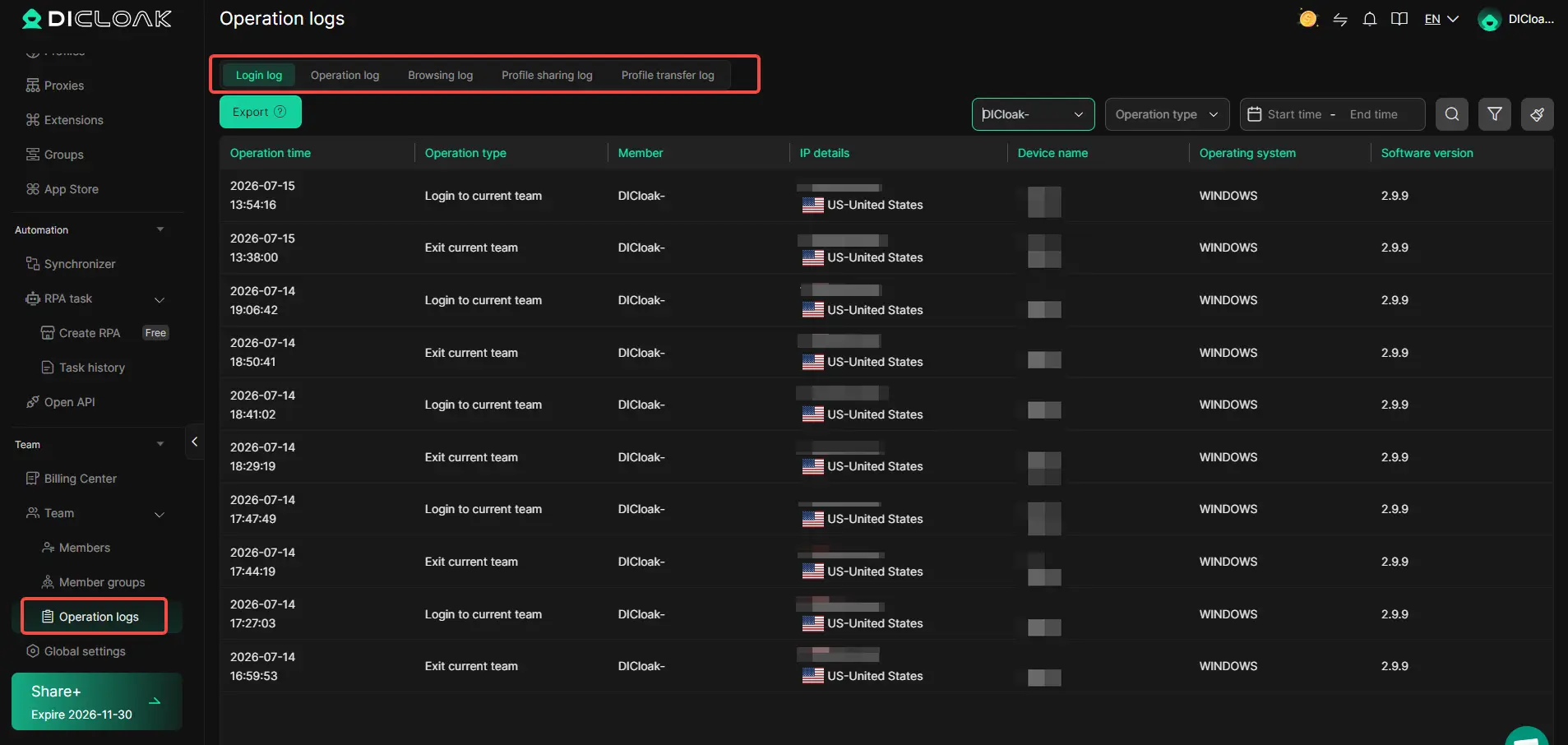
DICloak also supports Profile sharing and team permission management, which can reduce the need to send login details between employees. Its Profile Groups can help organize account access, while management settings support clearer responsibilities across the team. For agencies handling different clients every day, these features make multi-account work easier to manage and review.
FAQs About Creating X Accounts in Bulk
Here are answers to common questions about X account creation, verification, automation, and recovery.
Can I create multiple X accounts with one email address?
No. Each X account needs a unique email address. If you want to create multiple accounts, prepare a separate email for each one. This also makes account verification and password recovery easier.
How many X accounts can I create per phone number?
X allows one phone number to be linked to up to 10 accounts. However, each account must follow X's authenticity rules, and additional verification may be required.
What should I do if one of my accounts gets suspended?
Check X's suspension notice to understand the reason. If verification is required, follow the instructions provided. If you believe the suspension was a mistake, submit an appeal through X's official support system.
Are there tools to help automate X account creation?
Yes. Browser automation tools can automate certain browser tasks, while DICloak helps manage multiple Browser Profiles. However, automated account registration must follow X's rules, which prohibit mass registration of inauthentic accounts.
How can I recover a banned X account?
Submit an appeal through the official X account appeal form. Explain your situation and provide any requested details. X will review the appeal and decide whether to restore your account.
Conclusion
Learning how to create X accounts in bulk safely in 2026 starts with understanding what X actually allows. Multiple accounts can serve real business needs, especially when different brands, regions, or teams require separate communication channels. But creating accounts is only one part of the process. Proper verification, clear account ownership, and organized daily management are just as important.
For teams handling several legitimate accounts, separate Browser Profiles can make the work much easier. With DICloak, you can manage browser sessions, configure proxy connections, organize Profiles, and assign team access from one place. Combined with a clear account plan and X-compliant activity, this creates a more practical system for long-term multi-account management.
The goal is not to create as many accounts as possible. It is to build a manageable group of accounts that each have a clear purpose and can provide lasting value to the people who follow them.
 Web Proxy Tools
 Free Tools
 Cookie Plugin
 UA Generator
 MAC Address Generator
 IP Generator
 IP Address List
 2FA Code Generator
 World Clock
 Anonymous Check
 WebRTC Leak Test
 UUID Generator
 Free Web Proxy Site
 Proxy Checker
 FB Ad Checker
 AI Web Scraping
 Free SMM Tools
 Twitter Shadowban Checker
 Instagram Name Checker
 UTM Generator
 Username Generator
 AI Hashtag Generator
 LinkedIn Headline Generator
 Social Media Image Resizer