Stuck on a chatgpt login error that just loops you back to the sign-in page or throws an authentication error? You’re not alone, most people hit this wall when switching devices, using multiple accounts, or after changing browser setups. Sometimes you’re locked out for no clear reason, even though your password works everywhere else. It’s easy to waste half an hour clearing cookies, refreshing, or trying incognito mode, but the same “chatgpt login not working” cycle keeps coming back.
What trips up many users is that ChatGPT’s login system doesn’t just check your password, it tracks browser fingerprints, IP consistency, and session data. Even if you get the password right, a mismatch here can trigger a “cannot sign in to chatgpt” loop or force extra verification steps. Jumping between accounts or using different browsers without clearing old sessions can make things worse, not better.
The real fix isn’t just about resetting your password or toggling private mode. You need to deal with browser sessions, cookies, and sometimes your proxy or network setup. If you skip these steps or try random quick fixes, you’ll usually end up locked out longer or facing stricter verification the next time. Knowing which step matches the error message saves a lot of trial and error.
Start by matching your login error to the right cause, here’s what to check first.
Why ChatGPT Login Errors Happen More Often in 2026
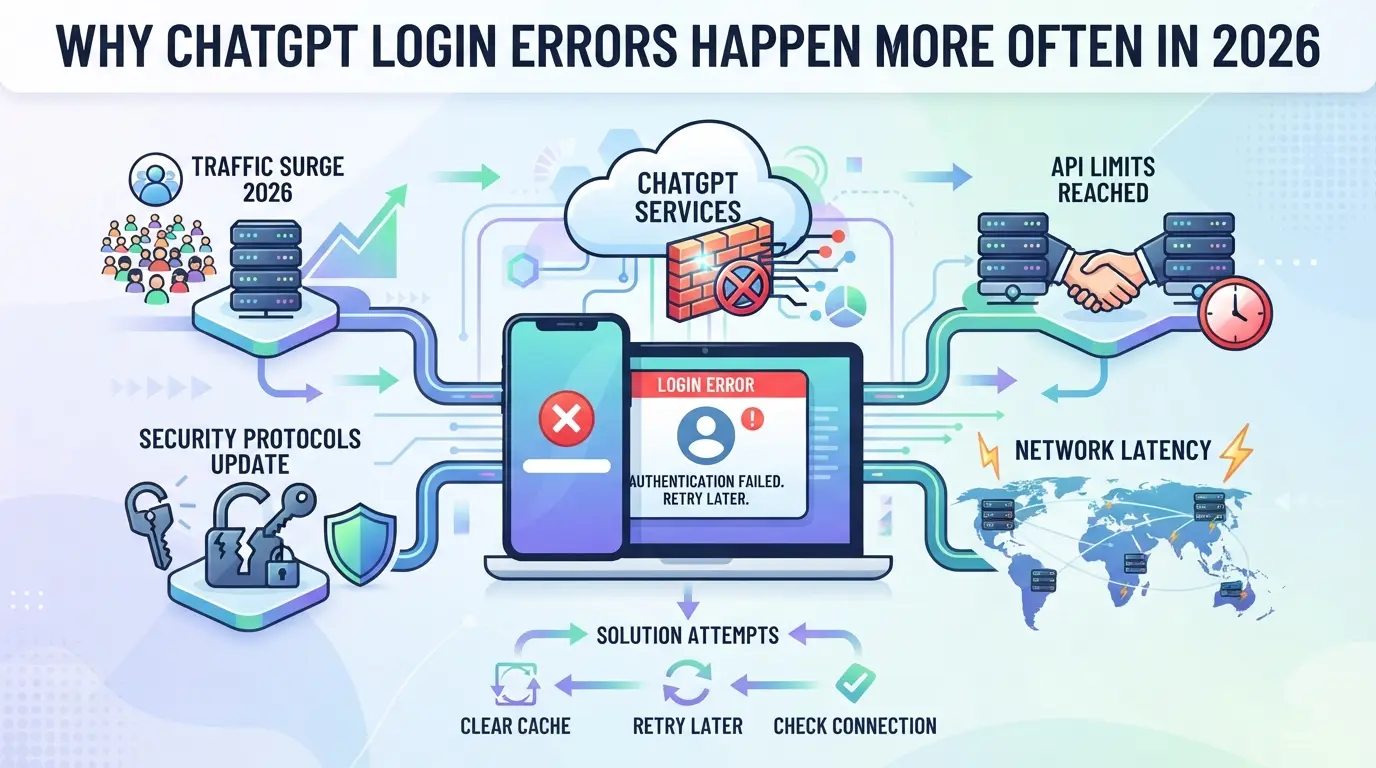
Login errors have become a daily headache for both new and long-time users. The real trigger in 2026 isn’t just a bad password, platform and security changes mean even small shifts in your device, network, or account history can lock you out. If you’re seeing more “cannot sign in to chatgpt” loops than before, recent updates are almost always the reason.
Platform Security Updates and Detection Algorithms
OpenAI’s security checks now flag even minor changes in login behavior. Updates in 2026 made detection stricter, so logging in from a new device or after a large browser update can trigger a false positive. That means real users get blocked or forced into extra verification much more often.
Device, Browser, and Network Triggers
Device fingerprinting and network checks have gotten more aggressive. When you log in, ChatGPT collects details about your browser version, OS, plugins, and screen size, then compares them to your last login. A mismatch, like switching from Chrome to Firefox, or updating your browser, can trigger an authentication error. IP changes are another big source of trouble: if your home IP changes overnight, or you switch between mobile and desktop, the platform may treat you like a new user. Using proxies adds another layer of risk, especially if the proxy IP isn’t stable or matches known datacenter ranges. You can see this if you get stuck at a security challenge, or if the system repeatedly asks for email or phone verification, even with the right password. In some cases, clearing cookies or switching browsers doesn’t help, ChatGPT may continue to block access because it detects too many changes in a short window. Most of the login friction in 2026 comes from these automated risk flags, not from actual user mistakes.
Account-Specific Issues (Suspension, Verification, Region)
- Account shows as “suspended” or “temporarily restricted”: often linked to prior policy violations or flagged activity.
- Region lock messages: happen if you try to log in from a country not supported by OpenAI, or after sudden location changes.
- Verification loops: if your account history includes failed verifications or partial signups, you’ll get stuck in repeated email/SMS checks.
Knowing which of these fits your situation is the starting point, next, you’ll want to match your specific error message to the right cause before trying fixes.
How to Diagnose Your ChatGPT Login Error: Key Questions to Ask
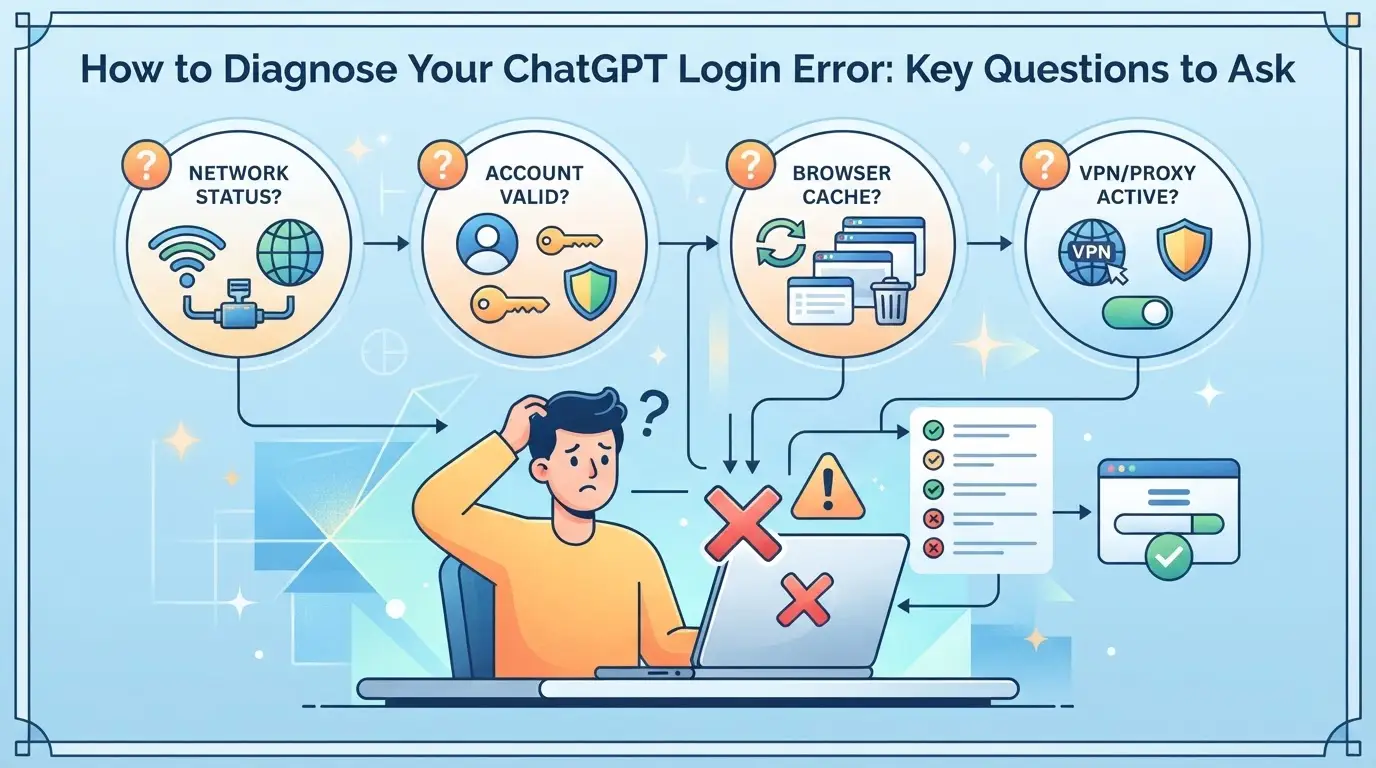
The fastest way to fix your login problem is to match the error to its cause, not to try every fix you find online. Start with these checks so you tackle the real issue, not a random one.
Is the Error Message Generic or Specific?
If you see “Something went wrong” or “Unable to log in,” you’re dealing with a generic error. This usually means the platform can’t explain the issue or is hiding details for security reasons. On the other hand, a message like “Too many attempts” or “Account suspended” points straight to the root cause. When you spot a vague message and the status page shows no outage, it’s likely a local problem, think cookies, browser profiles, or mismatched sessions.
Have You Changed Devices, Browsers, or Networks?
Switching where or how you sign in almost always triggers extra security checks. If you just changed any of these, review carefully:
- Did you recently log in on a new device or browser?
- Has your IP address changed since your last successful login?
- Are you using a new proxy or privacy tool for the first time?
Are You Managing Multiple Accounts or Sharing Access?
Juggling several accounts or sharing logins across people often leads to lockouts. Rapid switching between accounts or letting someone else sign in from another location can make the system flag your activity, even if nothing else changed.
Have You Checked Email Verification and Account Status?
Don’t assume you’re clear just because you didn’t miss a password prompt. Half the time, login failures trace back to missed verification or a flagged account.
- Search your inbox and spam for any recent verification or security emails.
- Log in to your email provider directly to check for “suspicious activity” alerts.
- Try a password reset, if you’re blocked, that’s a sign of a suspended or restricted account.
If your answers point to a session, device, or network mismatch, skip ahead to targeted fixes instead of wasting cycles on password resets. Next, you’ll see exactly which steps work for each common login error.
Proven Steps to Fix the Most Common ChatGPT Login Errors
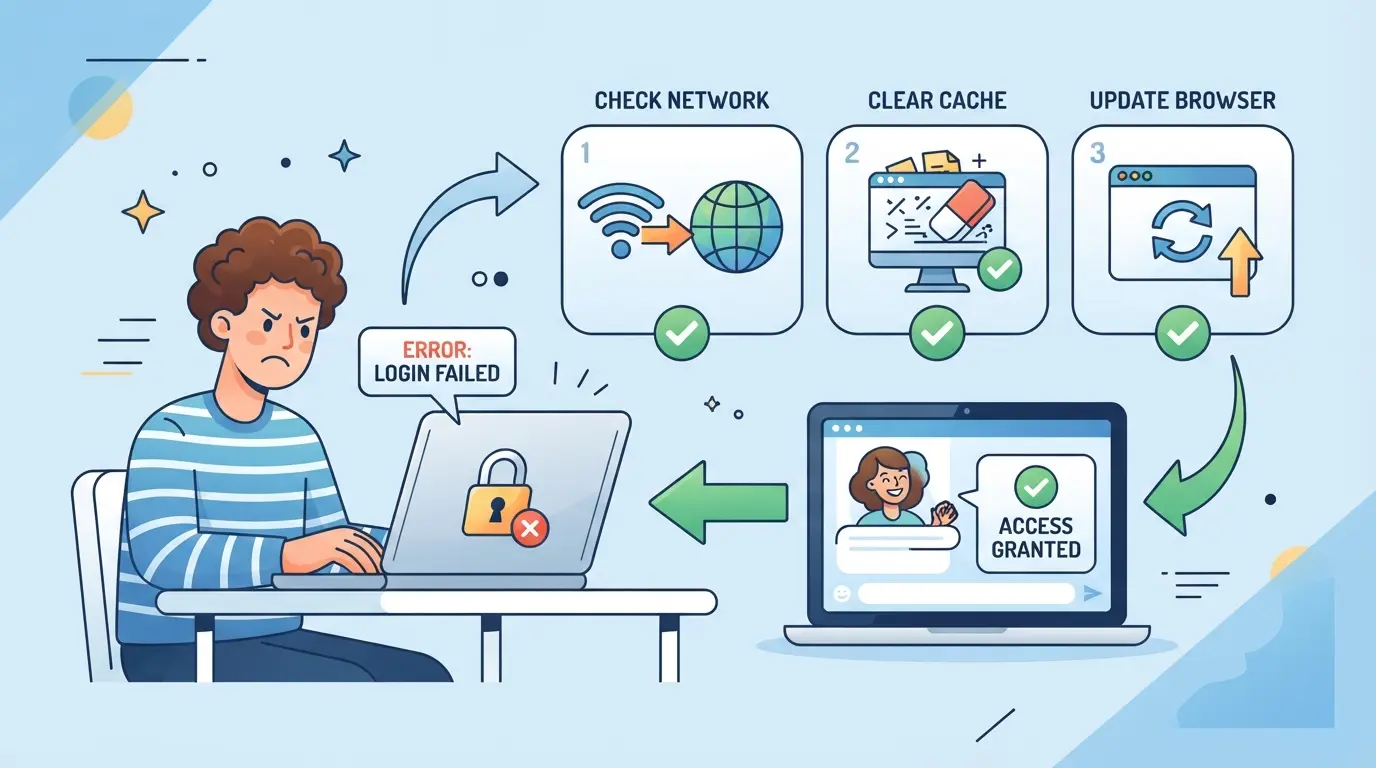
Most ChatGPT login errors can be fixed with a short, targeted workflow, no need to waste hours guessing. If you already diagnosed your error, start with the matching step below. If the error keeps returning, work down the list. Skipping browser and session cleanup usually leads to repeat lockouts, even after password resets.
Reset Your Browser Environment and Clear Cookies
- Fully close all ChatGPT tabs, leaving one open can keep a broken session alive.
- Open your browser settings and clear cookies and cache for chat.openai.com.
- If you use browser extensions that block cookies or scripts, turn them off and reload.
- Restart the browser, then try logging in again.
A stale cookie can keep sending you to the same error page for days, even after the main issue is fixed.
Verify Account Email and Complete All Security Checks
- If you see a prompt to verify your email, check both inbox and spam folders for the code.
- If nothing arrives within 5 minutes, click “Resend” once, multiple requests can block delivery.
- Still missing? Try logging in with a different device or network to trigger a new code.
If your email is on a strict filter, add openai.com to your safe senders list.
Try a Different Browser, Device, or Network (with Caution)
- If you’re stuck in a login loop, try an incognito window or another browser.
- Switching devices can help if your main one has a broken session, but use the same IP if possible.
- Avoid rapid switches between Wi-Fi and mobile data, too much change can flag your account.
If you log in from a new country or device, extra verification is nearly certain.
Reset Your Password or Recover a Locked Account
- Click “Forgot password” and follow the reset steps, use a strong, new password.
- If you get a warning about suspicious activity, wait 1-2 hours before trying again.
- For suspended or banned accounts, review the email for appeal options; re-applying too soon often fails.
Locked accounts after multiple failed logins usually need a full browser reset and a new password.
Check ChatGPT Server Status and Outage Reports
- Visit status.openai.com for real-time updates on outages.
- Check social media or forums, widespread reports mean it’s not just you.
- If the official status page is green but you’re still blocked, retry every 15-30 minutes.
Sometimes, backend fixes take up to an hour to reach all users.
If errors keep recurring after these steps, account stacking or multiple profiles is likely part of the problem, the next section covers why that raises risk.
Why Managing Multiple ChatGPT Accounts Increases Login Error Risk
If you handle multiple ChatGPT accounts on the same device or browser, you’re much more likely to hit persistent login errors. This isn’t just bad luck, platforms use signals that can link your accounts and trigger extra checks.
How Platforms Detect Linked Accounts
Browser fingerprints, like installed fonts, time zone, and device specs, combine with your IP address and even mouse movement patterns. When two accounts show up with matching fingerprints or from the same IP, the system often flags both for extra review or blocks access. The real risk: even careful password use can’t hide these underlying links.
Typical Mistakes That Trigger Account Restrictions
The fastest way to get flagged is reusing browsers or switching accounts too quickly.
- Logging out of one ChatGPT account and into another without cleaning cookies almost guarantees a session mismatch or "cannot sign in to chatgpt" warning.
- The safer move is to use separate browser profiles and proxies for each account, this breaks the obvious links platforms search for.
Trying to shortcut this with incognito mode or only clearing cookies sometimes works, but misses hidden device and network ties. If you skip full isolation, you’ll keep running into unpredictable login blocks.
How to Safely Separate ChatGPT Account Environments with Profile Isolation and Proxies
The fastest way to cut down multi-account login errors is strict browser profile separation and unique proxy use per account. If you only juggle cookies and clear cache, you’ll keep running into “cannot sign in to chatgpt” or suspicious activity blocks.
Create a Separate Browser Profile for Each Account
- Make a new browser profile for every ChatGPT account, never reuse one, even for a quick check. Why?: Mixing accounts in a single profile links device fingerprints and cookies.
- Name each profile clearly (like “gpt-work-01”, “gpt-backup-02”) and keep shortcuts on your desktop. Why?: It’s easy to forget which window is which when you’re in a rush.
- Before logging in, double-check you’re in the right profile. Failure sign: Wrong profile? You’ll see old account autofill or a mismatch warning.
Configure a Unique Proxy for Each Profile
- Assign a dedicated proxy to each browser profile. Why?: Shared IPs are a top cause of account linkage and forced verification.
- Use residential or mobile proxies, not datacenter. Reason: Datacenter proxies often trip automated risk checks.
- Rotate proxies only if your accounts are disposable. For persistent use, keep one proxy per account. What goes wrong: Random proxy rotation can trigger access challenges, especially if the location jumps continents in a single day.
- Test your proxy with a geoIP tool before logging in. Failure sign: If ChatGPT sees a country mismatch from your account’s history, you’ll get locked out.
Maintain Consistency and Avoid Cross-Contamination
- Never open two accounts in the same browser session or with the same proxy. Why?: Overlapping sessions create clear links, OpenAI tracks concurrent device/IP combos.
- Keep a simple spreadsheet with columns: account email, browser profile name, last proxy used, last login time. Why?: When an error pops up, you can quickly spot if you mixed up profiles or proxies.
- If you ever accidentally cross profiles or proxies, log out immediately, clear cookies, and wait 24 hours before trying again. What to watch for: If you skip the cooldown, the next login attempt often triggers extra verification or even a temporary block.
The easiest way to avoid accidental account links is to lock each profile to one account and one proxy, mixing even once can flag both accounts.
This separation model sets you up for safer scaling, especially when moving to advanced tools or team setups.
How Teams and Power Users Can Use DICloak for Safer Multi-Account Browser Workflows
After sorting out browser profile isolation and proxy basics, some teams still hit problems when scaling up, especially if several operators need to handle multiple platform accounts without triggering a chatgpt login error. For these cases, DICloak gives operators the tools to keep each session separate at the browser and network level. This approach doesn’t touch ChatGPT account controls; it’s about isolating the technical environment before you even reach the login screen.
Set Up Isolated Browser Profiles with Custom Fingerprint Settings
Operators can create a dedicated browser profile in DICloak for each assigned platform account, then adjust fingerprint settings like User Agent, time zone, and language independently. This keeps session data, cookies, and device signals from crossing between workspaces, so each login runs in its own clean environment. By storing these settings at the profile level, teams avoid accidental overlap that often leads to authentication prompts or account confusion. The scope is limited to browser-profile access; it does not change the connected SaaS tool.

User-Provided Proxy Configuration for Assigned Profiles
Teams can assign a user-provided proxy to each DICloak profile, allowing them to test and confirm the exit IP and region before use. This setup means each browser profile can route traffic through a different network, supporting workflows that require regional separation or compliance checks. Operators remain responsible for proxy quality and rotation rules. DICloak only stores and applies the proxy to the selected profile; it does not act as a proxy provider or guarantee platform outcomes.

If these measures still leave you facing login failures, the next step is to review when escalation or a workflow rebuild might be needed.
When to Escalate: Contacting Support or Rebuilding Your ChatGPT Workflow
If you’ve worked through browser, proxy, and session fixes but still hit a chatgpt login error, it’s time to escalate, either to support or by changing your workflow for good.
When to Contact OpenAI Support (and What to Provide)
- Grab exact error messages and timestamps, they’ll ask for these.
- Export browser logs or session details if a specific step always fails.
- Don’t just say “login not working”, note if it’s tied to a device, account, or recent change.
Signs It’s Time to Rebuild Your Account or Workflow
When login errors keep coming back even after support responds, the root cause is often account linking, persistent device fingerprints, or an unreliable proxy trail. The only way forward may be starting fresh, using a new device profile, clean browser session, and separating your accounts from old workflows. Skipping this resets you to the same locked-out state next time.
Summary: Key Takeaways for Avoiding ChatGPT Login Errors in 2026
If you want fewer login headaches, focus on the details that actually trip people up, not just resetting passwords or switching browsers. The real difference comes from how you handle browser sessions, cookies, and network changes. Most “cannot sign in to chatgpt” problems can be traced to skipping one of these basics.
Checklist: What to Do (and Not Do) to Keep Your Accounts Safe
- Log out fully and clear cookies before switching ChatGPT accounts or browsers.
- Keep your IP and browser fingerprint consistent, random changes trigger extra security checks.
- Avoid quick fixes; match your error message to the right troubleshooting step using OpenAI’s help center.
Frequently Asked Questions About chatgpt login error
Why do I keep getting a ChatGPT login error even after clearing cookies?
Clearing cookies doesn’t always fix a chatgpt login error because the platform may also track device fingerprints or your IP address. These methods can identify your device even after you delete cookies or switch browsers. If OpenAI detects suspicious patterns, like repeated logins from the same network, it may block or limit access.
Can using a proxy help fix ChatGPT login errors?
A proxy can help if your real IP address is blocked or flagged. It gives you a new network identity, which sometimes solves login issues. However, if the proxy is misconfigured or uses a blocked IP, you may still see errors. Always use a reliable and private proxy to avoid new problems.
Is it safe to use multiple ChatGPT accounts from one device?
Using several accounts on one device is risky. ChatGPT can link accounts together by device fingerprinting, shared browser profiles, or IP address. This can lead to all accounts being flagged or banned. Using separate browser profiles and proxies can lower the risk, but it doesn’t remove it completely.
What should I do if my ChatGPT account is suspended or banned?
If your account gets suspended or banned, first check your email for an explanation. You can appeal by contacting OpenAI support and sharing your account details. Explain your case clearly. If your appeal is denied, you might need to create a new account and adjust your setup to avoid the same problem.
Does DICloak guarantee my ChatGPT accounts won’t get login errors or banned?
No, DICloak can help separate your browsing environments, but it cannot guarantee that your ChatGPT accounts will never face login errors or bans. Platform decisions are based on many factors beyond simple environment separation. Always follow OpenAI’s terms to reduce risk.
If your attempts to access ChatGPT are still being interrupted by persistent login issues, consider exploring alternative tools to maintain your workflow. Switching platforms can offer a smoother experience and keep your productivity on track. Try DICloak For Free
 Web Proxy Tools
 Free Tools
 Cookie Plugin
 UA Generator
 MAC Address Generator
 IP Generator
 IP Address List
 2FA Code Generator
 World Clock
 Anonymous Check
 WebRTC Leak Test
 UUID Generator
 Free Web Proxy Site
 Proxy Checker
 FB Ad Checker
 AI Web Scraping
 Free SMM Tools
 Twitter Shadowban Checker
 Instagram Name Checker
 UTM Generator
 Username Generator
 AI Hashtag Generator
 LinkedIn Headline Generator
 Social Media Image Resizer