You click a link, but instead of the page loading, you see “verifying you are human. this may take a few seconds.” and nothing happens. The spinner keeps going. Maybe you refresh, but the message repeats, now you’re stuck on verifying you are human, or even caught in a Cloudflare verification loop that just won’t end.
This isn’t just an annoyance. Sometimes, you never get past the check. You might lose access to a site you need for work, miss out on a limited-time deal, or watch a login session expire while you wait. Even regular users with nothing unusual about their setup run into this.
Most guides focus on clearing cookies or switching browsers, but that rarely solves the real issue. The main triggers are usually browser fingerprint mismatches, privacy extensions, suspicious proxies, or automation patterns that anti-bot systems don’t like. In 2026, these checks have gotten stricter and less predictable. What worked last year might break today. Understanding exactly what causes “why does verifying you are human take so long” is the only way to fix it for good.
Here’s what to watch for if you want to solve the loop and get back into your site.
Why Do You See 'Verifying You Are Human. This May Take a Few Seconds.'?
You see this message because the site’s anti-bot systems think something about your visit looks suspicious or automated. In 2026, these checks are triggered more often, not just by obvious bots, but by normal users who trip certain signals. The real reason for the delay is that the website is running background tests to decide if you’re a real person or an automated script.
How Modern Websites Detect Bots and Unusual Activity
Sites now use several layers of detection. The main ones are:
- Browser fingerprinting: They compare your browser’s technical details (like fonts, plugins, screen size) to known patterns. Even a small mismatch can flag your session.
- Behavioral analysis: Movement, scrolling, and click speed are tracked. Too smooth or too fast, like a script, raises a red flag.
- IP reputation and network anomalies: If your connection comes from a flagged, shared, or datacenter proxy IP, the system may slow down or block you.
Common Triggers for Verification Screens in 2026
Most people run into the verification screen after a routine action, maybe a login, checkout, or just reloading a page. But beneath that, several triggers stand out. For example, if you log in from two different devices within a few minutes, the site may treat that as suspicious. Rapid-fire requests (like clicking through pages much faster than humanly possible) often trip the system, too.
Accessing from a shared or blacklisted IP is another major trigger. In 2026, many residential IP ranges get flagged if hundreds of unrelated users route traffic through them. Even if your own device is clean, you can get caught in a net meant for bots. Sometimes, just using privacy tools or browser extensions that block tracking scripts is enough to trigger the screen, sites see these as a sign you’re hiding something.
The hardest part is that these checks aren’t consistent, even on the same site. One day you log in with no problem; the next, you’re stuck in a loop for minutes without changing anything obvious. Sites adapt their tests based on traffic spikes, recent attacks, or changes to their anti-bot software. That’s why clearing cookies or switching browsers doesn’t always fix it, if the root cause is your network reputation or fingerprint mismatch, you’ll keep seeing the verification step.
If you find yourself stuck in a cycle, waiting as the page reloads or times out, the real issue is usually a combination of these triggers stacking up. Next, it’s worth looking at which specific situations cause the check to get stuck or repeat.
What Usually Causes Verification to Get Stuck or Loop?

Most “verifying you are human. this may take a few seconds.” screens that never finish come down to a small set of technical triggers. The system checks for known attack patterns, and if your setup matches any of them, intentionally or not, you can get stuck in a loop with no feedback. Fixing it means pinpointing what’s tripping the alarm, not just refreshing the page or toggling incognito.
Network and IP Problems: Proxies, Shared Networks, and Reputation
IP reputation is the first filter. Shared or datacenter proxies almost always show up on blocklists, making even new browsers look risky. If you’re using public Wi-Fi or any network with many users (think hotel, school, or café), anti-bot systems can’t easily tell who’s real. That’s why you can get looped even if your device is clean.
Browser Issues: Extensions, Cookies, and JavaScript
Browser configuration is the next pain point. Privacy extensions, script blockers, or even aggressive ad blockers can block the exact scripts or cookies the verification system needs to finish its check. For example, disabling JavaScript or blocking third-party cookies often breaks the challenge, no matter how many times you reload. Some tools that claim to “hide your fingerprint” actually cause more problems by making your browser look abnormal or inconsistent. The more you tinker with privacy settings or stack extensions, the more likely you are to stand out as a bot, even if your only goal is to browse safely. It’s not just about what you block; sometimes, a single broken script or a missing cookie can leave you in an endless verification loop, with no obvious hint about what needs fixing.
Device and Fingerprint Inconsistencies
Most sites now track your device fingerprint across sessions. Common causes of looping:
- You switch between different operating systems or browsers on the same account within minutes.
- Time zone or system language doesn’t match your IP location.
- Device signals (like screen size or touch support) change between visits.
A mismatch here flags your activity as suspicious, forcing repeated checks or locking you out. Even if you fix your network or browser, ignoring these fingerprint signals can keep you stuck on the same screen.
The real challenge is that these problems often overlap. A typical stuck loop isn’t caused by just one issue, but by a mix, like a flagged IP combined with a non-standard browser profile. The next section covers practical steps to break out of these loops, with fixes that actually work in 2026.
How to Fix 'Verifying You Are Human' Loops: Step-by-Step in 2026
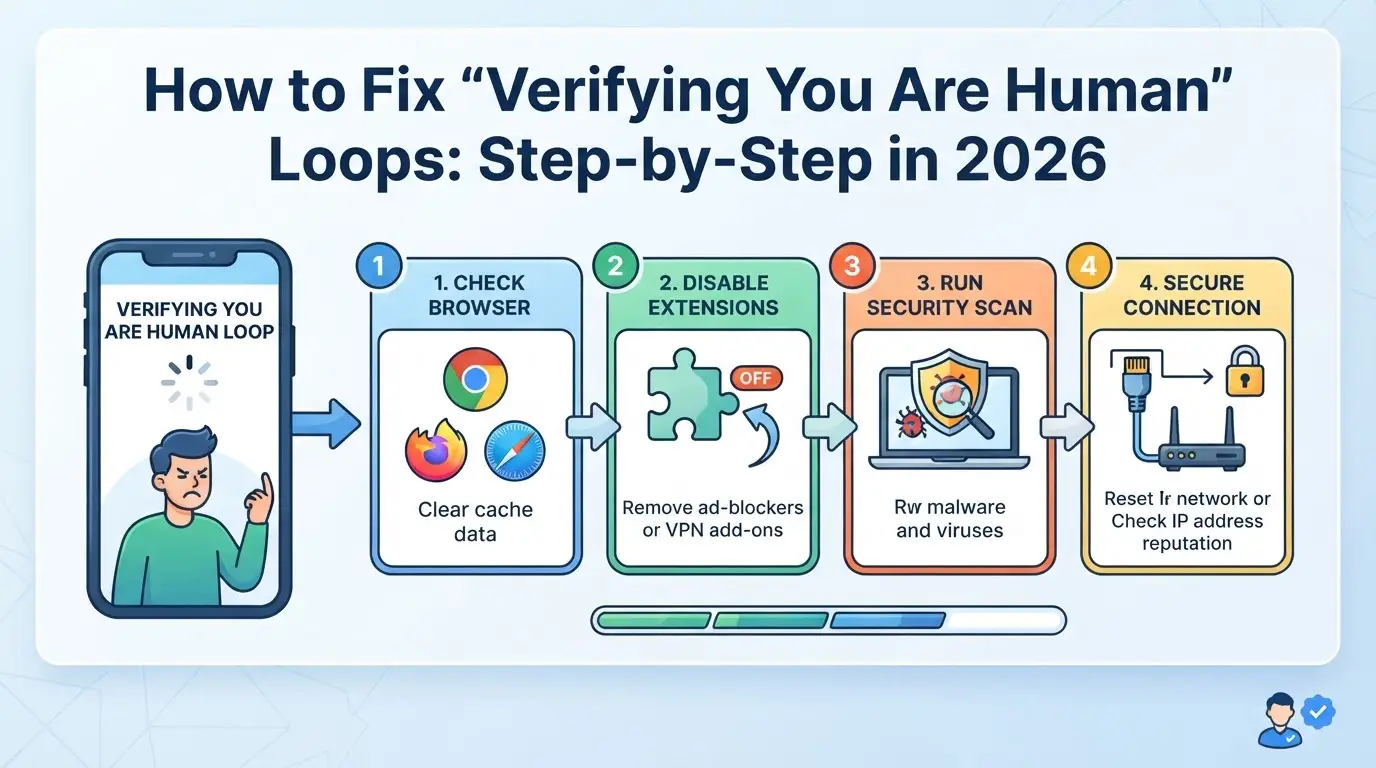
If you’re stuck on the “verifying you are human. this may take a few seconds.” screen, don’t waste time just refreshing over and over, use these steps to get past the loop and back into your account. Problems in 2026 often come down to browser settings, network fingerprints, or mismatches between your device and what the website expects.
Step 1: Refresh and Check Your Browser Settings
- Make sure JavaScript and cookies are both enabled. If either is off, the check will fail instantly.
- Disable any privacy extensions, ad blockers, or browser add-ons. Tools like uBlock, Ghostery, or script blockers can block key elements of the verification, even if sites look normal.
- If the page won’t reload or gives a blank screen, close all tabs and restart your browser before trying again.
- Switch to another browser (like Edge or Firefox) if you still can’t get through, this quickly rules out hidden extension conflicts.
Step 2: Review Your Network and Proxy Setup
- Disconnect from your current Wi-Fi and try mobile data, or vice versa. Some networks, especially public or work Wi-Fi, block parts of the check.
- If you’re using a proxy or similar tool, switch to a new IP or a different server location. Many anti-bot systems keep lists of “bad” IPs that can trigger these loops.
- Check your proxy provider’s dashboard for any reputation warnings. If your current IP is flagged, you’ll hit the loop on every site that uses anti-bot tech.
- Clear your browser cache and all cookies for the site. Chrome, for example, stores some session data for up to 30 days, stale cookies can keep you stuck even after a site fix.
- Open an incognito or private window, then visit the site again. If you get through, your main session is likely corrupted.
- If incognito still loops, your issue isn’t just old data, move on to the next steps.
Step 4: Sync System Time and Location
- Set your device’s time and time zone to automatic. A mismatch between your system clock and your IP’s region is a top reason for endless “are you human” loops.
- Check that your operating system and browser language both match your actual location. Some anti-bot checks will fail if you show up as “France/EN-US” or similar odd combos.
- Restart your device after making changes to be sure all settings reload.
Step 5: Contact the Website or Platform Support
- If you’ve tried all the above and still can’t pass the check, reach out to the site’s support team through their official help page or contact form.
- Include a screenshot of the stuck screen, your browser version, and a note about any proxies or extensions you’ve tried disabling.
- Make your request during weekday business hours, support queues are shortest then.
- If you get a form reply, reply back with all your troubleshooting steps so you don’t end up back at the start of their script.
If none of these steps get you past the loop, the problem is likely on the website’s side or with deeper fingerprint mismatches, those need a different approach, which the next section covers.
When Verification Problems Signal a Deeper Issue
If you keep hitting the “verifying you are human. this may take a few seconds.” screen, even after trying all the usual fixes, you’re probably dealing with more than a simple browser glitch. Repeated failures often mean your device, IP, or account has picked up a risk flag that won’t clear with basic troubleshooting. That’s when you need to stop and look for a bigger pattern instead of just refreshing.
Frequent Verification Requests: Are You Flagged as Suspicious?
When verification requests pop up every time you log in or load a new page, the site’s anti-bot system likely sees your setup as risky. This can happen if your fingerprint changes too often, you switch between proxies, or you run privacy tools that hide your real details. If the checks never go away, your risk score may be stuck high until you change how you operate or switch devices.
Account Linking and Shared Device Risks
Accounts linked to the same device or browser often get swept up in the same security checks. Teams that share logins, or operators who switch between accounts on one computer, are the first to notice this.
Warning: One compromised profile can put every linked account at risk.
- If one account gets flagged, all others sharing the same fingerprint or cookies may see constant verification loops.
- The safer move is to keep each account isolated with separate browser profiles and clean network setups.
How Operators and Teams Can Reduce Verification Triggers with Isolated Profiles and Proxies
Getting stuck on "verifying you are human. this may take a few seconds." is usually a sign that sites are picking up reused fingerprints or proxy patterns across accounts. Operators and teams juggling multiple logins see this more often because anti-bot systems flag shared signals between profiles. The fastest way to cut down on these triggers is to separate both browser profiles and proxy addresses for each account.
Why Separate Browser Profiles Matter for Account Safety
- Each profile gets its own cookies, preventing session mix-ups and leaks.
- Device fingerprints stay unique, so platform checks can’t tie your accounts together.
- Automation traces and login histories don’t cross, when one profile is flagged, others stay clean.
Choosing and Assigning the Right Proxy for Each Profile
Assigning a separate proxy for every browser profile blocks platforms from linking accounts by IP or location. If you recycle proxies, you risk one flagged account pulling others into the same review queue, especially on platforms that correlate login attempts by network. Proxy quality matters: free or overused proxies often trigger more checks, while a fresh residential or datacenter IP (not shared by hundreds of users) cuts down false positives. For teams, map each operator to a dedicated proxy set, and keep a log so you can trace problems back if a block hits. Using this setup, most operators see fewer verification loops and smoother multi-account runs.
Setting Up Isolated Browser Profiles and Proxies in DICloak
If you’re juggling multiple platform accounts or team workflows, sharing one browser session raises the odds of getting stuck on “verifying you are human. this may take a few seconds.” DICloak gives operators a way to separate browser profiles and control key signals, so each account stays isolated. Here’s how teams use DICloak to reduce cross-account leaks and keep network exits consistent, without promising to fix every verification screen.
Creating Separate Profiles and Configuring Fingerprints
Operators managing more than one platform account can set up a distinct browser profile in DICloak for each workflow. Each profile holds its own OS, language, and device settings, so signals like time zone and screen resolution won’t overlap between accounts. This step makes sure logins don’t share browser fingerprints, helping teams avoid mixed signals that often trip verification checks. The scope is limited to browser-profile control; it does not change how external sites handle your login.

Adding and Testing Proxies for Each Profile
For workflows where each profile needs a different network path, operators can assign a custom proxy to each DICloak browser profile. Enter your HTTP or SOCKS5 proxy, then use the built-in test to check exit IP and location before launching the session. This keeps each account’s web traffic separate, but it’s still the user’s job to supply and maintain a reliable proxy. DICloak stores proxy settings at the profile level; it does not supply proxies or guarantee connection quality.

Done right, these steps let teams keep account environments clean, next up, watch for mistakes that undo these gains.
Common Mistakes That Keep You Stuck on Verification Screens

The same “verifying you are human. this may take a few seconds.” check pops up again and again because users repeat small mistakes, fixing these is often faster than waiting for the loop to clear on its own.
Mixing Accounts in One Browser Session
Switching between accounts in the same browser window breaks isolation. Sites use cookies, local storage, and browser fingerprints to track sessions. When you sign out of one account and log into another without a fresh profile, those leftover traces can trigger suspicion. Profile mixing almost always leads to stuck verification loops when accounts are linked or share device data.
Using Low-Quality or Overused Proxies
- Proxy IP matches known blacklists or datacenter ranges
- Multiple users have been flagged using this proxy recently
- Proxy location does not match previous login regions
Ignoring Device and Location Consistency
Even if the browser and proxy look clean, sudden jumps in device type or login country raise red flags.
- Device fingerprint changes (e.g., switching from Windows to Mac) between sessions
- Time zone and IP location mismatch
- Unusual login hours compared to account history
Frequently Asked Questions About verifying you are human. this may take a few seconds.
Why does 'verifying you are human. this may take a few seconds.' appear even on trusted devices?
Websites check more than just your device. If you change networks, use a proxy, clear cookies, or your behavior looks different, you might get the "verifying you are human. this may take a few seconds." message again. Even regular users can trigger this if something about their setup changes.
Can using a proxy help or hurt my chances of passing verification?
A good, private proxy may help, but public or overused proxies often trigger extra checks. If many people share the same proxy, sites might see it as suspicious. Also, mismatched proxy locations can look fake. Using the wrong proxy can make you more likely to get stuck on verifying you are human screens.
Is it safe to refresh or close the verification screen?
Refreshing is usually safe if the check is taking too long, but it may restart the process. Closing the tab or browser can sometimes cause you to lose your spot and force you to start over. If you’re in a verification loop, refreshing alone won’t always help and can make it worse.
How do I know if my account is at risk after repeated verification loops?
Warning signs include getting locked out, seeing account suspension messages, or repeated password reset prompts. If you’re stuck in a Cloudflare verification loop and see alerts about suspicious activity, contact support. Change your password if you see logins from unknown locations.
Do browser fingerprinting tools guarantee I won't get stuck on verification?
No tool can guarantee you’ll avoid verification. Fingerprinting tools can help make your browser look more normal, but if your setup changes too often or doesn’t match your login history, you could still get flagged. Consistency and using high-quality tools matter more than any single trick.
When faced with a brief pause to confirm your identity online, consider whether the process feels secure and respects your time. If you want a smoother way to browse without constant interruptions, exploring alternative privacy tools could make a noticeable difference. Try DICloak For Free
 Web Proxy Tools
 Free Tools
 Cookie Plugin
 UA Generator
 MAC Address Generator
 IP Generator
 IP Address List
 2FA Code Generator
 World Clock
 Anonymous Check
 WebRTC Leak Test
 UUID Generator
 Free Web Proxy Site
 Proxy Checker
 FB Ad Checker
 AI Web Scraping
 Free SMM Tools
 Twitter Shadowban Checker
 Instagram Name Checker
 UTM Generator
 Username Generator
 AI Hashtag Generator
 LinkedIn Headline Generator
 Social Media Image Resizer