CreaShort says it is trusted by more than 125,000 users. Its current plans offer 1,000 to 5,000 monthly credits and estimate up to 50 to 260 shorts, while users can connect TikTok, YouTube, Instagram, and Facebook for automatic publishing. Sharing the account may therefore give a teammate access not only to a video generator, but also to shared credits, saved content, and live social channels.
Sending the password or a personal Google login is a poor fit for that kind of workflow. This guide explains how to share a CreaShort AI account with your team without sharing passwords, when separate accounts make more sense, and how to manage session access, credit use, publishing, and member removal with clearer control.
Why Do Teams Want to Share a CreaShort AI Account?
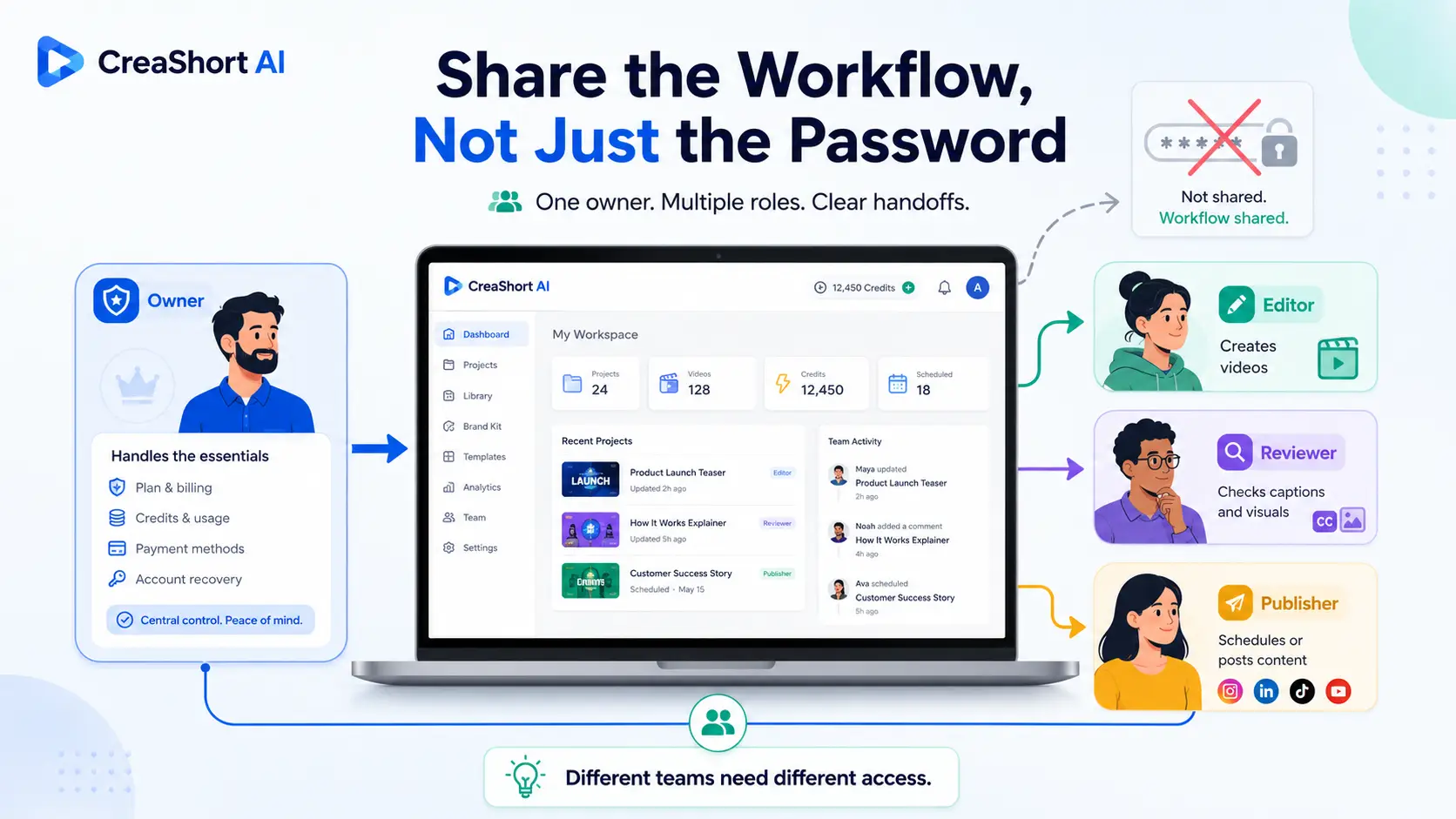
Teams usually want to share a CreaShort account because several people take part in the same content workflow. The account owner may control the plan, credits, payment, and recovery details, while other team members handle video creation, review, and publishing.
In many teams, the account owner pays for the plan and controls credits and account recovery, but someone else handles the daily work. An editor creates and revises videos, a reviewer checks captions and visuals, and a social media manager handles scheduling or publishing. A freelancer or virtual assistant may also step in for one campaign, so making the owner handle every task can quickly become a bottleneck.
However, teams do not all need the same type of access. A company with several full-time editors may need separate accounts so each person can work independently and at the same time. A smaller team may only need to pass one CreaShort session between an editor, reviewer, and publisher in a fixed order.
This difference should guide the setup. Long-term, simultaneous work needs clear user ownership and separate access. Short-term handoffs need controlled access to one working session without exposing the main login details. Teams are usually trying to share a content workflow, not simply pass one password between people.
Can Multiple People Use the Same CreaShort AI Account?
CreaShort’s current Terms of Service state that accounts may not be shared between multiple users. A team should not assume that one paid account can serve as a normal multi-user workspace, even when every member is trusted. The account owner is also responsible for keeping the login details private and for all activity under the account.
This matters most when several editors, reviewers, or social media managers need regular access. One person may generate a video while another changes an AI Agent, uses more credits, or works with a connected social channel. The work may be legitimate, but several people using the same account can still conflict with the platform’s account rules.
The real question is not whether several people can technically open CreaShort. It is whether the planned workflow is permitted and whether one owner can remain responsible for every action taken inside the account. Teams that need long-term or simultaneous access should check the latest terms or ask CreaShort about an approved team setup before giving anyone access.
What Can Team Members Access Beyond the CreaShort Password?
A hidden password does not limit what someone can do after entering an active CreaShort session. The member may still reach video tools, credits, AI Agent settings, generated content, connected social accounts, and account pages. The main risk is not always bad intent; it is giving someone more control than their task requires.
| Account area |
What a team member may be able to do |
Why teams should care |
| Credits and AI Agents |
Start new tasks, change an Agent, or select a higher publishing frequency |
Several people can spend the same credit balance without clear ownership |
| Prompts and generated content |
View inputs, create videos, download outputs, or change work in progress |
A freelancer may see content from other projects or repeat work that is already complete |
| Connected social accounts |
Select TikTok, YouTube, Instagram, or Facebook for automated publishing |
Someone hired to create a video may also be able to send it to a live channel |
| Account and billing pages |
Open account settings or billing areas if the active session allows it |
The account owner may expose subscription details or controls that the member does not need |
CreaShort plans use a shared monthly credit balance, and AI Agents can consume different amounts based on the selected Agent and publishing frequency. For example, available Agent settings show different credit costs for publishing every four days, every two days, or daily. One editor changing the frequency can therefore affect the credits available to the rest of the team.
The same issue applies to publishing. CreaShort can connect TikTok, YouTube, Instagram, and Facebook accounts for direct or automatic posting. An editor who only needs to create a short may still reach settings linked to a live brand channel, so content creation and publishing should not be treated as the same responsibility.
Consider a small agency using one account for several clients. An editor opens the session to revise one video, but the account also contains other prompts, outputs, Agents, and connected channels. Nothing has to be stolen for a problem to occur; one wrong Agent, repeated generation, or incorrect publishing choice may affect another project.
Hiding the CreaShort password protects the credential, but it does not automatically restrict credits, content, account pages, or publishing actions. Before choosing how to give someone access, the team should decide whether that person needs an independent account or limited access to one shared workflow.
What Is the Best Way for Your Team to Access CreaShort?
The right setup depends on how often people use CreaShort, whether they need to work at the same time, and how much account access they require. Shared browser access fits occasional handoffs, while long-term independent work usually calls for separate accounts or an approved team option.
| Access method |
Password visible to members |
Keeps the same session |
Supports independent work |
Easy to revoke |
Main limitation |
| Separate accounts |
No |
No |
Yes |
Yes |
Adds account or subscription cost |
| Password manager |
Usually no |
No |
Yes |
Usually |
Members still sign in from their own devices |
| Remote desktop |
No |
Yes |
Limited |
Yes |
May expose more of the computer than needed |
| Shared browser Profile |
No |
Yes |
Limited |
Yes |
Does not create roles inside CreaShort |
Choose Separate Accounts for Independent or Simultaneous Work
Separate accounts are the better choice when several people need to use CreaShort throughout the day. Each person can keep their own projects, history, and work records without waiting for another member to finish.
This setup also makes more sense when a team handles several clients or connected social channels. One editor’s work stays separate from another project, and it is easier to see who created or changed something. The extra cost may be worth it when clear ownership and simultaneous access matter more than sharing one subscription.
Use a Password Manager When Members Only Need Login Credentials
A password manager can stop teams from sending passwords through email, chat, or shared documents. The account owner can also update or remove stored credentials without sending a new password to every member.
However, each person still signs in through their own browser and device. This may lead to repeated verification requests, and it does not preserve one shared CreaShort workspace. It also cannot control how members use credits, projects, or connected publishing tools after they enter the account.
Use an Antidetect Browser for Controlled Session Handoffs
An antidetect browser like DICloak can help when people need occasional access and they work one after another. The account owner can keep the CreaShort login session inside a dedicated browser Profile, then grant or remove access without sending the raw password. This setup works best when the Profile contains only CreaShort, multiple persons uses it at a time, and the owner keeps control of billing and account recovery.
How to Share a CreaShort AI Account with DICloak Without Showing the Password
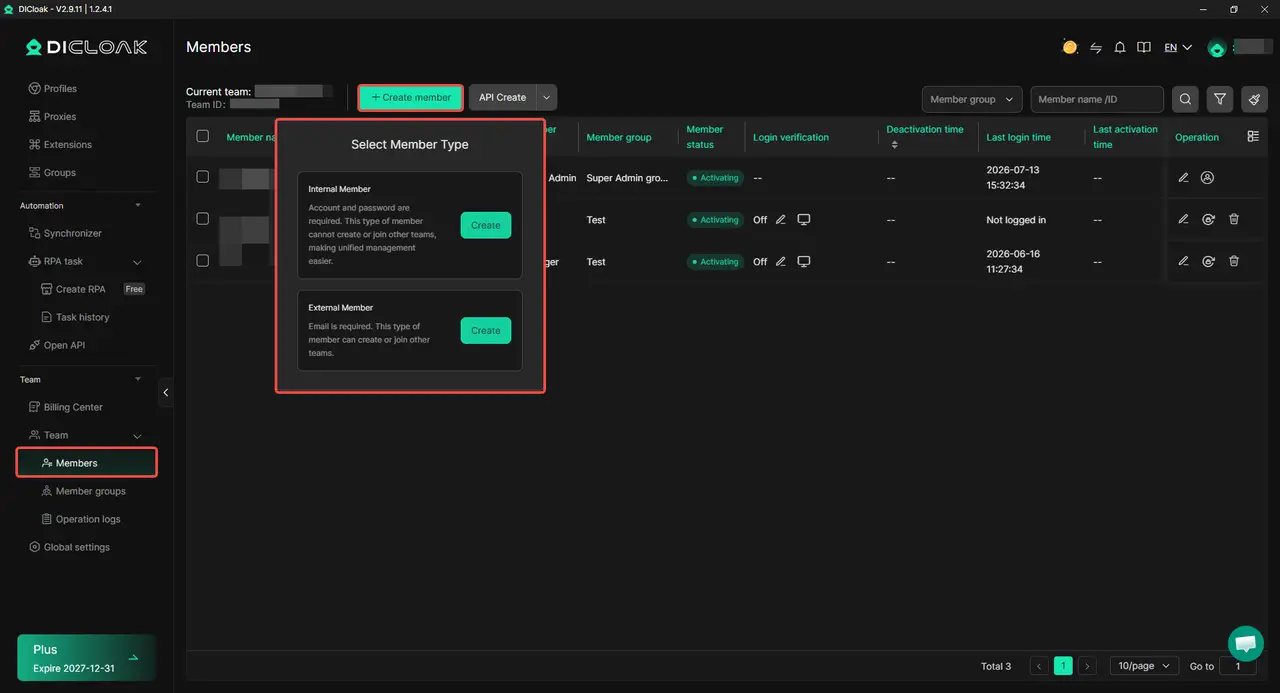
Using DICloak, the account owner can keep the CreaShort login session inside a dedicated browser Profile and share that Profile with selected members. This reduces direct password sharing.
1. Install DICloak and Choose a Plan
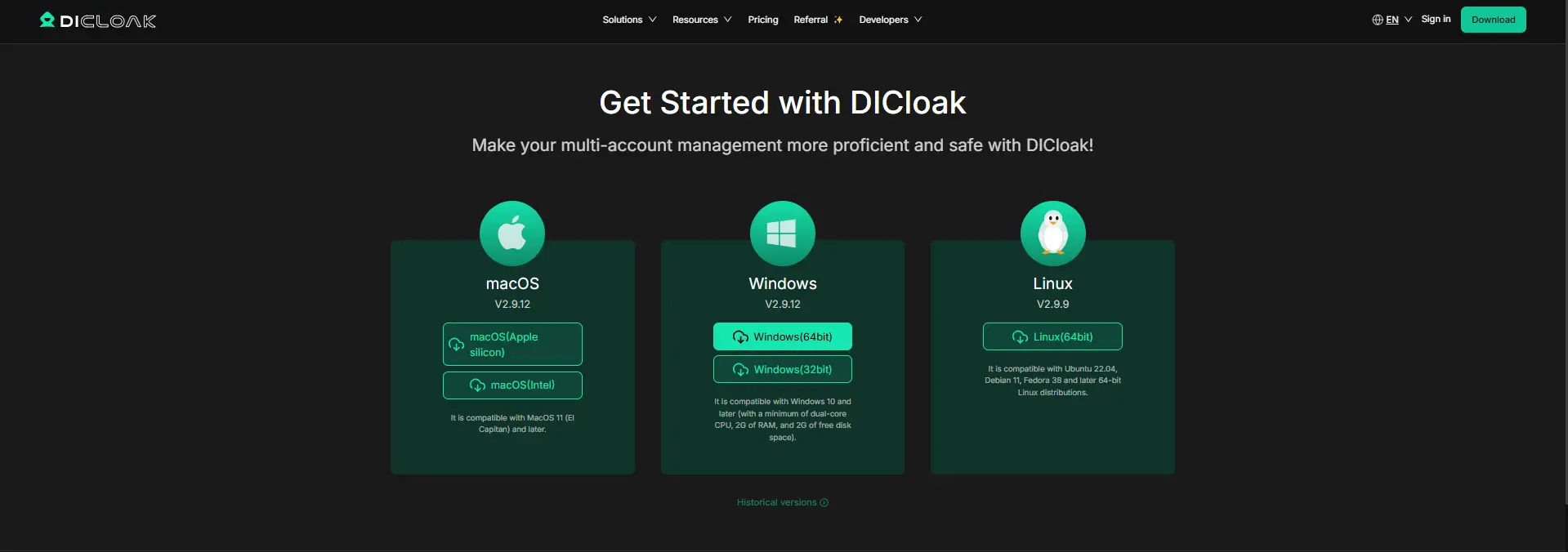
Download the application, create an account, and choose a plan based on your team size and number of Profiles. Each member should use their own DICloak account instead of sharing the administrator login.
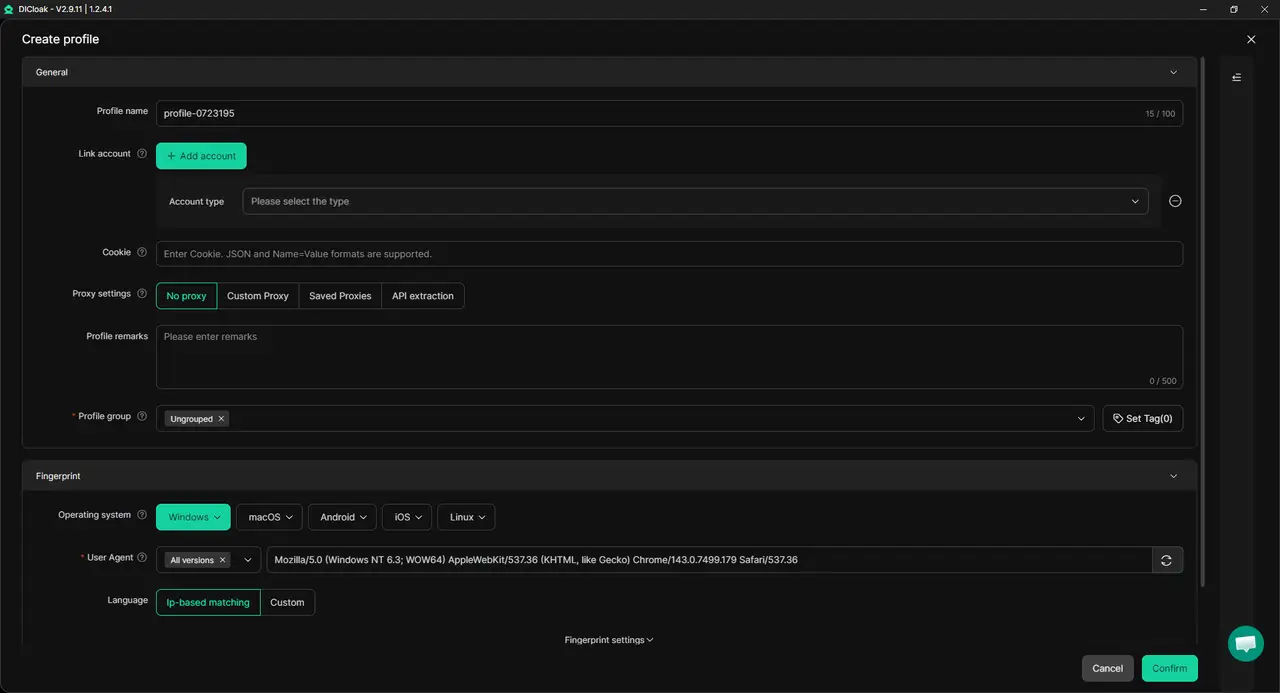
2. Create a Dedicated CreaShort Profile
Create a Profile used only for CreaShort, then give it a clear name. Configure the browser fingerprint for the intended operating profile and keep the settings consistent. This keeps the CreaShort session separate from personal email, payment tools, and other client accounts. Add your own proxy only when the workflow requires a stable network or specific region.
3. Set the Session Rules
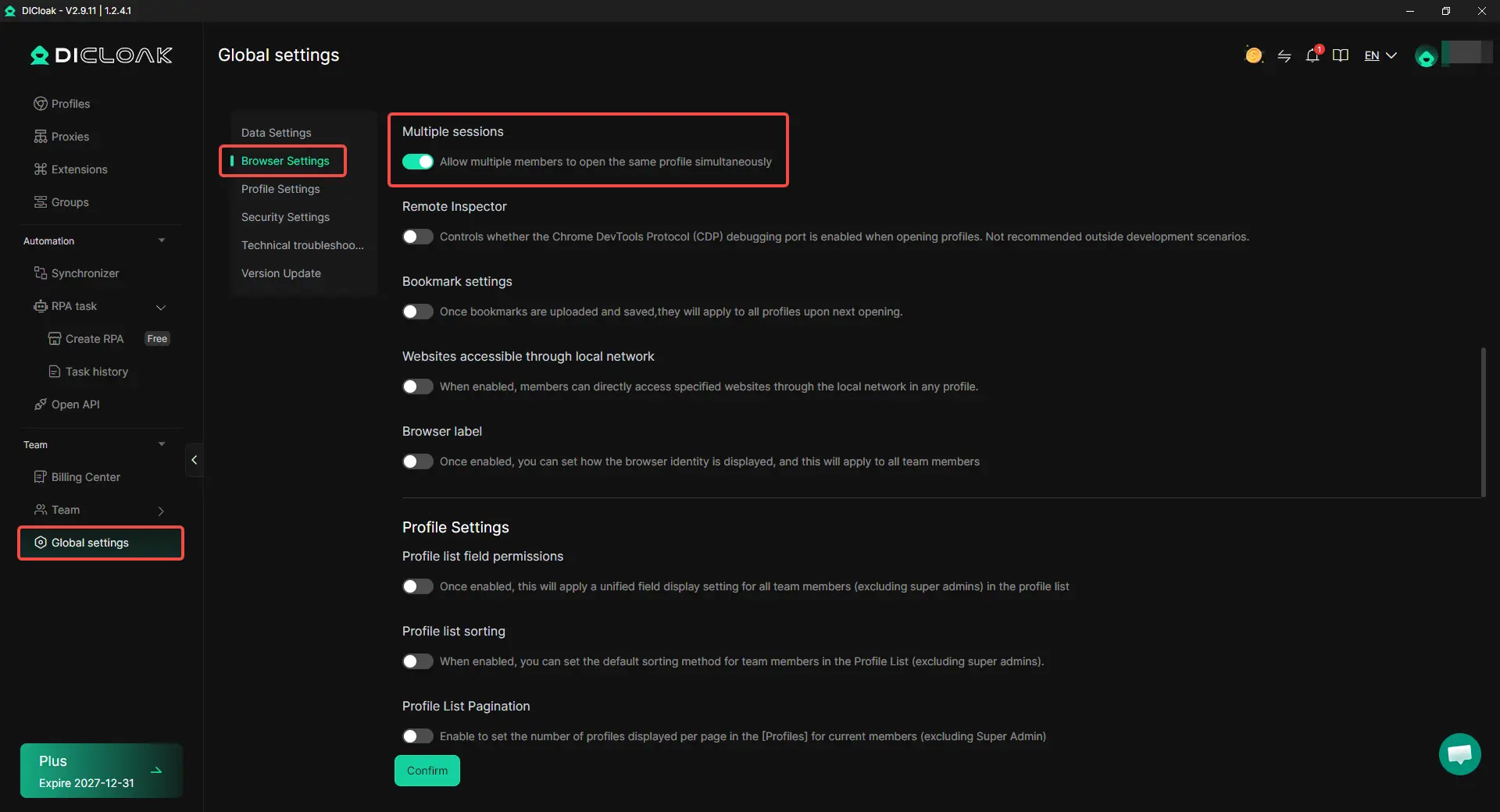
Keep Multiple sessions disabled when members use the Profile one after another. Enable it only when concurrent access is necessary, since two people editing or generating at the same time may create duplicate work or credit conflicts.
4. Log In and Limit Access
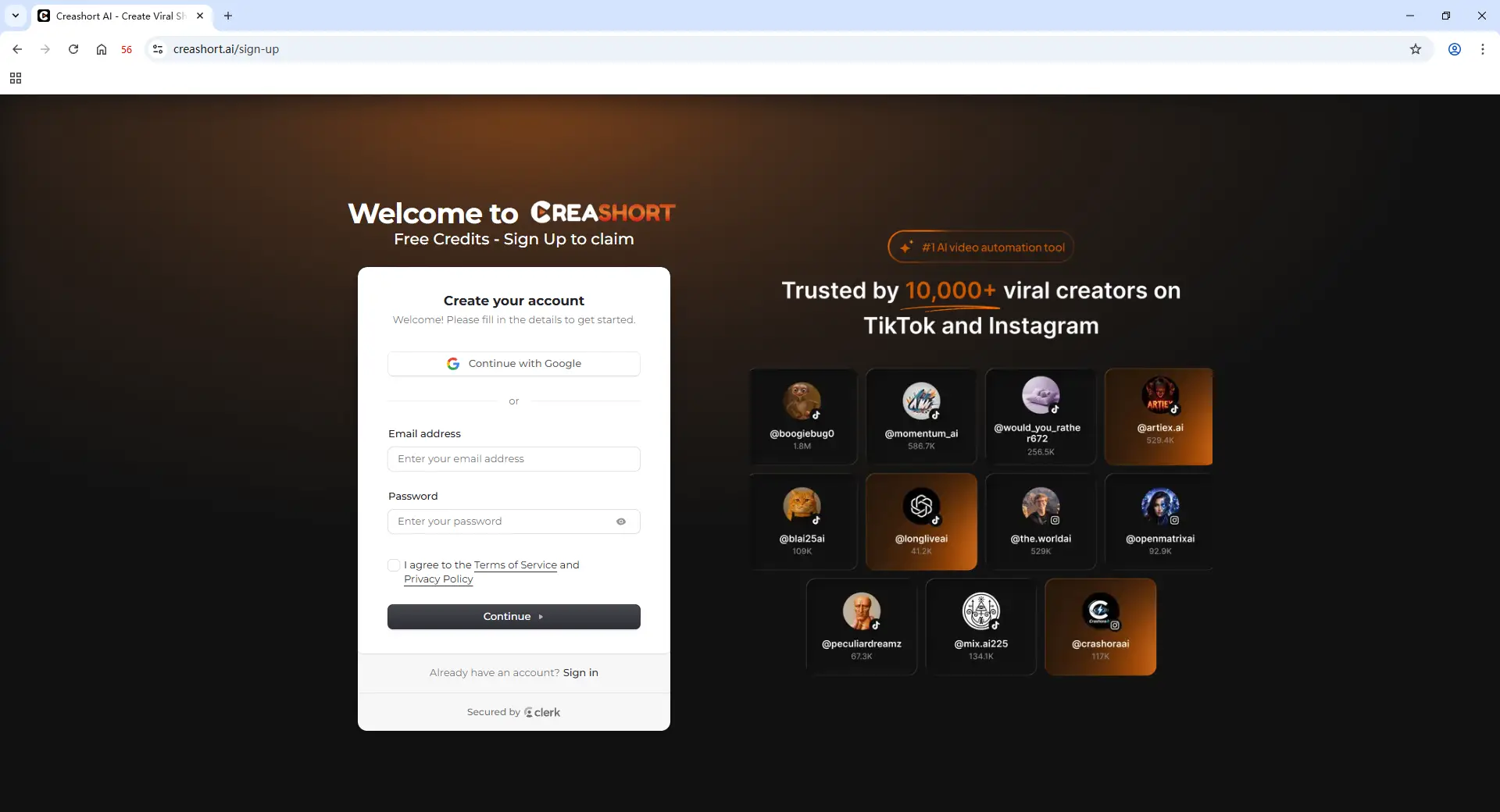
The account owner should sign in to CreaShort and complete any required verification. After the session is saved, assigned members can open it without receiving the raw password.
5. Add Extra Access Controls
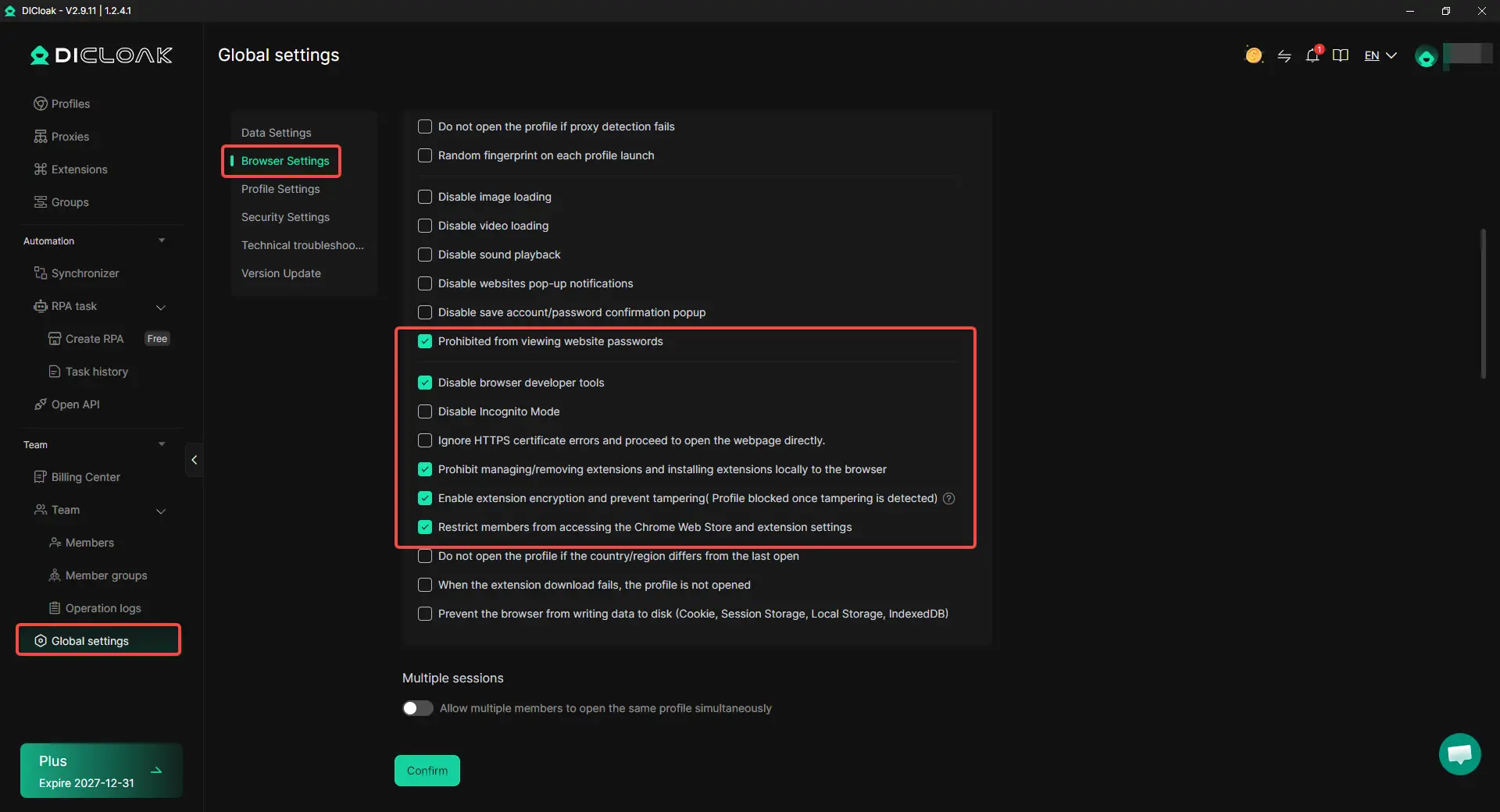
Enable password protection, so members cannot view the saved CreaShort password. Use URL restrictions to limit the Profile to approved pages, and use the Web Element Hider to conceal selected entries such as billing or account settings.
6. Share the Profile and Revoke Access
Assign the Profile only to the members or Profile Groups that need it. Contractors should not receive access to unrelated client profiles or team settings.
Use Operation Logs to review Profile activity, then remove the Profile assignment or disable the member when the project ends. Credit use, video generation, and publishing actions should still be tracked separately inside the team workflow.
Frequently Asked Questions About Sharing a CreaShort AI Account
Can I share a CreaShort AI account without sharing my Google password?
Yes. The account owner can sign in to CreaShort inside an antidetect browser Profile and give selected team members access to the saved session. This avoids sending the Google password or asking members to log in through the owner’s personal Google account. The Profile should contain only CreaShort and should not keep unnecessary Gmail, Drive, payment, or other Google sessions open.
Can several team members use the same CreaShort account at the same time?
Concurrent access may be technically possible, but it is not the best setup for most shared CreaShort workflows. Two people may generate the same video, change an AI Agent, use credits, or work with connected publishing settings at the same time. Teams that share one session should normally use a one-person-at-a-time handoff.
Does using DICloak reveal the saved CreaShort password to team members?
Using DICloak, selected members can open a saved CreaShort session without receiving the raw password directly. Password protection can also reduce access to saved login details. However, entering the session may still give the member access to projects, credits, account pages, and connected tools, so password hiding should be combined with limited Profile permissions and a dedicated CreaShort workspace.
Can a team member publish social accounts connected to CreaShort?
A member may be able to reach publishing tools if they are available inside the shared CreaShort session. Someone hired only to create videos could therefore have more access than their role requires. Teams should separate video creation, review, and publishing responsibilities, connect only the channels needed for the project, and require approval before content is sent to a live social account.
What should I do when a freelancer no longer needs CreaShort access?
Remove the freelancer from the assigned browser Profile or Profile Group as soon as the project ends. With an antidetect browser like DICloak, admins can also review Profile activity, disable the member account, and log out their devices when needed. The account owner should then check recent CreaShort projects, credit use, connected social accounts, and publishing activity. Update the CreaShort password if it may have been shared through another channel.
Conclusion
Sharing a CreaShort AI account with a team is not only about hiding the password. Teams also need to control who can use credits, view projects, reach connected social accounts, and access billing or account settings. Separate accounts are usually better for long-term or simultaneous work, while a shared session fits smaller teams that use CreaShort one person at a time.
Using an antidetect browser like DICloak, the account owner can keep the CreaShort login inside a dedicated Profile, assign it to selected members, limit access, and remove permissions when the work ends. This makes the session easier to manage without sending the raw password, but the team should still follow CreaShort’s account rules and keep clear controls for credits, publishing, and account ownership.
 Web Proxy Tools
 Free Tools
 Cookie Plugin
 UA Generator
 MAC Address Generator
 IP Generator
 IP Address List
 2FA Code Generator
 World Clock
 Anonymous Check
 WebRTC Leak Test
 UUID Generator
 Free Web Proxy Site
 Proxy Checker
 FB Ad Checker
 AI Web Scraping
 Free SMM Tools
 Twitter Shadowban Checker
 Instagram Name Checker
 UTM Generator
 Username Generator
 AI Hashtag Generator
 LinkedIn Headline Generator
 Social Media Image Resizer