Trying to find someone on Facebook but their profile does not show up? Or maybe you blocked someone months ago and now want to check who is still on your list. Many users search how to see the blocked list on Facebook because Facebook’s settings can be hard to find, especially after app updates.
Your blocked list is still easy to check once you know where to look. In this guide, you will learn how to find your blocked list on desktop and mobile, how to unblock someone, why the list may not show, and how Facebook blocking is different from Messenger blocking.
What Is the Blocked List on Facebook?
The blocked list on Facebook is where you can see the people and Pages you have blocked. Many users search how to see the blocked list on Facebook when they want to check an old block, fix a mistake, or decide whether to reconnect with someone. For example, you may try to find an old friend and see nothing in search. The person may not have deleted their account. You may have blocked them before and forgotten. In that case, learning how to find blocked people on Facebook can help you understand what happened.
How does blocking work on Facebook?
Blocking is stronger than unfriending. When you block someone, they usually cannot view your profile, tag you, invite you to groups or events, message you, or add you as a friend. Facebook keeps these blocked profiles in your settings, so you can review them later. This is why users often ask, where is my blocked list on Facebook? It is not shown on your profile page. You need to open Facebook settings and find the Blocking section.
What happens when you block someone?
Facebook does not clearly tell someone that you blocked them. But they may notice it. They may not find your profile, send you messages, or tag you. On your side, the person may also disappear from normal search. This can make it feel like the Facebook blocked list not showing issue. In many cases, checking the blocked list explains why the profile is missing.
Why should you check your blocked list?
You should check your blocked list when you want to review old privacy choices. Maybe you blocked someone during an argument. Maybe you blocked a spam account years ago. Your situation may have changed. Checking the list also helps when you want to know how to unblock someone on Facebook. After you unblock someone, they do not become your friend again automatically. You may need to send a new friend request.
The steps may look a little different on desktop and in the Facebook block list on mobile, but the idea is the same. Go to Facebook settings, open Blocking, and review the people you have blocked.
How to See the Blocked List on Facebook on Desktop
After you understand what blocking does, the next step is knowing where to find the list. On desktop, the blocked list is inside Facebook settings. This is usually the easiest place to check it, especially if you want to review several names at once.
Step-by-step guide to find your blocked list on Facebook desktop
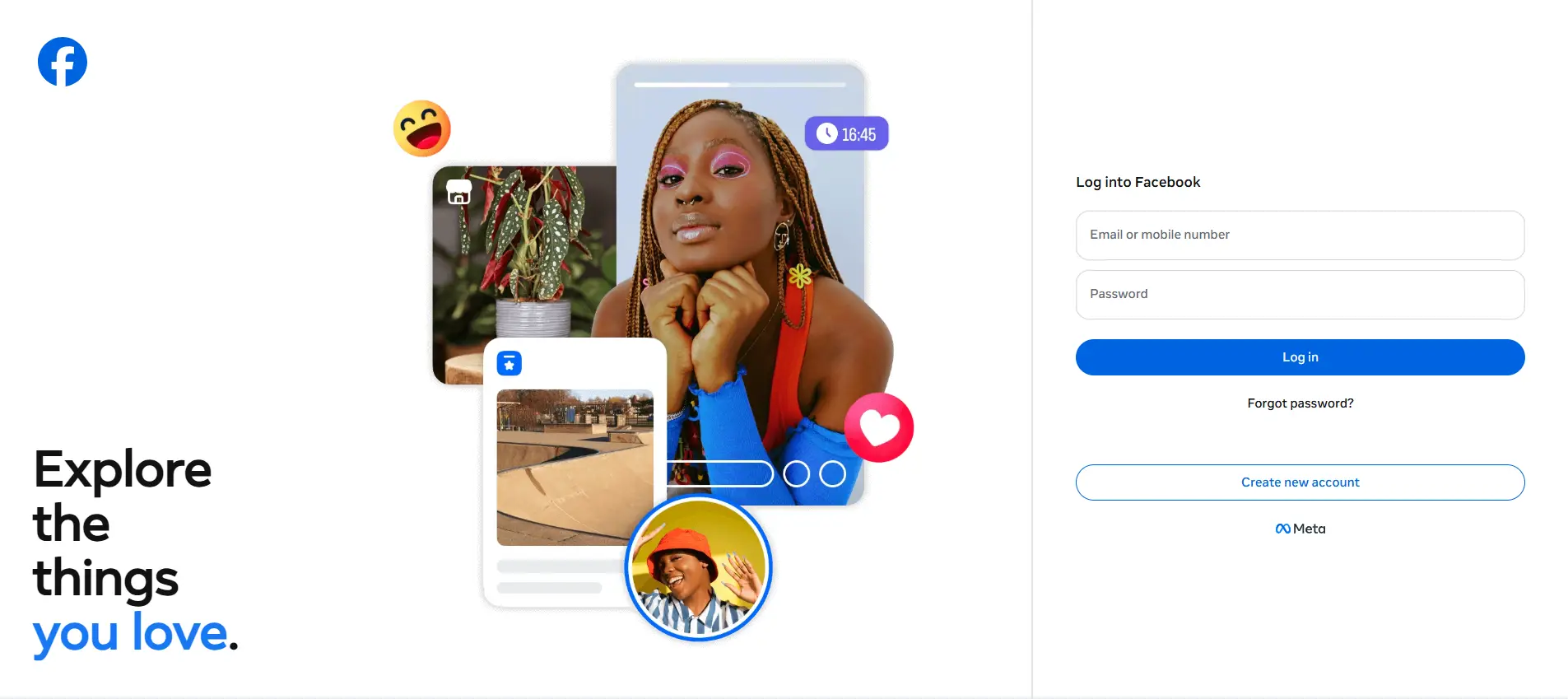
To learn how to see the blocked list on Facebook on desktop, open Facebook in your browser and log in to your account. Click your profile picture in the top-right corner. Then go to Settings & privacy and choose Settings.
In the left menu, look for Blocking under the privacy or audience settings area. In the Block users section, click Edit. Then choose See your blocked list. This is where you can check how to see who you blocked on Facebook and review the profiles you blocked before. Facebook’s current help page lists this path with Block users > Edit > See your blocked list.
For example, if you blocked an old coworker months ago and now cannot find their profile, this list can help you confirm the reason. If their name is there, they are still blocked. If you want to reconnect, you can use the unblock option from the same area.
What to do if the Blocking section looks different
Facebook often tests small layout changes. So the Blocking section may not look the same for every account. If you ask where is my blocked list on Facebook and cannot see it right away, check the left menu in Settings, then look for words like Audience and visibility, Privacy, or Blocking.
You can also use the settings search box if your Facebook page has one. Type “blocking” or “blocked list.” This can help when the Facebook blocked list not showing problem is only caused by a changed layout, not a real account issue.
Also make sure you are checking the right account or profile. If you use more than one Facebook profile, blocking is managed separately for each profile. A person blocked on one profile may not appear on another profile’s blocked list.
Desktop is useful for a full review, but the Facebook block list on mobile may be easier when you are already using the app. The next section will cover the mobile steps.
How to See the Blocked List on Facebook App
If you use Facebook more often on your phone, you can also check the blocked list in the app. The Facebook block list on mobile is useful when you want to make a quick check without opening a desktop browser. It can also help if you blocked someone from your phone and now want to review that choice.
Step-by-step guide for iPhone and Android users
To learn how to see the blocked list on Facebook in the app, open Facebook and tap the Menu icon. On iPhone, it is often near the bottom-right corner. On Android, it may appear near the top-right corner, but this can change by app version.
Scroll down and tap Settings & privacy, then tap Settings. Look for Audience and visibility or a similar privacy area. Then tap Blocking. From there, you can view the people you have blocked and check how to see who you blocked on Facebook.
For example, you may be using your phone and wonder, where is my blocked list on Facebook? You do not need to open someone’s profile first. You can go through Settings and use the Blocking page to review the list.
Why the blocked list may appear under different settings
Facebook updates its app layout often, so the menu names may not be the same for every user. Some accounts may show Blocking under Audience and visibility. Others may place it closer to privacy controls. If the Facebook blocked list not showing issue happens, it may only be a layout change, not a missing feature.
Try using the search bar inside Settings and type “blocking.” Also make sure you are logged in to the right Facebook account. If you manage more than one profile, the blocked list may be different for each one.
This is also helpful when you want to know how to find blocked people on Facebook or how to unblock someone on Facebook later. Once you find the Blocking page, you can review names, check past blocks, and decide what to do next.
How to Unblock Someone from Your Facebook Blocked List
Once you know how to see the blocked list on Facebook, you can also use that same area to unblock someone. This is helpful if you blocked a real person by mistake, ended an old conflict, or want to reconnect with someone you no longer need to avoid.
Steps to unblock a person on Facebook
Go to your Facebook settings and open Blocking. In the Block users area, choose Edit, then open See your blocked list. Find the person you want to remove from the list, then choose Unblock. This is also where users often learn how to see who you blocked on Facebook and review old blocks in one place.
The steps are similar on the Facebook block list on mobile. Open the app, go to Settings, find Blocking, and choose the person you want to unblock. If you searched where is my blocked list on Facebook, this is the same page you need.
What happens after you unblock someone?
After you unblock someone, they can find your profile again, depending on your privacy settings. They may also be able to contact you, tag you, or send a friend request. But unblocking does not make you friends again. If you were friends before, one of you may need to send a new friend request.
For example, you may unblock an old classmate because you want to join the same group again. That does not restore the old friendship link. It only removes the block.
Can you block the same person again later?
Yes, you can block the same person again later. But after you unblock a profile or Page, you may need to wait a few days before blocking it again.
So do not unblock someone just to “check” their profile if you may need the block again right away. If the Facebook blocked list not showing issue made you unsure, first confirm you are in the right account and the right Blocking page. That can help you avoid changing a block by mistake.
Why Can’t You Find Your Blocked List on Facebook?
If you followed the steps and still cannot find the list, do not panic. The Facebook blocked list not showing issue is often caused by a simple mix-up. It may be the wrong account, a new app layout, or a Messenger block instead of a Facebook profile block.
You are using a different Facebook account
Many people have more than one Facebook profile or manage both a personal account and a Page. Blocking is tied to the account or profile you used at that time. So if you ask where is my blocked list on Facebook and the name is missing, check whether you are logged in to the same account.
For example, you may have blocked someone from an old personal profile. Later, you check from another profile and cannot find them. The blocked list is not shared across all accounts.
Your Facebook app or browser layout has changed
Facebook changes menus from time to time. On desktop, the blocked list is usually under Settings > Blocking, then Block users > Edit > See your blocked list. On mobile, the Blocking section may appear under Audience and visibility or another privacy area.
If you want to know how to see the blocked list on Facebook but the path looks different, use the search bar inside Settings and type “blocking.” This often helps you find the right page faster, especially on the Facebook block list on mobile.
You blocked someone on Messenger, not Facebook
Messenger blocking and Facebook blocking are not always the same. If you block only messages and calls, that person may not be able to message you, but you may still see their Facebook profile.
This is a common reason people cannot figure out how to find blocked people on Facebook. They may be looking in the Facebook blocked list, but the person is only blocked in Messenger. In that case, check Messenger’s blocked accounts area too.
You are checking a Page instead of a personal profile
A Facebook Page can have its own blocking controls. This is different from your personal blocked list. If you manage a Page and block someone from that Page, they may not appear in your personal blocked list.
For instance, a small business owner may block a spam profile from a Page comment section. Later, they search how to see who you blocked on Facebook from their personal settings and cannot find that profile. The block may belong to the Page, not the personal account.
If your goal is how to unblock someone on Facebook, first confirm where the block happened. Check your personal Blocking page, Messenger blocked accounts, and Page settings if you manage one. That small check can save a lot of time.
Facebook Blocked List vs. Messenger Blocking
If you still cannot find someone after checking your blocked list, the block may not be in the place you expect. Facebook blocking and Messenger blocking can affect different things. This is why some users know how to see the blocked list on Facebook, but still feel confused when messages or profiles do not match.
What changes when you block someone on Facebook?
When you block someone on Facebook, the block affects your profile connection. The person usually cannot see your profile, tag you, invite you, add you as a friend, or start a chat with you. This is the stronger choice when you want to stop most contact from that person.
This is also why people search how to see who you blocked on Facebook after some time has passed. For example, you may block someone after a bad Marketplace deal. Months later, you may want to check if that person is still blocked before joining the same local group again.
What changes when you block messages on Messenger?
Messenger blocking is more focused on chat. If you block only messages and calls, that person can no longer message or call you on Messenger or Facebook chat. But you may still be able to see their Facebook profile, and they may still be able to see yours, based on your privacy settings.
This can explain a common Facebook blocked list not showing problem. You may search where is my blocked list on Facebook, but the person is not there because you blocked their messages, not their full Facebook profile.
Which option should you use for unwanted contact?
Use Facebook blocking when you want a stronger boundary. It is better for harassment, repeated unwanted contact, fake profiles, or someone you do not want near your profile. Use Messenger blocking when the main problem is private messages, but you do not need to block the whole profile.
For example, if an old classmate keeps sending too many messages, Messenger blocking may be enough. If a stranger is checking your posts, tagging you, or trying to add you again, Facebook blocking is safer. Once you know how to find blocked people on Facebook, you can review the list later and decide how to unblock someone on Facebook if the situation changes.
Other Ways to Limit Someone Without Blocking Them
Blocking is useful, but it is not always the best first choice. Sometimes you only want more space from a person, not a full break. If you already know how to see the blocked list on Facebook, it also helps to know when you can use a softer privacy option instead.
Unfriend someone without blocking them
Unfriending removes a person from your friends list. It does not block their profile. They may still see your public posts, and they may still send you a new friend request, depending on your settings.
For example, you may unfriend an old coworker because you no longer want them to see personal updates. This is less direct than blocking. You also do not need to search how to unblock someone on Facebook later, because there is no block to remove.
Use the Restricted list for softer privacy control
The Restricted list is useful when you want to stay Facebook friends but limit what someone can see. A restricted friend can usually see your public posts and posts where you tag them, but they will not see posts shared with friends only.
This works well for people you cannot easily unfriend, such as relatives, clients, or coworkers. For instance, you may keep a manager as a friend but add them to Restricted so they do not see casual weekend posts.
Adjust who can see your posts and profile details
You can also control who sees your posts, friends list, profile details, and old content. This is helpful if you do not have one problem person, but want better privacy overall. Facebook gives users audience controls for posts and profile information, including settings for what others can see on your profile.
This can also reduce confusion later. If someone cannot see a post, it does not always mean they are blocked. That is why users sometimes search where is my blocked list on Facebook or think the Facebook blocked list not showing issue is happening, when the real cause is a post audience setting.
Report a user when there is harassment or abuse
If someone is harassing you, pretending to be someone else, sending threats, or posting harmful content, blocking may not be enough. In that case, use Facebook’s report option. Reporting sends the issue for review, while blocking mainly limits contact from your side.
For example, if a fake account keeps messaging your Page or posting abusive comments, you may need to report it and then block it. After that, you can still check how to find blocked people on Facebook from your Blocking settings. If you use the Facebook block list on mobile, the same idea applies: review the list, but report serious abuse when needed.
How to Manage Facebook Accounts More Safely with DICloak
After you learn how to see the blocked list on Facebook, you may also need a cleaner way to manage more than one Facebook account. This is common for social media teams, agencies, online sellers, and customer support teams. When many accounts are opened in one normal browser, cookies, sessions, and account data can get mixed.
Create separate profiles for each Facebook account
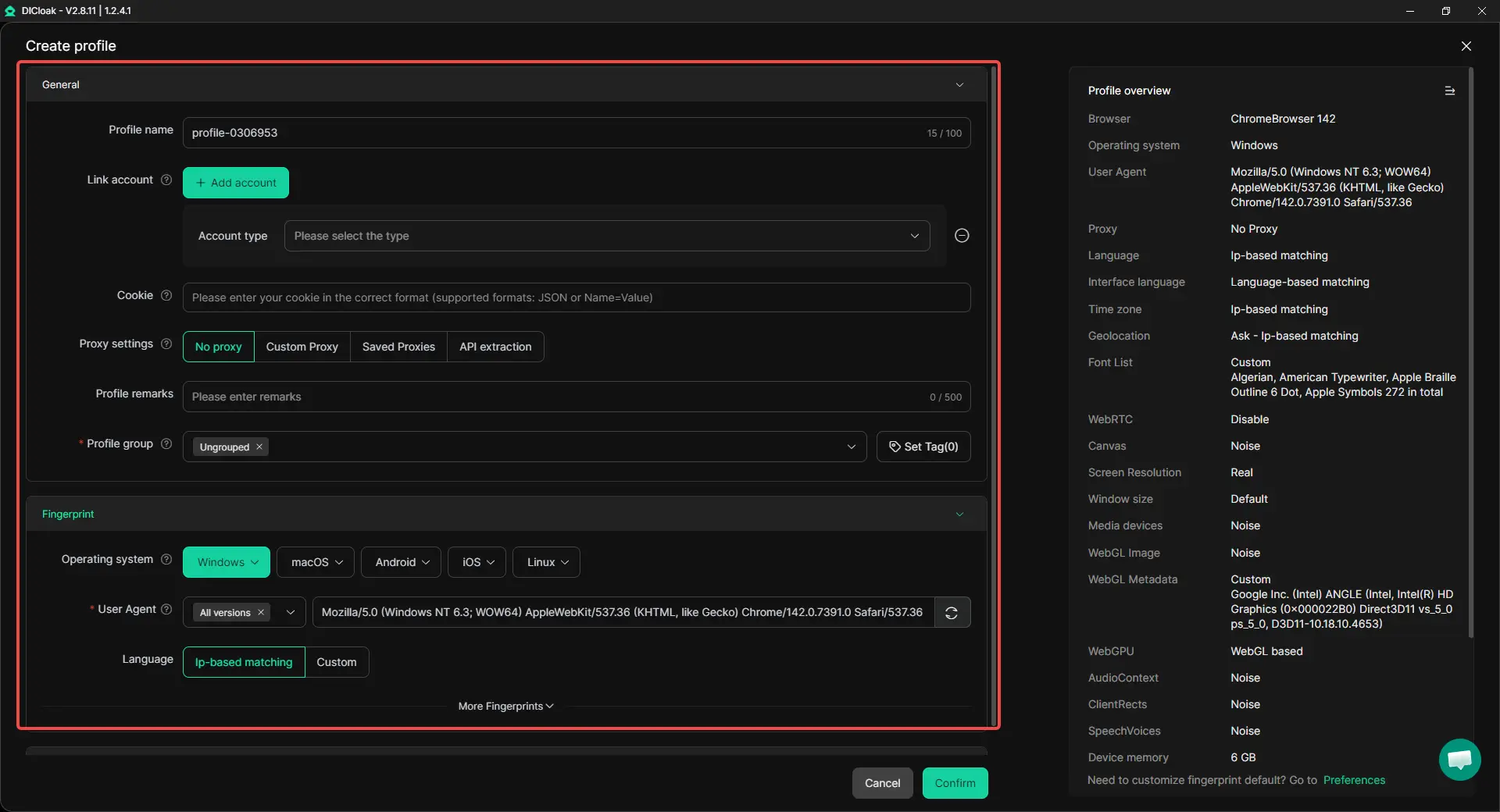
You can use DICloak to create a separate browser profile for each Facebook account, Page, or team task. Each profile can keep its own cookies, login session, local storage, and browser fingerprint. For example, one profile can be used for a brand Page, while another is used for customer support. This makes it easier to know which account blocked a user, checked a message, or changed a privacy setting.
Keep access more stable with custom proxy settings
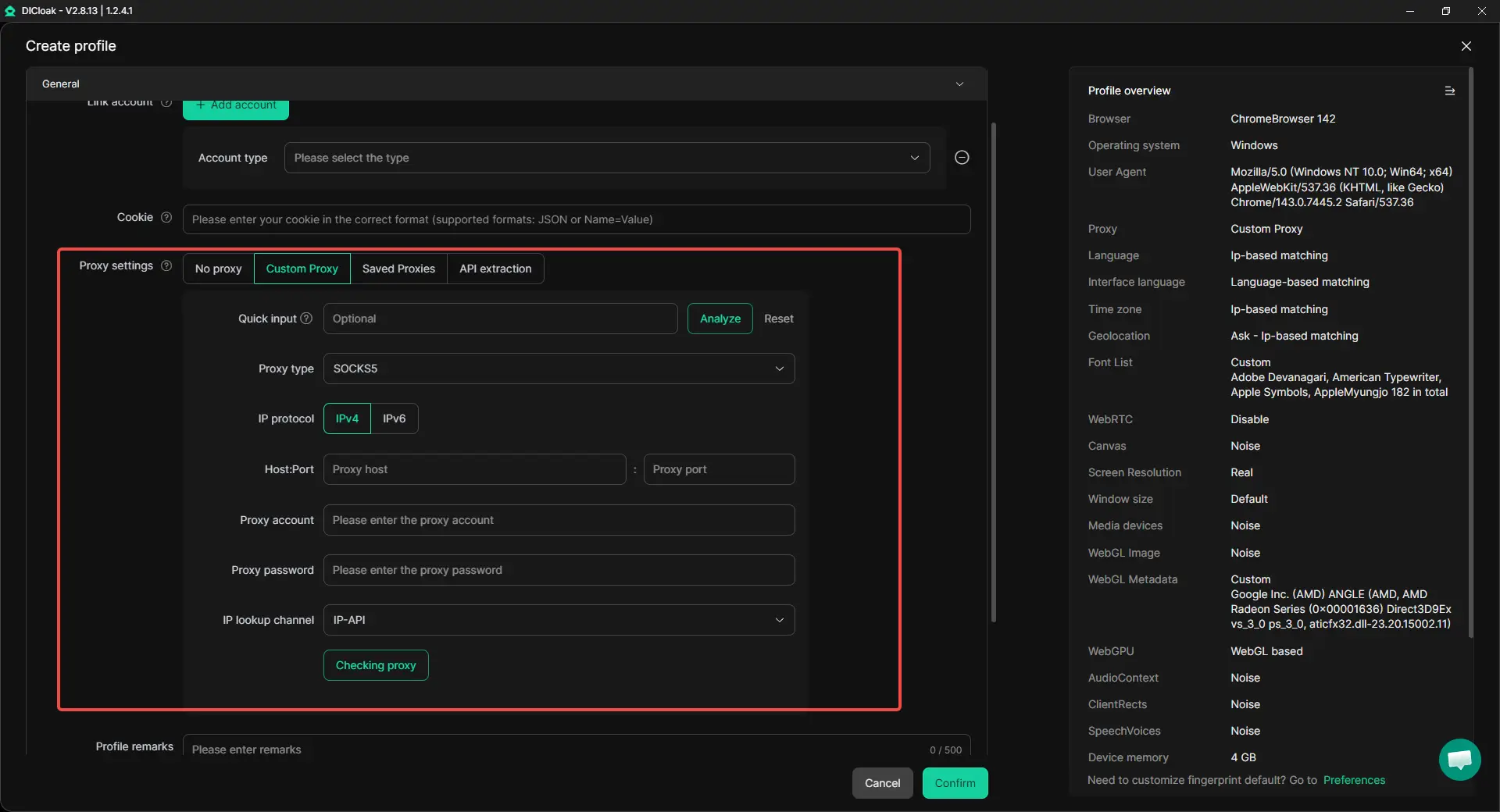
You can also set a different proxy for each profile, such as residential, ISP, or mobile proxies. This is useful when a team manages accounts in different regions. A more consistent profile and proxy setup can reduce account confusion. It also helps team members review blocked users, Page comments, and Facebook settings from the right environment.
Manage team access without mixing login environments
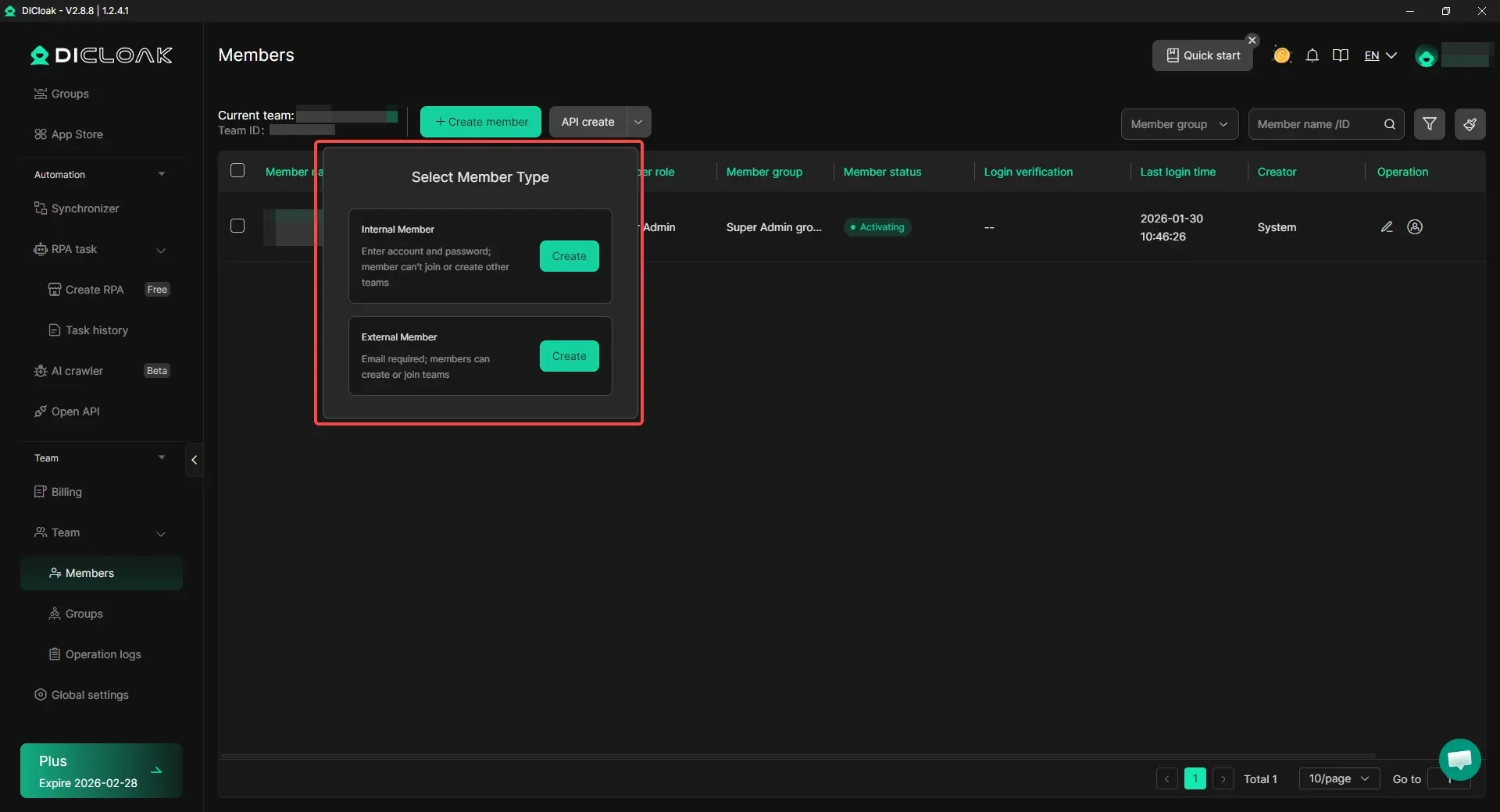
For team work, you can share browser profiles in DICloak and set different permissions for members. This helps avoid unsafe password sharing. It also keeps each Facebook account in the right browser profile. For example, one team member can handle Page comments, while another checks blocked users or account settings. They do not need to open the same account in many personal browsers.
Use the Synchronizer for repeated actions across profiles
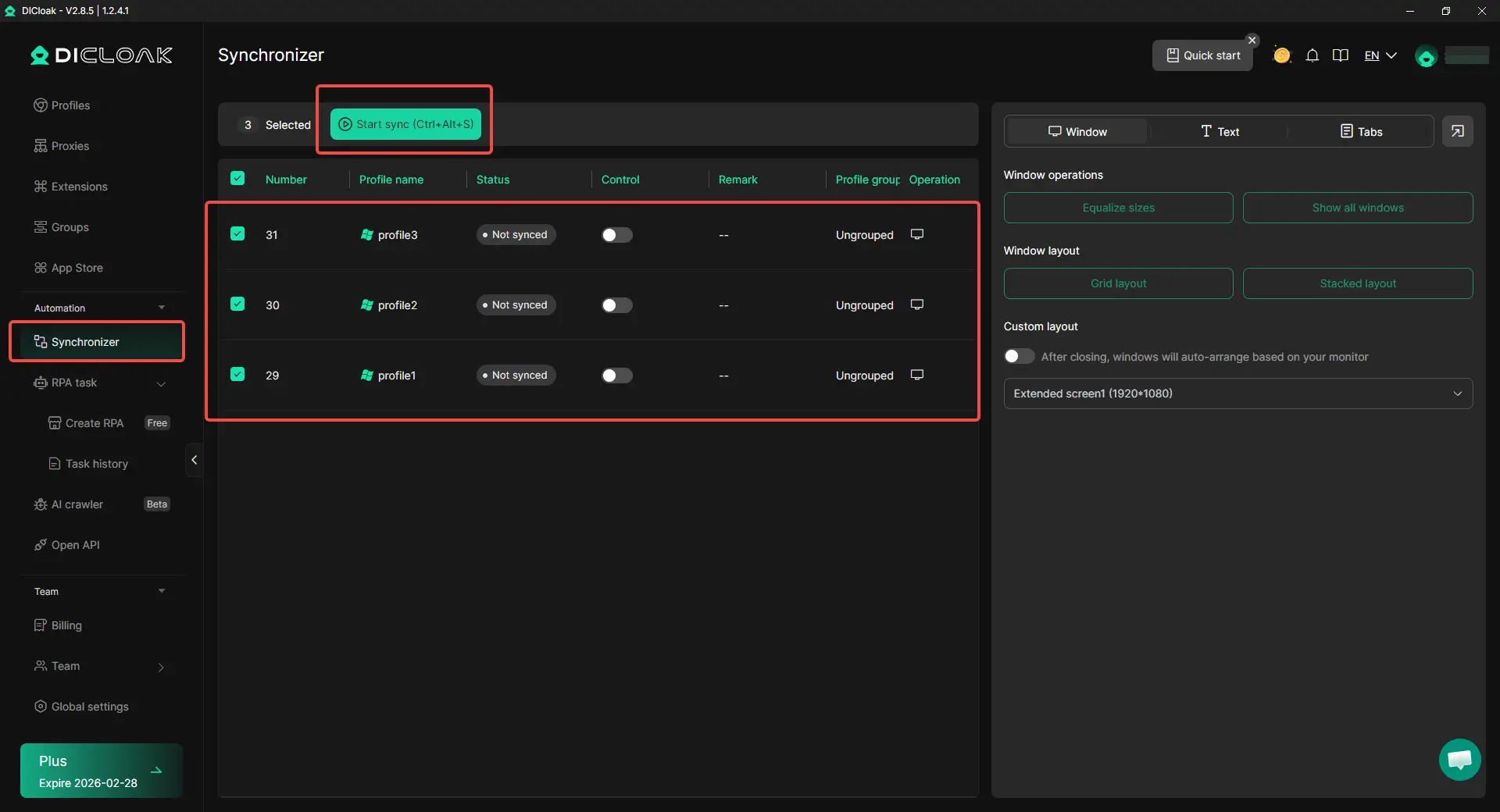
When you manage several Facebook accounts, some actions may repeat across profiles. You can use DICloak’s Synchronizer to control multiple browser windows at the same time. For example, a social media team may open several Facebook profiles and check basic settings side by side. The Synchronizer can make this work faster, but it should be used carefully and within Facebook’s rules.
Frequently Asked Questions About How to See the Blocked List on Facebook
How do I see my blocked list on Facebook in 2026?
To learn how to see the blocked list on Facebook, open Facebook and go to Settings & privacy > Settings > Blocking. On desktop, look for Block users, click Edit, then choose See your blocked list. On mobile, open the Facebook app, tap Menu, go to Settings, and find Blocking under privacy or audience settings.
Why can’t I find my blocked list on Facebook?
If you cannot find your blocked list, you may be using a different Facebook account, an updated app layout, or the wrong settings area. Sometimes the person was blocked on Messenger, not on Facebook. Try searching “blocking” inside Facebook settings to find the right page faster.
Can I unblock someone from my Facebook blocked list?
Yes. After you find your blocked list, choose the person you want to remove and tap or click Unblock. But unblocking does not make you friends again. If you were friends before, one of you may need to send a new friend request.
Is the Facebook blocked list the same as Messenger blocking?
No. Facebook blocking is stronger. It limits profile views, tags, friend requests, and messages in most cases. Messenger blocking mainly stops messages and calls. So when learning how to see the blocked list on Facebook, remember that Messenger blocked accounts may appear in a different place.
Can someone know if I blocked them on Facebook?
Facebook does not send a clear notice when you block someone. But the person may notice signs. They may not find your profile, tag you, message you, or add you as a friend. This is why many users check how to see the blocked list on Facebook before they decide whether to unblock someone.
Conclusion
Checking how to see the blocked list on Facebook helps you review past privacy choices and understand who can no longer contact or interact with you. In 2026, you can find your blocked list from Facebook settings on both desktop and mobile, though the menu names may look slightly different by device or app version.
Your blocked list is useful when a profile seems missing, when you want to unblock someone, or when you need to confirm whether a person was blocked on Facebook or only on Messenger. If the list does not show, check that you are using the right account, the right profile, and the correct Blocking settings.
Blocking is not the only way to limit contact. You can also unfriend someone, add them to the Restricted list, adjust your post audience, or report harmful behavior. For users or teams managing several Facebook accounts, tools like DICloak can help keep account environments separate, reduce session confusion, and make daily Facebook management more organized.
 Web Proxy Tools
 Free Tools
 Cookie Plugin
 UA Generator
 MAC Address Generator
 IP Generator
 IP Address List
 2FA Code Generator
 World Clock
 Anonymous Check
 WebRTC Leak Test
 UUID Generator
 Free Web Proxy Site
 Proxy Checker
 FB Ad Checker
 AI Web Scraping
 Free SMM Tools
 Twitter Shadowban Checker
 Instagram Name Checker
 UTM Generator
 Username Generator
 AI Hashtag Generator
 LinkedIn Headline Generator
 Social Media Image Resizer