Getting the chatgpt you've hit your limit. please try again later error is more than just a speed bump, it usually hits when you’re in the middle of a time-sensitive chat or trying to finish a project. People run into this message after sending too many prompts, using shared accounts, or trying to access ChatGPT from several devices at once. The frustration is real: ChatGPT’s usage limits and rate cap rules are not always clear, and the error can show up even when you think you’re playing by the book.
Trying to refresh or log out rarely solves it. Some users wait hours, only to hit the same wall. Even switching browsers or devices doesn’t guarantee a fix, since OpenAI tracks usage per account, not just per session. What’s worse, sharing access with teammates or friends, common for school projects or work tasks, raises the odds of hitting the chatgpt usage limit error much sooner.
So the real question isn’t just how to get past the message once, but how to avoid it coming back. It takes more than clearing cache or restarting your computer. You need to understand what triggers the chatgpt rate limit exceeded error, check if account sharing is safe, and know which workarounds actually last more than a few hours. Here’s what to check first.
What Does 'ChatGPT You've Hit Your Limit. Please Try Again Later' Actually Mean?
This error means OpenAI has temporarily blocked your account from sending new messages or making requests because you've crossed a usage threshold. It’s not about a bug or a broken browser, these limits are built into ChatGPT, and they can affect both free and paid users. If you see this message, your next step isn't to reload the page, but to figure out which specific cap you’ve hit and why.
Types of Usage Limits in ChatGPT
Most people hit one of three main limits:
- Message caps: There’s a maximum number of messages you can send per hour or per day. Free plans have tighter caps than paid ones.
- Concurrent session limits: Having too many devices or browser tabs active at once can block new chats or cause the error to appear.
- API rate limits vs web limits: API users (with their own keys) face different, sometimes stricter, per-minute or per-day quotas than web users.
How ChatGPT Decides When You've Hit Your Limit
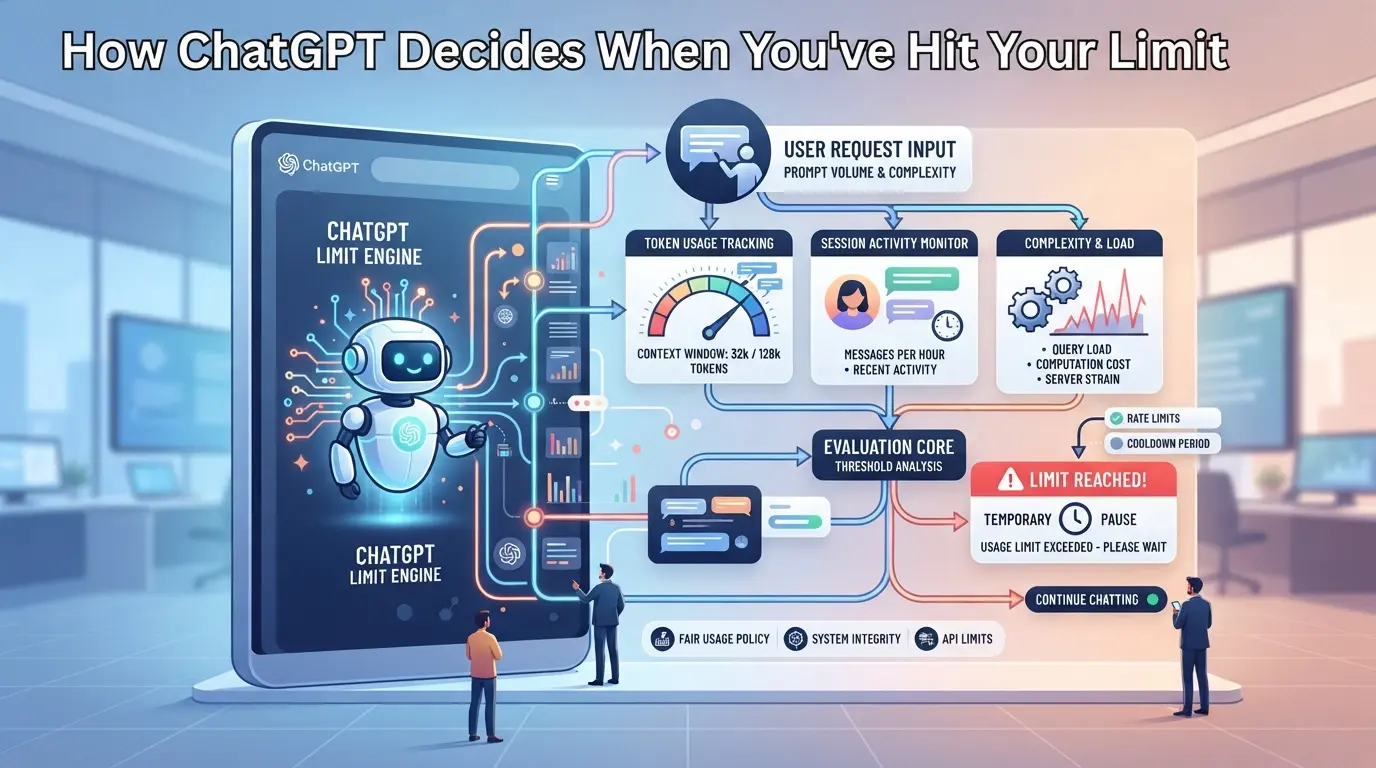
OpenAI tracks how often your account interacts with the system, then checks this activity against your plan’s limits and current server load. For example, free users might get 40 messages every 3 hours, while ChatGPT Plus or Pro accounts usually have higher or dynamic caps. But these caps aren’t always fixed. During high-traffic periods or outages, OpenAI sometimes lowers limits for everyone, even paid accounts, without warning.
Here’s where it gets tricky: account sharing speeds up how fast you hit the wall. If two people are signed into the same account from different places, every message counts toward the same cap. Sometimes, the system even double-counts if you have overlapping sessions, so you run out of quota faster than you expect. For API users, the error might actually reflect a rate limit or quota breach rather than a message cap, and those limits reset on different schedules.
If you’re seeing this error after only a few chats, check if someone else is also logged in, or if you left another browser tab open and active. A single burst of activity (like rapid-fire questions or automated scripts) can trip the limit as well. The real catch is that waiting doesn’t always help, some limits reset on a rolling window, others only at a set hour, and sometimes the reset lags behind the error.
Understanding these triggers makes it easier to spot which cap you hit, and why you might keep running into the same block. Next, it’s worth breaking down why OpenAI enforces these limits, and which activities are most likely to trigger them.
Why ChatGPT Usage Limits Exist, and What Triggers Them Most Often
Usage limits are there to keep the service stable and fair, if you see the "chatgpt you've hit your limit. please try again later" error, you’re running up against a system designed to balance demand, fight abuse, and protect resources. The error can show up even when you’re not spamming; just hitting the cap too quickly or sharing your account with others can make you run into it way sooner than expected.
Infrastructure and Cost Management
OpenAI has to manage server load and keep response times steady for everyone. Limits are stricter on free accounts since paid users fund more capacity. If too many people flood the system, like during school deadlines or major news events, the limits help prevent the whole platform from slowing down or crashing.
Preventing Abuse and Fair Access
The real headache for OpenAI is stopping bots, spam, and automated scraping. If you try to send dozens of messages per minute, or run scripts to auto-generate content, the backend flags your pattern and starts blocking requests. Account sharing throws another wrench in the gears, when five people log in from different cities, the system reads it as possible bot activity and clamps down with tighter limits. Even legitimate use can look suspicious if you bounce between devices or have multiple people using one login. What trips up most users isn’t outright abuse, but normal collaboration that accidentally mimics bot behavior, so you can get locked out just for working on a group project together. The tradeoff is clear: stricter limits mean fewer fake accounts, but more risk of genuine users getting blocked. If you hit the error after a busy day, it often means someone on your team pushed the account too hard, not just you.
Typical Actions That Trigger Limits
- Sending messages rapidly, especially in bursts of 10+ within a few minutes
- Logging in from several devices or locations in a short time
- Making frequent API calls, or using automation tools to query ChatGPT
If you do any of these, expect to run into a usage cap faster. Sometimes even just switching from your phone to your laptop mid-session can trip the system, especially if your account has been active on both in the last hour.
The next step is figuring out how to recover after hitting the wall, knowing what caused the lockout makes it easier to fix without repeating the same mistake.
How to Fix 'You've Hit Your Limit' in ChatGPT: Step-by-Step Recovery

If you see “chatgpt you’ve hit your limit. please try again later” on your screen, the fastest way to recover is to check whether your account is truly capped, confirm how resets work, and avoid repeating failed quick fixes. Waiting alone rarely solves it for shared accounts or frequent users. Here’s what to do right now.
Immediate Actions: Wait, Refresh, or Start a New Chat
- Wait 15–30 minutes before retrying, OpenAI resets most usage caps hourly, but heavy accounts may need longer.
- Refresh the browser only after waiting, If you refresh too quickly, you’ll just keep seeing the same error.
- Start a new chat if your old one keeps erroring, Sometimes old conversation threads stay bugged even after your cap resets.
- If the message appears again immediately, your account is still locked, Don’t keep clicking; you’ll risk longer lockouts.
Check Your Account Type and Usage History
- Open your OpenAI account dashboard, Look for your plan (Free, Plus, Team, or Enterprise).
- Check your usage log, Plus users get roughly 40 messages every 3 hours; Free users often hit lower caps.
- Scan for patterns, If you’re locked out daily, you’re likely hitting the cap from account sharing or repeated high-volume use.
- Look at timestamps, If limits reset at odd hours, you may be stuck in a queue or flagged for unusual activity.
If you’re sharing your login or using multiple devices, you’ll want to check if these spikes match times when others are active. That’s where most repeated lockouts come from.
When Upgrading or Switching Accounts Makes Sense
- Consider upgrading to ChatGPT Plus or Team, Paid plans allow more messages per hour and priority access, which cuts down on limit errors.
- Weigh the risks before switching accounts, Creating new accounts just to bypass caps can trigger security flags, leading to permanent bans or forced phone verification.
- Avoid sharing accounts if you need stable access, Shared logins rack up usage fast, often hitting the message cap fix you’re trying to avoid.
Here’s the tradeoff, upgrading solves most cap issues for solo users, but won’t help if you keep sharing logins or switch accounts too often.
| Plan |
Hourly Message Cap |
Priority Access |
Lockout Risk |
| Free |
~20–25 |
No |
High |
| Plus |
~40 |
Yes |
Medium (if solo) |
| Team |
Higher, variable |
Yes |
Depends on sharing |
| Enterprise |
Custom |
Yes |
Lowest (official use) |
Table: ChatGPT plan limits and lockout risks. Source: OpenAI help docs
If you keep running into the chatgpt usage limit error, repeat lockouts usually point to account sharing or overuse, don’t just upgrade and expect it to disappear.
Next up: the mistakes that drag out the lockout or make the error even harder to fix.
Common Mistakes That Make the Limit Error Worse
Most people hit the rate cap, panic, and make things worse without realizing. If you want to avoid seeing "chatgpt you've hit your limit. please try again later" over and over, watch for these common traps. Small errors, like trying to outsmart the system, can lead to longer lockouts or even account bans.
Trying to Bypass Limits with Multiple Accounts
Stacking accounts might work for a day, but OpenAI links accounts through browser fingerprints, cookies, and reused emails or numbers. If you run multiple accounts from the same IP or device, expect a flagged session or full ban next. The fastest way to lose access is to mix personal and work accounts on the same browser.
Using Proxies or Changing Devices Without Coordination
- Keep the same device and IP for each session; sudden swaps can trigger extra checks.
- Don’t let teammates log in from new countries or networks at random.
- Always log out before switching devices or proxies to avoid session mismatches.
Ignoring Evidence Collection Before Contacting Support
Missing proof slows down any support ticket. Before you reach out:
- Take a screenshot of the exact error and timestamp.
- Download recent activity logs if possible.
- Note which accounts, devices, and IP addresses you used right before the block.
How Teams Can Share ChatGPT Accounts More Safely: Practical DICloak Workflows
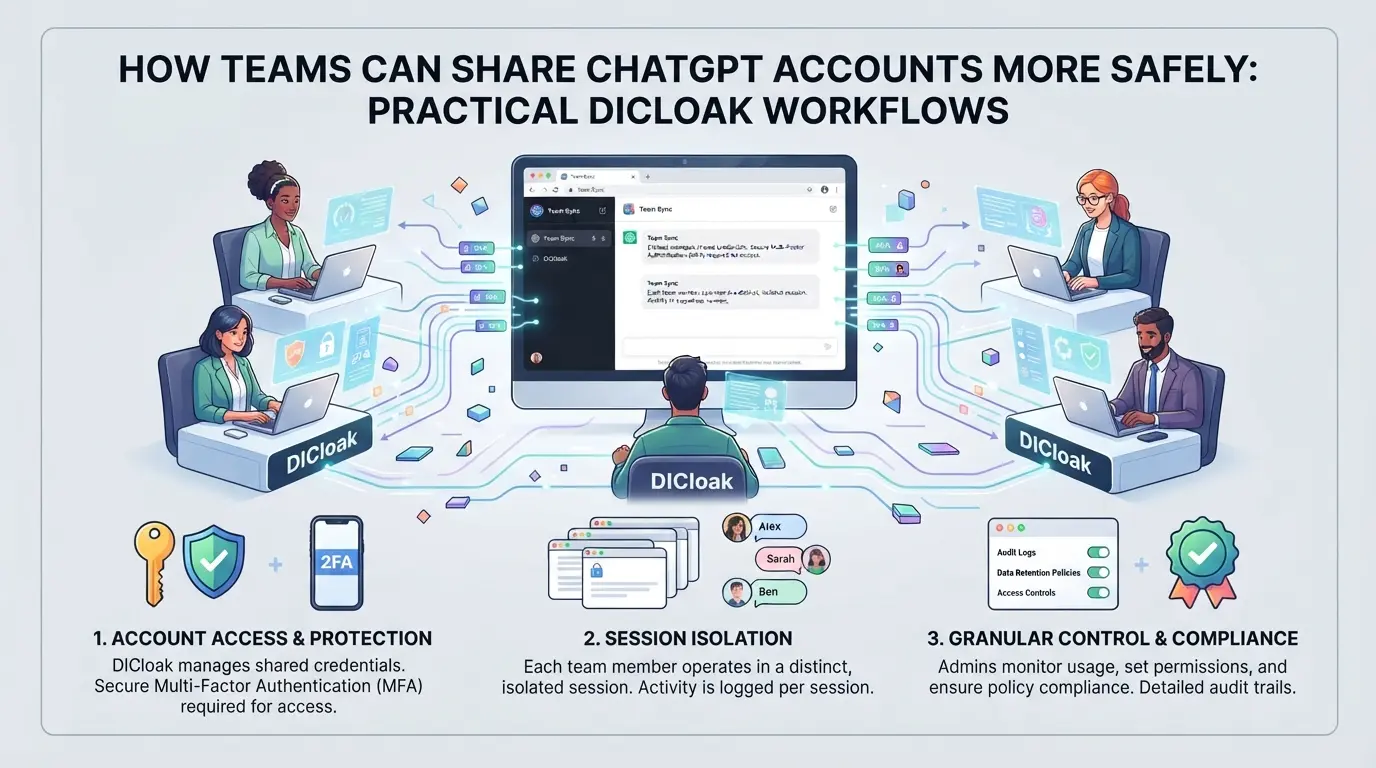
Teams who need to share platform accounts for work or projects run into problems fast, usage limits, lockouts, and accidental credential leaks. After the usual browser tricks fail, the next step is setting up a safer workflow. For readers managing shared accounts, DICloak gives a practical way to keep browser profiles consistent, restrict access, and trace team activity. The scope covers browser profile and team access; it does not change ChatGPT’s platform limits.
Keep Account Sharing Consistent with Unified IP and Fingerprint
Admins can prepare one DICloak browser profile for the shared account, configure a fingerprint and user-provided proxy, then give access to authorized members. This keeps all team usage under the same browser profile and IP route, so the platform sees a consistent session, not a jumble of scattered logins. Everyone must use the same shared profile and proxy; separate profiles break the signal. It doesn’t guarantee the platform will treat every session as one user, but it minimizes obvious mismatches. 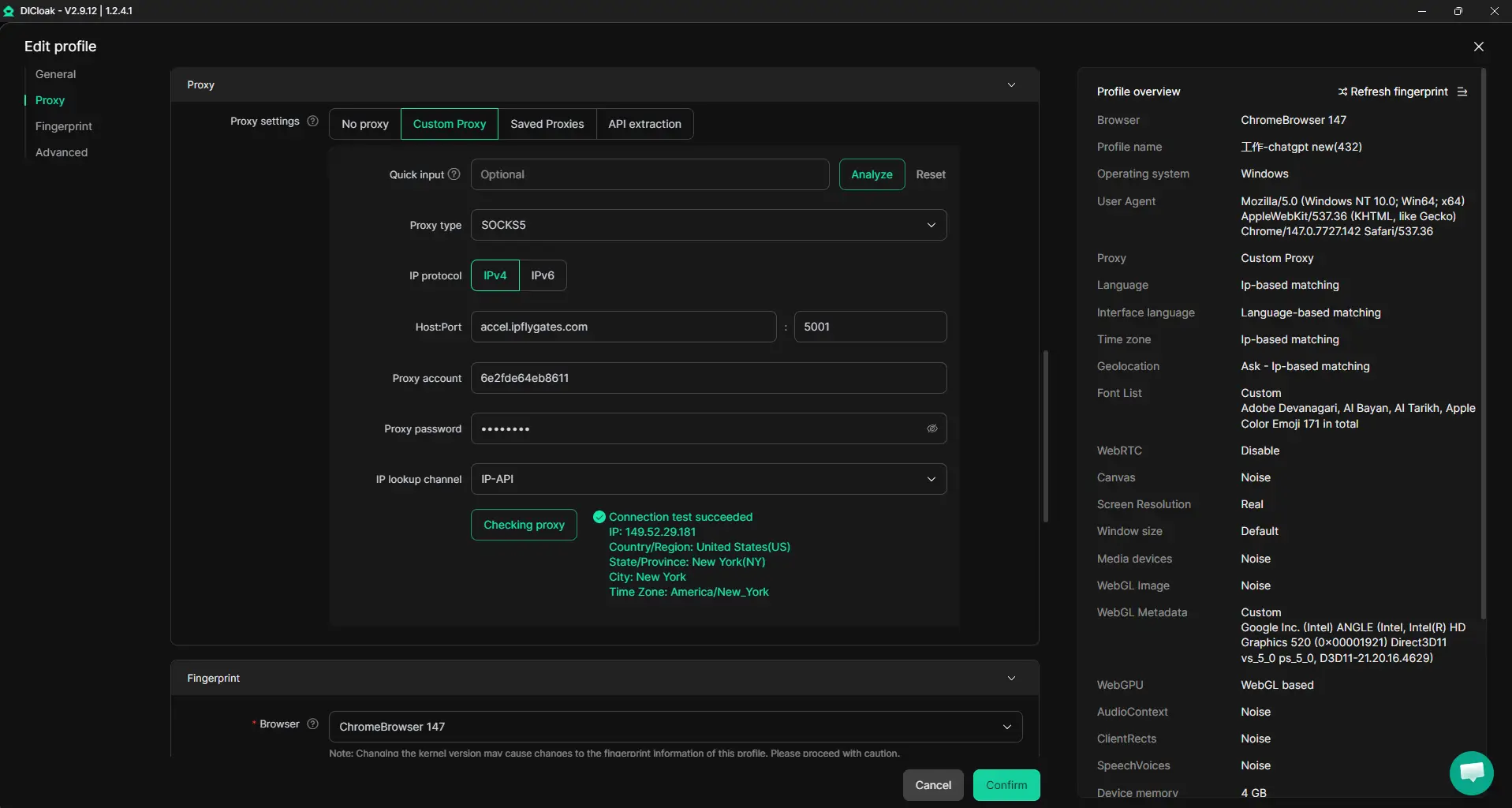
Browser-Profile Access Controls for Shared Account Workflows
Credential exposure is the main risk when sharing accounts. Admins can use DICloak security settings to block password prompts, restrict cookie viewing, and disable developer tools in supported profiles, cutting off easy ways for members to grab or change saved logins. Extension and web-element hiding further reduce leaks from page overlays or add-ons. The scope is limited to browser-profile access; it does not change the connected SaaS tool. 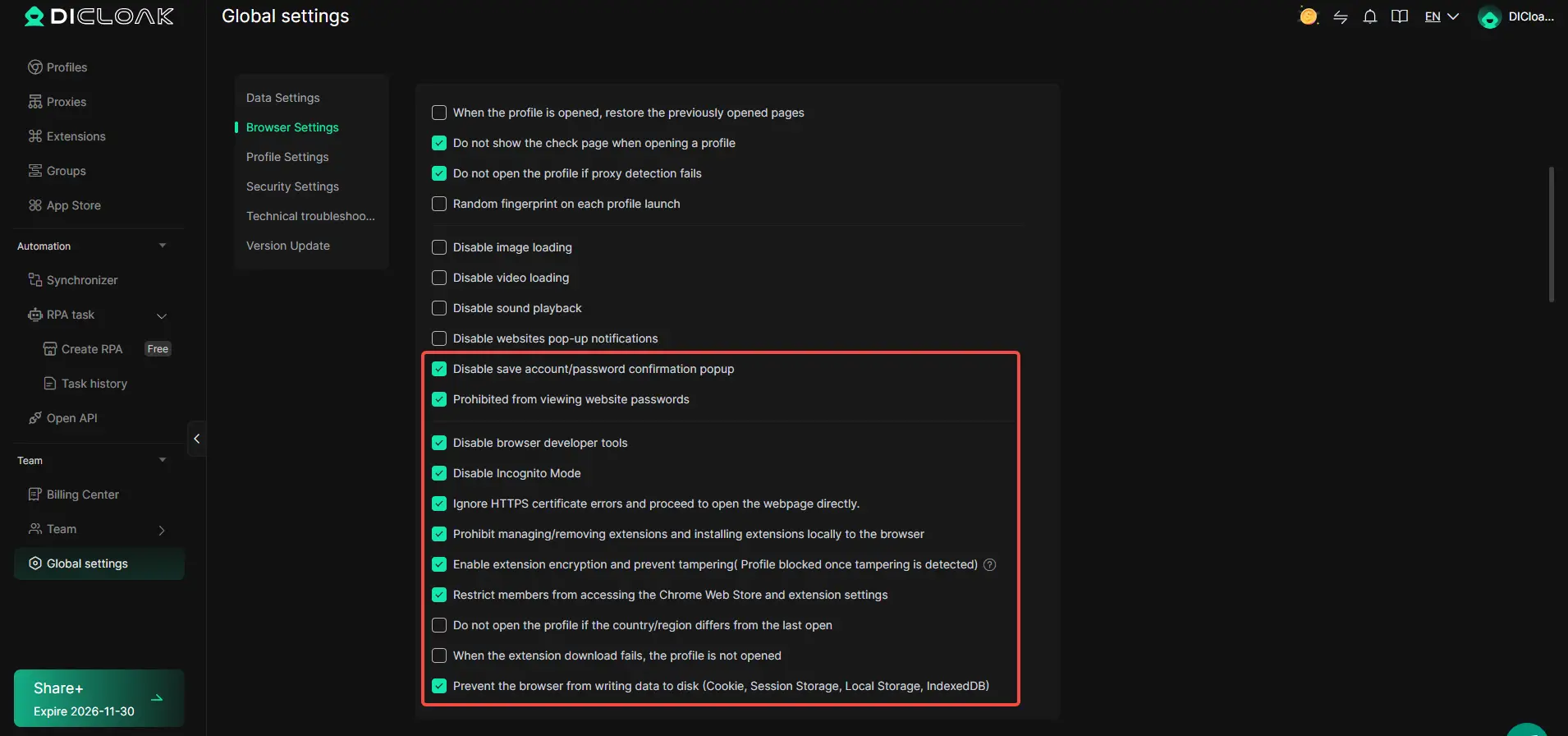
Assign Team Permissions for Least-Privilege Access
Unrestricted access lets any member see or edit more than they need. Admins can set up groups in DICloak, assign only the actions and browser profiles required for each role, and hide irrelevant fields from regular members. This keeps everyone within their operational lane and reduces accidental changes. These permissions apply inside DICloak; platform-side controls remain separate. 
Monitor Account Usage with Operation Logs
When multiple people share accounts, tracing who did what becomes tricky. Admins can review DICloak operation logs filtered by member, profile, device, or action, covering logins, profile changes, browsing, and sharing events. This makes it easier to spot misuse or track down errors after a lockout. Logs record supported team and profile actions; they do not prevent mistakes or security incidents. 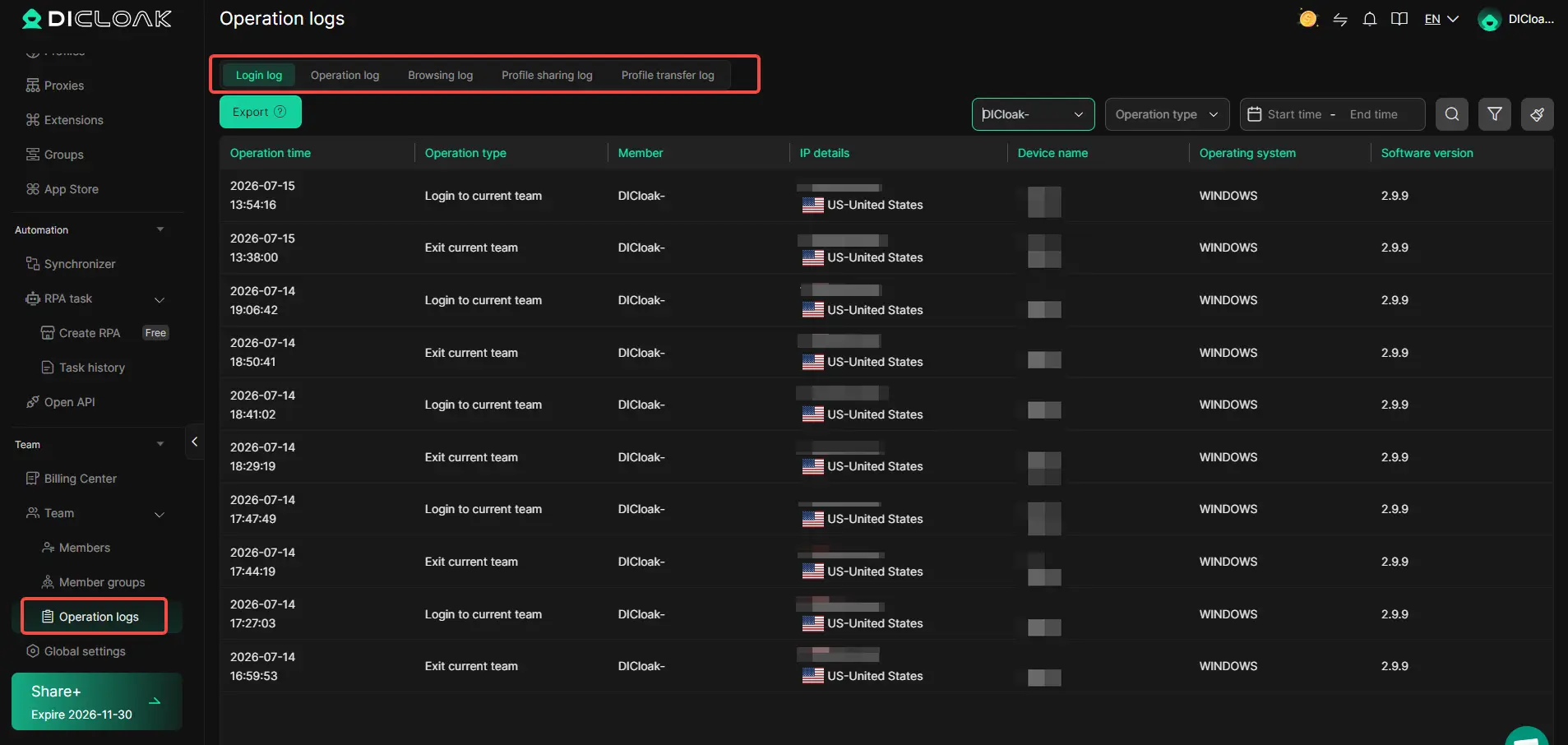
If the error turns out to be an API rate or quota issue, the next section explains how to check and address those limits directly.
When the Error Is Really an API Rate Limit or Quota Issue
Some users see the “you’ve hit your limit” message and assume it’s a web usage problem, but the real cause is often an API rate or quota cap. Fixing a rate limit error takes a different approach than fixing usage caps in the ChatGPT website.
API 429 vs Web Limit Errors: How to Tell the Difference
Confusing these errors wastes time, here’s how to spot which one you’ve hit:
| Error Type |
Where It Appears |
Typical Clues |
| API Rate Limit |
API response (JSON, code 429) |
"429 Too Many Requests" or quota messages in API calls |
| Web Usage Limit |
ChatGPT website UI |
Banner or popup: “You’ve hit your limit. Please try again later.” |
If you see a 429 error in API logs or automated scripts, you’re dealing with an API rate limit, not a web session cap. The web UI never shows “429” codes directly, only API requests do.
How to Fix API Rate Limit Issues
Check your OpenAI dashboard for quota usage, most rate limits reset hourly or daily. If you’re still blocked after a reset, try rotating to a new API key or upgrading your plan. If errors keep coming, prepare logs and timestamps before reaching out to support. Fixing API issues is all about tracking requests, not just waiting.
What Evidence to Collect Before Contacting ChatGPT Support
Essential Logs and Screenshots
Before writing to support about the "chatgpt you've hit your limit. please try again later" error, gather your recent usage history, exact error messages, and a screenshot showing the limit warning with a visible timestamp. Include your account email and whether you use ChatGPT Plus. Clear details help support staff rule out simple mistakes and spot real system bugs, vague complaints just get canned replies.
How to Document Account Sharing and Team Activity
Support often checks for account sharing or team activity. If you share access, log who used which sessions and when.
- Save browser operation logs showing session times.
- List team members with account access.
- Note any shared devices or coordinated logins.
Frequently Asked Questions About chatgpt you've hit your limit. please try again later
How long does the 'chatgpt you've hit your limit. please try again later' error last?
This error usually lasts between one and two hours. For free accounts, limits often reset at the top of the hour. ChatGPT Plus users may see shorter wait times, but high demand periods can make it last longer. If you keep hitting this error, try again after an hour or two.
Does upgrading to ChatGPT Plus or Pro remove usage limits?
Upgrading increases your message and rate limits, but does not remove them completely. Even ChatGPT Plus and Pro users may hit limits during peak hours or heavy use. These paid plans reduce wait times and provide priority access, but you can still see message caps if demand is very high.
Can I share a ChatGPT account with my team without triggering limits?
You can share an account, but you must coordinate use. Logging in from the same browser or device, and not sending messages at the same time, helps avoid detection. Using different devices, locations, or sending messages too quickly can trigger lockouts or extra security checks.
Is using proxies to avoid ChatGPT limits safe?
Proxies can help, but only if you use them carefully. Random or inconsistent IP addresses may alert ChatGPT’s security systems. This can lead to temporary lockouts or even permanent account bans. If you need to use proxies, try to keep your IP addresses consistent and avoid rapid switching.
What should I include when contacting ChatGPT support about limit errors?
Give as much detail as possible. Include screenshots of the error, the times you hit your limits, your account type, and usage logs if you have them. If you’re sharing access, explain how your team coordinates use. This information helps support quickly understand and address your issue.
If you're frequently running into usage restrictions, it may be time to explore reliable alternatives that better suit your workflow. Switching to a different platform can provide uninterrupted access and help you stay productive without unnecessary delays. Try DICloak For Free
 Web Proxy Tools
 Free Tools
 Cookie Plugin
 UA Generator
 MAC Address Generator
 IP Generator
 IP Address List
 2FA Code Generator
 World Clock
 Anonymous Check
 WebRTC Leak Test
 UUID Generator
 Free Web Proxy Site
 Proxy Checker
 FB Ad Checker
 AI Web Scraping
 Free SMM Tools
 Twitter Shadowban Checker
 Instagram Name Checker
 UTM Generator
 Username Generator
 AI Hashtag Generator
 LinkedIn Headline Generator
 Social Media Image Resizer