Runway is a generative AI platform for creating and editing videos from text, images, and other media. Many teams use the Runway AI video generator and Runway AI video editor to move a project from the first draft to final delivery. A creator may generate clips, an editor may revise them, a manager may approve the work, and a client may review the result.
This makes Runway team access important, but it also affects cost and credit use. The Standard plan includes 625 monthly credits, equal to about 52 seconds of Gen-4.5 video, and Editors in the same Workspace use Runway shared credits instead of receiving separate monthly balances. Teams comparing Runway AI pricing for teams should check both seat costs and credit limits before adding members. That is why sending one password is rarely the best way to work together. This guide explains how to share a Runway account with your team without sharing passwords, which access method fits each task, and how to manage sessions, credits, and client work more clearly.
Why Do Teams Want to Share a Runway Account?
Teams often search for Runway multiple users because one video project may involve several people. However, each person usually needs access to only one part of the workflow.
- Keep the project moving between different people. One person may create the first drafts with the Runway AI video generator, while another handles revisions, exports, or final edits. Remote teams may also hand in the same project from one shift to the next.
- Share Runway with clients or freelancers for a specific task. A client may only need to review or download an asset. A freelancer may need access to one campaign, not the team's other projects, billing details, or account settings.
- Reduce dependence on the account owner. Work slows down when every login, verification request, or handoff needs the owner's help. Better Runway team collaboration gives each person the access needed for their task without opening the full account.
Can You Share a Runway Account and How Much Does Team Access Cost?
Runway offers several official ways to support Runway team access, including Workspace roles, Projects, and asset links. However, Runway AI account sharing is not the same as inviting a member through their own account, and some Runway Workspace roles require an extra paid seat.
Runway charges for Editor and Admin seats, while Viewers do not count as paid seats. A paid Runway Editor seat gives the member more access, but it does not create a separate monthly credit balance.
| Role |
What the member can do |
Paid seat? |
Best fit |
| Viewer |
View and download assets and Projects |
No |
Clients and reviewers |
| Editor |
Generate content, move assets, and edit Projects |
Yes |
Creators and video editors |
| Admin |
Generate content and manage members, roles, and billing |
Yes |
Workspace managers |
| Billing Admin |
Manage members and billing, but not generate content |
No |
Enterprise finance or operations teams |
Editors and Admins are charged when invited, based on the Workspace owner's plan and billing cycle. Current monthly prices for an added Editor are $15 on Standard, $35 on Pro, and $95 on Max. Teams comparing Runway AI pricing for teams should check both the seat cost and the shared credit limit before adding members.
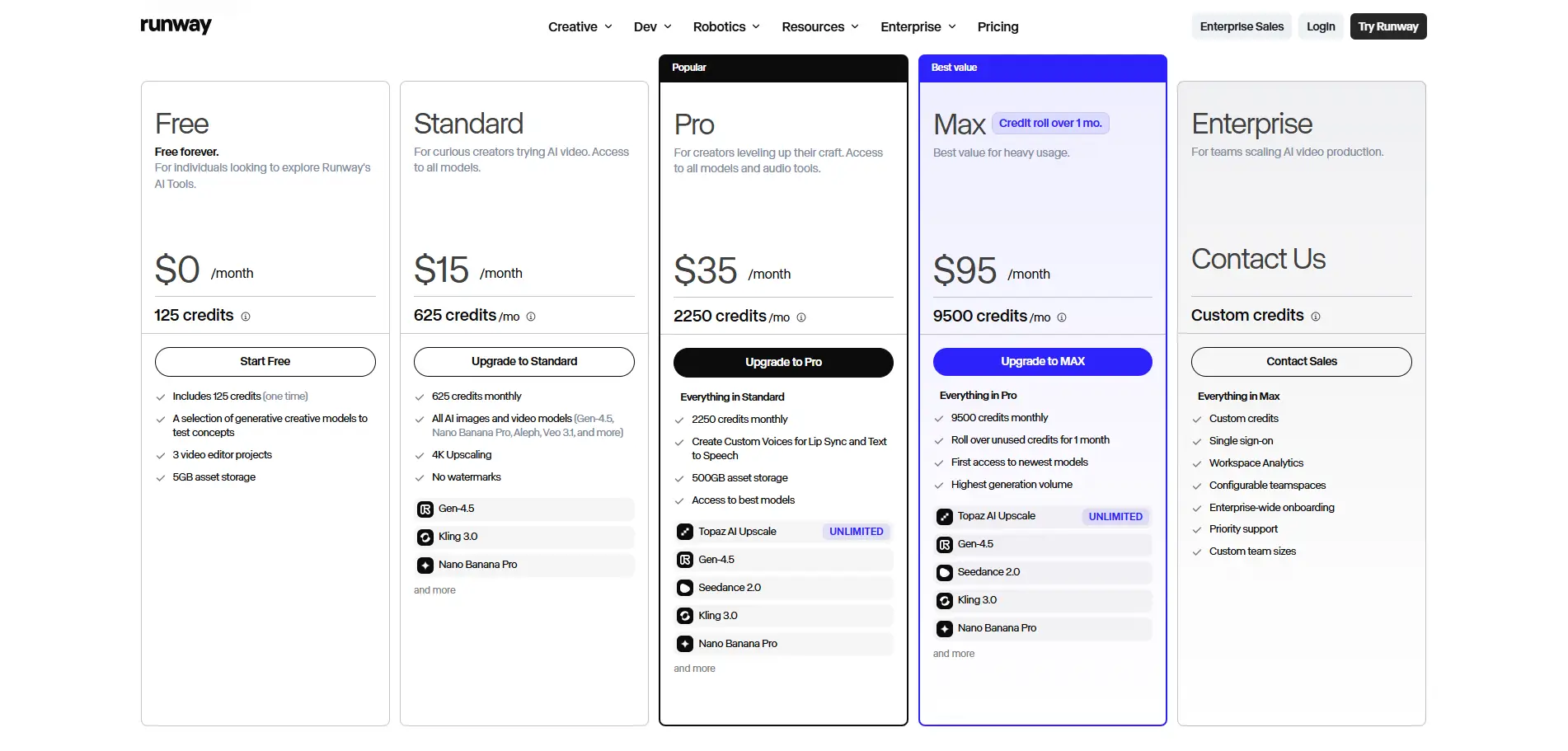
The more important detail is how Runway shared credits work. Each Workspace receives one plan credit pool for all members. Adding another Editor does not add another set of credits. For example, two editors on a Standard Workspace still share the same 625 monthly credits.
This affects how teams should manage Runway multiple users. A client who only needs to approve a video usually does not need a paid Editor seat. A freelancer who must generate or revise content may need one, but the team should define how that person can use the shared credits.
Existing Runway Unlimited account users should also check their plan before inviting anyone. New member invitations to Unlimited stopped on June 1, 2026, and existing Unlimited subscribers are scheduled to move to Max on September 1, 2026.
What Are the Different Ways to Share Runway with a Team?
There is no single method that fits every Runway AI account sharing workflow. The right choice depends on whether someone needs to review an asset, create content, complete a short task, or manage multiple Runway accounts for different clients.
Share a Runway Asset Link
A Runway asset link is the simplest option when someone only needs to review or download a video. It supports Runway team collaboration without opening the full Workspace or account.
Best for:
- Client review and approval
- Downloading a finished asset
- Sending a draft to an external partner
- One-time content delivery
Open the asset's sharing settings, enable link access, and copy the URL. Test the link before sending it, as generated assets may include prompts, input files, seed information, or other generation details.
Pros:
- No password or account access is required
- Fast to create and send
- Easy to make private again
- No paid Editor seat is needed
Cons:
- The recipient cannot generate or edit content
- Anyone with the link may be able to open it
- Generation details may reveal part of the creative process
An asset link is usually enough when you only need to share Runway with clients for approval. Giving them Editor access would add permissions they do not need.
Invite the Member to a Runway Workspace
A Workspace invitation is the main option for people who need official Runway team access. Each member uses their own account and receives a role based on the work they need to complete.
Best for:
- In-house creators and editors
- Long-term team members
- Project managers
- People who generate or organize assets
Invite the member through the Workspace settings, then choose the lowest role that supports the task. A reviewer may only need Viewer access, while someone creating content with the Runway AI video generator will usually need an Editor role.
Pros:
- Each member uses a separate identity
- Roles can limit member actions
- Members can work inside shared Projects
- Access can be changed or removed
Cons:
- Editor and Admin roles may add seat costs
- Members still use Runway shared credits
- Broad access may expose unrelated Projects
- A new seat does not create a separate credit pool
For Runway multiple users, Workspace access is the clearest official option. However, teams should not assign Editor seats to people who only need to review finished work.
Use Password Manager
A password manager can help a small internal team share a Runway account without sending the password through email, spreadsheets, or chat. It may allow selected users to autofill saved credentials without viewing them directly.
Best for:
- A small group of trusted users
- Occasional access to shared tools
- Accounts without suitable team roles
Pros:
- Keep passwords out of team messages
- Makes credential updates easier
- Access can often be removed centrally
Cons:
- Users may still receive broad account access
- It does not preserve the full browser session
- It does not manage Runway Projects, roles, or credits
- Some setups may still expose saved credentials
A password manager changes how the login is delivered. It does not provide the role-based control of Runway Workspace sharing.
Use Remote Desktop Access
Remote desktop keeps the Runway AI login on one host computer. Another person controls that device without receiving the password directly.
Best for:
- Short support tasks
- Temporary help
- Supervised access
- Troubleshooting
The account owner signs in on the host computer and grants remote access for a limited period.
Pros:
- The login stays on the host device
- No password needs to be sent
- Useful for quick, supervised work
Cons:
- The host device must remain online
- Speed depends on both connections
- Several people cannot work independently
- The remote user may see other files or apps
Remote desktop can work for short tasks, but it is rarely practical for regular Runway team collaboration.
Use an Antidetect Browser with Controlled Profile Access
Agencies that manage multiple Runway accounts may need to keep client sessions separate, assign each environment to the right member, and support project handoffs.
With an antidetect browser like DICloak, each authorized Runway account or client Workspace can stay in a separate browser Profile. The Profile keeps its own login session and browser data, while team permissions control who can open it.
Best for:
- Agencies managing several client accounts
- Teams switching between authorized Workspaces
- Temporary editor or freelancer access
- Keeping client sessions separate
- Reviewing browser-level activity
Create one Profile for each client, sign in to the correct Runway account, and assign it only to the members working on that project. Profile sharing supports handoffs, while operation logs help managers review internal Profile activity.
Pros:
- Keeps client sessions separate
- Reduces account and cookie mix-ups
- Limits members to assigned Profiles
- Makes access removal easier
- Adds browser-level operation records
Cons:
- Does not replace Runway Workspace roles
- Does not add Runway seats or credits
Controlled browser Profiles are most useful when the goal is to organize several authorized Runway profiles.
Quick Comparison of Runway Sharing Methods
| Method |
Needs a paid Runway seat? |
Keeps the session? |
Easy to revoke? |
Setup effort |
| Asset link |
No |
Not needed |
Yes |
Low |
| Workspace invitation |
Some roles |
Uses a separate login |
Yes |
Low |
| Password manager |
No direct seat cost |
No |
Partly |
Low |
| Remote desktop |
No direct seat cost |
Yes, on the host |
Partly |
Medium |
| Controlled browser Profile |
Does not replace required seats |
Yes |
Yes |
Medium |
How to Share a Runway Account with DICloak Without Showing the Password
For teams managing an authorized Runway login or several client Workspaces, a shared browser Profile can keep sessions separate and control who can open them. This setup reduces direct password sharing.
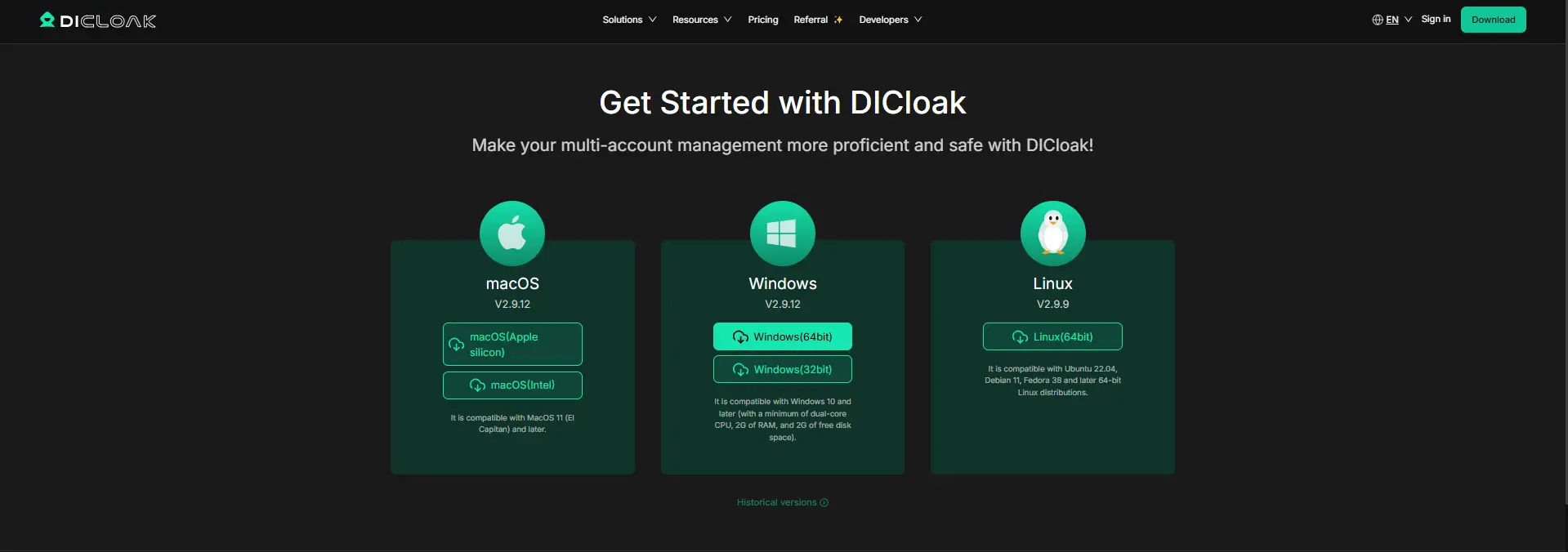
1. Install DICloak and Choose a Team Plan
Download the application, create an account, and choose a plan based on your team size and number of Profiles. Each member should use a separate DICloak account.
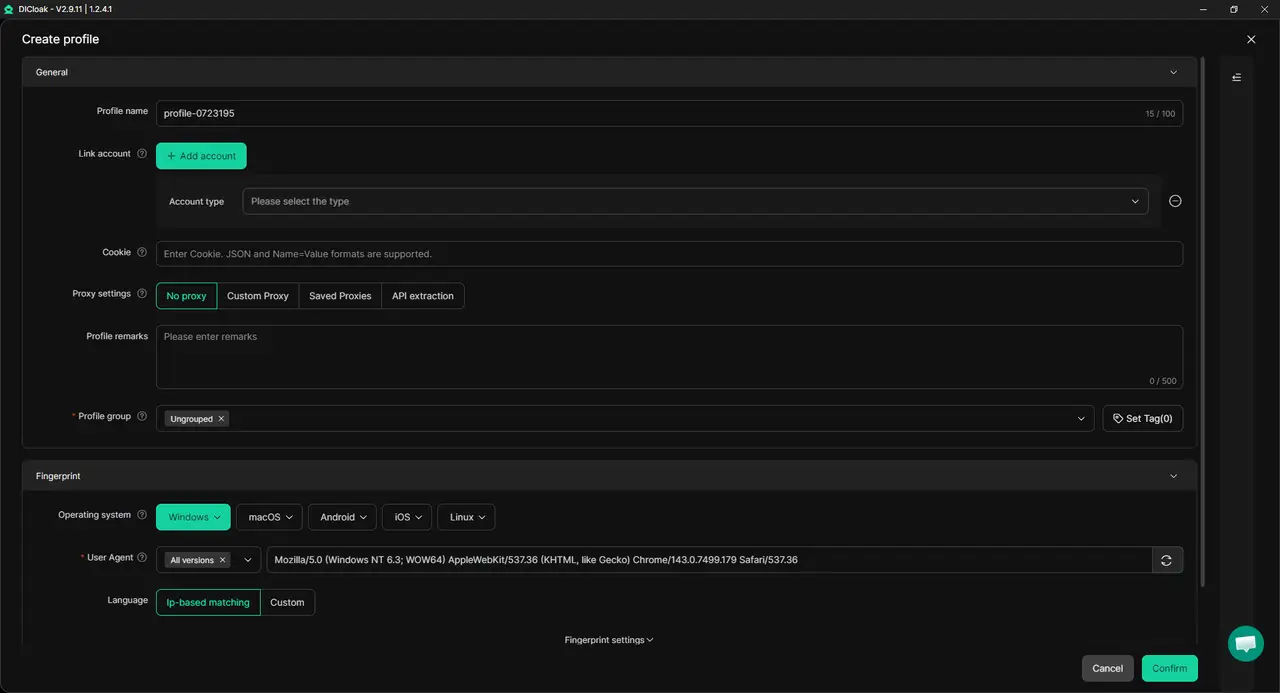
2. Create a Dedicated Runway Profile
Create one Profile for each Runway account or client Workspace. Use a clear name, such as Runway – Client A. You can also configure your own proxy when the workflow requires a stable network or region.
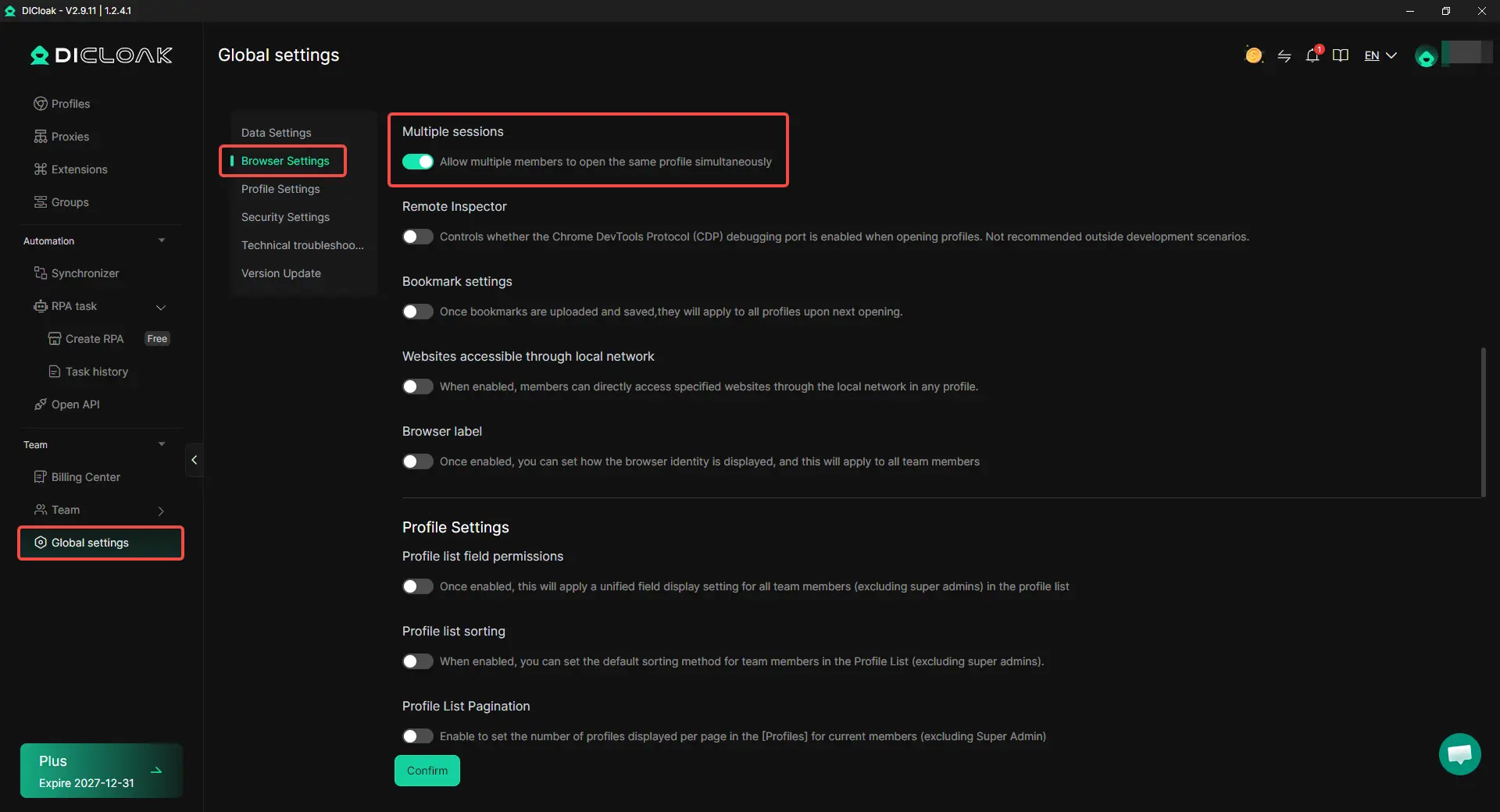
3. Set the Session Rules
Keep Multiple sessions disabled when members use the Profile one after another. Enable it only when concurrent access is necessary.
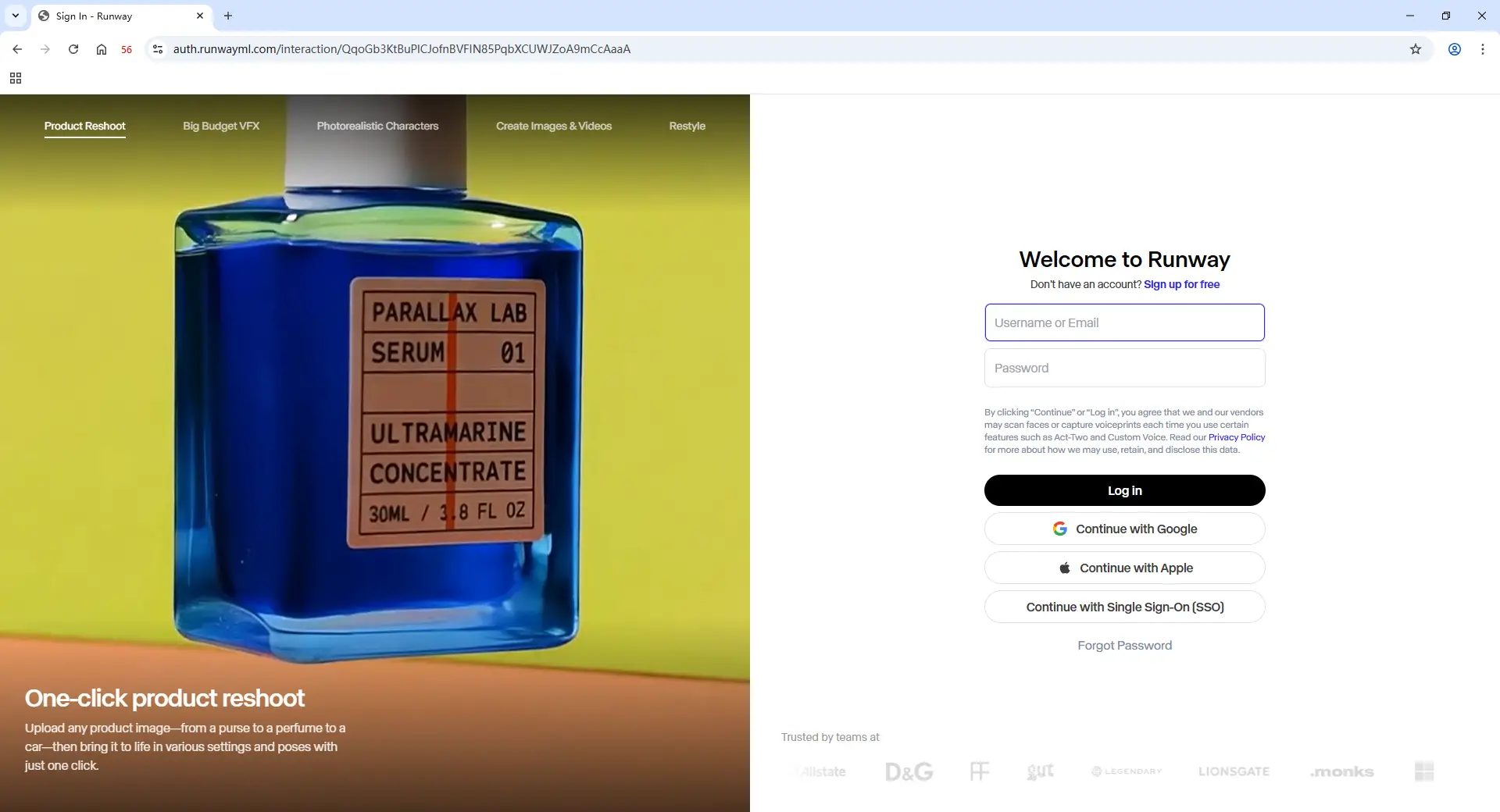
4. Sign In and Save the Runway Session
The account owner or authorized user should open the Profile, sign in to Runway, and complete any verification. Assigned members can then open the saved session without receiving the raw password.
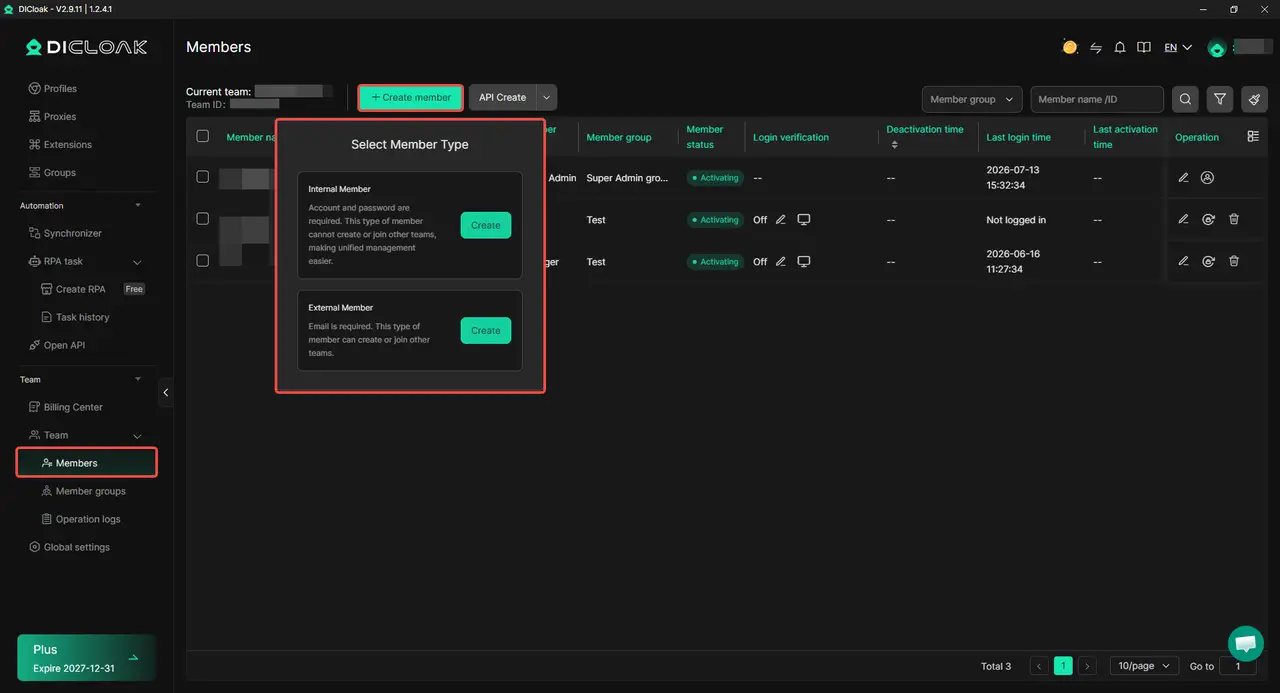
5. Share the Profile with Selected Members
Use profile sharing and team permissions to assign the Runway Profile only to the people working on that project. A temporary editor should not receive access to unrelated client Profiles or team settings.
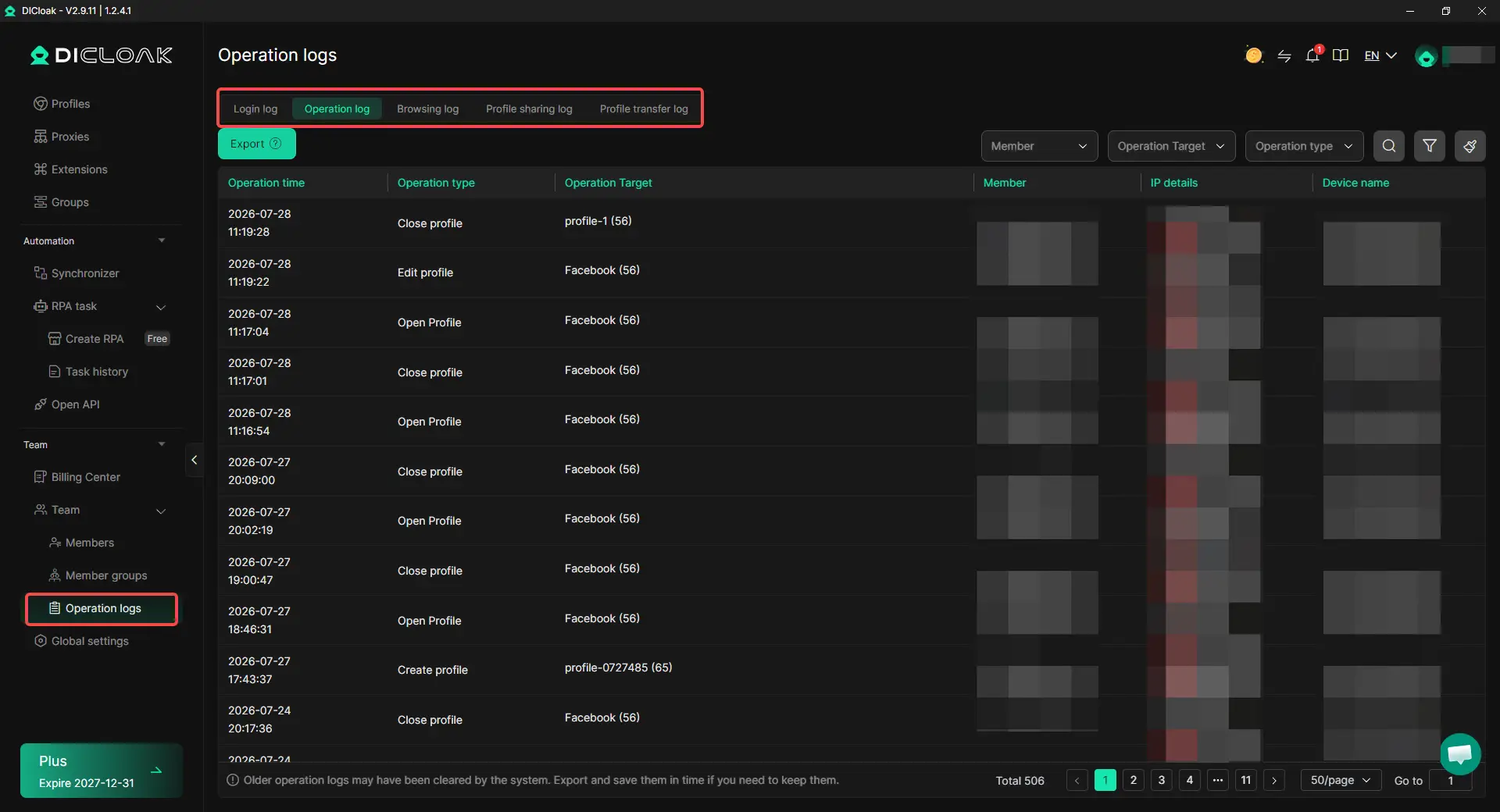
6. Review Activity and Revoke Access
Use operation logs to review Profile activity. When a member leaves, remove the Profile assignment or disable their access. Also check that important assets are in the correct Runway Project and that unused Workspace roles or share links have been removed.
What Should You Check Before and After Sharing Runway Access?
A strong Runway AI account sharing setup should control access, project visibility, credit use, and offboarding. Hiding the password alone does not manage these parts of Runway team access.
- Match access to the task. Use an asset link to share Runway with clients, Viewer access for read-only work, and an Editor role only for people who need to generate or edit content. Keep Admin access for members who manage roles or billing.
- Separate clients and campaigns. Use a different project for each client or campaign. This keeps Runway Workspace sharing organized and reduces the chance of mixing unrelated assets.
- Plan credit use in advance. Define the task, Project, model, and expected number of drafts before adding a freelancer or temporary editor. Since members may use the same Runway shared credits, review usage before the balance runs low.
- Complete the handoff before removing access. Move final assets into the correct project, review active share links, and check whether important work is still private. Then reduce or remove the member's access.
A reliable process for Runway multiple users gives each person the right access, keeps client work separate, controls shared credits, and removes access cleanly.
Frequently Asked Questions About Sharing a Runway Account
Can multiple people use the same Runway Workspace without sharing a password?
Yes. Runway multiple users can join the same Workspace through separate accounts. The owner can assign Viewer, Editor, or Admin access through Runway Workspace roles based on each person's task.
Does adding another Runway Editor give the team more monthly credits?
No. An Editor can create and edit content, but Workspace members still use the same Runway shared credits. Teams should plan usage before adding several active creators.
Can a client review a Runway video without joining the Workspace?
Yes. An Asset Share URL is often the easiest way to share Runway with clients for review, approval, or download. The client can access the selected asset without joining the full Workspace.
Which Runway role should a freelancer receive?
Choose the lowest role that supports the work. Viewer access is enough for review, while Editor access fits someone who must generate or edit content. Admin access is usually only needed for managing members or billing.
How Can an Agency Manage Multiple Runway Accounts?
Agencies can keep each authorized client account in a separate browser Profile. Using DICloak Antidetect Browser, teams can assign Profiles to selected members, keep client sessions organized, and review Profile activity during project handoffs.
Conclusion
To share a Runway account with your team without sharing passwords, match the access method to each person's task. Asset links work well for client review, while Runway team access through Workspace roles suits editors and long-term members. Password managers and remote desktop tools can support limited access, but they do not manage Projects, roles, or shared credits.
For agencies that manage multiple Runway accounts or client Workspaces, using DICloak can keep sessions in separate browser Profiles and assign access to the right members. The best Runway AI account sharing setup gives each person only the access they need, keeps client work separate, and makes access easy to remove.
 Web Proxy Tools
 Free Tools
 Cookie Plugin
 UA Generator
 MAC Address Generator
 IP Generator
 IP Address List
 2FA Code Generator
 World Clock
 Anonymous Check
 WebRTC Leak Test
 UUID Generator
 Free Web Proxy Site
 Proxy Checker
 FB Ad Checker
 AI Web Scraping
 Free SMM Tools
 Twitter Shadowban Checker
 Instagram Name Checker
 UTM Generator
 Username Generator
 AI Hashtag Generator
 LinkedIn Headline Generator
 Social Media Image Resizer