Sending your LinkedIn profile to someone sounds easy, until you realize there are three different links, some only work when logged in, and mobile sharing isn't as obvious as it should be. People often search "how to share my linkedin profile" after wasting time copying the wrong URL or ending up with a link that shows a 404. This can block a job lead, cause confusion in a group chat, or make a business intro awkward.
The real headache is that LinkedIn keeps tweaking its interface. A link you copied from the browser bar last year might not show your public profile today. Relying on memory or old instructions is how you end up sending a half-broken link or, worse, exposing too much personal info you meant to keep private.
You need a method that works on both desktop and mobile, covers private and public settings, and avoids the classic mistakes, like sharing the internal profile edit link by accident. This guide walks through each step, explains what actually happens when someone clicks the link, and flags what to check before you hit send.
Start by confirming which LinkedIn profile link you actually want to share.
What Should You Check Before Sharing Your LinkedIn Profile?
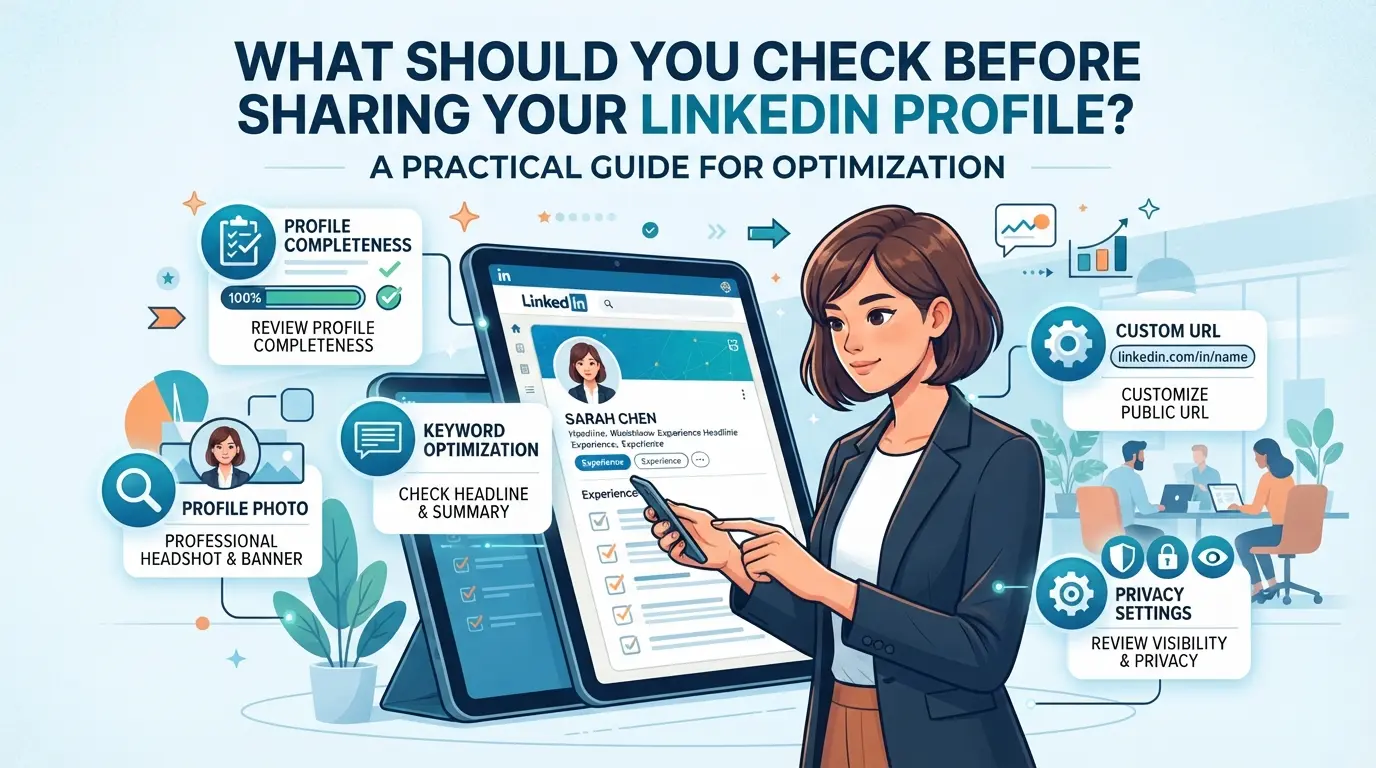
Before you send your LinkedIn profile link, check what others will actually see, not just what you hope they see. Skipping this step can mean sharing outdated info, exposing details you meant to keep private, or making a weak first impression.
Reviewing Profile Visibility Settings
Your profile’s public visibility decides whether someone with your link can see your details or just a blank shell. Click “View Profile as” to see exactly what’s visible to the public or to LinkedIn members. If you notice your photo, work history, or contact info isn’t shown, or worse, shows too much, adjust your public profile settings right away. A quick toggle in the “Edit public profile & URL” panel lets you hide or show specific sections.
Updating Key Profile Information
Even if you don’t plan to rewrite your whole profile, a few fast checks make a difference:
- Update your headline if it still lists an old job or role.
- Check your summary for outdated skills or broken links.
- Make sure your most recent work experience is accurate and up to date.
Checking for Sensitive Content or Connections
It’s easy to forget what’s visible on your profile until someone else points it out, sometimes too late. Run through this checklist before sharing your LinkedIn profile url:
- Remove any posts, articles, or comments you wouldn’t want a new contact or employer to see.
- Review which endorsements and recommendations are displayed, hide any that feel off-brand or irrelevant.
- Double-check your connections list if it’s set to public; hiding it can prevent unwanted outreach or snooping.
A quick pass through these checks prevents most profile-sharing regrets. The biggest mistake is sending your profile link without seeing it through a stranger’s eyes first, assume nothing is “private” unless you’ve checked the settings yourself.
Once you’ve cleaned up your profile and confirmed the right visibility, you’re ready to grab your actual LinkedIn profile link. The next step covers how to find and copy your LinkedIn profile URL without sending the wrong link by mistake.
How to Find and Copy Your LinkedIn Profile URL
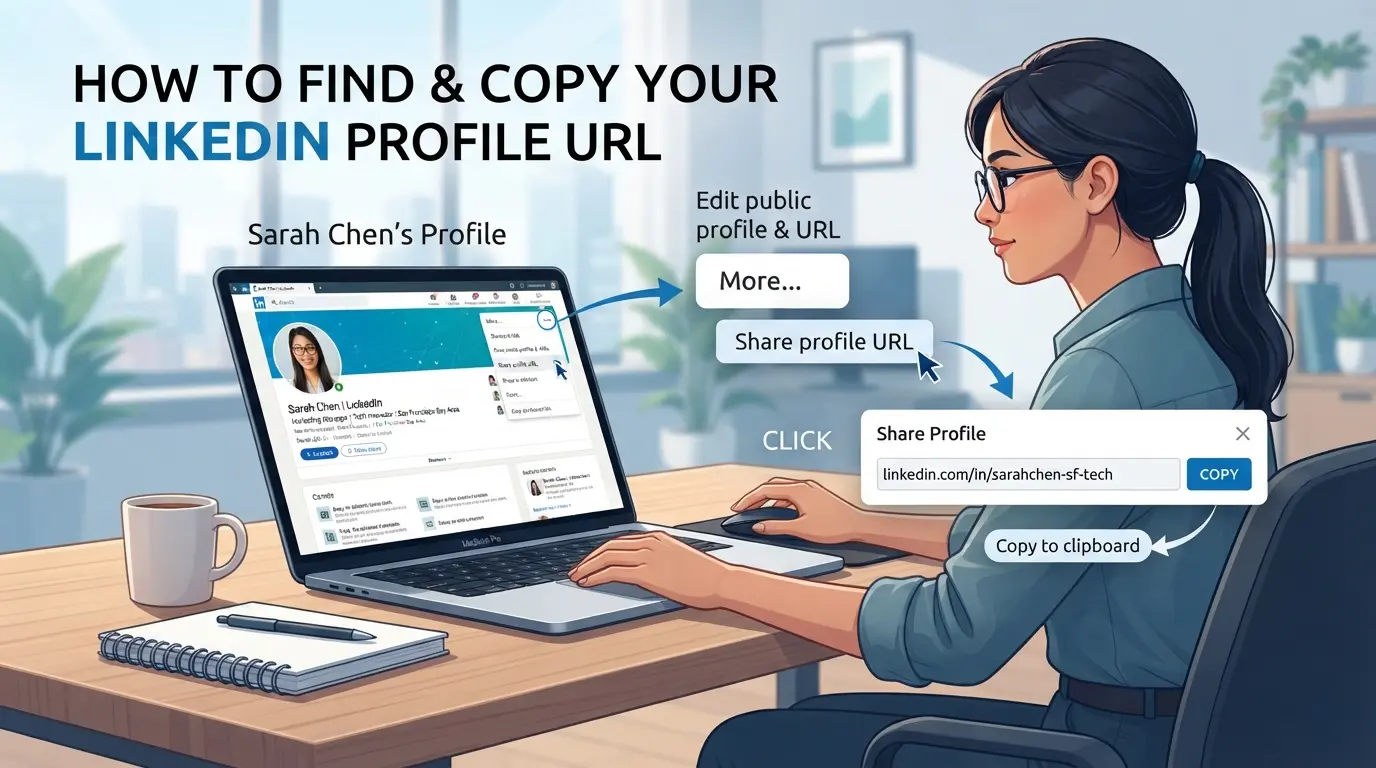
If you’re stuck searching for how to share my linkedin profile, the fastest method is to grab your actual profile URL from LinkedIn itself, not just whatever appears in your browser. Sending the wrong link can mean your contact lands on an error page or sees a version of your profile you never intended. Here’s the direct way to find and copy your LinkedIn profile URL, whether you’re on a computer or your phone.
Locating Your Profile URL on Desktop
- Click your profile picture in the top bar, this takes you to your profile page.
- Check the address bar. If it ends with your name and a string of numbers (like /in/yourname-12345/), that’s your public profile URL.
- Right-click and copy the full URL from the browser. If you’re editing your profile or see “settings” in the link, back out and re-enter your profile page, otherwise you’ll share a private or broken link.
- Test the URL in a new browser tab without being logged in. This step catches hidden privacy restrictions that block others from viewing your profile.
Finding Your Profile URL on the LinkedIn Mobile App
- Tap your profile photo in the app’s home screen to open your profile.
- Look for the “Share profile” button, usually below your name and headline.
- Tap “Share via” and then “Copy link.” This gives you a clean, shareable profile URL.
- Paste the link into a chat or email and check that it loads your profile as expected. If the link doesn’t start with linkedin.com/in/, you grabbed the wrong one.
Common Mistakes When Copying or Sharing the URL
- Copying the URL from the “Edit Profile” screen, this link won’t work for others, especially if they aren’t logged in.
- Sharing a link with “settings” or “recent-activity”, these are not your public profile and can expose private info.
- Sending a profile link that’s set to private, recipients see a blank page or error message. Always check your privacy settings before sending.
- Using a cached browser tab, sometimes LinkedIn auto-updates the link structure. Test your copied URL in a fresh browser session to avoid surprises.
Having the right URL in hand makes sharing quick and reliable. Up next: which methods actually work best for sending your LinkedIn profile to others.
Which Methods Can You Use to Share Your LinkedIn Profile?
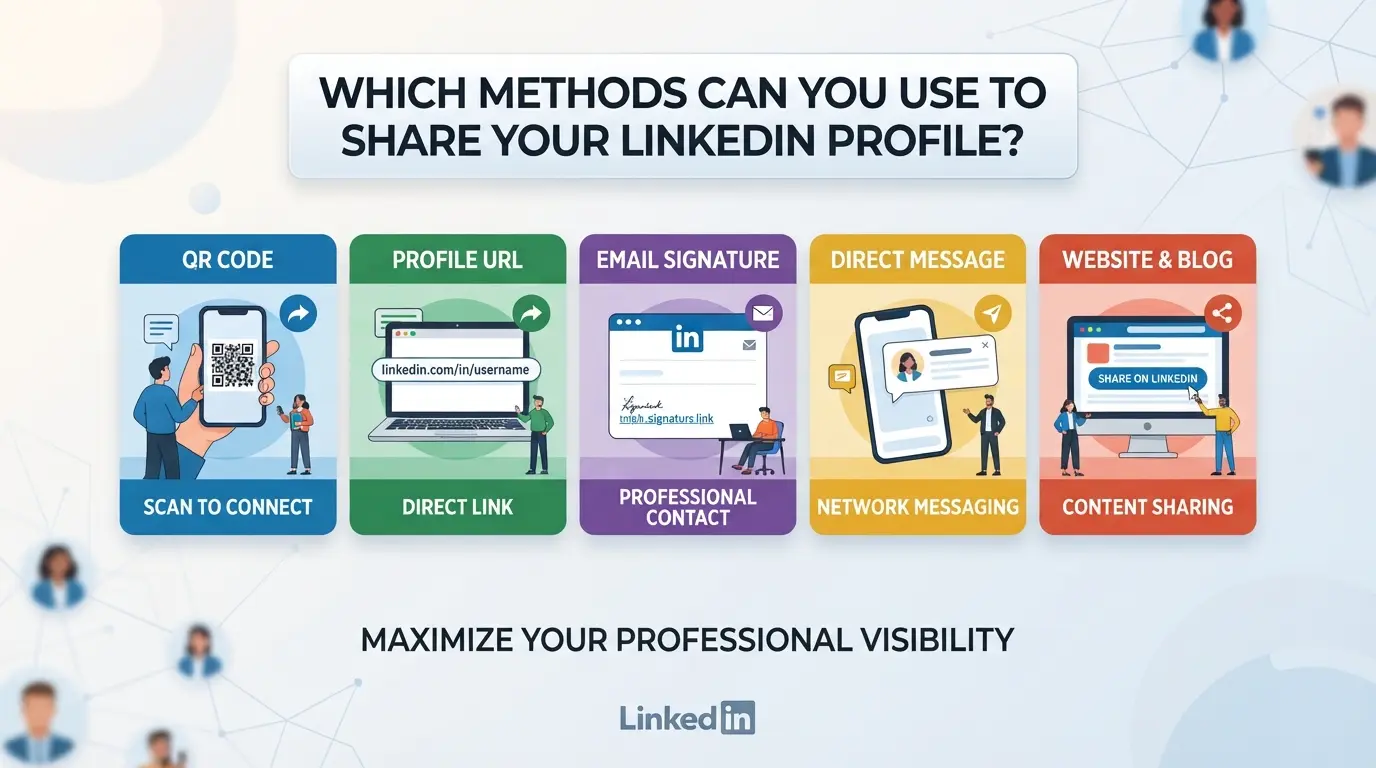
If you’re deciding how to share your LinkedIn profile, the main options are sending a direct link, using LinkedIn’s share tool, sharing a QR code, or embedding your profile in email or on a website. Each method fits a different situation and comes with its own risks and limits.
Sharing via Direct URL
Most people just copy and paste their profile link. It’s fast, but it’s not always the right move. Here’s how the main methods compare:
| Method |
Pros |
Cons & Risks |
| Direct URL |
Fastest, works on all devices |
Can break if your privacy is set to private; old links may not work after LinkedIn updates; risk of copying wrong link (e.g., edit page) |
| LinkedIn Share |
Built-in, never exposes edit links |
Less control over message preview; sometimes forces login for recipients |
| QR Code |
Great for in-person or printed use |
Useless for remote sharing; some users can’t scan QR codes easily |
Double-check your privacy settings before sending a link, if your profile is set to private, the other person may only see your name and photo or hit a login wall.
Using LinkedIn’s Share Profile Feature
The built-in “Share profile” button lets you send your profile to email, direct message, or social platforms right from LinkedIn. This method reduces accidents (like sharing the wrong link or an edit page) but the message LinkedIn sends is generic and you lose control over how the link appears.
Sharing Your Profile QR Code
LinkedIn gives you a QR code for your profile on both mobile and desktop. This is handy at events, job fairs, or anywhere someone can scan your phone or printed badge. It’s not helpful for remote sharing, if you email or message a QR code, most people would rather get a clickable link.
Embedding Your LinkedIn Profile in Email Signatures or Websites
Adding your profile to your email signature or website means you only set it up once, and every message or page shares your profile automatically. Most email clients let you hyperlink your name or a LinkedIn icon. On websites, use LinkedIn’s official logo and link to your public profile, not your internal dashboard or an edit page.
If you want people to find you easily with no extra steps, embedding your profile link or a LinkedIn badge in your signature or “About” page usually gets the job done with the least confusion.
The next step is checking what others can actually see when they open your profile link, because privacy missteps here are hard to take back.
What Are the Privacy and Security Risks When Sharing Your LinkedIn Profile?
Sharing your LinkedIn profile isn’t just about sending a link. You risk exposing details, attracting phishing, or even letting outsiders misuse your account if you aren’t careful.
Unintended Exposure of Personal Information
Anyone with your profile link can see what you’ve set as public, like job history, contact info, and connections. If you haven’t checked your privacy settings, you might reveal your email or phone number to strangers. Review what’s visible and trim what you don’t want out there before sharing.
Phishing and Impersonation Risks
Attackers can use your public profile to craft fake job offers or impersonate you.
- If you get messages asking for sensitive info or urgent login actions, pause, these are common phishing tactics.
- Check sender details and never click login links from unexpected messages. Real recruiters won’t need your password.
Account Misuse and Unauthorized Access
Sharing your LinkedIn profile with unknown contacts or in open groups makes it easier for bad actors to target you. They might try to guess your login or use your details for identity theft. Only share your profile with people you trust, and don’t post it widely unless you’ve locked down sensitive info.
Once you’ve spotted the risks of sharing LinkedIn profiles, the next headache for agencies and teams is figuring out how to juggle multiple accounts without mixing up logins, leaking sensitive info, or tripping platform flags. For teams handling several LinkedIn accounts, whether for clients or internal projects, keeping each account isolated, assigning the right access, and tracking who did what become the real sticking points. This isn’t about "how to share my linkedin profile" in a one-off DM; it’s about scaling the workflow so mistakes don’t pile up.
Isolating LinkedIn Accounts with Separate Browser Profiles and Fingerprint Configuration
Teams can set up a distinct DICloak browser profile for every LinkedIn account. Each profile holds its own browser storage and session, so you avoid overlapping cookies or accidental cross-login. Operators can configure fingerprint signals, like time zone, language, and device type, to match the account’s region or work context. Keeping each LinkedIn account in its own environment is the single most effective way to prevent session crossover and reduce accidental exposure. The scope here covers browser profile isolation and fingerprint setup; it doesn’t control LinkedIn content or credentials.

Configuring Proxies for Each LinkedIn Profile
Operators can assign a custom proxy to every LinkedIn profile in DICloak, choosing between HTTP, HTTPS, or SOCKS5 protocols. This lets you route each account through a separate network exit, useful if you need region consistency or privacy for client accounts. You can test the proxy before starting the session, checking the detected IP and location. The responsibility for proxy quality sits with the operator; DICloak just stores and applies your settings. This layer only handles connection configuration, not platform restrictions or network outcomes.

Managing Team Collaboration and Permissions
Admins can organize team members into groups and control who sees or edits which LinkedIn profiles. DICloak’s permission settings let you grant least-privilege access, so junior staff only view the assigned profiles, while senior members handle edits or transfers. You can restrict which fields are visible in the profile list and keep high-risk actions limited to trusted roles. These controls are for browser profile access inside DICloak, they don’t replace permissions inside LinkedIn itself.

Teams who get these workflows right avoid most of the classic mistakes, like mixing up client accounts or leaking credentials, covered in the next section.
Common Mistakes and Misconceptions When Sharing LinkedIn Profiles
Sharing the wrong LinkedIn profile link or exposing private info is more common than people think. Here’s how to avoid the most frequent errors, so you don’t end up sending a broken link or leaking details you didn’t mean to share.
Sharing an Outdated or Incomplete Profile
Sending your LinkedIn profile before checking for missing info is a classic mistake. If your page shows an old job or blank summary, you risk confusing recruiters or contacts. Update your profile first, otherwise, you’re sharing a snapshot that doesn’t match your current skills or goals.
Using Insecure Channels to Share Your Profile
Dropping your profile link in the wrong place can expose it to spammers or bots. To reduce risk:
- Send your link in private messages, not public forums.
- Double-check recipient addresses before pasting.
- Use encrypted chat apps if you’re sharing sensitive info.
Misunderstanding LinkedIn Privacy Settings
Many users forget to check who can actually view their profile. If your settings block public access, people without LinkedIn accounts might see an error.
- Visit “Edit public profile & URL” and review visibility.
- Check your profile from an incognito window.
- Confirm “Public” is toggled on for the main sections.
The next step is knowing when to share, and when to hold back.
When Should You Share Your LinkedIn Profile, and When Should You Hold Back?
Timing matters, sharing your LinkedIn profile can open doors, but doing it in the wrong context can expose your private info or make you look careless.
Professional Networking and Job Applications
Sharing is expected in job searches, recruiter outreach, or industry events. Make sure your profile is current and public-facing before you hit send. If you're wondering how to share my linkedin profile, use the official LinkedIn "Copy link" button, not a browser URL.
Business Development and Partnerships
In business deals or partnership talks, sending your profile signals credibility, especially when a warm intro is involved. The main risk comes from sharing too quickly in competitive spaces; your connections, activity, and endorsements can reveal more than you mean. Pause if the other party has a history of poaching or aggressive outreach.
Personal and Social Contexts
- Only share with people you trust, avoid blasting your profile in group chats.
- Use a summary or business card if you want to stay private.
- Skip sharing if you’re unsure about the group’s privacy rules.
Next up: how to share your LinkedIn profile more effectively in 2026.
Practical Tips for Sharing Your LinkedIn Profile More Effectively in 2026
Sharing your LinkedIn profile is easier when your link, message, and follow-up are clean and clear. Avoid the classic mistakes, use these practical checks.
Customizing Your LinkedIn URL for Professional Impact
Edit your URL from your LinkedIn settings for a clean look. A simple, custom URL (like linkedin.com/in/yourname) is easier to remember and avoids confusion. A clean URL makes your profile appear more credible and helps others find you faster.
Crafting Personalized Messages When Sharing
- Add one line explaining why you’re connecting.
- Mention what you offer or seek.
- Avoid generic “please accept my request”, be direct.
Tracking Engagement and Follow-Up
Check who viewed your profile after sharing. If someone clicked but didn’t respond, follow up. Keep track of the context so your next message feels personal.
- Use LinkedIn’s “Who viewed your profile” feature.
- Set calendar reminders for follow-up.
- Reference the original message in your reply.
Frequently Asked Questions About how to share my linkedin profile
How do I share my LinkedIn profile without exposing private information?
Before you share your LinkedIn profile, review your privacy settings. Go to the “Edit public profile & URL” section and choose what information is visible. Remove or hide sensitive details like your phone number or personal email. Always double-check your profile as a public viewer to make sure only safe information appears.
Can I share my LinkedIn profile with someone who doesn’t have a LinkedIn account?
Yes, you can share your LinkedIn profile with non-users. Make sure your public profile visibility is turned on. Go to your LinkedIn settings and enable “Public.” Then, copy your LinkedIn profile URL and send it. The recipient will see your public information, even if they don’t have an account.
What’s the safest way to share my LinkedIn profile in a team or agency setting?
For account safety, use separate browser profiles or accounts for each user. Avoid sharing login details directly. Consider using business proxies and set clear permission controls. This protects your personal data and reduces the risk of unauthorized access when multiple people need access to your LinkedIn information.
How do I customize my LinkedIn profile URL before sharing?
To give your profile a clean look, edit your LinkedIn URL. On your profile page, click “Edit public profile & URL” on the right. Then, select “Edit your custom URL.” Choose a simple, professional URL, usually your name. This makes your link easy to remember and looks better when you share it.
Is it risky to share my LinkedIn profile on public forums or social media?
Yes, sharing your LinkedIn profile link on public sites can expose your information to strangers or bots. Anyone can view your public profile, which could lead to spam, unwanted messages, or data harvesting. Only share your profile link on trusted platforms or with people you know.
Decide which sharing method best fits your audience, whether it's sending a direct link, using a QR code, or adding your profile to your email signature. Take a moment to verify your privacy settings so you control who can view your information. Try DICloak For Free
 Web Proxy Tools
 Free Tools
 Cookie Plugin
 UA Generator
 MAC Address Generator
 IP Generator
 IP Address List
 2FA Code Generator
 World Clock
 Anonymous Check
 WebRTC Leak Test
 UUID Generator
 Free Web Proxy Site
 Proxy Checker
 FB Ad Checker
 AI Web Scraping
 Free SMM Tools
 Twitter Shadowban Checker
 Instagram Name Checker
 UTM Generator
 Username Generator
 AI Hashtag Generator
 LinkedIn Headline Generator
 Social Media Image Resizer