Finding one old post on X can feel harder than it should. A basic search may show popular posts, recent conversations, or results that only match part of your query. Twitter advanced search gives you more control. You can narrow results by words, exact phrases, accounts, languages, and date ranges. The feature is now called X Advanced Search, but many people still search for it by its older name. X currently provides the full advanced search form on X.com after you sign in.
This guide explains how to use Twitter advanced search in 2026. You will learn how to use filters and search operators, combine them into clear queries, and fix common problems when useful posts do not appear. You will also see practical examples for competitor research, content planning, and brand monitoring.
How to Access Twitter Advanced Search
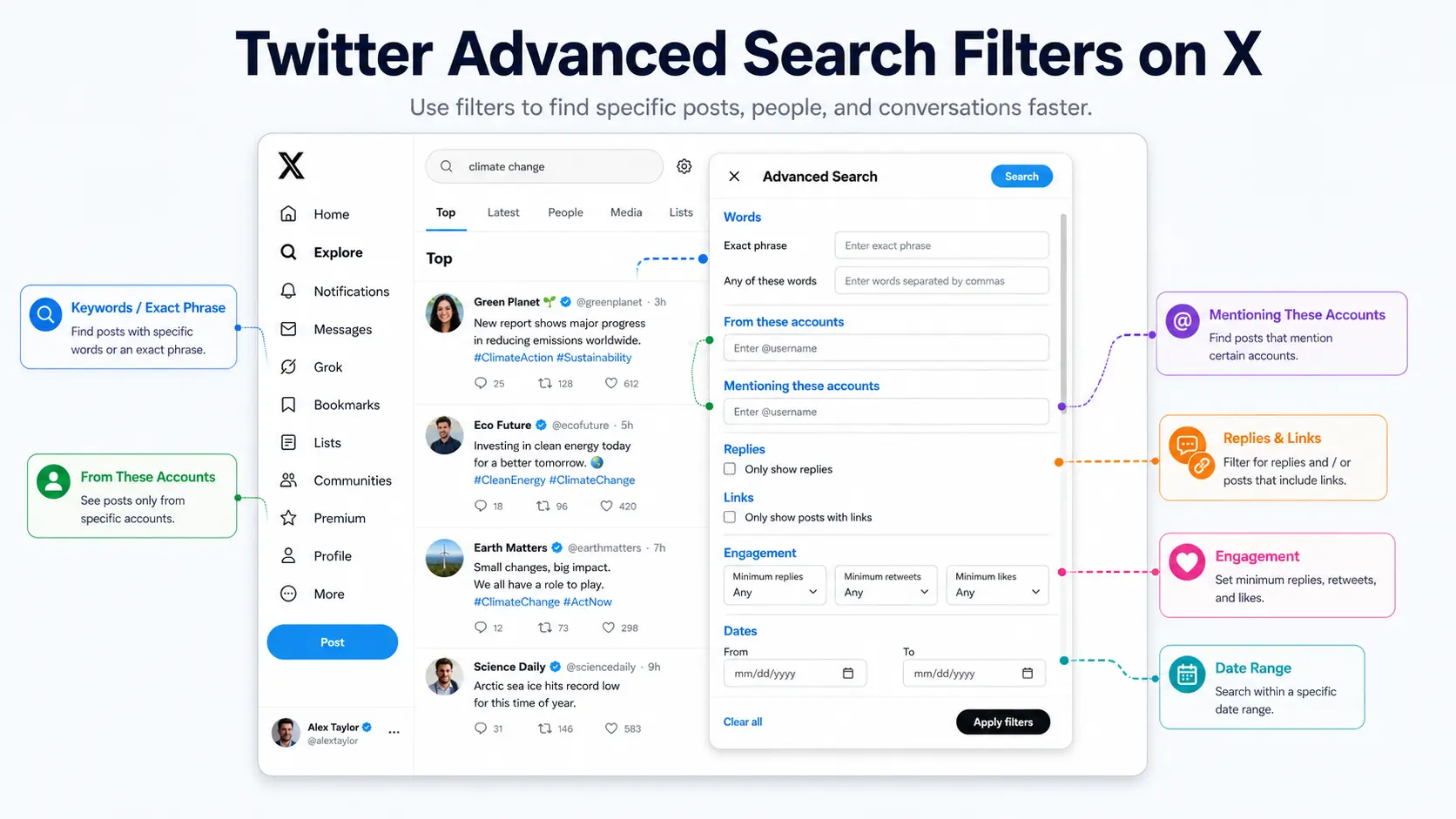
The full Twitter advanced search tool is available on the X website. You can use it to narrow results by words, accounts, dates, language, and other filters.
How to Open Twitter Advanced Search on Desktop
To open Twitter advanced search on desktop:
- Sign in to X.com.
- Run a normal search.
- Open Search filters on the results page.
- Click Advanced search.
You may also see the option under More options, depending on your screen layout.
For example, search for a brand name first. Then open Advanced Search to add an account, date range, or exact phrase. This is the fastest way to reach the full search form.
How to Use Twitter Advanced Search on Mobile
The X mobile app does not show the full Advanced Search form. It offers basic tabs such as Top, Latest, People, Photos, and Videos.
For a more detailed search, open X.com in your phone’s browser. You can also type search operators into the app’s search bar.
For example:
from:username "product update"
This query finds posts from one account that include the exact phrase “product update.”
Can You Use Twitter Advanced Search Without an Account?
You need to sign in to use the full Twitter advanced search form. Without an account, you may still find some public posts through search engines or shared links, but the results are often limited.
For regular research, signing in gives you the most reliable access to search filters and result tabs.
How to Search for Specific Tweets
Once you open Twitter Advanced Search, start with the few details you already know. These may include a phrase, account name, date, or media type. Add one filter at a time. This makes it easier to see which condition improves the results.
Search by Keywords and Exact Phrases
A broad keyword can return many unrelated posts. Use a more exact search when you remember part of the text.
Here are the main options:
- Enter several words to find posts that contain all of them.
- Put quotation marks around a phrase to match the full phrase.
- Use
OR to search for either of two words.
- Add a minus sign before a word you want to remove.
- Add a hashtag when it is part of the topic.
For example:
"social media automation" -jobs
This query looks for the exact phrase “social media automation” but removes posts about jobs.
You can also search:
Twitter OR X "advanced search"
This finds posts that use either “Twitter” or “X” with the phrase “advanced search.” X officially supports searches for all words, exact phrases, optional words, excluded words, hashtags, and languages.
Search Tweets from or Mentioning a Specific User
Use account filters when you know who wrote the post or which account was discussed.
The most useful Twitter search operators are:
from:user — posts written by that accountto:user — replies sent to that account@user — posts that mention that account
For example:
from:NASA "Mars mission"
This searches for posts published by NASA that contain the exact phrase “Mars mission.”
To find public feedback about a brand, try:
@brandname (problem OR support)
This looks for mentions that include either “problem” or “support.” Searching a profile page alone is not enough because posts written by other people may mention the account without appearing on its profile.
Search Tweets by Date
A date range is useful when you want to find an old announcement, event reaction, or campaign post.
You can select dates in the Advanced Search form or type:
since:YYYY-MM-DDuntil:YYYY-MM-DD
For example:
from:brandname "new feature" since:2025-06-01 until:2025-07-01
This narrows the search to posts from one account during June 2025.
Use a wider range when you are not sure of the exact day. A one-month range is often a better starting point than a single date. You can narrow it after you find the right topic or wording. X allows searches before a date, after a date, or within a set date range.
Filter Replies, Links, Images, Videos, and Engagement
Content filters help remove posts that do not match your goal.
Useful examples include:
filter:replies — show replies-filter:replies — remove repliesfilter:media — show posts with mediafilter:images — show posts with imagesfilter:video — show posts with videomin_faves:50 — require at least 50 likesmin_replies:10 — require at least 10 repliesmin_reposts:20 — require at least 20 reposts
Suppose you want to find strong video posts about email marketing:
"email marketing" filter:video min_faves:100
This removes text-only posts and low-engagement results. It can help you find useful examples faster, but a high like count does not always mean the content is accurate or valuable. Read the post and its replies before using it as research. X lists media, reply, and minimum-engagement operators in its official search guidance.
Combine Filters for More Precise Results
The best queries often combine three parts:
- The topic
- The source or date
- One filter that removes noise
Here are a few practical examples:
| Search goal |
Example query |
| Find posts from one account |
from:username "product update" |
| Find brand complaints |
"Brand Name" (problem OR refund) -from:brandname |
| Find popular competitor posts |
from:competitor min\\\_faves:100 |
| Find old video posts |
"keyword" filter:video since:2025-01-01 until:2026-01-01 |
| Find discussions without replies |
"keyword" -filter:replies |
Avoid adding every possible filter at once. A query can become so narrow that it returns nothing. Begin with the topic and one clear condition. Then refine the results step by step.
How Marketers Can Use Twitter Advanced Search
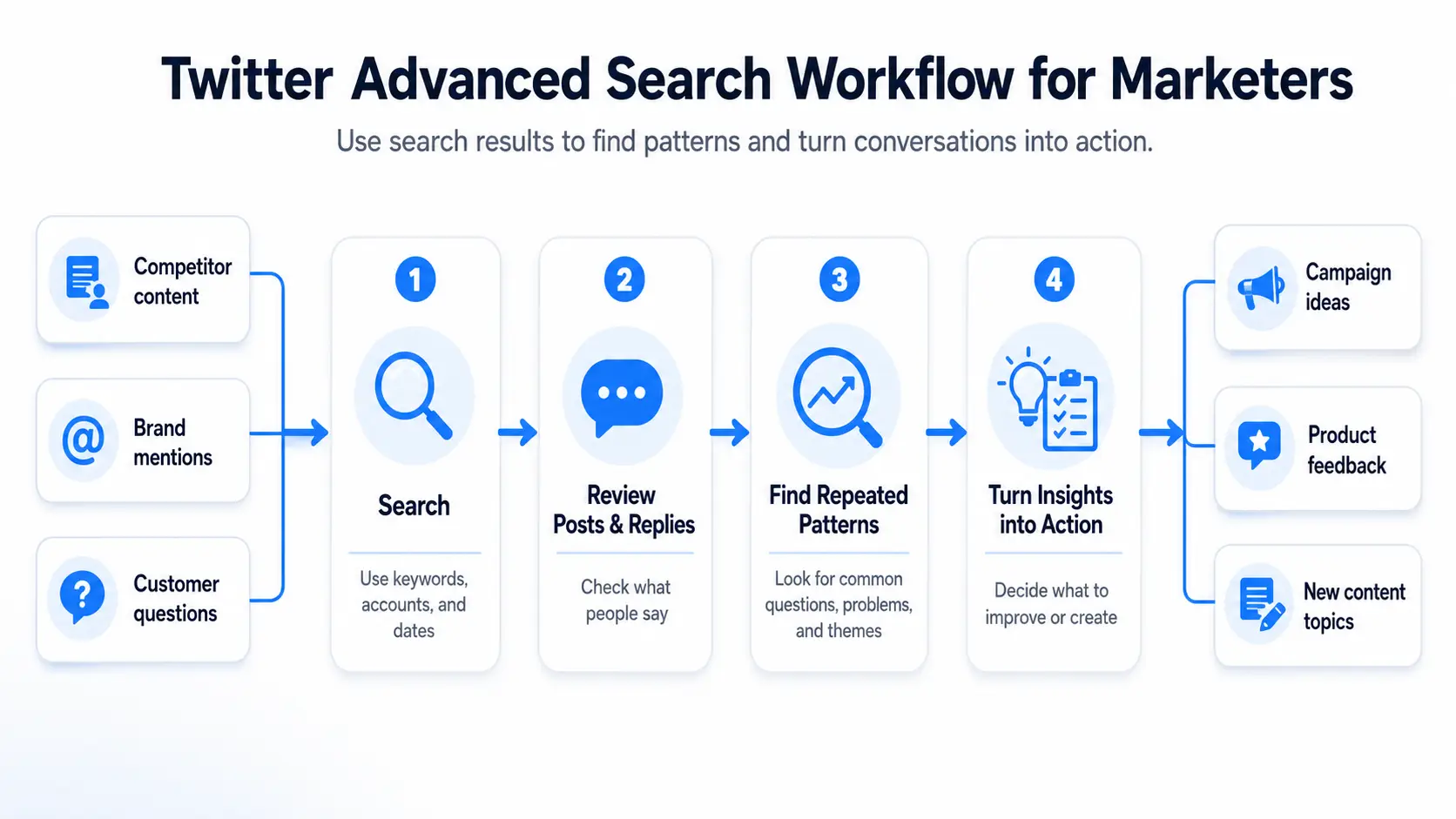
Once you know how to build a search, the real value comes from how you use the results. Twitter advanced search for marketing can support competitor research, customer listening, and content planning.
Analyze Competitors
Search a competitor’s posts around one product, feature, or campaign. Then look for patterns, not just the post with the most likes.
For example:
from:competitor "AI feature"
Check which topics earn replies, what questions people ask, and what problems appear in the comments. This can show what attracts attention and where the competitor’s message is unclear.
Find Brand Mentions and Customer Feedback
Customers do not always tag a brand account. Some only type the brand name.
Use a search such as:
"Brand Name" -from:brandaccount
This removes the brand’s own posts and makes outside mentions easier to find. Add words like problem, refund, love, or recommend to focus on one type of feedback.
Do not react to one negative post too quickly. Look for repeated issues. If many users mention slow support or confusing setup, the problem may need a real fix.
Find Content Ideas and Emerging Topics
Twitter Advanced Search can reveal the questions your audience is already asking.
A social media tool might search:
"schedule posts" (how OR problem)
The results may lead to useful blog topics, videos, FAQs, or product guides. Use the Latest tab to find new conversations. A topic is more likely to matter when it appears across several accounts over time.
Know the Limits of Search Data
Search results do not show the full market. Popular accounts may dominate Top results, while smaller discussions receive less attention.
Use Twitter Advanced Search as one source of insight. Compare important findings with support tickets, product reviews, website data, and sales calls before making a major decision.
Why Twitter Advanced Search May Not Show the Tweet You Need
A useful post may still be missing from your results. This does not always mean Twitter advanced search is not working. The query, account privacy, search settings, or post status may be the cause.
Your Search Is Too Narrow
Too many filters can lead to Twitter advanced search no results.
For example:
from:brand "product update" filter:video since:2025-06-01 until:2025-06-02
This query requires one account, an exact phrase, a video, and a one-day range. Remove one condition at a time. Start with the account and topic. Add the date or media filter later.
Also check the username, spelling, quotation marks, and date format.
Top Results Are Hiding the Post
The Top tab ranks posts by relevance and engagement. It does not show every match in time order. Select Latest when you are looking for a recent or less popular post.
Safe Search can also hide sensitive content and posts from accounts you blocked or muted. You can review these options under Search settings.
The Post Is Private, Deleted, or Restricted
Protected posts only appear to approved followers. If you do not follow the account, Advanced Search cannot show them.
Deleted posts are removed from X search results. A copy may still exist on another website, but it is no longer searchable on X.
X may also limit a post’s visibility or remove low-quality and duplicate content from search. This is one reason Twitter search may not show all tweets that match your words.
Older and Location-Based Posts Can Be Harder to Find
Some older posts may not appear because of search indexing limits. X states that older posts are not always displayed in timelines or search, even when they were not deleted.
Location searches also have limited coverage. Adding a location to a post is optional and turned off by default. A search for posts near Chicago will not include every post written by someone in Chicago.
When you cannot find a tweet, remove filters first. Then check Latest, review Search settings, and confirm that the post is still public.
How to Save and Organize Twitter Searches
After fixing a search, save it so you do not have to rebuild it later. This is useful for brand mentions, competitor updates, and customer feedback.
Save a Search in the X App
To save a Twitter search in the mobile app:
- Run your search.
- Tap the three-dot menu on the results page.
- Tap Save.
The query will appear under Saved searches the next time you tap the search box. X currently says this feature is not available on X.com.
Bookmark Searches on Desktop
X’s help pages give mixed information about desktop saving. One page still lists Save this search, while another says saved searches are not available on X.com. The option may depend on your current interface.
The safest option is to bookmark the results page in your browser. The URL keeps the query, so you can open the same Twitter advanced search again.
Organize Searches by Goal
Use clear bookmark names, such as:
- Brand complaints
- Competitor launches
- Customer questions
- Industry trends
For example, save "Brand Name" (problem OR refund) as Brand Support Issues. A clear name helps your team understand what each search is meant to track.
How DICloak Supports Multi-Account Twitter Research
Saved searches work well for one account. The process becomes harder when an agency or marketing team manages several brands, clients, or markets. In this case, you can use DICloak to keep each account and research task organized without changing how Twitter Advanced Search works.
Separate Accounts by Brand or Client
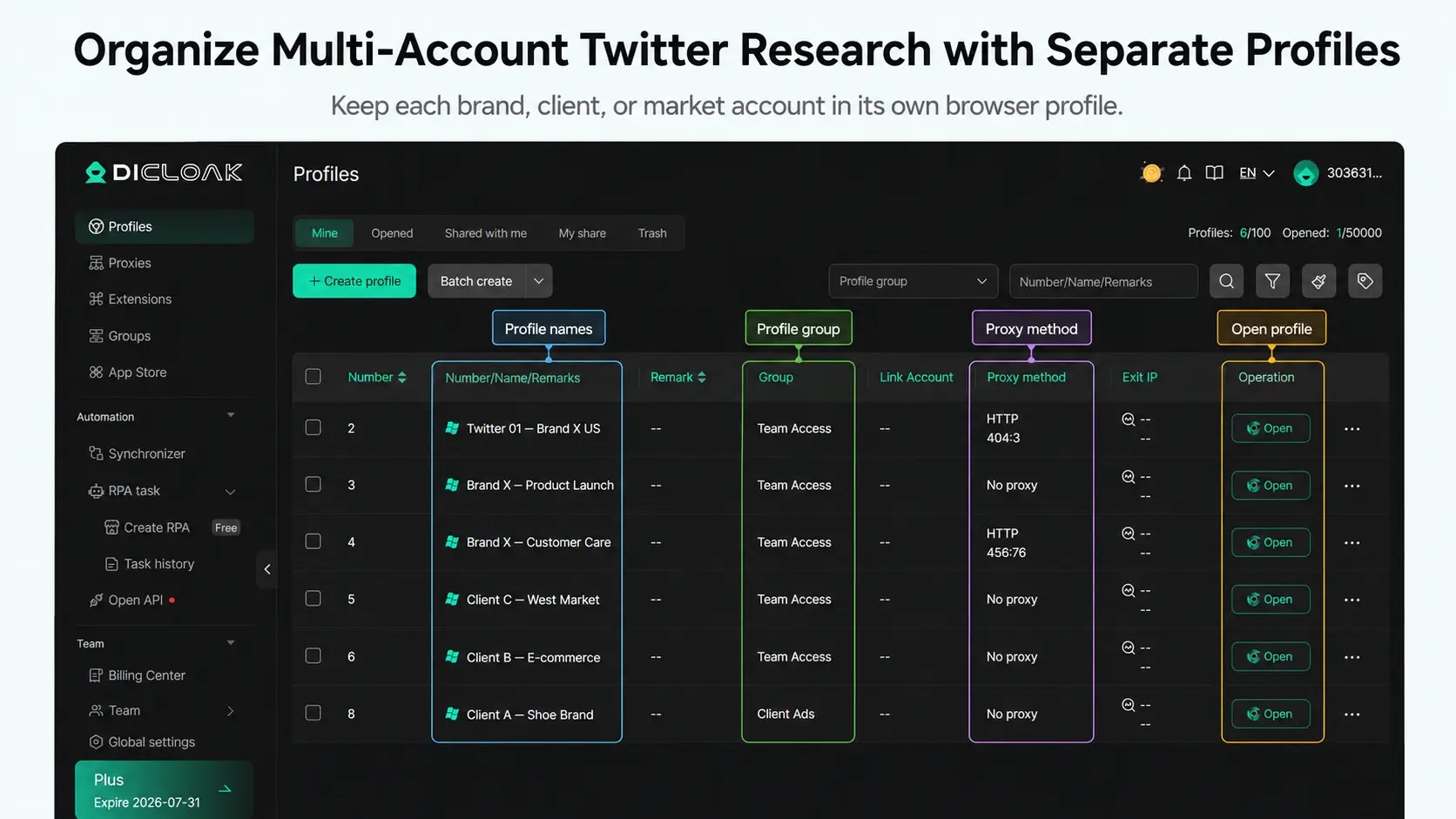
You can create a separate browser Profile for each Twitter account in DICloak. Each Profile keeps its own cookies, login session, browser data, and fingerprint settings.
For example, an agency could create:
- Client A – US Market
- Client A – UK Market
- Client B – Support
- Client B – Competitor Research
You can also configure a suitable proxy for each Profile when needed. This makes it easier to keep accounts, regions, and research tasks separate. It also reduces login mix-ups when you manage multiple Twitter accounts from one device.
Give Team Members Access to the Right Profiles
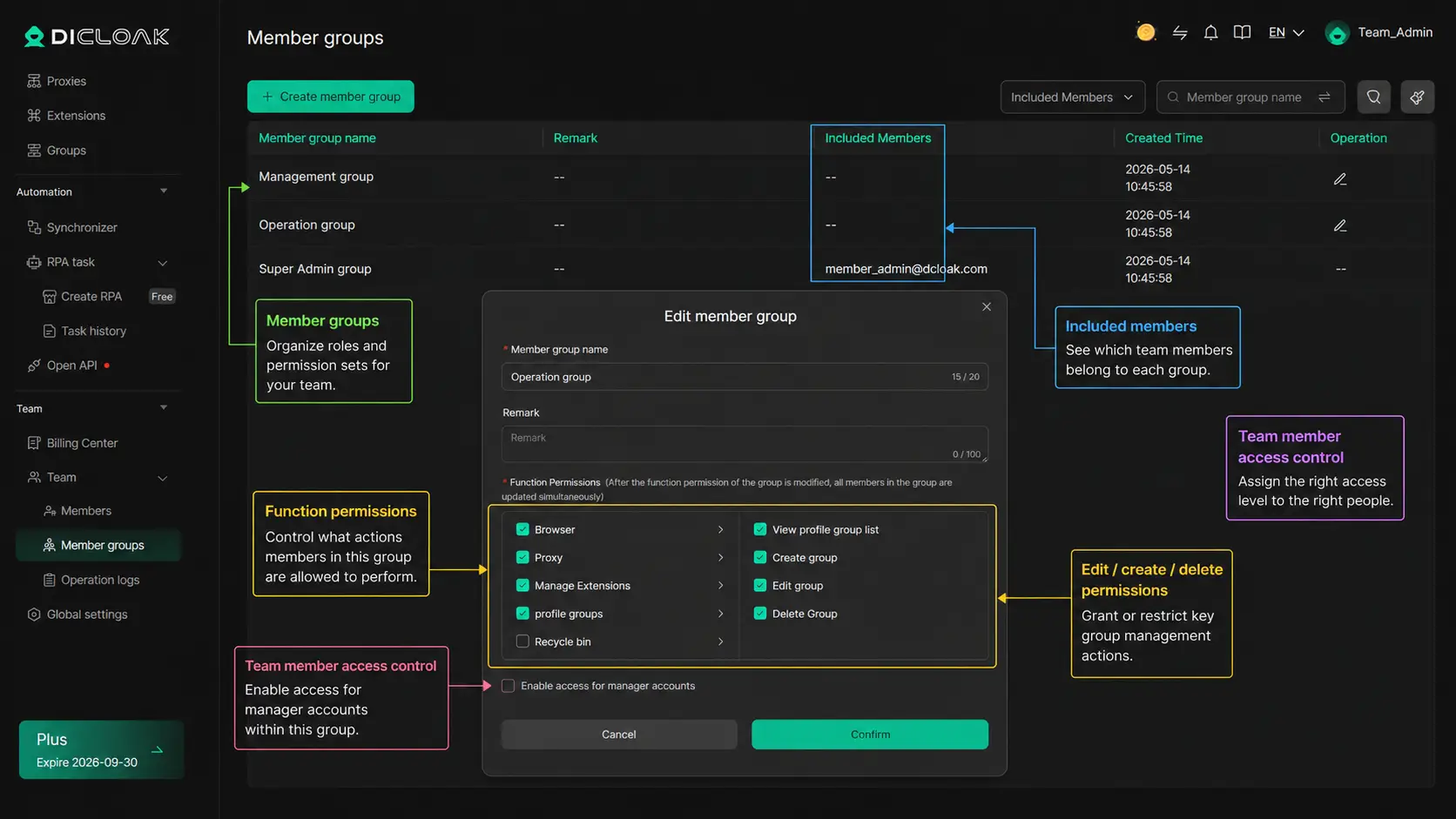
You do not need to give every person access to every Twitter account. In DICloak, an admin can place Profiles into groups and assign those groups to selected members.
For example:
• A researcher can access competitor research Profiles.
• A support agent can access brand monitoring Profiles.
• A content manager can review profiles used for topic research.
• An admin can manage all Profiles and team settings.
This makes social media team collaboration easier to control. A researcher can find useful posts without gaining access to unrelated client accounts. When a person changes roles or leaves the project, the admin can disable the member or remove access to the Profile group.
You can also review operation logs and Profile-sharing records when you need to check who accessed or shared a Profile.
Reduce Repeated Research Work
Twitter research often follows the same routine:
- Open the correct client Profile.
- Visit saved Twitter Advanced Search pages.
- Check brand, competitor, or customer queries.
- Review new posts and replies.
- Record useful findings for the team.
You can use RPA in DICloak to reduce simple, repeated browser steps. For example, a workflow can open set pages in a planned order instead of making a researcher find each page by hand. Users can choose existing RPA templates or build a custom process for their own workflow.
Frequently Asked Questions About Twitter Advanced Search
Is Twitter Advanced Search free to use?
Yes. Twitter Advanced Search is free, but you need to sign in to X.com to use the full search form. You do not need a paid X plan.
Does Twitter Advanced Search work on mobile?
The X mobile app does not show the same full form as the desktop website. You can use basic search filters or type search operators into the app. For more filters, open X.com in your mobile browser and sign in.
Can Twitter Advanced Search find deleted or private tweets?
No. Deleted posts are removed from X search results. Protected posts are only searchable by the account owner and approved followers. Twitter Advanced Search cannot restore deleted content or show posts you are not allowed to view.
Why do Top and Latest show different Twitter Advanced Search results?
Top ranks posts by factors such as relevance, keywords, popularity, and engagement. The Latest shows matching posts in time order. Use Latest when you are looking for a recent or less popular post.
Can I save a Twitter Advanced Search?
You can save searches in the X mobile app. Run the search, open the three-dot menu, and tap Save. X currently says saved searches are not available on X.com, so desktop users can bookmark the search results page instead.
Using Twitter Advanced Search well comes down to one thing: start with a clear goal, then add only the filters you need. Use keywords, accounts, dates, and media filters to narrow the results, and review the context before acting on what you find. Managing several Twitter accounts for different clients, brands, or markets? Keep each account, browser session, and team role organized with DICloak.Try DICloak for Free.
 Web Proxy Tools
 Free Tools
 Cookie Plugin
 UA Generator
 MAC Address Generator
 IP Generator
 IP Address List
 2FA Code Generator
 World Clock
 Anonymous Check
 WebRTC Leak Test
 UUID Generator
 Free Web Proxy Site
 Proxy Checker
 FB Ad Checker
 AI Web Scraping
 Free SMM Tools
 Twitter Shadowban Checker
 Instagram Name Checker
 UTM Generator
 Username Generator
 AI Hashtag Generator
 LinkedIn Headline Generator
 Social Media Image Resizer