Managing your monthly expenses is one of the smartest financial moves you can make today. We live in a world where digital subscriptions are everywhere. You likely pay for movie streaming, music applications, cloud storage, and premium video services. Subscription costs can add up very quickly over time. Sometimes, you sign up for a free trial and completely forget about it. Before you know it, you have paid for a service you barely use for an entire year.
Whether you want to save a little extra money in 2026, or you simply do not use the premium video and music features enough to justify the cost, cutting unnecessary digital expenses is a fantastic way to take control of your household budget. When you sit down and look at your bank statements, finding areas to trim can feel incredibly rewarding.
Canceling your subscription is actually an easy and straightforward process once you know exactly where to look. However, the exact steps change depending on the device you use and how you originally signed up. A person who signed up on a desktop computer will have a very different experience than a person who signed up on an Apple iPhone.
In this massive, comprehensive guide, we will walk you through the cancellation process for every major platform. We will cover desktop computers, Android mobile phones, and Apple iOS devices in great detail. We will also explore exactly what happens to your saved digital content, how to handle potential billing refunds, and what alternative entertainment options you can explore. Finally, we will discuss how business professionals manage multiple accounts safely. Read on to master your digital subscriptions.
Understanding Your Account Status After You Cancel
Before you make any changes to your account settings, it is very important to understand how the platform actually handles your billing cycle. Many users experience a lot of anxiety when they think about canceling. They fear that their carefully curated video playlists will vanish completely into thin air. Some even worry that their entire Google account, including their important Gmail messages, will be locked the second they press the cancel button.
You absolutely do not need to worry about any of these scary scenarios. The company has designed the cancellation process to be safe for your personal data. Let us explore exactly how the system works behind the scenes so you can feel completely comfortable making changes to your account.
The Mechanics of the Prepaid Billing Cycle
When you decide to cancel, you do not lose your premium benefits right away. Modern digital billing systems operate on a strict prepaid cycle. This means you always pay for the service before you actually use it.
Think about how you buy a ticket for a train ride. You pay for the ticket before you get on the train. The video platform works in the exact same way. If your credit card is charged on the first day of the month, you have successfully purchased thirty days of premium access.
If you decide to log into your account and cancel the service on the fifteenth day of the month, your premium experience does not stop on that day. You can still watch ad-free videos every single day until the first day of the next month. You already paid for that specific time with your hard-earned money. Therefore, the company legally lets you keep using the service until that purchased time completely runs out.
Important Financial Tip: You can confidently cancel your subscription the very moment you decide you do not want to renew it for the next month. You will not lose any immediate access to your ad-free content today. However, you also will not receive a partial refund for the remaining days of the current month. The service simply runs its course and then downgrades you to a free user.
What Happens to Your Music and Downloads
As your final paid billing cycle comes to an end, you will begin to notice some major changes to your daily viewing and listening experience. The most noticeable change, of course, will be the return of commercial advertisements before and during your favorite videos.
Your personal account data, however, remains perfectly safe and untouched. The lists of your favorite songs, your saved educational tutorials, and those funny videos you share with friends will remain securely saved to your Google account profile. You will always be able to view the titles and the specific order of the videos you saved over the years.
Offline viewing and background play are a completely different story. These are considered strict premium features that require an active monthly payment. Consider the following major changes that will immediately occur on your devices once your paid period officially expires:
- Offline Video Downloads: Over the months, you might have downloaded dozens of videos to your phone to watch on an airplane or a subway train. Once your premium status ends, any videos or music files you downloaded to your phone storage will no longer play. The files remain on your phone, taking up space, but the application will lock them. You will need to connect to an active internet connection and watch them with advertisements if you want to view them again.
- Background Audio Play: One of the most popular premium features is the ability to listen to video audio while using other applications. You will lose this ability entirely. If you are listening to a podcast on the video app and you switch over to your map application to check directions, your audio will instantly stop playing.
- YouTube Music Premium Loss: The video premium service and the music premium service are bundled tightly together in the main subscription. You cannot choose to keep the music benefits if you cancel the main video plan. When the billing cycle ends, your music app will start playing audio commercials between songs, and you will lose the ability to download songs for offline listening.
The Desktop Method: Canceling via Web Browser
Now that you fully understand exactly how the timing and the features work, let us walk through the actual cancellation process step by step. For the vast majority of users, using a standard desktop or laptop computer is the fastest and easiest method.
Using a computer gives you a much larger screen to work with. It makes it much easier to see all your specific billing details clearly without squinting at a small mobile phone screen. It also allows you to easily open multiple browser tabs if you need to check your bank statements at the same time.
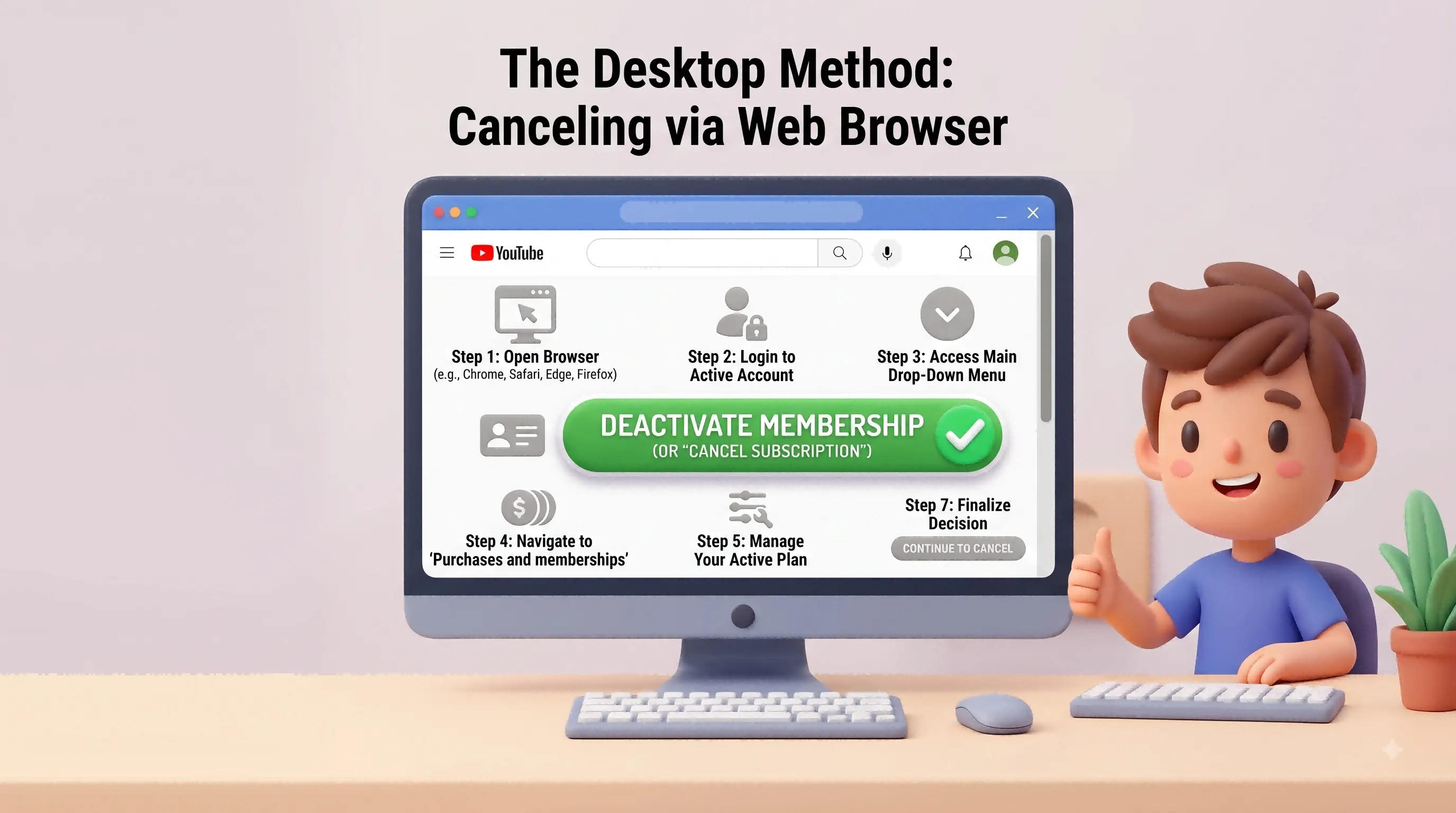
Follow these simple, exact steps to end your membership on a Mac, Windows PC, or Chromebook device:
- Open your favorite web browser: Launch your preferred internet browser, such as Google Chrome, Apple Safari, Microsoft Edge, or Mozilla Firefox. Navigate directly to the official homepage of the video platform. Wait for the page to load completely.
- Verify your active account: Look at the very top right corner of your computer screen. Check your small circular profile picture to ensure you are currently signed in to the correct Google account. Many families share a single home computer. You must be logged into the exact account that physically pays for the subscription, or you will not see the billing options.
- Access the main drop-down menu: Click directly on your round profile picture. A large drop-down menu will appear on the screen, showing various settings and studio options.
- Navigate to your memberships: Look carefully down the list and click on the specific section labeled "Purchases and memberships". This action will load a brand new screen showing a complete history of everything you have bought on the platform, including movie rentals and active digital plans.
- Manage your active plan: Locate your specific Premium membership box near the top of this page. You will see a button nearby that allows you to manage the membership. Click that button to expand the details.
- Deactivate the billing: The box will expand to show your private billing details, such as the last four digits of your credit card and your next exact billing date. Click the text button labeled "Deactivate" or "Cancel membership".
- Finalize your decision: The website will usually show a warning screen. They might offer you a chance to pause your billing for a few months instead of canceling completely. They do this to try and keep you as a customer. If you are totally sure you want to quit right now, click the button that says "Continue to cancel". You might be asked to select a brief reason for leaving. You can choose one or skip it. Finally, confirm your ultimate choice.
The Mobile Method: Android and iOS Differences
While using a desktop computer is great, many people today prefer to handle their entire digital lives on their smartphones. We use our phones for banking, shopping, and entertainment. Naturally, you might want to cancel your subscription while sitting on your couch with your phone in your hand.
The cancellation process on mobile devices is a bit more complicated than on a computer. The steps you must take depend entirely on which operating system you use (Google Android or Apple iOS) and exactly where you originally purchased the subscription months or years ago.
To make this complex system easy to understand, please look at this quick comparison table before you start pressing buttons on your phone:
| Your Mobile Platform |
Typical Billing Source |
Where You Must Cancel the Subscription |
| Android (Samsung, Pixel, Motorola) |
Google Play Store System |
Inside the Main Video App OR the Google Play Store App |
| iOS (iPhone, iPad) |
Apple App Store System |
Inside the iPhone System Settings (Under your Apple ID) |
Canceling on an Android Mobile Device
If you use an Android phone, the cancellation process is generally very straightforward. Because the Google company owns both the Android operating system and the video platform, the systems are designed to work together smoothly. You can usually handle the entire cancellation process right inside the main video application.
First, unlock your phone and open the main video application. Tap your small circular profile picture located in the top right corner of the main home feed. A side menu will slide out onto your screen. Tap on the specific section dedicated to your purchases and memberships.
You will see a screen showing your active memberships. Select your current Premium plan from this list. You will then see a screen with your billing details and a button that says "Deactivate". Simply tap that button. The application will ask you to confirm your choice, perhaps offering you a pause option first. Tap to continue the cancellation, and your request will be processed immediately.
Sometimes, mobile applications encounter frustrating software glitches. If the video app freezes or gives you an endless loading circle, you can easily use an alternative method. You can cancel directly through the main Google Play Store.
Open the Play Store application on your Android phone. Tap your profile picture in the top right corner. Select the menu option for "Payments & subscriptions," and then tap on the "Subscriptions" list. You will find your video plan listed there alongside any other apps you pay for. Tap the video plan, and you will see a clear cancel button at the very bottom of the screen.
Canceling on an Apple iPhone or iPad
The Apple company handles digital financial subscriptions very differently than Google does. Apple maintains a very strict "walled garden" ecosystem. If you bought your premium service through the video application while using an Apple iPhone or iPad, Apple actually bills your credit card directly, not Google.
Because of this strict ecosystem rule, you cannot actually cancel the financial billing inside the video application itself. If you try to look for a cancel button inside the app on an iPhone, you will only find a text message telling you to go to your Apple settings.
To stop the Apple company from charging your credit card every month, you must navigate completely outside the video app and go through your main device settings:
- Go to your main iPhone home screen and locate the Settings application. This is the application that looks like a grey mechanical gear icon.
- Open Settings and look at the very top of the screen. You will see your real name and your Apple ID profile picture. Tap directly on your name to open your Apple account details.
- Look down the list of account options and tap on the section specifically labeled Subscriptions.
- Your phone will communicate with Apple's servers and load a complete list of your active and recently expired Apple subscriptions. Find the premium video service in this list and tap on it.
- Scroll down to the absolute bottom of the details page. You will see a large red button that says Cancel Subscription. Tap that red button.
- A final confirmation dialog box will pop up on your screen. Confirm that you want to end the plan, and you are completely finished.
Helpful Troubleshooting Tip: Sometimes, you might open your Apple subscriptions list and find that the video service is completely missing. Do not panic if this happens. This simply means that Apple is not the company billing your card. You most likely signed up on a desktop computer web browser in the past. To fix this, simply put your phone down, log into the website on a computer, and cancel it there using the desktop steps we discussed earlier.
Navigating Refunds and Billing Disputes
Immediately after clicking the final cancel button, many users begin to wonder about their money. A very common question people ask customer service is whether they can get a partial refund for the remaining days left in the month. Understanding the official corporate refund policy can save you a lot of wasted time and frustration.
As a very strict industry standard across all entertainment companies in 2026, digital platforms generally do not provide refunds for partial billing periods. This means if you cancel exactly halfway through the month, you do not get half of your money returned to your bank account. The company policy states that you simply keep using the premium service until the current paid month officially reaches its end date.
Furthermore, if you purchased a long-term annual plan to secure a cheaper monthly rate, those yearly plans are generally completely non-refundable once the initial trial period passes. You are financially locked into the agreement for the full twelve months.
However, you should know that you can successfully request a refund under a few specific, exceptional circumstances. You are highly likely to get your money back if you experience any of the following situations:
- System Glitches: You were accidentally charged twice on the exact same day due to a computer error on the company's end.
- Credit Card Theft: There was an unauthorized, fraudulent charge on your account because someone stole your credit card information.
- Accidental Family Purchases: A family member, such as a young toddler playing with your tablet, accidentally purchased a plan without your explicit permission or knowledge.
If you were billed directly by Google, you can request a refund quite easily without ever picking up the phone. Open a web browser and search for "request a refund" in the official platform help center. You will find a simple online form. Fill it out, explain your situation clearly, and submit it. The support team usually reviews these requests within one or two business days.
If the Apple company billed you, Google customer service literally cannot help you. Google does not have your money; Apple does. You must visit the official Apple problem reporting website on a browser. Log in securely with your Apple ID, select the option to request a refund, and choose the video service from your digital receipt history. Explain the issue to Apple, and their team will make the final decision.
Exploring Alternative Entertainment Options
When you finally cancel your premium subscription, you might feel a small void in your daily entertainment routine. You are probably used to opening the application and instantly watching videos without any annoying commercial interruptions. The global economy in 2026 requires careful budgeting, but that does not mean you have to stop enjoying digital content.
There are several excellent alternative ways to enjoy digital videos and music without spending a large amount of money every single month. Let us explore some of the most popular options available to you after your premium status ends.
Maximizing the Free Video Experience
The most important thing you must remember is that you can still watch almost every single video on the platform completely for free. You absolutely do not need a paid premium subscription to use the core features of the website or the mobile application.
You can still subscribe to all your favorite educational creators, daily vloggers, and entertaining gaming channels. You can still leave comments to engage with the community, press the thumbs-up like button to support videos, and create highly customized video playlists for different moods or tasks.
The only major difference is simply that you will have to watch commercial advertising before the video starts and sometimes during the middle of longer videos. If you can practice a little bit of patience, the free version of the platform remains an incredibly powerful tool for daily learning, news gathering, and light entertainment. Many people find that after a few weeks, they simply get used to the advertisements again and do not miss the premium service at all.
Considering the "Premium Lite" Plan
If your only real complaint about the free version is the disruptive video advertisements, you might have another option depending on where you live. In 2026, the company offers a special, lower-tier subscription plan called "Premium Lite" in certain selected countries.
This cheaper Lite plan is specifically designed for people who want to save money but hate commercials. The Lite plan successfully removes the advertisements from the main video platform. However, it intentionally does not include access to the music application, and it strictly does not allow you to download any videos for offline airplane viewing.
If you never use the music app and you never download videos anyway, this Lite plan is a fantastic compromise. It allows you to support the creators and avoid commercials while keeping your monthly digital budget much lower. You can check your account membership settings to see if this specific plan is currently offered in your region.
The Debate Around Ad-Blocking Software
Some advanced computer users try to solve the advertisement problem by installing special ad-blocking software extensions on their desktop web browsers. These third-party software tools are designed to intercept and stop advertisements from playing before the main videos start.
While this might sound like a perfect free solution, there are highly important ethical and technical realities you must consider before choosing this path.
First, the video platform constantly updates its website computer code in 2026 to actively detect and block these specific tools. It is a constant game of cat-and-mouse. You might frequently experience broken video players, endless loading screens, or strict warning messages telling you to turn the blocker off or lose your access to watch the video entirely.
Second, and perhaps more importantly, you must understand how the digital creator economy works. Independent video creators rely heavily on advertising revenue to survive, buy equipment, and pay their monthly bills. When you use software to block their ads, the hard-working people who spend hours researching, filming, and editing your favorite videos do not get paid a single cent for your view.
If you truly value the content someone makes and you want them to continue making videos for years to come, using the free version with ads or paying for a legitimate premium subscription are the only real ways to support their hard work.
Advanced Account Management for Business Professionals with DICloak
For everyday viewers looking for a quick laugh or a cooking recipe, a simple subscription cancellation is the end of the story. They cancel the plan, close the laptop, and move on with their day. However, for ambitious business professionals operating in the modern digital economy, the video platform is not just for entertainment. It is a highly serious, vital marketing and sales tool.
If you work in fields like cross-border e-commerce, digital foreign trade, or global search engine optimization (SEO), you might actively manage multiple different brand channels simultaneously. For example, you might use one channel to promote kitchen gadgets to potential customers living in America, and a completely different channel to promote outdoor gear to customers in Europe.
Managing many different brand accounts from the exact same office computer can quickly lead to major logistical headaches and strict security warnings from the platform. The platform's sophisticated security algorithms constantly track your digital browser fingerprint. This fingerprint includes data about your operating system, your screen resolution, your installed fonts, and your specific internet network. If the security system sees ten different business accounts constantly logging in from the exact same computer fingerprint every day, it might flag all of those accounts as suspicious spam operations and suspend them.
This is exactly where modern technology tools become essential. You can utilize the DICloak Antidetect Browser to make your daily digital business work much easier, significantly faster, and fundamentally safer.
Streamlining Complex E-commerce Workflows
When you do heavy SEO keyword research to rank your product videos higher in search results, or when you manage global brand channels specifically tailored for foreign markets, protecting your overall digital identity is absolutely critical. You definitely do not want your personal weekend browsing data mixed together with your sensitive weekday business data.
You can use DICloak to easily and securely manage multiple different brand accounts on a single desktop device without ever triggering those frustrating security alarms. The software allows you to quickly create completely isolated, safe browser profiles for every single foreign trade brand you manage in your portfolio.
You can utilize DICloak to easily configure totally unique digital fingerprints for each of these specific profiles. This powerful capability means you can make each of your brand accounts look like a real, completely separate human user sitting in a completely different city or country. The platform sees a normal user, not a marketer managing ten accounts. Your valuable business assets stay perfectly safe from being linked together and unfairly banned by automated security bots.

Solving the Team Collaboration Problem
Furthermore, teamwork in a digital agency becomes incredibly simple when you use the right tools. In a busy foreign trade marketing team, several different employees might need to log into the exact same brand account throughout the busy work week. One employee in the morning needs to upload a new product showcase video, while a different employee in the afternoon needs to reply to customer comments and questions.
In a normal browser, sharing a raw password across a team often triggers annoying phone text verifications. The platform panics because it sees logins from different locations.
You can use DICloak to completely solve this common bottleneck. You can utilize the software to assign flexible, specific member permissions to your entire marketing team. You can safely share access to the important brand accounts without ever giving away the actual text passwords to anyone. Your colleagues simply open their assigned, pre-configured profiles and get straight to work.

Finally, you can seamlessly configure specific network proxies, such as HTTP, HTTPS, or SOCKS5 connections, directly into your DICloak profiles to route your internet connection safely. This specific feature allows you to verify exactly how your local video advertisements look to foreign customers without facing frustrating regional location errors. You can constantly rely on DICloak to keep your daily e-commerce workflows running smoothly, completely safely, and with maximum efficiency.

Frequently Asked Questions about Cancel Youtube Premiun
Even with a comprehensive guide, people always have specific questions about their unique situations. Here are some of the most frequently asked questions regarding the cancellation process and account management in 2026.
Can I just pause my subscription instead of canceling it completely?
Yes, you certainly can. If you are going on a long summer vacation where you will not have internet access, or if you just need a temporary financial break to save some cash this month, you can choose to pause your membership instead of losing it completely.
The platform allows you to choose to pause your billing for a specific period ranging from a minimum of one month up to a maximum of six months. You will not be charged a single penny during this designated paused time, and your premium benefits will be suspended. When your chosen pause time is totally up, your subscription will simply resume automatically, your card will be charged, and your normal ad-free viewing will start again.
How do I check to make absolutely sure my subscription is already canceled?
This is very easy to verify if you are feeling unsure. Go directly to the paid memberships section of your account on a desktop computer, or check your Apple or Google Play subscriptions list on your mobile phone.
If the plan is successfully canceled, you will see a specific, fixed end date listed clearly on the screen. It will say something like "Your benefits end on May 15th." If the plan is still fully active and set to charge you again, it will instead say "Your next billing date is May 15th." Always look for the words "ends on" to be completely sure.
Will my decision to cancel affect my family group plan?
This totally depends on your specific role in the family group hierarchy.
If you are the main manager—the person who actually pays the monthly bill for the entire Family Plan—and you decide to cancel, everyone in your entire family group will lose their premium benefits when your current billing cycle reaches its end. Your spouse and children will start seeing ads again.
However, if you are just a regular member of someone else's family plan, leaving the plan or canceling your own specific individual account only affects you. The rest of the family will keep watching their videos without advertisements just fine.
Can I reactivate my subscription later if I change my mind?
Yes, absolutely. Canceling your plan today is not a permanent lifetime ban from the premium service. The company always wants your business back. You can always change your mind and sign up again later in the year when you have more disposable income in your budget.
The absolute best part is that all of your personal video watch history, the videos you liked, and your custom music playlists will still be there waiting for you. Just log back into the website, go to the premium sign-up page, and click the button to renew or buy a brand new subscription. Everything will be exactly as you left it.
Does canceling my premium video service affect my broader Google account?
No, it does not affect your broader Google account at all. This is a very common fear, but it is completely unfounded.
Canceling only stops your premium video and music benefits. It simply stops the ad-free viewing experience and the offline downloads. Your main Gmail inbox, your important Google Drive storage files, your stored Google Photos, and your standard free video account remain completely normal, safe, and entirely untouched by the cancellation process.
Final Conclusion and Takeaways
Taking the time to sit down and review all of your digital subscriptions is a wonderful, highly responsible financial habit to build and maintain in 2026. Subscriptions are designed to be forgotten, automatically draining small amounts of money from your bank account every month. By paying attention, you keep your money in your own pocket.
Canceling your premium video subscription is a very quick and remarkably painless process once you identify exactly where your credit card is being billed. Whether you manage your life on a Windows PC, an Android phone, or an Apple iPad, the menus are easy to find if you follow the instructions.
By following the specific, detailed steps provided in this guide for your computer or your mobile device, you can successfully stop the automatic monthly payments in just a few short minutes. Always remember the golden rule of digital billing: you will get to keep your ad-free videos and your background music play until the absolute final day of your current paid billing cycle. You never lose the value of the days you already bought.
Furthermore, if you are a busy professional managing multiple different business accounts for serious daily work, you must take proactive steps to protect your digital assets. You can utilize advanced management software tools like the DICloak browser to isolate your various marketing profiles securely. You can manage your large e-commerce team safely and keep your incredibly valuable digital identity perfectly safe from sudden platform bans or algorithm lockouts.
Take a few minutes this weekend to review all of your digital subscriptions. Take complete control of your digital budget today, and make absolutely sure you only pay for the internet services you truly value, use, and enjoy every single day.
 Web Proxy Tools
 Free Tools
 Cookie Plugin
 UA Generator
 MAC Address Generator
 IP Generator
 IP Address List
 2FA Code Generator
 World Clock
 Anonymous Check
 WebRTC Leak Test
 UUID Generator
 Free Web Proxy Site
 Proxy Checker
 FB Ad Checker
 AI Web Scraping
 Free SMM Tools
 Twitter Shadowban Checker
 Instagram Name Checker
 UTM Generator
 Username Generator
 AI Hashtag Generator
 LinkedIn Headline Generator
 Social Media Image Resizer