Running Android apps on a computer can make many tasks easier. Games look better on a large screen. Typing messages is faster with a keyboard. Developers can test apps without buying many phones. Because of this, many people search for the best Android emulator
This guide explains how Android emulators work, which tools are popular, and how to choose the right one for your needs.
What Is the Best Android Emulator?
An Android emulator is software that creates a virtual Android phone or tablet on your computer. It copies important parts of a real Android device, including the system and basic hardware behavior. This allows Android apps and games to run on a PC or Mac.
Many users start looking for the Best Android Emulator when they want to use mobile apps on a larger screen. For example, gamers often install tools like BlueStacks or LDPlayer so they can control mobile games using a keyboard and mouse.
Developers also rely on emulators. With tools like the Android Studio emulator, a developer can test an app on many virtual devices without buying dozens of phones. This helps developers test apps faster and reduces the need for expensive hardware.
A good emulator can also simulate different Android versions and screen sizes. For example, a developer can test the same app on Android 13 and Android 15. Because of this flexibility, choosing the Best Android Emulator matters for gamers, developers, and businesses that work with Android apps.
Why the Best Android Emulator Matters
Once you understand what an emulator does, the next question is why people use one.
The main reason is convenience. The Best Android Emulator allows users to run Android apps on a larger screen while using a keyboard and mouse.
Gaming
Mobile gaming is one of the biggest reasons people install an emulator. Games such as Call of Duty Mobile or Free Fire can feel easier to control with a keyboard. Players can also enjoy higher frame rates on a powerful computer.
App Development and Testing
Developers often need to test their apps on different Android devices. Instead of buying many phones, they use an emulator to simulate those devices. This helps them detect bugs before releasing an app.
Productivity and Research
Some users simply want to run Android apps on their computer. A student might need an Android learning app. A marketer might want to preview a mobile website. In these situations, the Best Android Emulator allows them to work more efficiently.
Key Features of the Best Android Emulator
Before comparing the most popular tools, it helps to understand what makes a high-quality Android emulator. Not every emulator is built for the same purpose. Some tools focus on gaming performance, while others are designed mainly for developers who need accurate device testing.
The Best Android Emulator usually combines strong performance, good compatibility, and useful workflow features. Understanding these factors will make it easier to choose the right tool for your needs.
Performance and Hardware Optimization
Performance is one of the most important factors when choosing an Android emulator. Running Android inside a computer requires CPU, memory, and graphics resources. A well-optimized emulator can use these resources efficiently to deliver smoother gameplay and faster app loading.
Many modern emulators support GPU acceleration and adjustable performance settings. Users can assign more CPU cores or RAM to the emulator, which helps improve performance when running demanding apps or games.
Android Version and Device Compatibility
Another important factor is compatibility. The Best Android Emulator should support multiple Android versions so that users can run different apps without problems.
For example, some apps work best on newer Android systems, while others may still require older versions. Advanced emulators allow users to create virtual devices with different Android versions and screen sizes.
This flexibility is especially important for developers who need to test apps across multiple devices.
Multi-Instance and Workflow Features
Many users need to run several Android environments at the same time. Gamers sometimes run multiple game accounts, and marketers may manage several mobile apps simultaneously.
Some emulators support multi-instance features, which allow multiple virtual Android devices to run on the same computer. This can significantly improve productivity for certain workflows.
Ease of Installation and User Experience
Ease of use is another key factor. Some emulators are designed for beginners and can be installed in just a few minutes. Others require more technical configuration but provide more advanced options.
For example, gaming-focused emulators usually prioritize simple setup and built-in controls. Developer-focused emulators may include debugging tools and device simulation features.
With these factors in mind, the following table compares some of the most popular tools people consider when searching for the Best Android Emulator.
Detailed Reviews of the Best Android Emulators
While the comparison table provides a quick overview, each Android emulator offers different advantages. Some tools focus on gaming performance and smoother controls, while others are designed for developers who need accurate testing environments.
Below is a closer look at some of the most popular tools people consider when searching for the best Android emulator.
BlueStacks
BlueStacks is one of the most widely used Android emulators for desktop computers. Developed by BlueStacks, it has become especially popular among mobile gamers who want to play Android games on a larger screen.
One of the main strengths of BlueStacks is its gaming optimization. The emulator includes built-in keyboard mapping, macro support, and GPU acceleration. These features make it easier to control mobile games with a keyboard and mouse.
BlueStacks also offers multi-instance support, allowing users to run multiple apps or game accounts at the same time. This is useful for players who manage several accounts or want to test different game strategies simultaneously.
Because of its extensive features, BlueStacks may require more system resources compared to lighter emulators.
Best for: Mobile gaming and beginners
Supported platforms: Windows, macOS
LDPlayer
LDPlayer is another popular Android emulator known for its strong performance in gaming scenarios. Many users choose LDPlayer because it provides stable frame rates and optimized resource usage.
The emulator supports keyboard mapping, multi-instance operation, and GPU acceleration. These tools allow players to run several game sessions at once or automate repetitive actions.
LDPlayer also receives frequent updates that improve compatibility with new Android games and system versions. This makes it a reliable choice for users who regularly play newly released mobile games.
Best for: Smooth gaming performance
Supported platforms: Windows
NoxPlayer
NoxPlayer is a flexible Android emulator that supports both gaming and general Android app usage. It provides a wide range of customization options, which makes it attractive to more advanced users.
Users can adjust CPU and RAM allocation, configure keyboard controls, and run multiple emulator instances simultaneously. These options help users optimize performance based on their computer’s hardware.
NoxPlayer also supports root access, which can be helpful for developers or advanced users who need deeper control over the Android system.
Best for: Customization and advanced configuration
Supported platforms: Windows, macOS
MEmu Play
MEmu Play is well known for its strong multi-instance capabilities. Many users choose this emulator when they need to run several Android environments at the same time.
This makes it useful for testing apps, managing multiple game accounts, or running multiple tasks simultaneously.
MEmu also supports several Android versions and hardware configurations, giving users more flexibility when testing apps or experimenting with different setups.
Best for: Multi-instance workflows
Supported platforms: Windows
Genymotion
Genymotion is designed primarily for developers rather than gamers. It offers advanced tools for testing Android applications across different virtual devices.
Developers can simulate multiple Android versions, screen sizes, and hardware environments. This helps ensure apps behave correctly across a wide range of devices.
Genymotion also supports cloud-based virtual devices, allowing development teams to run Android environments without requiring powerful local hardware.
Best for: App development and testing
Supported platforms: Windows, macOS, Linux
Android Studio Emulator
The Android Studio emulator is the official Android emulator provided by Google. It is mainly used by developers who need accurate testing environments.
The emulator is integrated directly into Android Studio and allows developers to create virtual devices with different screen sizes, Android versions, and hardware profiles.
Because it focuses on development accuracy rather than gaming performance, it may feel slower for casual users. However, it remains one of the most reliable tools for testing Android applications.
Best for: Professional app development
Supported platforms: Windows, macOS, Linux
GameLoop
GameLoop is an Android emulator developed by Tencent. It is specifically optimized for mobile games published by Tencent.
Games such as PUBG Mobile and Call of Duty: Mobile run smoothly on GameLoop because the emulator is optimized for those titles.
While it is excellent for gaming, GameLoop is less flexible for running general Android apps compared to other emulators.
Best for: Tencent mobile games
Supported platforms: Windows
Bliss OS
Bliss OS takes a slightly different approach compared to traditional Android emulators. Instead of running Android inside a virtual environment, it installs Android as a full operating system on a computer.
This allows users to run Android apps directly on their hardware without the overhead of virtualization.
Bliss OS is often used by enthusiasts who want a complete Android desktop experience rather than simply running a few mobile apps.
Best for: Full Android desktop environments
Supported platforms: Windows PCs (via Android-x86)
PrimeOS
PrimeOS is another Android-based operating system designed to run directly on desktop hardware.
PrimeOS focuses heavily on gaming and includes desktop-style controls and keyboard mapping. It also offers a taskbar-like interface that feels more familiar to PC users.
Because it runs as a full operating system, PrimeOS can sometimes deliver better performance than traditional emulators.
Best for: Android gaming on PC hardware
Supported platforms: Windows PCs (dual boot)
ARChon
ARChon Runtime is a lightweight Android runtime designed to run Android apps inside the Google Chrome browser.
Unlike traditional emulators, ARChon does not simulate a full Android device. Instead, it allows specific Android apps to run as Chrome applications.
Because of its lightweight design, ARChon can run on multiple operating systems. However, it requires manual configuration and may not support every Android app.
Best for: Lightweight Android app testing
Supported platforms: Windows, macOS, Linux
Best Android Emulator by Use Case
Different Android emulators are designed for different purposes. Some tools are optimized for gaming performance, while others focus on development, testing, or running multiple Android environments.
If you are trying to choose the best Android emulator quickly, the following recommendations can help based on common use cases.
Best Android Emulator for Gaming
For gaming, performance and control customization are the most important factors. Emulators such as BlueStacks and LDPlayer are popular choices because they support keyboard mapping, high frame rates, and GPU acceleration.
These features allow players to control mobile games more easily and enjoy smoother gameplay on a desktop computer.
Best Android Emulator for Developers
Developers often need accurate device simulation rather than gaming performance. Tools like Android Studio Emulator and Genymotion allow developers to test apps on multiple Android versions, screen sizes, and device configurations.
This helps ensure apps work correctly across different devices before release.
Best Android Emulator for Multi-Instance Workflows
Some users need to run several Android environments at the same time. For example, marketers, testers, or gamers may manage multiple accounts simultaneously.
Emulators like MEmu Play and LDPlayer support multi-instance features, allowing users to launch multiple virtual Android devices on the same computer.
Best Lightweight Android Emulator
If your computer has limited hardware resources, lightweight tools may work better. Options like ARChon or simplified Android environments focus on running specific apps without requiring heavy virtualization.
Choosing the right emulator depends largely on how you plan to use it.
Top 10 Best Android Emulator Tools: Quick Comparison Table
The table below summarizes the most widely used options when people search for the Best Android Emulator.
| Tool |
Best For |
Performance |
Ease of Setup |
OS Support |
Best Fit Example |
| BlueStacks |
Gaming beginners |
High |
Easy |
Windows, macOS |
Play COD Mobile with keyboard |
| MEmu |
Multi-instance gaming |
High |
Medium |
Windows |
Run 2–3 game accounts side by side |
| Genymotion |
App testing |
Medium |
Medium |
Windows, macOS, Linux |
Test an app on many device models |
| NoxPlayer |
Casual gaming |
Medium |
Easy |
Windows, macOS (varies) |
Simple key mapping for shooters |
| LDPlayer |
High-FPS gaming |
High |
Easy |
Windows |
Smooth FPS for heavy games |
| Andy |
General app use |
Medium |
Medium |
Windows, macOS (varies) |
Run Android apps on desktop |
| Remix OS Player |
Desktop-style Android |
Medium |
Medium |
Windows |
Multi-window Android app workflow |
| KoPlayer |
Gaming + recording |
Medium |
Easy |
Windows |
Record gameplay clips easily |
| ARChon |
Lightweight experiments |
Low–Med |
Hard |
Chrome-based |
Run supported apps in Chrome |
| Phoenix OS |
Full Android desktop |
Medium |
Medium |
PC install |
Turn an old PC into Android-like desktop |
Tip: If you want the Best Android Emulator for gaming, start with BlueStacks or LDPlayer. If you need testing tools, start with Genymotion.
- BlueStacks is a safe starting point if you want a simple setup and strong gaming features.
- LDPlayer is often a good pick when you care most about smooth FPS.
- Genymotion makes more sense for development and testing, not gaming.
- MEmu is useful if you need multi-instance workflows.
- If you only need mobile web testing, you may not need an emulator at all. DICloak can handle mobile browsing inside isolated browser profiles.
Android Emulator vs Cloud Phone vs Browser Simulation
Android emulators are one way to run mobile environments on a computer, but they are not the only solution. Depending on your workflow, other technologies such as cloud phones or browser-based device simulation may also be useful.
Understanding the differences between these options can help you choose the right tool.
Android Emulators
Android emulators create a virtual Android device that runs locally on your computer. They simulate the Android operating system and hardware behavior so that apps and games can run as if they were on a real smartphone.
This approach is widely used for gaming, development, and app testing. However, running a full emulator can require significant CPU and RAM resources.
Cloud Phones
Cloud phones provide virtual Android devices that run on remote servers instead of your local computer. Users can access these devices through a browser or desktop client.
Because the Android system runs in the cloud, users can manage many devices without needing powerful hardware locally. This approach is often used for automation, testing, or managing large numbers of mobile devices.
Browser-Based Mobile Simulation
In some workflows, users do not actually need to run Android apps. Instead, they only need to simulate how websites behave on mobile browsers.
Browser-based tools can simulate mobile devices, operating systems, and browser fingerprints directly within a desktop browser profile.
This approach is typically lighter than running a full Android emulator and can be useful for web testing, multi-session management, and automation workflows.
For users whose workflow focuses mainly on mobile browsing rather than running Android apps, a browser-based solution may be more efficient than a full emulator. In these cases, tools designed specifically for mobile browser simulation can provide a faster and lighter alternative.
Alternative to the Best Android Emulator for Mobile Web Workflows: DICloak
In some workflows, users do not actually need to run Android apps. Instead, they only need to simulate how websites behave on mobile browsers. In these situations, tools like DICloak can be helpful.
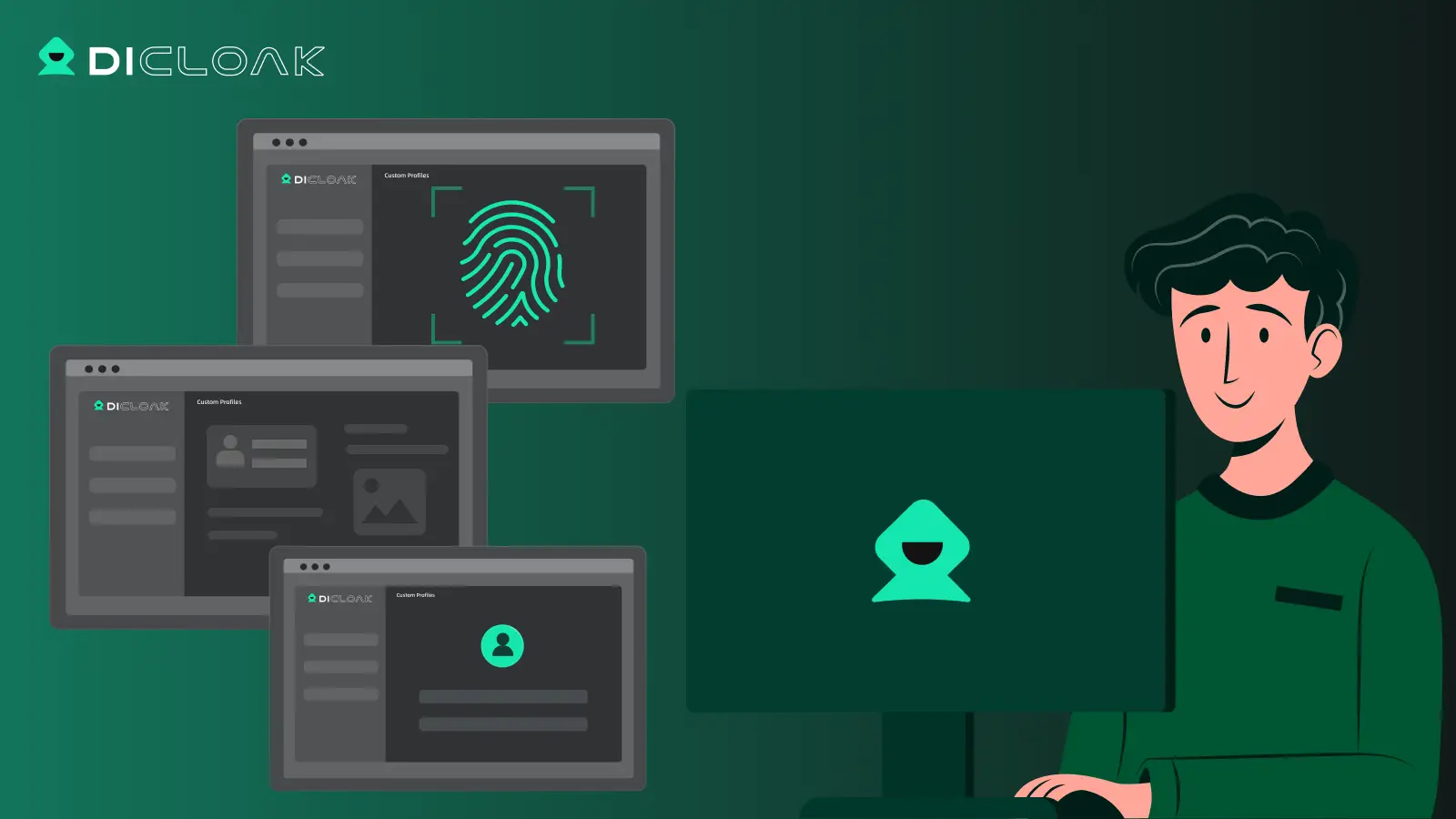
DICloak is not an Android emulator. It does not run Android apps. Instead, it allows users to open websites inside isolated browser profiles that can simulate different devices and operating systems.
DICloak Simulates Android Browser Profiles
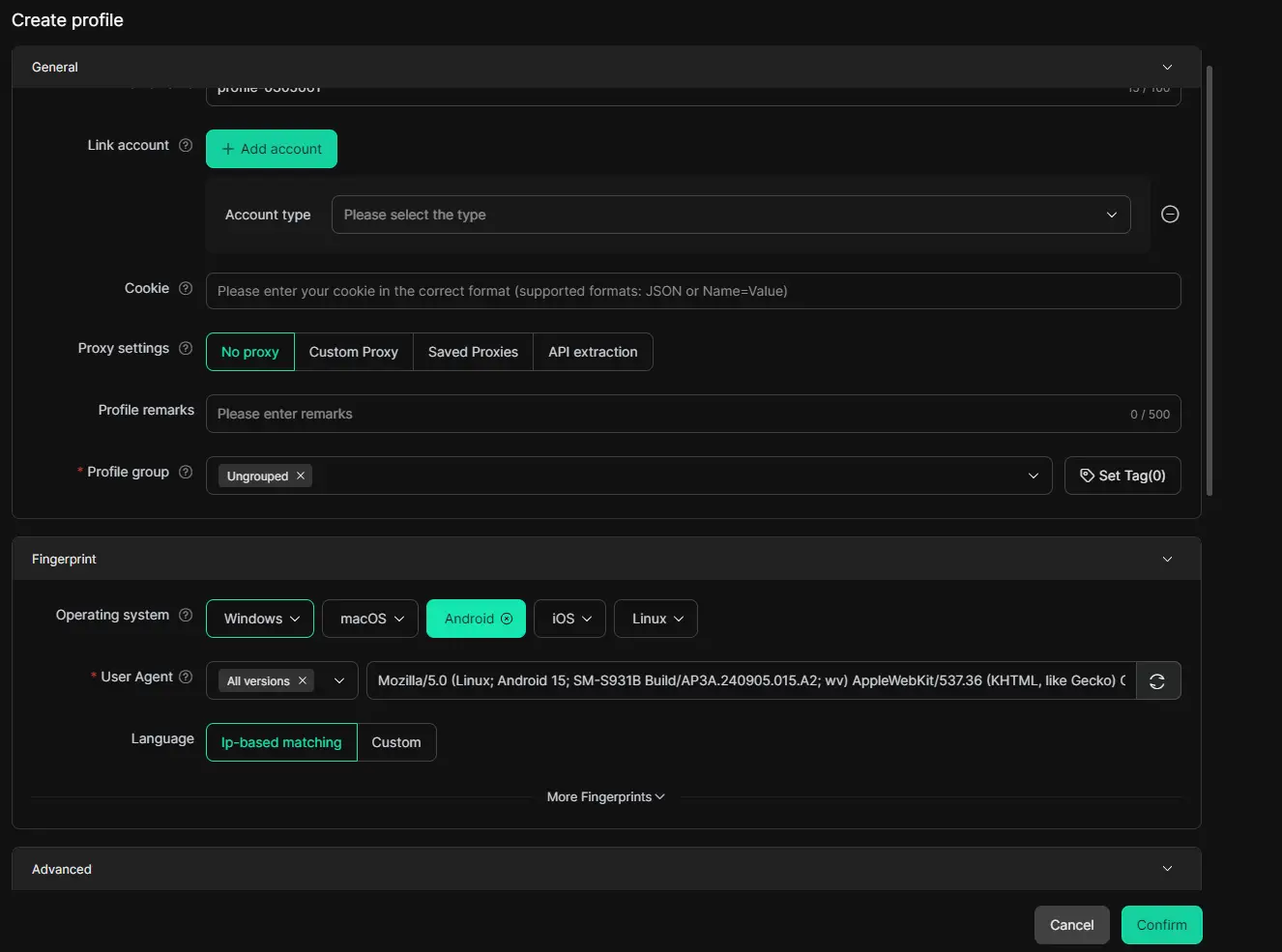
DICloak is a powerful antidetect browser that supports Android OS simulation inside the browser. This means you can create a browser profile that behaves like Android browsing, which is useful for multi-session workflows, multi-account management, and automation tasks.
When creating a profile, users can set the operating system simulation to Android and configure Android-style fingerprint signals, such as screen resolution, language, and time zone, to keep the profile consistent.
This approach is lighter than running a full Android emulator.
How to Choose the Best Android Emulator
Choosing the Best Android Emulator depends on several factors.
Performance Optimization
Gaming and heavy apps require strong CPU and RAM. Some emulators allow you to adjust these settings for better performance.
App Compatibility
Make sure the emulator supports the apps you want to run. Some apps require specific Android features.
User Interface
A clean interface makes setup easier. Beginners often prefer simple tools like BlueStacks.
Tips for Choosing
- Start with one emulator that fits your main task
- Test performance on your computer
- Avoid running too many instances at once
Testing a few options is often the fastest way to find the Best Android Emulator.
Safety and Legality of the Best Android Emulator
Android emulators are widely used and generally safe when downloaded from official websites.
Common Safety Concerns
The biggest risk comes from downloading modified versions of software. These may include malware or unwanted programs.
Another risk comes from installing unknown Android apps inside the emulator. To stay safe, install apps from trusted sources.
Legal Considerations
Using an emulator itself is legal. Developers use them regularly for testing apps.
Problems usually occur when users break platform rules, such as cheating in games or using pirated apps.
Following software guidelines ensures that using the Best Android Emulator remains safe and legal.
Conclusion: Choosing the Best Android Emulator
Android emulators make it possible to run mobile apps on desktop computers. They help gamers play on larger screens and help developers test apps more efficiently. Different tools focus on different strengths. Some prioritize gaming performance, while others focus on development and testing features. The Best Android Emulator is the one that runs smoothly on your computer and supports the apps you need.
It is also worth matching the tool to the task. If your goal is to run Android apps or games, an emulator is the right choice. But if your work is mostly about mobile web workflows—such as testing how sites look on mobile browsers or managing separate web sessions—then a browser profile tool like DICloak can be a better fit. DICloak does not run Android apps, but it can help you simulate mobile browsing inside isolated profiles, which is often faster and lighter than running a full emulator.
In the end, the best approach is practical: test a few options, track performance, and choose the setup that supports your daily workflow with the least friction.
Best Android Emulator FAQs
Are Android emulators safe to use?
Usually yes—if you download them from the official website. Most risks come from unofficial installers or unknown APK files. The Best Android Emulator is safe when you use trusted sources.
Can I run any Android app on an emulator?
Not always. Most apps work, but some banking apps or competitive games may block emulators or need hardware features that do not simulate well. Try your key apps before you commit to one Best Android Emulator.
Do I need a powerful PC to run an Android emulator?
A stronger PC helps, especially for gaming or multi-instance use. For basic apps, many emulators run fine on mid-range PCs. If it lags, lower settings or switch to a lighter Best Android Emulator.
Are there free Android emulators available?
Yes. Many popular emulators offer free versions. You can test a few to find the Best Android Emulator for your device.
Do I always need an emulator for mobile workflows?
No. If you only need mobile web testing or separate browsing sessions, DICloak can help. It does not run Android apps, but it lets you use isolated browser profiles that simulate mobile browsing.
 Web Proxy Tools
 Free Tools
 Cookie Plugin
 UA Generator
 MAC Address Generator
 IP Generator
 IP Address List
 2FA Code Generator
 World Clock
 Anonymous Check
 WebRTC Leak Test
 UUID Generator
 Free Web Proxy Site
 Proxy Checker
 FB Ad Checker
 AI Web Scraping
 Free SMM Tools
 Twitter Shadowban Checker
 Instagram Name Checker
 UTM Generator
 Username Generator
 AI Hashtag Generator
 LinkedIn Headline Generator
 Social Media Image Resizer