Your phone shows one gray check for 20 minutes, WhatsApp Web will not load, and your team chat stops right before a handoff. If you are searching for WhatsApp down, you need one answer fast: is this a global outage, or a problem on your device and network. This guide gives you a clear triage path you can run in minutes. You will learn how to confirm service issues using Downdetector’s WhatsApp page, check platform-side incidents on the Meta Status page, and verify app-specific fixes from the official WhatsApp Help Center.
You will also get a practical fix order: check connection type, test another app, switch networks, restart WhatsApp, update the app, and review phone settings that often block real-time sync. The key takeaway is simple: most connection failures look the same at first, but a quick outage check plus a short local test sequence tells you whether to wait or fix it now. Start with outage verification, then move to device-level checks.
Is WhatsApp Down Right Now or Is It Just You?
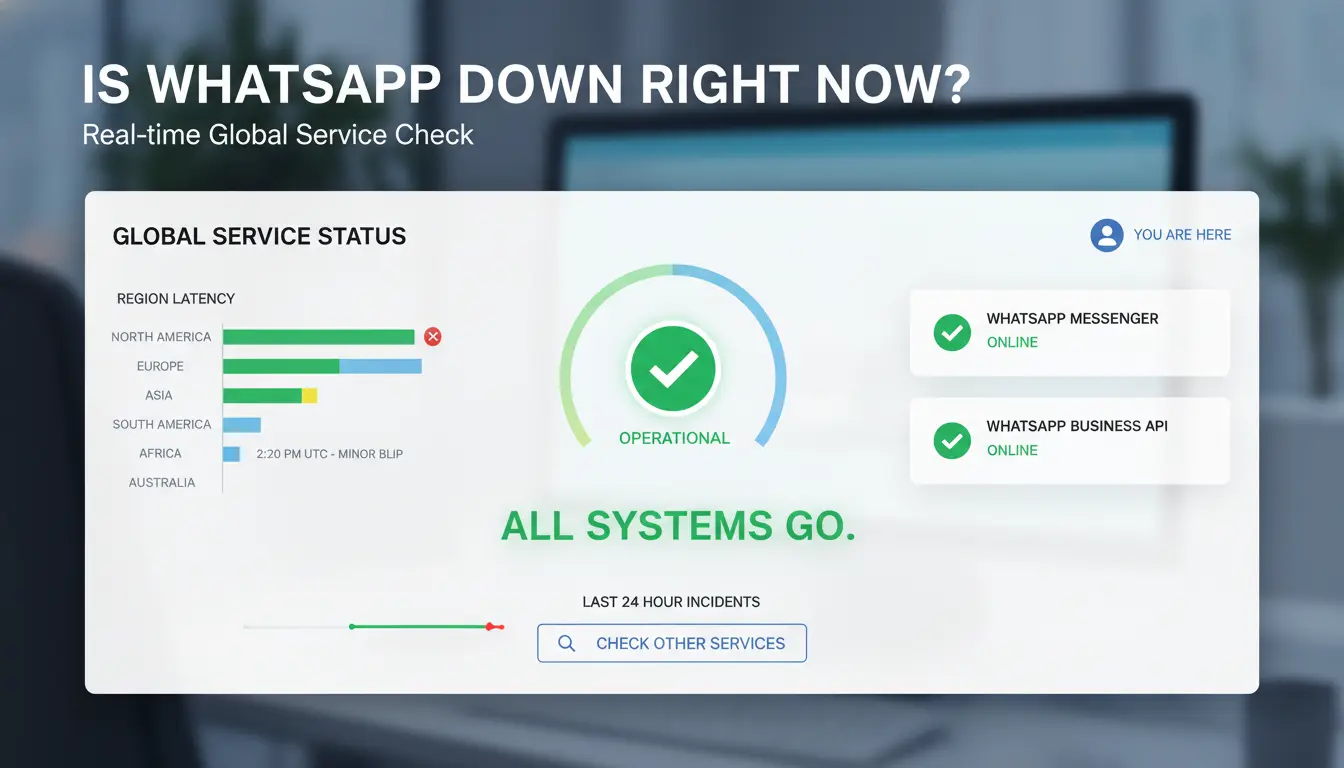
If you think WhatsApp is failing, run a 3-minute check before changing phone settings. If two independent sources show a live spike and both your mobile app and WhatsApp Web fail, treat it as a likely outage and wait.
Check live outage signals from multiple sources
Use at least two sources:
| Check point |
Where to check |
What to look for |
| User report spikes |
Downdetector’s WhatsApp page |
A sharp rise in reports in the last 15–60 minutes |
| Platform incident status |
Meta Status page |
Any active incident tied to WhatsApp services |
| App-side guidance |
WhatsApp Help Center |
Current issue notes or known workaround steps |
If report spikes appear only in one city, your region may be affected while others still work.
Use WhatsApp Web and mobile app as a cross-check
Open WhatsApp Web and your phone app on the same account.
- Both fail to send or sync: outage is more likely.
- Web works but phone fails: focus on phone app, battery limits, or blocked background data.
- Phone works but Web fails: browser cache, extension conflict, or web session issue.
This quick split tells you where to troubleshoot instead of guessing.
Read official channels without relying on rumors
Check official status pages before trusting comment threads. Viral posts often claim “WhatsApp down” with no proof. Look for time stamps, affected regions, and service names on official pages. If details are missing, wait 10–15 minutes and recheck the same sources. Consistent updates beat fast rumors.
What to Do in the First 10 Minutes When WhatsApp Is Not Working
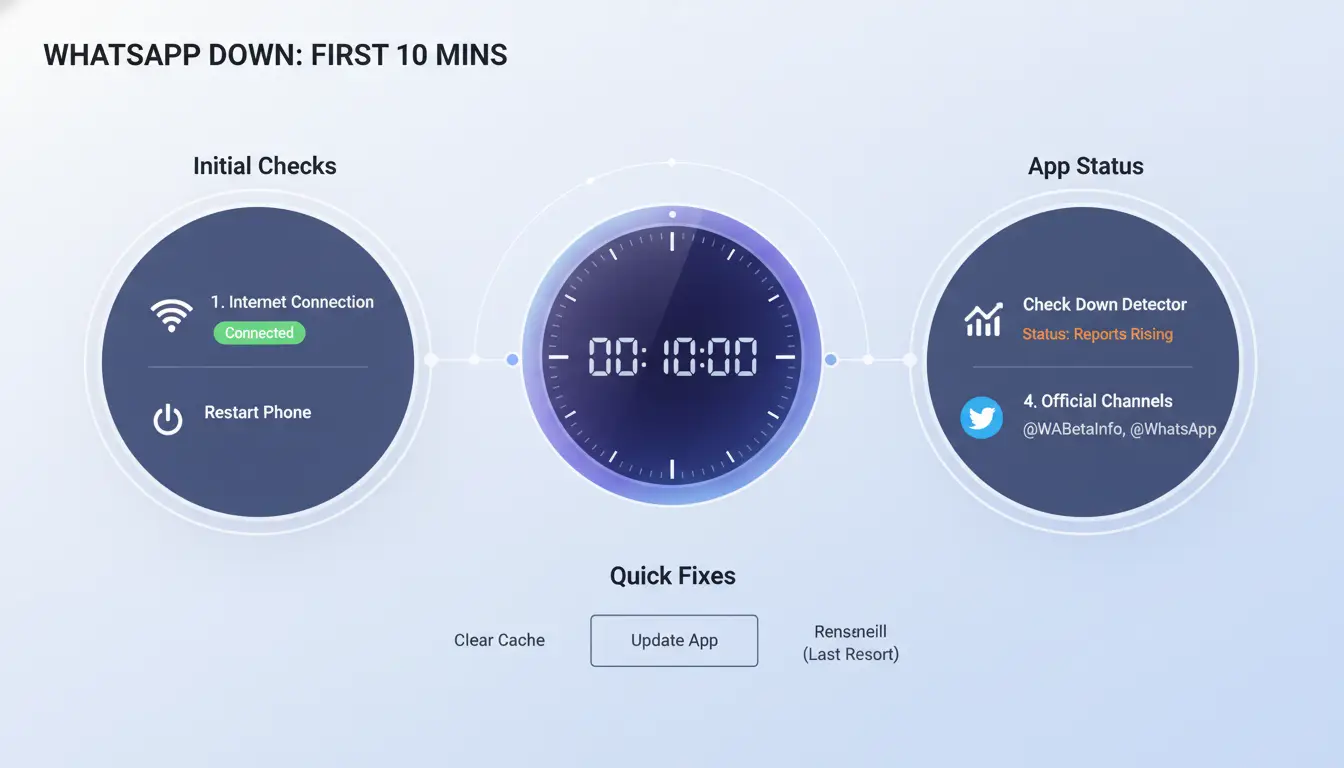
If you think WhatsApp is down, spend 10 minutes on this quick triage before deeper fixes. Confirm outages on Downdetector and Meta Status. If both look normal, the issue is usually local to your phone or network.
Run a quick connection reset checklist
- Turn airplane mode on for 10 seconds, then turn it off.
- Open a browser and load any site to confirm internet works.
- Switch from Wi-Fi to mobile data, then test WhatsApp again.
- If mobile data works but Wi-Fi fails, restart your router.
If one network works and the other fails, stop app-level debugging and fix that network path.
Force close and reopen WhatsApp safely
- Fully close WhatsApp from recent apps, then reopen it.
- Send three test items to a trusted contact: one text, one image, one voice note.
- If text sends but media fails, your connection is unstable, not fully offline.
- If nothing sends, check pending app updates in your app store, then retry.
Restart device and check date/time sync
- Restart your phone to clear stuck background sessions.
- Set Date & Time to automatic. Manual time can break secure app sessions.
- Reopen WhatsApp and retest calls plus media upload.
- If problems continue and outage checks are clean, follow WhatsApp Help Center steps for your device.
This sequence helps you separate a real WhatsApp down event from a local phone issue fast.
Why WhatsApp Messages Fail to Send Even When the App Opens
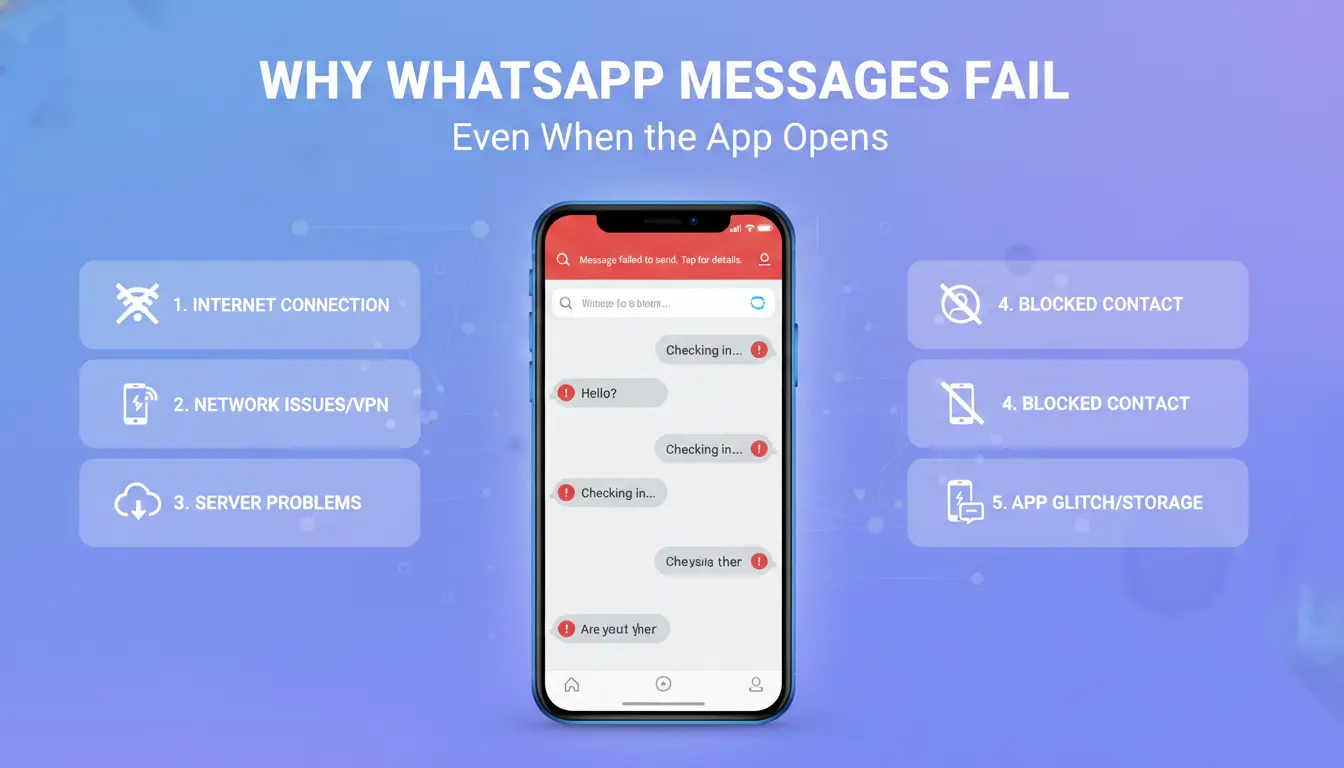
If chats stay on one check mark, you may think it is WhatsApp down, but partial failure often comes from your phone or route. Use a quick split test: check Downdetector’s WhatsApp page and Meta Status. If reports stay low, treat it as a local issue. If text fails on Wi-Fi but sends on mobile data, your network path is the blocker.
Fix network-level blockers and unstable routes
Weak signal and packet loss can keep the app open while message delivery fails. Walk to a stronger signal spot and resend one short text. Then switch between Wi-Fi and mobile data. For home Wi-Fi, restart the router and test again after 2 minutes. If only WhatsApp fails, change DNS on your router or phone to a public resolver and retest.
Resolve app-level issues: cache, storage, and outdated versions
Low free storage can stall media and delay text queue processing. Keep at least 1–2 GB free space, then retry pending messages. Clear temporary app cache from phone settings, reopen WhatsApp, and send a test message. Update WhatsApp in your app store. Old app builds can fail when server protocols change. Confirm current steps in the official WhatsApp Help Center.
Review background restrictions and battery settings
Battery saver settings can pause sync when the screen is off. Disable aggressive battery limits for WhatsApp. Allow background data, auto-start, and notification permissions. If you still see delays, restart the phone and retest with one text and one image. This helps confirm whether WhatsApp down is real or device-level throttling.
Could It Be Your Account Instead of a WhatsApp Outage?
If you think “WhatsApp down”, pause and check account signals before waiting for servers to recover. A true outage usually hits broad regions at once. Account problems usually affect one number, one device, or one chat type.
Spot account warnings that mimic downtime
Temporary bans can stop sending messages even when WhatsApp is online. Watch for alerts like suspicious activity, unusual login checks, or forced re-verification. If you can open chats but messages stay on one gray check mark for every contact, test on another device with the same number. If the issue follows your number, it is likely account-side.
Handle verification and number-change problems
Verification failures often look like service downtime. Common causes are wrong SIM slot, delayed SMS, call code limits, or too many retries in a short window. Wait for the retry timer shown in the app. Then request one code method only, SMS or call, not both back-to-back. If loops continue after a clean reinstall, use the official WhatsApp Help Center verification steps and check whether your carrier blocks short codes.
Check if only specific contacts or groups are affected
If only one contact fails, you may be blocked, or they changed privacy settings. That is not a platform outage. If group messages fail but direct messages work, check group permissions. Admin-only posting, removed member status, or muted announcements can look like “WhatsApp down” when the service is fine. A fast rule: all chats failing suggests network or platform; selective failures suggest account, contact, or group controls.
How to Fix WhatsApp Web and Desktop When Mobile Still Works
If your phone works but Web or Desktop fails, do not reset everything. Keep your active mobile session untouched and fix linked devices in a controlled order. This is common during partial outages that look like “WhatsApp down” even when only one client is broken. Confirm live incidents on Meta Status and user spike reports on Downdetector, then run the steps below.
Reconnect linked devices the right way
Stale linked sessions often fail after app updates or network switches.
- Log out stale sessions On your phone, open Linked Devices and remove sessions you do not use. Then sign in again from one target device only.
- Relink using a stable network and updated app Put phone and computer on a steady network, update WhatsApp on phone and desktop, then scan the QR code again.
Clear browser conflicts and extension interference
Web login can fail when cookies or scripts are blocked.
- Test in a clean browser profile Open an incognito window with no extra add-ons, or create a fresh browser profile, then load WhatsApp Web.
- Disable extensions that block scripts/cookies Turn off ad blockers, privacy script filters, and cookie blockers for the site. Reload and test message send/receive.
Fix desktop app sync and notification delays
Desktop may connect but stop syncing in real time.
- Check OS notification permissions Allow notifications for WhatsApp in system settings, and disable Focus/Do Not Disturb during testing.
- Repair or reinstall desktop app if sync stalls Close app fully, reopen, then repair (Windows) or reinstall from WhatsApp Help Center. If mobile still works, this usually fixes client-side “WhatsApp down” confusion fast.
How Social Media Teams Can Reduce False 'WhatsApp Down' Alarms Across Multiple Accounts
Why multi-account operations create confusing failure signals
A team may see the same error across accounts and assume WhatsApp is down. That guess is often wrong. Shared devices can carry mixed cookies, cached sessions, and old login states from another account. One bad local state can spread confusion across the shift.
IP rotation can add noise too. If one account runs through a different proxy or network path, it may fail while others still send messages. The symptom looks like a platform outage, but the root cause is local setup drift. Treat each account alert as an environment test before calling it an outage.
Use DICloak profiles to isolate account environment variables
You can use DICloak to give each account its own browser profile, fingerprint, and proxy route. That isolation keeps one broken session from affecting other accounts. It also gives you cleaner testing: open Account A and Account B in separate profiles, keep fixed proxy settings, then retry the same action.
If only one profile fails, you are not dealing with a global WhatsApp down event. If all isolated profiles fail at the same time, the chance of a real outage goes up.
Set team permissions and logs for faster root-cause analysis
You can use role-based access so only approved users can edit profile settings or proxies. That cuts accidental config changes during busy hours.
Use operation logs to check who changed what and when. If a failure started right after a proxy edit, you can roll back fast instead of escalating a false outage alert. This keeps triage short and helps teams avoid repeated alarm loops.
When Should You Report the Problem to WhatsApp Support?
If checks on Downdetector and Meta Status show no incident, but your issue lasts over 30 minutes, report it. Escalate faster if only one account fails while others work, or if login, message send, and media upload all fail on one device. This is where clear evidence speeds support replies.
Collect evidence before submitting a ticket
Copy the exact error text, add local time with time zone, and list what failed: send, receive, call, backup, or login. Add screenshots and network state (Wi-Fi or mobile data). For team setups, tools like DICloak let you map each WhatsApp account to an isolated browser profile, so one broken session does not affect other accounts.
Use the right support path for your issue type
Use in-app support for personal accounts via WhatsApp Help Center paths. Use business support channels for API or account operations. You can use DICloak with dedicated proxies, role permissions, and operation logs to trace whether this “WhatsApp down” case is platform-side or a team config error.
Set realistic response expectations during major outages
During a large “WhatsApp down” event, reply times can slow. Keep monitoring status pages while waiting.
How to Prepare for the Next WhatsApp Outage
When WhatsApp down hits, delay comes from confusion, not just downtime. A short continuity plan keeps personal chats, client updates, and team handoffs moving without guesswork.
Create a backup communication channel plan
Pick 2 fallback paths before an incident: one chat app and one non-app option (SMS or phone call). Write this in a shared note with names, roles, and backup contact details. For business use, define channel by urgency:
- Urgent (0–15 min): call or SMS
- Standard updates (15+ min): backup group chat
- File sharing: email with subject tag like “OUTAGE-UPDATE”
Share this plan with family groups, clients, and internal teams. Ask each key contact to confirm one working backup method.
Set monitoring and alert routines
Use two checks during active work windows: Downdetector’s WhatsApp page and the Meta Status page. Keep both bookmarked on phone and desktop. Run a quick status check every 30 minutes during launches, support peaks, or live campaigns. If both pages show issues, pause device-level troubleshooting and switch to your backup channel. If not, continue local fixes from the WhatsApp Help Center.
Build a simple incident checklist for repeat use
Keep a 3-step checklist in your team docs:
- Verify: outage pages, then test another app
- Fix: network switch, app restart, app update
- Escalate: notify team, activate backup channel, log incident start time
This cuts duplicate troubleshooting and keeps everyone on the same response path the next time WhatsApp down interrupts communication.
Frequently Asked Questions
How long does a WhatsApp down outage usually last?
Most WhatsApp down events are short and clear in 10 to 30 minutes, but larger incidents can run for several hours. The timeline changes based on how much of WhatsApp’s backend is affected, such as messaging, media upload, or login systems. Check live outage trend charts to see whether reports are rising or falling.
Why is WhatsApp down on Wi-Fi but working on mobile data?
If WhatsApp works on cellular but fails on Wi-Fi, the app is often fine. Common causes are bad router DNS settings, ISP routing problems, blocked ports from firewall rules, or weak Wi-Fi signal quality. Restart the router, switch DNS to 1.1.1.1 or 8.8.8.8, and test another Wi-Fi network to confirm.
Can WhatsApp be down in one country but working in another?
Yes. WhatsApp down reports can cluster by country when regional servers, internet exchange points, or local ISP routes have issues. In these cases, users in one area may see message delays or connection failures while other regions work normally. Live outage maps and country-level report filters help confirm localized degradation quickly.
Does reinstalling help when WhatsApp is down globally?
Usually no. During a global WhatsApp down incident, reinstalling will not fix server-side failures and may log you out at the worst time. First confirm service recovery through official status posts or outage trackers. Reinstall only after service is back and only if your device still shows crashes, stuck syncing, or corrupted app behavior.
How can I get alerts when WhatsApp down incidents start?
Set up alerts from real-time outage trackers that offer push notifications, email, or app alerts when report volume spikes. Also follow WhatsApp’s official social channels for incident updates and recovery notes. For faster signal, combine both: community-based detection catches early problems, while official channels confirm cause and progress toward a fix.
A WhatsApp outage can disrupt everything from personal chats to business communication, but the key is to confirm the issue through official channels, avoid risky workaround apps, and switch temporarily to reliable alternatives. Staying prepared with backup contact methods and basic troubleshooting steps helps reduce downtime and keeps conversations moving even when the platform is unavailable. Try DICloak For Free
 Web Proxy Tools
 Free Tools
 Cookie Plugin
 UA Generator
 MAC Address Generator
 IP Generator
 IP Address List
 2FA Code Generator
 World Clock
 Anonymous Check
 WebRTC Leak Test
 UUID Generator
 Free Web Proxy Site
 Proxy Checker
 FB Ad Checker
 AI Web Scraping
 Free SMM Tools
 Twitter Shadowban Checker
 Instagram Name Checker
 UTM Generator
 Username Generator
 AI Hashtag Generator
 LinkedIn Headline Generator
 Social Media Image Resizer