You mute one Instagram alert, but your phone still lights up from banners, lock-screen previews, and message pings from another setting path. That mismatch is why people keep searching for how to turn off instagram instants and still miss one switch.
The core issue is not one button. Instagram notifications are split across app-level controls, device-level permissions, and web settings, and each layer can keep sending alerts if left on. Instagram’s own controls live under Notifications in Instagram settings, while iPhone behavior is handled in Apple notification settings, and Android behavior depends on Android app notification channels. If you also use desktop, browser permissions can still trigger pop-ups even after phone changes.
You will leave with a clean shutdown checklist for iPhone, Android, and desktop, plus a quick test flow to confirm alerts are actually off. The key takeaway is simple: turning off Instagram instants works only when you close all active notification paths, not just the one inside the app. Now start with the iPhone path and verify each toggle in order.
What are Instagram Instants, and which alerts can you actually turn off?
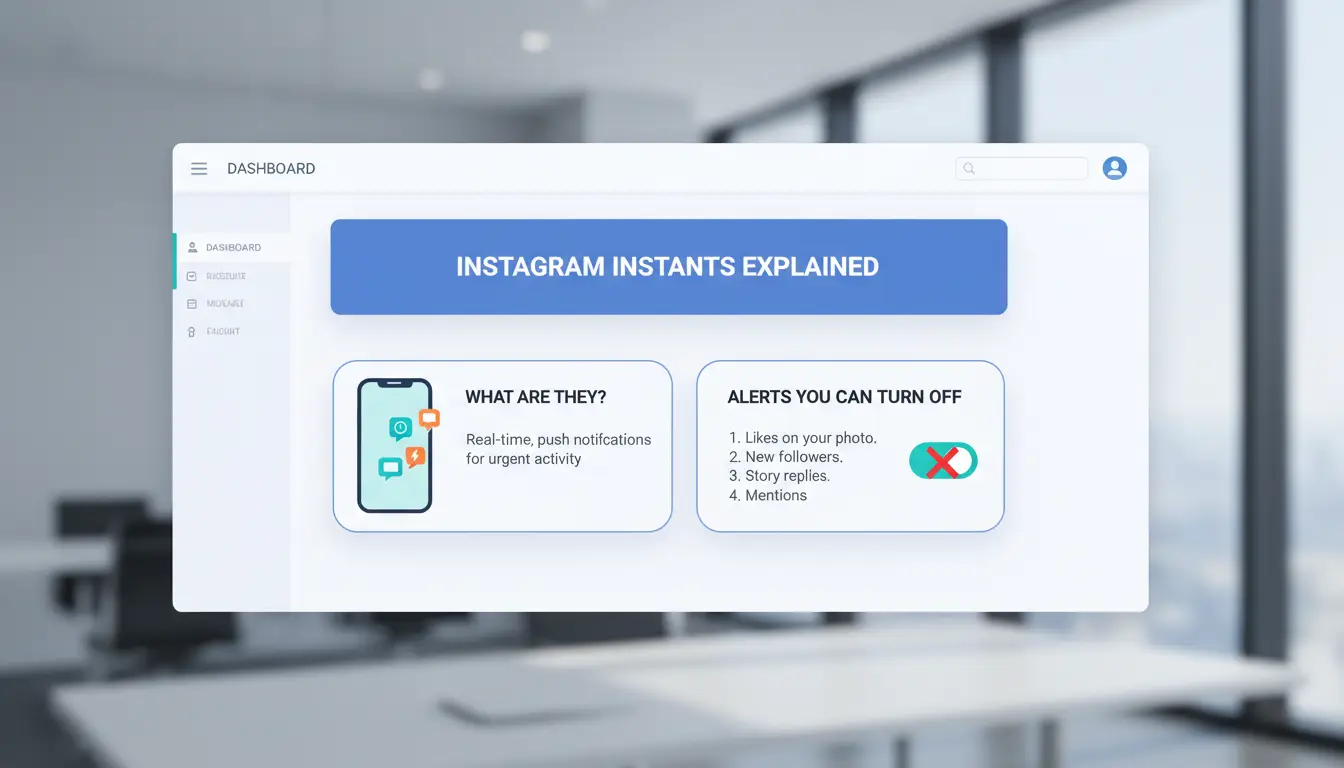
If you searched how to turn off instagram instants, the main risk is changing the wrong toggle and muting alerts you still need. In most app builds, “Instants” points to fast, real-time prompts (like short in-app nudges or immediate push prompts), not every Instagram notification type listed in Instagram’s notification settings guide.
What Instagram Instants usually means in the notifications menu
Instants alerts are usually time-sensitive prompts triggered right after activity. Regular push notifications include wider categories like DMs, comments, likes, follows, live videos, and reminders. Label names can shift by app version, phone OS, or account type. On one device you may see “Instants,” while another build folds similar alerts into “Activity” or “From Instagram.”
What turning Instants off changes in daily app use
You should stop seeing those immediate Instants prompts right away once the toggle is off. You may still get alerts from other active paths: message notifications, account activity notifications, phone-level app notifications, or browser pop-ups on desktop. That is why how to turn off instagram instants is only one part of a full shutoff flow. If DM alerts still appear, Instants was not the source.
Common confusion: Instants vs message, reaction, and activity notifications
People often mute DMs by mistake because “messages” sits near other alert groups. Before saving changes, check this quick list:
- Instants off
- Messages still on (if you need DMs)
- Reactions/comments set the way you want
- Phone OS app notifications reviewed
- Browser notification permission checked on desktop
This keeps your urgent chat alerts while removing only the noisy prompt type.
How to turn off Instagram Instants on iPhone and Android (step by step)
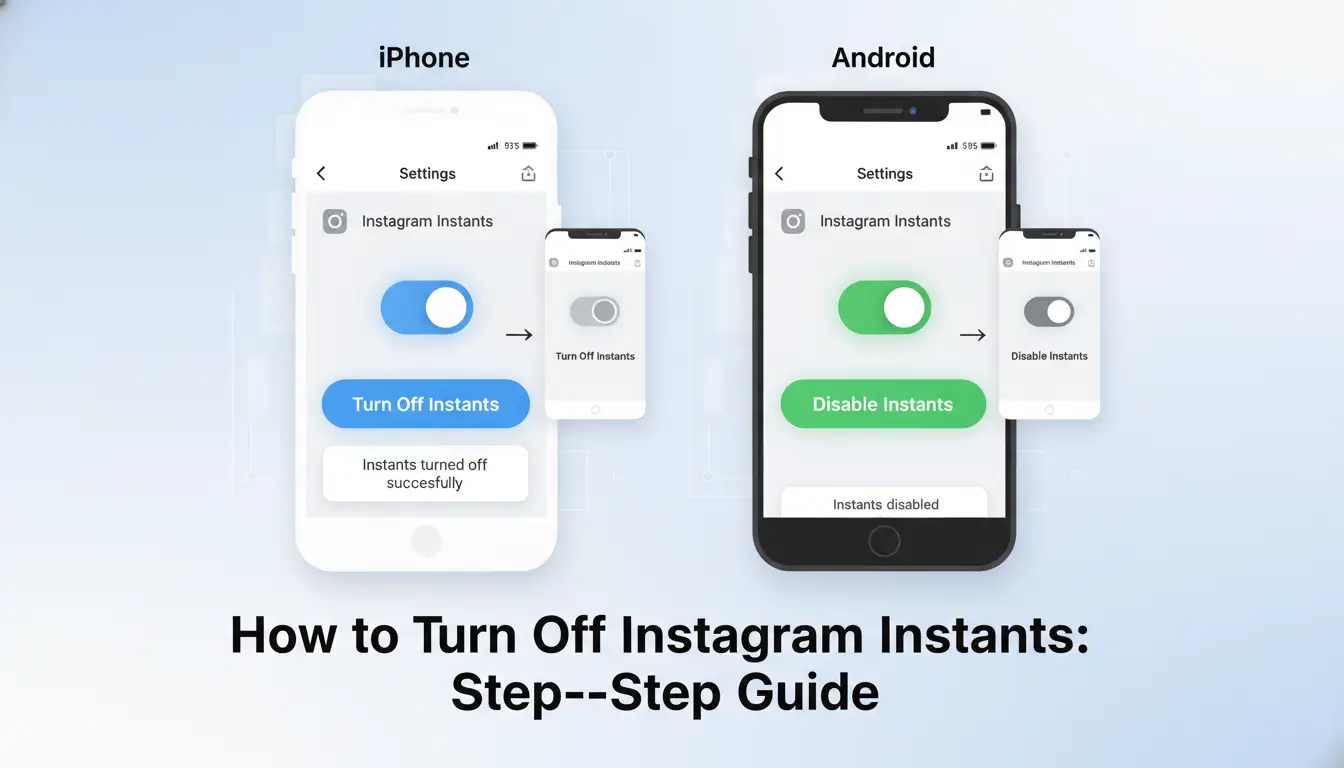
If you searched how to turn off instagram instants, do this in order: app settings, phone settings, then a quick test. If one path stays on, alerts can still appear.
Step path in the Instagram app: Profile to Notifications
Open Instagram and tap your profile icon (bottom right). Tap the menu (top right) → Settings and privacy → Notifications. Find the Instants section inside notification categories. Set it to Off, or open it for per-alert controls. This matches the official Instagram notification settings flow.
How to disable all Instants vs only specific Instant alerts
Choose Off in Instants if you want zero Instant alerts. Choose selective toggles if you only want fewer interruptions, like disabling sound but keeping badges.
Now check phone-level controls:
- On iPhone: Settings → Notifications → Instagram, then disable Allow Notifications or tune alert types in Apple notification settings.
- On Android: Settings → Apps → Instagram → Notifications, then disable the related channel using Android notification channels.
This is the part people skip when how to turn off instagram instants does not work.
Verify your change worked in under 1 minute
Send a test DM from another account, or ask a teammate to send one. Lock your phone and wait 30–60 seconds.
If no pop-up, sound, or badge appears, your setup is done. If alerts still show, check for desktop browser notification permission and turn it off there too.
Can you turn off Instagram Instants on desktop, and what are the limits?
Image generation pending: Blog illustration for section "Can you turn off Instagram Instants on desktop, and what are the limits?" Reason: AI image generation returned no usable image and no stock fallback was available
Desktop can mute part of the alert flow, but not all of it. If you are searching for how to turn off instagram instants, the key is knowing which controls live on web and which stay app-only. Web settings and browser settings both matter, but mobile still controls some Instant-related options.
Where notification controls exist on Instagram Web
Open Instagram in your browser, go to Settings, then Notifications. You can change web-level notification categories that sync with your account preferences, based on Instagram’s notifications settings. You should also check browser site permissions for instagram.com, since browser pop-ups can stay on even after account-level changes.
Settings that still require the mobile app
Some Instants-related toggles only appear in the iOS or Android app, not on desktop. This happens because app notification channels and system-level categories are managed by the phone OS. On iPhone, alert behavior also depends on Apple notification settings. On Android, it depends on notification channels. Account type, app version, and region can also change what menus you see.
Best workaround when desktop options are missing
Use mobile as the master control path, then mirror the same intent on desktop. Practical flow:
- Turn off Instants-related toggles in the Instagram app.
- Turn off phone system notifications for Instagram.
- Turn off browser notifications for instagram.com.
- Send a test message from another account.
That is the fastest path for how to turn off instagram instants without wasting time in missing desktop menus.
Why do Instagram Instants keep turning back on, and how do you fix it?
If you are searching for how to turn off instagram instants, the reset usually comes from one of three places: app update behavior, device permission override, or a broken local app state. The setting only sticks when app-level and device-level switches match.
App update resets and account sync glitches
- How updates can overwrite notification states After an Instagram update, some users see notification toggles return to default. This can happen if the app rebuilds local settings during version changes. Check your app version in the store, then reopen Instagram and confirm the in-app notification toggle again in Instagram notification settings.
- Signs that sync latency is the real issue If the toggle turns off, then flips back after login on another phone, account sync delay may be the cause. You may also see different states across two devices for a short time. Wait a few minutes, then refresh settings on both devices.
Device-level notification overrides on iOS and Android
- OS notification permissions that conflict with Instagram settings iOS and Android can still allow alerts even if Instagram shows “off.” Check iPhone notification settings or Android notification channels. If device permissions are “Allow,” banners can keep appearing.
- Battery optimization and background restrictions On Android, battery controls can delay sync and cause odd toggle behavior after reopen. Remove Instagram from aggressive battery restrictions, then test again.
Reliable troubleshooting order to lock the setting
- Force close, relog, clear cache, then retest Force close Instagram, sign out, sign in, clear cache (Android), then disable Instants again. Send a test trigger and wait 2 minutes.
- When reinstalling Instagram is worth it Reinstall if settings keep reverting after one full test cycle on stable network. This often fixes corrupted local preference files and helps lock how to turn off instagram instants.
How to reduce noise without missing important Instagram messages
If you are testing how to turn off instagram instants, keep alert control simple: mute low-value pushes, keep safety and direct contact alerts on, then test each device path. Instagram settings alone are not enough; check Instagram notification controls, plus your iPhone notification settings or Android notification channels.
Keep critical DM and account-security alerts on
Keep these on:
- Login alerts
- Password change alerts
- Direct messages from people you follow or message often
Mute these safely in most cases:
- Likes
- Follows
- Suggested content
- Live and shopping promos
If you run a customer account, keep message request alerts on during support hours.
Use quiet hours, push categories, and in-app filters together
Set phone quiet hours for focus blocks (example: 9:00-12:00 and 14:00-17:00). Inside Instagram, mute Instants-related push categories, then keep DM/security categories active. On desktop, turn off browser pop-ups for Instagram, or they can bypass phone silence.
Run a 3-step test:
- Send yourself a DM from another account
- Trigger a non-urgent event (like/follow)
- Confirm DM arrives, non-urgent push stays silent
Preset profiles for creators, casual users, and business accounts
Use this quick setup table:
| Profile type |
Keep on |
Mute |
| Casual |
DM, login, password |
Likes, follows, promos, live |
| Creator |
DM, login, password, comments |
Promos, shopping, most suggestions |
| Business |
DM, login, password, message requests |
Likes, follows, promos |
This is the clean path for how to turn off instagram instants without losing urgent signals.
How teams can apply the same Instants settings across multiple Instagram accounts safely
If your team is asking how to turn off instagram instants on several accounts, treat it as a process control task, not a one-time toggle. One person changing app alerts on iPhone, another using Android, and a third using desktop can create mixed results. Use one checklist tied to Instagram notification settings, iPhone notifications, and Android notification channels. The safest approach is one account, one controlled environment, one owner per change log entry.
Why multi-account teams struggle with inconsistent settings
Teams run into drift fast. Device-level settings can override app-level settings, so one account still gets push alerts even after Instagram toggles are off. Shared logins add another risk: a teammate can reset notification choices during routine checks without noticing.
Using DICloak to control account environments and reduce errors
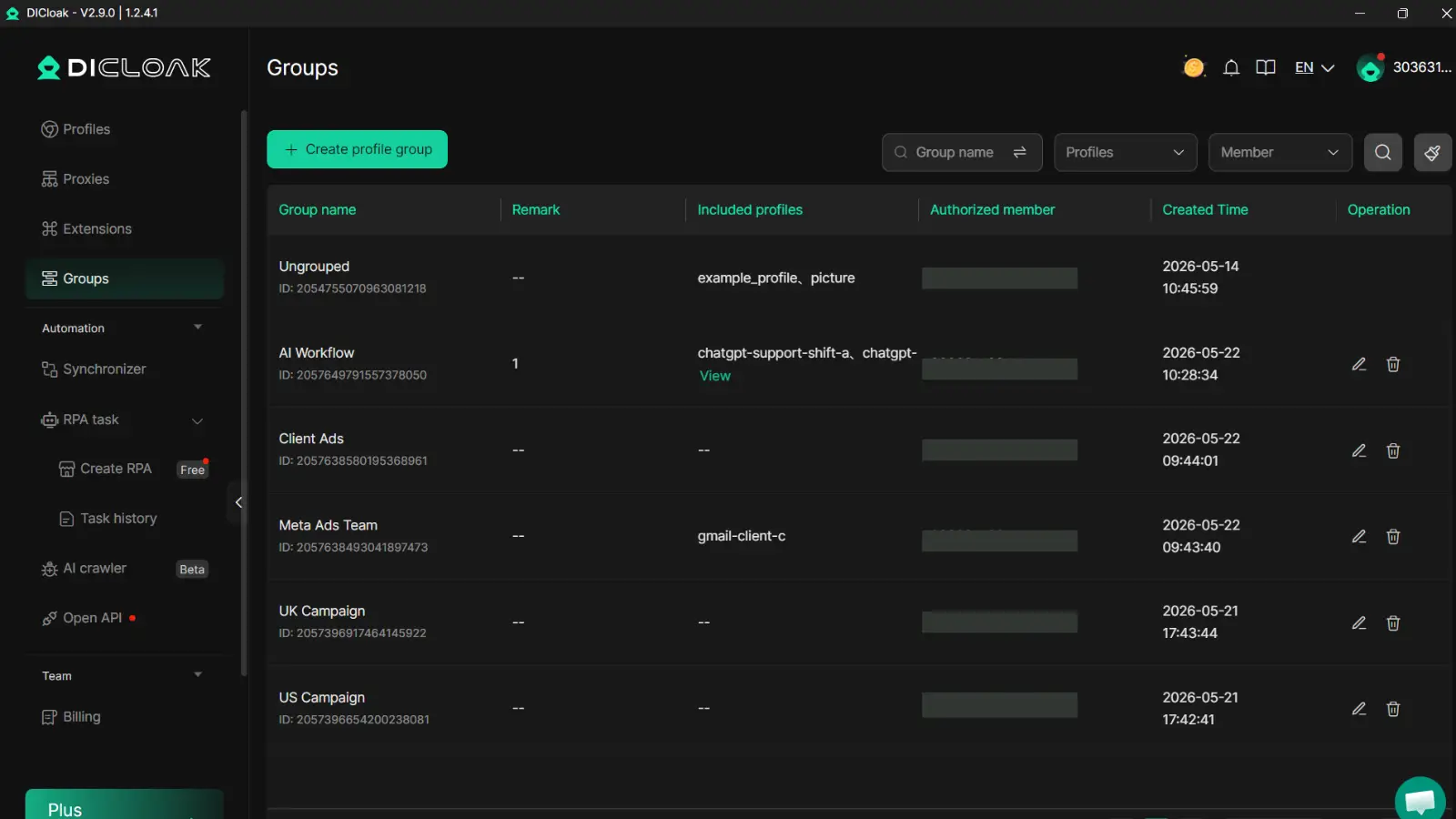
You can use DICloak to keep each Instagram account inside its own browser profile. That gives each account a separate browser fingerprint, which lowers cross-account linkage risk during team access. You can also assign one proxy per profile and set role-based permissions, so editors can check settings without getting full login control. Use operation logs to see who changed notification settings and the exact time.
Practical workflow: setup, permissions, and repeatable changes
Create one profile per Instagram account. Lock team roles before anyone edits settings. Run a fixed checklist for how to turn off instagram instants: app toggle, phone toggle, browser permission, test message. Use batch actions or RPA for repeat checks, then review logs weekly. This catches silent resets early and keeps all accounts aligned.
What mistakes cause people to miss important alerts after turning Instants off?
If you’re learning how to turn off instagram instants, the main mistake is turning off alert groups that also carry DMs, mentions, login warnings, and security emails.
Turning off whole notification groups instead of Instants only
People often tap broad switches like “Pause All,” then miss time-sensitive messages. Keep Instants off, but leave direct messages, mentions, and account security alerts on.
Ignoring device settings after changing Instagram settings
Phone-level controls can still hide alerts through Focus or scheduled summaries. Tools like DICloak let you keep per-account browser profiles with isolated fingerprints and per-profile proxies, so one account’s changes do not spill into another.
This helps teams that share social work. You can use DICloak permissions and operation logs to enforce one policy: Instants off, key alerts on. If someone disables the wrong toggle, logs show what changed and when.
Not testing after every major app update
Instagram and OS updates can reset channels quietly. Run a 60-second monthly test: send a DM, trigger a mention, check login alert delivery. Save your preferred setup in a shared team note if you manage multiple accounts and repeat how to turn off instagram instants safely.
What to do if the Instagram Instants option is missing entirely
If you are searching how to turn off instagram instants and the toggle is gone, do not stop at one screen. Missing controls usually come from app rollout timing, account mode, or renamed notification categories in Instagram notification settings.
Check version, account type, and feature rollout status
Personal and professional accounts can show different notification labels. So check account type in Settings before troubleshooting deeper. Also check your app version in App Store or Google Play. Staged rollouts mean two users on the same version can still see different menus for a short period.
| What you see |
Likely reason |
What to do now |
| No “Instants” label |
Label renamed in your build |
Check notification subcategories |
| Option missing on one account only |
Account-type UI difference |
Switch account and compare menus |
| Option missing after update |
Rollout not active in region yet |
Wait 24–72 hours, recheck |
Alternative paths: notifications subcategories and search inside settings
Use Settings search inside Instagram and type terms like “instant,” “live,” “push,” and “from Instagram.” In newer builds, old “Instants” wording may map to push categories like live videos, reminders, or activity alerts. If that still fails, disable Instagram notifications at OS level in iPhone notification settings or Android notification channels. This is the fastest fallback while menus differ.
When to contact Instagram support and what details to include
Report through Help > Report a Problem. Include device model, OS version, Instagram app version, account type, region, and screenshots of each notification page. Describe exact steps and the missing label text. A clear report cuts back-and-forth and speeds review. Use this same checklist if you are still troubleshooting how to turn off instagram instants after updates.
Frequently Asked Questions
Does how to turn off instagram instants also mute direct messages?
Usually no. When you follow how to turn off instagram instants, Instagram only changes that alert group, not your DM alerts. To verify, open Settings and privacy → Notifications → Messages and confirm message alerts are still set to On. Send a test DM from another account to check sound and banner behavior.
In how to turn off instagram instants, how long do changes take to apply?
Most notification changes apply right away after you tap save or go back. In some cases, phone sync can lag for a minute or two. If alerts still appear, close and reopen Instagram, then send a quick test notification (like a story mention) to confirm the new setting works.
Why is the Instagram Instants menu name different on my app when following how to turn off instagram instants?
Instagram often changes label names by app version, phone type, and region. “Instants” may appear under broader sections like Activity, Posts, Stories and Comments, or From Instagram. Look for matching alert types instead of exact words. Update the app first, then check each notification section for equivalent toggles.
Can I turn off Instagram Instants for one account but keep it on for another?
Yes. Instagram stores notification settings per account, not one global setting for all profiles. Switch to the account you want to edit, then open Settings and privacy → Notifications and change Instants there. Repeat on your second account and leave its Instants toggle enabled if you still want those alerts.
Will reinstalling Instagram reset my Instants preferences?
It can. Reinstalling may keep some server-side settings, but device-level notification choices often return to defaults. Before reinstalling, note your key options or take screenshots. After reinstall, review how to turn off instagram instants steps again and recheck both Instagram app toggles and your phone notification permissions.
Turning off Instagram instants is mostly about finding the right notification and message settings, then disabling the instant alerts that distract you most. Once you customize these controls, you can check Instagram on your own schedule instead of reacting to every real-time prompt.Try DICloak For Free
 Web Proxy Tools
 Free Tools
 Cookie Plugin
 UA Generator
 MAC Address Generator
 IP Generator
 IP Address List
 2FA Code Generator
 World Clock
 Anonymous Check
 WebRTC Leak Test
 UUID Generator
 Free Web Proxy Site
 Proxy Checker
 FB Ad Checker
 AI Web Scraping
 Free SMM Tools
 Twitter Shadowban Checker
 Instagram Name Checker
 UTM Generator
 Username Generator
 AI Hashtag Generator
 LinkedIn Headline Generator
 Social Media Image Resizer