Unblocking someone on Instagram should be easy, but it can get confusing when the profile is missing, the username changed, or the app does not show the right button. This guide explains how to unblock users on Instagram in 2026, including mobile, desktop, search issues, and what happens after you unblock someone.
Why Can't I Unblock Users on Instagram?
Many people search how to unblock users on Instagram because the unblock option is not always easy to find. In 2026, Instagram still lets you unblock people from their profile or from your blocked accounts list in settings. But the process can feel confusing if the account changed its username, deleted the profile, or blocked you back. Instagram also notes that you can review blocked accounts from settings and tap Unblock next to the account you want to unblock.
Common Mistakes When Trying to Unblock
A common mistake is searching for the old username. For example, if you blocked someone last year and they changed their name, their profile may not show up in search. Another mistake is thinking that you can unblock yourself if another person blocked you. You cannot. You can only unblock accounts that you blocked. So when users ask, “how I unblock someone on Instagram,” the first step is to check your own blocked list, not their profile.
How Privacy Settings Affect Unblocking
Privacy settings can also make things feel broken. If the person now has a private account, you may unblock them but still not see their posts. You may also need to follow them again, because blocking often removes the follow connection. Also, Instagram explains that messages sent while someone was blocked will not be delivered later after unblocking.
What to Do If Instagram Won't Let You Unblock
If Instagram will not let you unblock users, update the app first. Then try from Settings and activity > Blocked accounts. If the button does not work, close the app, clear cache, or try Instagram on a browser. If the profile was removed or disabled, you may not be able to open it right away. In that case, wait and check again later.
Steps to Unblock Users on Instagram Using Mobile
After checking the common reasons, the next step is to use the Instagram app. For most users, mobile is the easiest way to fix this. If you want to know how to unblock users on Instagram, start from your own account settings, not from search. Instagram says you can view blocked accounts in settings and tap Unblock next to the account you want to unblock.
Navigating the Instagram App for Unblocking
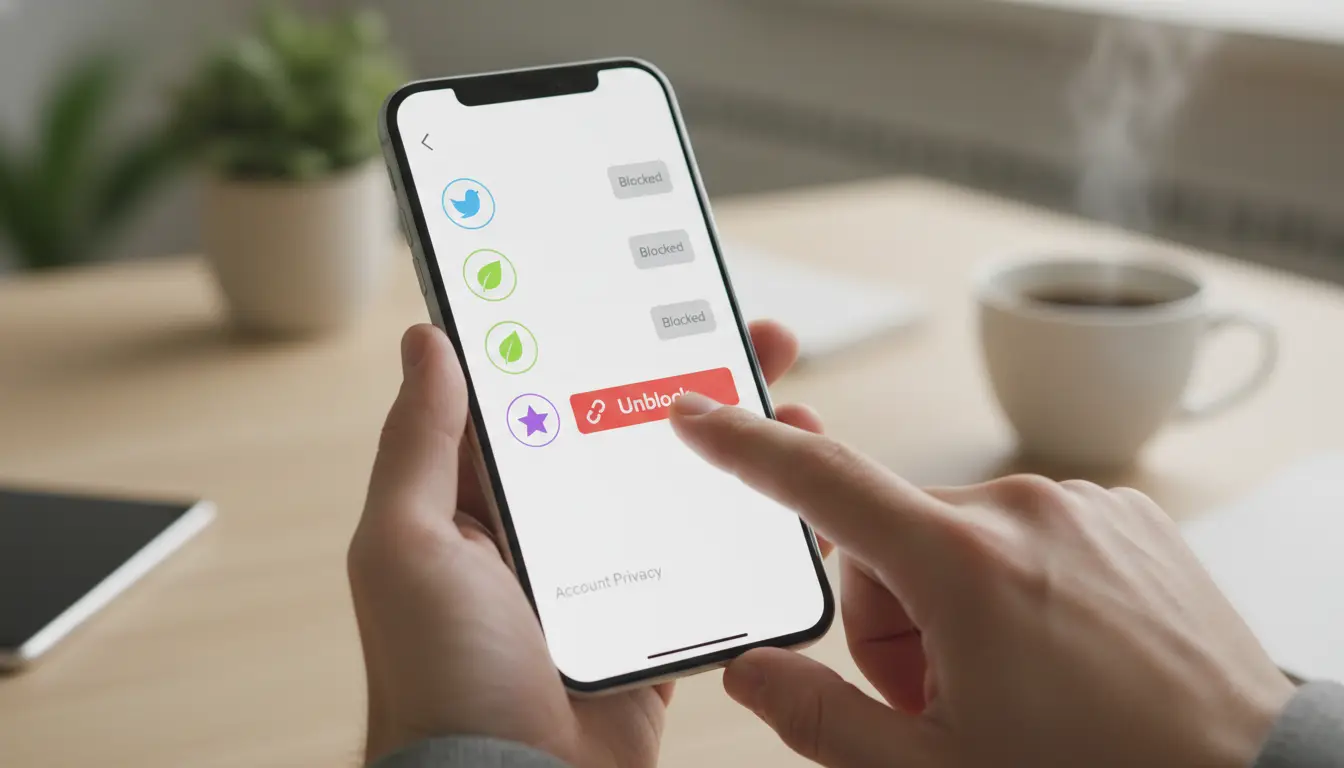
Open Instagram on your phone. Tap your profile picture in the bottom right. Then tap the three-line menu in the top right. Go to Settings and activity, then look for Blocked or Blocked accounts. Here, you can see the accounts you blocked before.
For example, maybe you blocked an old friend during an argument. Later, you cannot find their profile in search. In this case, the blocked list is a better place to check. This is also the cleanest answer to “how I unblock someone on Instagram” when the username has changed.
Confirming the Unblock Action on Mobile
When you find the right account, tap Unblock. Instagram may ask you to confirm. Read the username carefully before tapping again. This is important if several accounts have similar names.
After you unblock the user, they may be able to find your profile again, depending on your privacy settings. But this does not mean you follow each other again. If you want to reconnect, you may need to follow them again, and they may need to approve your request if their account is private.
Troubleshooting Mobile Unblocking Issues
If the Unblock button does not work, update Instagram first. Then close the app and open it again. You can also switch from Wi-Fi to mobile data, or try Instagram in a mobile browser.
If the account was deleted, disabled, or blocked you back, the profile may still not open normally. In that case, check the blocked list later. Do not keep tapping too fast, because repeated actions can make the app act slowly or show errors.
How to Unblock Users on Instagram Using a Desktop
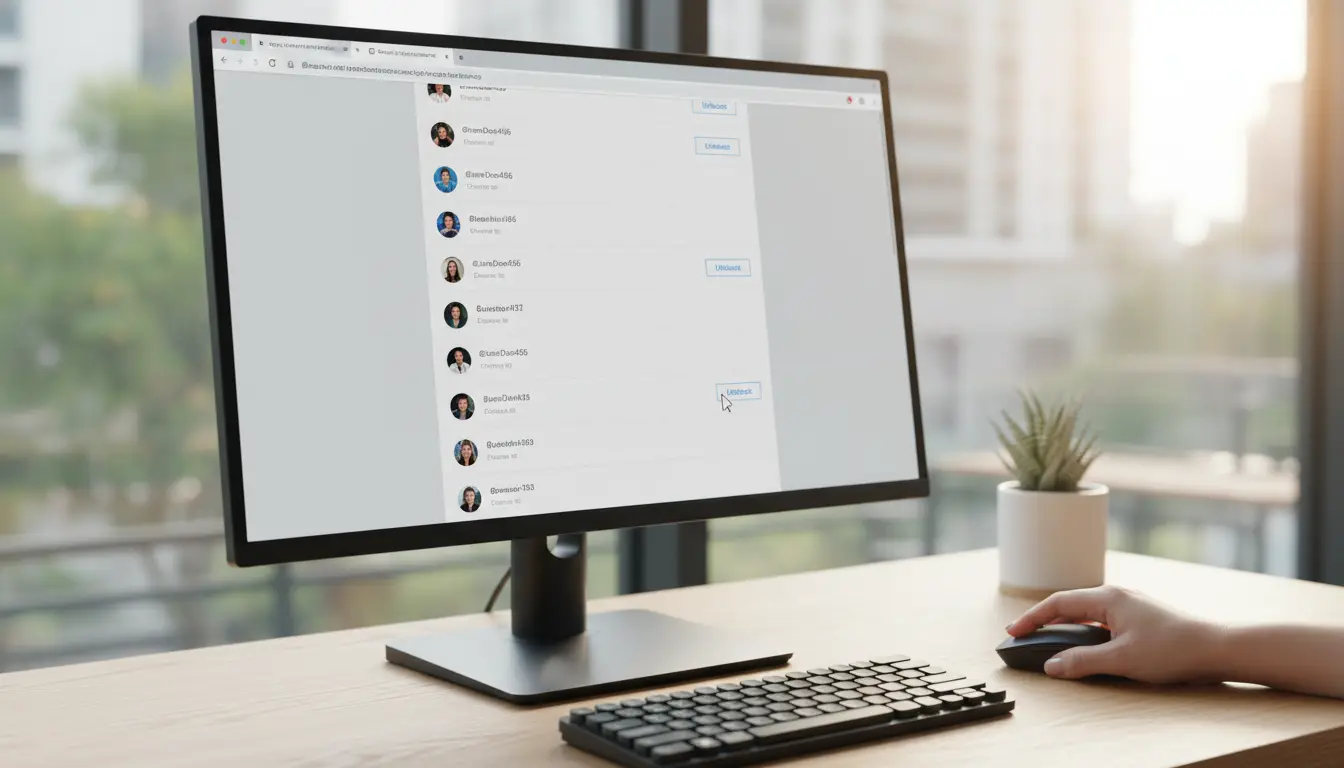
If the mobile app is slow or the Unblock button does not respond, a desktop browser is a good backup. The steps are simple, but the layout looks a little different from the app. For users searching how to unblock users on Instagram, desktop can also help when the phone screen feels too crowded or the app keeps freezing.
Accessing Instagram Settings on a Browser
Open Instagram in a browser and log in to your account. Then click More on the left side and go to Settings. From there, look for the blocked accounts area. Instagram’s Help Center says users can review blocked accounts from settings and click Unblock next to the account they want to unblock.
For example, if you blocked a customer, classmate, or old friend by mistake, desktop view may make the list easier to check. This helps you confirm the right account before changing anything.
Completing the Unblock Process on Desktop
Once you find the account, click Unblock. Instagram may show a confirmation box. Read it first, then confirm the action. This matters because unblocking can let the person see your profile, follow you, or message you again, based on your account settings.
This is also a clear answer to “how I unblock someone on Instagram” when the app does not work well. You are not changing their privacy settings. You are only removing them from your own blocked list.
Differences Between Mobile and Desktop Unblocking
Mobile is usually faster for daily use. Desktop is better when you want a larger screen or need to check several blocked accounts carefully. The main action is the same on both: find the blocked account, then choose Unblock.
One small difference is where the menu appears. On mobile, you usually start from your profile and the three-line menu. On desktop, you often start from the left menu and settings. If one method fails, try the other before assuming the account is gone.
| Method |
Best For |
Main Steps |
When to Use |
| Mobile app |
Most daily users |
Profile → menu → Settings and activity → Blocked accounts → Unblock |
When the app works normally |
| Desktop browser |
Larger screen checking |
More → Settings → blocked accounts area → Unblock |
When mobile app is slow or crowded |
| User profile page |
Users who know the current username |
Search profile → open page → tap/click Unblock |
When the profile still appears in search |
What Happens After You Unblock Someone on Instagram?
After you learn how to unblock users on Instagram, it is also important to know what changes next. Unblocking does not reset everything back to the way it was before. It only removes the block from your side. Instagram explains that messages sent while someone was blocked will not be delivered later, even after you unblock them.
Changes in Interaction and Visibility
Once you unblock someone, they may be able to search for your profile, view your public content, and contact you again. If your account is private, they may need to send a follow request first. For example, if you unblock an old classmate but keep your account private, they still cannot see your posts unless you approve them.
This is why users who ask “how I unblock someone on Instagram” should also check privacy settings after unblocking. If you do not want full contact again, you can keep your account private or limit who can message you.
Can They See Past Content After Unblocking?
After unblocking, the person may be able to see content that is currently available on your profile. But deleted posts, expired Stories, and removed comments will not come back. Instagram also says messages sent during the block period are not delivered later.
For example, if they sent you a message while blocked, you will not suddenly receive it after unblocking. This can help avoid confusion if the chat looks quiet after the block is removed.
How Unblocking Affects Your Follower List
Unblocking someone does not always make you follow each other again. If blocking removed the follower connection, you may need to follow them again by hand. They may also need to follow you again.
So, after you unblock a user, check the Follow button. If their account is private, your follow request may need approval. This small step matters if you are trying to reconnect with a friend, customer, or creator account.
How to Follow Someone After Unblocking Them
After you unblock someone, the next question is often how to reconnect. Learning how to unblock users on Instagram is only the first part. In many cases, you still need to follow the person again. Instagram’s Help Center says users can manage blocked accounts from settings and unblock them there, but following is a separate action.
Steps to Reconnect with Unblocked Users
First, go to the person’s profile after unblocking them. If the account is public, tap Follow. You should be able to see their posts once the follow action works. If the account is private, tap Follow and wait for them to approve your request.
For example, if you unblock a creator you used to follow, their button may show Follow instead of Following. This does not mean the unblock failed. It only means the old follow connection is gone. So, when users ask “how I unblock someone on Instagram and follow them again,” the answer is simple: unblock first, then follow again from their profile.
Managing Notifications for Unblocked Users
Following someone does not always mean you will get every update from them. Instagram lets users manage notifications for posts, stories, reels, live videos, messages, and follow requests.
If you want to see their updates, open their profile and check the notification bell. You can choose what you want to receive. For example, you may turn on Story notifications for a close friend, but leave Reels notifications off for a creator account. This keeps your feed and phone alerts easier to manage.
Avoiding Mistakes When Refollowing
Before you tap Follow, make sure it is the right account. Some users have similar usernames, old fan pages, or fake profiles. Check the profile photo, bio, posts, and mutual followers first.
Also, do not send repeated follow requests too quickly. If the account is private, one request is enough. Tapping again may cancel the request by mistake. If your request stays pending, wait. The person may not have seen it yet, or they may choose not to approve it.
How to Handle Situations Where Users Don't Appear in Search
After refollowing, you may still fail to find the person. This does not always mean the unblock failed. When learning how to unblock users on Instagram, it is safer to check your blocked list first, not only the search bar. Instagram says blocked accounts can be reviewed and unblocked from settings.
| Problem |
Possible Reason |
What to Try |
| Cannot find the old username |
The person changed their username |
Check your blocked accounts list |
| Profile does not open |
Account may be deleted or disabled |
Wait and check again later |
| Search shows no result |
They may have blocked you back |
Check blocked list first |
| Unblock button fails |
App bug, cache issue, or network problem |
Update app, clear cache, or try browser |
| Blocked list does not load |
Temporary Instagram issue |
Try later or contact Instagram support |
Reasons Users Might Not Show Up
The person may have changed their username, deleted the account, or disabled it. They may also have blocked you back. For example, if an old friend changed their handle after you blocked them, the name you remember may no longer work.
Alternative Methods to Find and Unblock
Go to Settings and activity > Blocked accounts. Then look through the list and tap Unblock beside the right profile. This is often the best answer to “how I unblock someone on Instagram” when search gives no result.
When to Contact Instagram Support
Contact Instagram support if your blocked list will not load, the unblock button keeps failing, or the account shows an error for several days. Before reporting it, update the app, try a browser, and take a screenshot of the issue.
Using DICloak for Secure Instagram Account Management
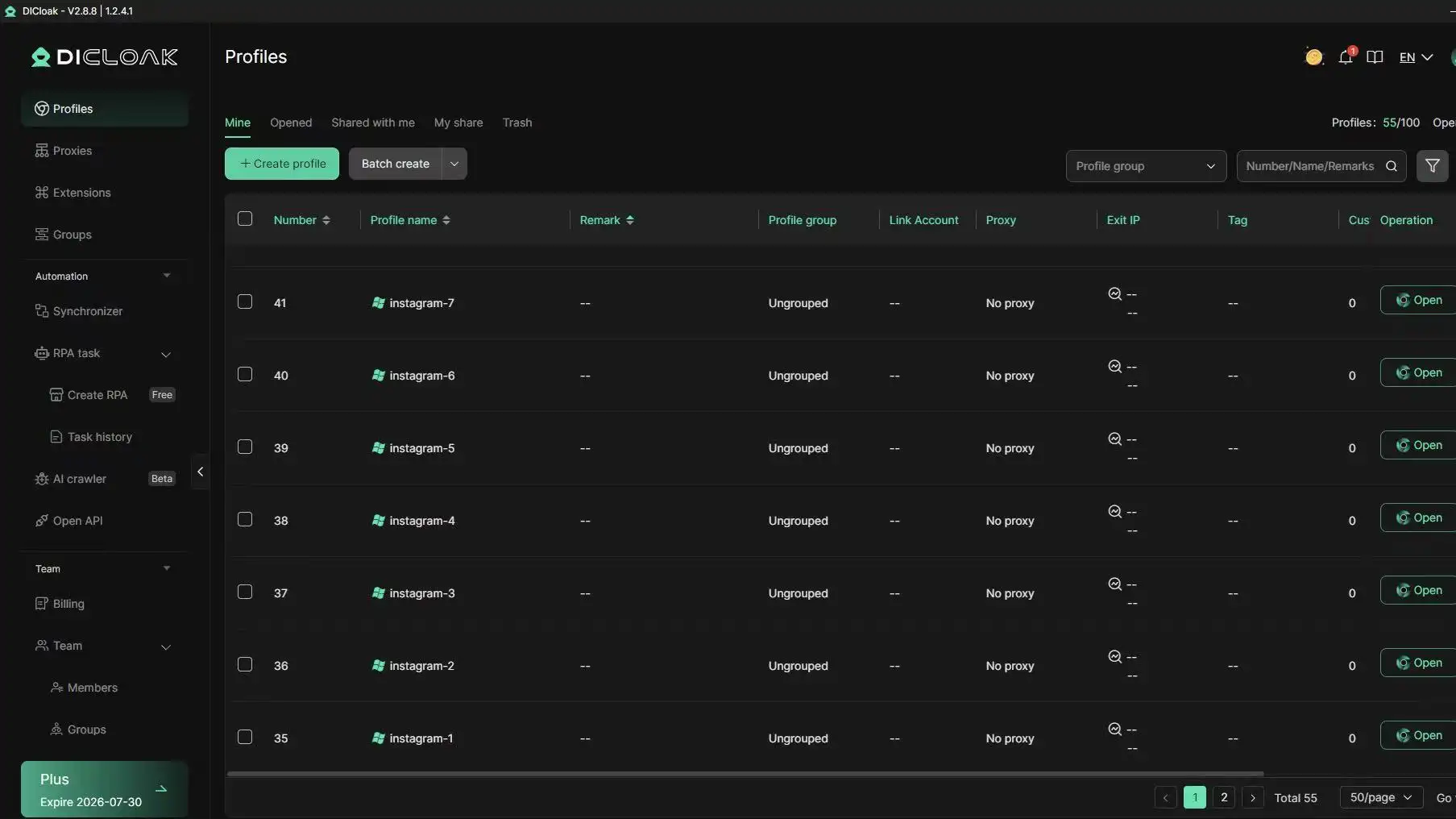
Unblocking someone on Instagram is only one part of account management. If you manage several Instagram accounts for a brand, agency, or online business, stable login status and clean browser data also matter. You can use DICloak to keep each account in a separate browser profile, so daily Instagram work becomes easier to manage.
Preventing Login Issues with Unique Browser Profiles
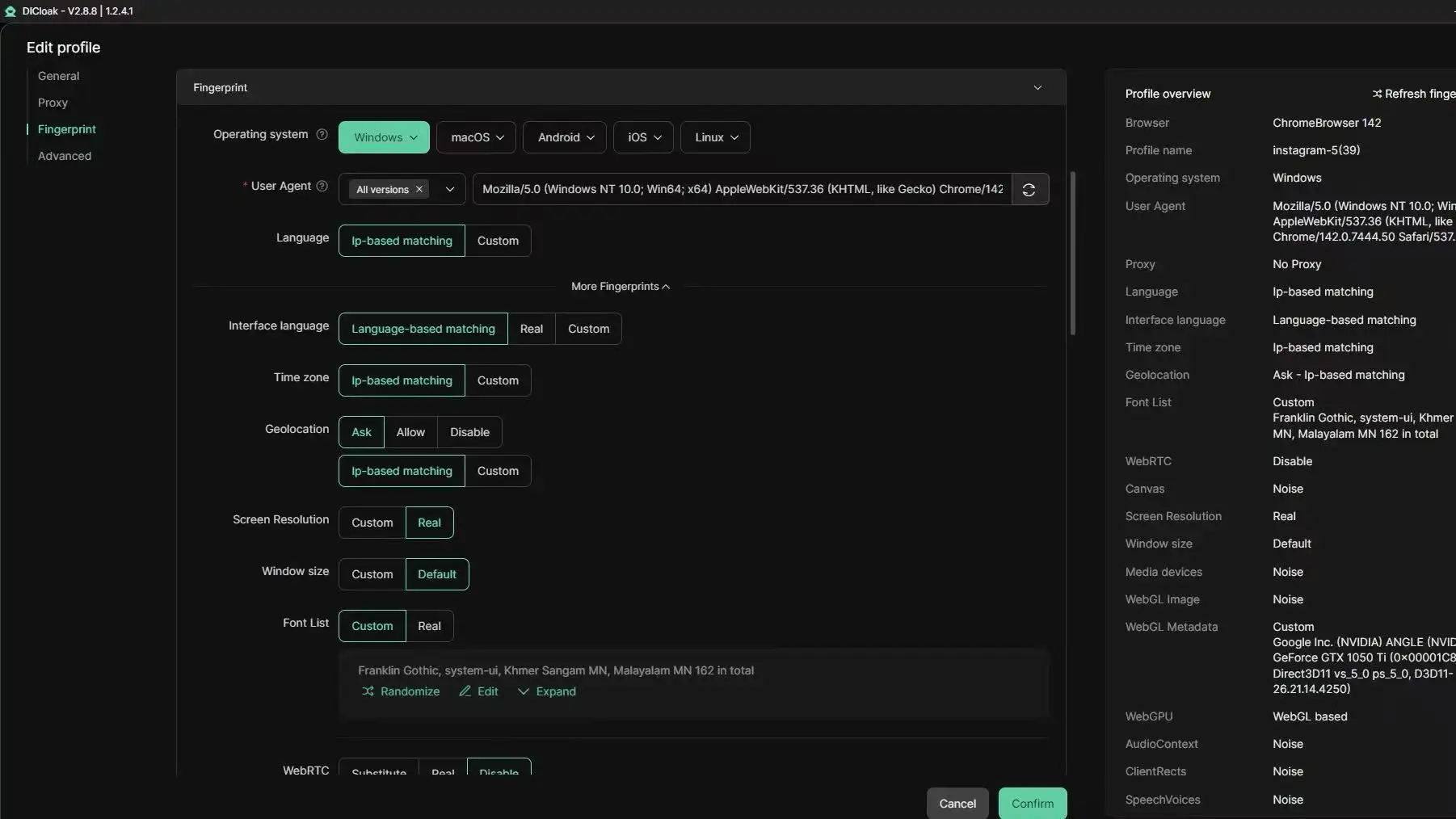
After you unblock users on Instagram, stable account access is still important. If you log in to many Instagram accounts from the same browser, cookies, saved sessions, and browser data may mix. You can use DICloak to create a unique browser profile for each Instagram account and customize its fingerprint, so every account works in a cleaner and more separate environment.
Managing Multiple Instagram Accounts Safely
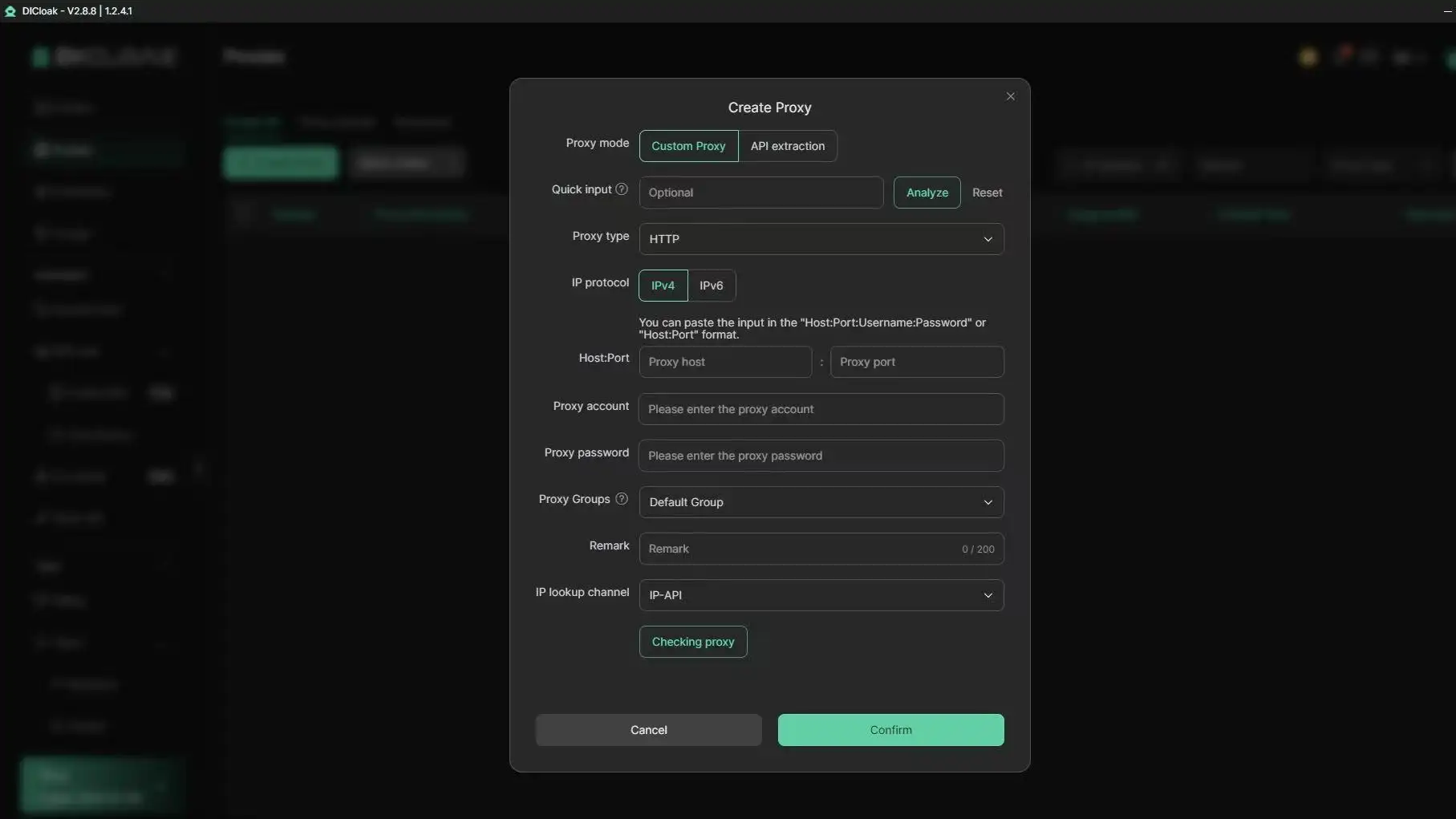
For social media teams, account separation can make daily work much easier. You can configure a different proxy for each profile in DICloak, keep login environments more consistent, and reduce session conflicts. You can also share profiles with team members, set permissions, and check operation logs without handing over passwords directly.
Automating Repetitive Actions to Save Time
Some Instagram tasks are simple but take time, such as opening accounts, checking pages, or repeating the same basic steps across profiles. You can use DICloak’s RPA tools and Synchronizer to handle selected repetitive actions more efficiently. This helps teams save time while keeping different Instagram accounts in separate browser profiles.
Frequently Asked Questions about How to Unblock Users on Instagram
Q1: How to unblock users on Instagram if I cannot find their profile?
If you cannot find the person’s profile, the best way to handle how to unblock users on Instagram is to check your blocked accounts list. Go to Instagram settings, open the blocked accounts section, and look for the username there. If the account was deleted, disabled, or renamed, it may not appear in search. You can also try using an old DM thread or a tagged post to reach the profile.
Q2: How to unblock users on Instagram on iPhone or Android?
To learn how to unblock users on Instagram on iPhone or Android, open the Instagram app and go to your profile. Tap the menu, open Settings and privacy, then find Blocked accounts. Choose the user you want to unblock and tap Unblock. Instagram may ask you to confirm the action before the block is removed.
Q3: How to unblock users on Instagram using a desktop browser?
If you want to know how to unblock users on Instagram on desktop, log in to Instagram from your browser first. Search for the blocked user’s profile if it still appears. Open the profile page and click Unblock. If you cannot find the profile through search, try checking from the mobile app, since some account settings are easier to access there.
Q4: What happens after I unblock users on Instagram?
After you complete how to unblock users on Instagram, the person may be able to find your profile again, send messages, or interact with your public content. However, unblocking does not automatically make you follow each other again. If your account is private, the unblocked user may need to send a new follow request before seeing your posts or Stories.
Q5: Why does Instagram not let me unblock users right away?
Sometimes how to unblock users on Instagram may not work right away because of app bugs, slow updates, account restrictions, or a temporary Instagram issue. Try refreshing the app, updating Instagram, clearing cache, or logging in from another device. If the account is disabled or removed, the unblock option may not appear normally. In that case, you may need to wait and check again later.
Conclusion
Now you know how to unblock users on Instagram from the app, desktop, or blocked accounts list. If the person does not appear, check for username changes, deleted accounts, or privacy limits. After unblocking, you may need to follow them again and adjust your privacy or notification settings.
 Web Proxy Tools
 Free Tools
 Cookie Plugin
 UA Generator
 MAC Address Generator
 IP Generator
 IP Address List
 2FA Code Generator
 World Clock
 Anonymous Check
 WebRTC Leak Test
 UUID Generator
 Free Web Proxy Site
 Proxy Checker
 FB Ad Checker
 AI Web Scraping
 Free SMM Tools
 Twitter Shadowban Checker
 Instagram Name Checker
 UTM Generator
 Username Generator
 AI Hashtag Generator
 LinkedIn Headline Generator
 Social Media Image Resizer