One Synthesia account may work fine when one person handles every video. But once more people need to write, edit, review, or update content, that setup can quickly become a bottleneck. At CHRISTUS Health, video requests once went through a single creator; after more team members could work independently on shared videos, training video output increased 3x.
That raises a practical question for any growing team: how do you give a freelancer, editor, or teammate access without simply handing over your password? Synthesia offers guest access and Enterprise collaboration, while other options can help when someone needs to work from an existing account. This guide breaks down what each option allows and how to share a Synthesia account with your team without sharing passwords.
Why Do Teams Want to Share a Synthesia Account?
Teams usually want to share Synthesia when video creation becomes a shared job rather than something one person handles from start to finish. The need is often practical: someone else has to edit, update, or manage videos inside the same workflow. Common situations include:
- Working with freelancers or temporary editors. A contractor may need to update scripts, change scenes, or finish several videos for a short project. Giving them the right level of access is easier than having the account owner make every change for them.
- Splitting video production across a team. One person may prepare the script while another handles the video itself. When the team produces content regularly, passing every edit through a single account owner quickly becomes a bottleneck.
- Letting remote team members work on the same projects. Marketing, training, and content teams are often spread across different locations. They may still need access to the same Synthesia projects, templates, and existing work.
- Keeping ongoing video work in one place. Teams that regularly update training, product, or marketing videos may want new editors to continue working from the existing account setup instead of rebuilding the workflow each time someone joins a project.
The real reason teams look for ways to share Synthesia is usually not simply to let more people log in. They want other people to do real work without making the main account owner the middleman for every edit or update. That makes Synthesia's pricing and account-sharing rules the next thing to check.
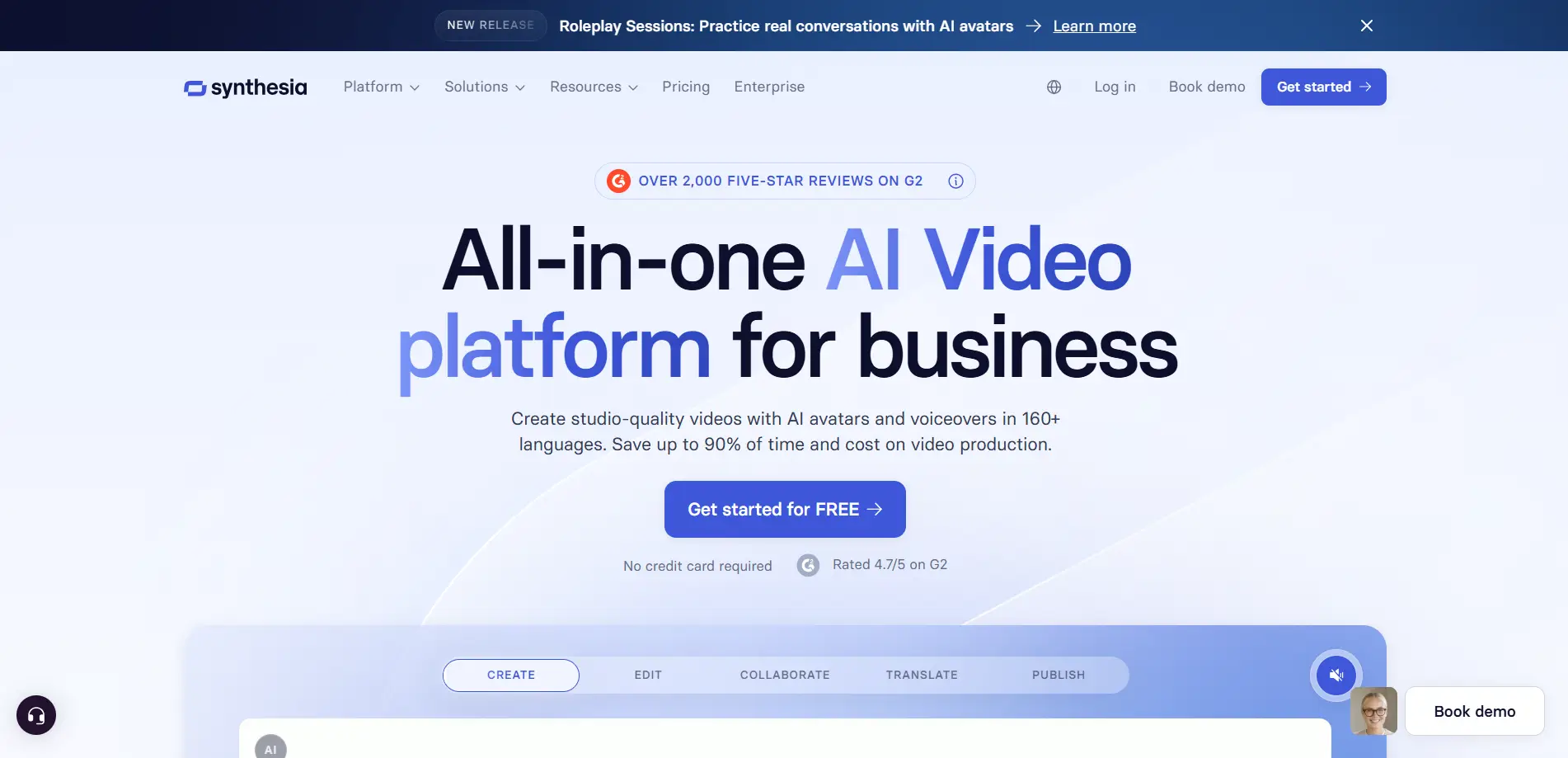
What Do Synthesia Pricing and Account-Sharing Rules Allow?
Synthesia does let you bring other people into your video workflow, but the amount of access changes a lot by plan. Starter and Creator still have only one editor, so adding guests does not turn either plan into a multi-editor team account; teams that need several regular editors are pushed toward Enterprise. The current monthly plans make that difference fairly clear:
| Plan |
Monthly Price |
Team Access |
What It Means for Sharing |
| Basic |
Free |
1 editor |
Best for one person testing or creating videos |
| Starter |
$29/month |
1 editor + 3 guests |
You can bring a few people in to review shared videos, but they do not become extra editors |
| Creator |
$89/month |
1 editor + 5 guests |
Better for a creator who needs more guest reviewers, but it is still a single-editor plan |
| Enterprise |
Custom pricing |
Custom editors + guests |
Designed for teams that need shared workspaces and ongoing collaboration |
The guest limit is where many teams get confused. On self-serve plans, guests can access videos shared with them and leave comments, but they do not get the same access as another editor. Even if an invite shows options such as Can Edit or Full Access, those permissions only allow a guest to edit and generate a video on an Enterprise workspace with the required license.
That makes Starter and Creator useful when a client, manager, or teammate mainly needs to review a video. They are much less suitable when two or more people need to create and edit Synthesia videos as part of their regular work. Shared workspaces are reserved for Enterprise, where members can work across workspace content and admins can manage broader team access.
So before paying for a higher plan or handing someone the same login, first decide whether that person needs to review, edit, or actually work inside the account on a regular basis. That difference determines which sharing method makes sense next.
What Are the Ways to Share a Synthesia Account Without Sharing Passwords?
There are four practical ways to give someone access to Synthesia without simply sending your password: guest invitations, an Enterprise workspace, a password manager, or a shared browser Profile. The right choice depends on what that person needs to do—review one video, edit regularly, or work inside an existing logged-in account.
Invite Guests for Reviews and Limited Collaboration
Guest access makes the most sense when someone only needs to work with specific videos. You can invite a client, manager, or outside collaborator by email and choose a permission level such as Can Comment, Can Edit, or Full Access. What the guest can actually do still depends on the Synthesia plan and license behind that invitation.
For example, a client who only needs to review a training video does not need access to the main account. Guest sharing keeps that work tied to the video they were invited to, which is usually cleaner than giving them a shared login. External guests can also be limited to folders that are specifically shared with them.
Use an Enterprise Workspace for Regular Team Editing
If several employees create or edit Synthesia videos every week, an Enterprise workspace is the better native setup. Shared workspaces are reserved for Enterprise, while self-serve plans support guest access but remain limited to one primary user.
This fits an in-house marketing or training team better than passing around one login. Members can work across the workspace, while admins can invite users and set their roles and permissions. For regular team production, separate user access is easier to manage than treating every editor as a temporary guest.
Use a Password Manager for Occasional Shared Login Access
A password manager is another option when the team still needs to use the same Synthesia login. Instead of pasting the password into Slack or email, the account owner can place the login in a shared vault and control who has access to it.
The limitation is that this is still one shared Synthesia account, not separate Synthesia user access. It can make credential sharing more organized, but it does not turn a Starter or Creator account into a multi-editor workspace.
Use an Antidetect Browser for Existing-Account Access
Sometimes a freelancer or temporary teammate needs to work inside the existing logged-in Synthesia account, not just review a shared video. In that case, an antidetect browser can be useful because the team can share a browser Profile that already contains the account's login session instead of sending the login details back and forth.
For example, with DICloak, a browser Profile can be shared with selected team members while team permissions control who can access it. The Profile keeps browser data such as cookies and login state together, so a teammate can continue from the existing session when access has been assigned.
| Method |
Best For |
Main Trade-Off |
| Guest invitation |
Clients, reviewers, occasional collaborators |
Access depends on plan, permission, and license |
| Enterprise workspace |
Regular editors and internal teams |
Requires Enterprise |
| Password manager |
Occasional use of one shared login |
Still relies on shared credentials |
| Antidetect browser |
Temporary access to an existing logged-in account |
Does not replace native team licenses |
The important part is to match the sharing method to the job. A reviewer does not need the same setup as a full-time editor, and someone who only needs temporary access to an existing account may not need the same solution as an entire video team.
Why Use DICloak to Share a Synthesia Account?
Using an antidetect browser like DICloak makes more sense when a teammate needs to work inside an existing logged-in Synthesia account, rather than only review a shared video. It gives the account owner more control over how that access is shared, who receives it, and how the shared workflow is managed.
- Share the browser Profile instead of sending the password. A freelancer or temporary editor may need to continue work in the same Synthesia account for a few days. With DICloak, the owner can prepare a browser Profile with the existing login session and give the teammate access to that Profile, so the password does not need to be sent through chat or email. Shared Profiles can carry synced browser data when data sync is enabled.
- Control who can access the Synthesia Profile. Giving someone account access should not mean giving them access to every tool the team uses. With DICloak, team permissions and Profile groups can limit members to specific Profiles, and access can be removed when a project or contract ends. This is especially useful when several freelancers or departments share different SaaS accounts.
- Keep team activity easier to track. Shared logins can make it hard to tell who changed something or who still has access. With DICloak, operation logs can show member actions, login activity, browsing records, and Profile-sharing history, giving team owners a clearer record of how shared Profiles are being used.
- It can be more practical for temporary access. If the real need is to let a contractor use an existing Synthesia session, moving the whole team to Enterprise may be more access than the workflow requires. The DICloak Plus plan is currently $28.8 per month and includes Profile sharing, while Synthesia Enterprise uses custom pricing. It gives smaller teams another option for controlled shared-session access.
How to Share a Synthesia Account with Your Team Using DICloak
If teammates need to use the same existing Synthesia account, you can keep the logged-in session inside a dedicated browser Profile and share that Profile with selected members. This reduces the need to send the account password directly.
1. Set Up Your DICloak Team
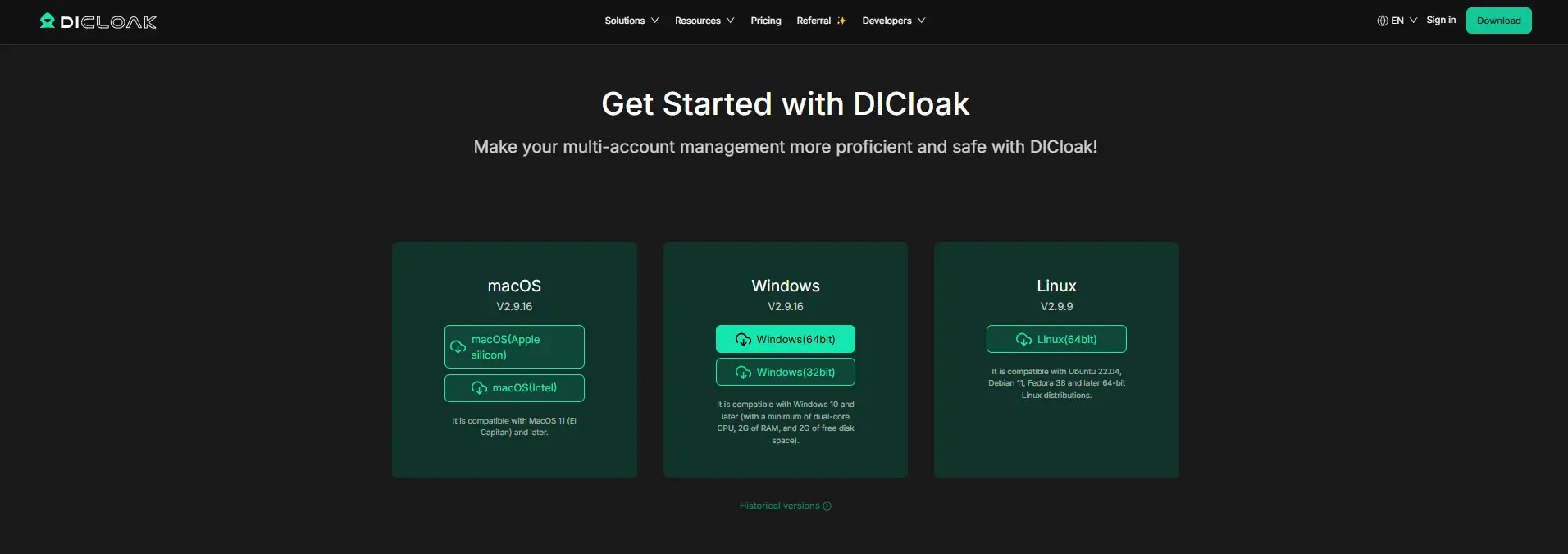
Install DICloak, create your team, and choose a plan based on the number of members and Profiles you need. Give each teammate their own member account instead of sharing the administrator login.
2. Create a Dedicated Synthesia Profile
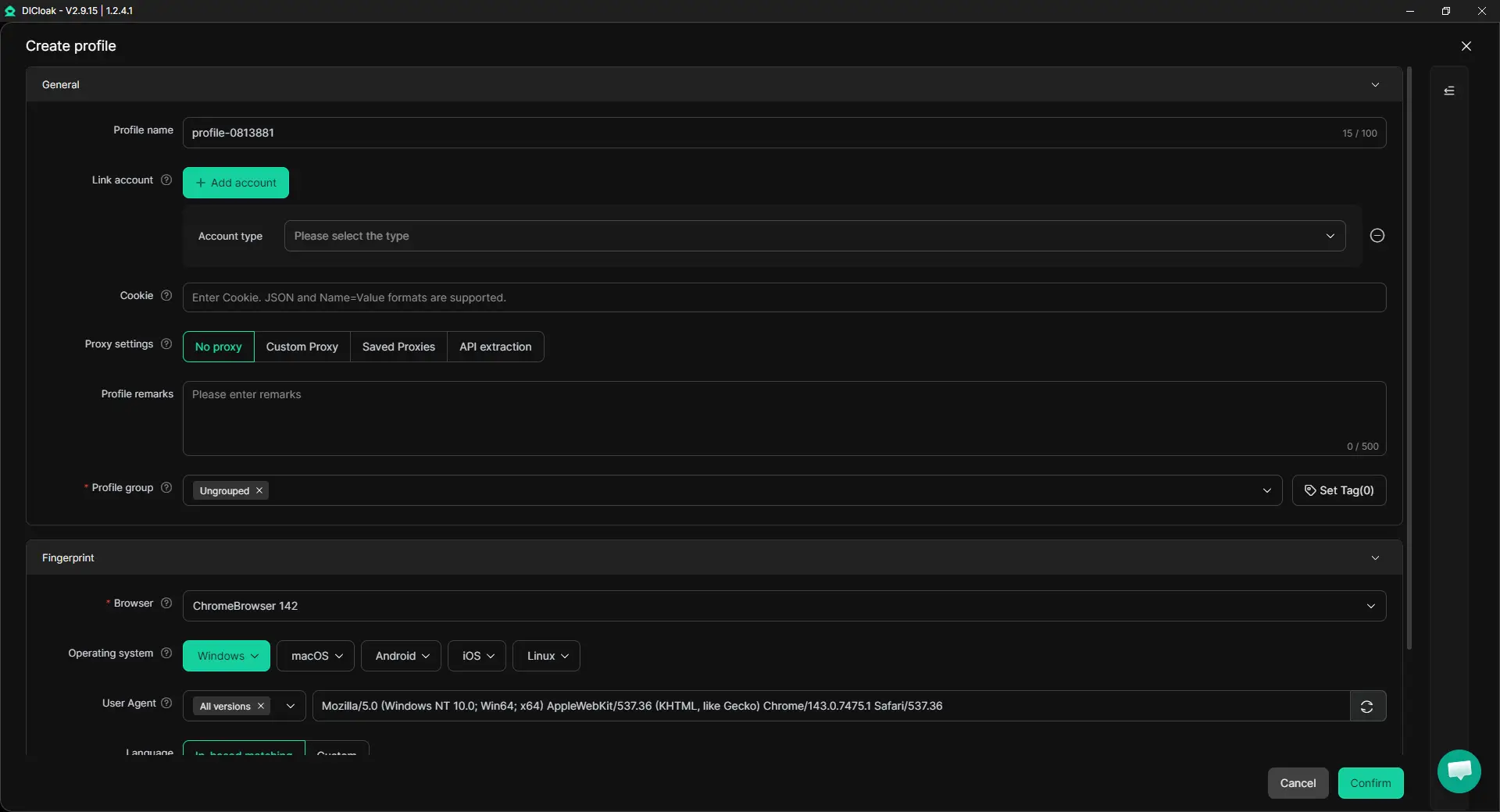
Create one Profile only for Synthesia and give it a clear name, such as Synthesia – Marketing Team. Keep its browser settings consistent and add your own proxy if your workflow requires a specific network or location.
3. Set the Session Rules
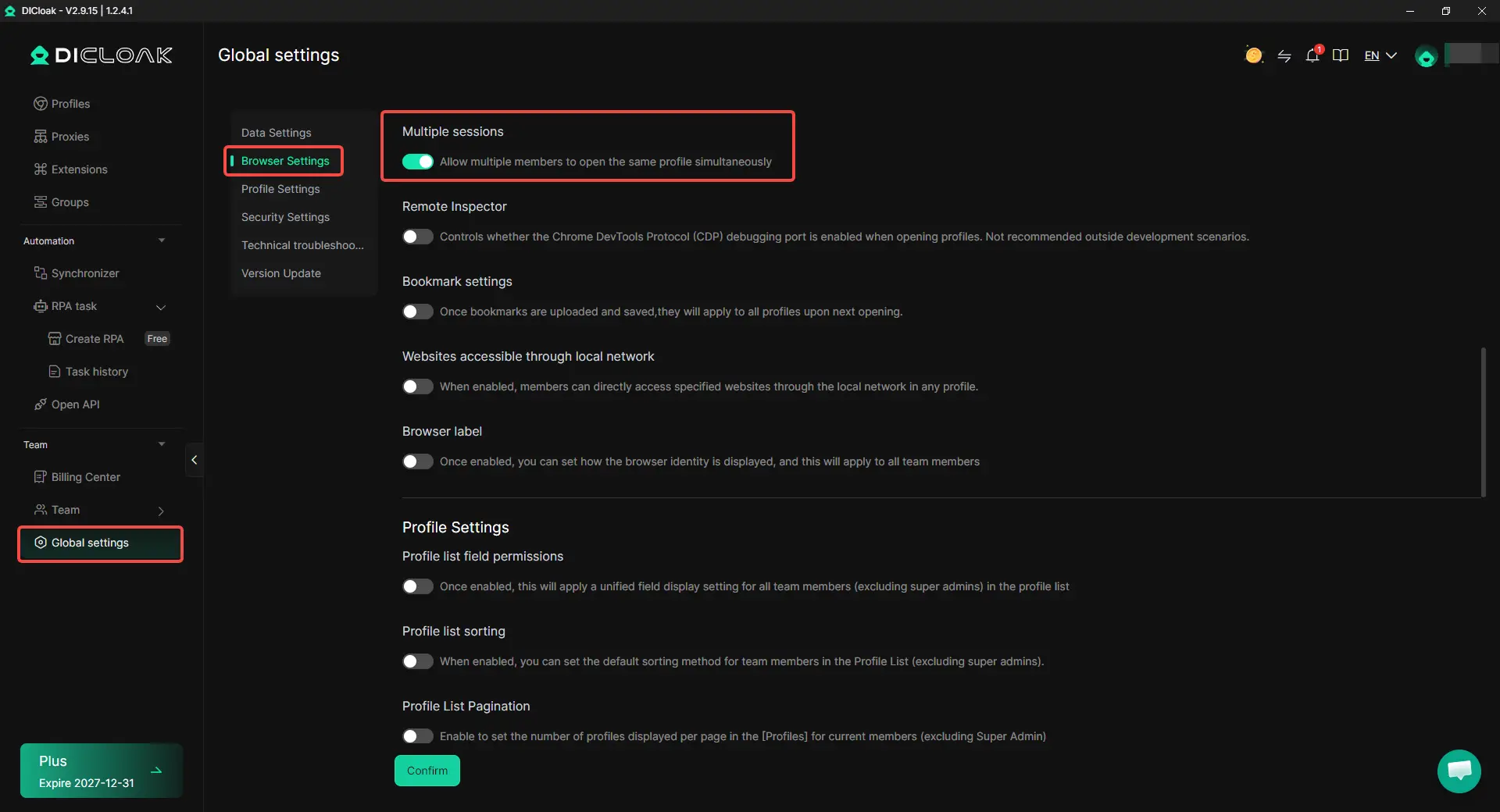
Enable Data Sync so the Synthesia login session can stay available in the shared Profile. Keep Multiple sessions disabled when members take turns using the account, and enable it only when simultaneous access is actually needed.
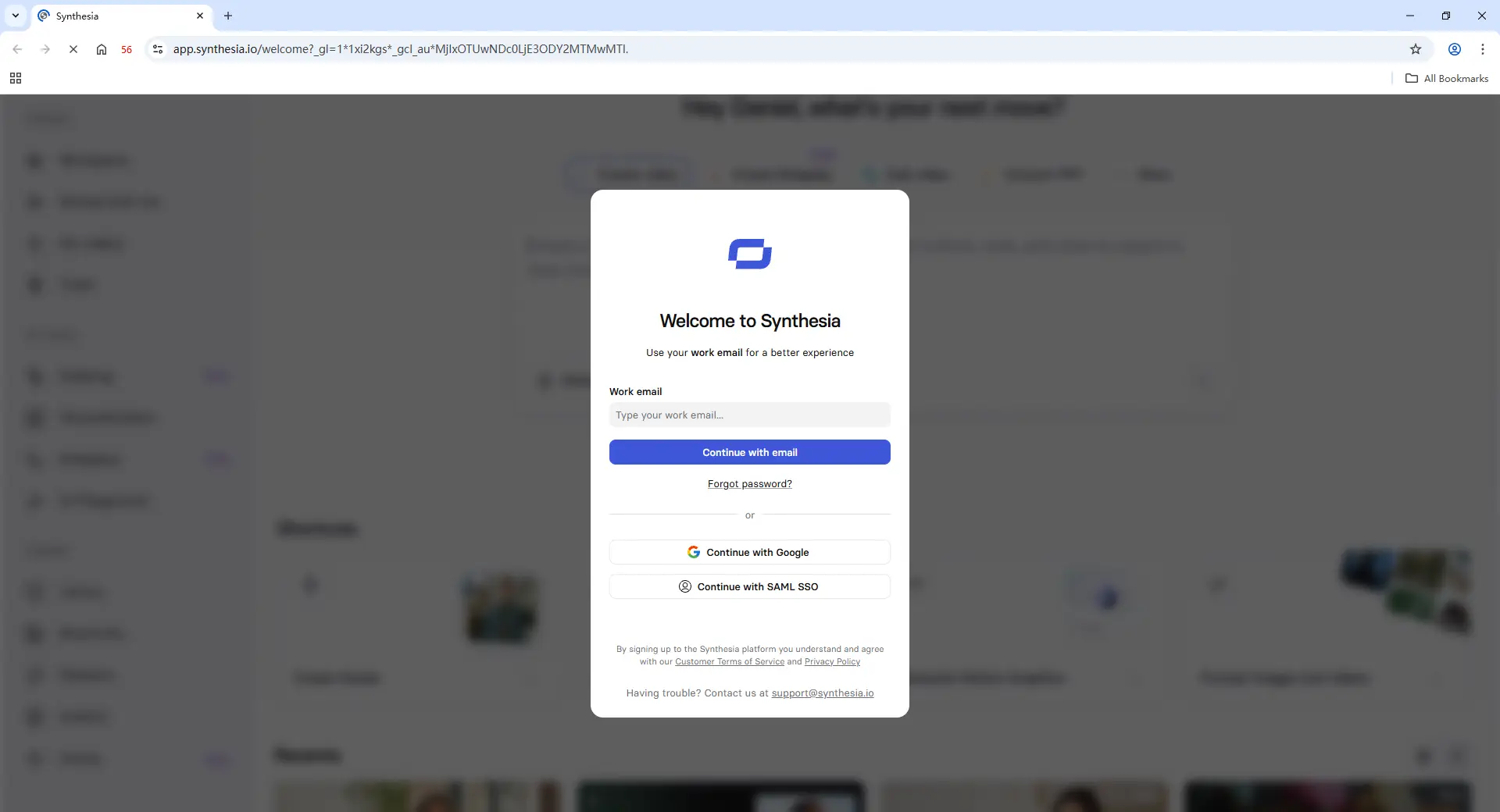
4. Log In to Synthesia
The account owner should open the Profile, sign in to Synthesia, and complete any required verification. Once the login state is saved, assigned members can open the same Profile without being given the raw password.
5. Limit Member Access
Use team permissions to control who can open the Synthesia Profile. You can also hide saved passwords and restrict access to pages or elements such as billing and account settings when a freelancer only needs to work on videos.
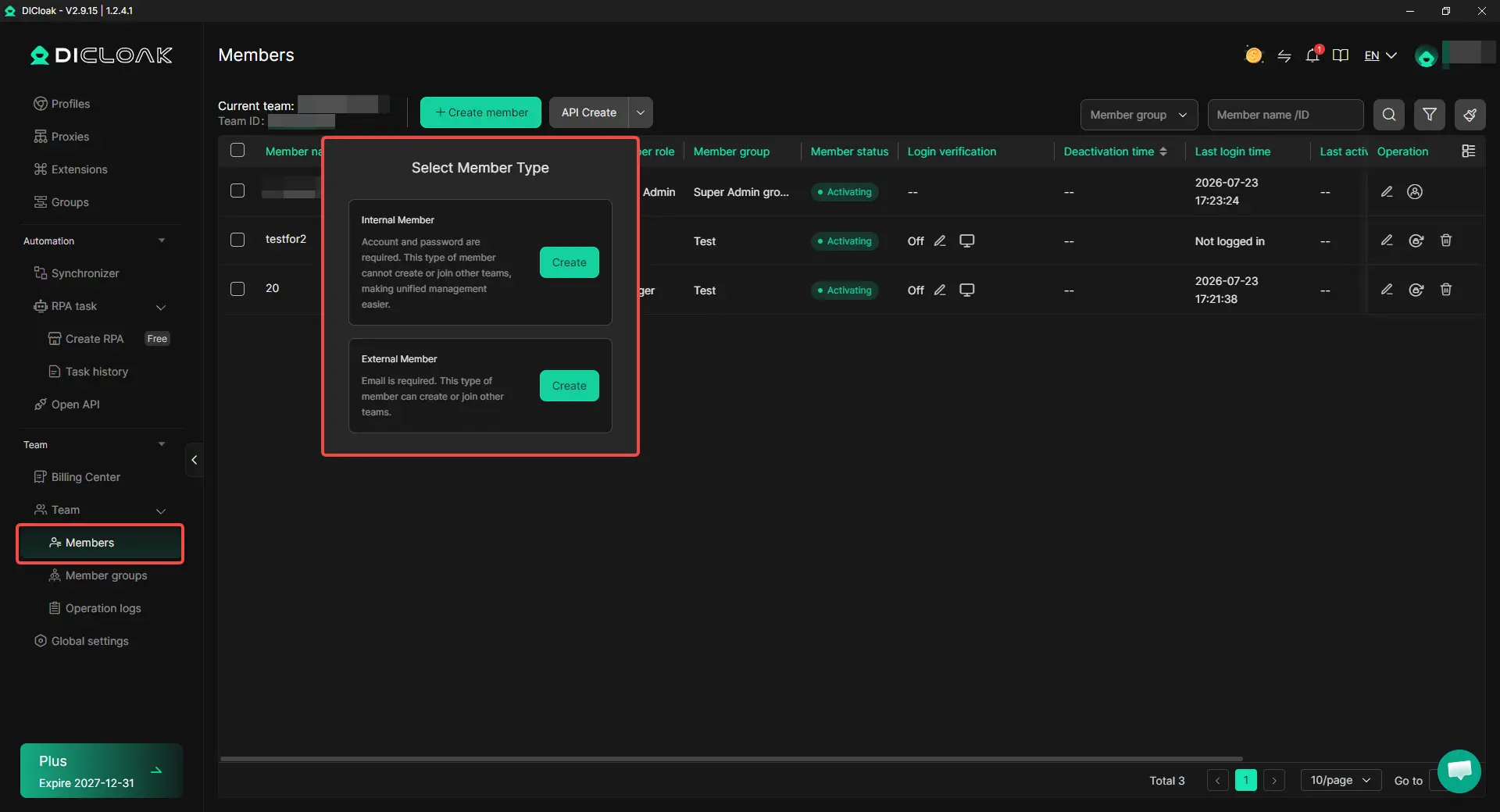
6. Share the Profile and Revoke Access Later
Assign the Profile only to the members or Profile Groups that need it. Operation Logs can help track Profile activity, and access can be removed when a contractor leaves or the project ends.
Frequently Asked Questions About Sharing a Synthesia Account
Can two people use the same Synthesia account?
Two people can be involved in the same Synthesia workflow, but the best setup depends on the plan and what each person needs to do. Starter and Creator are still centered on one editor with guest access, while Enterprise is better suited to ongoing multi-user collaboration. If someone only needs temporary access to an existing logged-in account, a shared browser Profile can be another option.
Can I share Synthesia with a freelancer without giving them my password?
Yes. If the freelancer only needs to review or comment, Synthesia guest access may be enough. If they need to work inside the existing account for a short project, an antidetect browser like DICloak can let the owner share a logged-in browser Profile with selected members instead of sending the password directly.
Do I need Synthesia Enterprise to let several people edit videos?
For regular team editing, Enterprise is the more suitable native option because it supports shared workspaces and broader team access. Starter and Creator can include guests, but guest access should not be treated as extra full editor seats. Teams should choose Enterprise when several people need ongoing creation and editing rather than occasional review.
Is a password manager enough for sharing a Synthesia account?
A password manager can make shared credentials easier to organize, but the team is still relying on one shared Synthesia login. It does not create separate Synthesia permissions for each person. For teams that need controlled access to an existing session, profile sharing and team permissions with DICloak can provide more control over who can open that browser Profile.
What should I do when a contractor no longer needs access to Synthesia?
Remove their guest or workspace access if you used Synthesia’s native collaboration features. If access was provided through a shared browser Profile, remove the Profile assignment or disable the member when the project ends. Keeping access tied to individual members makes offboarding much easier than trying to remember who previously received the account password.
Conclusion
Sharing a Synthesia account with your team does not have to mean passing around one password. Guest access works well for reviews, Enterprise is better for regular team editing, and a password manager can help with occasional shared login needs. When someone needs temporary access to an existing logged-in Synthesia account, a shared browser Profile with an antidetect browser like DICloak can offer more control over access. The best way to share a Synthesia account depends on what the other person needs to do: review, edit regularly, or work inside the existing account. Matching the access method to the task keeps the workflow simpler and avoids giving people more access than they need.
 Web Proxy Tools
 Free Tools
 Cookie Plugin
 UA Generator
 MAC Address Generator
 IP Generator
 IP Address List
 2FA Code Generator
 World Clock
 Anonymous Check
 WebRTC Leak Test
 UUID Generator
 Free Web Proxy Site
 Proxy Checker
 FB Ad Checker
 AI Web Scraping
 Free SMM Tools
 Twitter Shadowban Checker
 Instagram Name Checker
 UTM Generator
 Username Generator
 AI Hashtag Generator
 LinkedIn Headline Generator
 Social Media Image Resizer