Using a proxy with X can be useful when you need a specific network connection or manage accounts for different locations. But sometimes the setup creates a frustrating problem: X works normally without the proxy, yet the login fails as soon as the proxy is enabled.
An X login not working with proxy does not always mean the proxy itself has been banned. The problem may come from a bad proxy IP, unstable connection, wrong proxy credentials, changing locations, or a browser session that no longer matches the way the account was previously used.
X does not publish an exact list of signals used to judge every login. However, its official help pages confirm that it tracks new and suspicious logins, uses IP addresses to estimate login locations, and may ask users to verify an account when suspicious behavior is detected.
This guide explains how to find the real cause and fix common X proxy login problems without changing settings at random.
Why Is X Login Not Working with a Proxy?
When X stops working after you connect through a proxy, start by looking at what changed. In most cases, the password did not suddenly become wrong. The network or browser context changed.
The most common issues involve the proxy IP itself, an unexpected login location, unstable proxy settings, or browser data that no longer fits the current session.
The Proxy IP Is Blocked or Has a Poor Reputation
Not every proxy IP has the same history.
An IP may have been used by many people before you. Some of those users may have sent spam, created large numbers of accounts, or generated unusual traffic. If a platform sees a large amount of suspicious activity coming from the same address, that IP may become less trustworthy.
This does not mean X publicly labels every proxy IP as “good” or “bad.” X does not provide users with an IP reputation score. Still, its rules and help pages confirm that the platform watches for spam, suspicious activity, and potential account compromise.
A simple example makes this easier to understand.
Suppose your X account normally logs in from one stable connection. You switch to a proxy and immediately receive a verification request. You then test a different, stable proxy and the login works normally. That suggests the first proxy connection may be part of the problem.
Before changing anything else, test whether the proxy can open other websites and whether its exit IP is stable.
Your Login Location Changes Too Quickly
A proxy changes the IP address that websites see. That IP is also associated with an approximate geographic location.
X states that the locations shown in its login alerts are derived from the IP address used to access the service.
This becomes important when your proxy location changes often.
For example:
Monday: New York Tuesday morning: London Tuesday afternoon: Singapore Wednesday: New York again
Even when all four logins belong to the same person, that pattern is very different from a normal stable login history.
X can send alerts when it detects a suspicious login or when an account logs in from a new device for the first time. The company does not publish a rule saying that a certain number of location changes will trigger a restriction, so there is no useful “safe number” to follow.
A better approach is consistency. If an account normally operates from one region, avoid changing its proxy location without a real reason.

Proxy Settings Are Incorrect or the Connection Is Unstable
Sometimes the problem is much simpler: the proxy is configured incorrectly.
A typical authenticated proxy may require:
- Proxy type
- Host
- Port
- Username
- Password
One wrong character can prevent the connection from working.
There are also proxies that connect successfully but perform poorly. Pages may load very slowly, requests may time out, or the connection may drop during login.
That matters because X's login process may involve several requests. If the connection fails halfway through, you may see a blank page, repeated loading, an error message, or a failed verification step.
X's own troubleshooting guidance recommends checking your network connection when X.com cannot be accessed. It also notes that if disabling a VPN fixes the issue, users should contact their VPN provider. The same diagnostic principle is useful with proxies: first confirm whether the network layer is causing the problem.
Cookies, Browser Data, and IP Location Do Not Match
Your IP is only one part of a browser session.
X also uses cookies and local storage for authentication, security, preferences, and other functions. Its official cookie documentation says these technologies help keep users logged in and protect accounts against unauthorized access.
Problems can appear when browser state changes unexpectedly.
For example, imagine an account has been used for months in the same browser with saved cookies. You then:
- delete all cookies,
- switch to a proxy in another country,
- use a new browser,
- log in again immediately.
From your point of view, it is still the same account owner. From the platform's point of view, several parts of the login context changed at once.
X specifically notes that users logging in from incognito browsers or browsers with cookies disabled may receive login alerts each time.
This is why repeatedly clearing browser data is not always the best first fix.
How to Check What Is Causing the X Proxy Login Problem
Do not start by replacing every setting.
A better troubleshooting process changes one thing at a time. This helps you separate a bad password, a broken proxy, a browser problem, and an X account restriction.
The following checks can usually narrow the issue down quickly.
Test Whether the Proxy Is Actually Working
Before opening X, confirm that the proxy itself works.
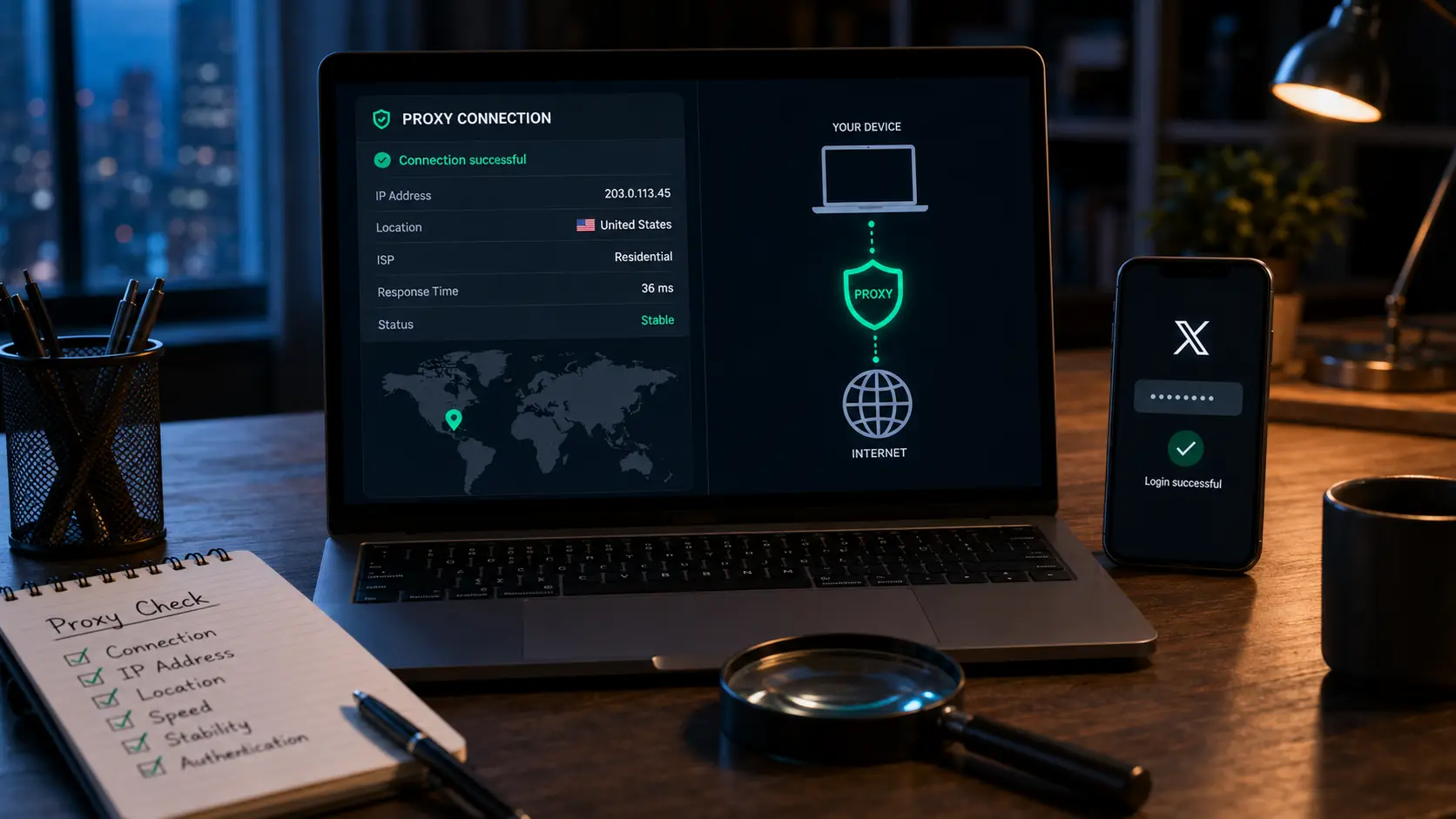
Use an IP-checking service or your proxy management tool to verify:
- the connection succeeds,
- the expected exit IP appears,
- the location is correct,
- pages load normally,
- the connection does not keep changing.
If the proxy cannot reliably open ordinary websites, there is little reason to troubleshoot X yet.
Also check whether authentication is required. A proxy that needs a username and password will fail if those credentials are missing or expired.
Compare X Login With and Without the Proxy
This is one of the most useful tests.
First, disable the proxy and try X through your normal network. If the account logs in normally, your username and password are probably not the main problem.
Then enable the proxy and test again.
If the result looks like this:
Normal connection → login works Proxy connection → login fails
the proxy or network configuration deserves attention.
X itself recommends testing connectivity without a VPN when users have trouble accessing X.com.
However, do not repeat failed login attempts many times. X says that after a limited number of unsuccessful attempts, an account can be temporarily locked from signing in, even when the correct password is later entered. The lock usually clears after about an hour.
Check the Proxy IP, Location, and Connection Stability
Next, inspect what the proxy is actually doing.
A proxy sold as a US connection should not suddenly exit through several unrelated countries. A rotating proxy should not change IP addresses in the middle of a login session if you expect a persistent connection.
Check:
Exit IP: Does it stay the same during the session?
Location: Is the country or region what you expected?
Speed: Does X load without long delays?
Connection: Does the proxy disconnect or time out?
DNS or WebRTC behavior: Does the browser configuration stay consistent with the intended network setup?
You do not need perfect speed. You need a connection that is stable enough to complete the login process normally.
Review X Login Alerts and Verification Requests
Do not ignore the message X shows you.
Different messages point to different problems.
If X sends a new login alert, the platform may simply want you to confirm that the login was yours. X says these alerts can be sent for suspicious logins or first-time logins from a new device.
If the account is locked for security purposes, X says it may have detected suspicious behavior that suggests the account could be compromised. The platform may ask for verification by email, phone, or CAPTCHA.
If you see Locked out! after repeated attempts, stop trying for a while. X says temporary login locks generally clear after about one hour.
These cases should not all be treated as a proxy failure.
How to Fix X Login Not Working with Proxy
Once you know which part is failing, fix that specific part first.
The goal is not to constantly change your setup until X lets you in. A better fix is a simple and stable environment that can complete a normal login without unnecessary changes.
Replace a Blocked or Unstable Proxy IP
If the account works normally without the proxy and the proxy connection is unreliable, test another proxy from your provider.
Do not keep retrying the same failing connection dozens of times.
A replacement makes sense when:
- the proxy cannot open X at all,
- connection tests fail,
- the IP keeps changing unexpectedly,
- pages time out,
- the proxy location is wrong.
After switching, test the new connection before logging in.
If several proxies from the same provider show the same issue, contact the provider. The problem may be related to the network rather than your X account.
Correct the Proxy Host, Port, and Authentication
Check the details supplied by your proxy provider.
For example, a proxy may require:
Host: proxy.example.com Port: 8000 Username: account123 Password: your proxy password Protocol: HTTP or SOCKS5
Do not assume the protocol. Using SOCKS5 settings for an HTTP endpoint, or the wrong port for the correct host, can stop the connection.
If your provider supports IP-based authentication instead of username/password authentication, make sure your current device IP is authorized.
After making changes, run another connection check before opening X.
Keep the Same Proxy Location for the X Account
Once you find a stable connection, avoid changing it without a reason.
This does not mean an X account can never travel or change networks. Real people obviously do.
The issue is unnecessary instability.
For example, if a US-based business account is normally operated from a US connection, using a different US proxy every few minutes adds little value. A stable session is simpler.
X's own login security information confirms that IP addresses are used to estimate the location shown in login alerts.
There is no public X rule that says one city or IP must be used forever. The practical point is simply to avoid creating needless location changes while troubleshooting.
Clear or Restore Cookies When the Login Session Is Broken
Cookies can help keep an X session authenticated, so do not automatically delete them every time something fails.
First, try the existing session.
If the browser session itself appears broken, clearing cache and cookies can be a valid troubleshooting step. X recommends clearing browser cache when users continue to have login problems and says browsers need to accept cookies for X to work correctly.
After clearing them, expect X to treat the next login more like a fresh session. You may need to complete another verification step.
If you already have a healthy saved login session in a dedicated browser Profile, keeping that session may be more convenient than repeatedly starting from zero.
What Type of Proxy Works Better for X?
There is no single proxy type that guarantees successful X login.
The better choice depends on why you need the proxy, how stable the session must be, the provider's network quality, and the history of the IP address.
Three differences matter most: residential versus datacenter IPs, static versus rotating sessions, and how often the address changes.
Residential vs. Datacenter Proxies for X
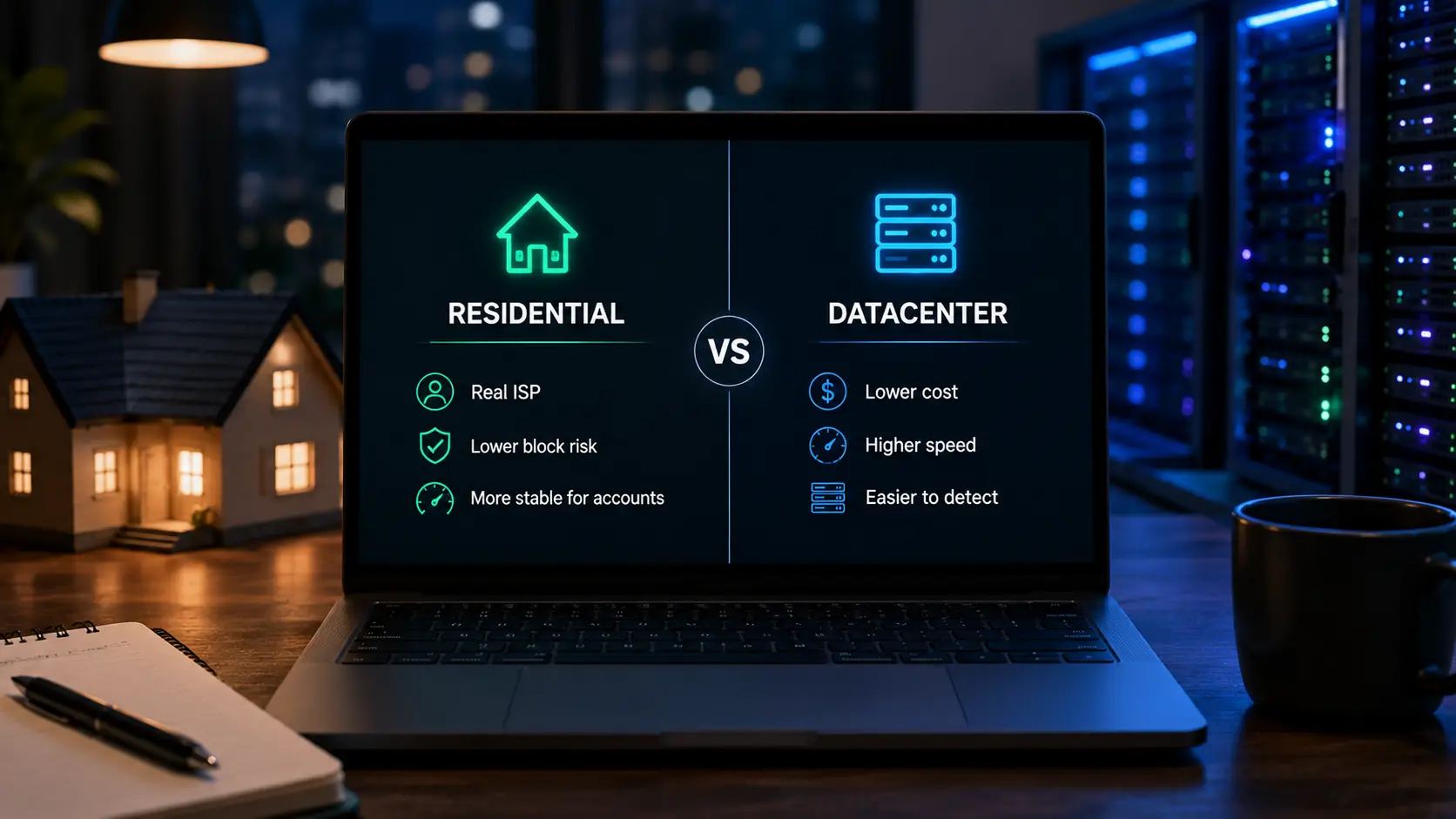
A residential proxy routes traffic through an IP associated with a residential internet connection.
A datacenter proxy normally uses IP space from hosting or data center infrastructure.
Residential proxies are often chosen when users want an IP that resembles a typical consumer internet connection. Datacenter proxies are often faster and cheaper, but their network ranges can be easier for online services to classify as hosting infrastructure.
That does not mean:
Residential = always works or Datacenter = always blocked
IP quality matters more than the label alone.
A residential IP with a poor history can still cause problems. A clean and stable datacenter IP may work well for a legitimate business workflow.
Test the actual connection rather than buying a proxy based only on its category.
Static vs. Rotating Proxies for X Login
A static proxy keeps the same exit IP for a longer period.
A rotating proxy changes the exit IP based on time, requests, or session rules.
For an authenticated X session, stability is usually easier to manage.
Imagine entering your username on one IP, loading the verification page through another, and opening the account through a third. That creates more moving parts than necessary.
If your provider offers rotating residential proxies, look for a sticky session option when you need the same IP to remain active for the duration of the session.
The goal is not to hide every connection change. It is simply to prevent the proxy itself from disrupting the login flow.
Why Frequent IP Rotation Can Cause Login Problems
Frequent rotation introduces two practical problems.
First, the session can break if the network identity changes during authentication.
Second, each new IP may map to a different approximate location. X uses IP addresses to estimate locations for security alerts.
For example, a rotating pool that moves between different countries can make troubleshooting difficult because you no longer know whether the account, browser, or current IP caused the problem.
When diagnosing X login not working with proxy, temporarily use one stable proxy session. Once the login works, you have a much clearer baseline.
How to Manage X Accounts and Proxies with DICloak
If you only use one X account, a regular browser and one reliable network connection may be enough.
The workflow changes when a social media manager or agency needs to manage several authorized X accounts. Constantly signing in and out can mix cookies, sessions, and account data. It also becomes harder to remember which proxy belongs to which account.
An antidetect browser like DICloak can organize these setups by keeping each X account in a separate browser Profile and attaching proxy and browser settings to that Profile.
Keep Each X Account in a Separate Browser Profile
DICloak lets you create separate browser Profiles with their own browser data and fingerprint settings.
Its current Profile settings include operating system, user agent, language, interface language, time zone, geolocation, screen resolution, and other browser properties.
For example, an agency managing three client accounts could create:
X – Client A X – Client B X – Client C
Instead of repeatedly logging all three accounts into the same normal browser, each account has its own Profile.
This keeps everyday account management clearer. Cookies from Client A do not need to be mixed into Client B's browser session, and team members can quickly see which Profile they are opening.
Use this structure only for accounts you are authorized to manage and continue following X's platform rules.

Assign a Consistent Proxy to Each X Profile
DICloak supports four proxy modes: No Proxy, Custom Proxy, Saved Proxies, and API extraction.
A practical structure can be:
X Client A → Profile A → Proxy A
X Client B → Profile B → Proxy B
X Client C → Profile C → Proxy C
Once a proxy has been added, it can be saved and selected again when creating or editing Profiles. DICloak also supports testing, editing, and managing saved proxy connections.
One important detail: DICloak is not the proxy provider. Its documentation states that the software does not sell proxy network services, so users still need to obtain the connection from a proxy provider.
Keep Browser Profile Settings Consistent with the Proxy Location
A proxy changes your network location, while a browser Profile controls browser-side settings.
Keeping the two logically consistent can make your setup easier to manage.
For example, if a Profile uses a US proxy, you may also want the Profile's language, time zone, and geolocation configuration to reflect the intended US environment rather than leaving unrelated settings from an older configuration.
DICloak supports IP-based matching for settings including language and time zone, while geolocation can also be configured based on the IP location.
This is different from saying you should constantly randomize the browser fingerprint. In fact, for an established account, stability is usually easier to manage than changing settings every session.
Use one clearly defined Profile for the account and change settings only when there is a real reason.

Check and Manage Proxy Connections More Efficiently
Proxy problems are easier to troubleshoot when you can test them before opening X.
In DICloak, you can enter the proxy host, port, account, and password, then use Checking Proxy to confirm whether the connection succeeds. A successful check can display information such as the proxy IP, location, and time zone.
Saved proxies can then be selected for Profiles instead of typing the same details again.
For larger teams, DICloak also supports assigning proxies from the Profile list and managing proxy information in batches.
That gives you a much simpler troubleshooting flow:
Check proxy → confirm IP and location → assign it to the correct Profile → open X
If X still fails while the proxy passes the connection check, you then know to investigate the account session, verification request, or X-side login state instead of repeatedly rewriting the proxy configuration.
Frequently Asked Questions About X Login and Proxies
The questions below cover the most common issues people run into when X behaves differently after a proxy is enabled.
Why Does X Work Without a Proxy but Not With One?
If X works on your normal connection but stops working through a proxy, check the proxy first. The exit IP may be unavailable, the credentials may be wrong, or the connection may be unstable.
X itself recommends checking network connectivity when X.com cannot load.
Can X Block a Proxy IP?
X does not publish a public list of blocked proxy IPs or a simple rule saying that all proxy connections are prohibited. However, X does monitor suspicious activity, spam, and account security risks. A problematic IP or unusual login context may therefore lead to extra verification or access problems.
Should I Use a Residential Proxy for X?
Residential proxies can be useful when you need a residential network connection, but they do not guarantee successful X login.
Look at IP quality, location accuracy, session stability, and provider reliability. A stable proxy with a good connection is more useful than choosing a proxy only because it is labeled “residential.”
Does Changing Proxy IPs Affect X Login?
It can affect the login context because a different IP may also appear as a different approximate location.
X states that it uses the login IP to estimate the location shown in security alerts.
If you are troubleshooting login problems, use a stable connection instead of changing IPs repeatedly.
Can I Use Different Proxies for Multiple X Accounts?
Technically, you can configure different network connections for different authorized accounts.
For teams managing several legitimate client or brand accounts, using separate browser Profiles can make those configurations easier to organize. DICloak, for example, allows saved proxies to be assigned to individual Profiles and supports proxy connection checks before the Profile is opened.
The important point is that a proxy does not replace X's account rules. Each account should still be operated in line with X's policies and normal security requirements.
 Web Proxy Tools
 Free Tools
 Cookie Plugin
 UA Generator
 MAC Address Generator
 IP Generator
 IP Address List
 2FA Code Generator
 World Clock
 Anonymous Check
 WebRTC Leak Test
 UUID Generator
 Free Web Proxy Site
 Proxy Checker
 FB Ad Checker
 AI Web Scraping
 Free SMM Tools
 Twitter Shadowban Checker
 Instagram Name Checker
 UTM Generator
 Username Generator
 AI Hashtag Generator
 LinkedIn Headline Generator
 Social Media Image Resizer