Two-factor authentication failures cost teams hours, sometimes days, when switching Google accounts across devices. The problem isn’t just logging out and back in. It’s the mess that starts when browser sessions overlap, cookies trigger re-verification, or one account’s activity spills into another’s. For anyone searching how to switch google accounts, the real headache isn’t “how to click the right button,” but how to keep every login stable, avoid forced resets, and prevent Google from flagging unusual activity.
Most users expect that switching accounts is as simple as a dropdown click. But even Google’s own support docs warn about session conflicts and unexpected prompts. Things get riskier when managing multiple accounts for work, especially if browser profiles, proxies, or shared devices come into play. One missed logout can lock you out or send security alerts to the wrong email.
This guide breaks down practical steps to switch Google accounts without tripping common traps. You’ll see how to prep your browser, handle multi-account sessions, and spot mistakes that usually trigger account freezes or forced verification. For teams handling sensitive data or running parallel logins, you’ll learn how profile isolation and proxy setup can cut risk. Here’s how experienced users keep Google account switching clean and safe, even when juggling five logins at once.
Why Switching Google Accounts Gets Risky on Shared Devices
Switching Google accounts on a shared device seems simple, but it’s easy to trigger security problems you might not see coming. The real risk is not just someone else seeing your emails, it’s how Google tracks every session, remembers linked logins, and sometimes mixes up account data. Missing one small detail can mean the wrong person gets access or your account gets locked out.
How Google Tracks Account Activity
Google uses cookies and session storage to remember who is logged in. Each time you switch accounts, the browser keeps a record. If you forget to log out, the next person can access your account without a password. It gets more complicated when you add device fingerprinting. Google looks at things like browser type, screen size, and other signals to spot when a new person logs in. If you switch accounts on the same browser without clearing profiles or using a separate browser, Google can link your accounts, even if you think you kept them separate. That’s one reason why guides like Google's help page say to use different browser profiles for each account.
Risks of Account Mixing and Data Leakage
The biggest risk is mixing personal and work accounts. If you sync Chrome or leave Google Drive open, files and bookmarks can cross over. That means you might send a private file from your work account by mistake, or sync sensitive bookmarks to someone else’s account. Teams handling client data or ad accounts can get burned fast if one account triggers a security check for all logins on that device. Even a simple copy-paste between accounts can leave traces. One casual slip can expose private info to the wrong person without you noticing. For anyone searching how to switch Google accounts safely, the answer starts with using separate browser profiles and never sharing a session.
What to Prepare Before Switching Google Accounts
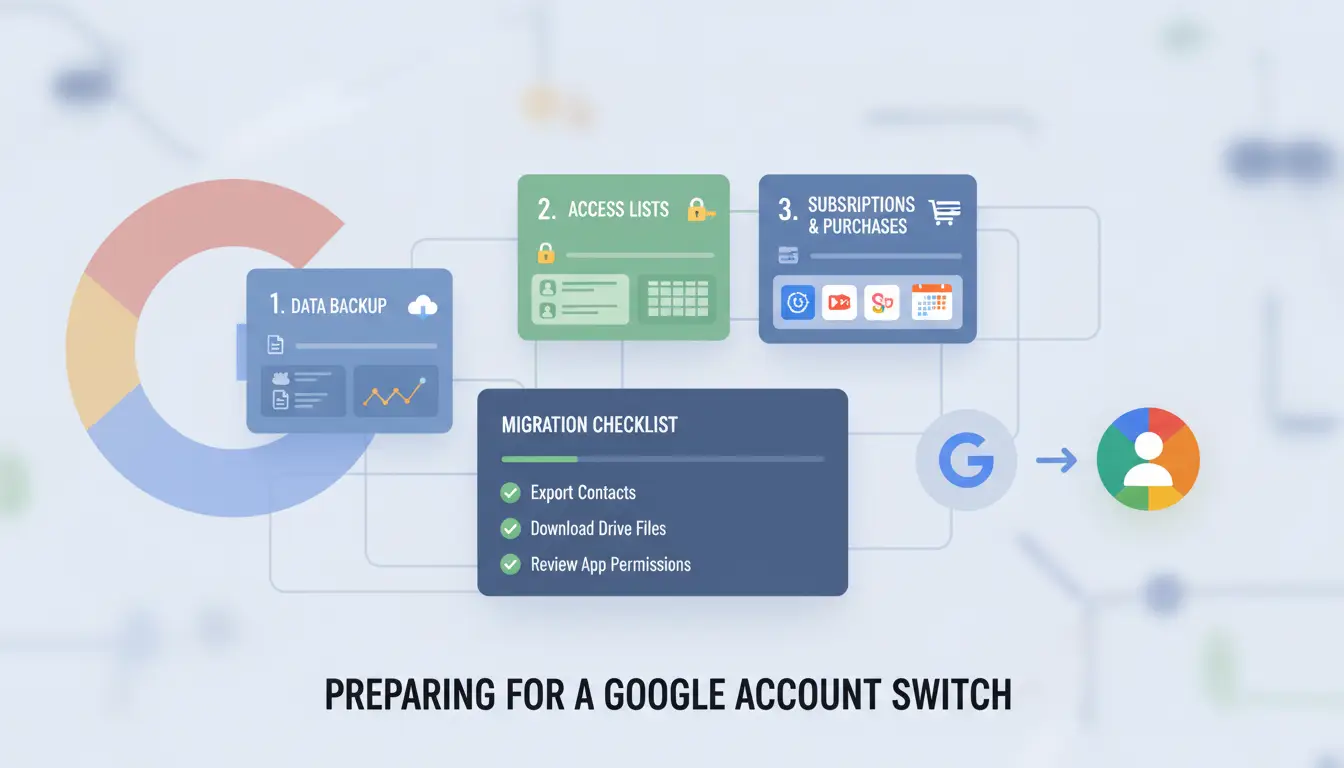
Switching Google accounts sounds simple, but small mistakes often cause login failures or security warnings. Before you start, set up your devices and accounts to avoid headaches. The right prep keeps your sessions clean, especially if you manage work and personal accounts, use shared computers, or run more than two logins. Here’s what to check before you switch.
Check Device and Browser Settings
Unexpected logouts or broken sessions usually trace back to messy browser data. Clearing your cache and cookies removes old login info that can block new sessions. Most browsers let you do this in the settings menu with one click. Also, update your browser to the latest version. Older browsers may not support Google's security features, which can cause errors during account switching. If you use Chrome, updates happen in the background, but double-check in the "About Chrome" section. These small steps cut down on error messages and keep your switch smooth.
Organize Account Credentials
It’s easy to mix up passwords when moving between accounts. Password managers like Bitwarden or 1Password keep your logins separated and safe. For each Google account, set a different recovery email and phone number, never share these across accounts. This way, if you trigger a security check, the recovery process doesn’t get tangled. Writing passwords on paper or reusing them across accounts is risky. A password manager provides safer storage and quick access.
Set Up Profiles for Different Accounts
Handling multiple accounts in one browser window is a recipe for confusion. Create a unique browser profile for every Google account you use. Give each profile a clear name and icon, so you never mix up personal and work emails. For example, Chrome and Edge let you add and switch profiles in one click. When you open a new profile, it has its own cookies, sessions, and bookmarks, no crossover. This makes "how to switch google accounts" much cleaner and avoids accidental logouts.
Step-by-Step: How to Switch Google Accounts on Any Device
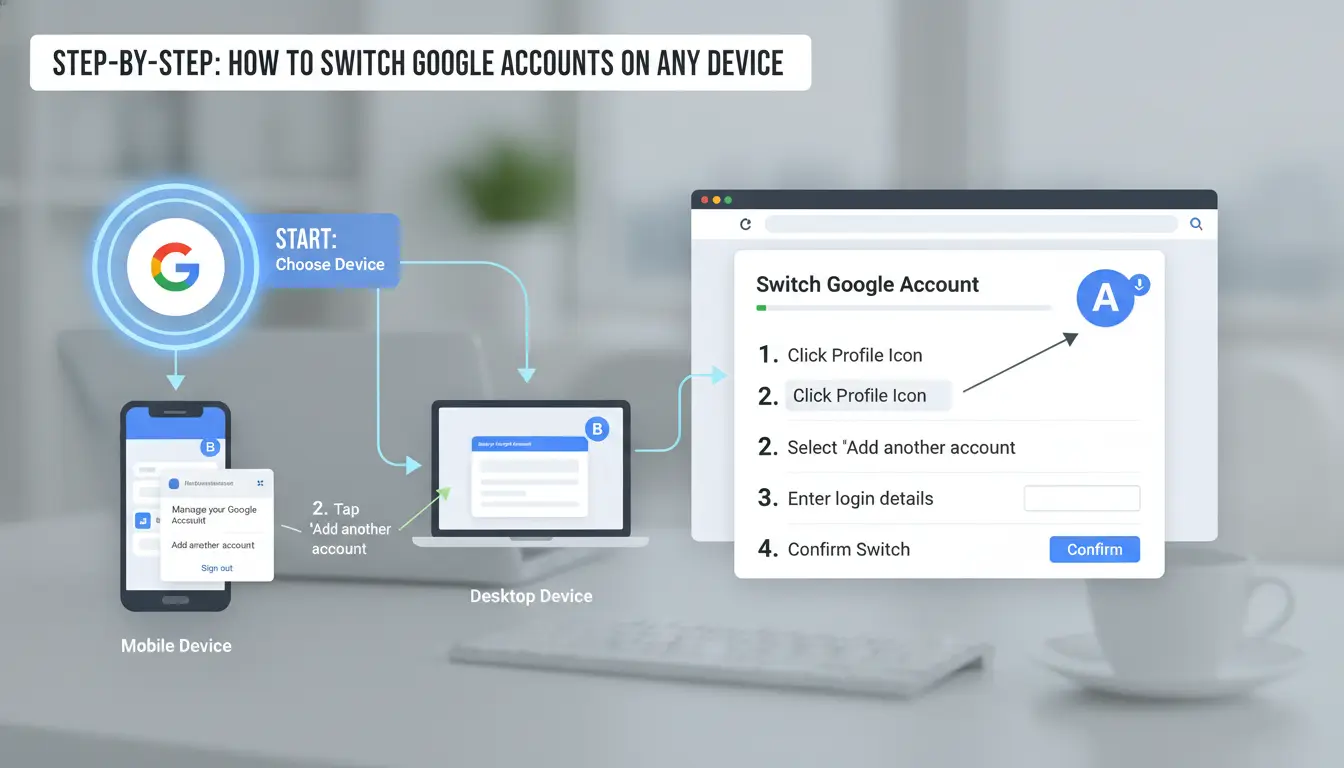
Switching Google accounts is simple on paper, but small mistakes, like skipping logout or mixing browser profiles, can trigger security checks or sync errors. Here’s how experienced users handle "how to switch google accounts" cleanly across desktop, mobile, and Chrome browser.
Switching Accounts on Desktop
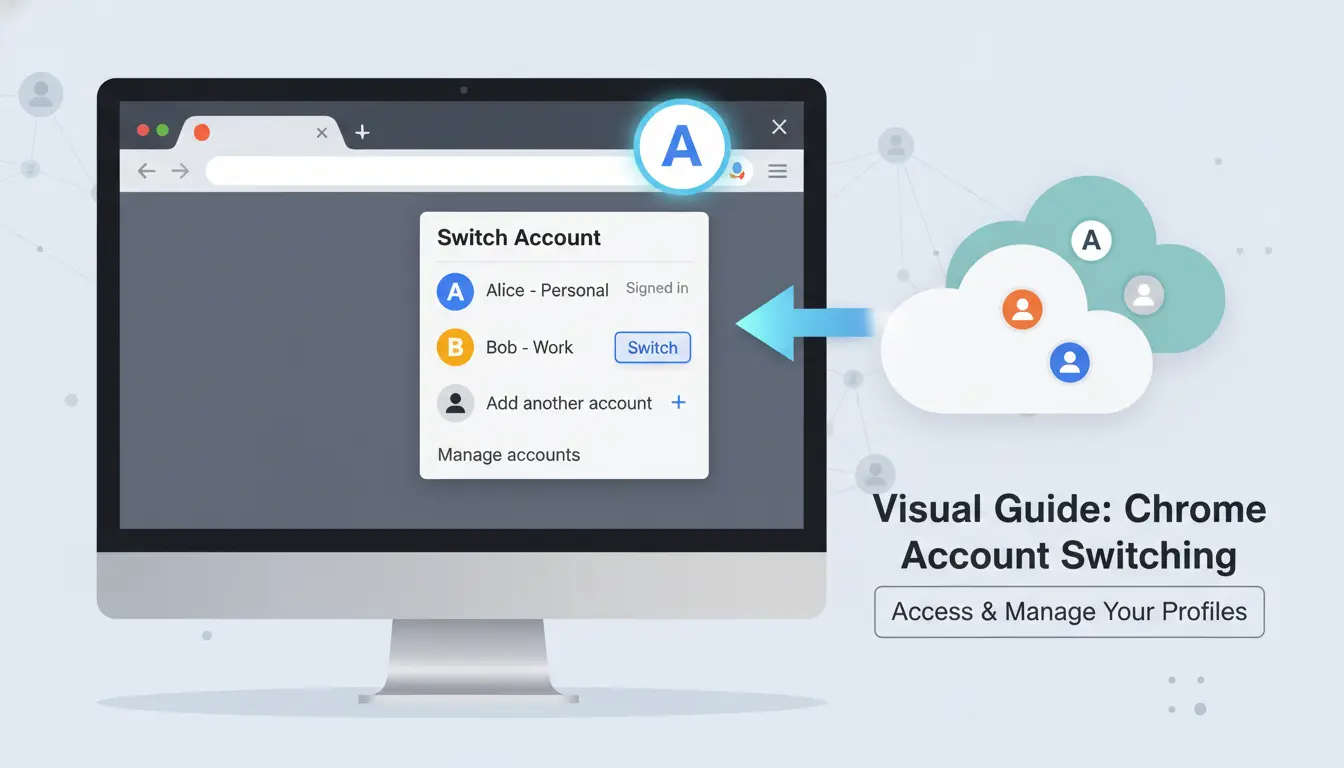
To add a new Google account, open Chrome and click your profile icon in the top right. Select "Add another account," enter credentials, and confirm. Once added, toggle between accounts by clicking your icon and selecting the right login. Each account keeps its own session, but Chrome tabs can mix, so if you’re managing work and personal accounts, use separate browser profiles for true isolation. That way, cookies and login states don’t bleed across. For more details, Google’s official multi-account guide covers session handling and logout steps.
Switching Accounts on Mobile Devices
On Android or iOS, both the Google app and browser let you switch accounts. In the Google app, tap your profile photo, choose "Add another account," then select as needed. In Chrome or Safari, go to any Google service, tap the icon, and pick the account. If you sync contacts or calendars, double-check which account is set as default, otherwise, you might overwrite personal data with team info. To avoid sync conflicts, turn off auto-sync in Settings before switching.
How to Set a Default Google Account
To set a default, sign out from all Google accounts, then log in to the one you want as primary. This account becomes the default for Google Drive, Gmail, and Maps. The order affects which account gets new file uploads, calendar invites, and app notifications. Signing out fully before logging back in is the key step to avoid random account swaps.
Used keyword: how to switch google accounts (twice) Word count: 289
Common Mistakes When Switching Google Accounts, and How to Avoid Them
Switching between Google accounts sounds simple, but it’s easy to slip up, especially if you handle both personal and work logins. Here’s where most people make mistakes, and how you can steer clear of sync fails, privacy leaks, or sending files to the wrong address.
Mixing Up Personal and Work Accounts
The biggest headache comes from letting personal and work activities blur together. For instance, if you’re logged into multiple Google accounts in the same browser, clicking a Drive link can open with the wrong profile. That’s how work docs land in personal folders, or private files get shared with the wrong team. To keep things clean, always open a new browser profile or use incognito mode for each account. This way, your bookmarks, cookies, and saved logins stay separate. If your job requires strict isolation, tools like DICloak can help you set up browser profiles and proxies so sessions never cross.
Forgetting to Sign Out on Shared Devices
Leaving a Google account signed in on a shared or public computer is a classic privacy trap. Anyone using the device can access your emails, Drive files, or even change security settings. Double-check for active sessions at Google’s device activity page and sign out remotely if needed. Never trust that closing a browser window means you’re logged out. Always click your avatar and choose “Sign out”.
Syncing Data Across Accounts Unintentionally
Google Sync pulls bookmarks, history, and passwords across devices, but it also merges data between accounts if you’re not careful. If you ever see mixed-up bookmarks or calendar events, check your sync settings at Google Account Help. Turn off sync for any account that shouldn’t share data, and review connected devices regularly to avoid surprises.
How to Manage Multiple Google Accounts More Safely with DICloak
Switching between Google accounts can get messy fast, especially if you're running campaigns or managing logins for others. Most problems come from accounts getting linked when Chrome reuses cookies, browser fingerprints, or IP addresses. DICloak gives you a safer way to handle this. If you want to know how to switch Google accounts without raising flags, focus on three things: isolating browser profiles, using unique proxies, and automating routine tasks.
Isolate Each Account with Unique Browser Profiles
DICloak lets you build a separate browser profile for each Google account. Each profile stores its own cookies, cache, and browsing history. This means Google sees each login as a separate user, even if you switch accounts on the same computer. For marketers and teams, this isolation is what stops cross-account bans and avoids session mix-ups that can lead to forced verification. You can set up profiles in minutes, assign them by project, and keep client logins fully isolated from your main work.
Integrate Proxies for improved Privacy
Setting up a unique proxy per account is key if you're logging in from different regions or want to avoid IP-based detection. DICloak makes it easy to link each browser profile with its own proxy settings. This reduces the risk of Google flagging your accounts for “suspicious activity” when switching. Proxies also help when you need to log into multiple Google accounts at once without tripping location-based security checks. Cloudflare gives a simple intro to how proxies work.
Automate Account Switching and Workflow
Managing five or more Google accounts daily? DICloak supports RPA (robotic process automation) to log in, clear cookies, or perform bulk actions across profiles. You can script routine logins, schedule tasks, or transfer sessions for team use. This simplifys how to switch Google accounts safely, cuts manual mistakes, and keeps audit trails for compliance. For bulk social media management, automation saves hours each week.
When Teams or Agencies Need Smarter Google Account Management
Team Collaboration Risks
Juggling Google accounts in a team setting means control can slip fast. Shared logins often lead to permission errors, one person’s mistake can lock everyone out. Tracking who did what becomes tricky without clear audit trails. If a marketer logs in from several devices, Google flags suspicious activity, and recovery gets messy. Teams need a way to see who accessed which account, especially when dozens are involved.
Scaling Multi-Account Operations
Agencies and social media firms might handle 10, 20, or even 100 Google accounts. Bulk account creation brings privacy headaches, mixing sessions or browser fingerprints can trigger bans. Compliance rules get stricter as client data moves between team members. The real risk is losing control over which accounts are active or exposed at any moment.
Choosing the Right Tools for Team Use
Tools like DICloak let you create isolated browser profiles for every Google account, so cross-account tracking is nearly impossible. You can use proxies to mask each login’s IP address and automate repetitive tasks with RPA. This setup makes switching accounts safer, no surprise bans from Google’s detection. For agencies, DICloak cuts workflow errors and keeps each team member’s session separated.
Best Practices for Switching Google Accounts Without Getting Flagged
Switching between Google accounts looks easy, but small mistakes can trigger security checks or even lockouts. If you want to know how to switch Google accounts smoothly, focus on keeping your usage consistent and your account details up to date. These steps cut risk for solo users and teams.
Maintain Consistent Activity Patterns
Google’s security systems watch for sudden changes. Jumping between far-away locations or switching browsers too often can flag your account. The safest way is to use the same device, browser, and proxy for each Google login. If you have to travel or change your setup, sign out and back in from the new location, don’t just switch accounts while still logged in. For users who manage multiple accounts, keeping each login in a separate browser profile helps stop cross-session leaks and fingerprint mismatches. Tools like DICloak can isolate profiles and tie each to a fixed proxy, cutting down on accidental alerts.
Monitor Account Security and Alerts
Google sends alerts for any sign of unusual activity. Check your Google Account security page often for warnings, login attempts, or device changes. If you get a “suspicious activity” email, respond fast, review the flagged event and confirm it was you, or update your password if not. Ignoring these warnings can lead to forced verification or even account freezes.
Review Account Permissions Regularly
Outdated devices and old app connections are weak points. Visit your device activity page to remove anything you no longer use. Update your recovery email and phone every few months to make sure you can always get back in if something goes wrong. Staying on top of these basics is what keeps account switching smooth for the long run.
Frequently Asked Questions
Can I switch Google accounts without signing out?
Yes, Google lets you add multiple accounts and toggle between them without signing out. To switch, click your profile picture and select another account. When learning how to switch Google accounts, remember your default account stays active until you manually change it. Always start your browser session with the account you want as default.
Will switching accounts affect my Google Drive or Gmail?
Switching accounts changes which Google account is active, so you’ll see files and emails linked to that account. For example, if you switch in Gmail, you’ll only view emails for the selected account. When figuring out how to switch Google accounts, your data stays safe and separate for each account.
How do I remove a Google account from a device?
Go to your device’s account settings, find the list of Google accounts, select the one you want to remove, and choose “Remove” or “Sign out.” This deletes the account from the device, but not from Google’s servers. It’s a good step after learning how to switch Google accounts on shared devices.
Is it safe to switch Google accounts on public computers?
No, it’s not safe to switch Google accounts on public computers. Always sign out when finished and avoid saving login details. Shared devices may store your credentials or cookies, allowing others to access your account. Protect your privacy by using incognito mode and logging out after every session.
Can I use DICloak to manage Google accounts for social media marketing?
Yes, DICloak is designed for safe multi-account management. It offers isolated browser profiles, proxy integration, and automation tools. You can manage many Google accounts for social media marketing without risking bans or mixing data. DICloak helps keep each account separate, which is useful for professionals.
Switching between Google accounts is a simple process that helps you manage work, personal, and other profiles more efficiently. By following a few straightforward steps, you can smoothly access the right account for your needs. Try DICloak For Free
 Web Proxy Tools
 Free Tools
 Cookie Plugin
 UA Generator
 MAC Address Generator
 IP Generator
 IP Address List
 2FA Code Generator
 World Clock
 Anonymous Check
 WebRTC Leak Test
 UUID Generator
 Free Web Proxy Site
 Proxy Checker
 FB Ad Checker
 AI Web Scraping
 Free SMM Tools
 Twitter Shadowban Checker
 Instagram Name Checker
 UTM Generator
 Username Generator
 AI Hashtag Generator
 LinkedIn Headline Generator
 Social Media Image Resizer