More than 20 million videos are uploaded to YouTube every day, so it is no surprise that creators, brands, and agencies often manage more than one account or channel. The challenge is not simply switching between logins. It is keeping client access, recovery details, monetization, files, and daily publishing work organized without opening the wrong channel or giving the wrong person too much control. This guide explains how to manage multiple YouTube accounts with a clear structure, safer team access, and cleaner daily workflows.
Can You Manage Multiple YouTube Accounts Without Getting Them Linked?
Yes, you can manage multiple YouTube accounts without creating unnecessary account mix-ups. Many creators, brands, and agencies use more than one Google Account to manage separate YouTube work, such as personal projects, client channels, or different business brands. The key is to keep each account’s ownership, access, login session, and daily tasks organized, so work meant for one account or channel does not spill into another by mistake.
Why Do Multiple YouTube Accounts Get Linked or Mixed Up?
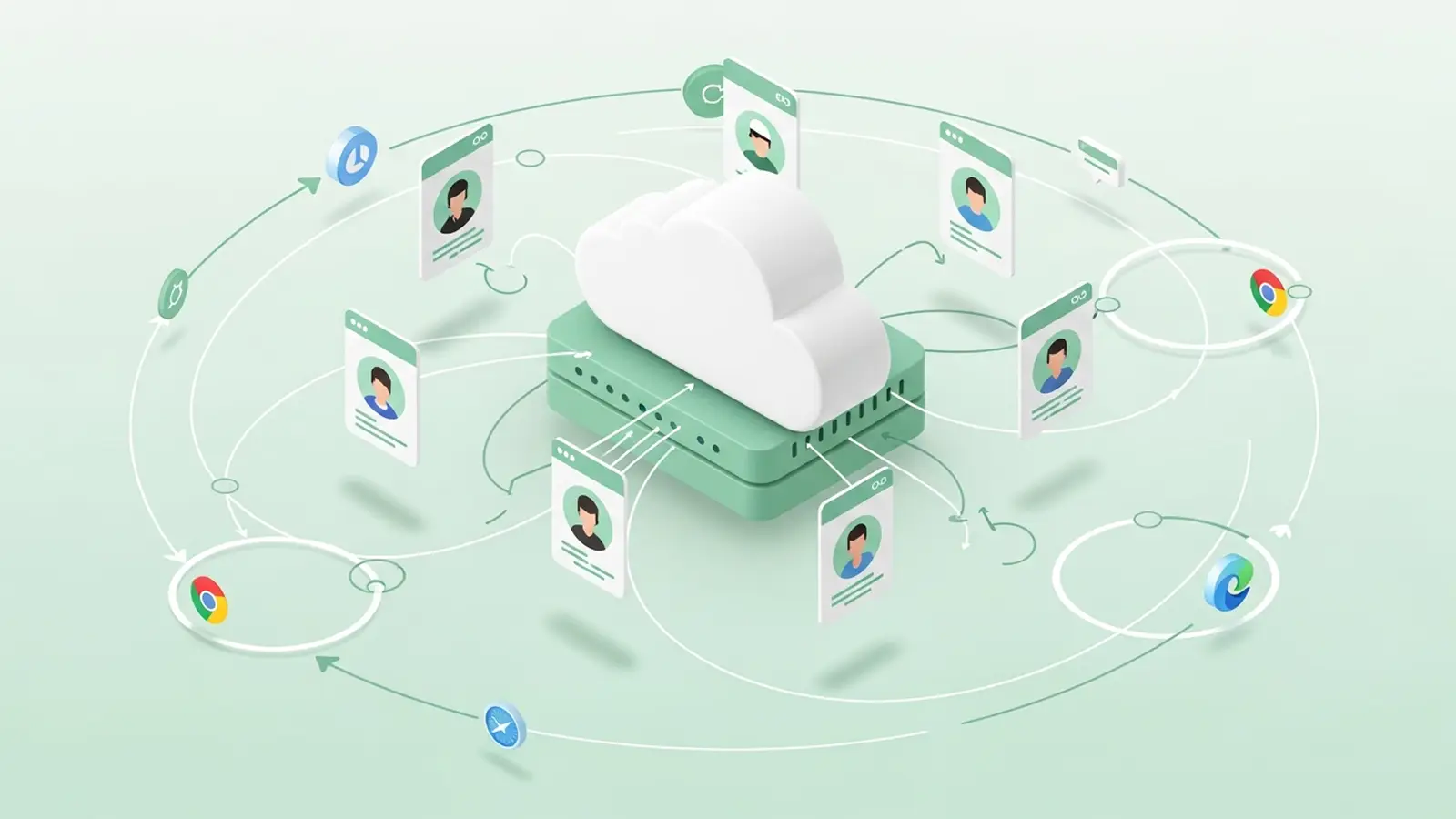
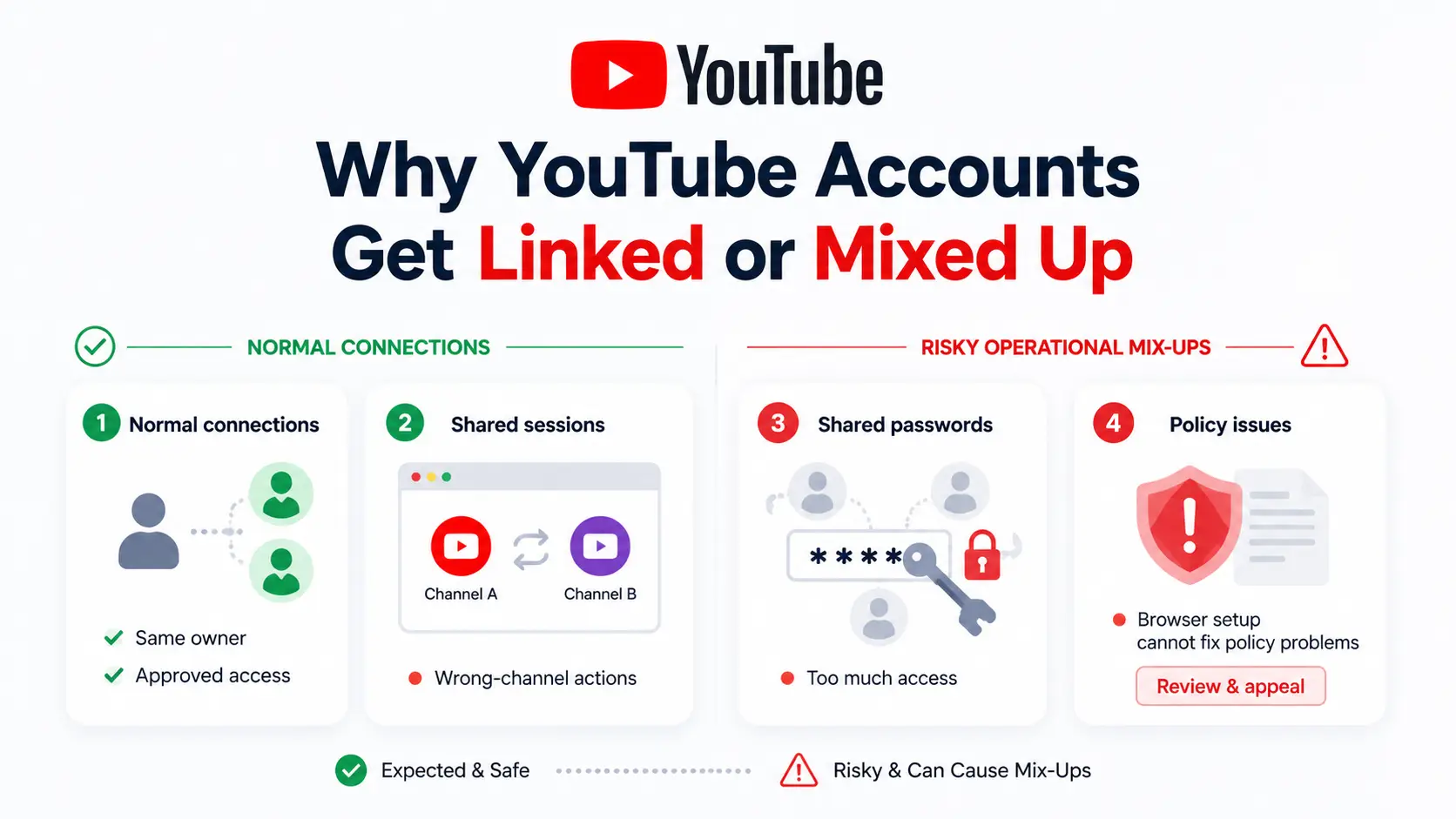
Multiple YouTube accounts can become confusing when normal ownership, team access, and browser sessions are mixed together. A shared business owner or approved team access can be normal. The real risk is unclear access, wrong-account actions, and shared passwords.
| Situation |
What It Means |
What to Do |
| One business manages several channels |
Normal ownership |
Keep a clear record of each channel and account. |
| A client gives an agency access |
Normal team access |
Give each person only the role they need. |
| Personal and client accounts stay signed in together |
Workflow risk |
Use separate, clearly named workspaces. |
| Several people share one password |
Security risk |
Use channel permissions instead. |
| A channel has a strike or termination |
Policy issue |
Review the issue through the proper process. |
Which Channel Connections Are Normal and Expected?
Not every connection is a problem. One company may run channels for different languages, products, or audiences. A creator may also manage several channels under one Google Account when the same person owns and operates them.
Agency access can also be normal. A client can give an editor or manager access to a YouTube channel without sharing the main Google Account. The important part is that everyone knows who owns the channel, who can make changes, and how access will be removed later.
How Shared Browser Sessions Lead to Wrong-Channel Actions
Most daily mistakes are simple. Someone opens YouTube Studio, sees a familiar dashboard, and uploads a video to the wrong channel. A community manager may reply as the wrong brand, or a marketer may open the wrong analytics page before a client call.
Keep personal work and client work in separate, clearly named browser workspaces. Store the correct YouTube Studio link, content calendar, files, and brand notes with that workspace. Before uploading or commenting, check both the active Google Account and the selected YouTube channel.
Why Shared Passwords Create More Risk Than Shared Work
A contractor may need to upload videos or review comments, but they usually do not need the full Google Account password. Shared passwords can expose recovery settings, two-factor authentication, payment details, and other controls that should stay with the owner.
Channel permissions are usually a cleaner option. They let people do the work assigned to them without giving them full account control. When a freelancer or agency leaves, remove their access and review connected tools instead of changing one shared password everywhere.
When a Policy Problem Matters More Than Your Browser Setup
A browser setup can reduce wrong-account mistakes, but it cannot solve copyright disputes, repeated policy violations, spam issues, or a channel termination. Those problems need to be handled through the relevant YouTube review, appeal, or recovery process.
If one channel has a serious issue, first confirm what happened. Check the affected channel, the Google Account that manages it, current permissions, and any connected tools. Fix the actual problem instead of assuming that a new browser setup or another account will solve it.
What Are the Risks When One YouTube Channel Has a Warning, Strike, or Termination?
A problem on one YouTube channel does not automatically mean every YouTube account you manage will face the same result. First identify what happened: a content claim, a policy strike, an access mistake, or a channel termination. Each issue has a different response, so rushing to open another account or change every login can make a manageable problem harder to review.
| Issue |
What It Usually Means |
First Response |
| Wrong upload, comment, or setting |
A workflow or access mistake |
Correct the action and check who had access. |
| Content ID claim |
A claim on specific content, not usually a copyright strike |
Review the claim and respond only if you have a valid reason. |
| Community Guidelines or copyright strike |
A policy action on a channel |
Read the notice, review the policy reason, and consider the available appeal process. |
| Channel termination |
A serious enforcement action |
Review the termination details in YouTube Studio and follow the official appeal or recovery path. |
Why a Content Mistake Does Not Always Put Every Channel at Risk
A wrong upload, an incorrect thumbnail, or a Content ID claim should be reviewed based on the exact action and affected channel. A Content ID claim is different from a copyright strike, and it does not usually create a strike by itself. That said, repeated or serious copyright issues can have wider consequences, so do not ignore notices just because only one video appears affected.
Keep the response practical. Check the video restriction, the notice email, and the channel that received the action before changing anything else. Do not assume that every channel under the same business, Google Account, or team setup is already affected. At the same time, do not treat a serious notice as a minor upload error without reading the details.
How a Strike Differs From an Access or Login Mistake
A team member opening the wrong YouTube Studio dashboard is an access mistake. It may lead to an incorrect upload, comment, or metadata change, but it is not the same as a policy strike. A Community Guidelines strike or copyright strike is tied to content enforcement, so it needs a policy-focused response rather than a browser cleanup.
Start by separating the two questions. Ask whether the wrong person used the wrong account, or whether the channel received an actual warning, removal, or strike. If a strike was issued and you believe the decision was wrong, review the notice and use the available appeal option. Deleting a video just to make a strike disappear is not a reliable fix, so check the enforcement details before taking action.
Why a Replacement Channel Is Not a Recovery Plan After Termination
A terminated channel should be handled through the termination notice, YouTube Studio, and the available appeal process. Creating another YouTube account or channel to continue the same work is not a substitute for resolving the termination. It can also make the situation more complicated because the original enforcement issue remains unresolved.
Focus first on the reason shown in the termination notice. Gather the relevant channel details, emails, content records, and access information before submitting an appeal. Some terminated creators may later see an official option in YouTube Studio to request a new channel, but that pathway is limited and should only be used when YouTube presents it to the affected creator.
What to Review Before a Client Channel Problem Turns Into an Ownership Dispute
When a client channel has a serious issue, do not change every password or remove every user at once. First confirm who owns the Google Account or Brand Account connected to the channel, who currently has channel access, and who can make recovery decisions. This prevents a policy issue from turning into a separate dispute about control of the channel.
Review the following before changing access:
- Who controls the channel owner account and recovery details?
- Who has manager, editor, or other channel permissions?
- Who controls two-factor authentication and backup codes?
- Which AdSense, Google Ads, schedulers, or third-party tools are connected?
- Which team access should be paused while the issue is reviewed?
- Does the client have copies of videos, thumbnails, scripts, and channel records?
Once the facts are clear, make only the changes needed for the issue. Remove access that is no longer appropriate, document what changed, and keep the client informed if the channel belongs to them. A clear record of ownership and permissions is much more useful than a rushed reset after something goes wrong.
What Account Structure Should You Use for Personal Channels, Brands, and Clients?
Choose your setup based on ownership and responsibility. Use one Google Account when the same person or business owns related YouTube channels. Use separate Google Accounts when different clients, partners, or businesses need separate recovery, approval, and payment control.
| Your Situation |
Usually the Clearest Setup |
Why |
| One creator runs several related channels |
One Google Account managing multiple channels |
Easier switching, recovery, and daily management. |
| One business runs language or product channels |
One business-owned structure, with clear channel records |
The same company remains responsible for all channels. |
| An agency manages client channels |
Client-owned Google Account or Brand Account, with approved team access |
The client keeps control while the agency can do its work. |
| Separate clients or unrelated businesses |
Separate Google Accounts and separate ownership records |
Recovery, billing, and approval decisions stay separate. |
| Independent partners share one channel |
A shared ownership structure with written access rules |
Everyone knows who can manage, recover, or transfer the channel. |
Keep Related Channels Under One Structure When the Owner Is the Same
You do not need a new Google Account for every YouTube channel. A business may run English, Spanish, and Portuguese channels for the same product. A creator may also have separate channels for tutorials, reviews, and shorts while still managing them as part of one business.
This setup works best when the same person or company controls the content, recovery details, and revenue decisions. It also makes daily work easier because the team knows the channels belong to the same owner. The important part is to document which channels are connected and why, instead of creating extra logins that nobody can track later.
Use Separate Google Accounts When Responsibility Needs to Stay Separate
Separate Google Accounts make more sense when the channels belong to different clients, legal owners, or independent partners. For example, an agency should not place five unrelated client channels under its own main Google Account just because that feels convenient at the start. It can create confusion later if a client wants to change agencies, recover access, or review who controls the channel.
Think about who should make the final decision if something goes wrong. If the answer is a different client, company, or partner for each channel, separate ownership is usually cleaner. This is especially important when recovery settings, monetization, Google Ads links, or payment details should not be controlled by the same person.
Let Clients Keep Ownership While Agencies Use Approved Access
For agency work, the client should usually keep ownership and recovery control of the Google Account or Brand Account connected to their YouTube channel. The agency can then receive only the access needed for publishing, analytics, comments, reporting, or channel updates. This avoids the common problem where a client’s entire channel depends on one former freelancer’s email address.
Do not treat password sharing as a normal handoff method. A contractor who only uploads videos does not need control of recovery email, two-factor authentication, or payment settings. When the engagement ends, the client can remove the agency’s channel access without changing the main account login or losing control of the channel.
Build an Account Map Before You Create More Channels
An account map is a simple record of who owns what and who can access it. It may feel unnecessary when you have two channels, but it becomes useful very quickly once clients, editors, advertisers, or outside tools are involved. It also helps you spot weak points before a missing password or unclear owner becomes a real problem.
Keep one record for every YouTube channel and update it when access changes:
- YouTube channel name and URL
- Business or legal owner
- Google Account owner
- Primary contact
- Recovery email and recovery contact
- Team members and their access level
- Monetization or AdSense owner
- Connected Google Ads accounts and third-party tools
- Channel purpose, audience, and content role
A clean account structure is not about making every YouTube channel look unrelated. It is about making sure the right person owns the right account, each team member has the right level of access, and client channels can be handed over without a messy fight over passwords or recovery details.
How Do You Build a Clean Daily Workflow for Multiple YouTube Channels?
A clean workflow keeps the right Google Account, YouTube channel, files, and approvals together. Most mistakes happen when people switch too fast and rely on memory instead of clear labels.
Give Every Channel Workspace a Clear Name, Owner, and Purpose
Use names that show the client or brand, channel type, language or region, and team. For example, “Client A – Tutorials – US” or “Brand X – Spanish – Community.” Avoid vague labels like “Main Account” or “YouTube 2.”
The same name should appear in the workspace, content calendar, and shared folder. That makes it easier to catch a mismatch before someone opens YouTube Studio or sends a file.
Keep Channel-Specific Assets and Links Together
Give each channel one clear place for its daily materials. Keep its YouTube Studio link, content calendar, scripts, thumbnails, brand rules, approved descriptions, sponsor notes, and comment guidance together.
This prevents editors from copying the wrong CTA, links, or thumbnail from another channel. It also makes onboarding easier when a new team member joins.
Add a Short Pre-Publish Check Before Every Upload
Use a quick check before uploading or scheduling. It should take less than a minute, but it can stop a very visible mistake.
- Is the correct Google Account active?
- Is the correct YouTube channel selected?
- Do the title, thumbnail, playlist, and audience setting match this channel?
- Are the links and CTA correct for this brand?
- Has the right person approved the final version?
Remove Access Cleanly When Someone Leaves
When a contractor or client relationship ends, remove access from the channel, shared folders, and publishing tools. Then confirm who controls recovery details, two-factor authentication, monetization, and connected ad accounts.
Keep a short handoff record with the current owner, access roles, and unfinished tasks. This helps prevent a client channel from depending on one former editor or agency account.
How Can You Manage Multiple YouTube Accounts With DICloak?
With DICloak, teams can keep authorized YouTube account work in separate, organized browser Profiles. This is most useful when you manage several clients, brands, or channel teams and need to reduce wrong-account actions, repeated setup work, and unnecessary password sharing.
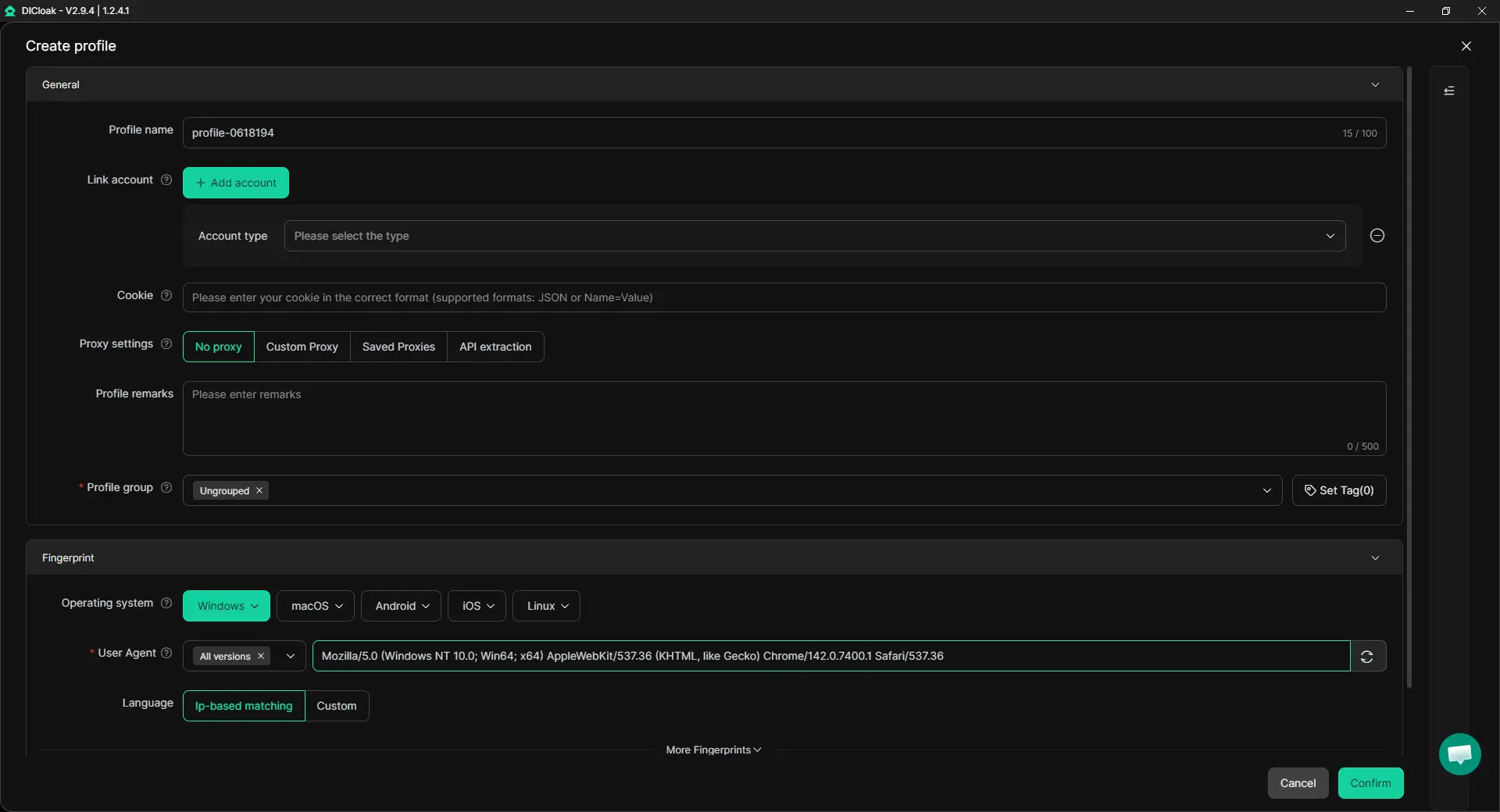
- Profile settings and Profile remarks: Each YouTube account or client workspace can use its own named Profile. Add remarks such as the client name, channel purpose, language, team owner, upload rules, or content status. For example, a Profile named “Client A – US Tutorials” can also show who handles uploads and where the approved content calendar is stored. This gives team members useful context before they open YouTube Studio.
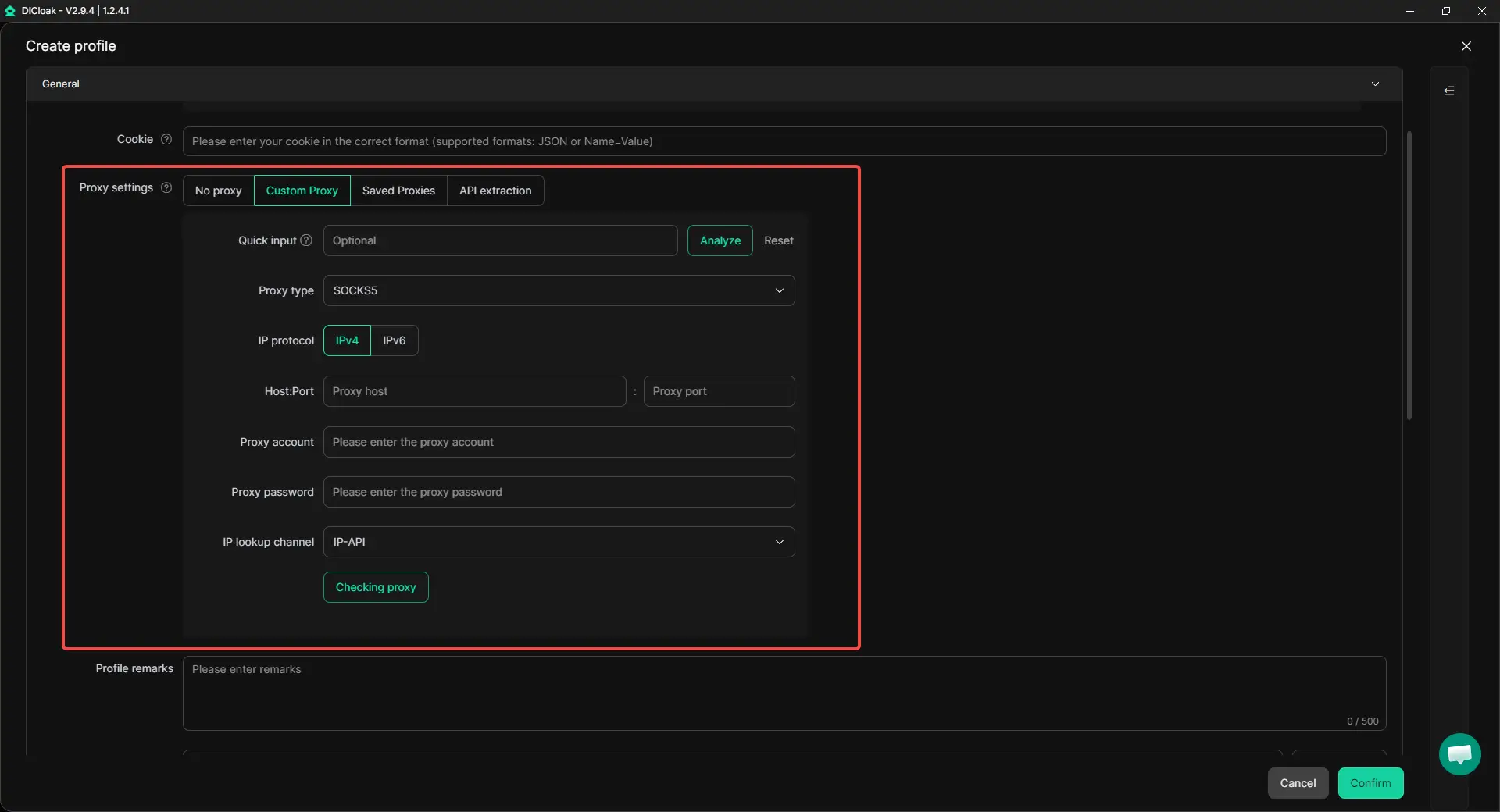
- Custom proxy configuration: With DICloak, a custom proxy can be assigned to a specific Profile during setup when a team needs a consistent connection setup for that authorized workspace. Keeping proxy details inside the related Profile is easier than asking team members to configure them manually each time.
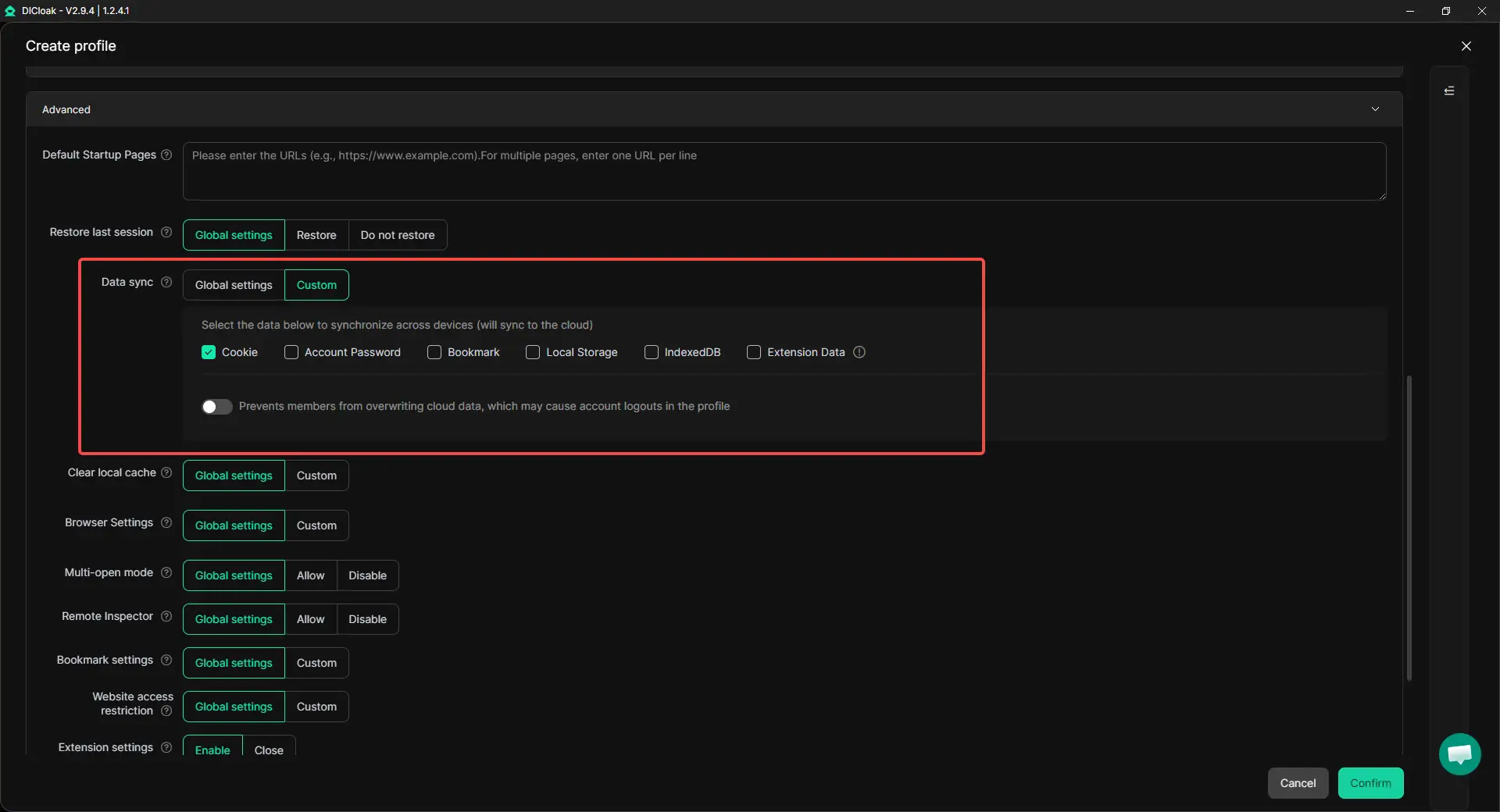
- Data syn: Channel work often includes more than a YouTube login. It may also include saved sessions, bookmarks, extensions, upload links, content folders, and working tabs. With data syn, approved team members can continue work from the correct Profile without rebuilding the same setup or searching through unrelated client tabs.
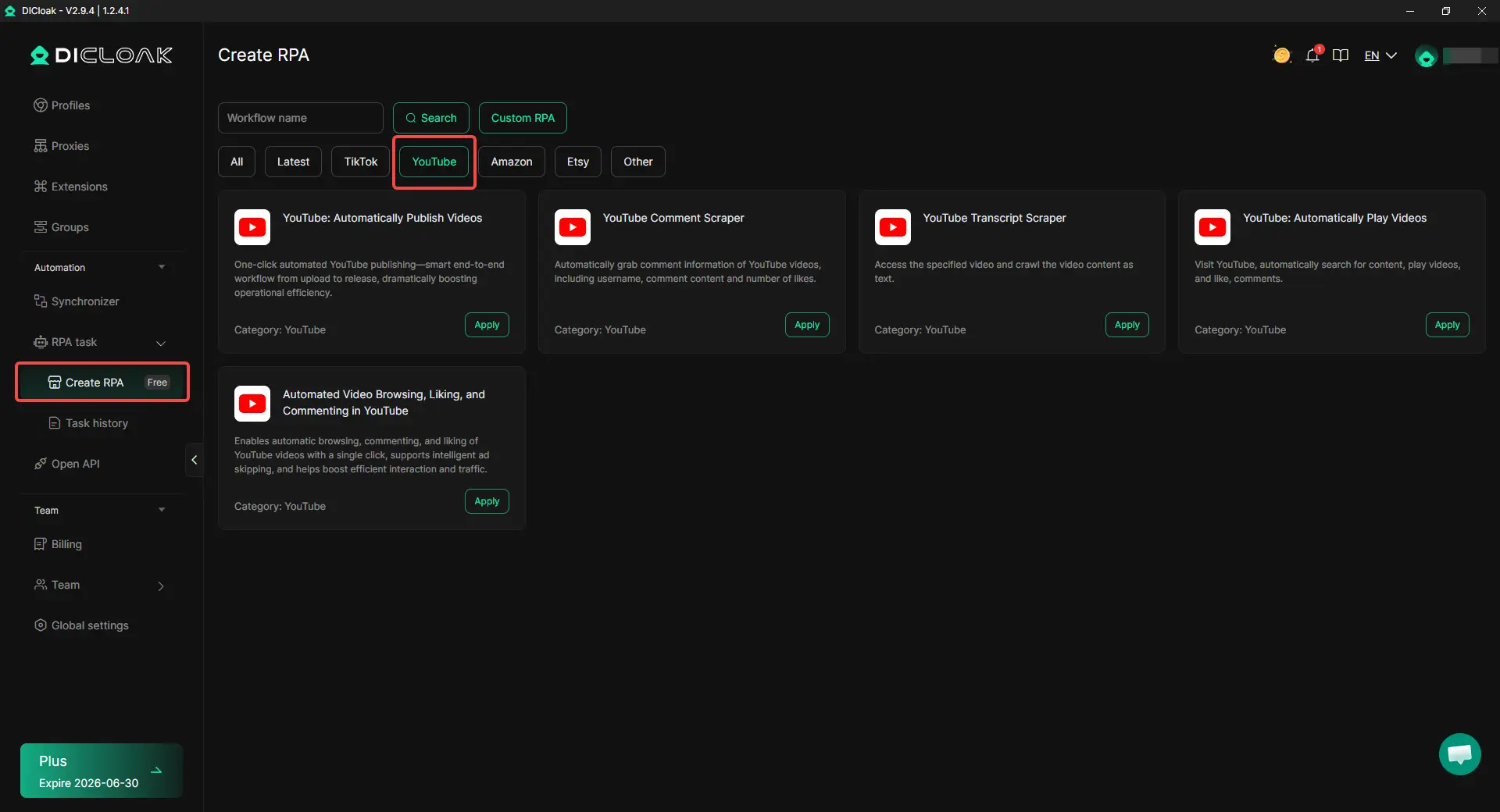
- RPA for repeatable YouTube tasks: With DICloak RPA, teams can use YouTube-related templates for repeatable work, such as publishing videos, collecting video comments, exporting transcripts, and opening selected videos for review. These workflows can help with internal publishing and research tasks when used carefully.
- Team permissions and Profile sharing: With DICloak, teams can share only the Profiles a member needs for assigned work instead of sending raw Google Account passwords through chat. This can help when an editor needs to upload videos, a researcher needs to collect comments, or a manager needs to review channel activity. When a freelancer, employee, or agency relationship ends, Profile access can also be removed more cleanly.
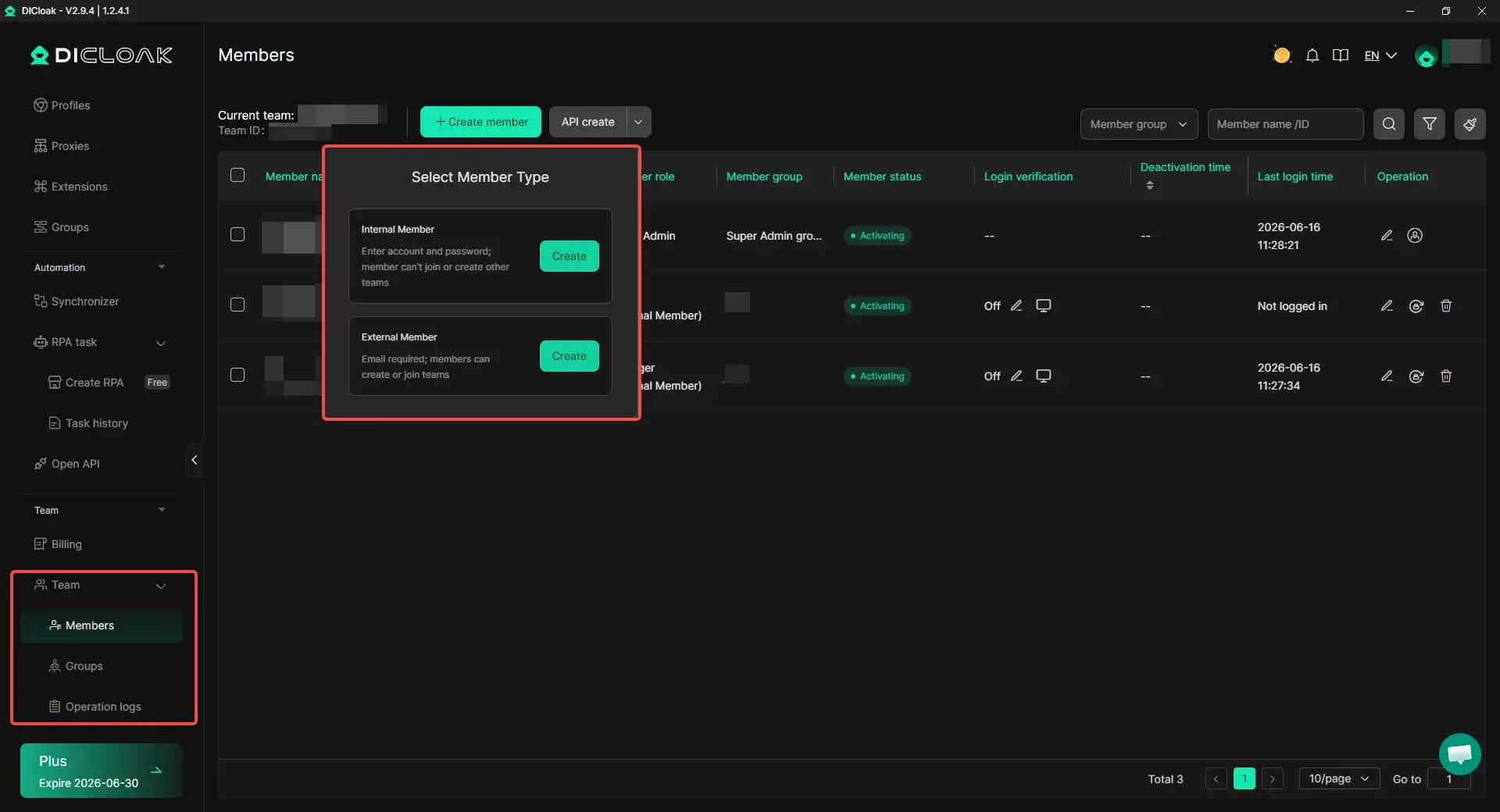
With DICloak, separate Profiles, clear remarks, and controlled access can help reduce daily workflow mistakes. The client or business should still control the right Google Account, recovery details, channel ownership, and monetization settings.
How Should You Handle AdSense, Verification, and Connected Tools Across Channels?
Keep revenue, recovery, verification, and connected tools in one clear record for each channel. The person who uploads videos may not be the person who owns the channel, controls payments, or manages account recovery.
Treat Revenue Ownership and Channel Access as Separate Decisions
An editor may need to upload videos without seeing payment details. An agency may manage publishing without owning the client’s monetization setup. Record who controls revenue, who can publish, and who can change account settings.
Plan Verification and Recovery Details Early
Do not wait until a channel loses access or needs an urgent upload. Record the recovery email, recovery phone, 2FA method, backup codes, account owner, and emergency contact while the right people still have access.
Also check each channel’s verification and feature-access status in YouTube Studio. Different channels may not have the same upload, live, or advanced-feature access.
Review Connected Tools, Not Just YouTube Studio
A channel may also be linked to Google Ads, scheduling tools, analytics platforms, shared drives, and content folders. Review these connections when you add a new team member, switch agencies, or prepare for a client handoff.
Only give access to people who need it for their current role. A person who needs thumbnails may not need ad data, payment details, or publishing access.
Keep an Ownership Record for Every Important Channel
Your account map should show:
- Channel name and URL
- Google Account or Brand Account owner
- Monetization owner
- People with publishing access
- Recovery and 2FA owner
- Linked tools and shared folders
- Location of original videos and assets
- Offboarding steps if a client or contractor leaves
A clear record does not make channels less connected. It makes ownership, revenue, and access easier to manage when something changes.
Frequently Asked Questions About Managing Multiple YouTube Accounts Without Getting Them Linked
Can I manage multiple YouTube accounts without getting them linked?
Yes, but the goal should be clear account management, not hiding legitimate ownership. Related channels can sit under one Google Account or business structure when the same person or company owns them. Separate Google Accounts make more sense when different clients, partners, or businesses need separate recovery, approval, and monetization control.
Should I use one Google Account or separate Google Accounts for multiple YouTube channels?
Use one Google Account when the same owner manages related channels, such as different languages, product lines, or content formats. Use separate Google Accounts when responsibility is separate, such as unrelated clients or businesses with different owners. The deciding factor is who should control recovery, payments, approvals, and channel access if something goes wrong.
Can multiple YouTube channels use the same AdSense for YouTube account?
Yes, more than one YouTube channel can use the same AdSense for YouTube account for monetization. Do not create extra AdSense accounts just to separate channel logins, because duplicate AdSense accounts under the same payee can cause problems. For client work, the AdSense for YouTube account should normally match the person or business that is meant to receive the channel revenue.
What should I do if I already logged multiple YouTube accounts into one browser?
Do not assume that one past login has caused permanent damage. Start by logging out of accounts you no longer need, reviewing channel permissions, checking recovery details, and removing old contractor access. Then create clearly named workspaces for personal, client, and team work so the right Google Account, YouTube channel, bookmarks, and files stay together.
Can an antidetect browser like DICloak help manage multiple YouTube accounts?
With DICloak Antidetect Browser, teams can keep approved YouTube account work in separate browser Profiles with their own saved sessions, bookmarks, and Profile remarks. Profile sharing can give team members access to the workspace assigned to them without passing around raw Google Account passwords, while operation logs can support cleaner handoffs. This can reduce wrong-account actions and credential exposure.
Conclusion
Managing multiple YouTube accounts without getting them linked starts with clear ownership, limited access, and organized daily work. Use one Google Account for related channels owned by the same person or business, and separate Google Accounts when clients, partners, recovery details, or revenue responsibilities need to stay separate. Avoid shared passwords, keep channel permissions and connected tools under control, and use clearly named workspaces to prevent wrong-channel uploads or mixed client work. Separate browser Profiles can help teams stay organized, but they do not replace proper ownership, YouTube permissions, or policy compliance. The most reliable setup is one where every account, channel, team role, and connected service has a clear purpose and responsible owner.
 Web Proxy Tools
 Free Tools
 Cookie Plugin
 UA Generator
 MAC Address Generator
 IP Generator
 IP Address List
 2FA Code Generator
 World Clock
 Anonymous Check
 WebRTC Leak Test
 UUID Generator
 Free Web Proxy Site
 Proxy Checker
 FB Ad Checker
 AI Web Scraping
 Free SMM Tools
 Twitter Shadowban Checker
 Instagram Name Checker
 UTM Generator
 Username Generator
 AI Hashtag Generator
 LinkedIn Headline Generator
 Social Media Image Resizer