Why Does LinkedIn Verification Loop Happen After Changing Proxy?
A LinkedIn Verification Loop After Changing Proxy often starts because the login environment changes at the same time as the network connection. You may complete a security check, return to LinkedIn, and then get another verification prompt.
LinkedIn confirms that it may show security prompts when you sign in from an unfamiliar location or device, or when it detects suspicious web activity. These prompts can include email verification, CAPTCHA, or other sign-in checks.
That makes four areas worth checking first: the new IP and location, the proxy IP itself, the saved browser session, and the quality of the connection.
The New Proxy Changes Your IP Address and Login Location
Changing a proxy usually changes the public IP address that LinkedIn sees. It can also make the login appear to come from a different city or country.
LinkedIn says that if it detects access from an unusual location, it may ask you to re-authenticate the account. It can also send a warning email about the new location.
For example, suppose an account normally signs in from Chicago. You switch to a proxy that appears in Germany, and LinkedIn immediately asks for verification.
That does not prove the location change alone caused the LinkedIn verification loop. But it is an important change to check.
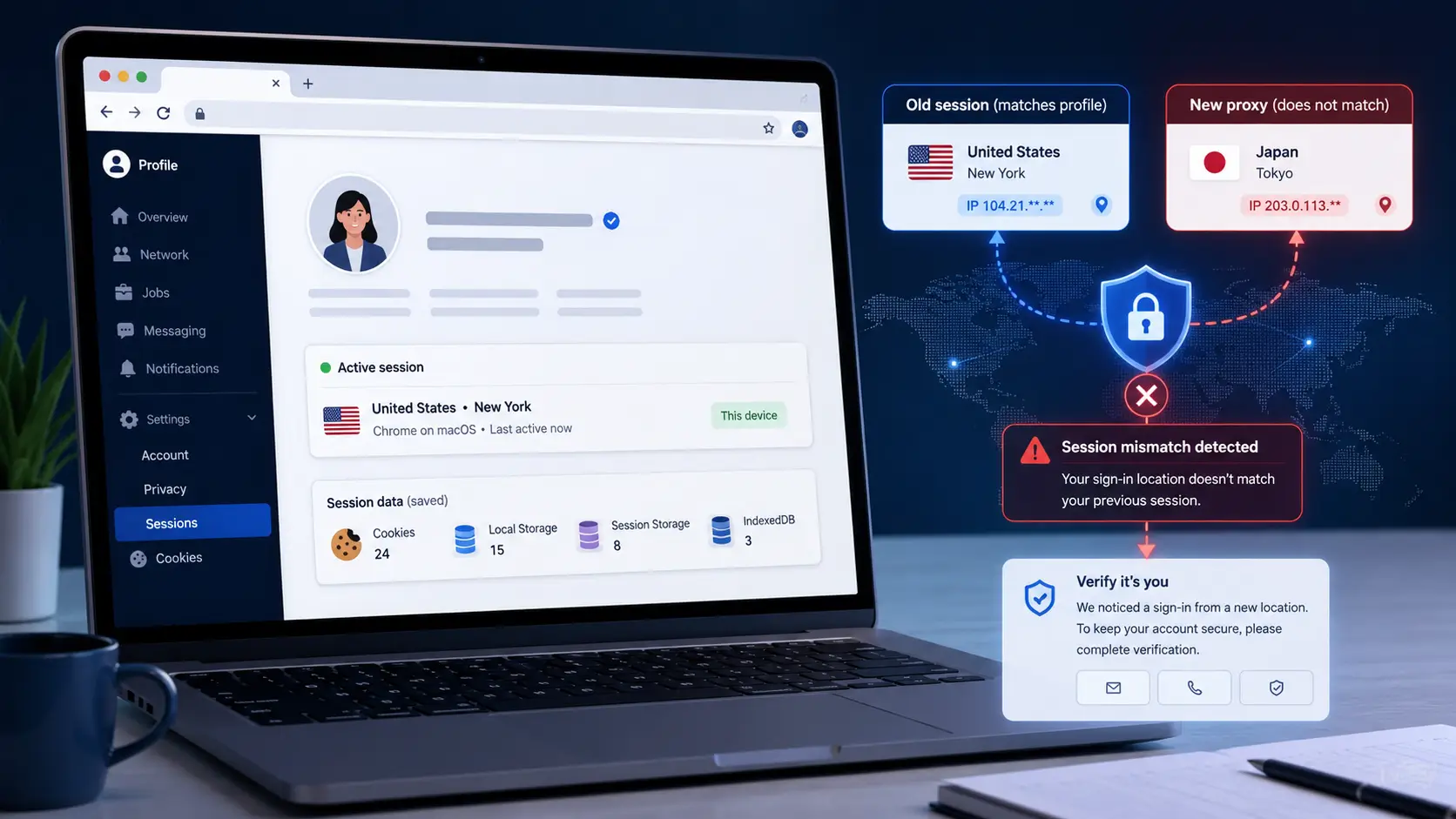
LinkedIn's active-session page can show the browser, IP address, city, state, and recent sign-in details for current sessions. If LinkedIn keeps asking for verification after a proxy switch, compare the location shown there with the location you expected.

The Proxy IP Has a Poor Reputation or Is Shared
A proxy IP may also be used by other people, especially when the service uses a shared pool.
LinkedIn does not publish a list of blocked proxy IPs, and it does not state that shared proxies automatically trigger LinkedIn proxy verification. However, LinkedIn does say that suspicious web activity can lead to security prompts.
IP-based security checks are also common across the web. For example, Cloudflare allows websites to challenge or block traffic based on IP address, network, or country. This does not prove LinkedIn uses the same system, but it shows why the history of an IP can matter in web security.
A controlled test is more useful than guessing.
If LinkedIn repeatedly asks for verification with Proxy A, but the same account works normally with Proxy B or a trusted connection, Proxy A becomes the stronger troubleshooting variable.
The New Proxy Does Not Match the Previous Browser Session
The network may change while your browser still keeps data from the previous LinkedIn session.
LinkedIn keeps track of active sessions and can show which browser and IP address are connected to the account. LinkedIn also recommends clearing browser cache and cookies when users are stuck in repeated sign-in requests.
This does not mean LinkedIn officially says that a cookie and proxy mismatch causes verification. That connection is a troubleshooting inference.
For example, an account may have an active browser session created on a U.S. connection. You then switch to a new proxy in another region and the verification page begins repeating.
If the new proxy works normally on other websites, test the browser session separately instead of changing the proxy again and again.
If a clean session behaves differently, the old session data is an important clue.
An Unstable Proxy Interrupts LinkedIn Verification
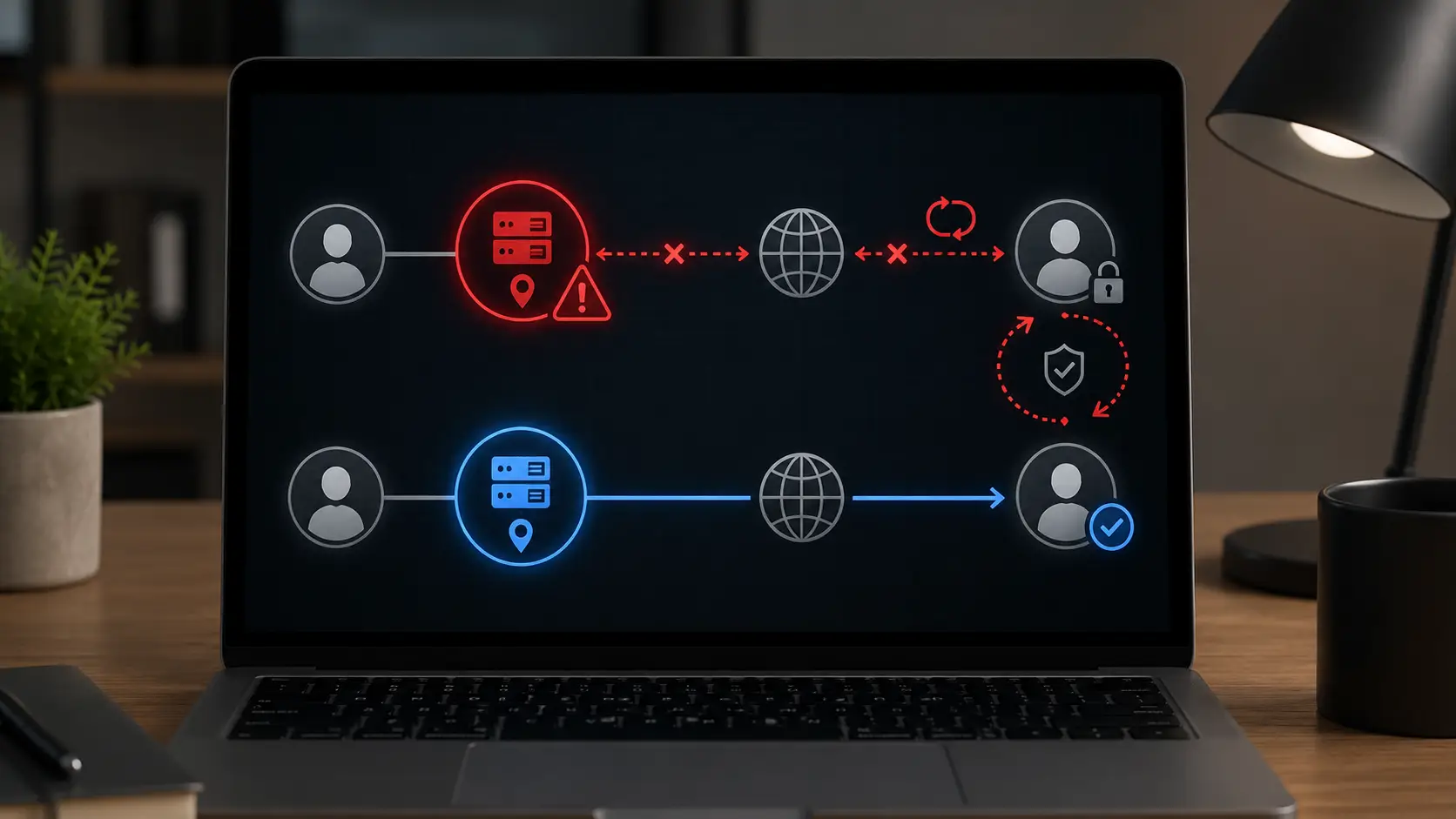
Not every LinkedIn verification after proxy change is caused by a security decision. Sometimes the proxy connection simply does not stay stable long enough to finish the process.
A connection can appear online while still having high latency, packet loss, jitter, or short timeouts. Cloudflare measures these factors because they affect how reliably web requests complete.
For example, LinkedIn sends a verification request and you complete it. When you submit the next step, the proxy drops for several seconds. The page reloads, and you are sent back to another sign-in or verification screen.
From the user's side, this can look like a LinkedIn verification loop.
Test several websites through the same proxy. If pages freeze, connections time out, or requests fail at random, fix the proxy before changing LinkedIn settings.
An unstable connection is one of the simplest LinkedIn proxy issues to rule out before you reset passwords, clear browser data, or start another verification attempt.
How to Fix LinkedIn Verification Loop After Changing Proxy
Once you know what may be causing the loop, the next step is to stabilize the login environment. Do not change the proxy, browser session, password, and cookies at the same time.
For a LinkedIn Verification Loop After Changing Proxy, use a controlled order: keep one connection, complete LinkedIn's verification, compare the account on a trusted network, and only then test another proxy or browser session.
Stop Changing Proxies During Verification
If LinkedIn is already asking you to verify the account, avoid switching between several proxies during the same verification attempt.
LinkedIn says an unfamiliar location or device can trigger a security prompt. It may also ask users to re-authenticate when it detects access from an unusual location.
For example, if verification begins on Proxy A, do not immediately move through Proxy B, Proxy C, and mobile data. Each change makes the test harder to read.
Keep one stable connection and finish the current verification first. If LinkedIn keeps asking for verification, record what happened before changing another variable.
Complete LinkedIn's Official Verification Steps
Follow the verification method LinkedIn shows on screen instead of repeatedly restarting the login.
LinkedIn may use email verification, CAPTCHA, or other security prompts during sign-in. If account access requires identity confirmation, LinkedIn also provides an official recovery process that may ask for a government-issued ID or another accepted verification method.
For example, if LinkedIn sends an email verification request, complete that process first. Do not change the proxy halfway through and request another code immediately.
LinkedIn also limits repeated verification-code requests. If the maximum is reached, another code may not be available for 24 hours.
That makes the official verification path the best first step for a LinkedIn proxy verification problem.
Test the Account on a Trusted Connection
If the verification loop continues, remove the proxy and try the same LinkedIn account on a connection you already trust.
Keep the browser and account the same. Change only the network.
For example:
- With Proxy A: verification returns after completion.
- With trusted home Wi-Fi: LinkedIn opens normally.
This does not prove why Proxy A failed. However, it gives you useful evidence that the network change is involved.
LinkedIn stores active-session information such as IP address, location, and device type, so you can also review where the account is currently signed in.
If the LinkedIn verification after proxy change continues even without the proxy, the browser session or account itself may need more attention.
Replace the Proxy If the Loop Only Happens With That IP
If LinkedIn works on a trusted connection but enters the same loop whenever one specific proxy is used, test another known-working proxy.
Keep everything else unchanged.
For example, use the same LinkedIn account, browser Profile, and saved session. Replace only Proxy A with Proxy B.
If Proxy A repeatedly produces verification while Proxy B works normally, Proxy A becomes the strongest variable in the test. This does not reveal LinkedIn's internal decision process, but it is a useful troubleshooting result.
At that point, replacing the problem proxy is more practical than repeatedly resetting the password or changing browser settings.
This controlled comparison helps separate LinkedIn proxy issues from account-level problems.
Test a Clean Browser Session When the Current Session Is Stuck
Sometimes the proxy works again, but the existing browser session keeps returning to the same login or verification screen.
LinkedIn specifically recommends clearing browser cache and cookies when users face repeated sign-in requests. It also suggests reviewing active sessions and signing out of sessions that are no longer needed.
For example, suppose the LinkedIn verification loop first appeared while Proxy A was unstable. You later switch to a working connection, but the old session still loops. Test one clean browser session with the working connection and compare the result.
Do not clear cookies after every failed attempt. Use a clean session as a controlled test.
The main rule for fixing a LinkedIn Verification Loop After Changing Proxy is simple: change one variable at a time. That makes it much easier to see whether the real problem is the proxy, network connection, browser session, or LinkedIn account access.
How to Tell If the Proxy Is Causing the LinkedIn Verification Loop
After trying the basic fixes, the next step is to confirm whether the proxy is really causing the problem. A LinkedIn Verification Loop After Changing Proxy can look like an account issue even when the network connection is the main variable.
The best test is controlled. Keep the same LinkedIn account and browser Profile. Change only the connection, then compare the results.
Compare LinkedIn With and Without the Proxy
Start by testing the same account with the proxy enabled and disabled.
LinkedIn says it may show security prompts when a sign-in comes from an unfamiliar location or device, or when it detects suspicious web activity. It also recommends avoiding VPNs or proxy servers if users want to reduce security challenges.
For example:
- With Proxy A: LinkedIn asks for verification again.
- Without the proxy: the same account opens normally.
If this result repeats, the proxy path becomes the stronger suspect.
If LinkedIn keeps asking for verification on both connections, the problem may not be caused by the proxy alone. LinkedIn recommends checking active sessions and clearing browser cache and cookies when repeated sign-in requests continue.
Check the Proxy IP, Location, and Connection Stability
If the loop appears only with the proxy, check what that connection actually looks like.
LinkedIn's Where you're signed in page can show the browser, IP address, city, state, and recent sign-in time for active sessions. LinkedIn also says unusual locations may trigger re-authentication.
For example, if you expected a U.S. proxy but LinkedIn shows a login from another country, confirm the proxy location before changing account settings.
Then check connection quality.
A proxy can be online but still suffer from high latency, jitter, packet loss, or timeouts. Cloudflare lists these as useful network measurements when diagnosing connection problems.
If LinkedIn enters a LinkedIn verification loop while other websites also freeze or time out through the proxy, the network itself deserves attention first.
Test the Same LinkedIn Account With Another Working Proxy
The final test is to replace only the proxy.
Keep the same LinkedIn account, browser Profile, cookies, and general setup. Then switch from the problem proxy to another connection you already know works.
For example:
Proxy A: LinkedIn verification repeats.
Proxy B: same account and Profile, but LinkedIn opens normally.
This comparison does not reveal LinkedIn's internal security logic. However, if the only changed variable is the proxy, it gives you useful evidence that Proxy A is connected to the problem.
That is especially useful for separating LinkedIn proxy issues from browser or account problems. If the LinkedIn verification after proxy change disappears only when Proxy A is removed, replacing that proxy is usually more practical than repeatedly resetting passwords, clearing cookies, or rebuilding the entire browser Profile.
The goal is simple: change one variable, compare the result, and keep the setup that gives the most stable outcome.
How to Prevent LinkedIn Verification Loops When Switching Proxies
Once you can tell whether the proxy is part of the problem, prevention becomes easier. The goal is not to keep changing settings until LinkedIn finally opens. It is to reduce unnecessary changes in the login environment.
LinkedIn says security prompts can appear when you sign in from an unfamiliar location or device, or when it detects suspicious web activity. LinkedIn even recommends avoiding VPNs and proxy servers if you want to reduce security challenges.
If your workflow still requires a proxy, focus on four things: location consistency, fewer IP changes, a stable browser session, and a reliable connection.
Keep the Proxy Location Consistent With the Account Setup
A proxy can change both the public IP address and the location linked to that connection.
LinkedIn confirms that an unusual login location may cause it to ask the user to re-authenticate. It may also send a warning email showing the new access location.
That does not mean every city or country change will cause a LinkedIn verification loop. LinkedIn does not publish a rule saying how large a location change must be before verification appears.
Still, large and unnecessary changes add another variable to the login.
For example, suppose a LinkedIn account normally uses a connection in New York. Moving from one stable U.S. proxy to another U.S. connection keeps the location pattern closer than suddenly switching to an IP that appears in Germany.
You can also check LinkedIn's active sessions. Its Where you're signed in page shows information about current sessions and lets you review or close them.
If a new proxy appears in a location you did not expect, check that connection before continuing. This is especially useful when a LinkedIn Verification Loop After Changing Proxy starts immediately after the switch.
Avoid Frequent Proxy Changes on the Same LinkedIn Account
Changing proxies several times in a short period can make troubleshooting much harder.
Each new proxy can introduce another IP address and possibly another location. LinkedIn already considers unfamiliar locations and devices when deciding whether to show security prompts.
For example, imagine verification appears once on Proxy A. You then try Proxy B, Proxy C, and Proxy D within a few minutes.
Now there are several possible causes. Was Proxy A bad? Did one of the new locations cause another challenge? Did the browser session become stuck during one of the attempts? The test no longer gives a clear answer.
A better approach is to keep one working proxy for the session. Replace it only when there is a clear reason, such as repeated timeouts, the wrong location, or a LinkedIn proxy verification problem that disappears when the proxy is removed.
This gives you a stable baseline. If LinkedIn keeps asking for verification, you can compare one change at a time instead of guessing.
Check Proxy Connectivity Before Logging Into LinkedIn
A final habit is to test the proxy before using it for LinkedIn.
A proxy can connect successfully and still have poor network quality. Cloudflare recommends checking factors such as latency, jitter, packet loss, and timeouts when diagnosing connection problems. Its network-quality tools also use latency, packet loss, loaded latency, upload, download, and jitter to judge connection quality.
Before opening LinkedIn, use the proxy to load a few normal websites. Watch for slow connections, failed requests, or repeated timeouts.
For example, if several websites already freeze through Proxy A, do not use LinkedIn verification as the first serious test of that connection. Fix or replace the proxy first.
This helps separate LinkedIn proxy issues from account problems. A verification page that fails during an unstable network session may look like a security loop even when the connection itself is part of the problem.
The most practical way to reduce a LinkedIn Verification Loop After Changing Proxy is consistency. Keep location changes reasonable, avoid unnecessary proxy switching, preserve the same browser Profile when possible, and test the connection before logging in. These steps cannot guarantee that LinkedIn will never request verification, but they make repeated verification easier to prevent and much easier to diagnose.
How DICloak Helps Manage LinkedIn Proxy Verification Issues
The prevention steps above become much easier when the proxy, browser session, and fingerprint settings can be managed in one place. This is where an antidetect browser such as DICloak can fit into the workflow.
DICloak lets users create isolated browser Profiles, customize fingerprints, and configure a proxy for each Profile. Its social media use case is built around keeping different accounts in separate browser spaces instead of mixing them in the same browser session.
For a LinkedIn Verification Loop After Changing Proxy, the benefit is not that DICloak can guarantee that LinkedIn will stop asking for verification. It cannot. The practical value is that it gives you more control over the variables that matter during troubleshooting.
Keep Each LinkedIn Account in a Separate Browser Profile
If you manage more than one LinkedIn account, keeping them all in the same normal browser can make troubleshooting messy. Cookies, saved sessions, extensions, and other browser data may overlap.
DICloak creates an isolated browser Profile for each account. Its own social media guidance describes each account as running in a separate Profile with its own fingerprint.
For example, one client LinkedIn account can stay inside its own Profile with its saved login session. Another account can use a different Profile.
When a LinkedIn verification loop appears, you know which browser profile belongs to that account. You do not need to clear data from every LinkedIn login just to test one problem.
This also makes A/B testing cleaner. You can keep the same Profile and change only the proxy, which follows the troubleshooting method discussed earlier in this guide.

Assign a Stable Proxy to Each LinkedIn Profile
DICloak also lets you configure proxies at the Profile level. The provided DICloak feature material lists per-Profile proxy integration and support for common protocols such as HTTP, HTTPS, and SOCKS5.
That is useful when you want one LinkedIn Profile to return to the same proxy setup instead of selecting a new connection every time you log in.
For example, suppose a U.S.-based LinkedIn account normally uses one stable U.S. proxy. You can save that proxy and assign it to the account's Profile. The next time you open the Profile, you do not need to rebuild the network setup manually.
DICloak's current documentation also supports choosing a saved proxy when creating or editing a browser Profile.
This does not make a proxy automatically suitable for LinkedIn. Proxy quality still depends on the provider and the actual IP. But it reduces unnecessary configuration changes that can make LinkedIn proxy verification harder to diagnose.
Keep Cookies, Sessions, and Fingerprint Settings Consistent
Proxy consistency is only part of the setup. The browser profile should also remain stable when possible.
DICloak Profiles are designed to keep accounts in separate browser spaces with configurable fingerprint settings. The supplied DICloak material also describes Cookies and session progress as data that can remain connected to shared Profiles.
In practice, this means you can return to the same LinkedIn Profile rather than creating a fresh browser profile for every login.
Imagine Account A normally runs in one Profile. You change its proxy because the old connection stops working. Instead of also changing the browser fingerprint, deleting the cookies, and starting a completely new session, you can keep the Profile and change only the proxy.
If LinkedIn keeps asking for verification, that controlled setup gives you a much clearer result.
A stable Profile does not remove LinkedIn's own security checks. It simply helps avoid adding several new variables at once when investigating LinkedIn verification after proxy change.

Check Proxy Connectivity Before Opening the Profile
Before opening LinkedIn, it also helps to confirm that the assigned proxy actually works.
DICloak includes a proxy connectivity check. When creating a proxy, users can enter the proxy details and use Checking Proxy to confirm whether the connection succeeds before saving it. Current DICloak documentation also shows a Check proxy option for batch-created proxies.
This gives you a simple extra checkpoint before LinkedIn becomes part of the test.
For example, if you plan to open Account A through Proxy A, check Proxy A first. If the connection already fails at the proxy-check stage, there is little value in opening LinkedIn and treating the next error as an account problem.
If the proxy passes the connectivity test but LinkedIn still enters a LinkedIn Verification Loop After Changing Proxy, you can move to the next comparison: test the same Profile on a trusted connection or another known-working proxy.
That is the main reason DICloak fits this troubleshooting workflow. It puts the Profile, proxy, fingerprint, Cookies, and session into a more controlled setup. Instead of changing several parts of the login environment at once, you can isolate one variable and see what actually changes.
FAQs About LinkedIn Verification Loop After Changing Proxy
Q1: Why does a LinkedIn Verification Loop After Changing Proxy happen?
A LinkedIn Verification Loop After Changing Proxy can start when the new connection changes the IP address or login location LinkedIn sees. LinkedIn says it may show security prompts when a login comes from an unfamiliar location or device, or when it detects suspicious web activity. It also advises users to avoid VPNs and proxy servers if they want to reduce security challenges.
For example, an account that normally signs in from the U.S. may receive another verification request after switching to a proxy that appears in another country. This does not mean every proxy change will cause a LinkedIn verification loop, but the network change is an important variable to check.
Q2: How long does a LinkedIn Verification Loop After Changing Proxy take to resolve?
LinkedIn does not publish a fixed time for resolving a LinkedIn Verification Loop After Changing Proxy. The time depends on the type of security check and whether there is also an account-access problem.
A simple CAPTCHA or email check may be completed during the current login. If LinkedIn asks you to recover account access or verify your identity, additional steps may be required. LinkedIn's recovery process can include identity verification using an accepted government-issued ID.
If LinkedIn keeps asking for verification after you complete the requested step, avoid repeatedly changing proxies. First test the account on one stable, trusted connection.
Q3: What should I do if my account is locked during a LinkedIn Verification Loop After Changing Proxy?
If your account becomes restricted or inaccessible during a LinkedIn Verification Loop After Changing Proxy, stop repeated login attempts and follow the instructions LinkedIn shows on screen.
LinkedIn says users who believe an account was restricted in error can sign in and follow the provided identity-verification steps. Its account recovery system also provides options for users who cannot access their account normally.
Do not assume changing to another proxy will remove the restriction. Once the issue has moved from LinkedIn proxy verification to an account restriction, LinkedIn's official recovery process should come first.
Q4: Is it safe to use shared proxies if I want to avoid a LinkedIn Verification Loop After Changing Proxy?
A shared proxy cannot guarantee that you will avoid a LinkedIn Verification Loop After Changing Proxy. In fact, LinkedIn's official security guidance recommends avoiding proxy servers and VPNs when trying to reduce security challenges.
LinkedIn does not publish a rule saying that shared, dedicated, residential, or datacenter proxies are automatically safe or unsafe for account verification.
If your workflow requires a proxy, test its IP location and connection stability before logging in. If one shared proxy repeatedly causes LinkedIn proxy issues while the same account works normally on another connection, replacing that proxy is a more useful step than continuing to retry it.
Q5: What should I do if the LinkedIn Verification Loop After Changing Proxy continues after verification?
If the LinkedIn Verification Loop After Changing Proxy continues even after you complete the requested verification, check whether the problem follows the proxy or stays with the browser session.
Try the same account on a trusted connection first. If the loop continues there, LinkedIn recommends checking active sessions and clearing browser cache and cookies for repeated sign-in problems. It also suggests trying another browser or an incognito session for general login troubleshooting.
If the account works without the proxy but the LinkedIn verification after proxy change returns every time the same proxy is enabled, the proxy connection should be investigated or replaced before changing more account settings.
 Web Proxy Tools
 Free Tools
 Cookie Plugin
 UA Generator
 MAC Address Generator
 IP Generator
 IP Address List
 2FA Code Generator
 World Clock
 Anonymous Check
 WebRTC Leak Test
 UUID Generator
 Free Web Proxy Site
 Proxy Checker
 FB Ad Checker
 AI Web Scraping
 Free SMM Tools
 Twitter Shadowban Checker
 Instagram Name Checker
 UTM Generator
 Username Generator
 AI Hashtag Generator
 LinkedIn Headline Generator
 Social Media Image Resizer