Protecting your online privacy has never been more important. Every time you browse the internet, your browser is quietly sharing details that could expose your identity to trackers. Pixelscan is an essential tool that helps you see exactly what websites can learn about you through your browser fingerprint. Whether you're managing multiple accounts, running online campaigns, or simply concerned about privacy, understanding how visible you are online is crucial. In this article, we'll walk you through how Pixelscan works, its key features, and how combining it with anti-detect browsers like DICloak can give you the ultimate privacy protection. Stay one step ahead of trackers and discover how to keep your online activities secure.
What is Pixelscan?
Pixelscan is a tool designed to help users understand how much of their online presence is visible to websites. By analyzing your browser's unique characteristics, Pixelscan provides insight into the type of data that can be used to identify or track you online. It works by scanning your browser's setup to reveal the information that may be shared automatically with websites as you browse.
Definition and Overview
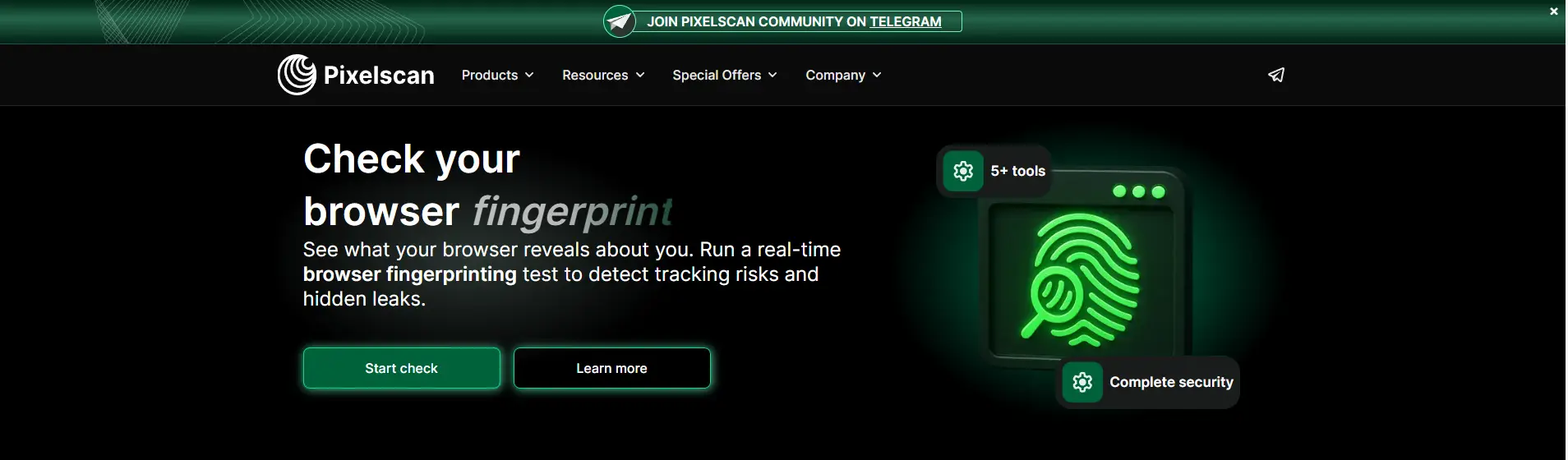
Pixelscan is an online tool that checks the information your browser shares with websites. It scans various elements like canvas fingerprinting, WebGL data, audio context, and system settings that can uniquely identify your browser. When you visit the Pixelscan site, it runs this scan and shows a detailed report of the unique traits your browser reveals. These traits are part of your "browser fingerprint," a set of information that can track you across different websites without relying on cookies.
The tool is easy to use: no sign-up or installation is required. It immediately generates a report showing what websites could potentially see about your device. This information can help you understand how your browser is identified across the internet, which is especially useful for those concerned about privacy.
The Purpose of Pixelscan in Online Privacy
Pixelscan plays a critical role in protecting your online privacy. It helps you understand what information your browser reveals to websites when you visit them. Even if you delete cookies or use private browsing, your browser still shares specific details about your device, such as screen resolution, fonts, and operating system settings. Websites can use this data to create a unique "fingerprint" that tracks your online activity.
For example, if multiple accounts are used from the same device without proper isolation, the unique fingerprint can link them together, leading to potential issues such as account bans or privacy risks. Pixelscan enables users to check their browser's fingerprint and make adjustments to improve privacy by using features like private browsing or other privacy tools to avoid exposure.
In summary, Pixelscan isn't a privacy tool by itself, but it acts as an important diagnostic tool to show what websites can see about you. By identifying potential privacy leaks, it empowers users to take steps to protect their identity online.
How Does Pixelscan Work?
Before we look at the technical details, it helps to think about what Pixelscan actually does when you open it in your browser. Pixelscan runs a test that quickly checks many parts of your browser and system. It collects these details and shows you what websites can see about your setup. This makes the scan a powerful way to learn how exposed your online presence might be.
Technical Mechanisms Behind Pixelscan
Pixelscan works by collecting small pieces of data from your browser and device. When you visit the Pixelscan website, it runs a script in your browser that checks many technical details. These details include things like your screen size, browser type, system language, and other features your browser shares with websites.
One key feature Pixelscan looks at is canvas fingerprinting. This method uses your browser to draw a tiny hidden image. Every device draws that image a little bit differently. Those tiny differences become a unique code that helps identify your browser.
Pixelscan also checks things like WebGL data and audio context. These are just fancy names for parts of your browser that show how your device handles graphics and sound. Websites can use this information to help track or recognize your setup across visits.
Here’s a concrete example: when you open Pixelscan in a browser on your laptop, the test runs instantly. It detects your screen width, what fonts you have, and even details about your graphics processor. Pixelscan then shows you a report that says which parts are unique or common. If your setup has unusual fonts or a rare screen size, you may be more easily tracked later.
Analyzing Browser Attributes for Privacy Assessment
After Pixelscan collects data, it analyzes each piece to assess your privacy. The tool combines all signals into what’s called a browser fingerprint. This fingerprint is like a profile of your browser that can be used to identify you online.
Pixelscan doesn’t just list these details. It gives you meaningful results so you can understand what they mean. For example, it may show that your browser is very unique. A unique browser is easier for websites to recognize. On the other hand, if many users share the same traits, your privacy is stronger.
For a real‑world case, imagine two people using the same browser version and system type. Person A has common settings like default fonts and standard screen size. Person B has extra fonts and a rare screen size. Pixelscan would show that Person B’s fingerprint is more unique and easier to track on many sites. This helps both users see where their privacy might be weak.
Pixelscan also checks your IP and geolocation to see if these match your other attributes. If your location looks different from your language settings or time zone, Pixelscan may show a warning. This kind of mismatch can be a sign that something about your setup is unusual and could affect your privacy or how sites treat you.
In short, Pixelscan works by gathering many small data points from your browser, analyzing them together, and showing you how visible or hidden you are online. This makes it a useful first step in understanding and managing your online privacy.
Key Features of Pixelscan
Now that you know how Pixelscan gathers and analyzes browser data, it’s time to look at what makes this tool stand out. Pixelscan is more than just a scanner. It gives clear information that helps you understand your online exposure. This section explains the key features that many users find helpful when checking their privacy and browser setup.
Comprehensive Reports and User-Friendly Interface
One strong point of Pixelscan is how it shows results. After you run the test, Pixelscan displays a full report. The report breaks down many details about your browser and device. It shows things like fingerprint traits, IP address info, and any mismatches in settings that may make you more visible online.
The interface is simple and clear. You do not need tech knowledge to read the results. For example, Pixelscan shows whether your browser traits are common or unique. If your traits are rare, you might be easier to track. Seeing this in plain language helps regular users understand risks without confusion.
A small online seller used Pixelscan before logging into their sales account. The report showed unusual font and WebGL data. After switching to more standard settings, the seller saw fewer security checks from the platform. This clear output helped them make a quick, informed change.
Speed and Efficiency of Results
Another key feature of Pixelscan is speed. You get results in just a few seconds. When you open the website and start the check, Pixelscan runs all tests automatically. There is no long waiting time or complex setup.
This fast feedback is useful when you want to test different tools or settings. For example, a privacy‑aware student wanted to check if a new browser extension affected their fingerprint. They ran Pixelscan before and after installing the extension. In less than a minute, they saw how the extension changed key browser traits. This quick test saved them time and helped protect their online footprint.
Because Pixelscan checks many things at once — like canvas data, WebGL, audio context, and HTTP headers — getting all this in a fast report is valuable for both beginners and advanced users.
No Installation Required: Convenience of Use
One of the best parts of using Pixelscan is that you do not need to install anything. Pixelscan runs entirely in your browser. Just open the website, and the tool starts working. This makes it very easy to use on any device — laptop, desktop, or tablet — without worrying about downloads or software updates.
This feature is especially helpful for people who want privacy checks on the go. For example, a remote worker used Pixelscan on their work laptop to make sure their browser settings did not expose unnecessary data. They could check it quickly from the office without installing new apps or asking IT for permission.
Because there is no installation needed, Pixelscan stays lightweight and fast. You don’t have to worry about system storage or permissions. This makes the tool accessible to anyone — even those with limited technical skills.
Why It’s Important to Perform a Check with Pixelscan
If you’re managing multiple online accounts — whether for social media, marketplaces, or ad platforms — it’s essential to stay undetected. A small mismatch in your browser setup could lead to account bans or force you to go through annoying verifications. This is where Pixelscan can make a real difference.
Avoid Suspicious Fingerprints That Lead to Bans or Verification Requests
Pixelscan acts as a quick check on your browser’s setup. It reveals details like browser fingerprint uniqueness, location settings, and even potential data leaks. By checking these elements, you can avoid potential risks that could draw unwanted attention from platforms. For instance, if your browser traits are too unique or don't match your IP and location settings, websites may flag you for suspicious activity, leading to forced verifications or account bans.
Test if Your Browser Profiles Are Too Unique
When running multiple accounts, especially on platforms that track activity through browser fingerprints, it's critical to ensure your browser profile is not too unique. Pixelscan helps you assess this by showing how different or similar your browser setup is compared to others. If your fingerprint is too unique, it's easier for platforms to link your profiles, potentially leading to account restrictions.
Spot Risks Before They Become Problems
Another essential benefit of Pixelscan is its ability to spot potential risks before platforms notice them. It quickly checks if your location settings or browser traits are mismatched, which could expose your real identity. Pixelscan helps you identify these risks so you can take action to correct them and avoid being flagged by platforms.
Peace of Mind When Creating or Switching Accounts
This tool is especially useful when you’re creating new profiles, switching accounts, or launching automation systems. Pixelscan allows you to check if your location settings, browser configurations, or fingerprint data could be easily detected by websites. The last thing you want is to spend time creating accounts or running automation, only to have platforms catch on and flag your activity. With Pixelscan, you can avoid that. There’s no guesswork — just quick answers that keep you on track.
Fast and Easy: No Setup Required
Running a check with Pixelscan is simple and fast. There’s no need to log in, install anything, or go through complicated setups. Just open the website, run the test, and get immediate feedback. This quick scan is especially helpful if you want to ensure your accounts are safe before taking any action.
Run a free scan on Pixelscan right now — no login, no setup. Test your browser fingerprint, location settings, and potential data leaks in just a few seconds. Take control of your online privacy today.
How to Use Pixelscan
Now that you know why a check with Pixelscan matters, let’s walk through how to actually use it. Pixelscan makes browser fingerprint checks simple and fast. You don’t need special skills or extra tools. Just follow clear steps, and you will see what websites can learn about your browser.
Step 1: Visit the Pixelscan Website
First, open your web browser and go to pixelscan.net. You can use any browser — Chrome, Firefox, Edge, or even your tablet browser work fine. You do not need to log in or install any software. The tool runs entirely in your browser.
Step 2: Start the Browser Fingerprint Test
Once the page loads, look for the button that says something like “Start Check” or “Test my browser.” Click it to begin. Pixelscan will start scanning your browser and system traits. In just a few seconds, the tool collects data like screen size, language, time zone, and other key browser details that websites may see.
For example, a content creator once ran Pixelscan before logging into a new social media dashboard. The scan finished in under ten seconds. The report showed that the creator’s screen resolution and system settings looked unusual. After adjusting these settings to more common values, the creator saw smoother login processes with fewer security checks.
Step 3: Read Your Results
After the scan finishes, Pixelscan shows a detailed report. You will see clear sections that explain what your browser reveals online. Some parts show if your setup is common or rare, which affects how easy it is to track you. Pixelscan also highlights any mismatches in your settings, such as language and location differences.
For example, you might see something like “Canvas fingerprint looks unique” or “Time zone and IP region do not match.” These notes help you understand where your privacy may be weaker. A small business owner once used this feature to spot a mismatch between their system time zone and region info. By fixing this mismatch, they reduced the number of extra logins and security prompts from their seller platform.
Step 4: Take Action Based on What You See
Once you understand your results, you can choose what to do next. If the report shows something unusual, you might adjust your browser settings. This could mean changing your language preferences, system time, or even switching to a browser that shares fewer unique details. Small changes can make your browser appear more typical and less trackable.
A freelancer managing several online accounts found that Pixelscan flagged an inconsistent fingerprint. After making a few simple adjustments in their browser setup, they ran Pixelscan again and saw a more consistent set of results. This gave them confidence that their accounts were less likely to face security flags from platforms.
Step 5: Check Regularly
Your browser setup can change over time — even without you noticing. Extensions, system updates, or new settings can shift how your browser looks to websites. So it’s a good habit to run a Pixelscan check after making any big changes. This helps you avoid surprises like unexpected security verifications or blocked logins in the future.
Using Pixelscan is quick, easy, and free. Just open pixelscan.net, scan your browser, read the results, and make simple changes if needed. This small step can give you more control over how websites see you online and help keep your accounts safe.
Alternatives to Pixelscan
Now that you know how to use Pixelscan, it’s helpful to understand other tools you can use too. Pixelscan is powerful, but it is not the only tool that can check your browser’s fingerprint and privacy. Comparing different tools helps you pick the best fit for your needs.
Comparison with Other Privacy Tools
There are many online tools that check browser fingerprints and privacy information. Some focus on browser details, while others also show IP or network info. Here are a few worth knowing:
- AmIUnique — This tool tells you how unique your browser fingerprint is. It compares your fingerprint with a large public database. This helps you understand how easy or hard it is to track you across the web. It works well if you want to see how rare your setup is.
- Cover Your Tracks — Created by the Electronic Frontier Foundation, it gives you an overview of how trackers see your browser. It highlights the most identifiable traits and shows how well your setup blocks common tracking methods.
- BrowserLeaks — This tool runs many technical tests, showing detailed data about your browser, like plugins, audio and GPU data, and other fingerprint details. It is a good choice for those who want a deep technical view.
- Whoer.net — This tool checks not only your browser fingerprint but also your IP and related data. It shows things like your approximate location and DNS info. It’s simple and good for quick checks.
For example, a privacy researcher once used both Pixelscan and AmIUnique on the same browser. Pixelscan showed detailed mismatch warnings, while AmIUnique gave a uniqueness percentage. Together, these tools gave a broader picture of privacy exposure. The researcher then changed some settings so both tools showed improved privacy results.
Pros and Cons of Each Alternative
Each tool listed above has strengths and weaknesses, depending on what you need. Here’s a simple look at how they compare to Pixelscan:
| Tool |
Pros |
Cons |
| Pixelscan |
Fast, easy to use, detailed fingerprint analysis. Points out mismatches in browser setup. |
Focuses mostly on fingerprint and consistency. Doesn't block scripts or check networks. |
| AmIUnique |
Shows how rare your fingerprint is. Good for general privacy awareness. |
Doesn't provide step-by-step advice for fixing issues. |
| Cover Your Tracks |
Great for understanding browser tracker blocking techniques. |
Doesn't show network or IP info. |
| BrowserLeaks |
Very detailed technical tests. Useful for advanced users and developers. |
Overwhelming for beginners. Large amount of technical data. |
| Whoer.net |
Includes IP, DNS, and browser fingerprint info for a wider view of privacy exposure. |
Less detail on fingerprint specifics compared to Pixelscan. |
A small business owner once tried multiple tools before selling products online. With BrowserLeaks, they found deep technical data but felt confused by the output. Then with Pixelscan and Whoer.net, they got clear warnings about mismatches in browser time zone and location. After fixing those, they had fewer login challenges across platforms.
In short, Pixelscan is a strong choice for quick, clear fingerprint checks, while tools like AmIUnique, Cover Your Tracks, BrowserLeaks, and Whoer.net offer different insights that can supplement your privacy work. Pairing tools often gives the best results for understanding and managing your online privacy.
Enhancing Privacy with Pixelscan and DICloak Antidetect Browsers
Now that you know about Pixelscan and other privacy tools, let’s talk about how Pixelscan works well with the DICloak Antidetect Browser to protect your online privacy and help you manage accounts safely. Using both together gives you stronger visibility into what websites see and more control over how your browser appears online―especially when you manage many accounts or do sensitive tasks.
Why Combine Pixelscan with DICloak Antidetect Browser?
Pixelscan shows you what your browser reveals to websites. It highlights things like browser fingerprint traits, time zone mismatches, and rare settings that make your identity easy to track. When you see those risks, you can fix them with tools like DICloak Antidetect Browser, which creates separate browser profiles with different fingerprints.
For example, a digital marketer once needed to run ads for three different brands without linking the accounts. They first ran Pixelscan on their default browser and saw that the browser traits were very similar across accounts. This made it risky to proceed because platforms could link all accounts and block them. Then they set up three separate profiles in DICloak. After that, they ran Pixelscan inside each DICloak profile. Each scan showed different fingerprints and no major leaks. This helped them launch ad campaigns without unexpected security checks or bans.
Real Benefits of This Integration
- Better Privacy Results: Pixelscan shows whether your anti‑detect browser profiles are truly unique. If two profiles reveal very similar fingerprints, sites may still link them. Running Pixelscan helps you catch this early.
- Safe Multi‑Account Use: If you manage many accounts (like stores, ad dashboards, or social pages), having distinct profiles that don’t look alike reduces the risk of accounts being flagged.
- Quick Testing Before Actions: Before taking important steps — such as posting ads or launching a campaign — run Pixelscan inside your anti‑detect browser profile. This gives you fast feedback so you don’t act on weak privacy settings.
What Makes DICloak Stand Out?
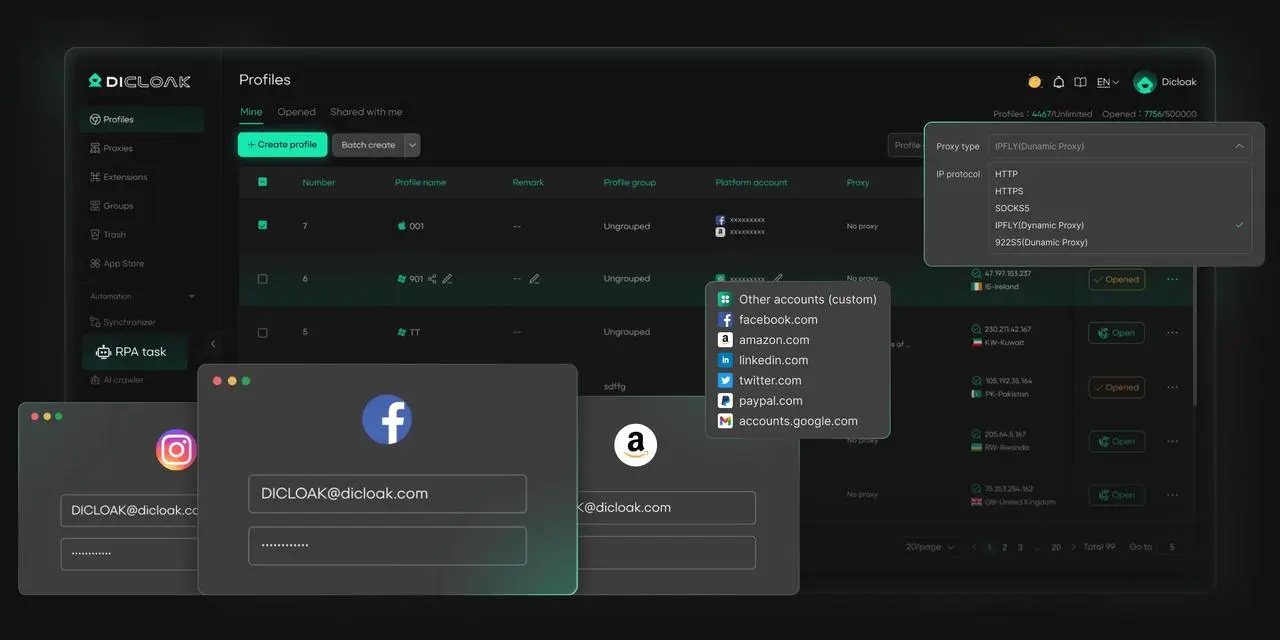
✅ Manage 1,000+ Accounts on One Device:
Stop wasting money on extra hardware! DICloak allows you to manage multiple accounts on a single device, cutting costs and boosting efficiency.
✅ Guaranteed Account Safety, No Ban Risks:
Every account gets its own isolated browser profile with custom fingerprints and IPs, drastically reducing the risk of bans. Your accounts, your control!
✅ Flexible Proxy Configuration for Maximum Performance:
Seamlessly integrate with all major proxy protocols (HTTP/HTTPS, SOCKS5) and manage your proxy pool with bulk operations. No more struggling with IP management—DICloak has you covered.
✅ Streamlined Team Collaboration for Better Results:
Easily manage your team with advanced tools like profile sharing, permission settings, data isolation, and operation logs. Your team works smarter, not harder.
✅ Automate the Grind with RPA:
DICloak's built-in RPA saves you hours of manual work. Automate repetitive tasks, streamline workflows, and focus on what really matters—growing your business.
✅ Powerful Bulk Tools to Scale Your Operations:
Create, import, and launch multiple browser profiles in one click. DICloak makes scaling your business as easy as it gets.
✅ Compatible with All Major Operating Systems:
Based on the Chrome core, DICloak supports simulating Windows, Mac, iOS, Android, and Linux operating systems. No matter what platform you need, DICloak has you covered.
🔗 Ready to Get Started?
Visit the DICloak website to explore more details and choose the plan that’s right for you. Start for free today and experience the power of secure, efficient, and scalable multi-account management!
Conclusion
Protecting online privacy is crucial. Pixelscan helps by showing what your browser reveals to websites. It checks your browser’s fingerprint, like screen size and time zone, to identify risks. By running a quick test, you can spot any privacy issues that might lead to tracking or security flags.
For even better protection, combine Pixelscan with the DICloak Antidetect Browser. DICloak creates unique profiles for each account, hiding your online activity. Running Pixelscan in DICloak lets you check if your profiles are properly isolated and undetectable.
Together, these tools help you secure your privacy, manage multiple accounts safely, and avoid unwanted exposure. Whether you're a business owner or just care about privacy, Pixelscan and DICloak offer easy and effective ways to stay protected online.
FAQ
What is Pixelscan and how does it work?
Pixelscan is a tool that helps you understand how much of your online activity is visible to websites through your browser’s fingerprint. It scans your browser for unique traits, such as screen size, time zone, and other settings that can identify or track you online. By running a Pixelscan test, you can see what websites may learn about you, and adjust your settings to improve privacy.
How can Pixelscan enhance my online privacy?
Pixelscan enhances privacy by showing you how websites track your browser. By identifying unique or risky fingerprint traits, it helps you take action to hide your identity. Using Pixelscan before logging into sensitive accounts or switching between multiple profiles ensures that your setup is less likely to be flagged by platforms.
Is Pixelscan the only tool for browser fingerprint detection?
No, Pixelscan is not the only tool available. There are alternatives like AmIUnique, Cover Your Tracks, and BrowserLeaks that offer different insights into your browser’s fingerprint. However, Pixelscan stands out for its user-friendly interface, speed, and ability to give clear reports about your privacy exposure.
How does Pixelscan work with anti-detect browsers like DICloak?
When using Pixelscan with DICloak Antidetect Browser, you can ensure that each browser profile looks unique and undetectable. DICloak creates separate browser profiles, and by running Pixelscan in each profile, you can check for any risks or mismatches in fingerprint data before you use the profiles for important tasks.
Why is it important to perform a check with Pixelscan regularly?
Regular checks with Pixelscan allow you to identify privacy risks that might appear after updates or changes in your browser. By checking your browser’s fingerprint before making important changes, like logging into multiple accounts, you can avoid unwanted exposure, security flags, or account bans.
 Web Proxy Tools
 Free Tools
 Cookie Plugin
 UA Generator
 MAC Address Generator
 IP Generator
 IP Address List
 2FA Code Generator
 World Clock
 Anonymous Check
 WebRTC Leak Test
 UUID Generator
 Free Web Proxy Site
 Proxy Checker
 FB Ad Checker
 AI Web Scraping
 Free SMM Tools
 Twitter Shadowban Checker
 Instagram Name Checker
 UTM Generator
 Username Generator
 AI Hashtag Generator
 LinkedIn Headline Generator
 Social Media Image Resizer