Even in 2026, most people still call it "Twitter search," a tool that many underestimate until they truly need it for a professional task. You might be trying to find a specific customer complaint, track a competitor's announcements, or conduct serious market research without getting lost in a sea of random posts. The core problem is that X's basic search is noisy and ineffective for these goals. The solution is mastering the platform's advanced Twitter Search techniques and leveraging specialized tools to manage complex, professional workflows.
Understanding the Basics of Twitter Search (And Why It Feels Random)
X's search algorithm is primarily designed for discovery, not for precision. When you enter a query, the platform doesn't just give you a simple chronological list. Instead, it mixes several types of results, which can make the output feel random and unpredictable.
- "Top" results: These are algorithmically selected posts based on factors like engagement, your interests, and overall relevance.
- "Latest" results: This is a mostly chronological feed of the most recent posts matching your query.
- Personalized results: The content you see is influenced by your own account's behavior, including who you follow and what you engage with.
- Contextual results: Your search results are also affected by your physical location and language settings.
Practical Tip: The moment you perform a search, immediately switch between the "Top" and "Latest" tabs. If you're exploring general trends, "Top" is useful. If you are tracking a timeline or collecting evidence, "Latest" is essential.
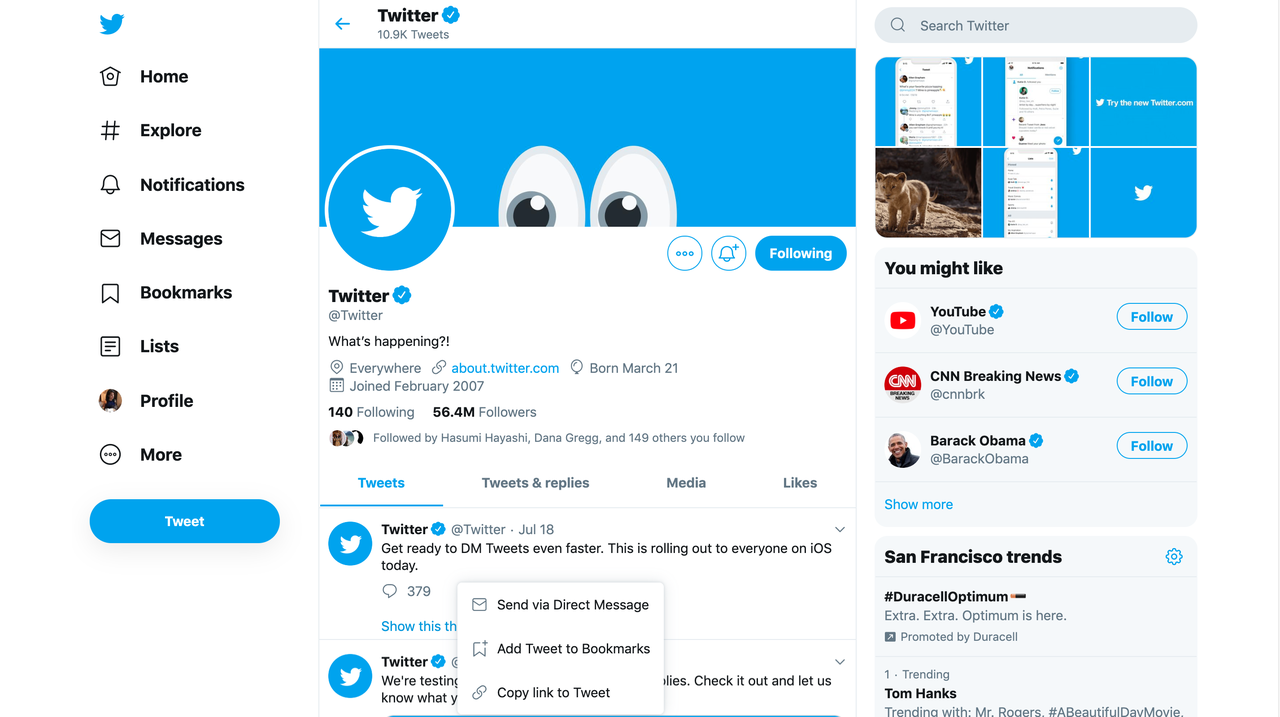
The Easiest Way to Improve Your Twitter Search: The Advanced Interface
The built-in Advanced Search user interface is the most user-friendly way to apply powerful filters without having to memorize specific commands. It unlocks a new level of precision for anyone.
Key Filters in Advanced Search
The advanced interface allows you to filter your search results by a variety of criteria, including:
- Exact words or phrases
- Hashtags
- Accounts (posts from, replies to, or mentioning specific accounts)
- Engagement levels (minimum number of likes, replies, etc.)
- Specific date ranges
A 60-Second Guide to Using Advanced Search
Follow these simple steps to get power-user results quickly:
1. Open the advanced search page on X.
2. Fill in only the fields you absolutely need. Over-filtering can lead to zero results.
3. Run the search.
4. Switch to the "Latest" tab to view the results in chronological order.
Mini Cheat: Finding Negative Brand Mentions To find what people are saying about your brand's potential issues, try this setup in Advanced Search:
- This exact phrase: "your brand"
- or any of these words: problem OR issue OR broken OR scam OR review
- Language: Select your target market's language.
Mastering Twitter Search with Power-User Operators
Search operators are text commands you can type directly into the search bar to apply precise filters. They function like keyboard shortcuts, allowing you to build complex queries quickly once you learn the syntax.
Essential Twitter Search Operators You'll Actually Use
| Category |
Operator |
Description |
| Accounts |
from:handle |
Posts authored by that specific account. |
|
to:handle |
Posts sent as replies to that specific account. |
|
@handle |
Posts that mention that specific account. |
| Time |
since:YYYY-MM-DD |
Shows posts from that date onward. |
|
until:YYYY-MM-DD |
Shows posts published before that date. |
| Content |
filter:media |
Shows only posts containing images or videos. |
|
filter:links |
Shows only posts that include a link. |
| Language |
lang:en |
Filters for posts in a specific language (e.g., English). |
Practical Examples You Can Use Today
Here are a few queries you can adapt for your own research needs:
- Find competitor announcements in a specific date range: from:competitor since:2025-11-01 until:2025-12-01
- Find customer complaints that include media proof: “brand name” complaint filter:media lang:en
- Find posts that link to external reviews of your brand: “your brand” filter:links
Important Tip: Don't over-filter. Start with a simple query and add one filter at a time. This helps you avoid a situation where you get zero results and mistakenly think the search is broken.
How to Use Twitter Search by Date for Accurate Timelines
Searching by date is one of the most powerful features for tasks that require precision. This is crucial for professional use cases like tracking public sentiment during a product launch window or compiling a precise timeline of a competitor's feature releases. There are two primary ways to do this.
Option 1: The Advanced Search UI
This is the most straightforward method, especially for beginners. Simply navigate to the advanced search page and use the "From" and "To" date fields to define your desired timeframe.
Option 2: Using 'since:' and 'until:' Operators
This is the faster method for power users who prefer working directly in the search bar. By combining the since: and until: operators, you can quickly define a date range.
For example, to find all posts from a specific brand about a giveaway in December 2025, you would use: “giveaway” from:brandhandle since:2025-12-01 until:2025-12-31
Warning: Be aware of potential timezone discrepancies. X may index posts in a way that causes date boundaries to seem slightly off. For critical tasks, it's wise to expand your date window by a day on each side to ensure you don't miss anything.
Finding Media with Twitter Image Search and Video Search
If your goal is to find visual content, you can filter out text-only posts to save time and avoid endless scrolling.
How to Perform a Twitter Image Search
To find images, combine your keyword with the filter:media operator. After you run the search, you can also click on the "Photos" tab to further refine the results to only show still images.
Example: “product name” filter:media
How to Perform a Twitter Video Search
While X groups all media types together initially, you can find videos by using the filter:media operator and then selecting the "Videos" tab. For more targeted searches, try combining operators.
Pro Tip: To find a specific video clip, combine filter:media with the creator's handle (from:handle), a date range (since: and until:), and a unique keyword from the post's caption.
The Limits of Using Twitter Search Without an Account
A common question is whether you need to be logged in to search X. While the platform's policies frequently change, logged-out users generally face significant limitations. You will likely encounter login walls, restricted access to older posts, and reduced search depth.
For any consistent or professional research, a logged-in workflow is far more stable and reliable. If your work requires you to manage multiple research identities—for example, to analyze different regions or maintain separate client personas—you need a way to keep these sessions isolated. This is where an antidetect browser like DICloak becomes essential.
What to Do When Your Twitter Search Is Not Working
If your search isn't returning the results you expect, it's usually due to one of a few common issues. Before assuming the tool is broken, run through this quick troubleshooting guide:
- You are stuck on "Top" results: The algorithm may not consider your query to be trending. Switch your view to the "Latest" tab.
- Your search query is too strict: You may have applied too many filters. Try removing operators one by one to broaden the search.
- You have hit a rate limit: X may temporarily restrict your activity if you perform too many searches in a short period. Take a break or spread your work across different sessions.
- You are experiencing logged-out restrictions: Access can be inconsistent without an account. Log in for more reliable results.
For professional workflows, avoiding these issues is key. Using clean, separated browser sessions for each research task is the best way to ensure consistency, and a tool like DICloak is designed for this purpose.
Supercharge Your Twitter Search with DICloak for Professional Use
While casual searching is simple, professional tasks like social listening, brand protection, and multi-account management demand a more robust solution. When your business relies on accurate data from X, you cannot afford to have your profiles blend together.
Why Proxies Alone Are Not Enough
A common misconception is that a proxy is sufficient for managing multiple identities. However, a proxy only changes your IP address. It does not alter the dozens of other data points that form your browser fingerprint. An antidetect browser like DICloak creates a completely new, human-like browser identity for each profile, making each one appear as a unique, genuine user.
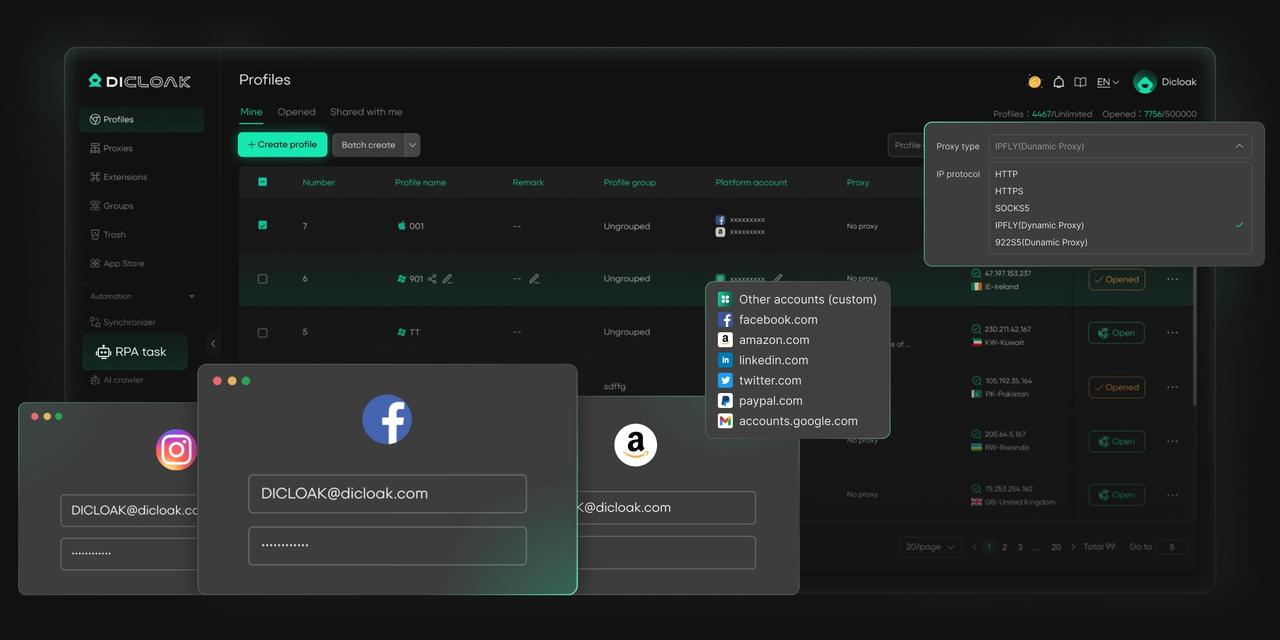
Key DICloak Features for Advanced Twitter Research
✅ Manage 1,000+ Accounts on One Device: Stop wasting money on extra hardware! DICloak allows you to manage multiple accounts on a single device, cutting costs and boosting efficiency.
✅ Guaranteed Account Safety, No Ban Risks: Every account gets its own isolated browser profile with custom fingerprints and IPs, drastically reducing the risk of bans. Your accounts, your control!
✅ Flexible Proxy Configuration for Maximum Performance: Seamlessly integrate with all major proxy protocols (HTTP/HTTPS, SOCKS5) and manage your proxy pool with bulk operations. No more struggling with IP management—DICloak has you covered.
✅ Streamlined Team Collaboration for Better Results: Easily manage your team with advanced tools like profile sharing, permission settings, data isolation, and operation logs. Your team works smarter, not harder.
✅ Automate the Grind with RPA: DICloak's built-in RPA saves you hours of manual work. Automate repetitive tasks, streamline workflows, and focus on what really matters—growing your business.
✅ Powerful Bulk Tools to Scale Your Operations: Create, import, and launch multiple browser profiles in one click. DICloak makes scaling your business as easy as it gets.
✅ Compatible with All Major Operating Systems: Based on the Chrome core, DICloak supports simulating Windows, Mac, iOS, Android, and Linux operating systems. No matter what platform you need, DICloak has you covered.
🔗 Ready to Get Started?
Visit the DICloak website to explore more details and choose the plan that’s right for you. Start for free today and experience the power of secure, efficient, and scalable multi-account management!
Frequently Asked Questions (FAQ) about Twitter Search
What is Twitter Search and how does it work?
Twitter Search allows users to find tweets, hashtags, accounts, and topics relevant to their interests. Simply enter keywords, phrases, or hashtags in the search bar to access a wide range of content.
Can I filter my results in Twitter Search?
Yes, Twitter Search offers various filters to narrow down your results. You can filter by people, location, date range, or even media types like photos and videos for more specific content.
How do I search for tweets from a specific user using Twitter Search?
To search for tweets from a specific user on Twitter Search, simply type “from:@username” in the search bar, replacing “username” with the account's handle.
Can I search for trending topics using Twitter Search?
Yes, Twitter Search allows you to explore trending topics in real time. Just use the search bar to see what's trending globally or in your specific location.
Is there a way to save Twitter Search results for later?
You can save specific searches in Twitter Search by clicking on the search filter options and selecting "Save Search." This way, you can easily access your results without needing to repeat the search process.
Conclusion: From Casual Searching to Professional Intelligence
The basic and advanced Twitter search features are powerful tools that can unlock valuable insights when used correctly. Mastering the interface and a few key operators can transform how you find information on the platform.
However, for professionals who rely on X for critical data, marketing, or research, the key takeaway is this: using isolated browser profiles is the difference between an inefficient workflow and a scalable, secure operation. A tool like DICloak provides the clean-slate environment needed to manage multiple accounts and conduct deep research without interference, ensuring your data is reliable and your accounts are safe.
Ready to build a scalable and secure research operation?
 Web Proxy Tools
 Free Tools
 Cookie Plugin
 UA Generator
 MAC Address Generator
 IP Generator
 IP Address List
 2FA Code Generator
 World Clock
 Anonymous Check
 WebRTC Leak Test
 UUID Generator
 Free Web Proxy Site
 Proxy Checker
 FB Ad Checker
 AI Web Scraping
 Free SMM Tools
 Twitter Shadowban Checker
 Instagram Name Checker
 UTM Generator
 Username Generator
 AI Hashtag Generator
 LinkedIn Headline Generator
 Social Media Image Resizer