More and more users are searching for ways to download YouTube Shorts for offline access, content research, and daily workflow needs. A simple YouTube Shorts download can help viewers save useful videos, help creators back up their own content, and help teams prepare Shorts for editing or distribution. However, not every method works the same way. Some options are safer and more official, while others may have limits on quality, format, or reuse. This guide will walk you through the main ways to download Shorts, how to choose the right video settings, and how to manage saved Shorts more effectively. For teams and power users, it will also cover how DICloak can support multi-account management and large-scale distribution.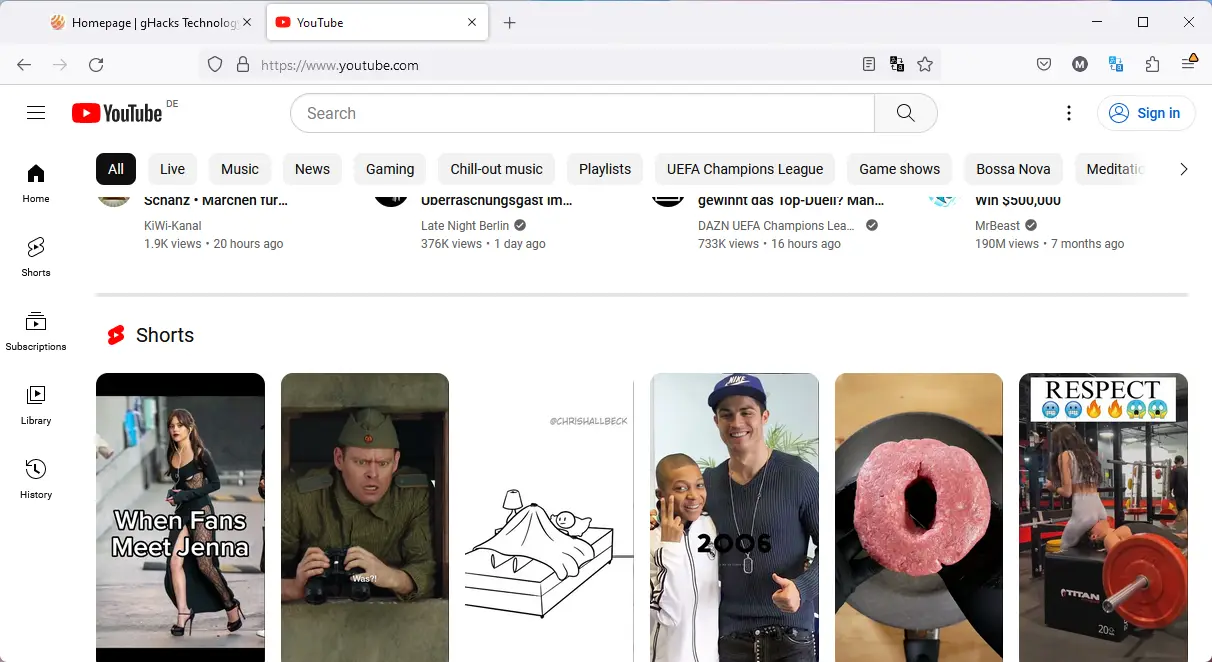
What Are YouTube Shorts?
YouTube Shorts are short, vertical videos made for quick viewing on mobile devices. YouTube says that a video can be treated as a Short if it is vertical or square and up to 3 minutes long. Creators can record a Short in the YouTube app, or upload a video from their phone and publish it as a Short.
This format is now a big part of the YouTube ecosystem. In early 2026, YouTube said Shorts were getting an average of 200 billion daily views. That shows why so many creators, marketers, and regular viewers pay attention to this format. A short is not just a small video. It is often the fastest way to catch attention, test ideas, and reach new viewers.
For example, a beauty creator may post a 20-second makeup tip. A small online store may share a 15-second product demo. A language teacher may upload a fast lesson with one useful phrase. These videos are short, but they can still bring strong traffic, shares, and comments. That is one big reason many people search for terms like download YouTube Shorts or YouTube Shorts download when they want to save useful content for later study, inspiration, or workflow needs.
Why Download YouTube Shorts?
People choose to download YouTube Shorts for different reasons. Some want offline access while traveling or during weak internet service. Some creators want to review their own Shorts before reposting them on other platforms. Others save shorts as examples for editing style, hook ideas, caption structure, or product presentation. YouTube officially allows creators to download videos that they uploaded themselves through YouTube Studio or the YouTube app, but it does not allow users to download other people’s videos directly from Studio in the same way.
A simple example can make this clearer. Imagine a social media manager who runs a skincare brand. She sees that one Short with a strong first 3 seconds gets more clicks than the others. She may want to save that Short, study the opening line, look at the subtitle timing, and compare it with future videos. In another case, a creator may download their own Short to keep a clean backup copy before editing it into a new campaign asset. These are practical reasons, not just technical ones.
Still, downloading Shorts should be done carefully. If the video is your own, YouTube gives you official ways to save it. If the video belongs to another creator, you need to think about copyright, reuse rights, and platform rules before using it outside personal reference. That is why this guide will not only explain how to download YouTube Shorts, but also help readers understand when each method makes sense and what limits they should keep in mind.
Methods to Download YouTube Shorts
After learning what Shorts are and why people save them, the next step is choosing the right method. Not every option works in the same way. Some methods are official and best for your own content. Others are mainly for offline viewing. That is why people who search download YouTube Shorts often need to know not just how to save a video, but also which method fits their situation best.
Direct Download Methods
Using the YouTube App
For most viewers, the YouTube app is the easiest place to start. If you have YouTube Premium or Premium Lite in supported regions, YouTube allows you to download many videos and playlists for offline viewing inside the app. This is useful when you want to watch content later without using mobile data. But this type of download usually stays inside YouTube. It is not the same as saving a normal MP4 file to your phone gallery.
A simple example is a student riding the subway every morning. She may want to watch short study tips or editing ideas during the trip, even when the signal is weak. In that case, using YouTube’s built-in offline feature is safer and easier than trying random tools online. It also lowers the risk of broken files or suspicious download sites. This is often the best first choice for casual users who only want offline access.
Copying the Video URL
Another direct method is copying the Shorts link. This does not download the video by itself, but it is the starting point for many other options. On mobile or desktop, users can open the Short, tap or click Share, and copy the URL. Then they can save the link for later, send it to a teammate, or paste it into a tool that supports a YouTube Shorts download workflow. This method is fast and works well when you are collecting examples for research or content planning.
For example, a freelance editor may collect five strong Shorts from competitors in one afternoon. Instead of downloading each video right away, he can first copy each URL into a notes file. Later, he can review which ones are worth saving for reference. This makes the workflow cleaner, especially when comparing hooks, captions, and pacing.
Using Online Downloaders
Recommended Online Tools
Many users look for browser-based tools because they do not want to install software. A few current web tools openly offer Shorts downloading through a pasted link, including Publer’s YouTube Shorts downloader, SnapAny’s web downloader, and similar pages built for MP4 export. These tools often promote no-login use and quick processing, which is why they are popular for one-off tasks.
Still, this method needs care. Third-party downloaders can change often, stop working after platform updates, or create privacy and copyright risks. TechRadar notes that using third-party services to download YouTube videos can violate YouTube’s Terms of Service, and it warns users to limit downloads to content they own, have permission to use, or that is otherwise allowed.
Because of that, a practical rule is simple: use official options first when possible. If you test an online tool, avoid entering your YouTube password, avoid downloading copyrighted material without permission, and check whether the site clearly explains file format, quality, and privacy expectations. That helps readers make safer decisions instead of clicking the first tool they see.
Step-by-Step Instructions for Online Downloaders
The usual process is simple. First, open the Short on YouTube and copy the video URL. Second, visit a web downloader and paste the link into the input box. Third, wait for the tool to read the link. Fourth, choose the output type, usually MP4, and then save the file to your device if that option is available. Sites like Publer and similar tools describe this same basic workflow.
Here is a real use case. A small business owner sees a Short she made last month and wants to study why it performed better than newer posts. If she already has the file on her device, YouTube Studio is better. But if she only has the public link in front of her and needs a quick reference copy, she may test a web tool first. In that case, she should still make sure the content is hers or that she has permission to save and reuse it.
Downloading via YouTube Studio (for Creators)
Accessing YouTube Studio
For creators, YouTube Studio is the most reliable method. YouTube’s official help page says creators can sign in to YouTube Studio, open the Content section, choose a video, open the menu, and select Download. This applies to videos they uploaded themselves, including Shorts. YouTube also clearly says you cannot download other users’ videos this way.
This is important because many articles online blur the difference between “save for offline viewing” and “download your own file.” YouTube Studio is for the second case. It is the better method when you need a backup, want to re-edit your own Short, or need to move your content into another approved workflow. For creators, this is usually the cleanest answer to the search intent behind download YouTube Shorts.
Steps to Download Your Own Shorts
The process is easy. Sign in to YouTube Studio on desktop. Click Content in the left menu. Find the Short you want. Open the menu next to that video. Then click Download. After that, save the file to your computer and store it in the folder you use for editing or archiving.
Imagine a creator who posts one Short every day for a product tutorial series. After 30 days, she wants to cut the best clips into a new promo video for her website. Instead of screen recording her own channel, she can download the original Shorts from YouTube Studio and work from cleaner source files. That saves time and helps keep her content library organized.
This also creates a natural next step for the rest of the guide. Once users know how to save a Short, they also need to think about file quality, format, and whether the saved version fits later editing, reposting, or team workflows. That is why the next section on quality and format options matters just as much as the download method itself.
Download YouTube Shorts: Quality And Format Options
After choosing a method, the next question is simple: what kind of file will you get? This matters more than many people think. A poor-quality file can look blurry. A large file can take up too much space. A video with a watermark may also be harder to reuse in later editing. So if someone wants to download YouTube Shorts for study, backup, or content work, quality and format should be part of the decision from the start. YouTube’s own help pages also show that download options can vary by method. For example, offline downloads in YouTube Premium let users adjust download quality, while creators downloading their own uploaded videos get specific file limits and formats.
Watermark-Free Downloads
Watermarks are another detail that many users only notice after the file is already saved. A watermark can cover part of the frame, distract from the video, or make future editing harder. This is especially important for creators downloading their own Shorts for backup or repurposing. If the saved file already has a visible mark on it, the editing process becomes less flexible.
Importance of Watermark-Free Content
For people saving their own content, watermark-free files are usually the better option. A clean file gives more room for trimming, subtitles, logos, and layout changes. It also looks more professional when a creator is building a content library for future campaigns. This is why watermark-free downloads matter most in creator workflows, not just casual viewing.
YouTube announced that when creators download their own Shorts from YouTube Studio to share across other platforms, the download includes a watermark. That update was introduced to help viewers know the content came from YouTube Shorts. So if a creator needs the cleanest possible source file, it is smart to think about backup and file management earlier in the workflow.
Methods to Download Without Watermarks
The safest answer here is also the most honest one: users should separate “official download” from “clean source file.” If the goal is legal, safe, and high-quality reuse of your own Short, the best method is to keep the original uploaded file on your device or in cloud storage before publishing. That way, you still have a clean master copy even if the platform’s downloaded version includes a watermark. YouTube’s official help confirms that creators can download their own uploaded videos, but it does not offer a special official button that promises a watermark-free Shorts export for everyone after publication.
Some third-party web tools claim they can provide no-watermark downloads in HD. For example, Publer promotes a Shorts downloader with no ads, no registration, and no watermarks. But users should be careful. These are not official YouTube tools, and third-party services can change over time or create rights and privacy concerns. That means they may be useful for testing, but they should not be treated as the first or safest choice, especially when copyright or account security matters.
In practice, the smartest path is simple. If the video is yours, save and organize the original file before you publish it. If you only need offline viewing, YouTube’s own download features are safer. And if you are exploring outside tools, check format, resolution, and rights before you use the file. This also leads naturally to the next part of the workflow: once the video is saved in the right quality, many users start thinking about how to manage, organize, and distribute Shorts more efficiently across multiple accounts.
Download YouTube Shorts and Scale Multi-Account Distribution with DICloak
After you choose the right file quality and save the videos you need, the next step is workflow. For one creator, that may just mean putting files into the right folder. But for a team, the process is often much bigger. They may need to sort many videos, assign them to different channels, and make sure each Short goes to the right account. That is why many people who download YouTube Shorts for work soon realize that downloading is only the first step. YouTube also supports team-based channel management through Brand Accounts and channel permissions, which shows that multi-person workflows are a normal part of running a channel.
Organize Downloaded Shorts for Team Workflows
When a team handles many Shorts at once, simple file storage is not enough. The videos need to be labeled, grouped, and matched to the right campaign or account. A clean workflow helps reduce mistakes. For example, a small agency may run Shorts for a restaurant, a fitness coach, and a local shop at the same time. If all downloaded files are mixed in one folder with unclear names, someone may upload the wrong video to the wrong brand account.
A better process is to organize each Short by client, campaign, publish date, and version. This is especially helpful after you download YouTube Shorts that will be edited, reviewed, or posted later. For example, one folder can hold approved files, another can hold draft versions, and another can hold final files ready for upload. This sounds simple, but it saves time and prevents confusion when a team is moving fast.
Manage Multiple YouTube Accounts in One Place
Once the files are organized, the next problem is account handling. Logging in and out of many channels all day is tiring. It also increases the chance of mistakes. YouTube’s help pages show that channels can be managed by multiple Google Accounts through Brand Accounts or channel permissions, so many businesses already work in shared account setups.
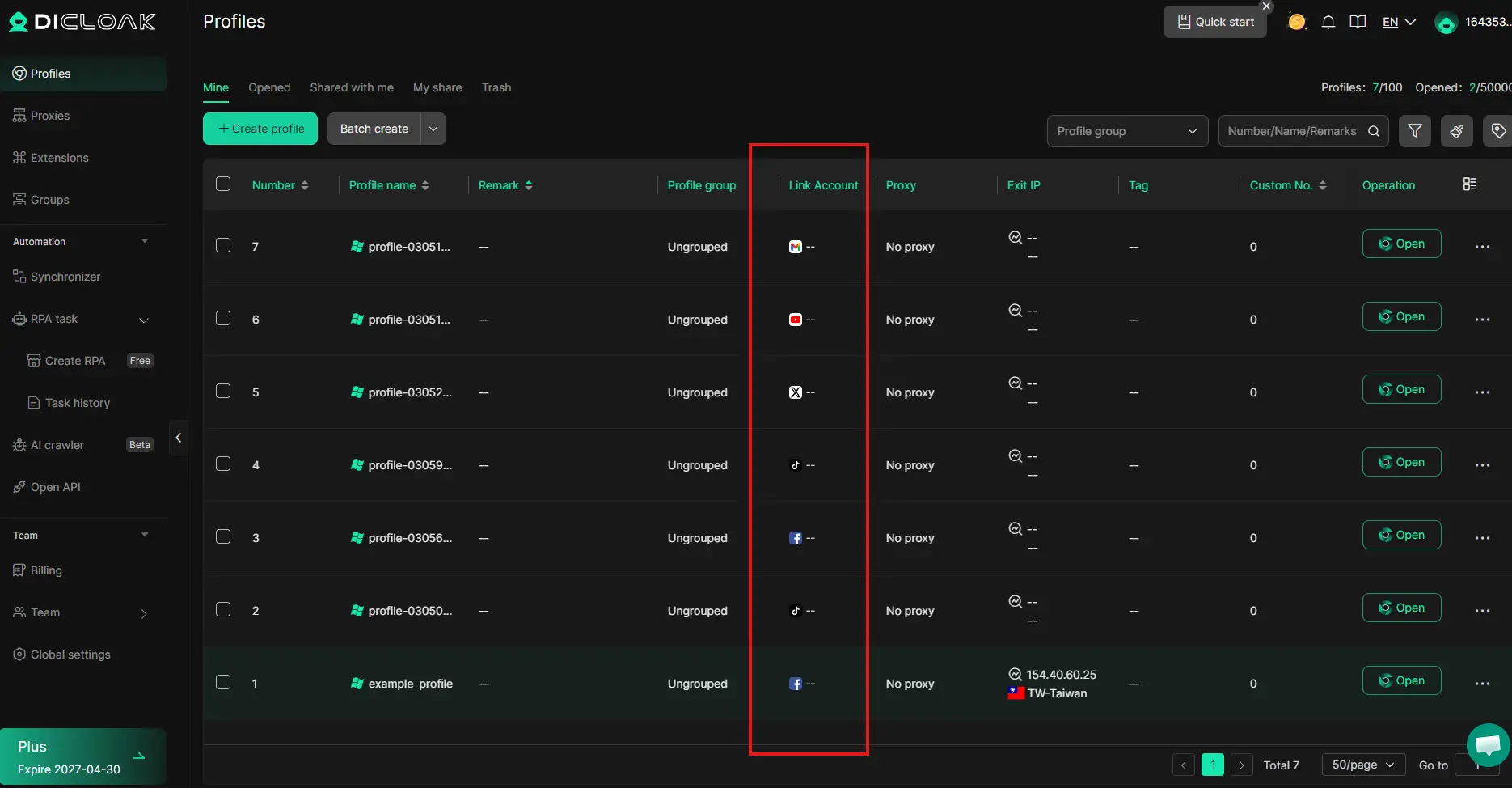
DICloak is designed for this kind of multi-account work. Its official help pages describe it as a browser that provides an independent browser isolation environment for each account, and its browser profile documentation explains that profiles help separate account activity and browser data.
In real work, this means a team member can open one profile for one YouTube channel and another profile for a different channel, without mixing them together. For example, if a content manager handles five Shorts channels for five different clients, separate profiles make it easier to keep each client’s login, cookies, and browser state apart. That creates a cleaner and more controlled YouTube Shorts download and publishing workflow.
Automate Repetitive Distribution Tasks
Many content teams do the same actions again and again. They open profiles, visit the right pages, paste approved titles, check publish settings, and repeat the same steps across accounts. This is where automation starts to matter.
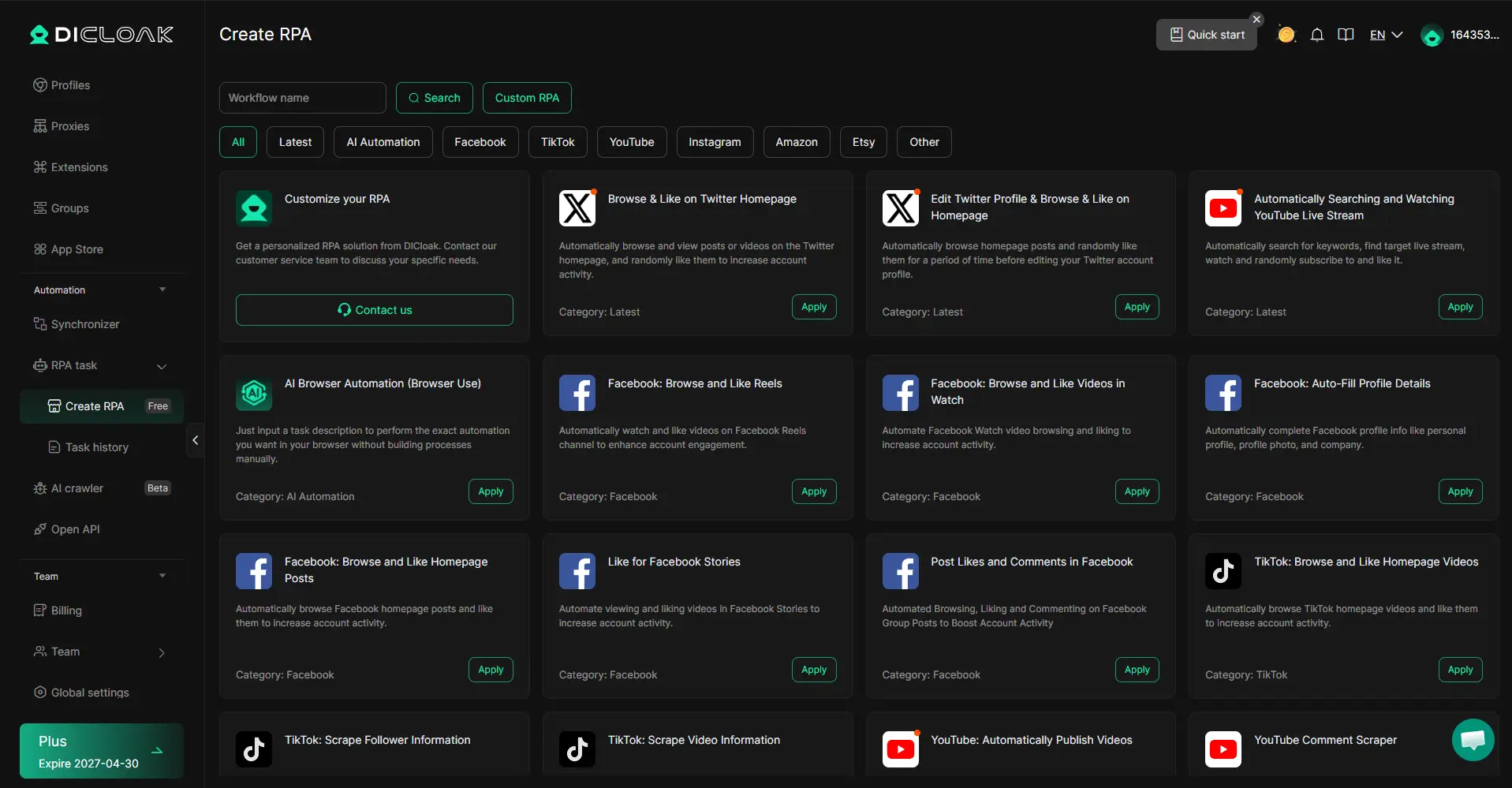
DICloak’s official materials say its Multi-Window Synchronizer can control multiple browser profiles at the same time, and its broader product pages describe built-in RPA and bulk tools for repeated actions.
A simple example can explain the value. Imagine a company with several regional channels. The team has already prepared one Short for each region, along with local captions and publish notes. Instead of doing every basic step by hand from the beginning in each window, they can use synchronized actions or RPA flows to reduce repeated work. This does not mean every channel should post the exact same thing without review. It means routine steps can be handled in a more efficient way while the team still checks each account before publishing.
For teams that regularly download YouTube Shorts and then send them through a repeat posting process, this kind of automation can save hours each week. It is most useful when the workflow is already clear and the content has already been approved.
Protect Each Account with Isolated Browser Environments
Account separation is one of the most important parts of a multi-account workflow. If several accounts are handled in one normal browser without clear separation, sessions, cookies, and saved states can overlap. That can create confusion for the team and make daily work harder to control.
DICloak’s help pages repeatedly describe each browser profile as isolated and independent, and its related documentation says profile-based workflows help maintain account isolation and security across multiple virtual browsing profiles.
This matters in a very practical way. Think about a team member who is working on Shorts for two different e-commerce brands. If both accounts are opened carelessly in the same browser, the wrong login session could stay active. A draft may end up in the wrong place. A manager may also have trouble checking which version belongs to which brand. Isolated browser profiles reduce that risk by giving each account its own space.
That is why this section fits naturally after quality and format choices. First, you download YouTube Shorts in the right version. Then you organize the files, assign them to the correct workflow, manage accounts in a more structured way, and reduce repeated work with automation. For teams that handle many channels, DICloak offers a practical setup for multi-account management, repetitive task automation, and browser profile separation.
Conclusion: Download YouTube Shorts the Smart Way
Now you know that download YouTube Shorts is not only about saving a video. You also need to choose the right method, the right file quality, and the right workflow for later use. For example, a casual viewer may only need offline viewing, but a creator or team may need clean files, better organization, and smoother account management.
That is why the best YouTube Shorts download method depends on your real goal. If you only need to watch later, YouTube’s own options are often enough. If you manage many Shorts across many accounts, the bigger challenge is how to organize and distribute them safely and efficiently.
This is where DICloak can help. With multi-account management, browser profile isolation, and RPA automation, it can make team workflows easier and more organized. So if you often download YouTube Shorts and then need to manage or distribute them at scale, DICloak is a practical tool worth trying.
Download YouTube Shorts: FAQs
Can I download someone else’s YouTube Shorts?
In most cases, not through YouTube Studio. YouTube clearly says you cannot download other users’ videos from Studio. If you want to watch videos offline, YouTube points users to the YouTube app with Premium features instead. A simple way to think about it is this: Studio is for your own content, while offline download is mainly for watching, not for taking other creators’ files and reusing them.
Why is my YouTube Shorts download not working?
One common reason is account or membership status. YouTube says users should check whether their YouTube Premium membership is still active if offline downloads stop working. Another common problem is low storage space, because downloaded videos need room on the device. In simple terms, if your YouTube Shorts download fails, first check your membership, then check storage, and then try again in the YouTube app. A lot of users look for complex fixes first, but the real cause is often something basic.
Where do offline downloads actually go?
This is a point that confuses many users. Offline downloads in YouTube Premium are mainly meant to be watched inside the YouTube app. They are not the same as a normal MP4 file saved to your phone gallery or desktop folder. So if a viewer says, “I used download YouTube Shorts but cannot find the file,” the answer is often that the video is stored for offline playback inside YouTube, not as a regular export file.
Can a team manage Shorts across multiple accounts?
Yes. YouTube supports shared channel work through Brand Accounts and channel permissions, so teams can manage Shorts together in an official way. For example, one person can prepare titles, another can review uploads, and a manager can approve the final post.
But when the number of accounts grows, the workflow can become harder to control. That is where tools like DICloak can help. With multi-account management, browser profile isolation, and automation support, DICloak can make it easier for teams to handle many YouTube accounts in a more organized way.
 Web Proxy Tools
 Free Tools
 Cookie Plugin
 UA Generator
 MAC Address Generator
 IP Generator
 IP Address List
 2FA Code Generator
 World Clock
 Anonymous Check
 WebRTC Leak Test
 UUID Generator
 Free Web Proxy Site
 Proxy Checker
 FB Ad Checker
 AI Web Scraping
 Free SMM Tools
 Twitter Shadowban Checker
 Instagram Name Checker
 UTM Generator
 Username Generator
 AI Hashtag Generator
 LinkedIn Headline Generator
 Social Media Image Resizer